
If you want to convert WooCommerce product categories into tags, you can use the WP Sheet Editor – Taxonomy Terms plugin. It allows you to view and manage different WooCommerce taxonomies in a spreadsheet. Something great is that you can change the taxonomy type using the spreadsheet or using the bulk editor to save time.
You can download the plugin here:
Download Categories, Tags, Product Attributes, Taxonomies Spreadsheet Plugin - or - Check the features
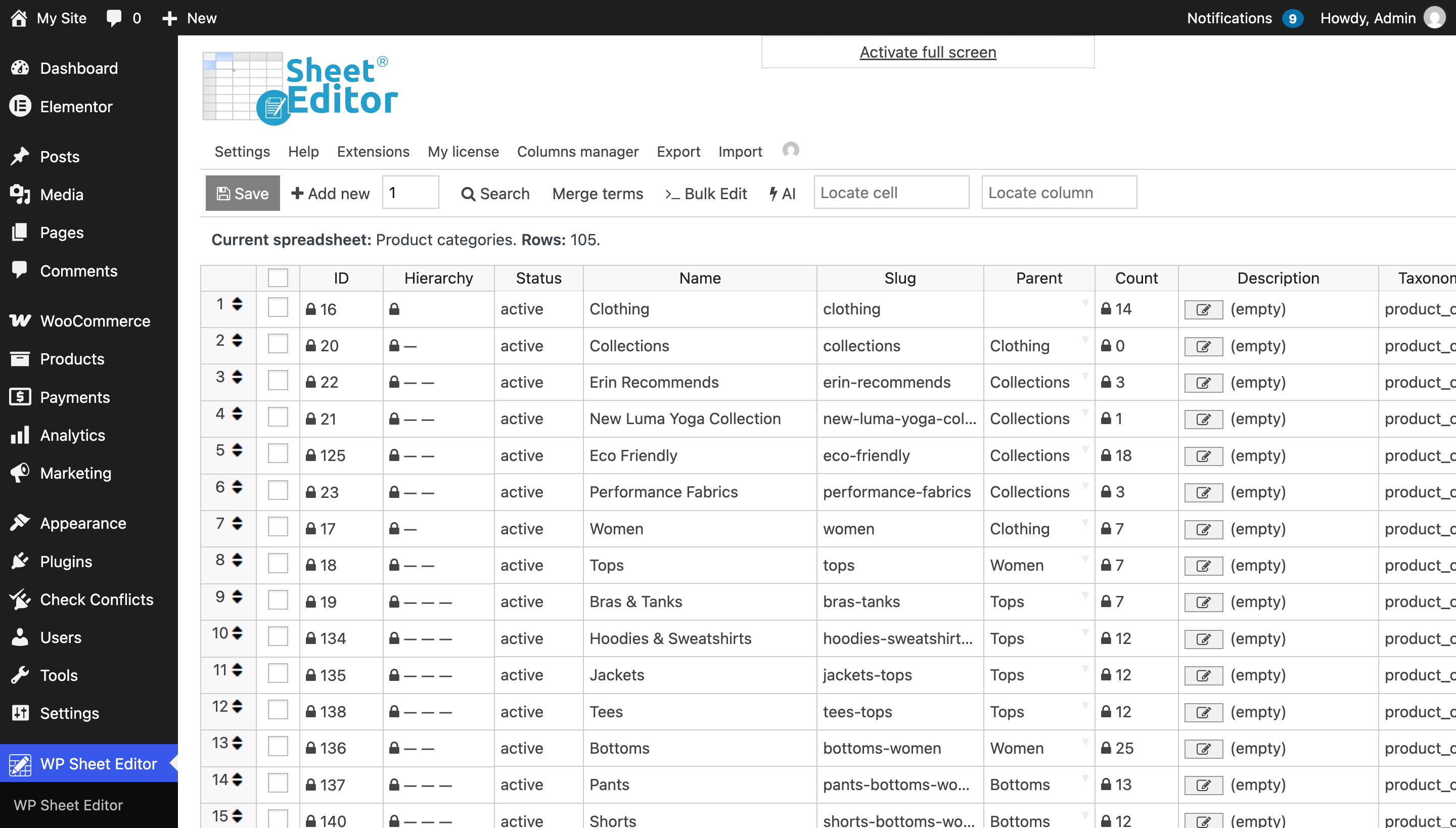
Open the categories spreadsheet
Go to WP Sheet Editor > Edit product categories and you’ll see all your WooCommerce spreadsheets displayed in the spreadsheet.
Convert specific categories into tags
You have two ways to convert specific product categories into product tags.
1- Do it in the spreadsheet
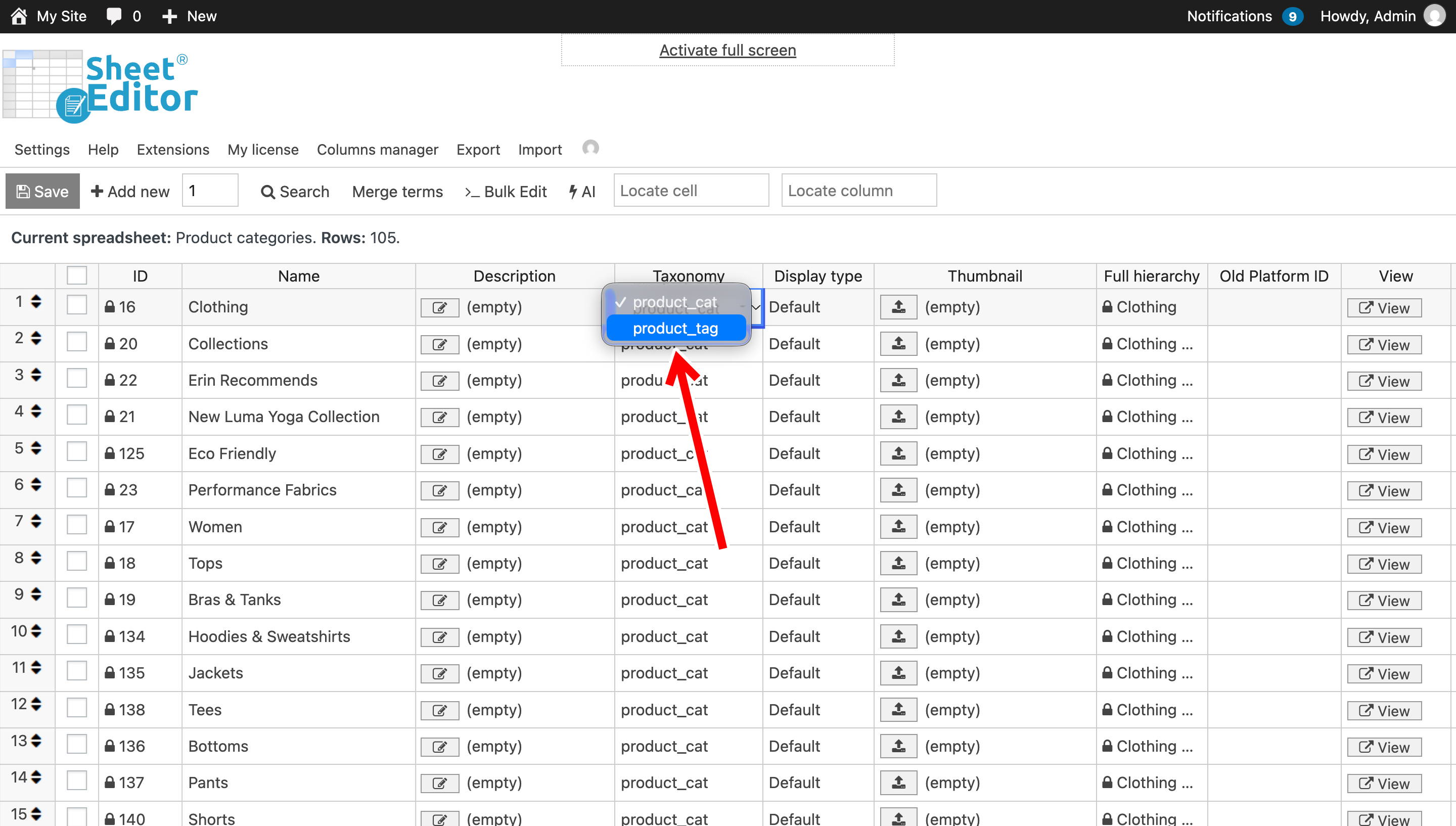
Locate the Taxonomy column in the spreadsheet, and select product_tag to convert them into tags.
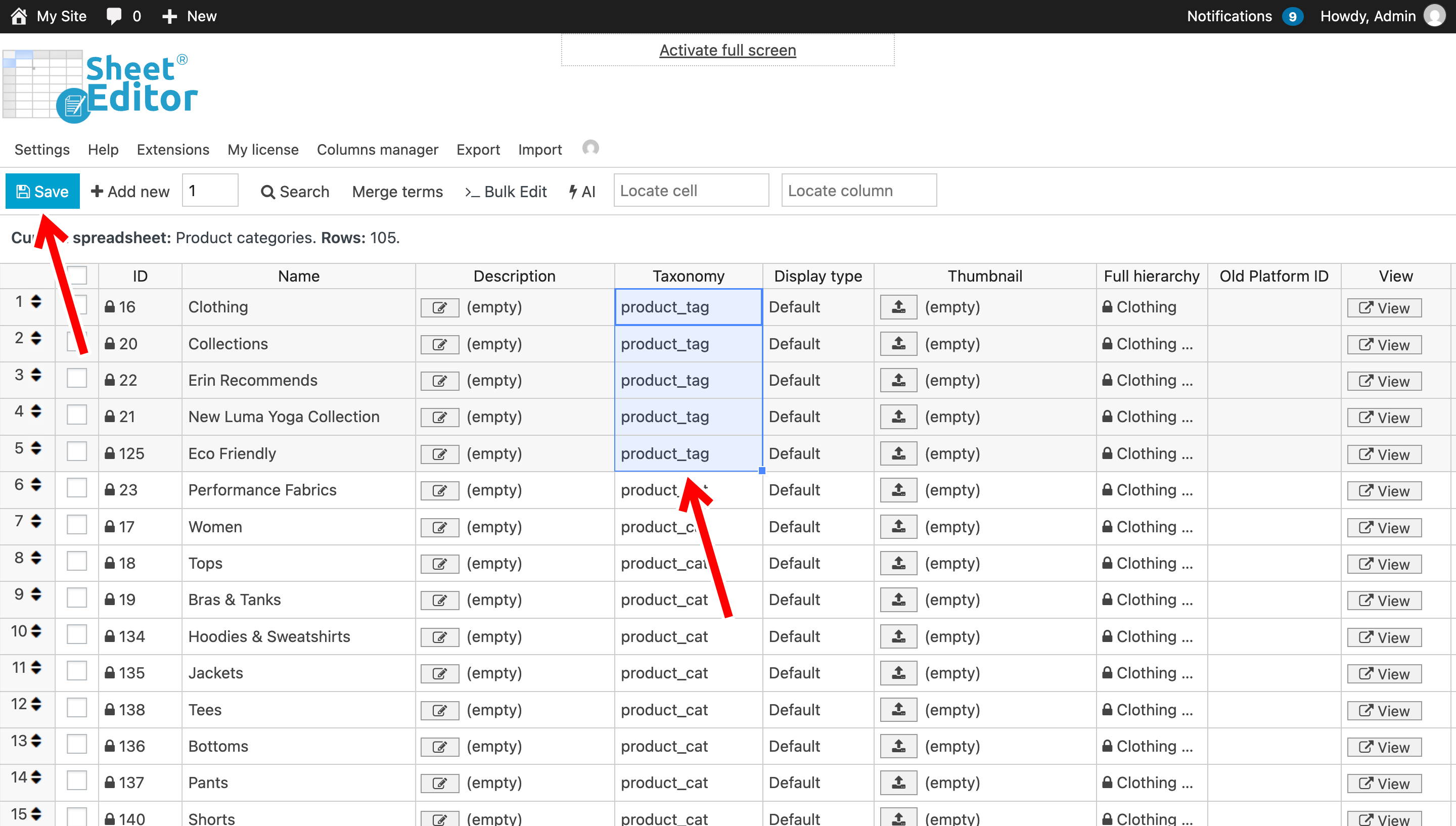
You can convert multiple categories into tags by selecting the product_tag value in the spreadsheet and then clicking on Save to apply the changes.
2- Select and convert categories in bulk
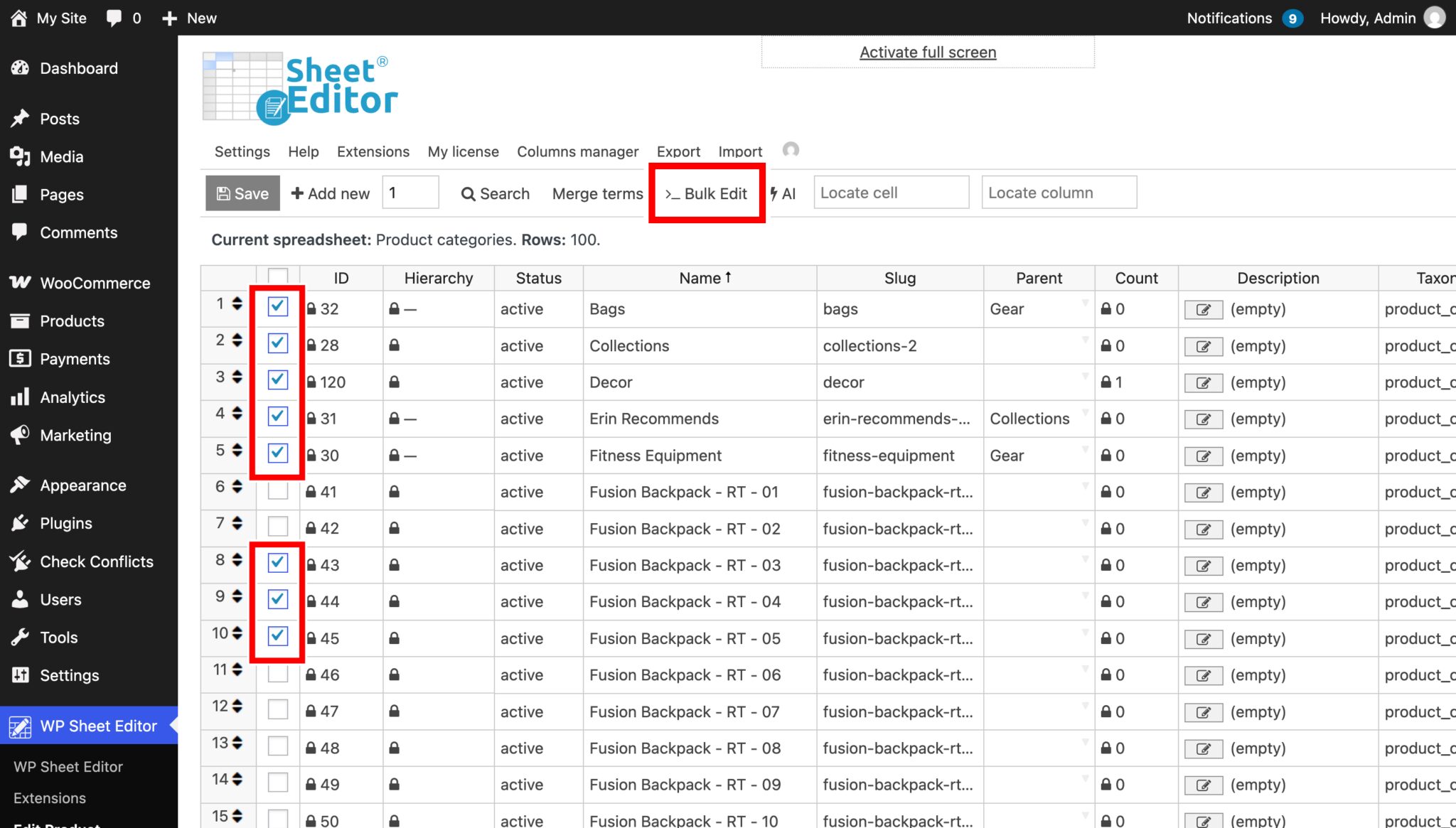
The spreadsheet includes a checkbox picker where you can select every category that you want to convert into a tag. In the screenshot below, we have selected multiple categories, which we will convert into tags in bulk.
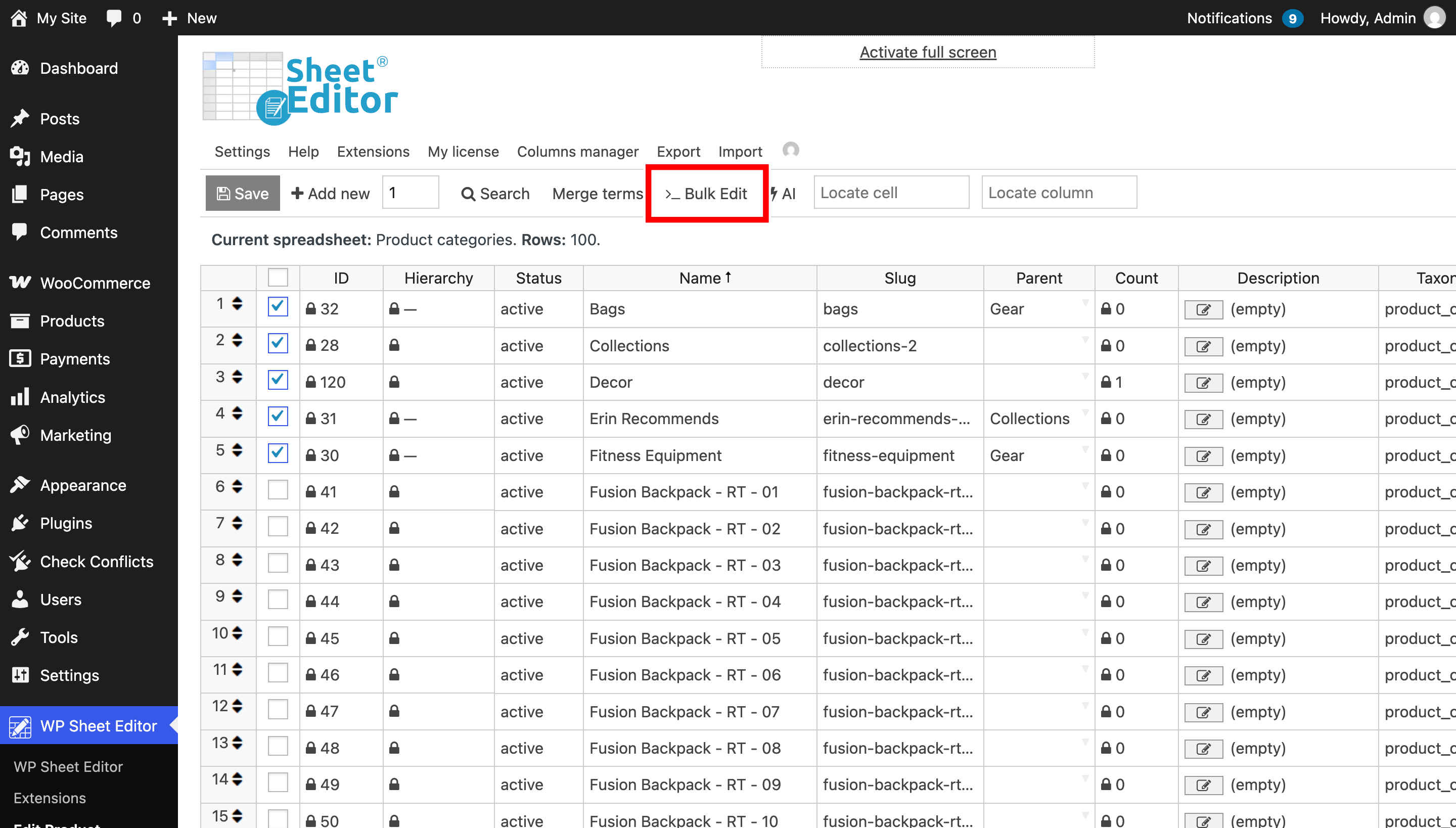
After selecting the categories you will convert, open the Bulk Edit tool.
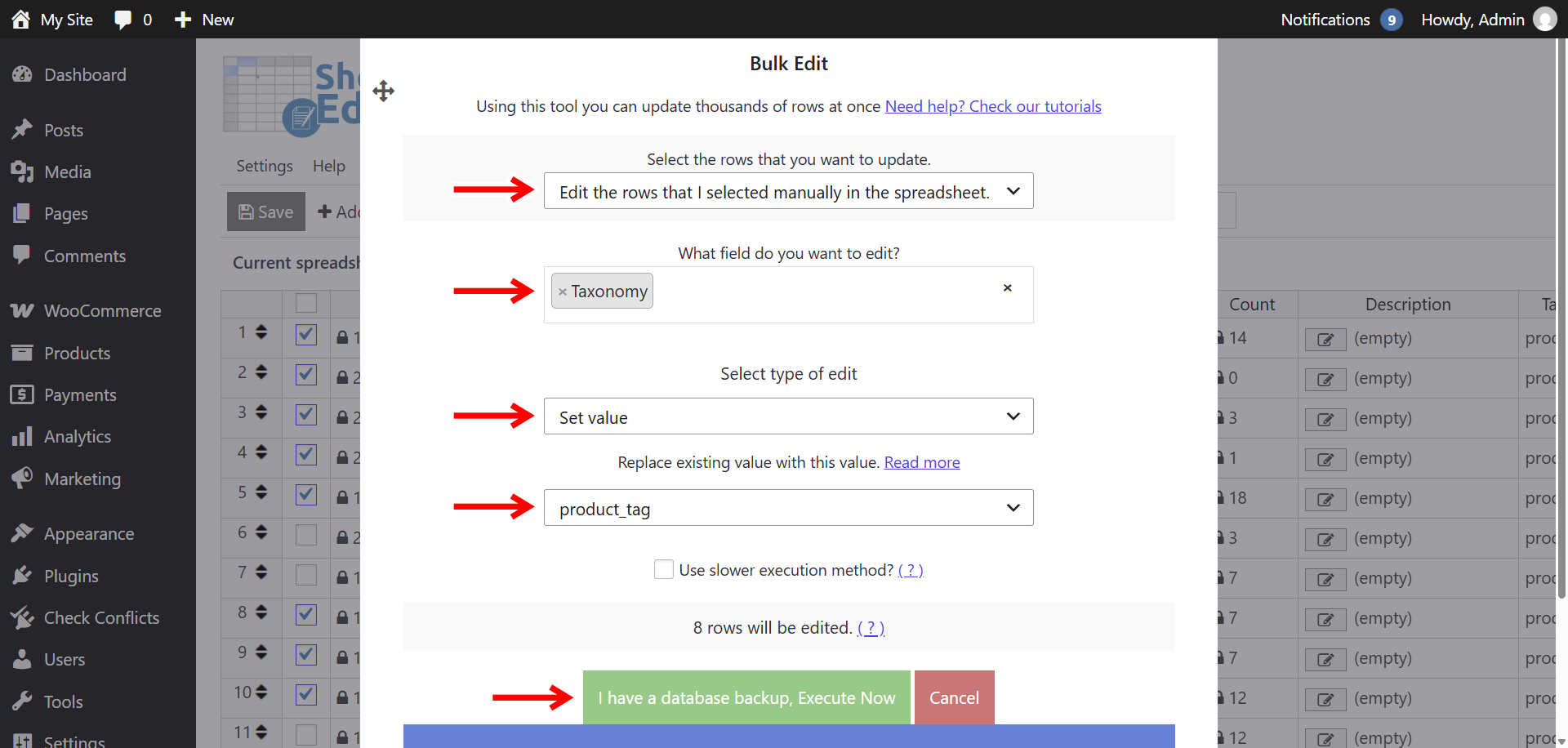
Once you’re in the Bulk Edit tool, select these values to convert all the selected categories into tags:
- Select the rows that you want to update: Edit all the rows that I selected manually in the spreadsheet
- What field do you want to edit: Taxonomy
- Select type of edit: Set value
- Replace existing value with this value: product_tag
- Tip: Pay attention to the number of categories that will be converted to make sure the number matches your selection.
- Click on Execute Now.
Bulk convert all categories into tags
If you want to convert all your categories into tags, you can open the Bulk Edit tool.
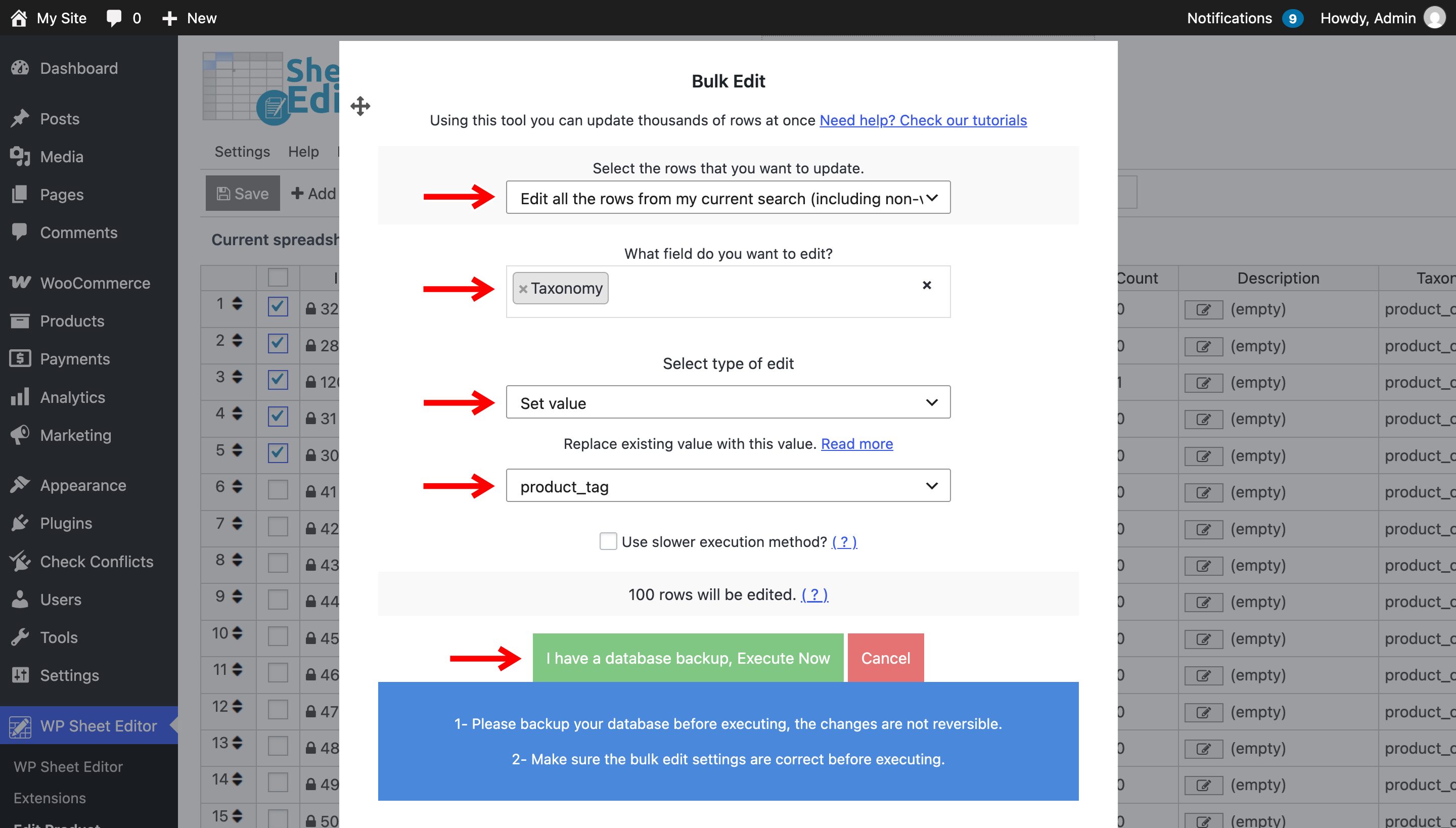
Now select these values to bulk make them tags:
- Select the rows that you want to update: Edit all the rows from my current search
- What field do you want to edit: Taxonomy
- Select type of edit: Set value
- Replace existing value with this value: product_tag
- Click on Execute Now.
Convert empty categories into tags
If you decide to convert only the empty categories (categories with no products), you can do it by first filtering the categories where products count is 0 and then converting them in bulk.
1- Search for the empty categories
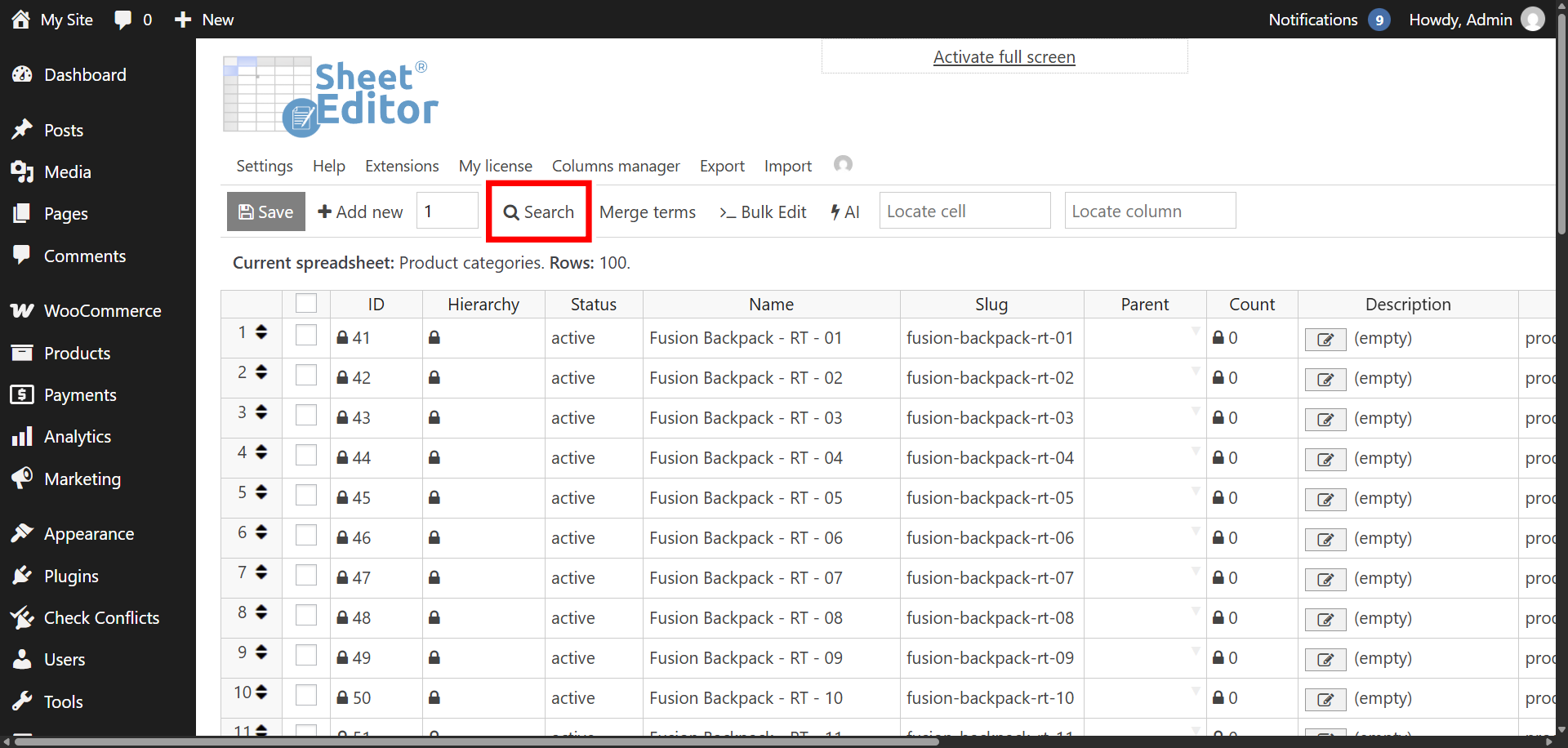
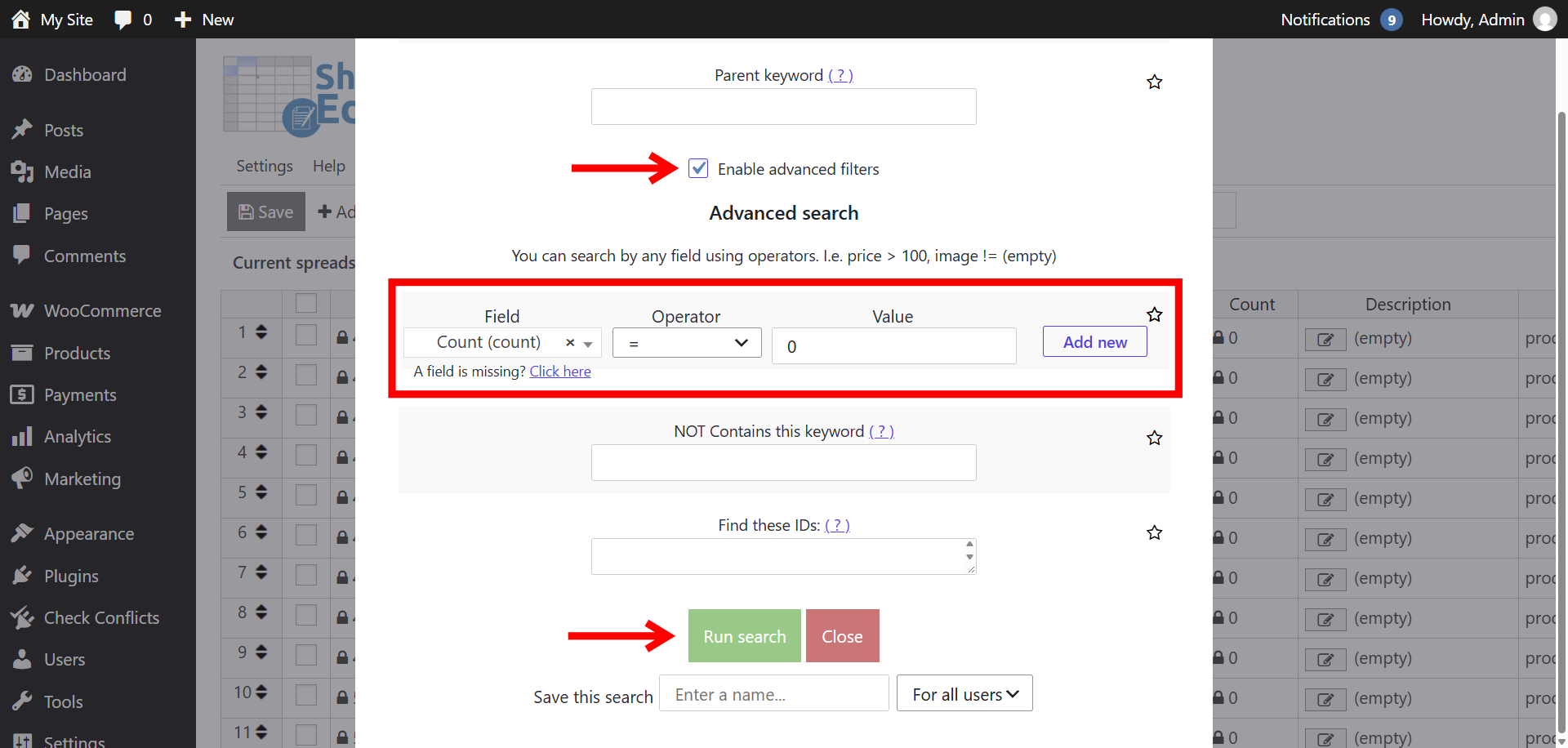
First, let’s see which categories are without products. To do this, let’s open the Search tool.
Now select these values to display only empty categories in the spreadsheet:
- Tick the Enable advanced filters checkbox.
- Field: Count
- Operator: =
- Value: 0
- Click on Run search.
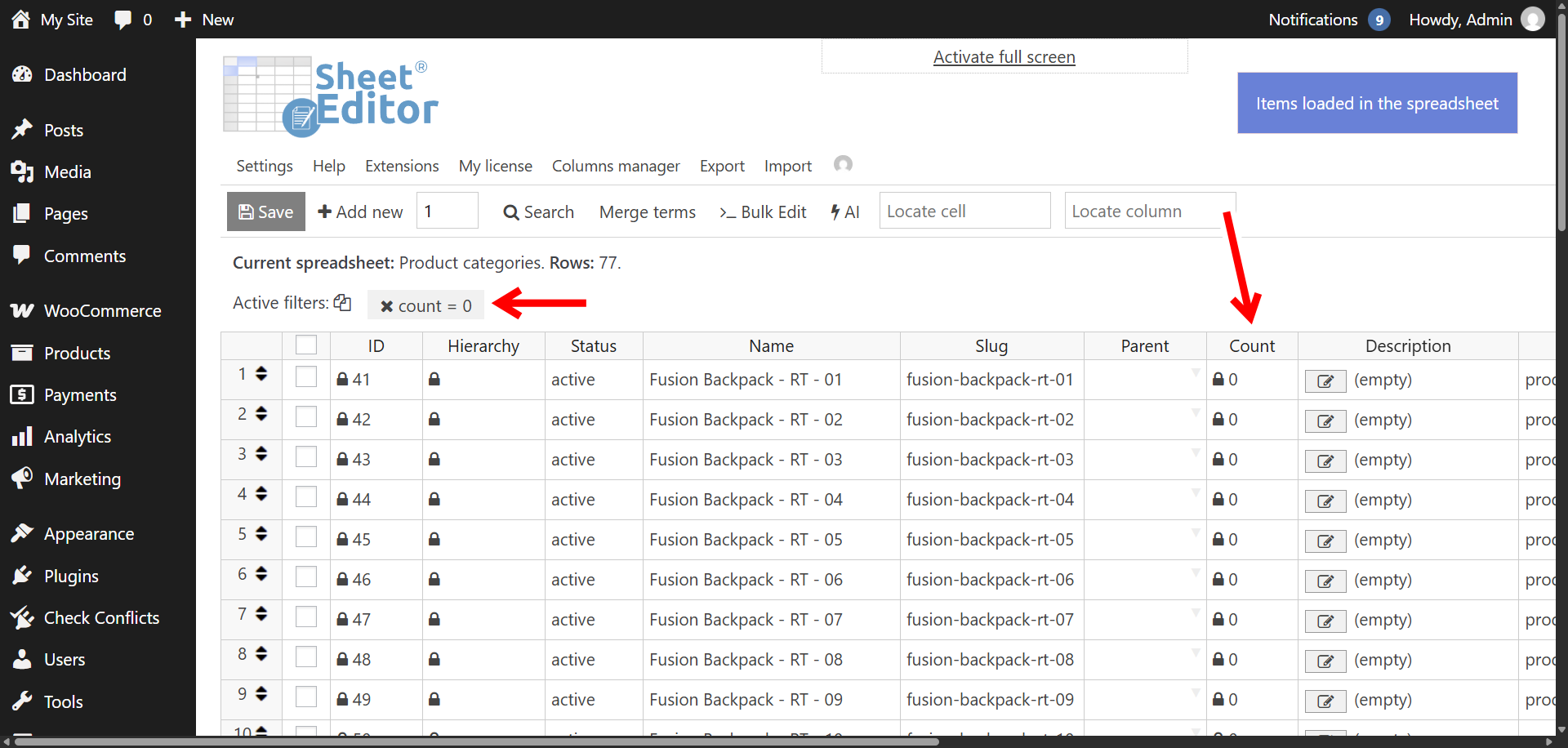
After running the search, all the empty categories will be displayed in the spreadsheet; you can look at the Count column and you’ll see only categories where count is 0.
2- Convert the empty categories into tags
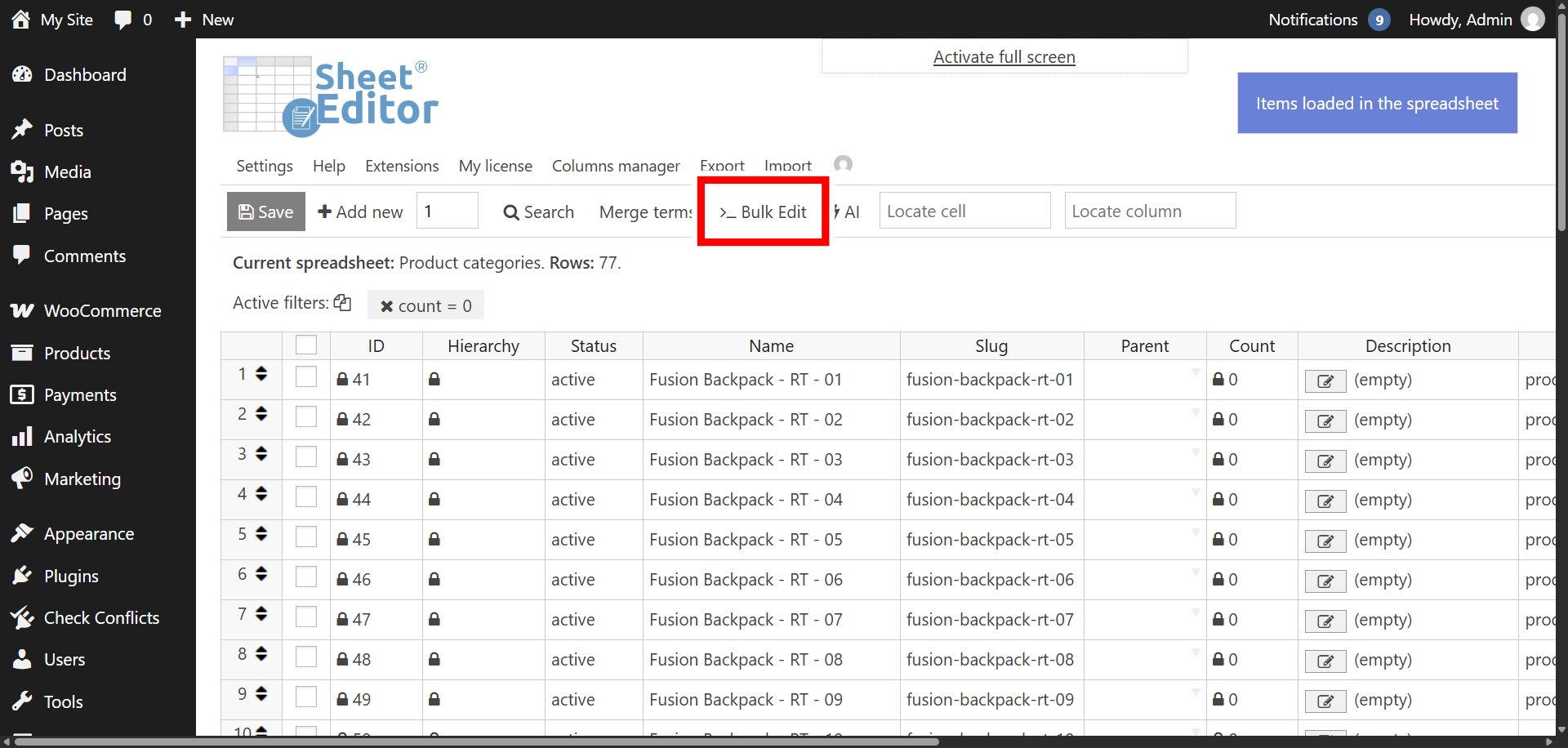
You need to open the Bulk Edit tool.
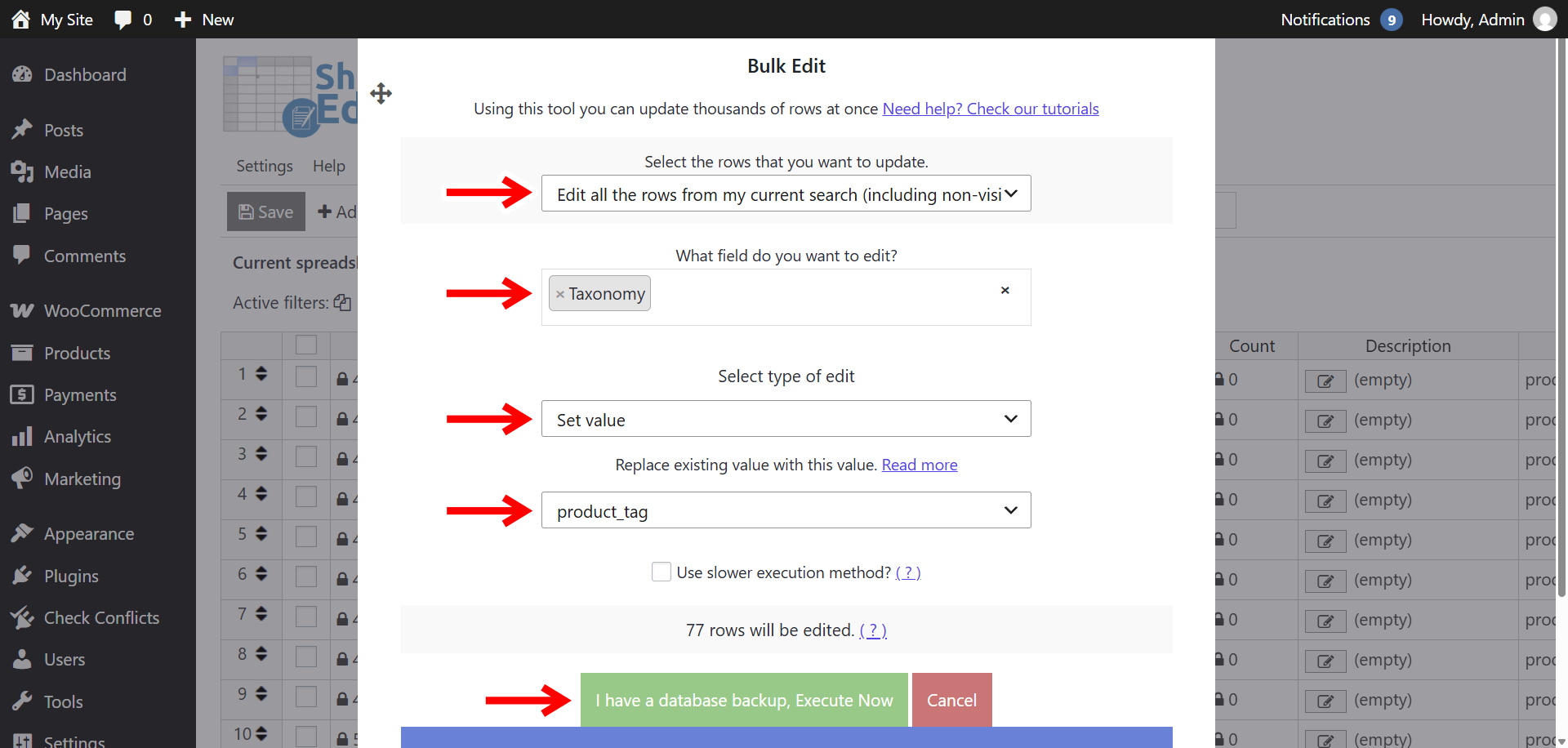
Finally, select these values in the Bulk Edit tool in order to convert empty categories into tags:
- Select the rows that you want to update: Edit all the rows from my current search
- What field do you want to edit: Taxonomy
- Select type of edit: Set value
- Replace existing value with this value: product_tag
- Click on Execute Now.
That’s how you can turn your WooCommerce product categories into product tags with the WP Sheet Editor – Taxonomy Terms plugin.
You can download the plugin here:
Download Categories, Tags, Product Attributes, Taxonomies Spreadsheet Plugin - or - Check the features