
You can export WooCommerce products to a CSV file with custom fields, using the WP Sheet Editor for WooCommerce Products plugin. The standard WooCommerce export tool is limiting when you need more than basic product information. For example, it may not include custom fields from plugins such as ACF or PODS, variation data, or information added by third-party plugins.
Fortunately, WP Sheet Editor lets you export WooCommerce product data, including both standard and custom fields.
You can download the plugin here:
Download WooCommerce Products Spreadsheet Plugin - or - Check the features
Table of Contents
Step 1. Open the Products Spreadsheet
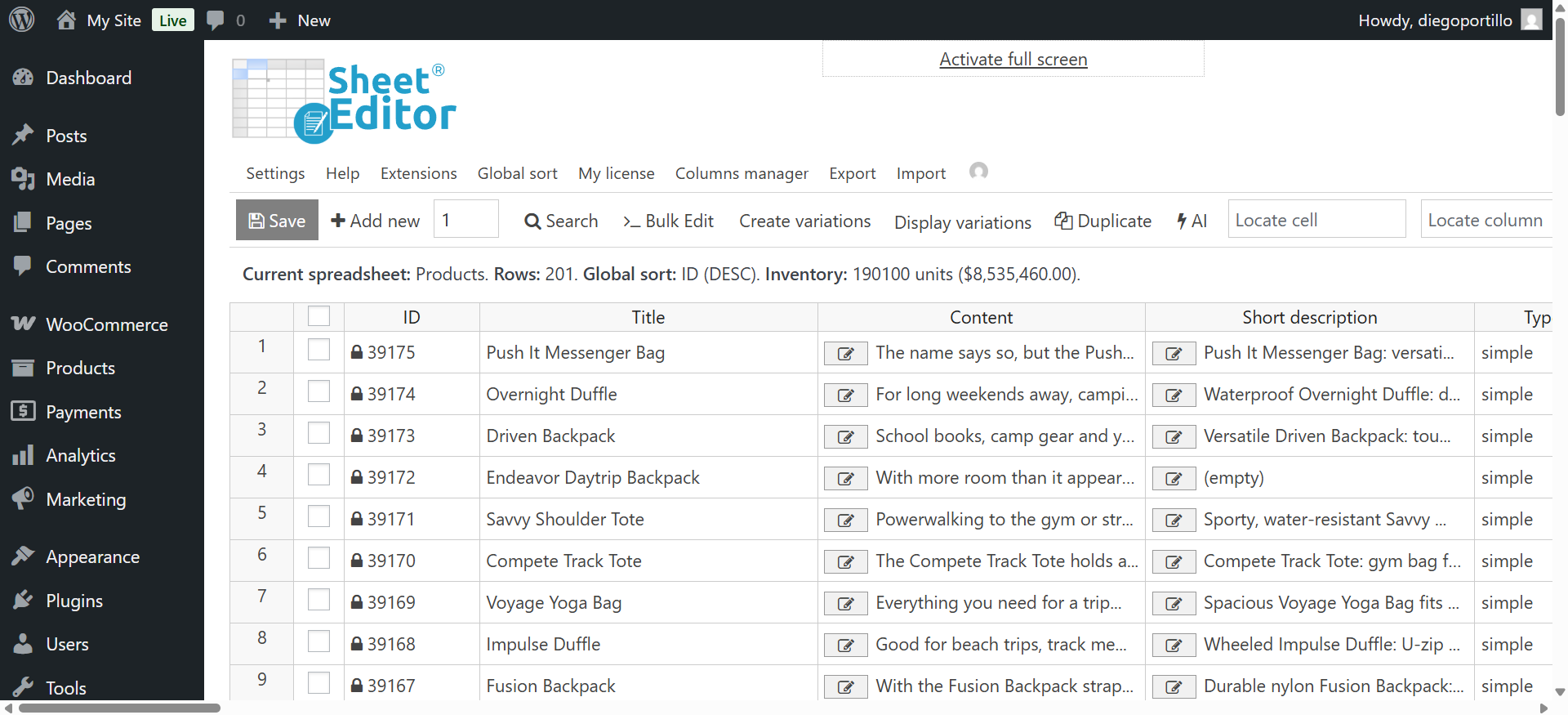
After installing the plugin on your site, you need to open the spreadsheet. In your WordPress dashboard, go to WP Sheet Editor > Edit Products. Your WooCommerce products will appear in a spreadsheet interface.
Step 2. Select the products you want to export
If you want to export all your WooCommerce products, please go to Step 3 of this guide.
Use the Search tool to filter products before exporting.
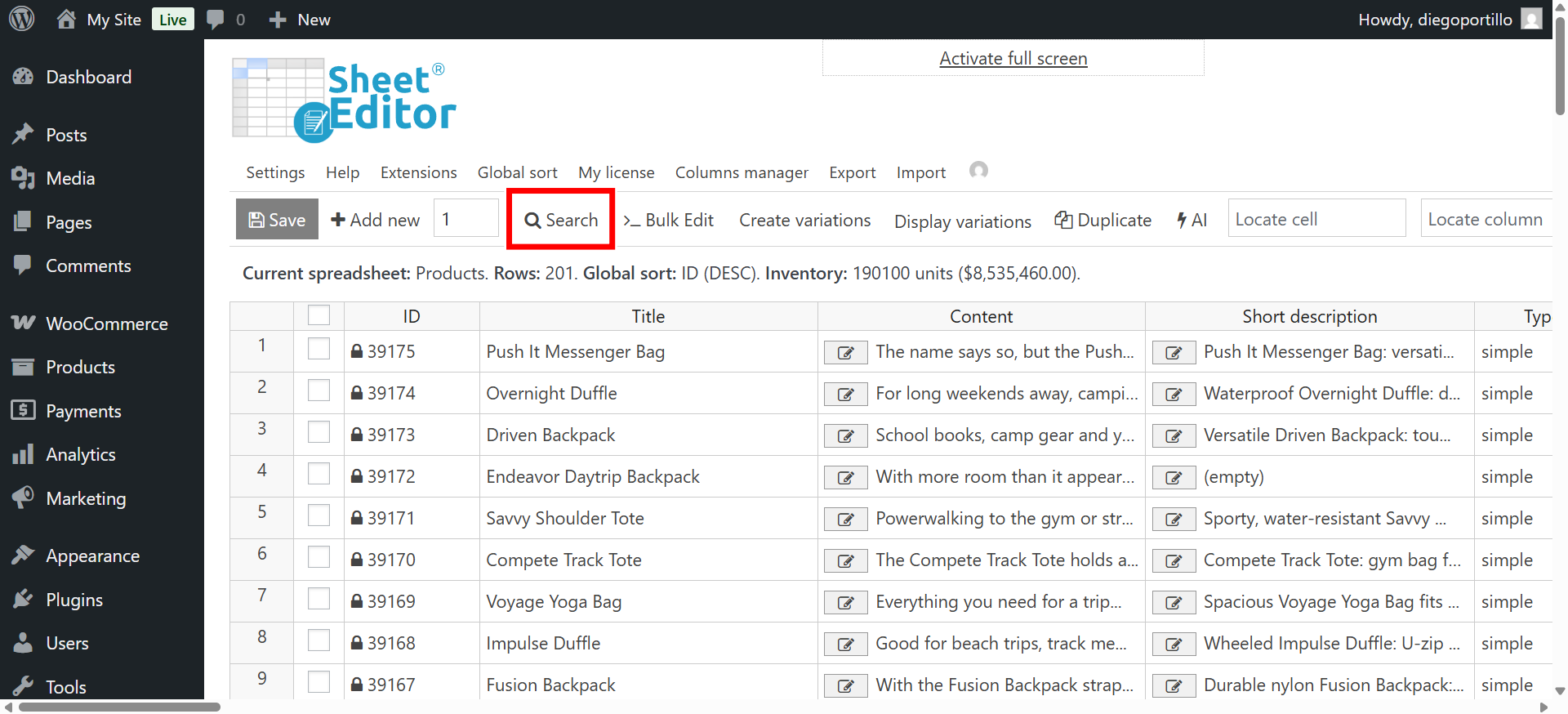
Here are some options:
Filter products by taxonomy term
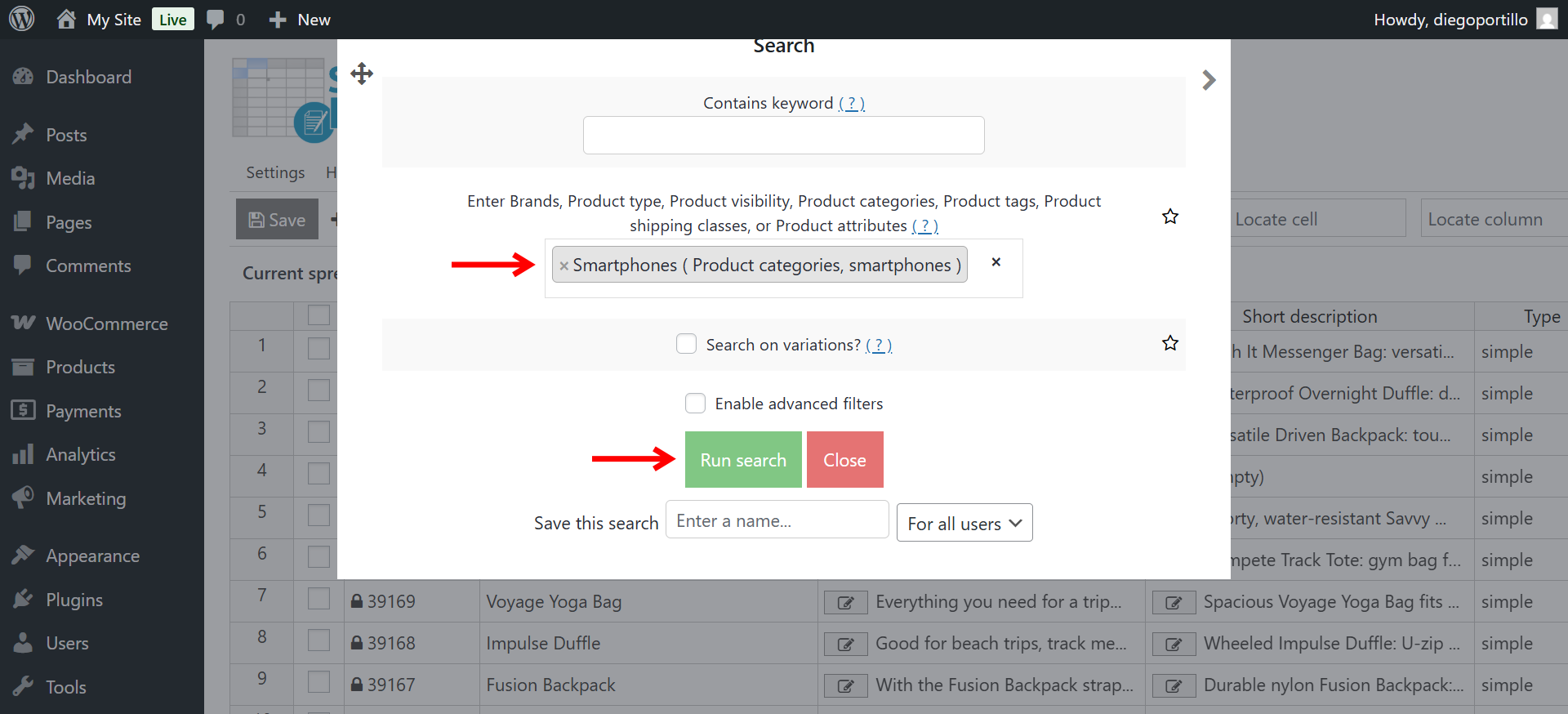
Use this to filter products by cateogory, tag, attribute. In this example, we will filter all the proudcts within the Smartphones category.
- Enter Product Categories: Enter the category name, such as
Smartphones. - Click Run Search.
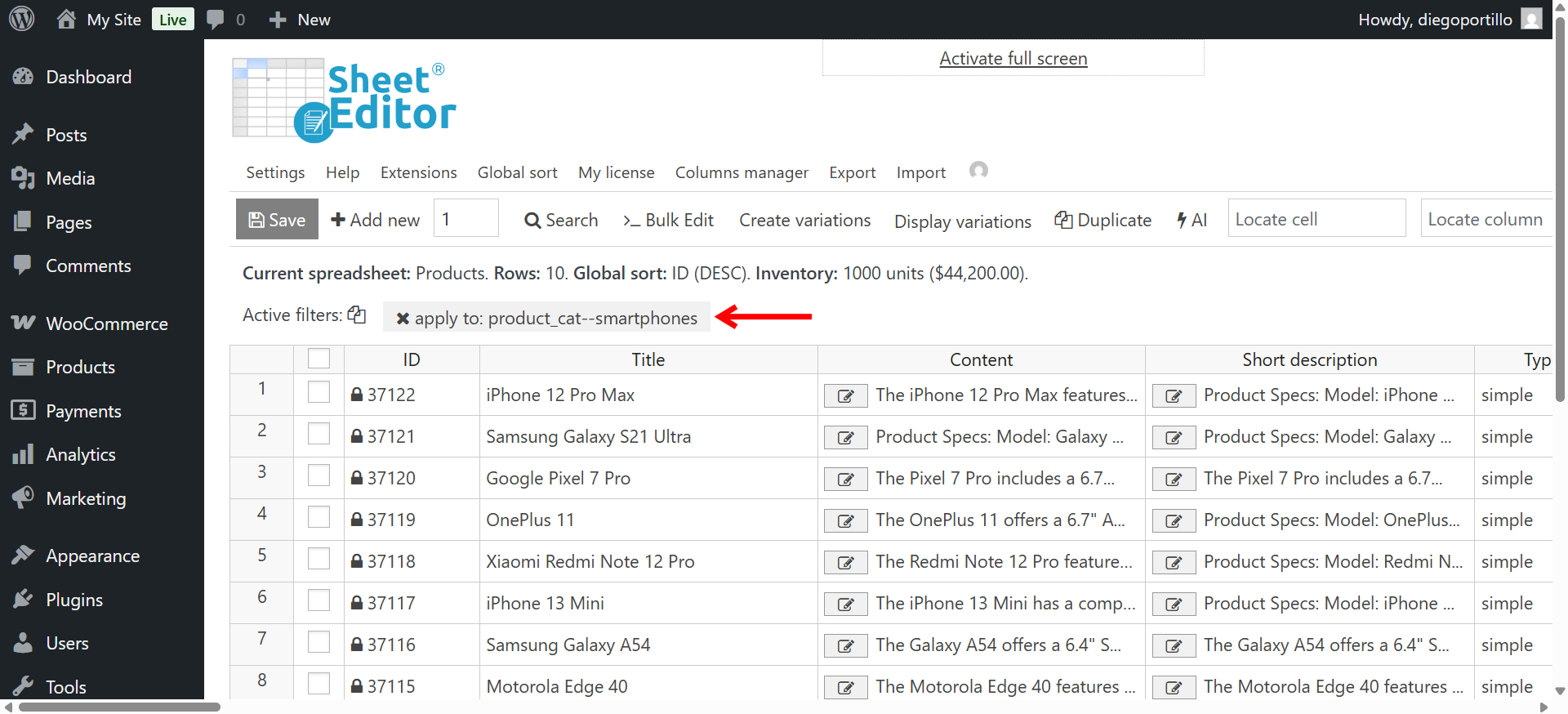
The spreadsheet will show only products from the selected category.
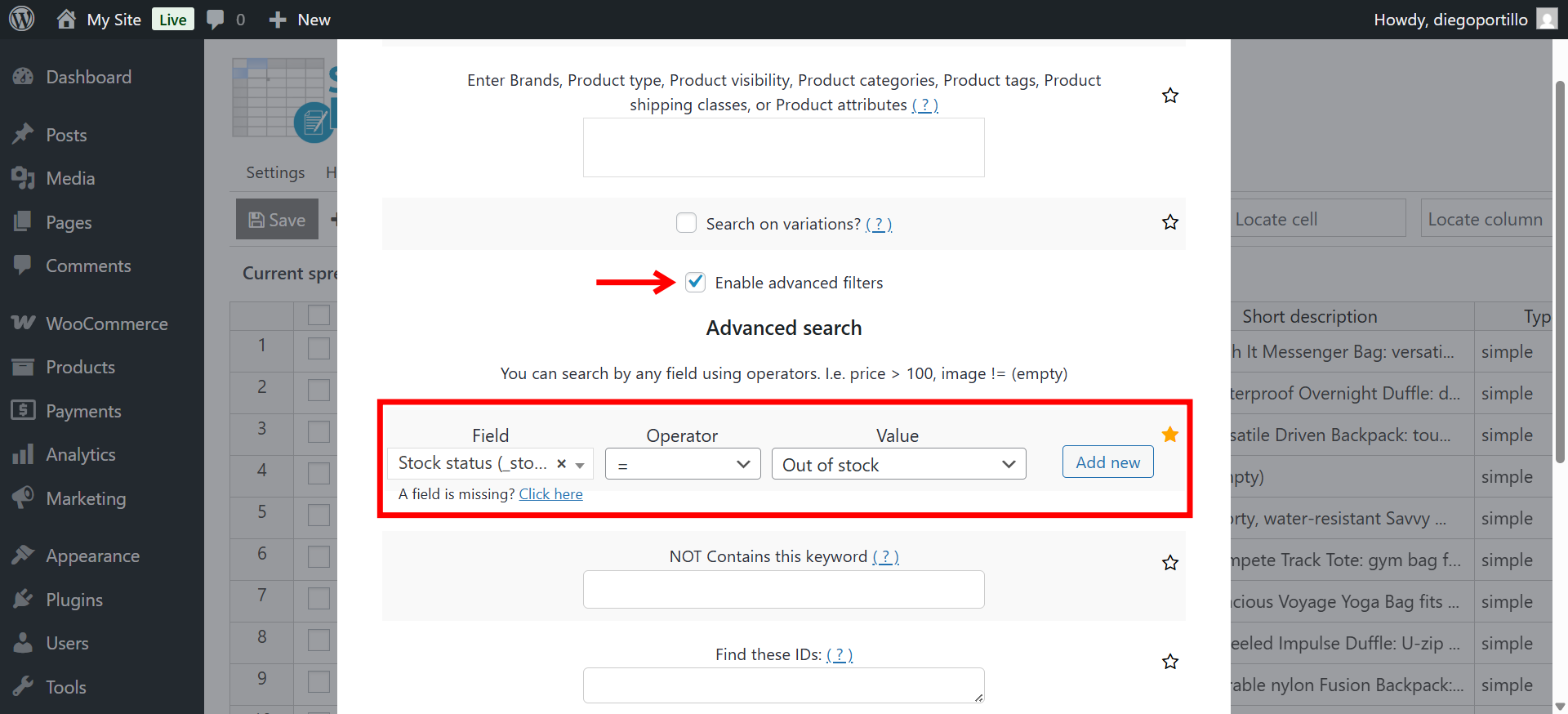
Search products by stock status
If you want to export products that are out of stock, for example, you need to select these values in the Search tool:
- Tick the Enable advanced filters checkbox.
- Field: Stock status
- Operator: =
- Value: Out of stock
- Click Run Search.
Find products by price range
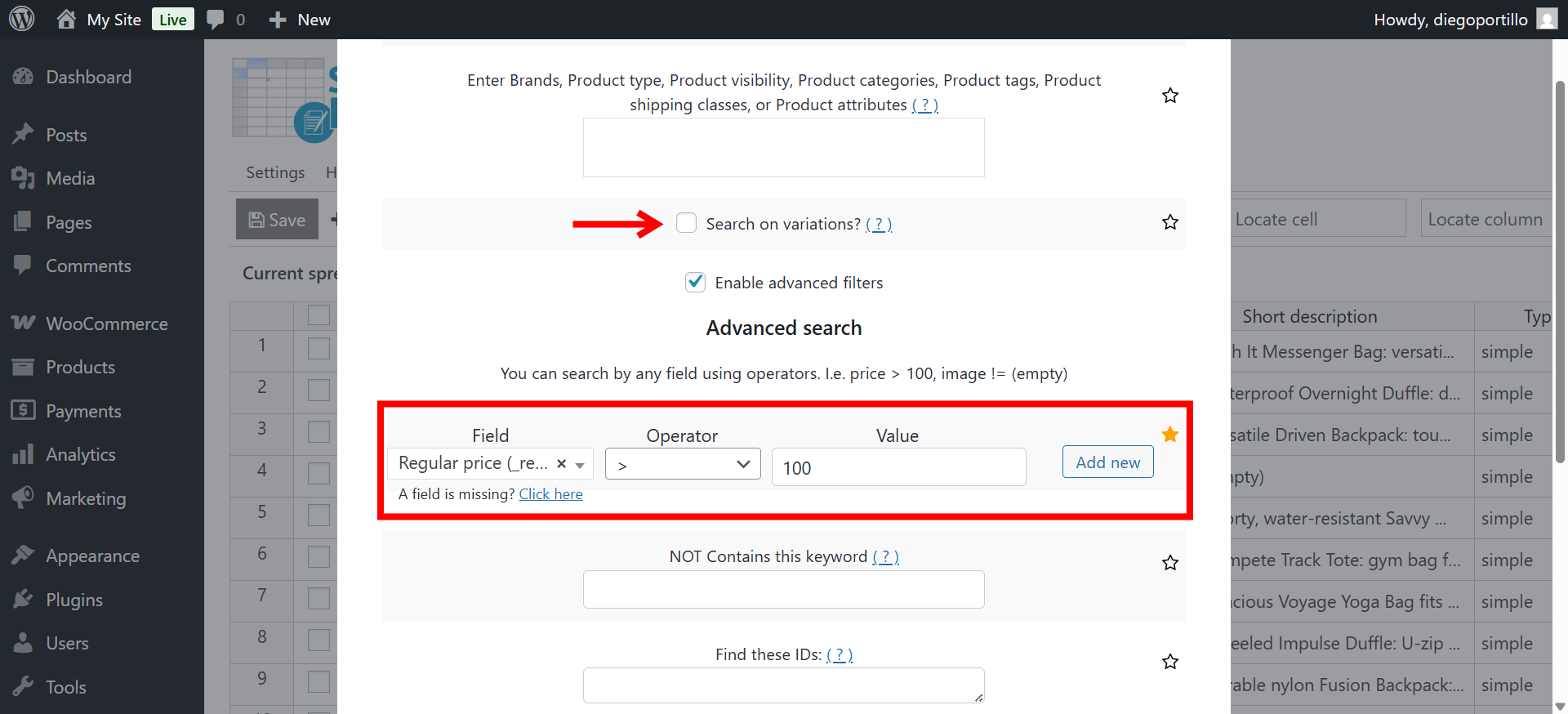
In this example, we want to find all products whose price is above 100 in order to export them to a CSV file.
- Tick the Enable advanced filters checkbox.
- Field: Regular price
- Operator: Select an operator, such as > for greater than.
- Value: Enter the price, such as
100to find products over $100. - Click Run Search.
Export WooCommerce products with variations
Here’s a guide where you can learn how to export variable products with variations.
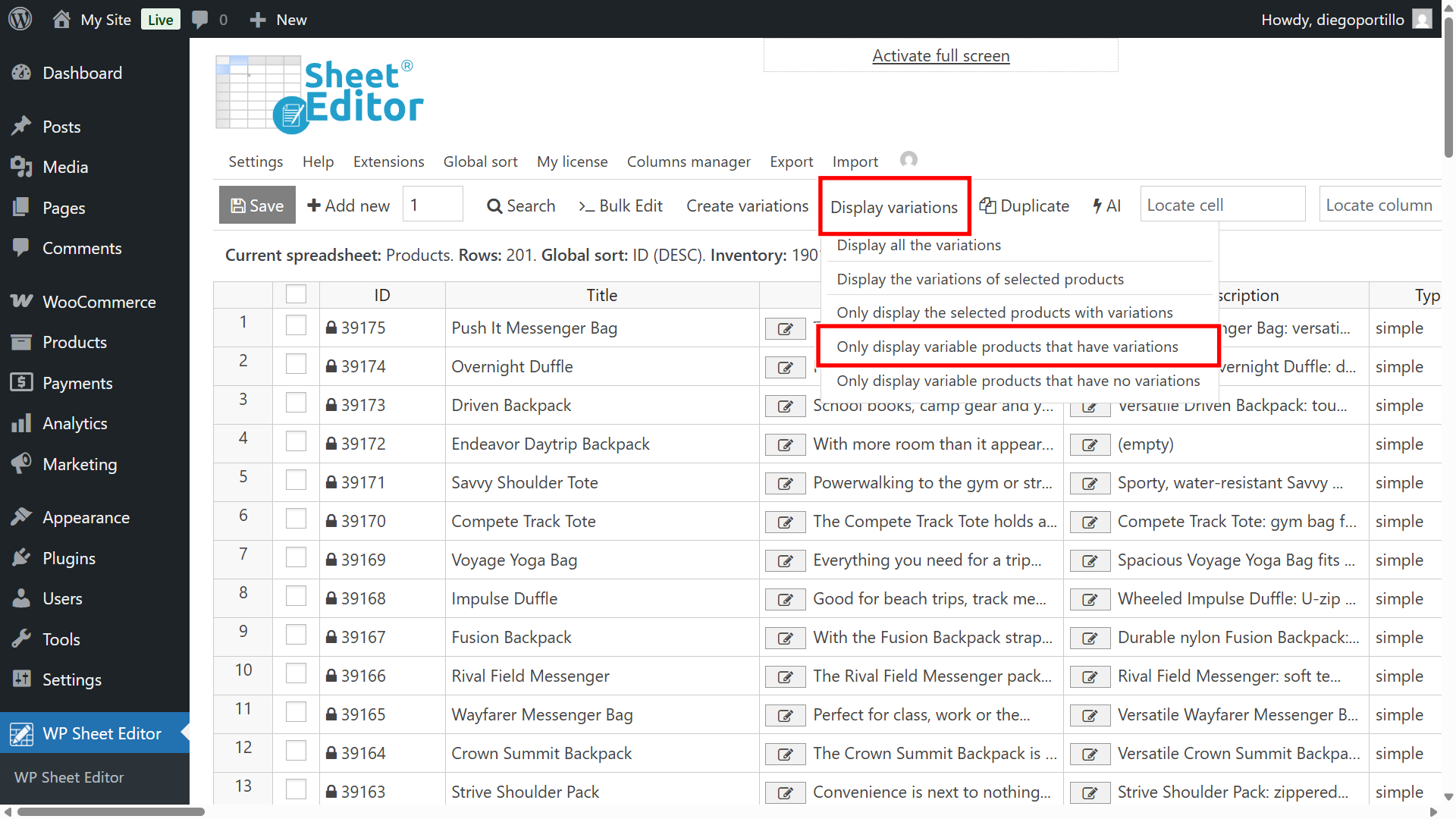
Here’s the quick way:
- Go to Display variations
- Click on Only display variable products that have variations
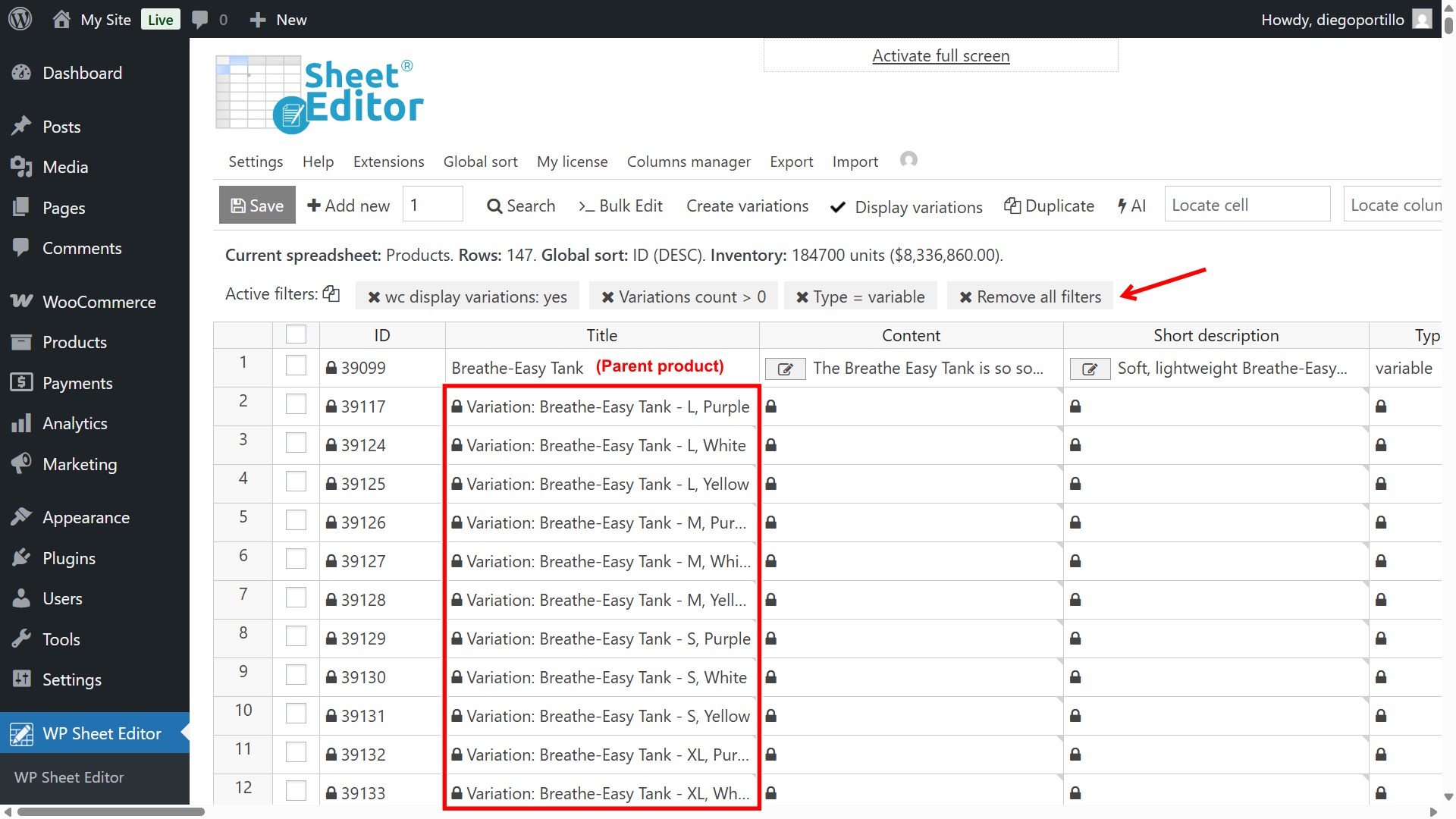
The spreadsheet will display the variable products with their variations below them.
Step 3: Export your products to a CSV
Once you have decided which products you want to export, you need to open the Export tool.
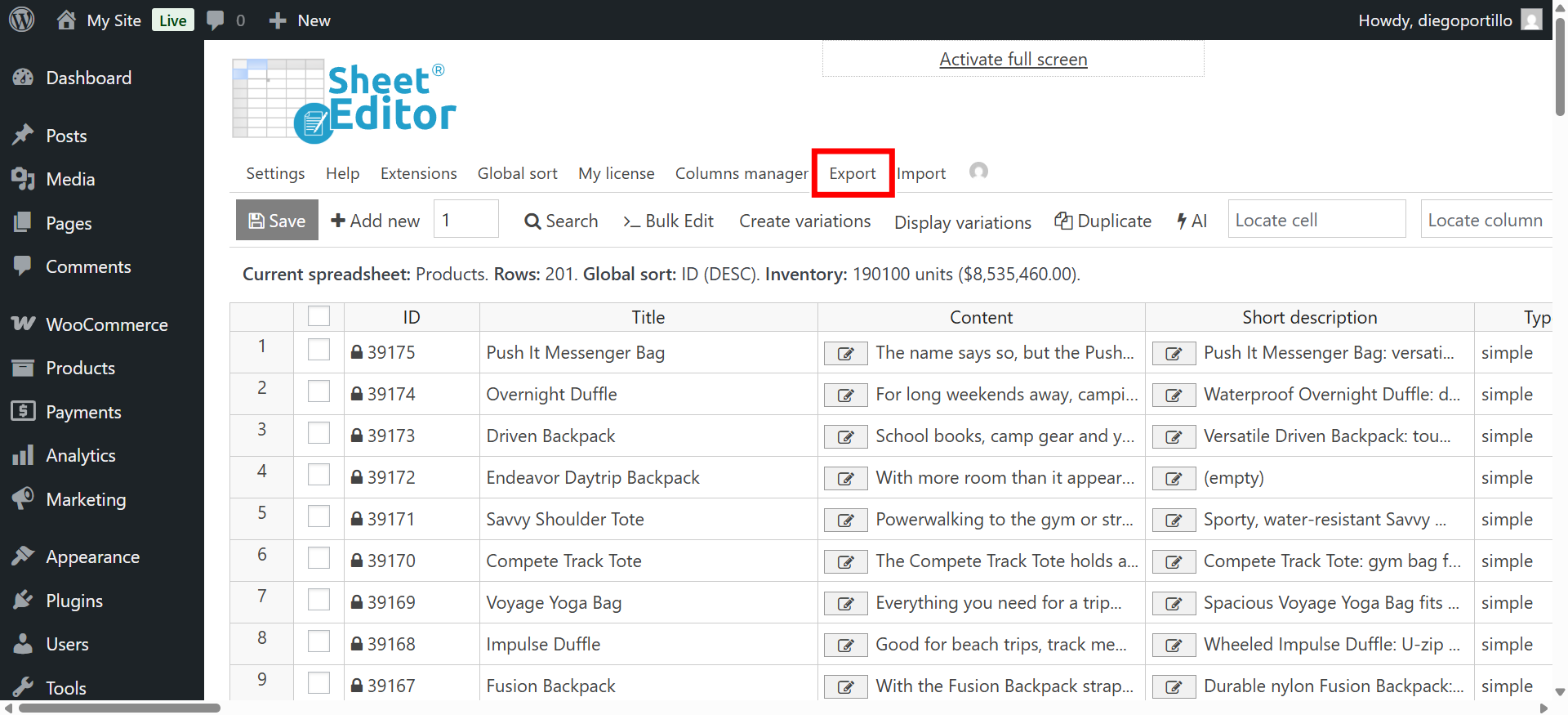
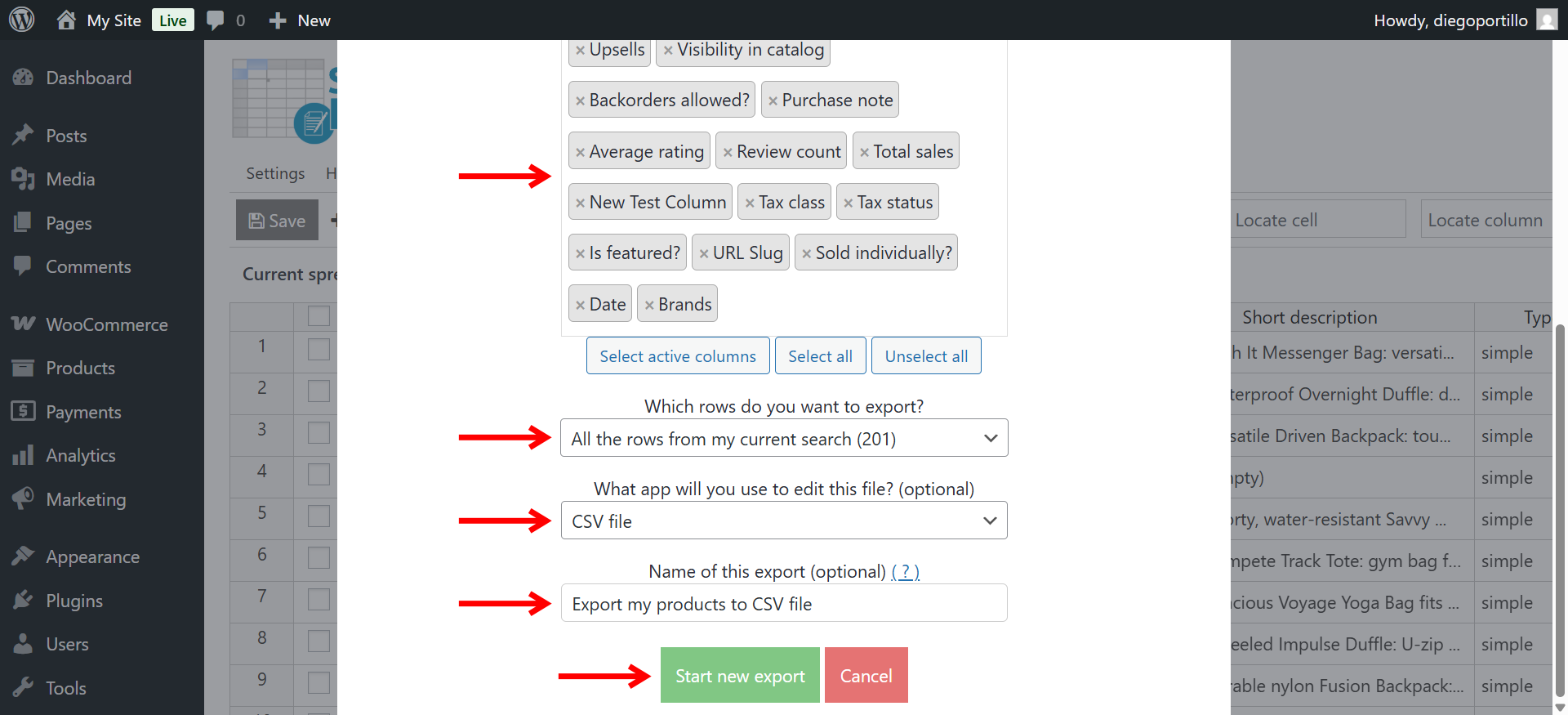
Once you’re in theExport settings, you need to select these values to download the data of your products to a CSV:
- What columns do you want to export: Choose which fields to include in the file.
- Export specific columns. Use this option when you only need certain fields, such as Name, SKU, and Price.
- Export all active columns. Export all columns currently visible in the spreadsheet. This can also include custom fields added by other plugins.
- Export all columns. Export both visible and hidden columns.
- Which rows do you want to export: All the rows from my current search
- What app will you use to open this file: Select CSV file
- Click Start new export.
The plugin will process the export; just keep in mind that processing time depends on the size of your product catalog.
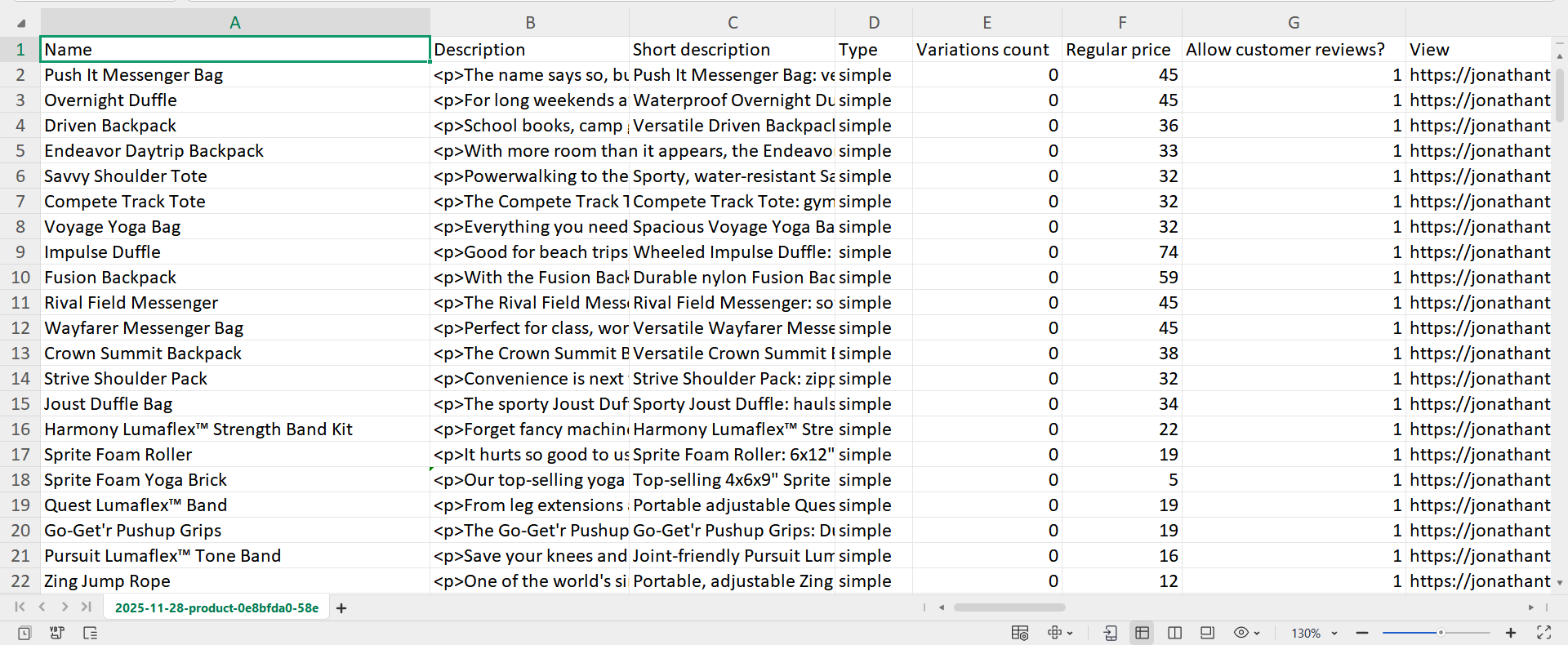
When the export finishes, the CSV file will be downloaded to your computer.
Simplify your WooCommerce product exports
WP Sheet Editor – Products lets you export your entire WooCommerce catalog or filter products and variations before exporting. You can include custom fields added with plugins like Advanced Custom Fields, PODS, etc. You can also export variable products and variations, and create CSV files. Once you have your product data in a CSV file, you can also use it to make bulk changes and import the updated data back into WooCommerce.
You can download the plugin here:
Download WooCommerce Products Spreadsheet Plugin - or - Check the features