
Want to add meta keywords for Yoast SEO but don’t know which pages are missing SEO keyphrase? You can use WP Sheet Editor, which allows you to find posts, pages or products missing Yoast SEO meta keyword and then add them quickly.
Related tutorials:
What You Need to Add Meta Keywords in a Spreadsheet
Besides the Yoast SEO plugin, you need the WP Sheet Editor plugin. It lets you view and manage posts, products and custom post types in a spreadsheet. You can display SEO fields as columns in the spreadsheet and use those fields as search filters or edit them in bulk with a few clicks.
You can download the plugin here:
Download Posts, Pages, and Custom Post Types Spreadsheet Plugin - or - Check the features
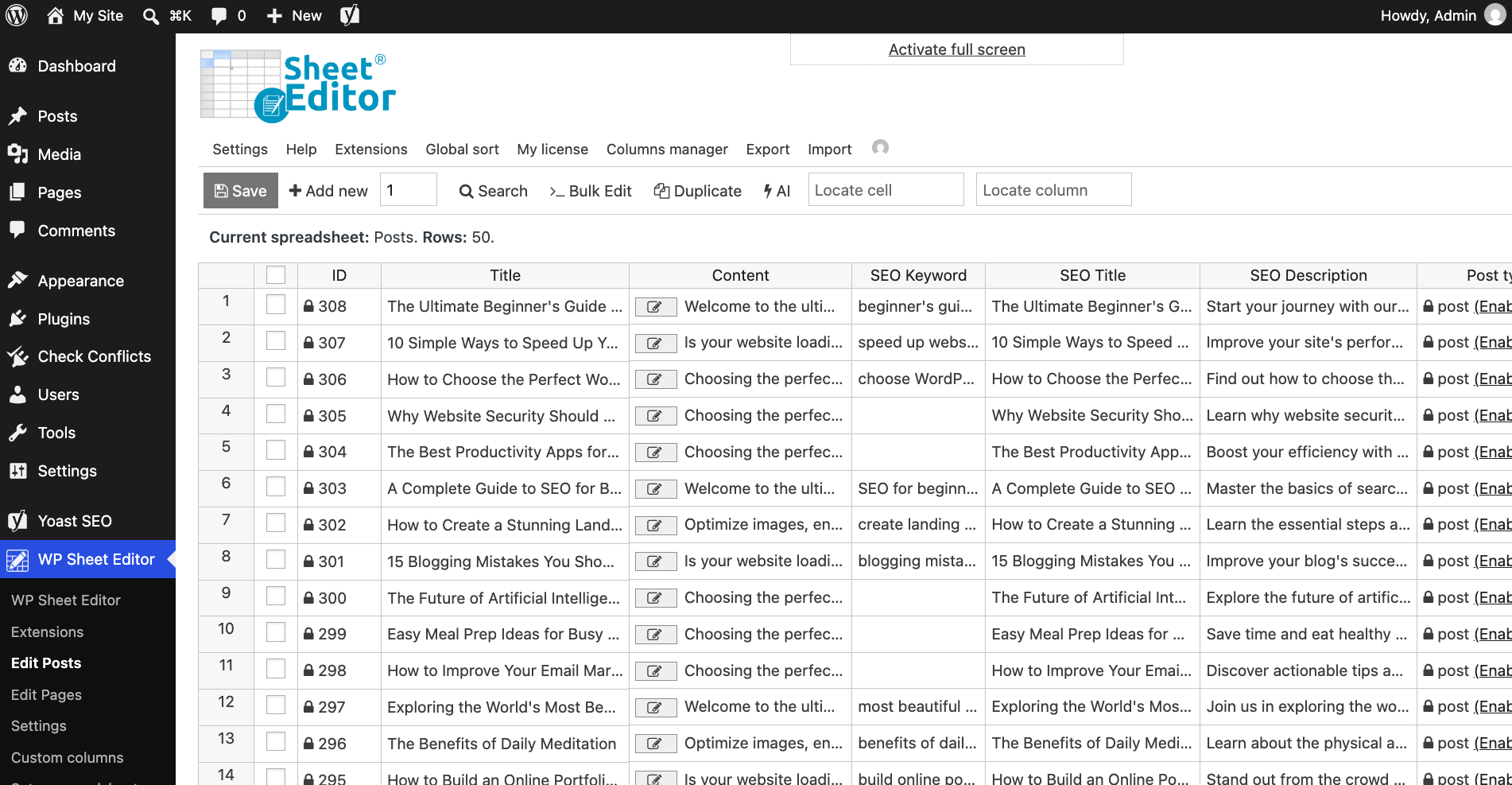
Open the Spreadsheet You’ll Use
In this example, we will use the WordPress posts spreadsheet, but you can follow the same steps in this tutorial to add SEO keyphrases in a spreadsheet.
Two Ways to Add Meta Keywords
You have at least two ways to add meta keywords to your WordPress content. You can use the spreadsheet or import the meta keywords from a CSV or Excel file. Let’s see both ways in detail.
1- Use the spreadsheet to add meta keywords Yoast SEO
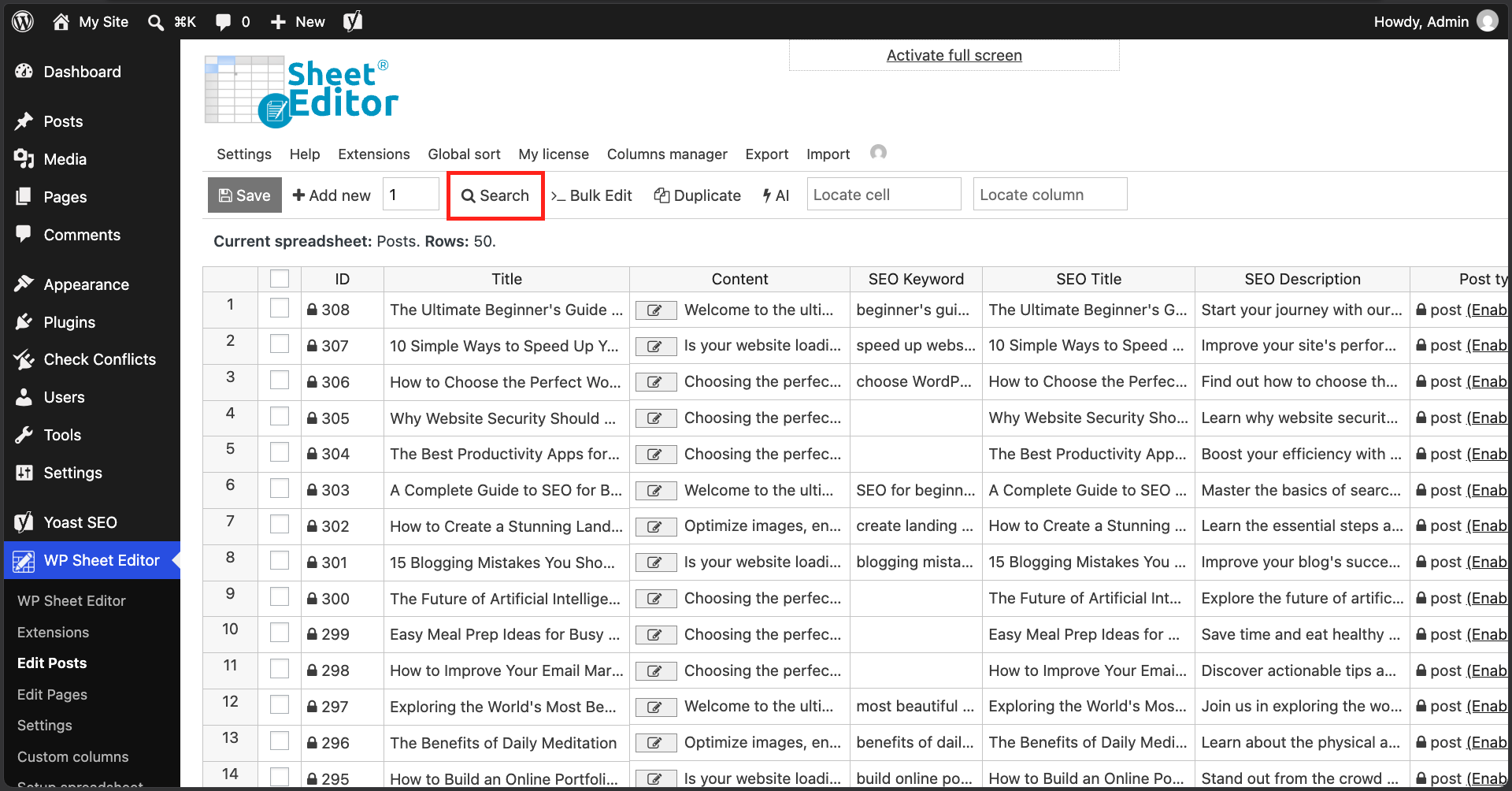
First, let’s search for all the posts missing SEO keyword in order to work only with those posts in the spreadsheet.
To to this, open the Search tool.
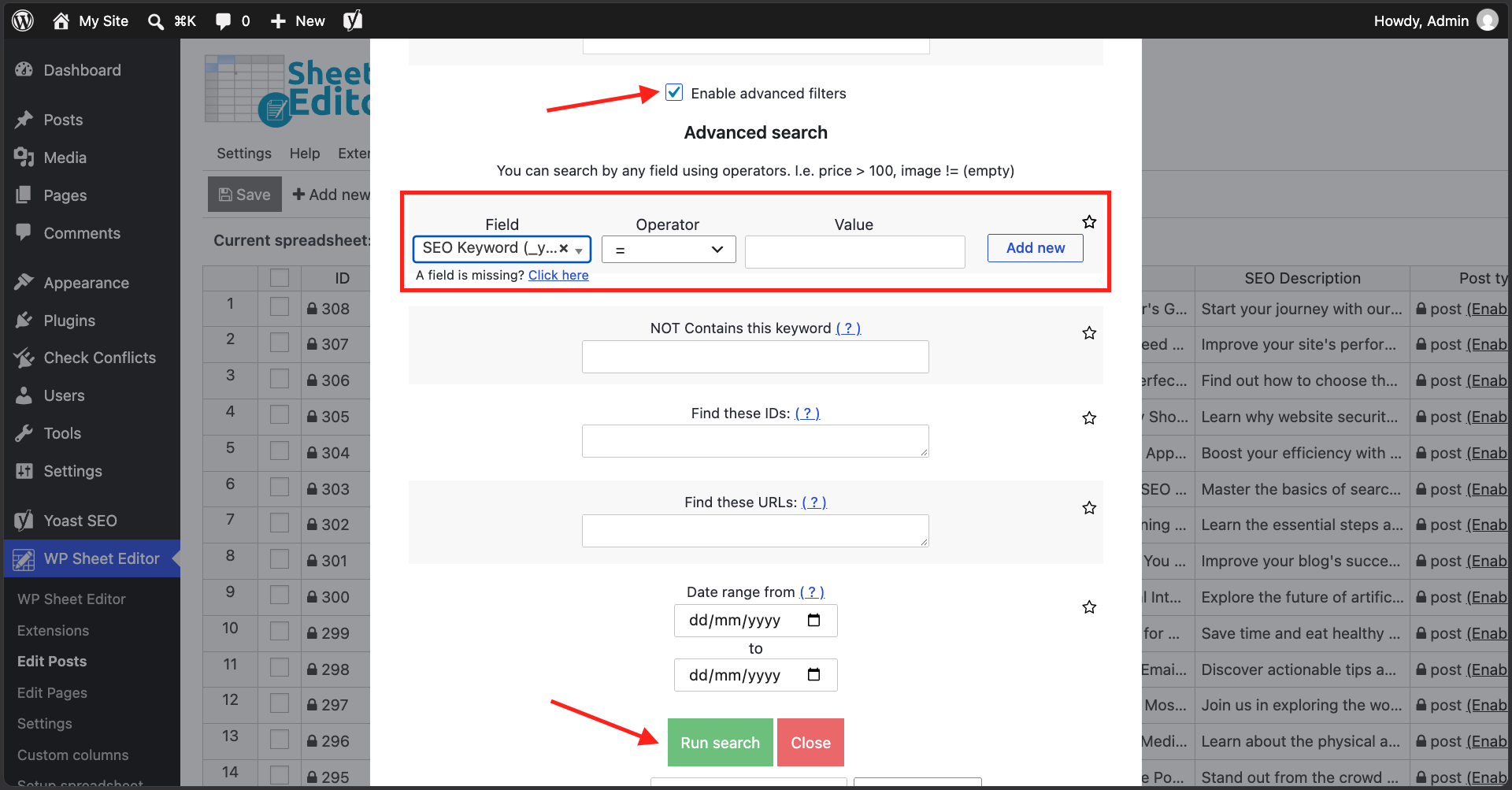
Now tick the Enable advanced filters checkbox and select these values:
- Field: SEO Keyword
- Operator: =
- Value: Leave this field empty.
Click on Run search to filter all your posts and find all the entries without SEO keyword.
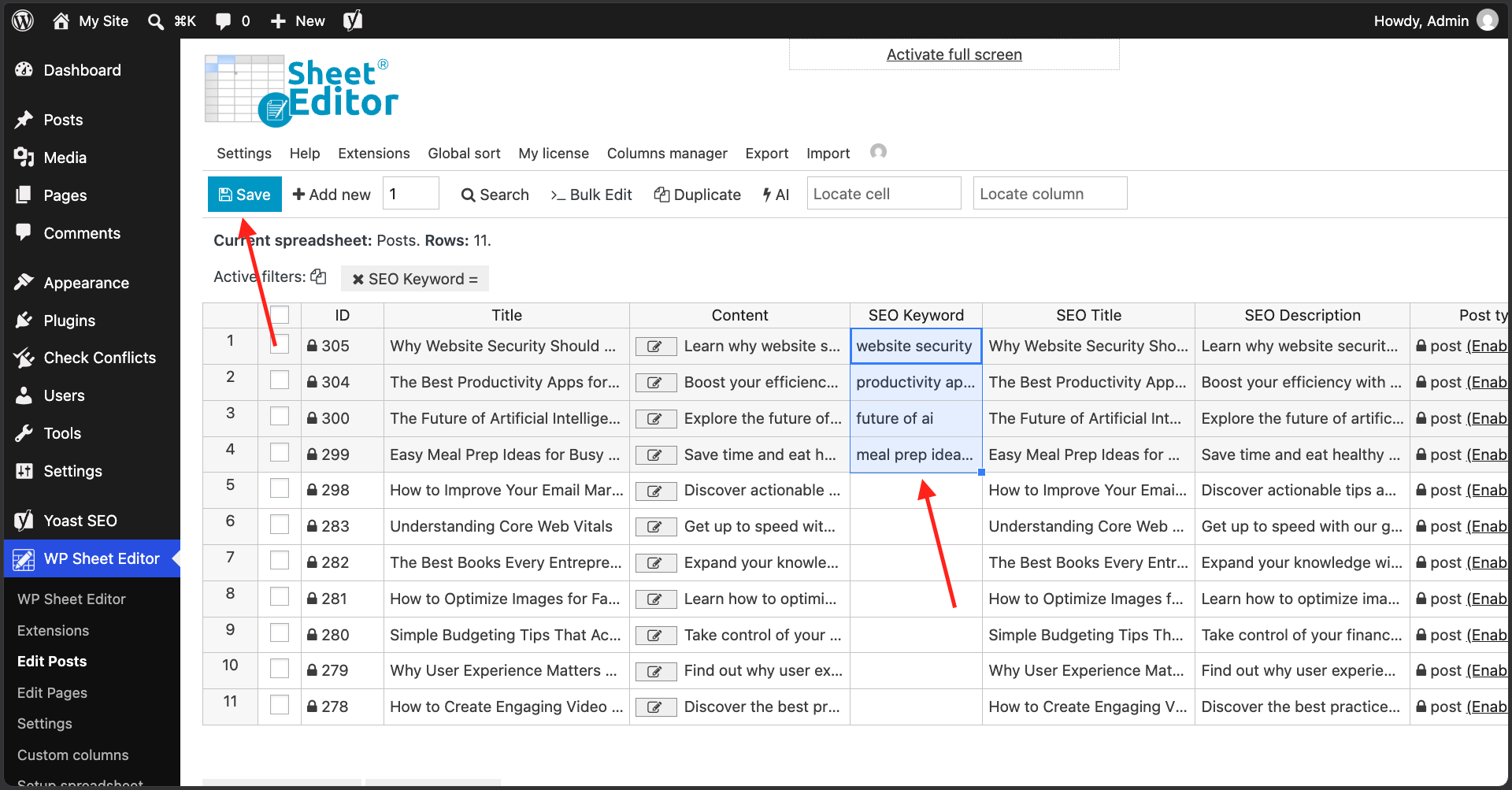
Now the spreadsheet displays only the posts missing keyphrase.
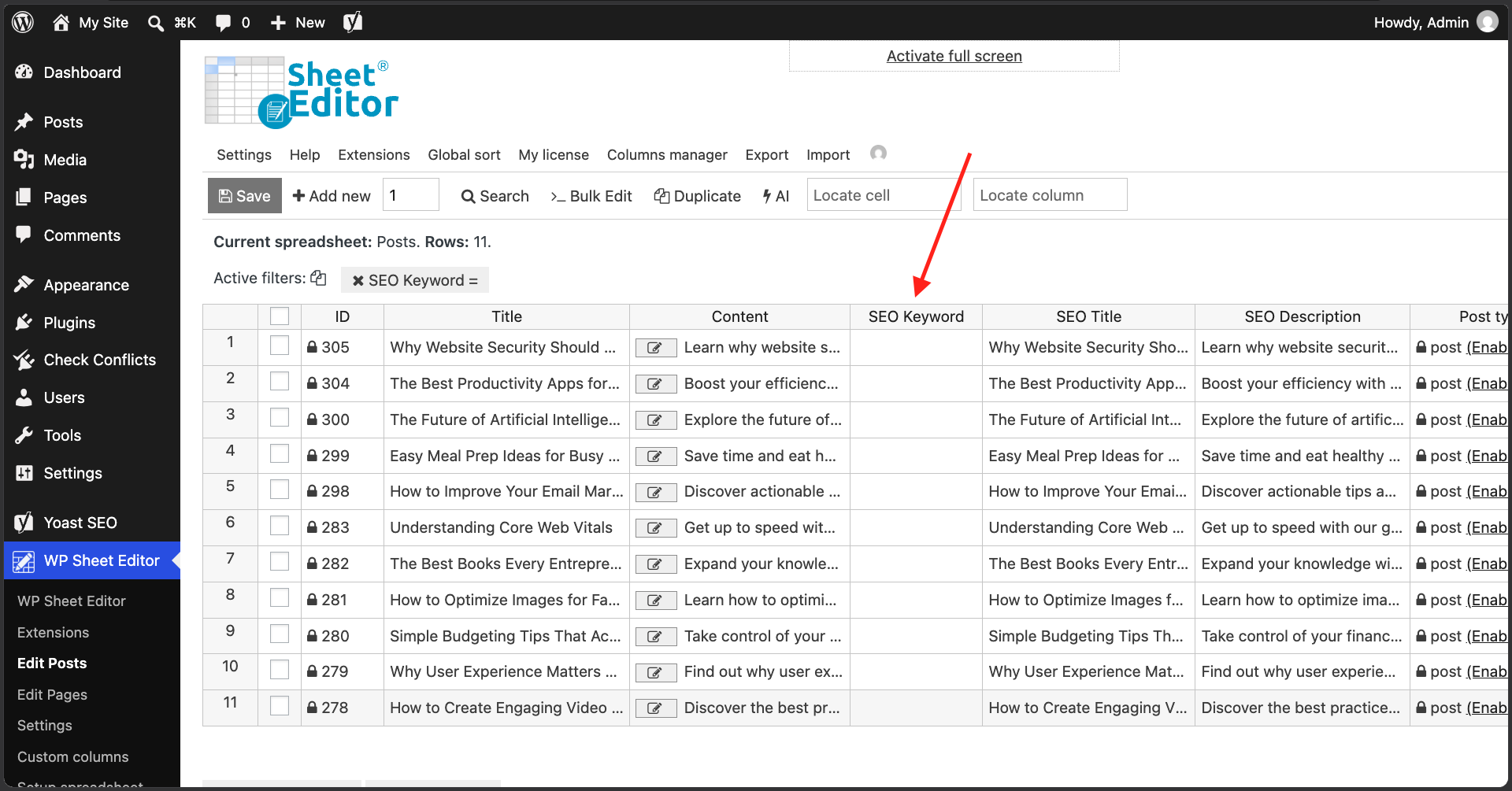
Go to the SEO keyword column and you can start adding the Yoast SEO meta keyword / keyphrase in the spreadsheet cells. And once you’re done, click on Save.
2- Upload Yoast meta keywords in bulk
With WP Sheet Editor, you can import a CSV or Excel file containing meta keywords and easily update your posts. Just find the posts or pages missing SEO keywords, edit them using your favorite CSV editor, and upload the Yoast SEO keywords.
First, let’s open the Search tool.
Tick the Enable advanced filters checkbox and select these values:
- Field: SEO Keyword
- Operator: =
- Value: Leave this field empty.
Click on Run search to filter all your posts and find posts missing keyword.
Now the spreadsheet displays only the posts missing keyphrase.
Next, open the Export tool to download a CSV or Excel file containing the filtered data.
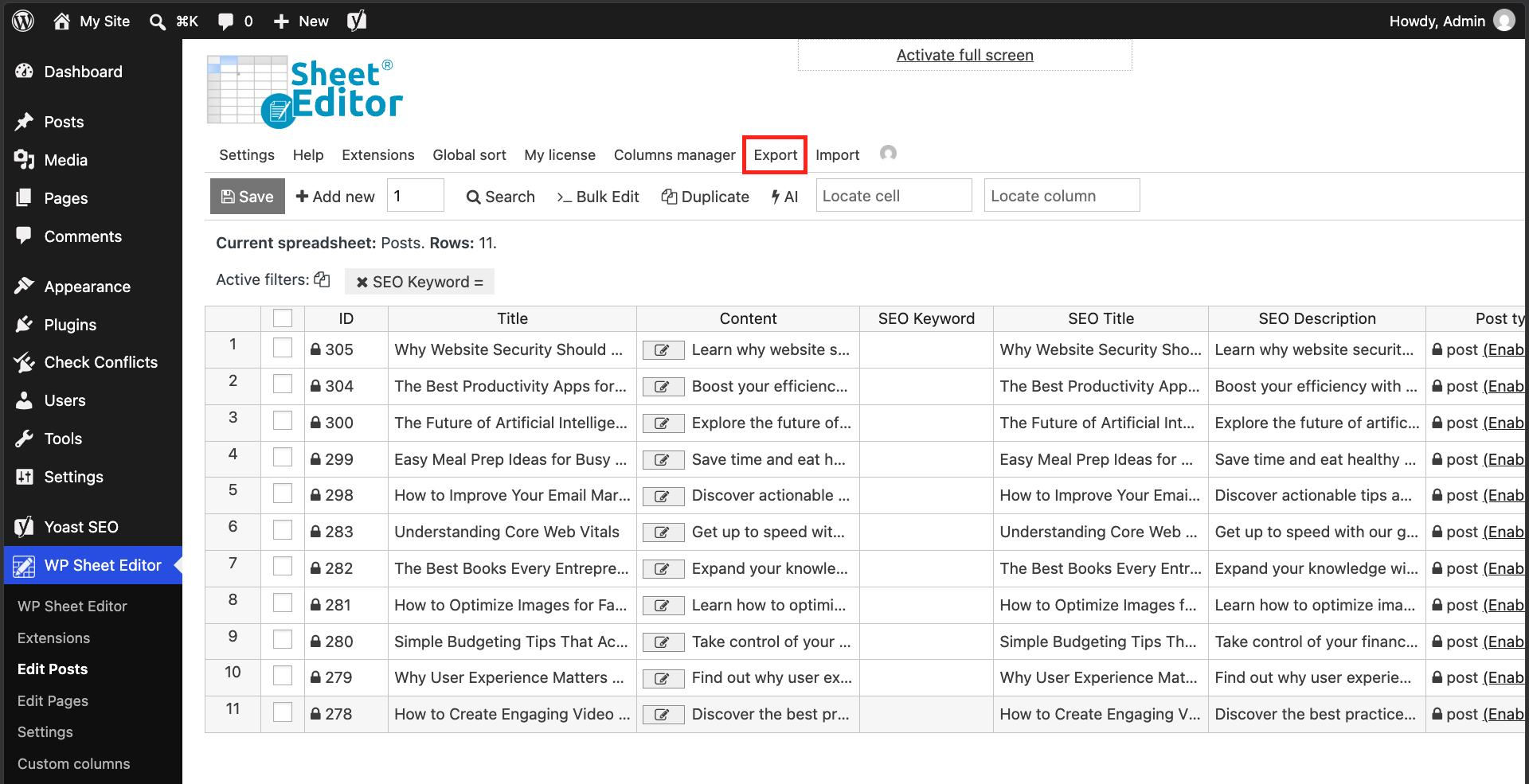
Select these values in the Export tool:
- What columns do you want to export: We will export these columns to assign this task to someone in our team:
- Title
- SEO Title
- SEO Description
- SEO Keyword (which is empty)
- And post ID
- Which rows do you want to export: All the rows from my current search.
- What app will you use to edit this file: Here you need to select the file format. You can select CSV file or Excel file.
- Name of this export: You can add a name to run this same export later with one click.
- Click on Start new export.
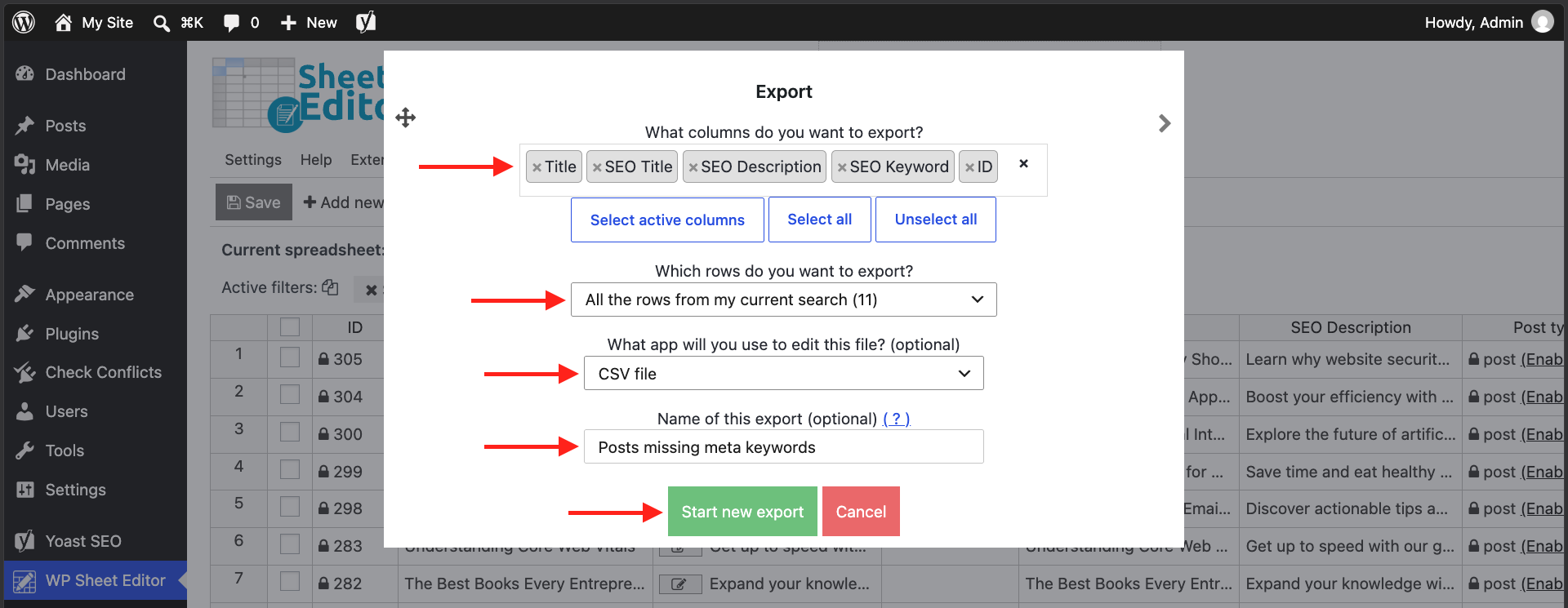
Now we have downloaded a CSV file containing all posts without Yoast SEO keyword.
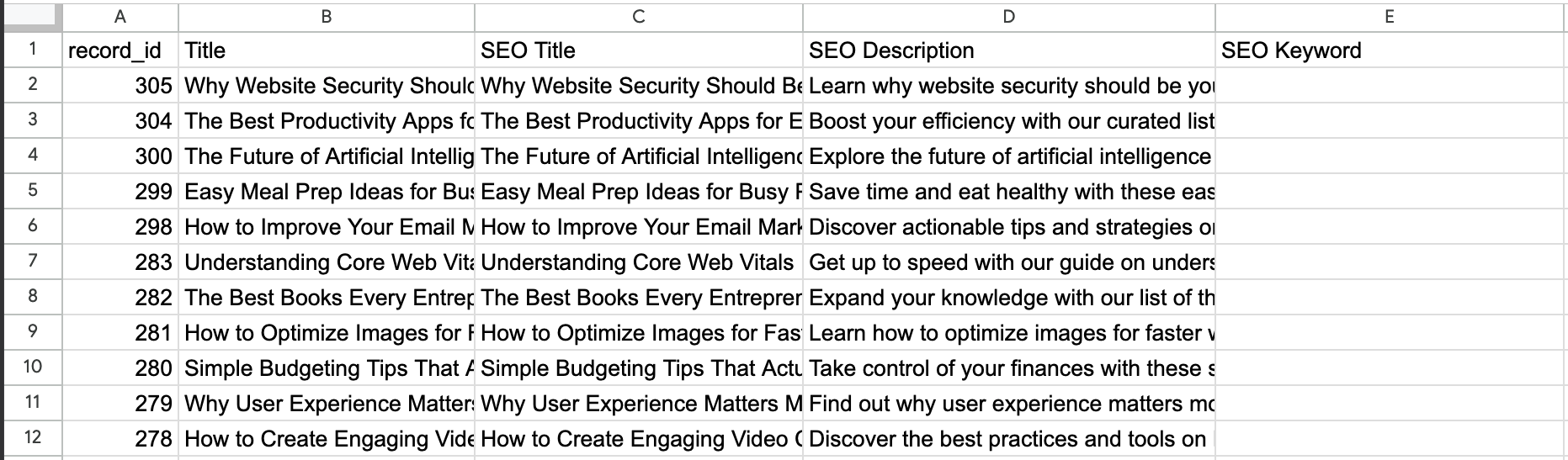
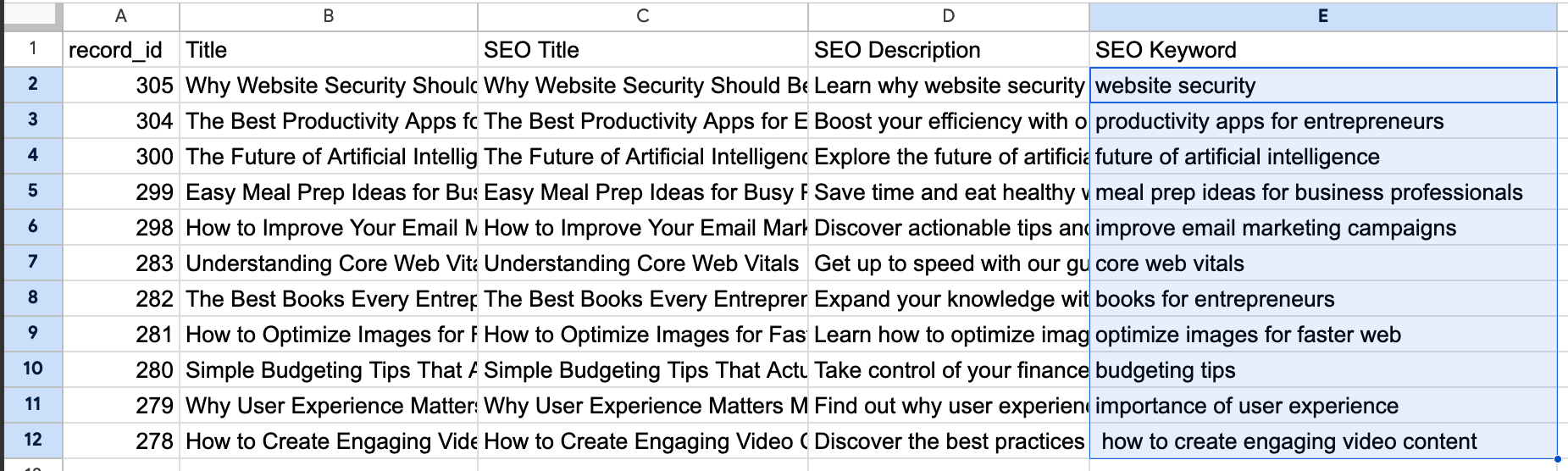
As you can see below, we have added the SEO keyphrases in the CSV, which we’re going to import into WordPress.
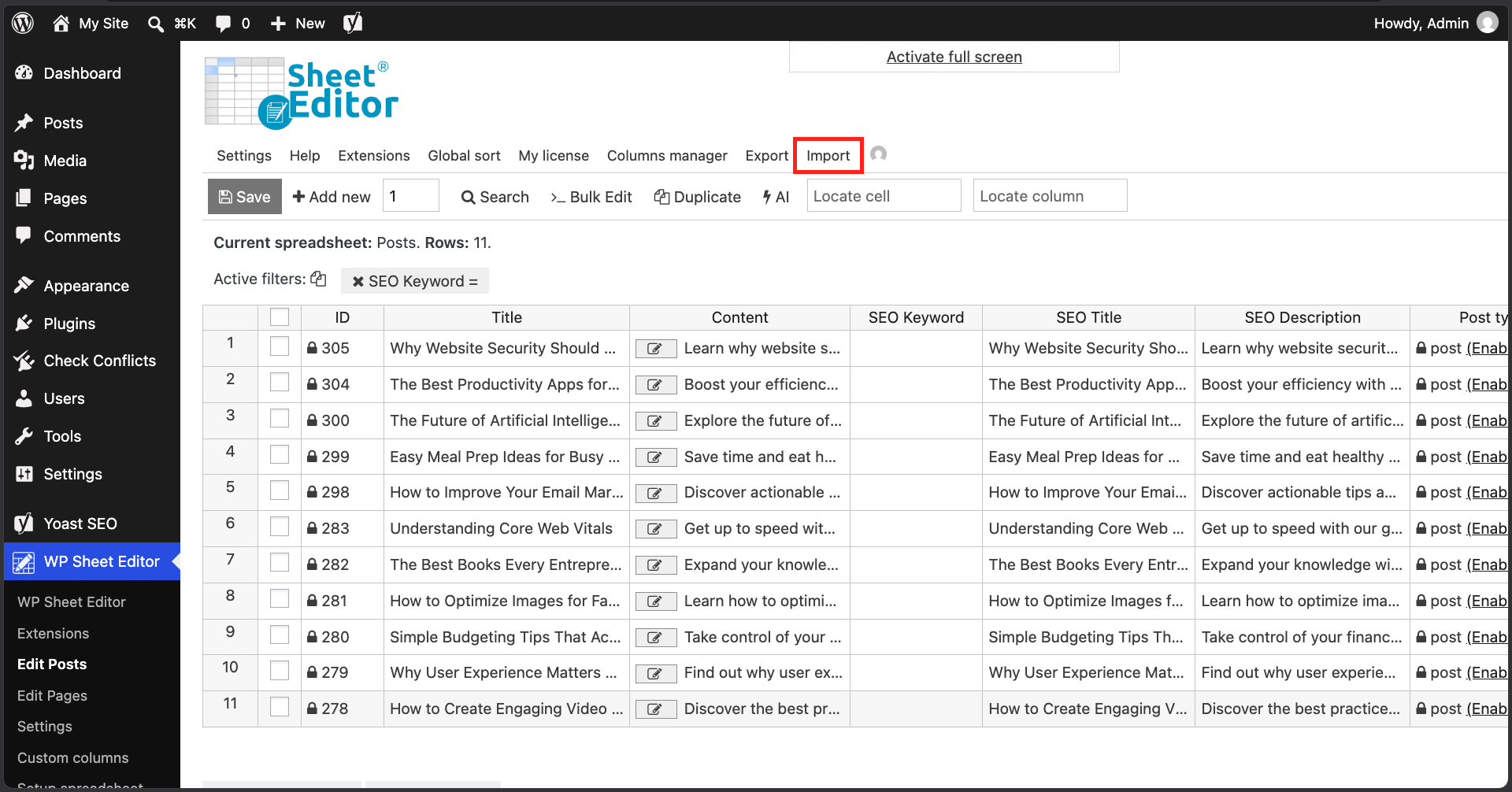
Click on Import.
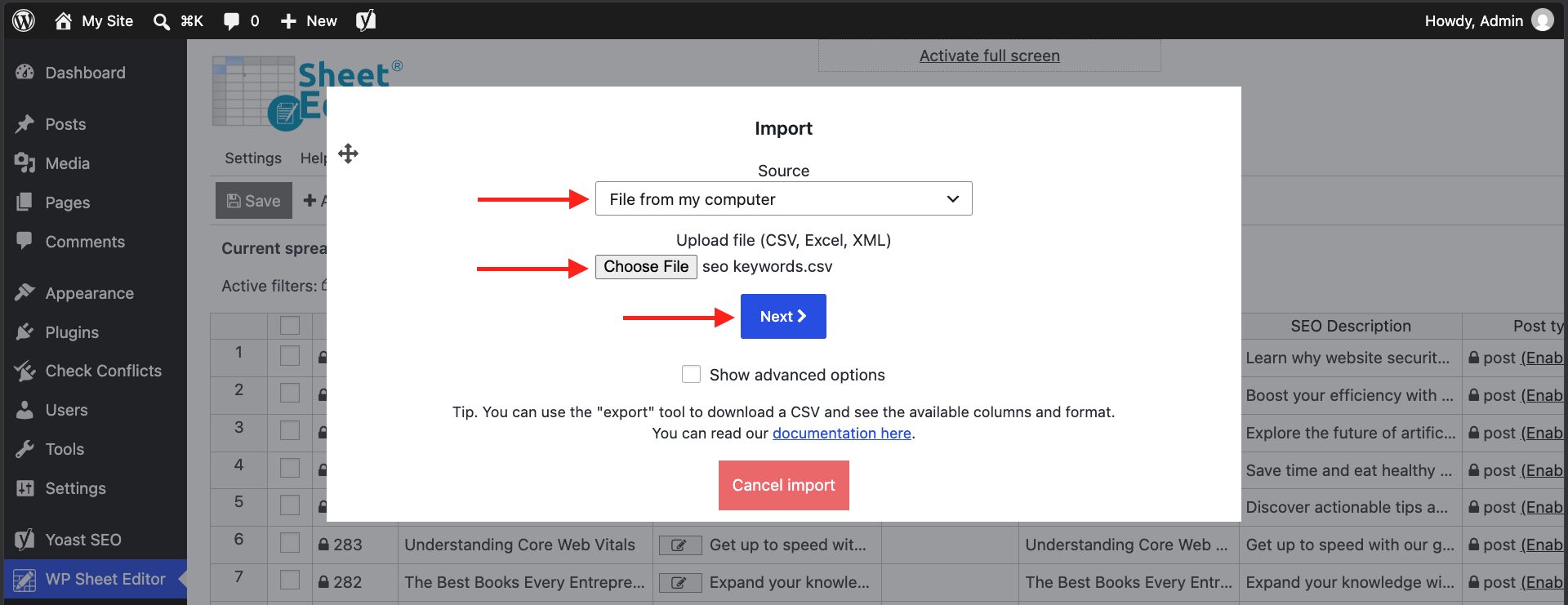
In Source, select File from my computer.
Now click on Choose File and locate the file on your computer.
Click on Next.
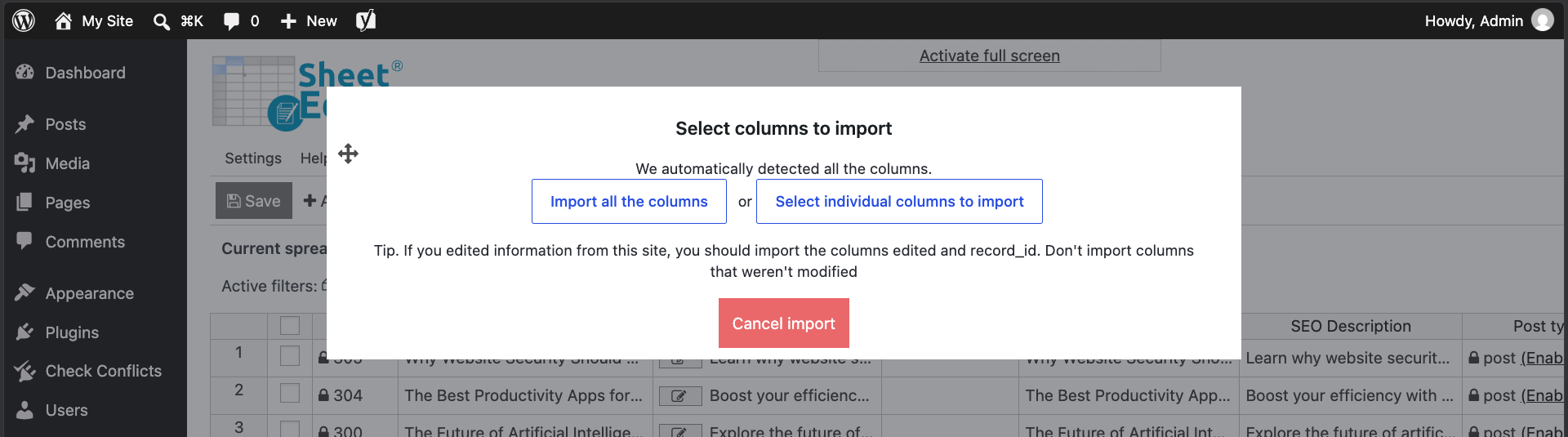
We will Import all the columns in this example.
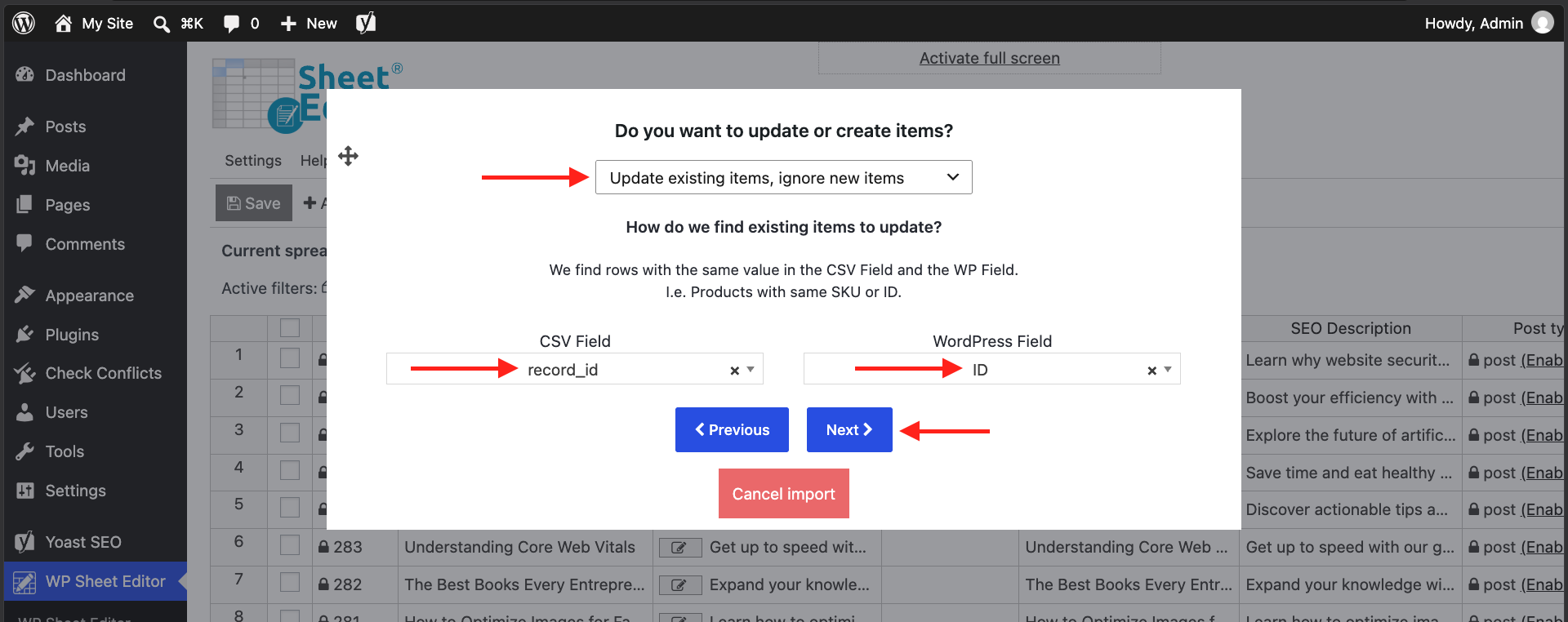
Now select Update existing items, ignore new items and map the rows using the record_id and ID fields.
Click on Next.
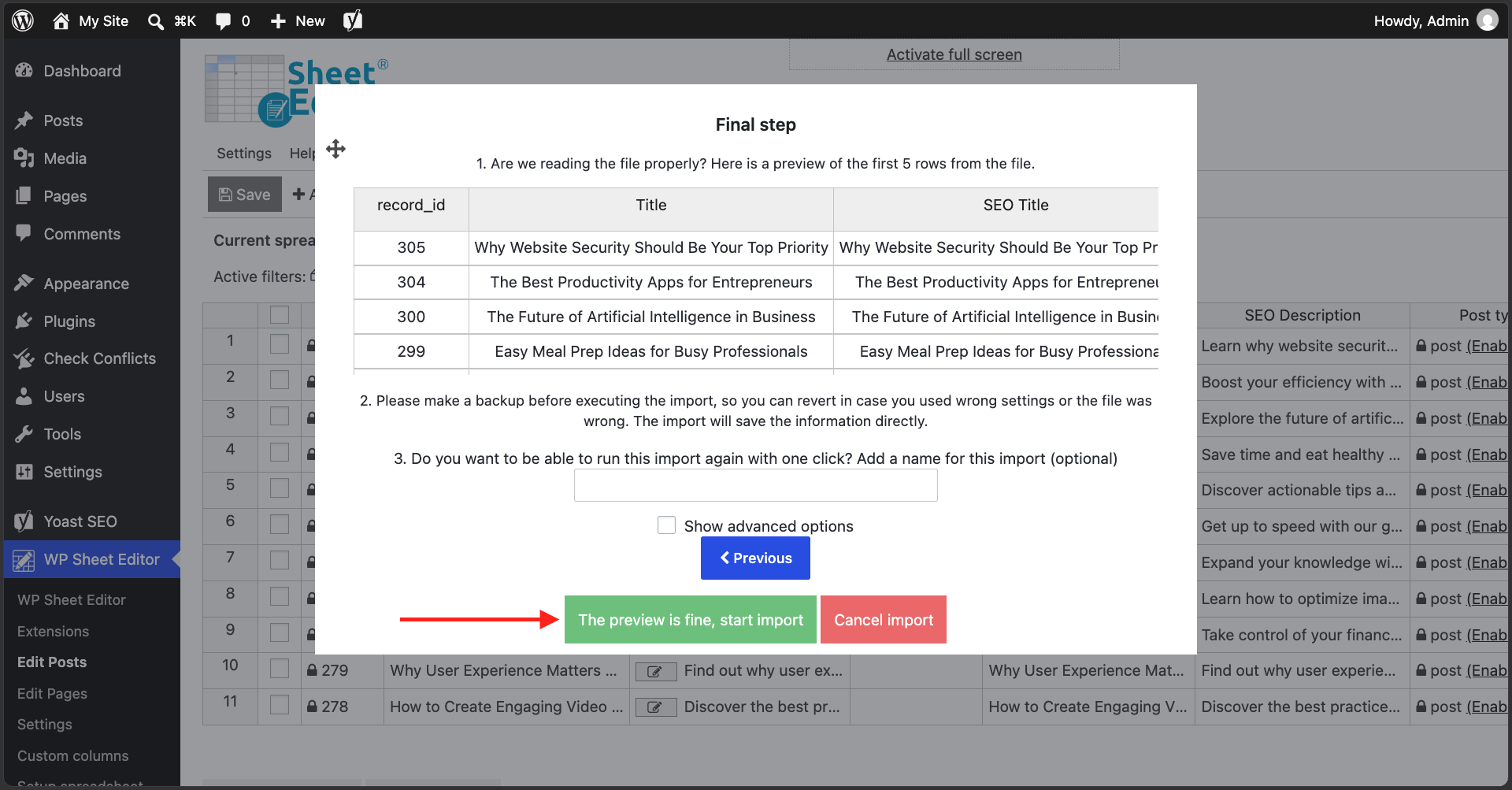
Finally, you’ll see a preview. If everything is OK, you need to click on The preview is fine, start import.
These are the two ways to add Yoast SEO meta keywords to your WordPress posts, pages, WooCommerce products, events, etc.
You can download the plugin here:
Download Posts, Pages, and Custom Post Types Spreadsheet Plugin - or - Check the features