
In this tutorial, I will show you how to bulk edit WooCommerce download limits. We will use WP Sheet Editor to filter your downloadable products and update their limits in bulk. You can set the same limit for multiple products as well as increase or decrease their existing limits by a specific number.
First, you need to install and activate WP Sheet Editor – WooCommerce products. It allows you to view and manage your WooCommerce products in a spreadsheet.
You can download the plugin here:
Download WooCommerce Products Spreadsheet Plugin - or - Check the features
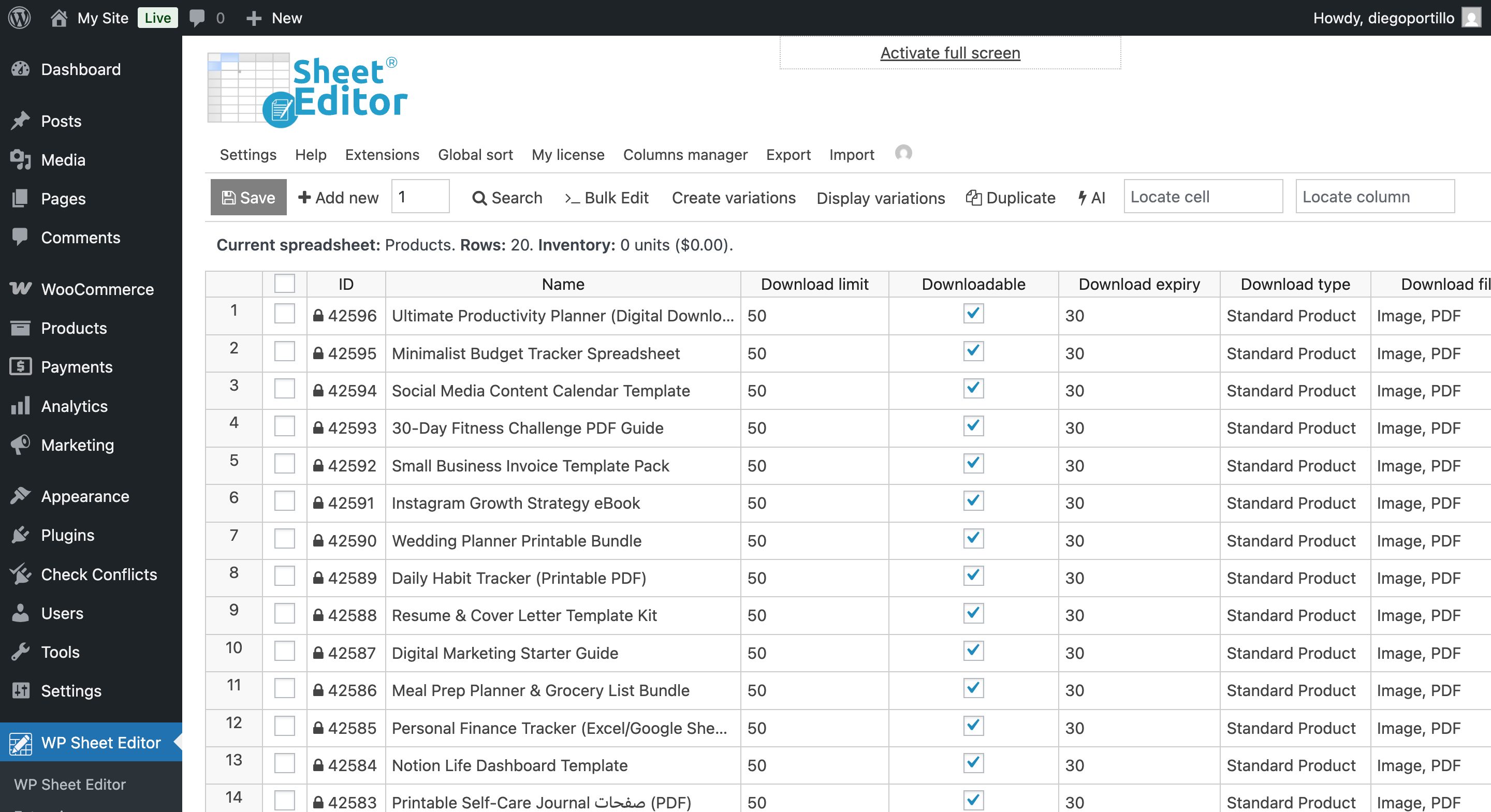
1. Open your WooCommerce products in the spreadsheet
Go to WP Sheet Editor > Edit Products to open the products spreadsheet.
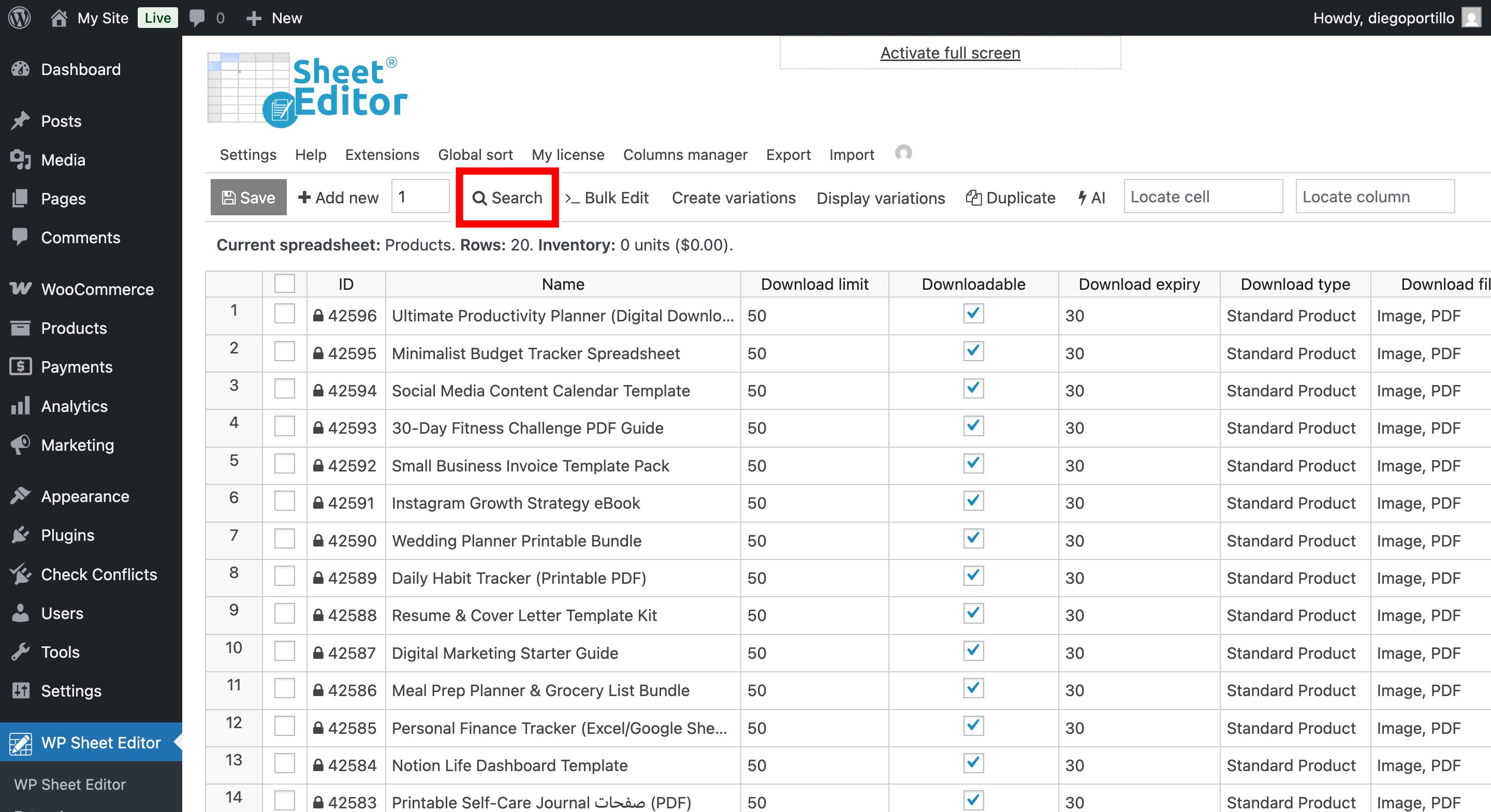
2. Open the Search tool to filter downloadable products
Click Search on the toolbar to select the products whose download limits you want to update.
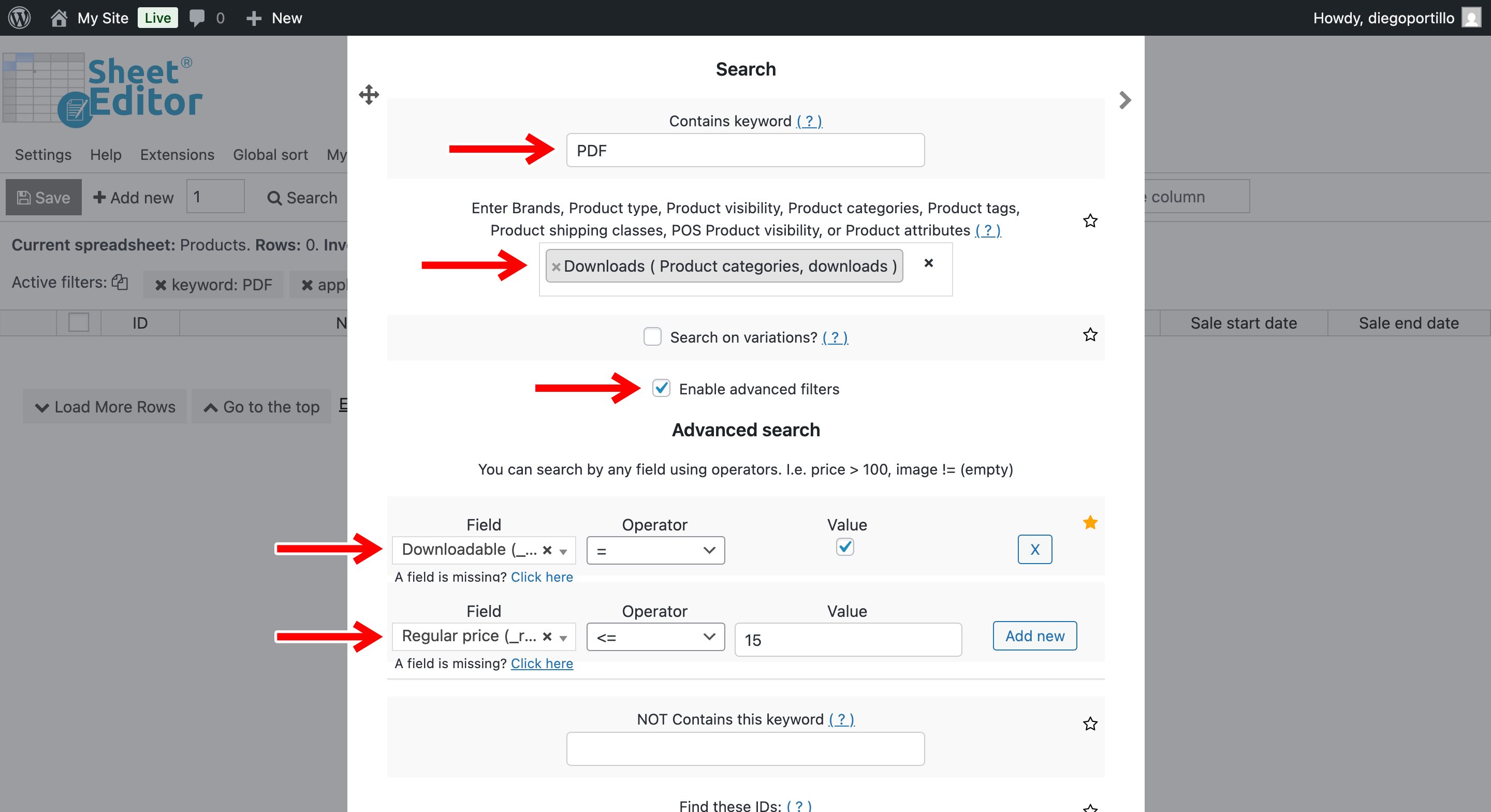
3. Filter WooCommerce downloadable products
Enable advanced filters and add this condition:
- Field: Downloadable
- Operator: =
- Value: Tick the checkbox (Yes).
To narrow the results, add a keyword, product category, or price condition. In this example, we are finding downloadable products containing “PDF,” in the “Downloads” category, with a regular price of $15 or less:
- Contains keyword: PDF
- Product category: Downloads
- Under the advanced filters, click Add new and add:
- Field: Regular price
- Operator: <=
- Value: 15
Click Run search.
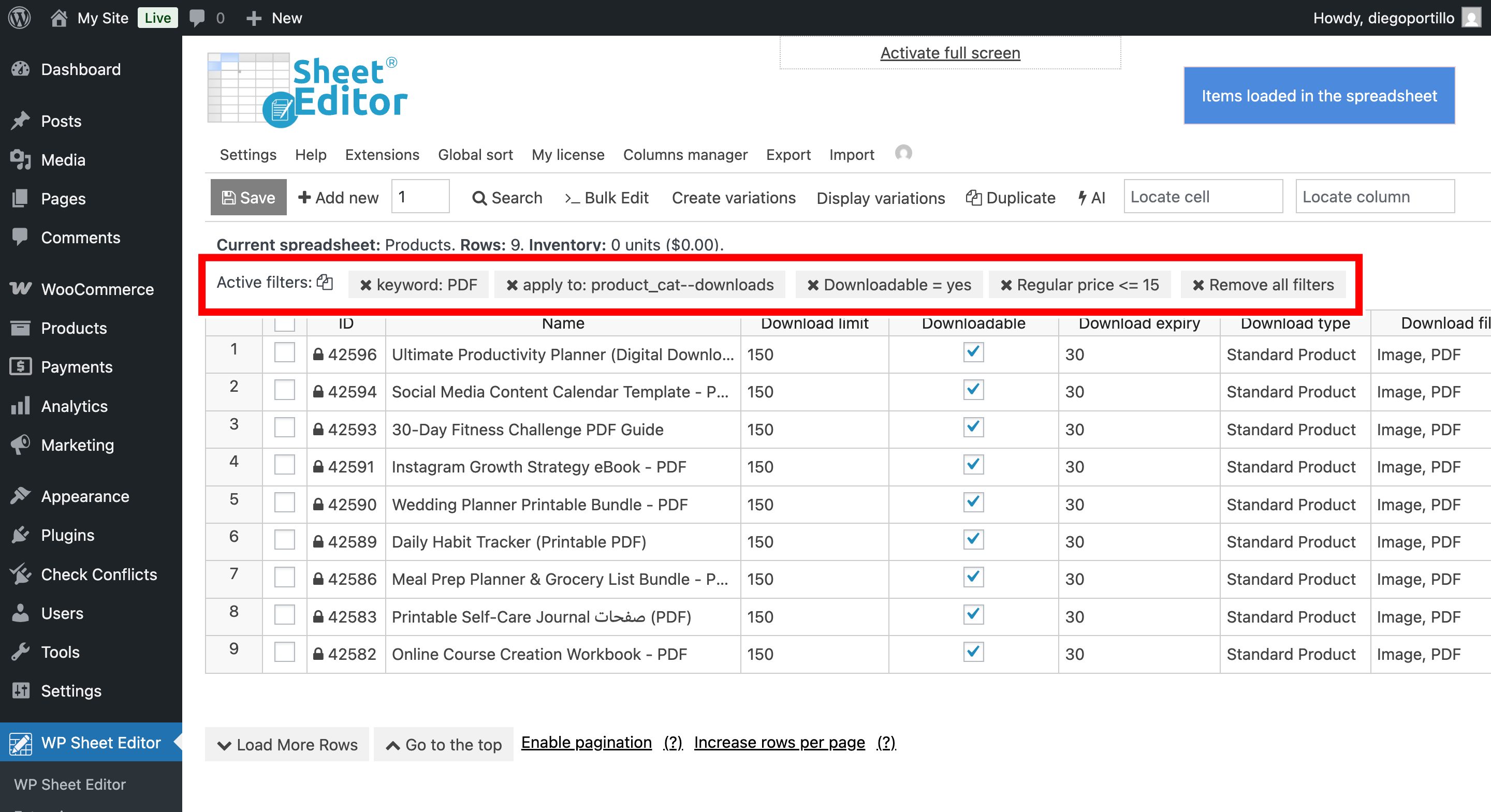
4. Review the products you will update
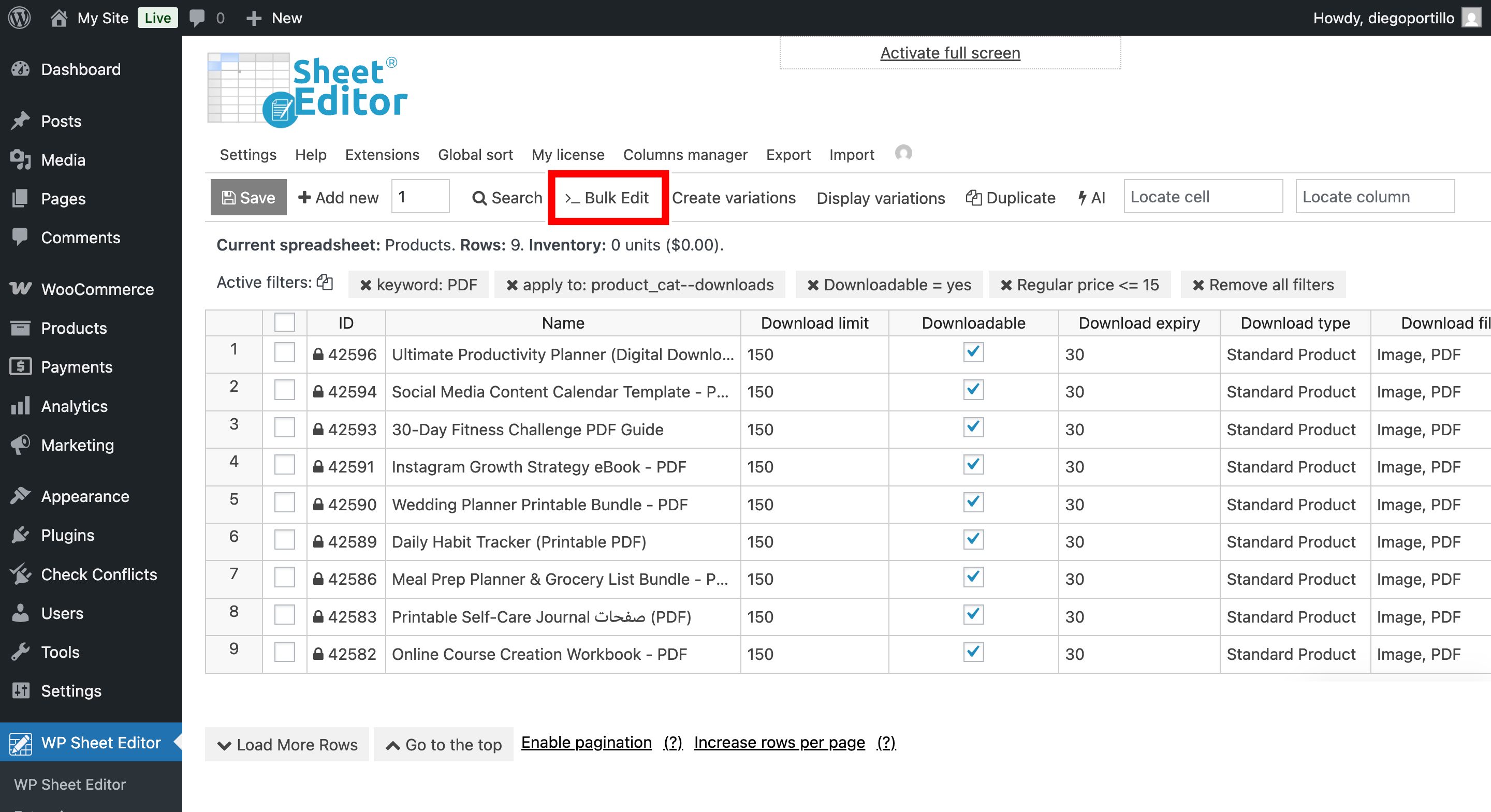
The spreadsheet displays the matching products and the active filters above them. Review the results before changing their download limits.
5. Bulk edit download limits
Click Bulk Edit on the toolbar. Then follow the section below to decrease or increase the download limits.
Set the same download limit in bulk
If you want to set a completely new download limit to all your downloadable products, select these values in the Bulk Edit tool:
- Select the rows that you want to update: Edit all the rows from my current search (including non-visible rows).
- What field do you want to edit: Download limit
- Select type of edit: Set value
- Replace existing value with this value: Enter the new download limit number here.
- Click Execute Now to apply the changes.
Bulk decrease WooCommerce download limits
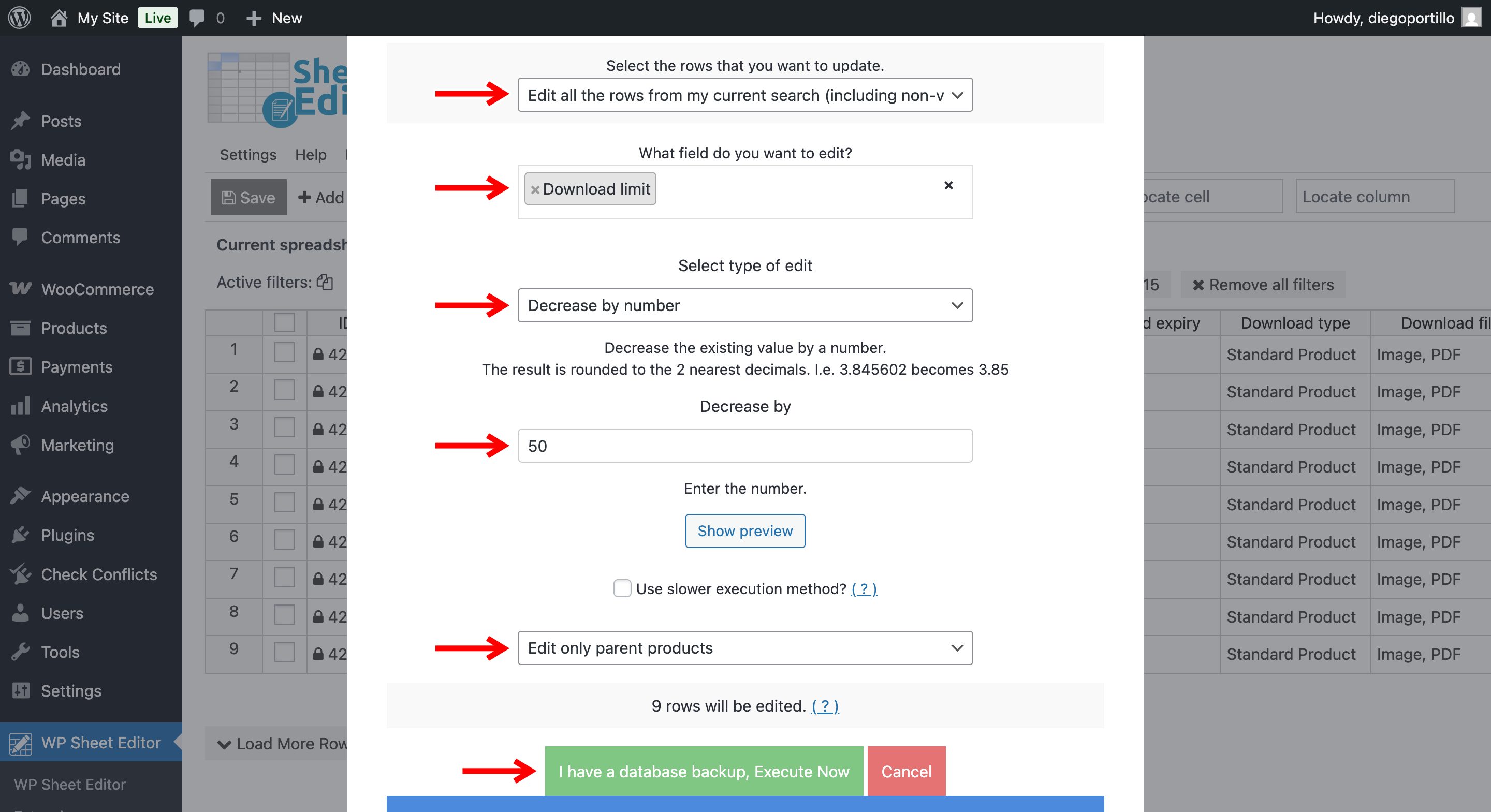
To reduce ther current download limits, select these values:
- Select the rows that you want to update: Edit all the rows from my current search (including non-visible rows).
- What field do you want to edit: Download limit
- Select type of edit: Decrease by number
- Decrease by: Enter the number to subtract. For example, enter 50 to change a limit of 100 to 50.
- Click Execute Now to apply the changes.
7. Bulk increase WooCommerce download limits
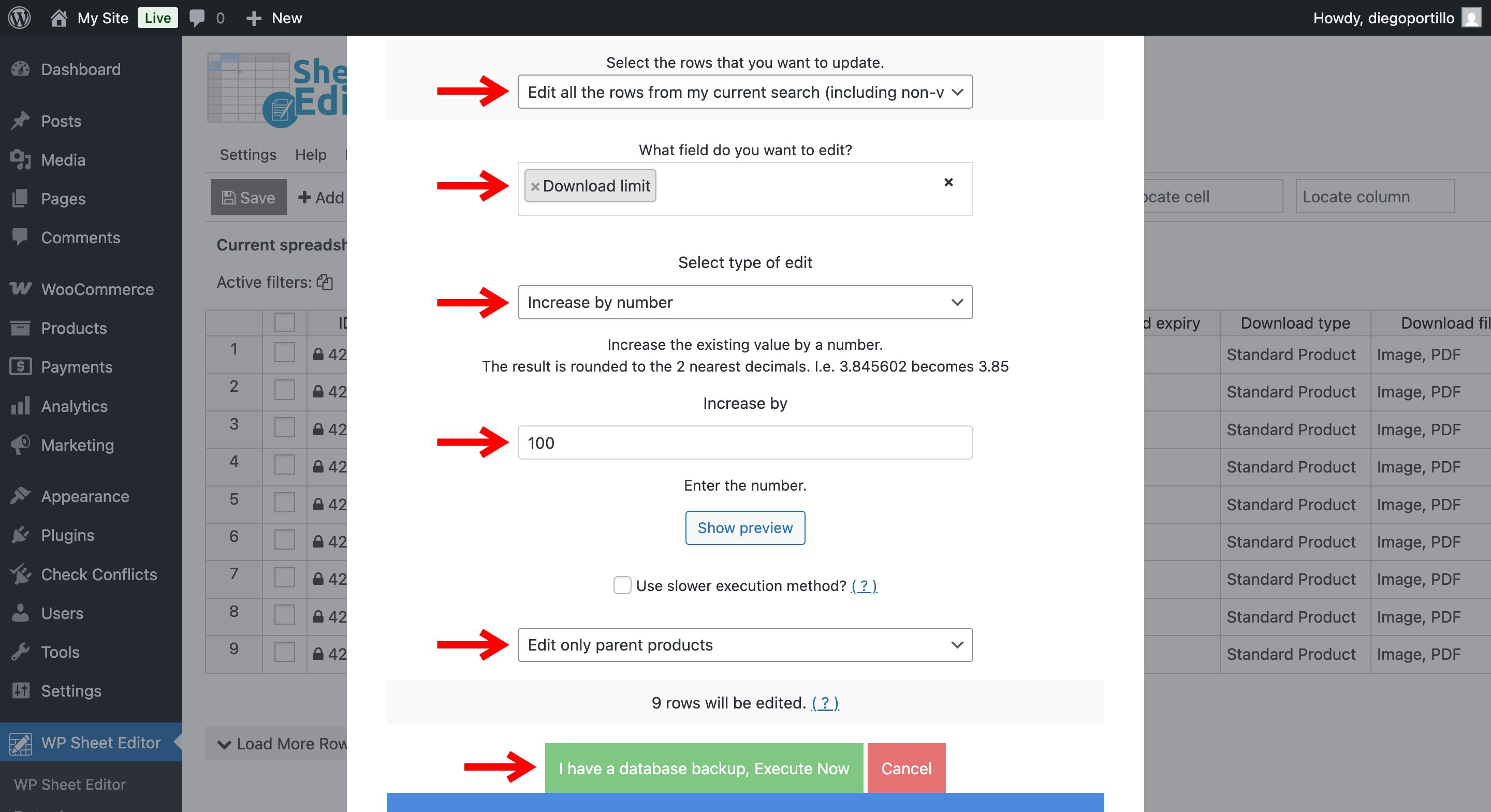
To add a number to the current download limits, select these values:
- Select the rows that you want to update: Edit all the rows from my current search (including non-visible rows).
- What field do you want to edit: Download limit
- Select type of edit: Increase by number
- Increase by: Enter the number to add. For example, enter 10 to change a limit of 50 to 60.
To replace the existing limits with the same number, choose Set value instead and enter the new limit.
Click Execute Now to apply the changes.
That’s how you can bulk edit download limits in your WooCommerce products.
You can download the plugin here:
Download WooCommerce Products Spreadsheet Plugin - or - Check the features