
Keyword cannibalization can occur when multiple WordPress posts target the same or very similar search intent. Reviewing the search intent of every post manually can be difficult when you have a large content library.
WP Sheet Editor – AI can analyze your posts and add a short search intent phrase to each one. You can then sort the results in a spreadsheet to identify posts that may be targeting the same topic.
This tutorial shows you how to use AI to analyze search intent and find potential keyword cannibalization issues in WordPress.
Table of Contents
Requirements for auditing keyword cannibalization in WordPress
You need the following tools:
1- WP Sheet Editor – Post Types
This plugin lets you view and edit WordPress posts, pages, and their data in a spreadsheet. We will use it to create a custom column for the search intent analysis.
You can download the plugin here:
Get the WordPress Post Spreadsheet - or - Check the features
2- WP Sheet Editor – AI
This extension lets you use AI commands to analyze WordPress content in the spreadsheet.
Ready to automate?
3- An AI API Key
You need an active account with OpenAI, OpenRouter, or another OpenAI-compatible provider. If you have not connected your API key, see our setup guide.
Step 1: Create a global prompt for Search Intent extraction
First, create an AI prompt that extracts the primary search intent from each post.
Go to WP Sheet Editor > AI > Settings > Prompts and click Add new.
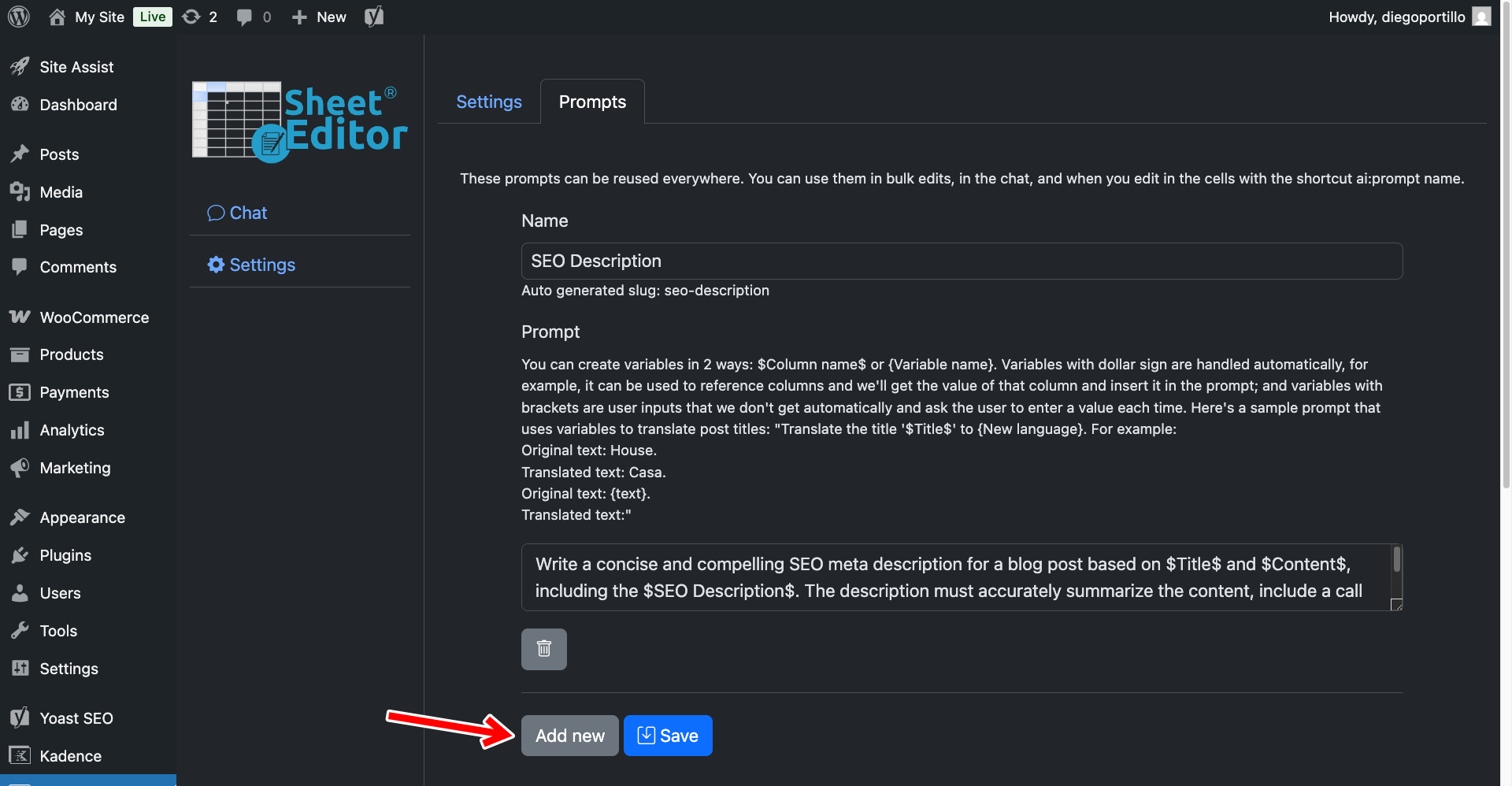
Configure the prompt as follows:
- Name your prompt:
Search Intent - Enter this template:
Act as a technical SEO auditor. Read this blog post title: "$Title$" and its content: "$Content$". Identify the single, primary search intent or core topic of this article. Reduce this entire post into a 2 to 4 word phrase that represents what a user would type into Google to find it. Return ONLY those words in lowercase. Do not include punctuation, introductory text, or quotation marks.
- Click Save.
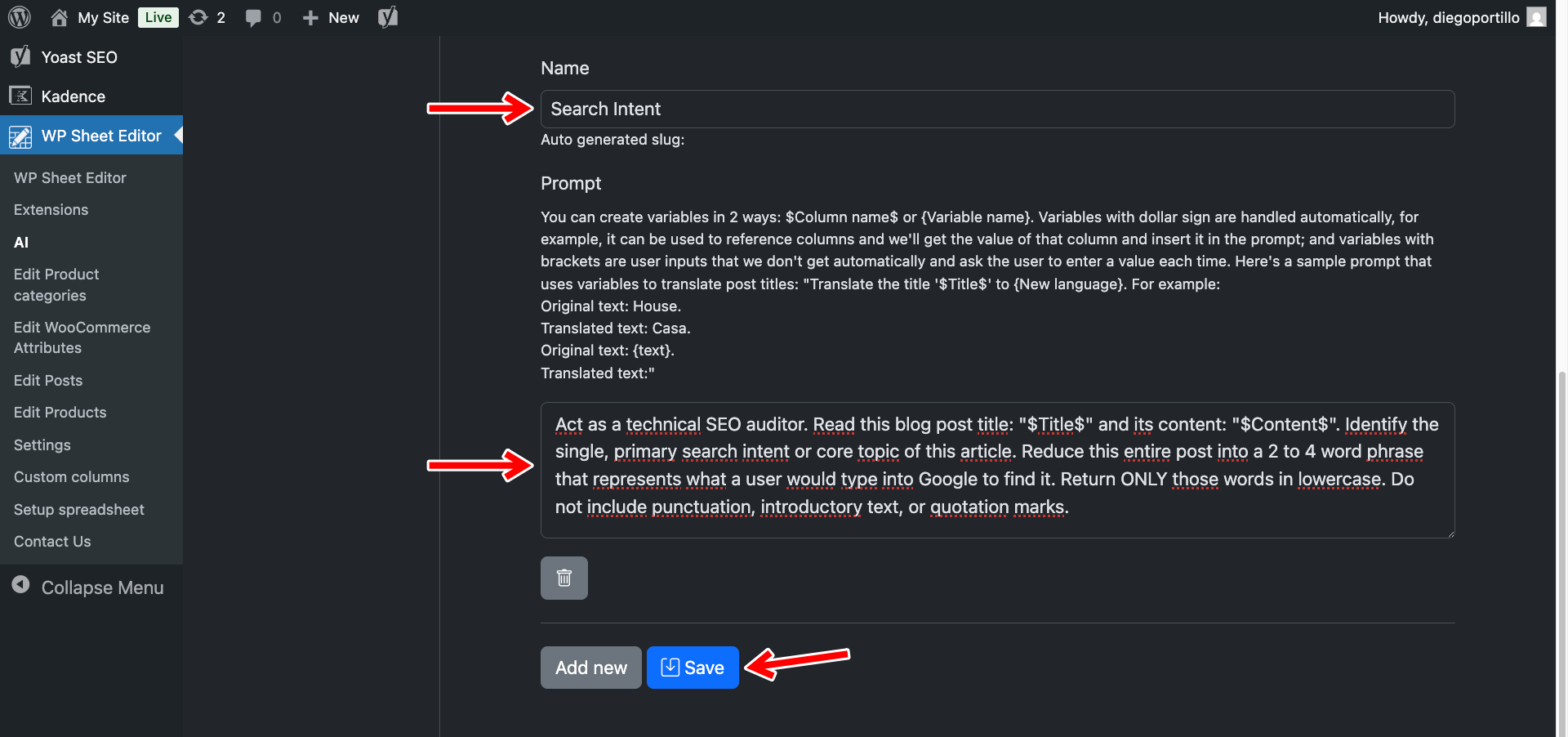
The plugin will automatically assign the shortcut search-intent.

Step 2: Create a custom column for the AI analysis
Next, create a custom column to store the search intent results.
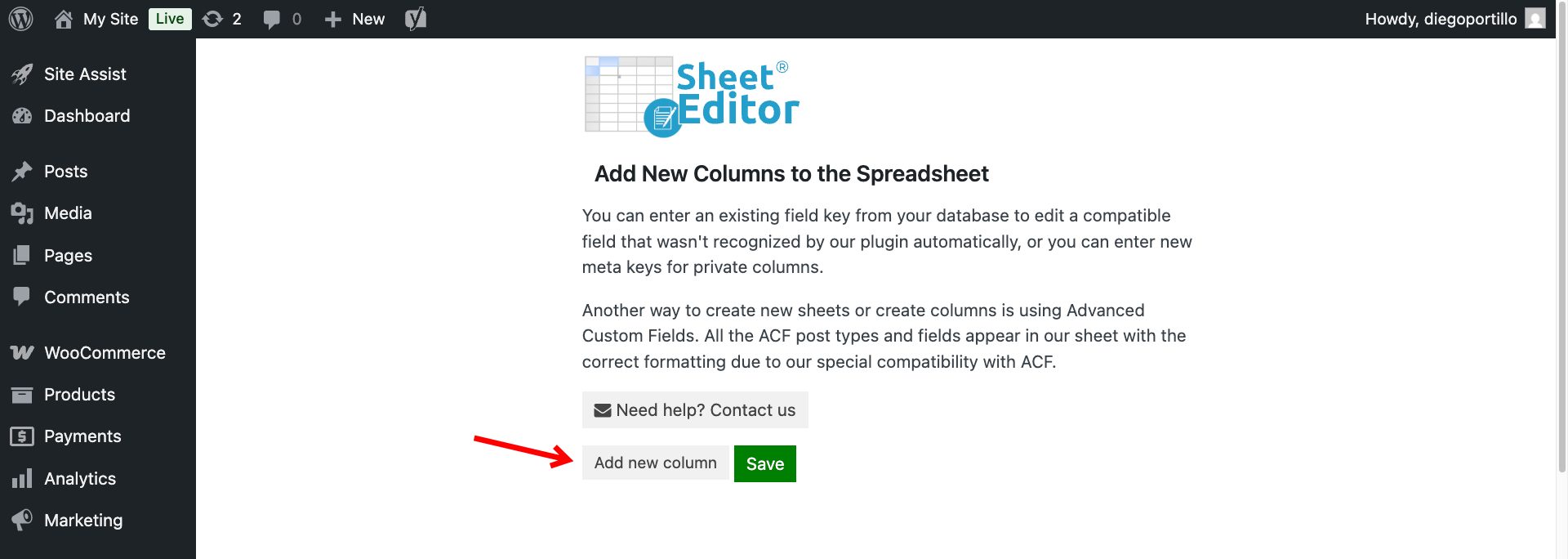
Navigate to WP Sheet Editor > Custom columns and click Add new column.
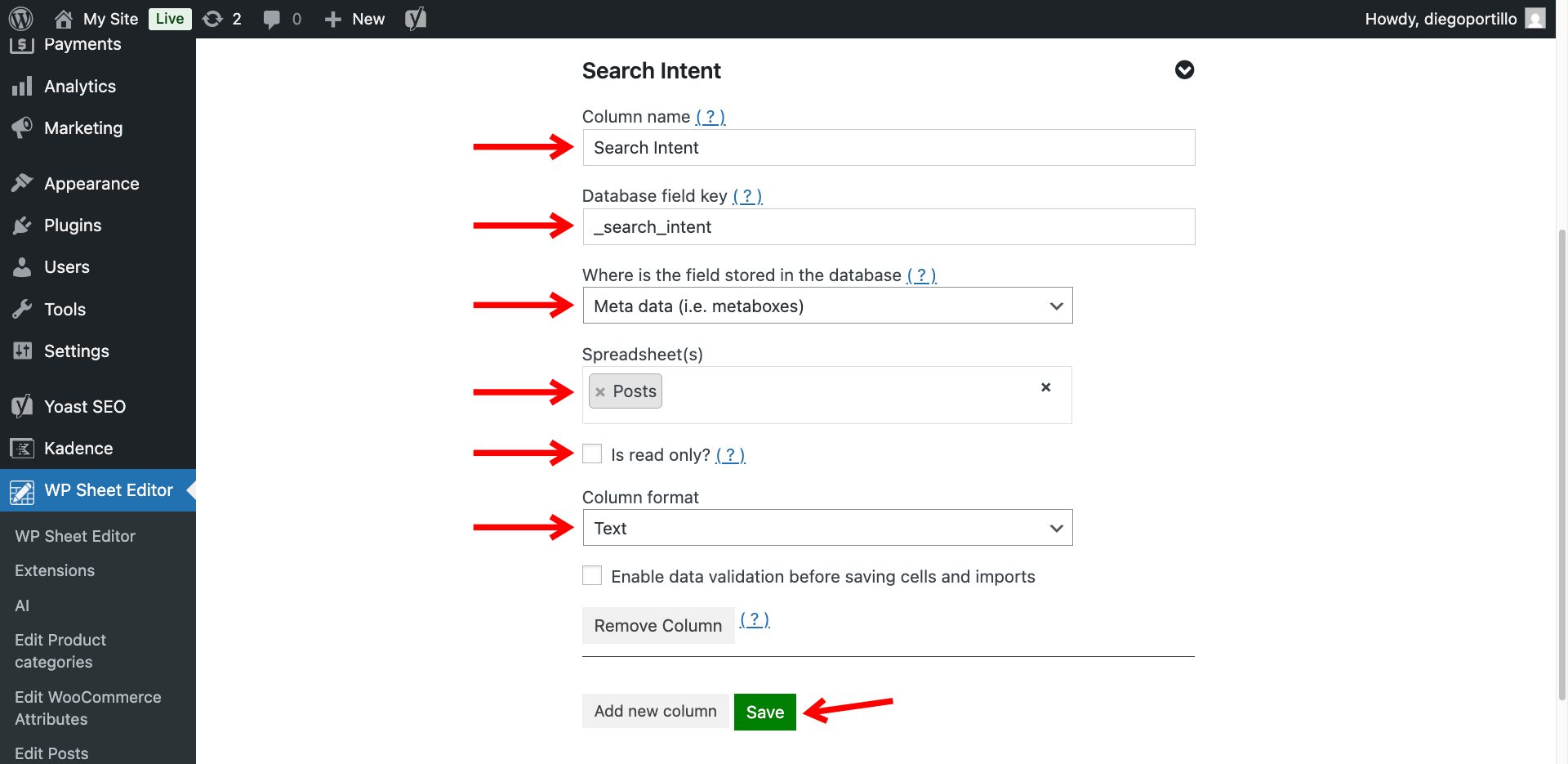
Create the Search Intent column with these settings:
- Column name: Search Intent
- Database field key: _search_intent
- Where is the field stored in the database: Meta data
- Spreadsheet(s): Posts
- Is read only: No
- Column format: Text
- Enable data validation before saving cells and imports: No
- Click Save.
Now display the new column in the posts spreadsheet.
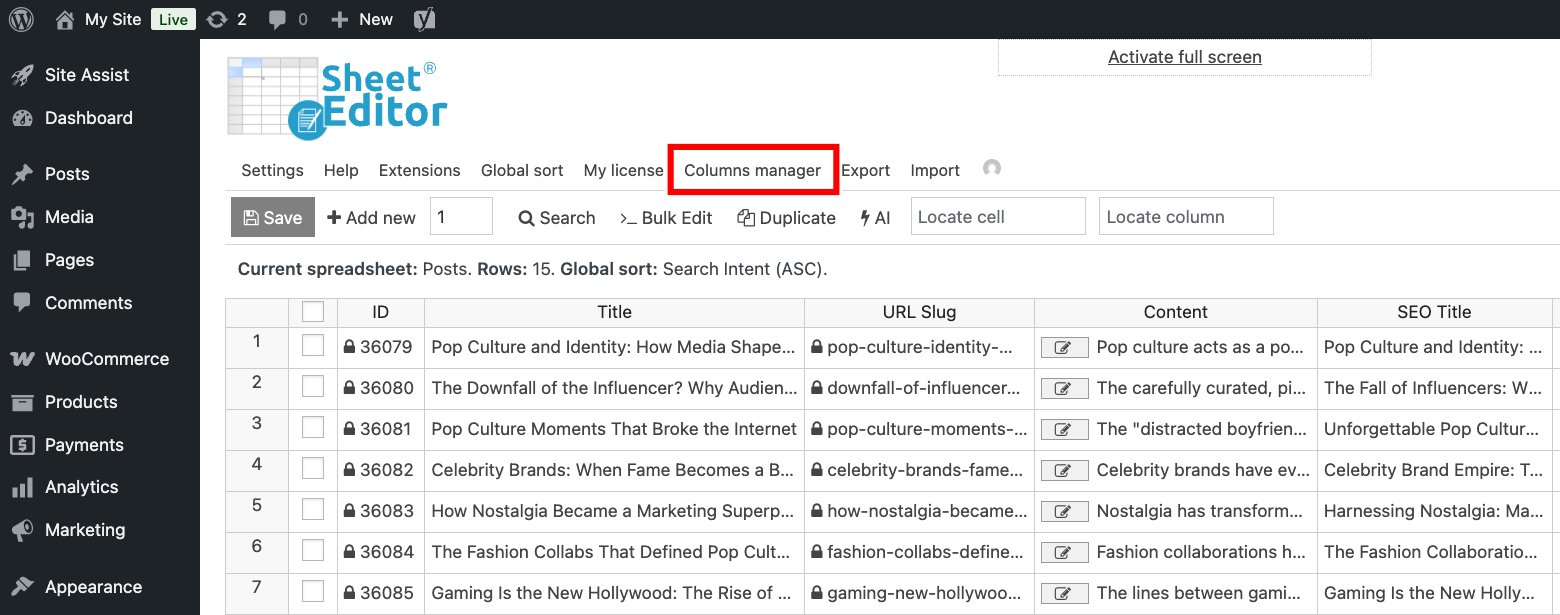
Navigate to WP Sheet Editor > Edit posts and open the Columns manager.
Find Search Intent and move it from the Disabled list to the Enabled list.
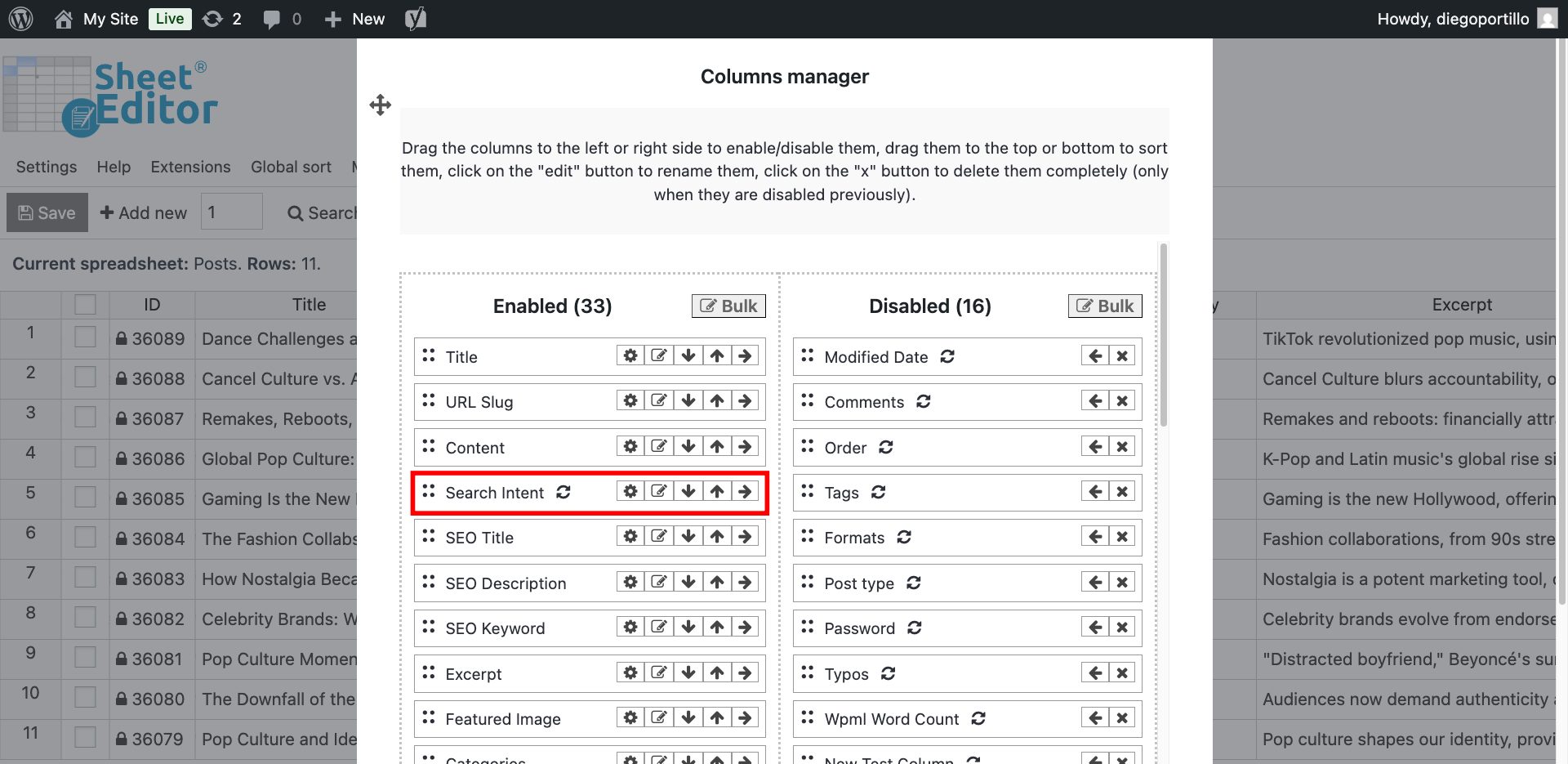
Save the changes. The Search Intent column will now appear in the spreadsheet.
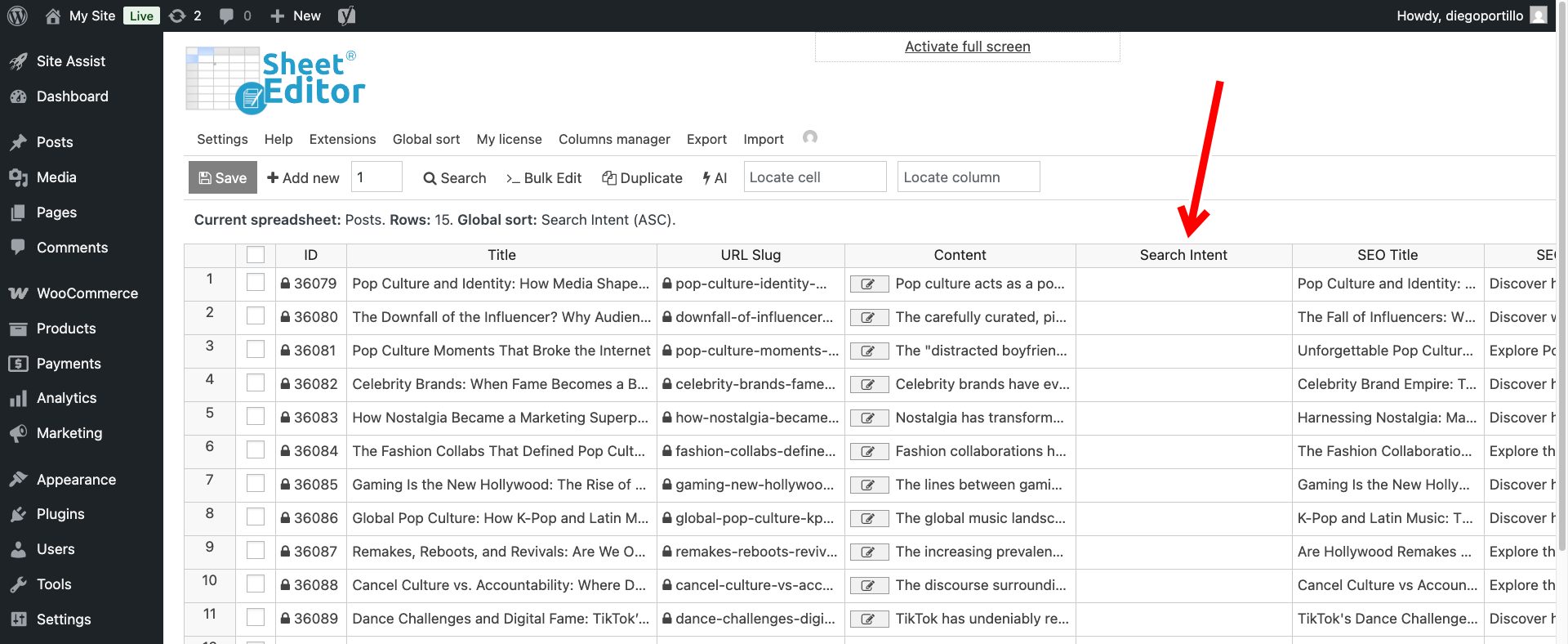
Step 3: Bulk audit search intent
Now you can use the post title and content to generate a search intent phrase for each post.
Option 1 – Audit search intent in the spreadsheet
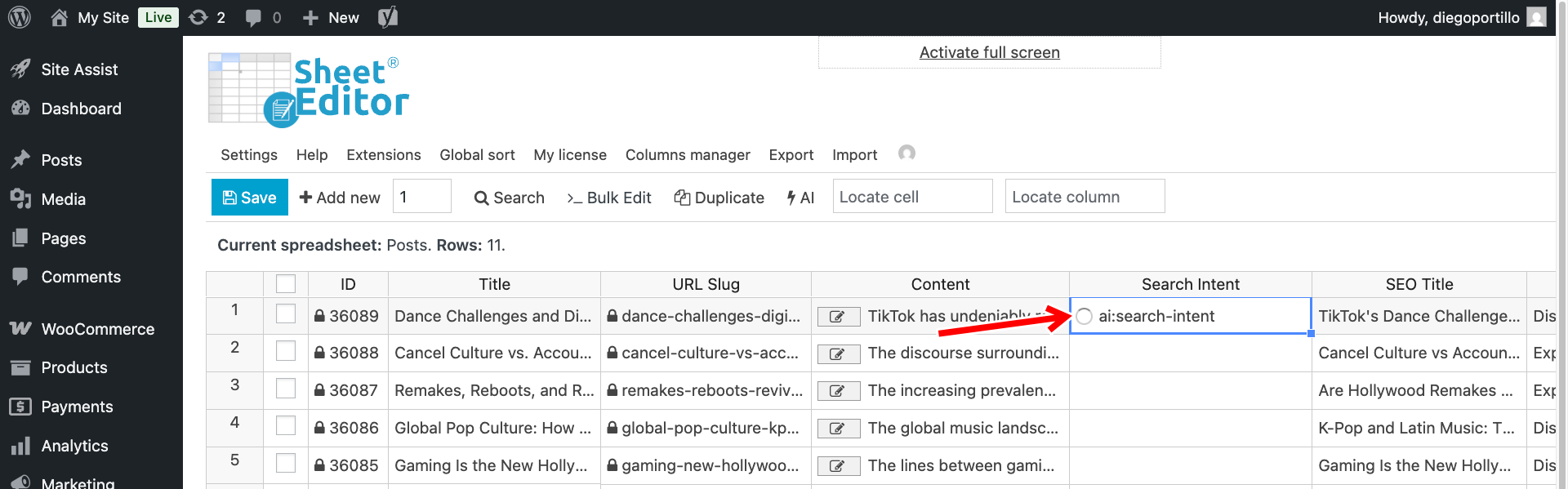
Find the Search Intent column and enter the AI prompt shortcut in the cells you want to analyze:
ai:search-intent
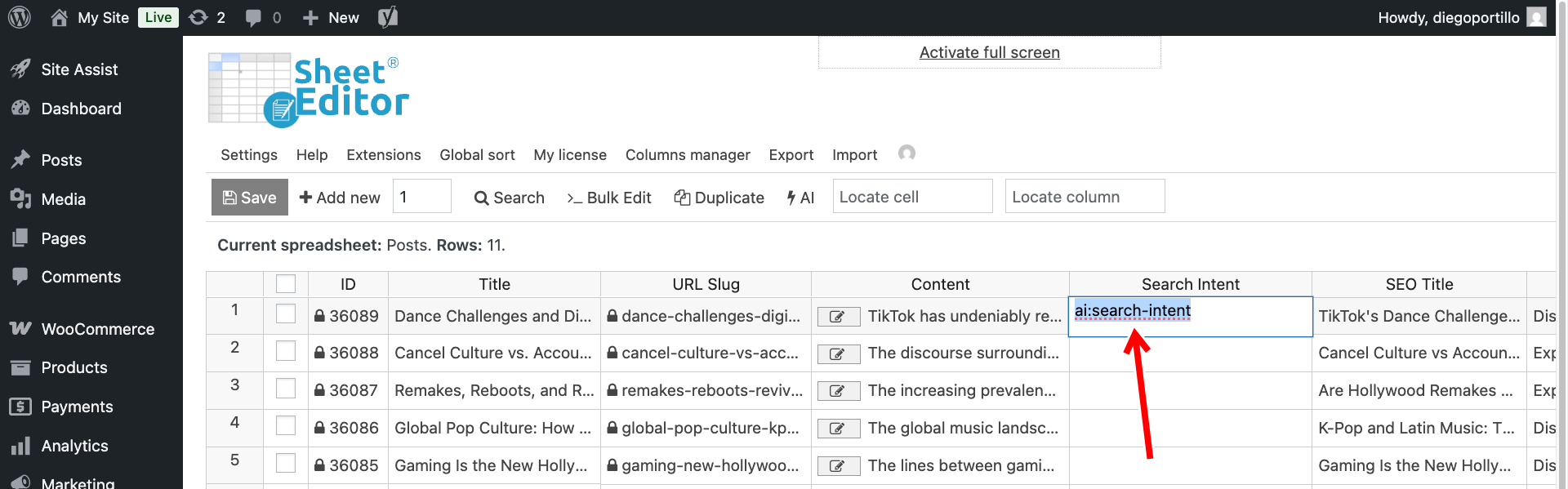
A loading icon will appear while the AI processes the post.
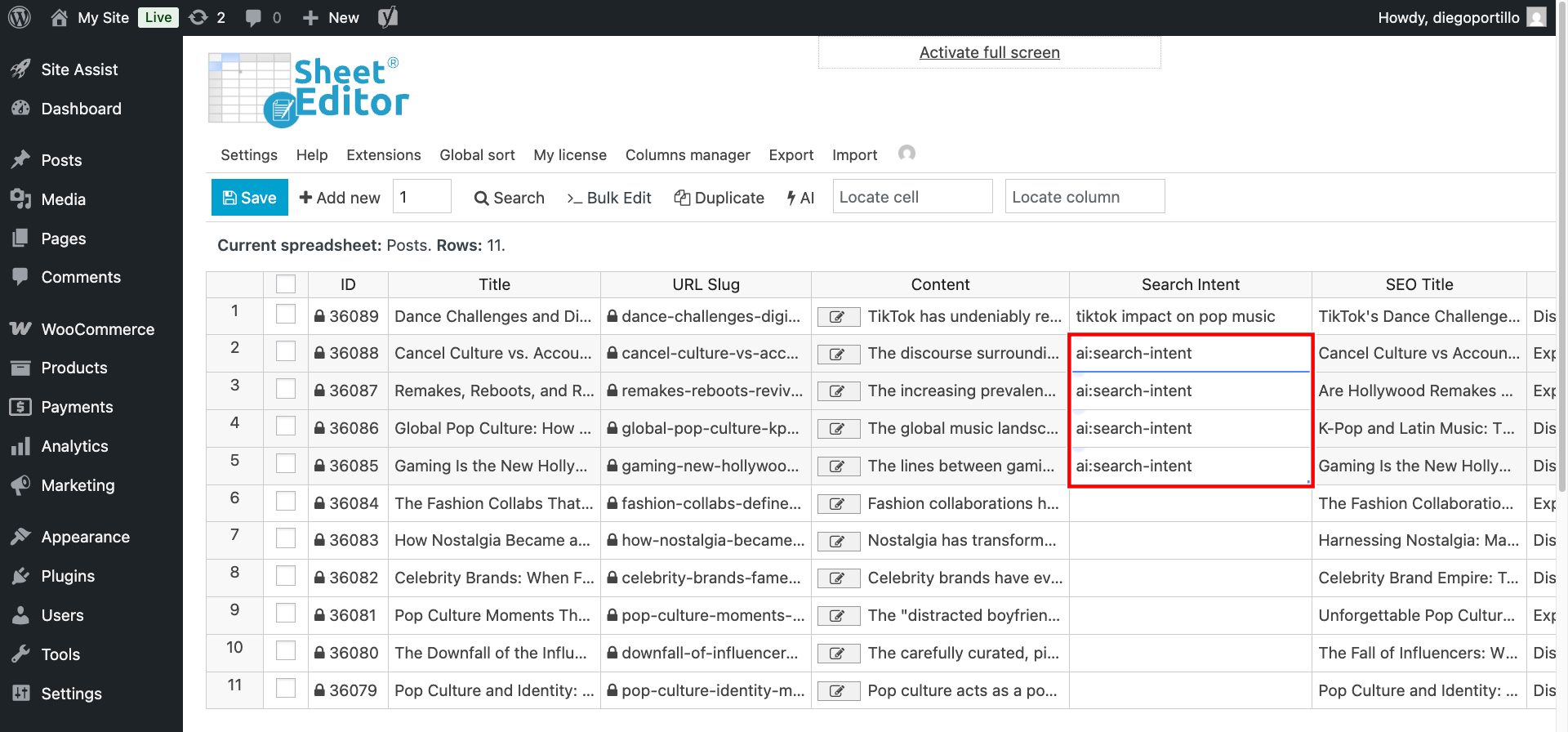
To analyze multiple posts, enter the shortcut in multiple cells.
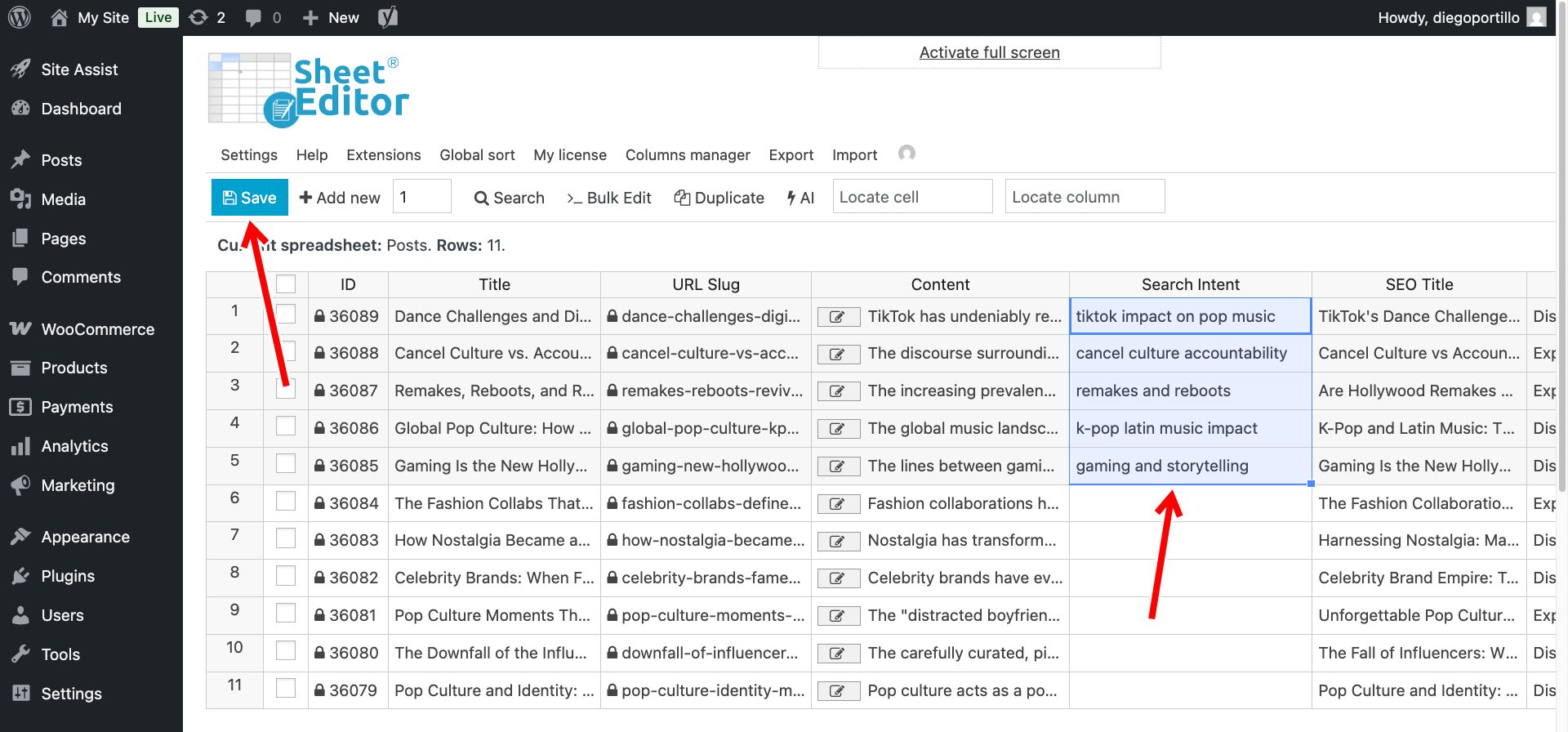
Click Save to keep the generated search intent values.
Option 2 – Audit search intent in bulk
You can use Bulk Edit to analyze all posts or first filter posts where the Search Intent column is empty.
To find posts where Search Intent = Empty, open the Search tool.
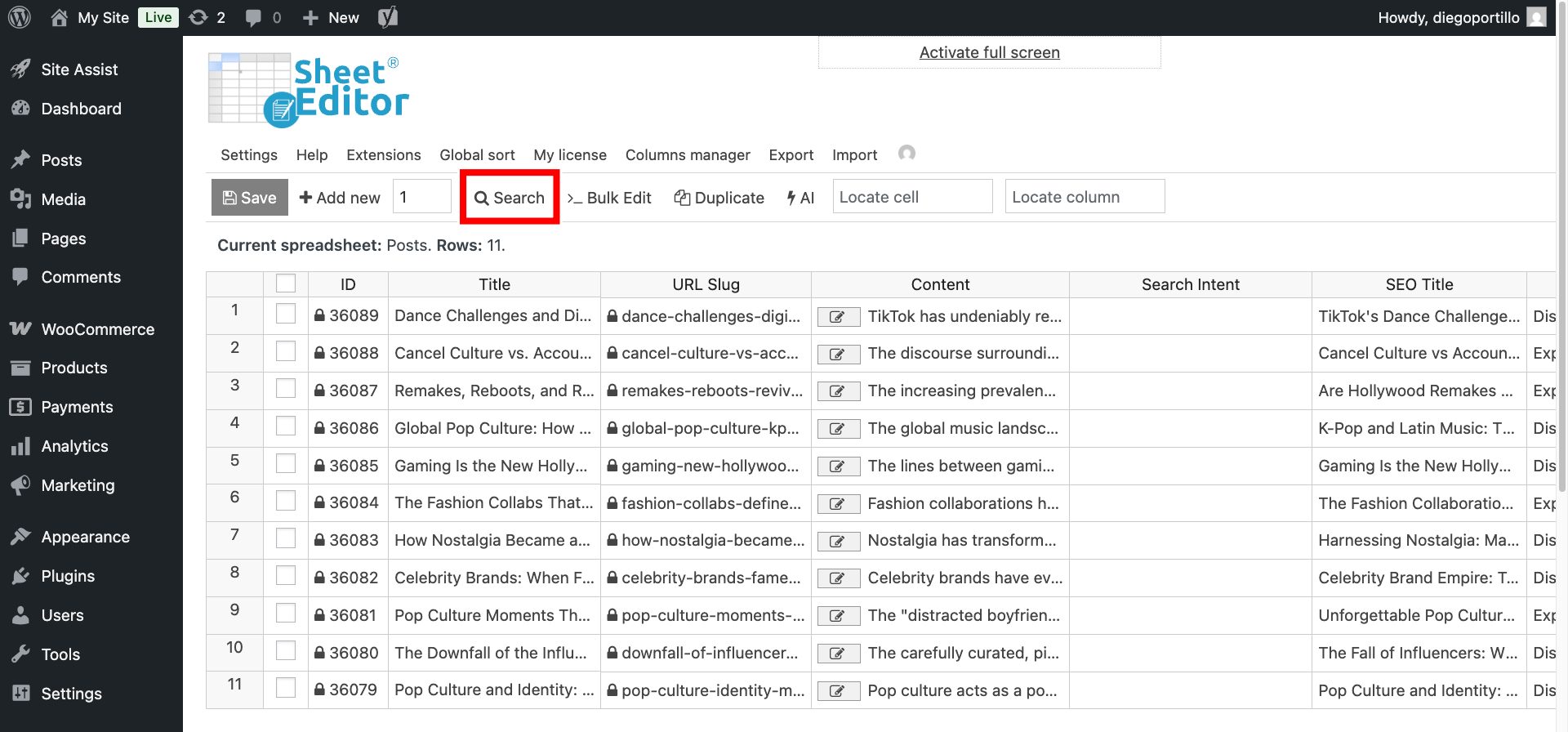
Configure the Search tool with these values:
- Tick the Enable advanced filters checkbox.
- Field: Search Intent
- Operator: =
- Value: Leave this field empty.
- Click Run search.
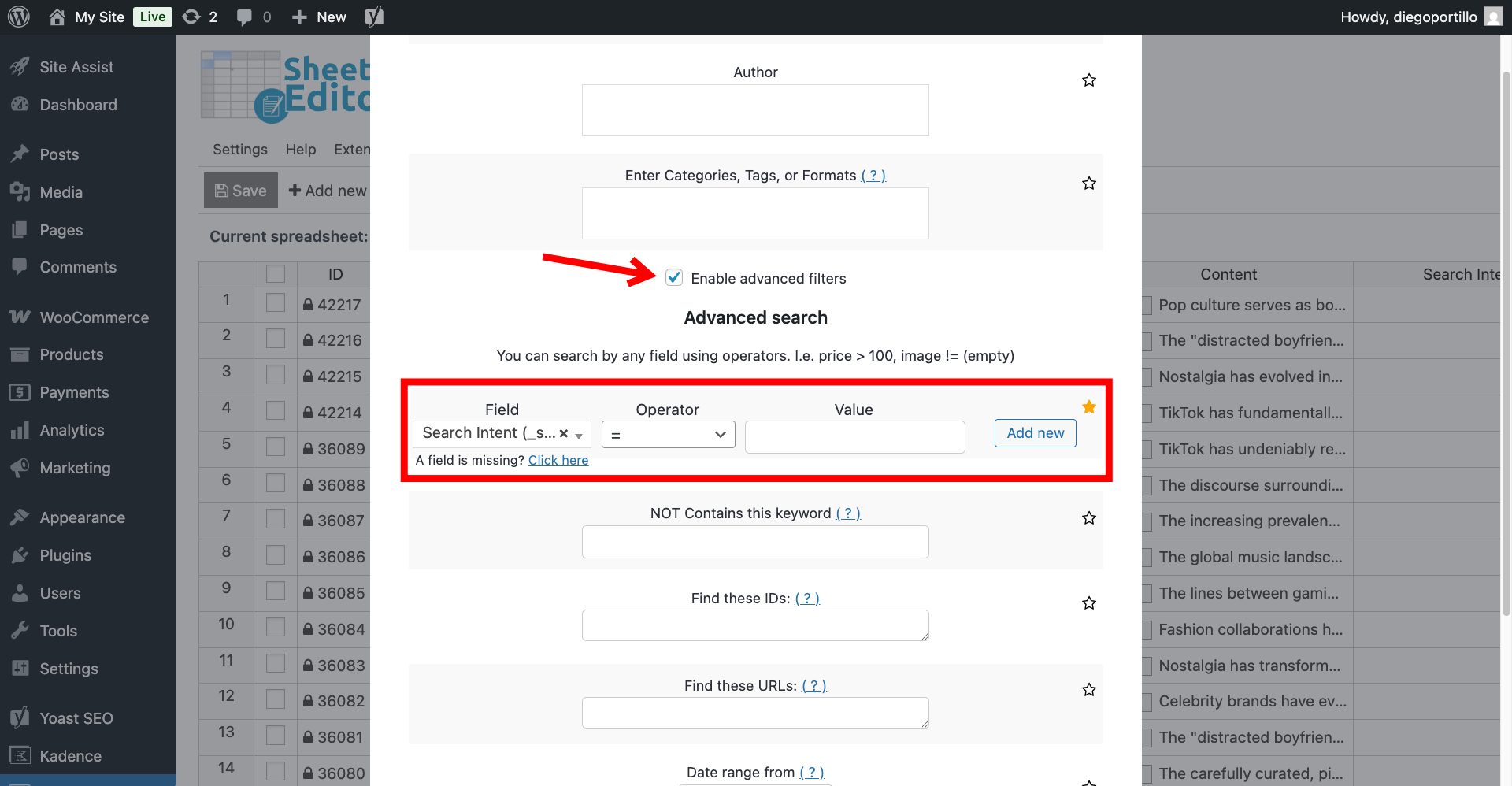
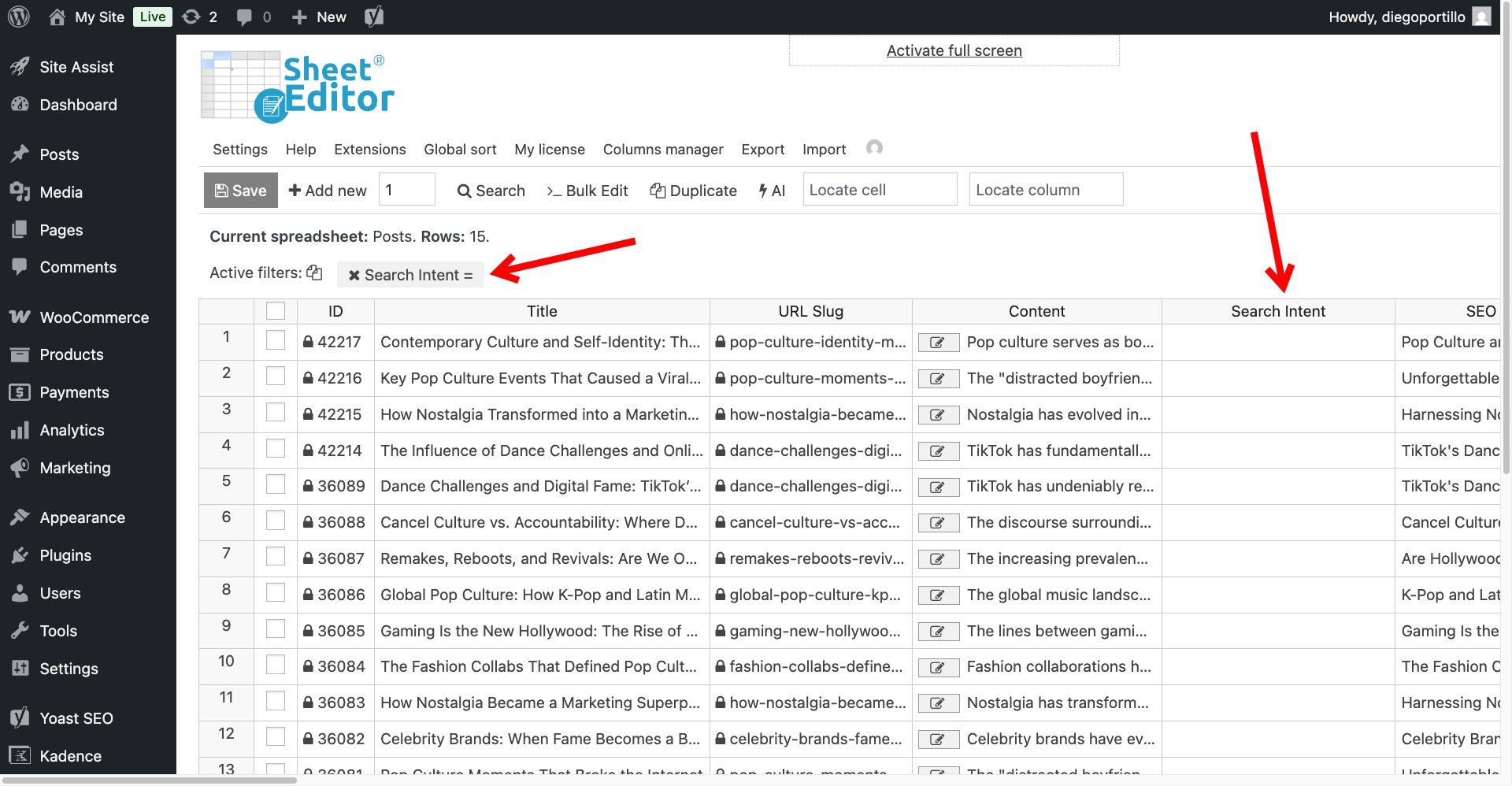
The spreadsheet will now display posts without a Search Intent value.
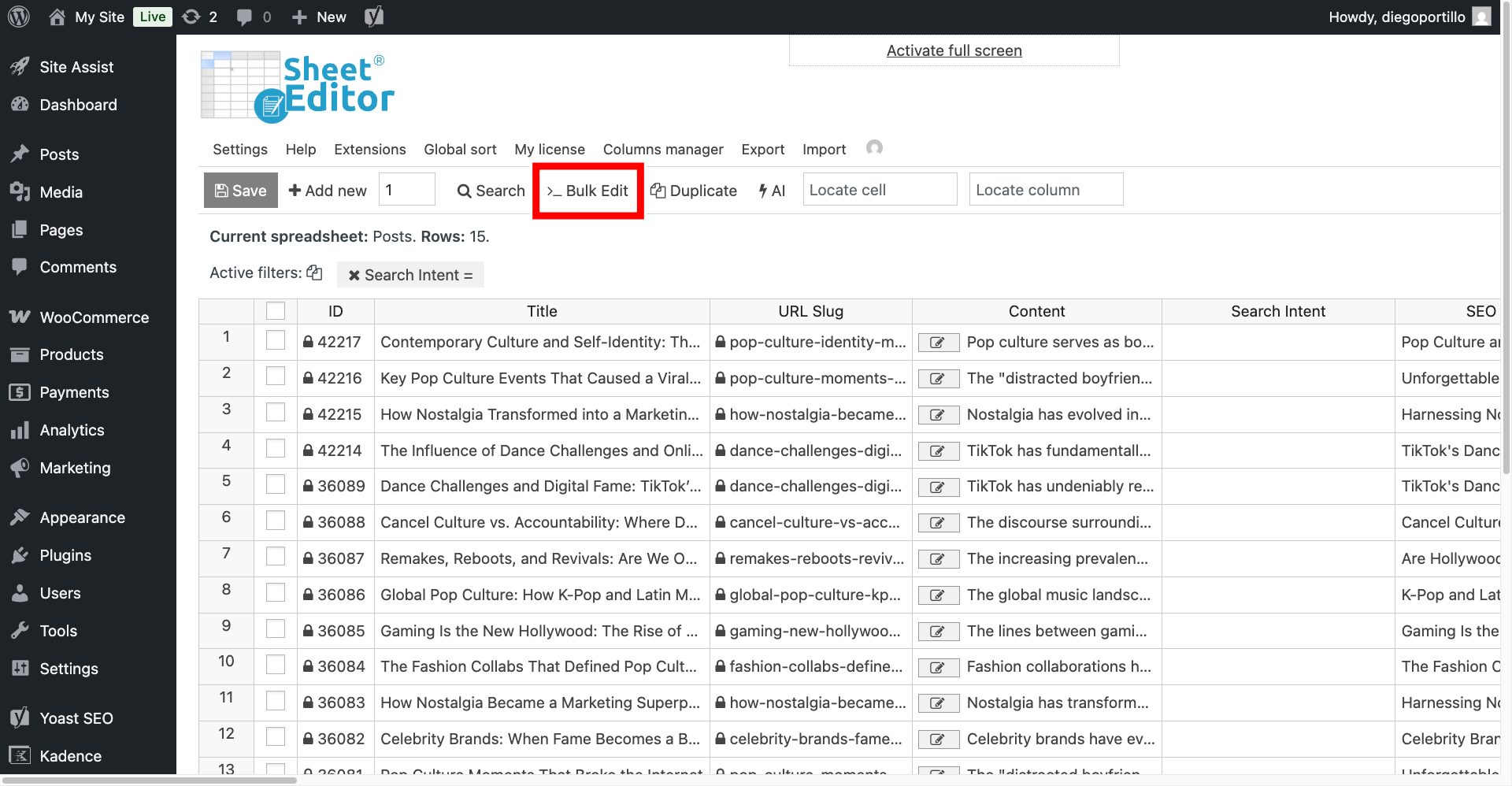
Open the Bulk Edit tool.
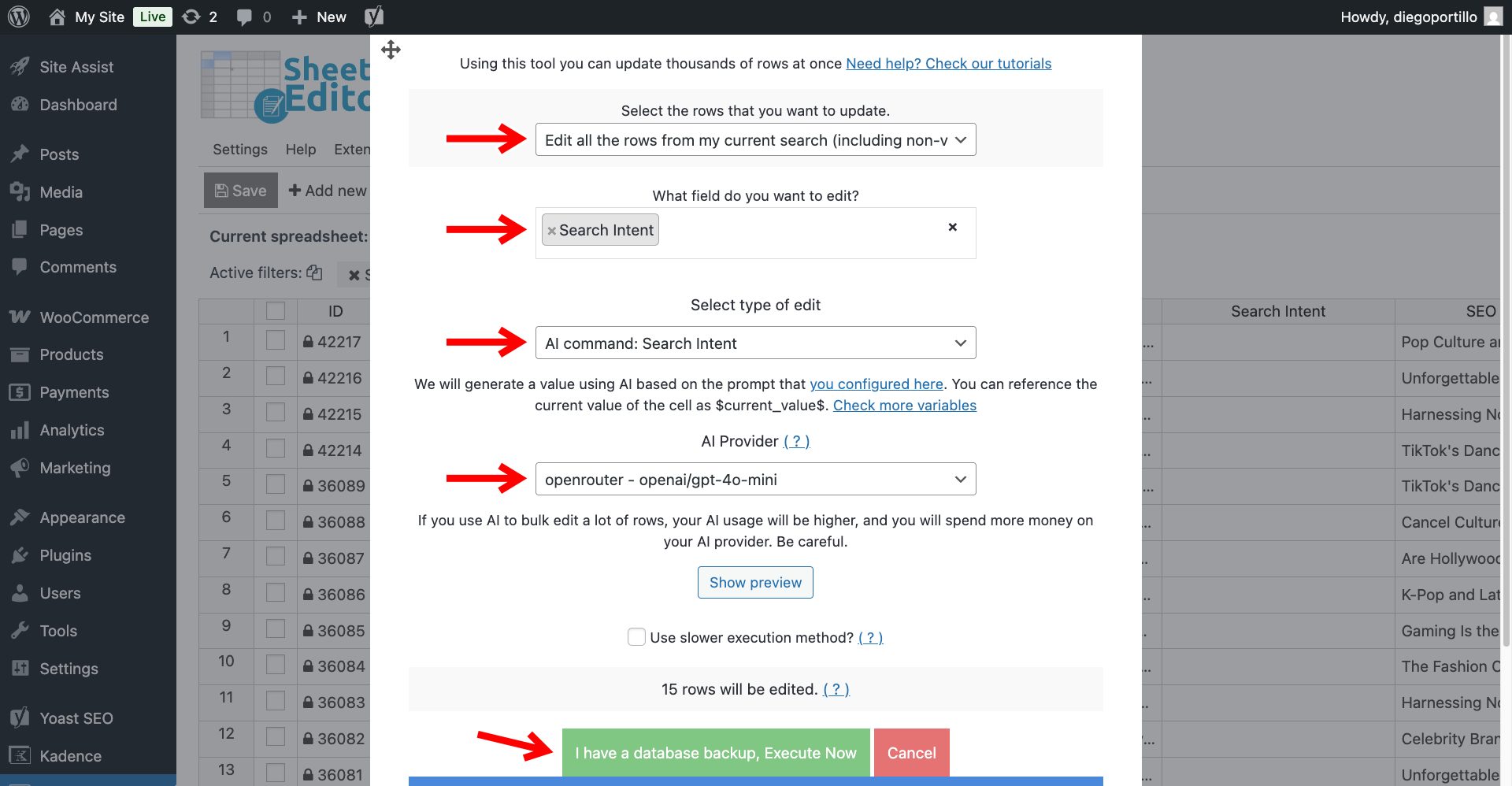
Configure the bulk operation as follows:
- Select the rows that you want to update: Choose “Edit all the rows from my current search”.
- What field do you want to edit: Select the custom
Search Intentfield created in Step 2. - Select the type of edit: Choose AI command: Search Intent.
- AI Provider: Choose your preferred model; we will use GPT-4-o through OpenRouter.
- Click Execute Now.
The AI will analyze the selected posts and add a search intent phrase to the Search Intent column.
Step 4: Find potential keyword cannibalization issues
Once the analysis is complete, the Search Intent column will contain short phrases describing the primary topic of each post.
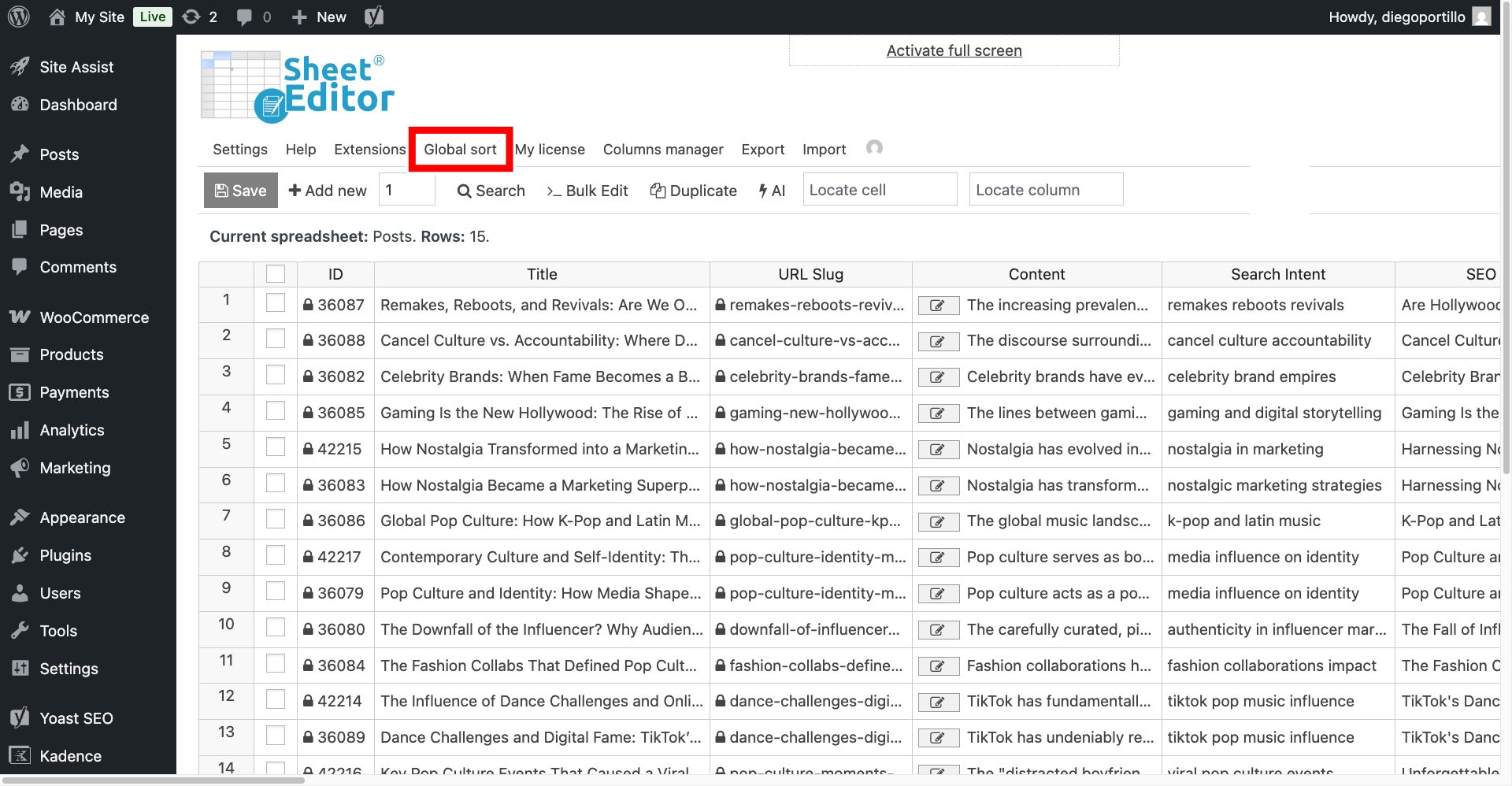
Use Global sort in the top toolbar to group similar search intent values.
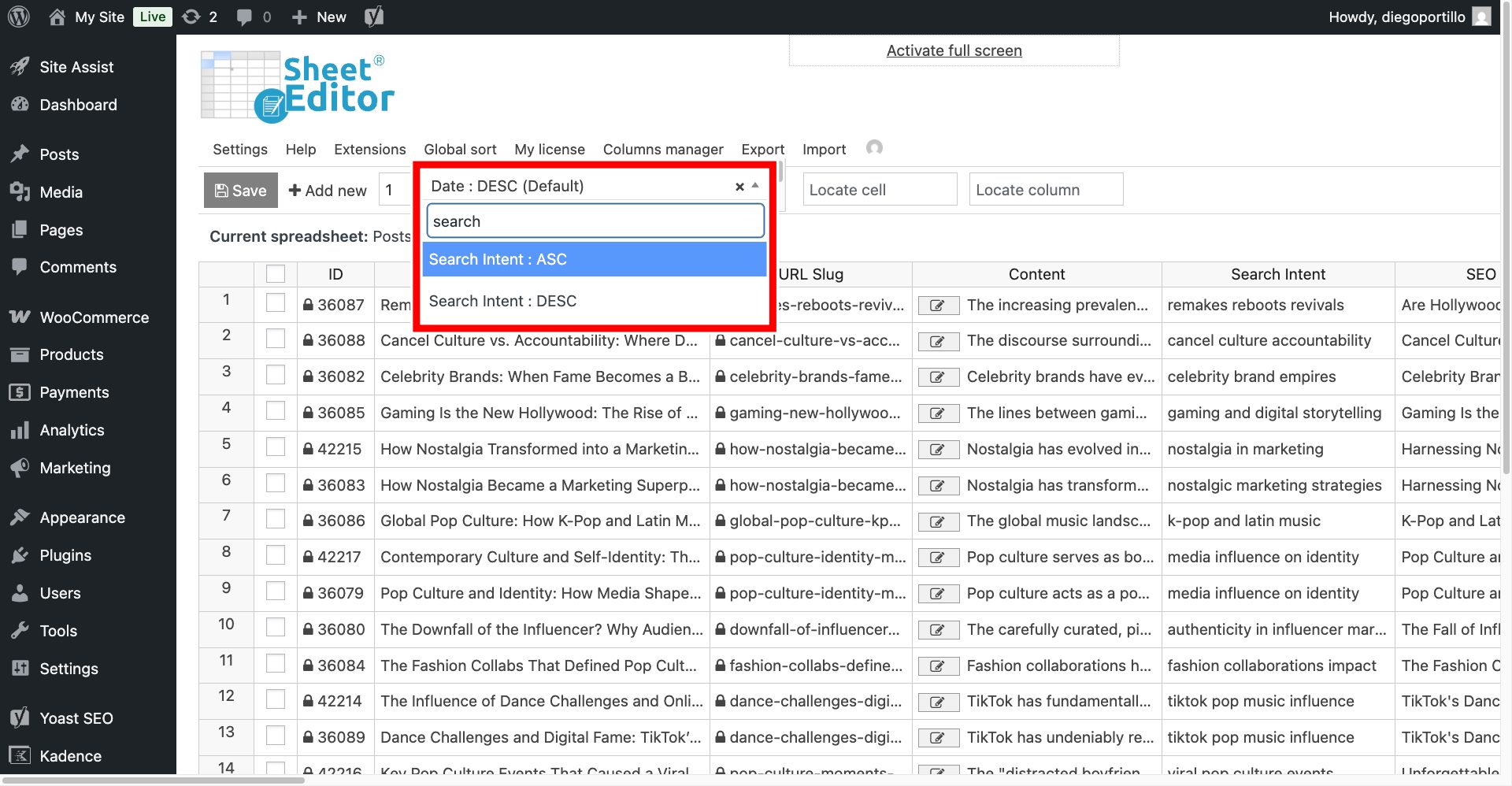
Select Search Intent: ASC to sort the values alphabetically.
Review groups of posts with the same or very similar search intent. These groups are potential keyword cannibalization issues that should be reviewed manually.
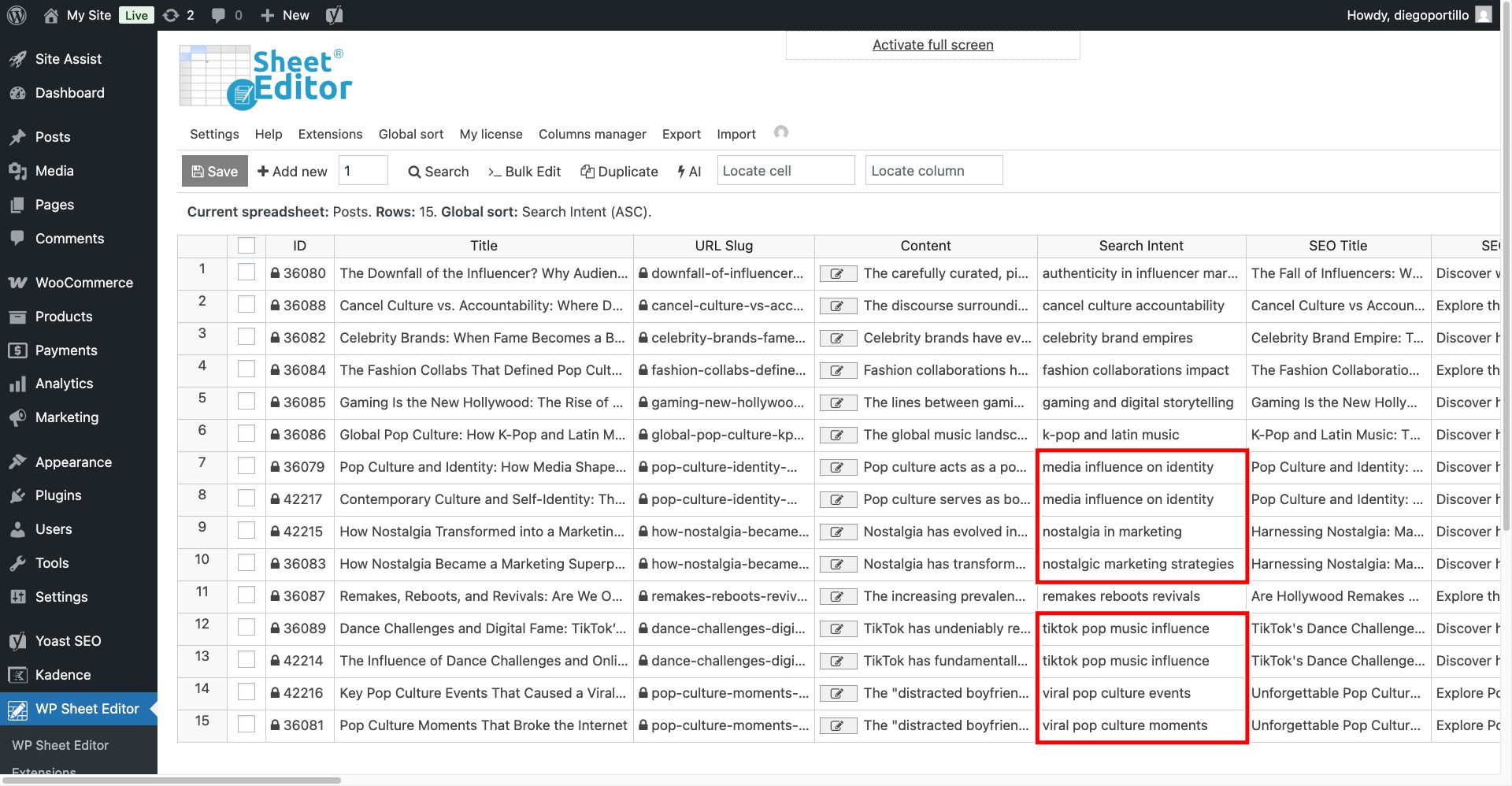
For example, if several posts are labeled “media influence on identity”, review them to determine whether they serve the same search intent. Similar labels do not automatically mean that the posts are cannibalizing each other.
How to fix potential keyword cannibalization
After identifying overlapping posts, choose the appropriate solution based on their content, search intent, and performance.
- Merge and redirect: Combine posts that serve the same intent when one stronger page can cover the topic. Redirect the removed URLs to the consolidated page.
- Re-optimize: If the posts serve different intents, revise their titles, content, and SEO fields so each page targets a distinct topic or query.
- Delete or draft: If a post is outdated, unnecessary, or no longer useful, consider deleting it or changing its status to Draft.
Using AI to extract search intent gives you a faster way to review a large WordPress content library. Use the resulting groups as a starting point for identifying and manually reviewing potential keyword cannibalization.