
Running a successful online store often involves more than just accepting payments; you need to get order data to the people who fulfill them. Whether you work with a third-party logistics provider (3PL), a dropshipping supplier, or an external accounting firm, they likely need your order details in a specific format.
Manually generating a CSV of your daily orders and uploading it to an FTP server is a bottleneck. It’s tedious, delays shipping times, and introduces the risk of human error—like missing a file upload or sending the wrong data.
In this guide, you will learn how to completely automate this workflow. We will show you how to schedule an automatic export of your WooCommerce orders (including customer details, shipping addresses, and order totals) directly to an external FTP server.
Using WP Sheet Editor – WooCommerce Orders and the Automations Add-on, you can filter for new orders, generate a custom CSV, and transfer it to your partners automatically.
Important: Currently, this method works with SFTP servers, but only with password-protected SFTP servers, not with servers that require an SSH key.
Required tools to export orders to FTP
To follow this tutorial, you need the following tools installed on your WordPress site:
WP Sheet Editor – WooCommerce Orders
This plugin upgrades your order management experience. Instead of opening orders one by one, you get an intuitive spreadsheet where you can view, edit, and manage thousands of orders at once. It serves as the engine for filtering and exporting your data.
You can download the plugin here:
Download WooCommerce Orders Spreadsheet Plugin - or - Check the features
Automations Add-on
This extension allows you to automate WP Sheet Editor tasks. You can schedule exports, imports, bulk edits, etc. In this case, it handles the background processes, allowing you to schedule recurring exports and manage the connection to your FTP or SFTP server securely.
You can get the add-on here:
Step 1. Add FTP credentials to “wp-config.php”
Security is paramount when connecting to remote servers. Instead of storing passwords in the database, WP Sheet Editor requires you to define your FTP credentials in your site’s wp-config.php file.
Open wp-config.php and paste the following code snippet. Be sure to update the placeholders with your actual server information.
define('WPSE_AUTOMATIONS_FTP_SERVERS', array(
  array(
    'name'     => 'My server', // A nickname for this connection
    'hostname' => 'ftp.example.com',
    'port'     => 22,
    'username' => 'user123',
    'password' => 'secure-password',
    'secure'   => true, // Set to true for SFTP (Recommended)
  )
));
Once saved, the plugin will recognize your server as a valid destination for your order exports.
Step 2. Open the WooCommerce Orders spreadsheet
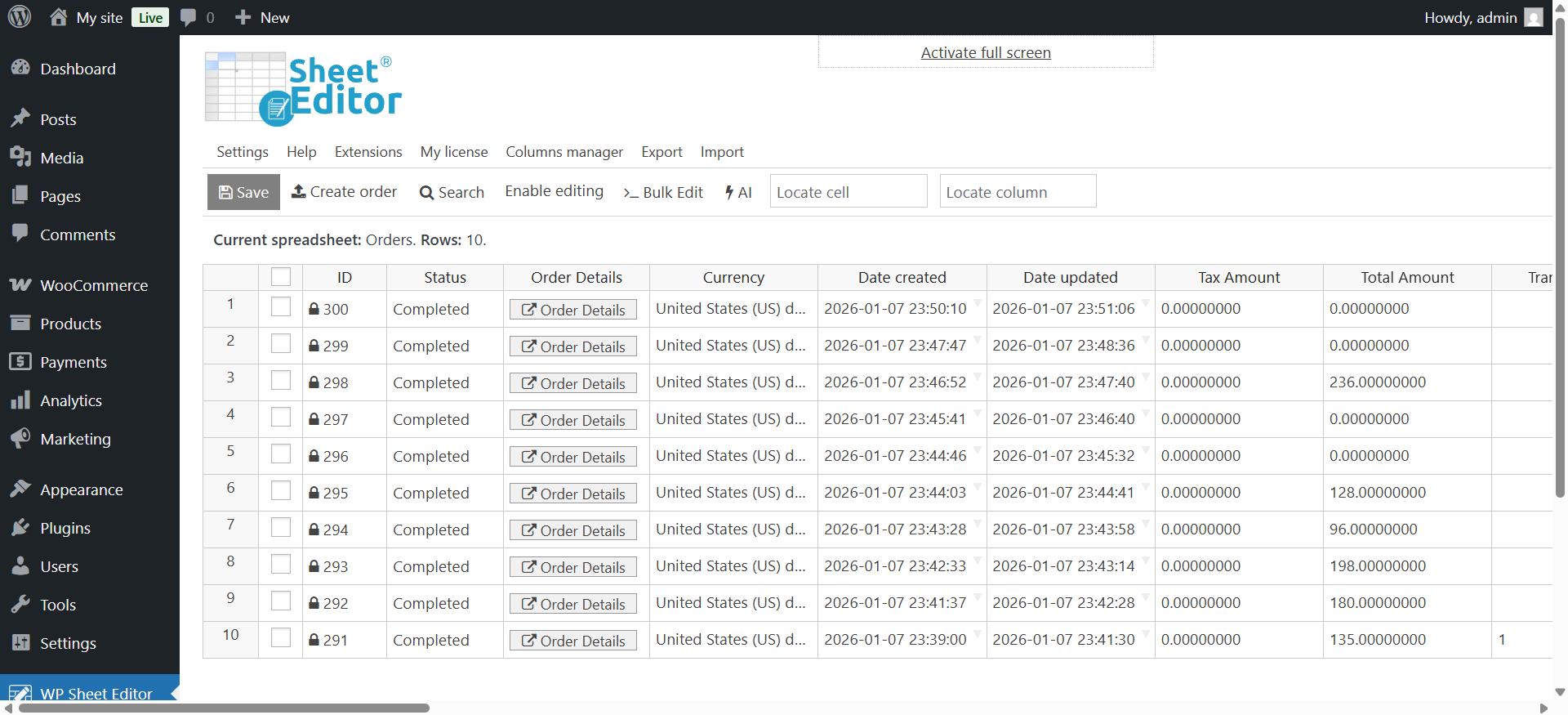
Navigate to WP Sheet Editor > Edit Orders. You will see a spreadsheet view of all your store’s orders, including their status, totals, and billing details.
Step 3. Filter the orders you want to export (optional)
For an automated workflow, you rarely want to export all historical orders. Usually, you only need to export new or processing orders.
For example, let’s schedule the processing orders created in the last 24 hours to be automatically exported every day at midnight.
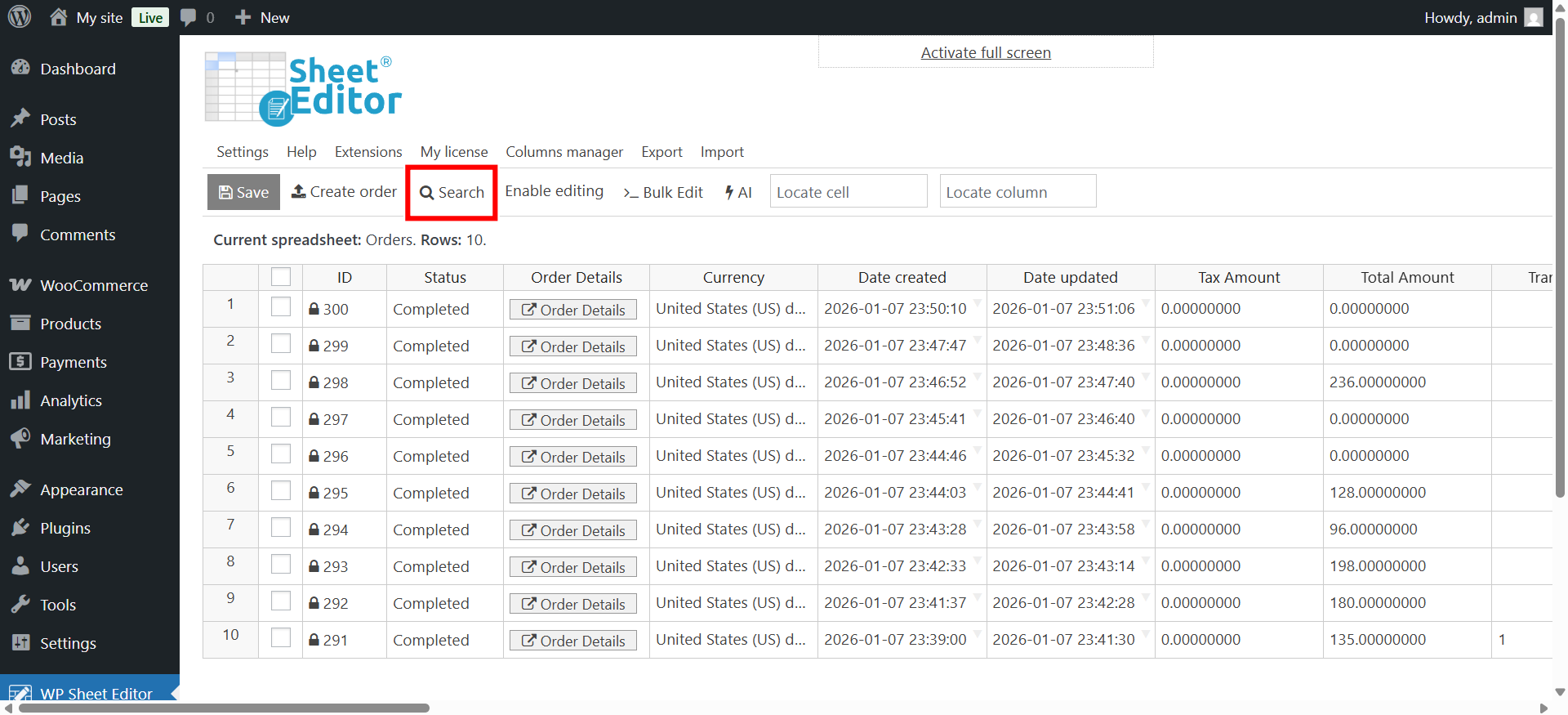
To do this, we need to use the Search tool.
Now select these search settings:
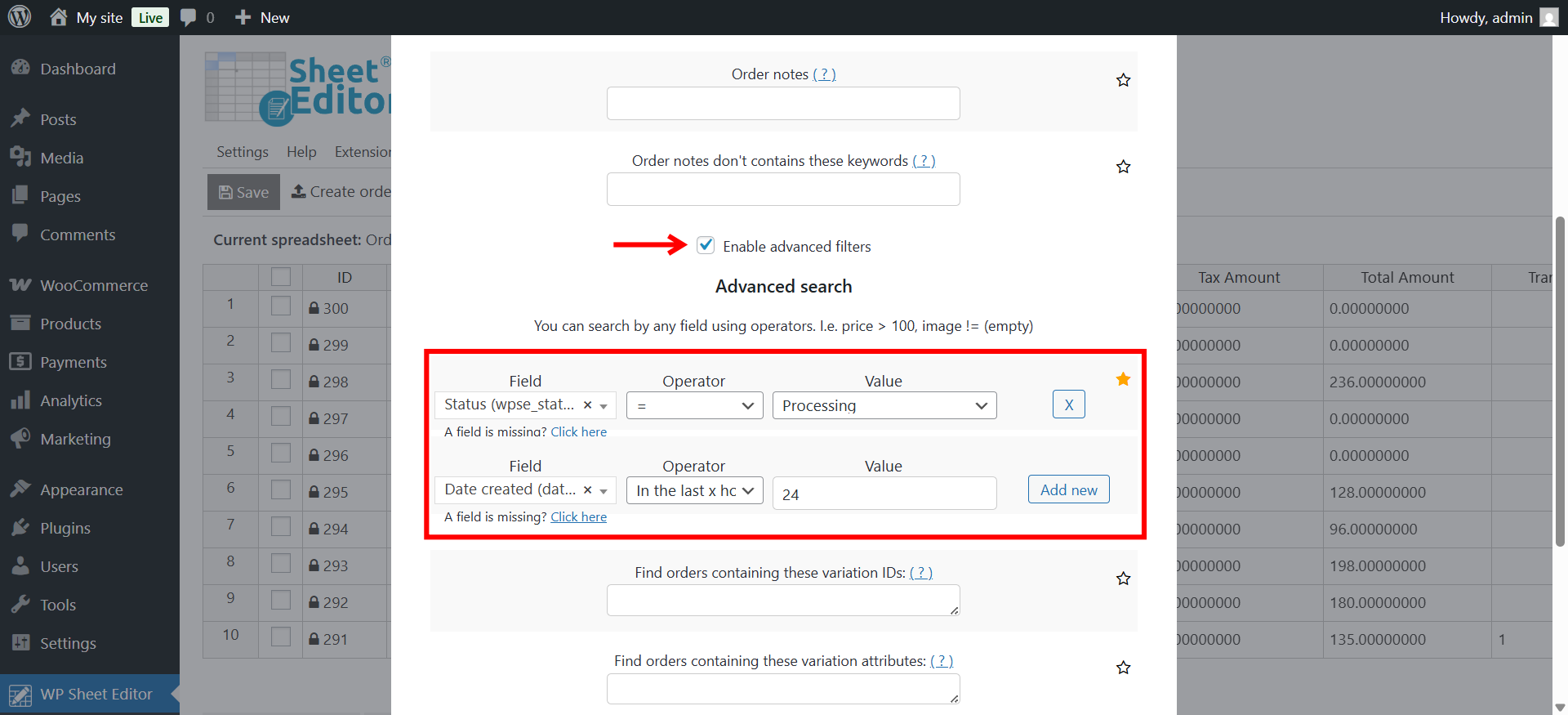
- Tick the Enable advanced filters checkbox.
- Order status filter:
- Field: Status
- Operator: =
- Value: Processing
- Click on Add New to create a new filter.
- Date created filter:
- Field: Date created
- Operator: In the last X hours
- Value: 24, for example.
- Click Run search.
Important. These search filters will automatically run every time your export runs. This ensures that your recurring export only grabs the relevant orders.
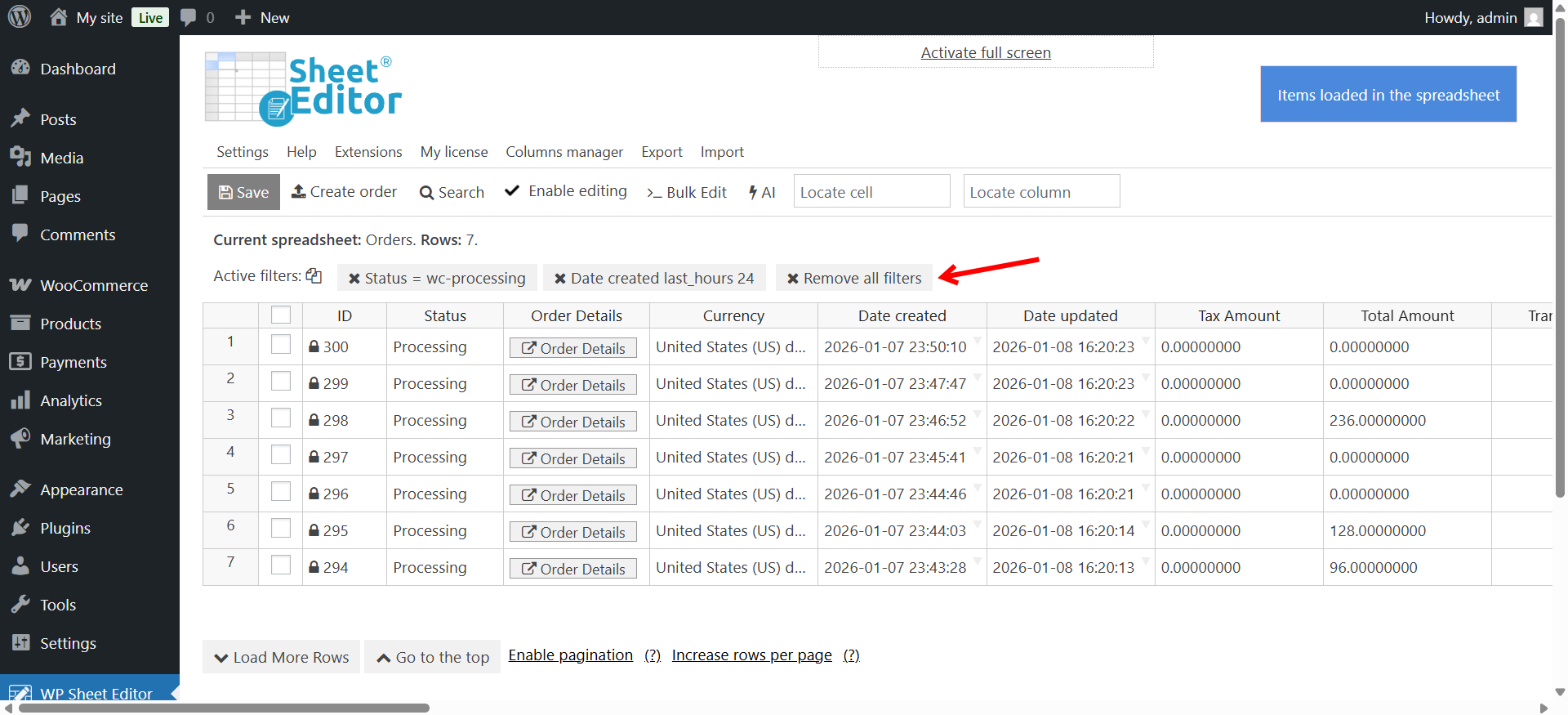
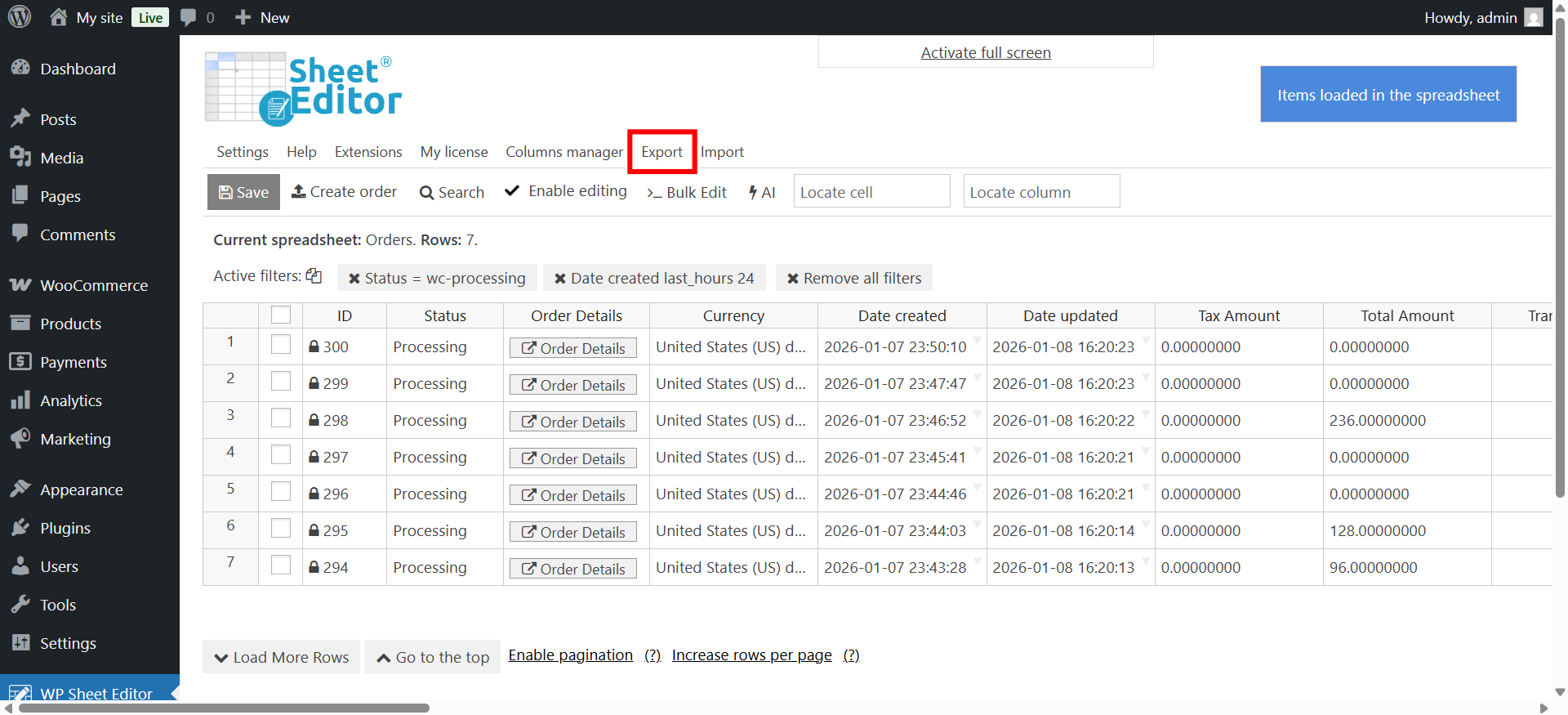
As you can see below, we have filtered the processing orders created in the last 24 hours.
Step 4. Open the “Export” tool
Once you have filtered your orders (or if you are exporting everything), click the Export button located on the top toolbar.
Step 5. Configure the Export columns and Schedule
The Export tool allows you to map out exactly what data your external server will receive.
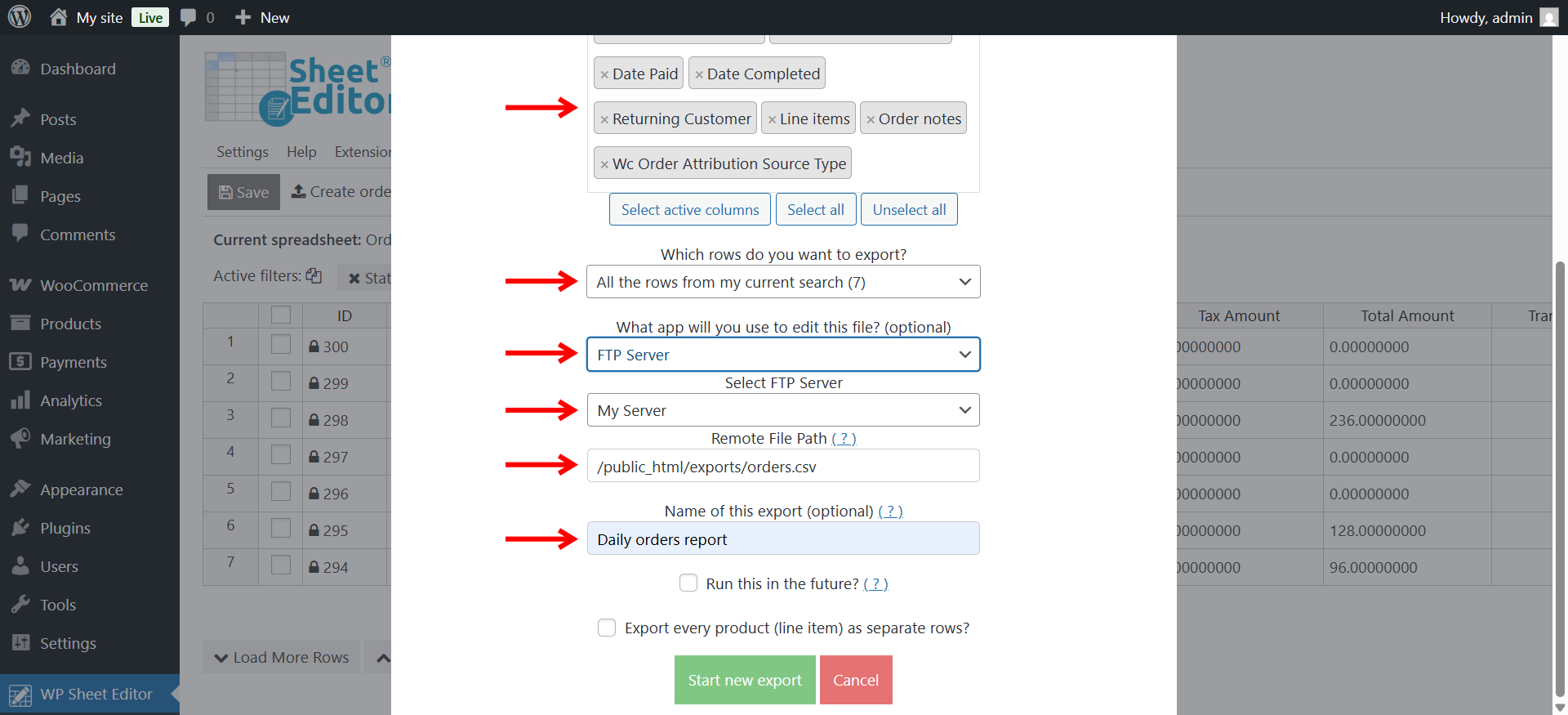
Configure the settings as follows:
- What columns do you want to export: You can export all columns or select specific columns.
- Which rows do you want to export: Select All the rows from my current search (this respects the filters you applied.
- What app will you use to edit this file: Select FTP Server.
- Select FTP Server: Choose the server nickname.
- Remote File Path: Define the folder path on the remote server where the file should be saved (e.g., /public_html/exports/orders.csv).
- Name of this export: Give it a clear name, such as “Daily orders report”.
Setting up the automation
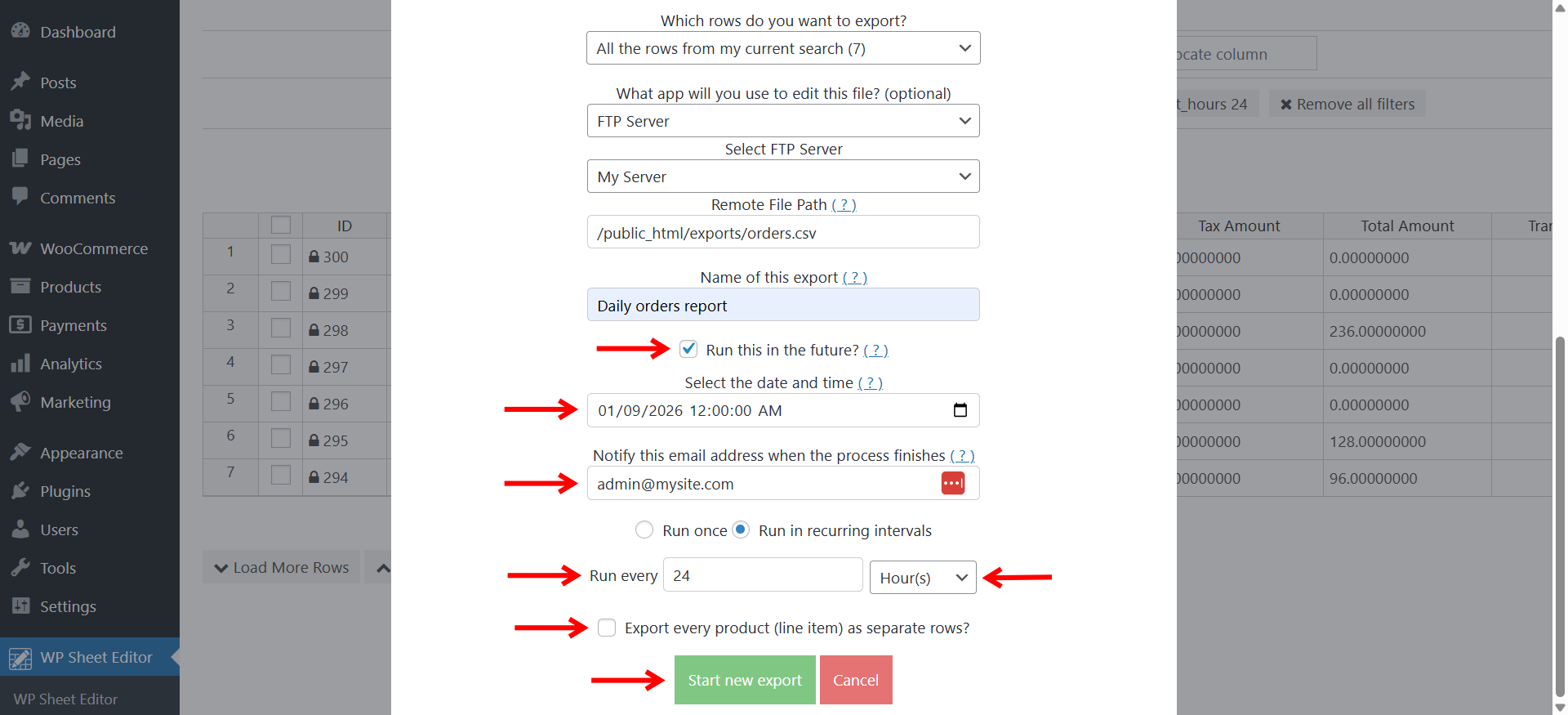
To make this process run without your intervention:
- Tick the Run this in the future checkbox.
- Select the date and time for the automation to start.
- Enter your email in Notify this email address to get a report when the file is sent.
- Select if you want this export to Run once or Run in recurring intervals.
- If you selected recurring intervals, choose the frequency (e.g., Every day at 12:00:00 AM).
- Optional: Tick the Export every product (line item) as separate rows.
- Click Start new export.
Since you are filtering by “Processing” status and date created, this scheduled task will run every day, look for orders that match your criteria, and send a fresh CSV to your FTP server automatically.
You can verify your scheduled task by clicking the “View scheduled exports” link.
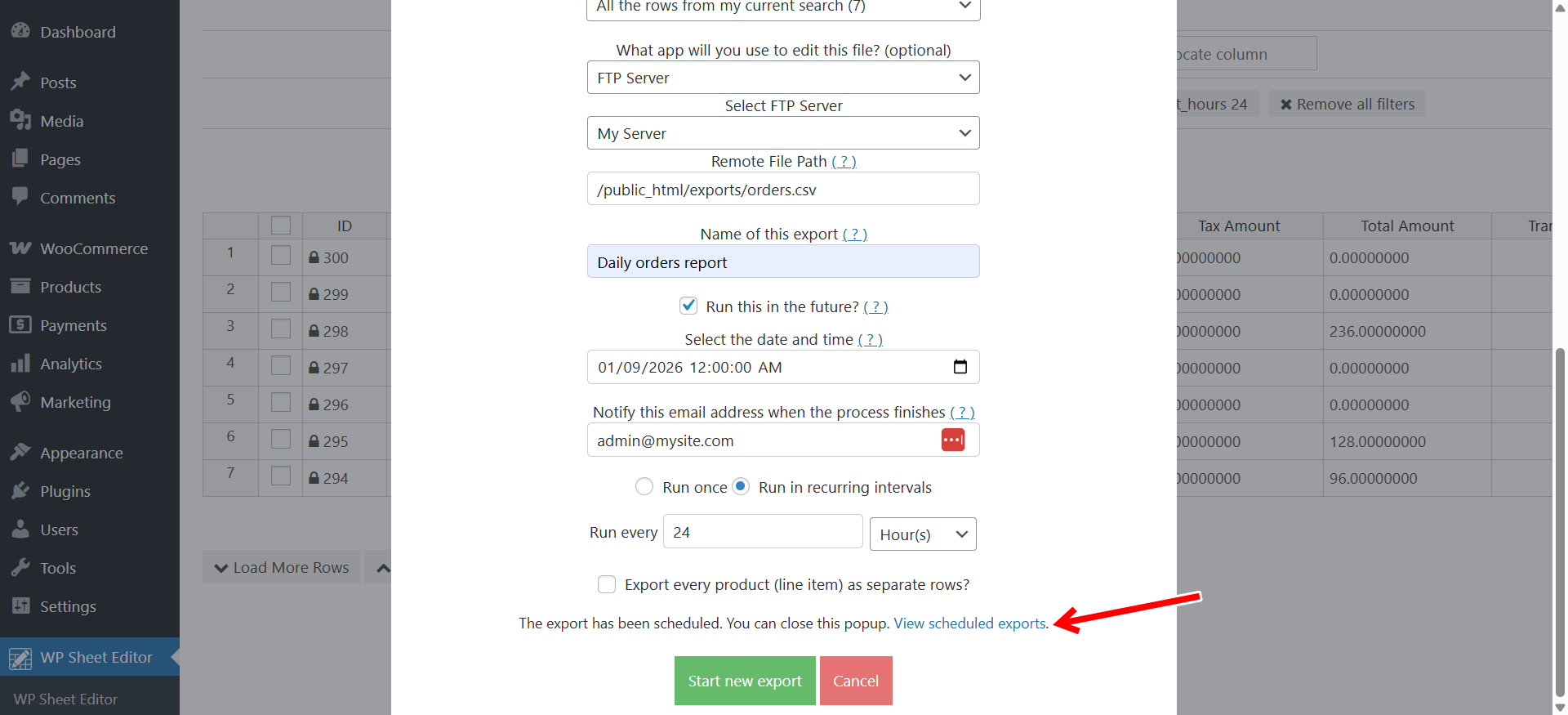
That will open the Scheduled exports panel, where you can manage the scheduled task.
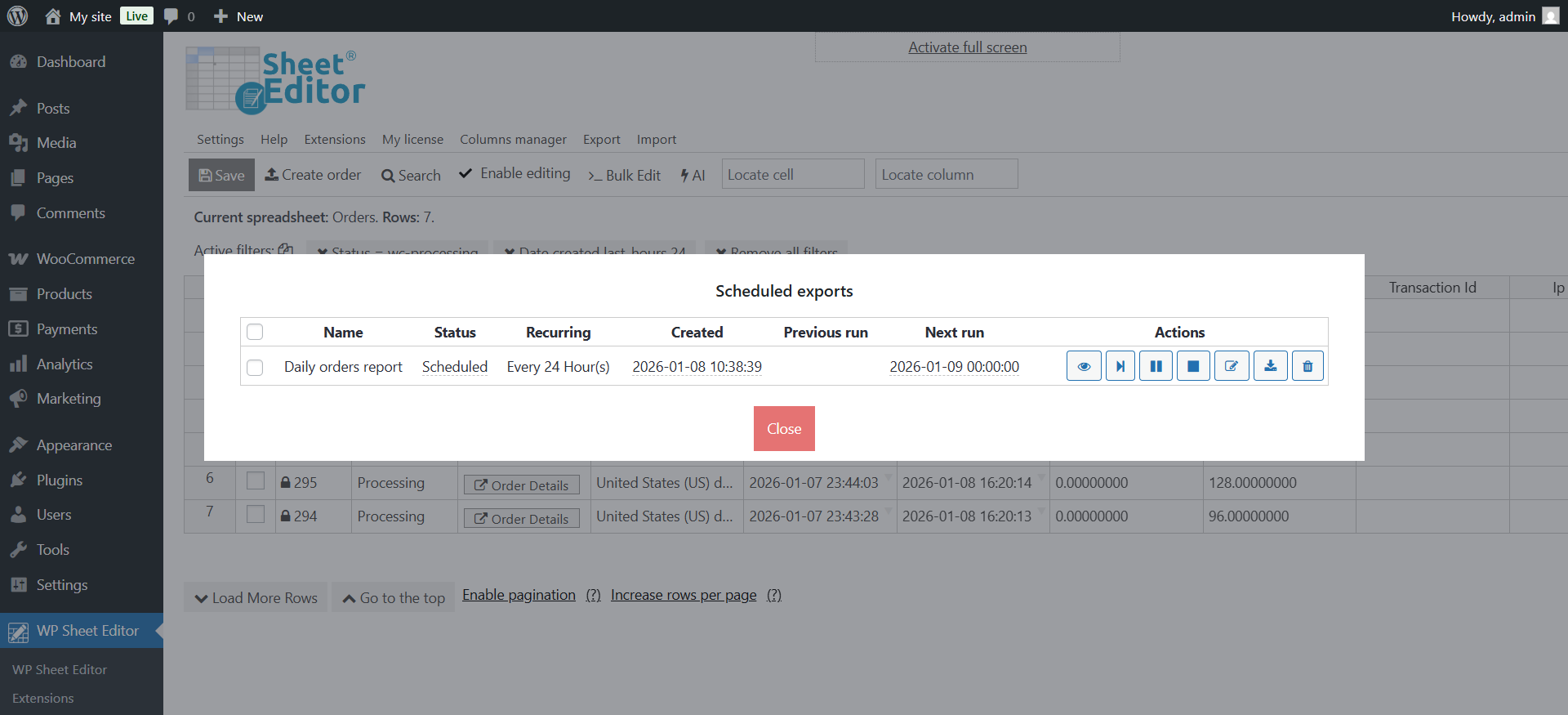
Managing your automated order exports
Now you now have a fully automated data pipeline. WP Sheet Editor will:
- Query your WooCommerce orders based on your selected filters.
- Construct a CSV file with the exact columns and rows required.
- Securely connect and upload the file to your supplier’s server.
Automating the export of WooCommerce orders to an FTP server eliminates manual data entry, reduces fulfillment errors, and allows you to scale your operations efficiently.
Does this work with SFTP?
Yes. But only with password-protected SFTP servers, not with servers that require an SSH key.
You can download the plugin here:
Download WooCommerce Orders Spreadsheet Plugin - or - Check the features