
In this tutorial, I will show you How to hide a WooCommerce product category from the shop page without deleting the category or its products. I will use WP Sheet Editor because it displays my products in a spreadsheet where I can edit fields as columns, or bulk update any field in thousands of products at once.
Learning how to hide a category in WooCommerce can be useful is you need to:
- Prepare a new seasonal collection of products
- Manage a private wholesale tier
- Deal with temporary supply chain issues
You can download the plugin here:
Download WooCommerce Products Spreadsheet Plugin - or - Check the features
Once you install and activate WP Sheet Editor on your site, go to WP Sheet Editor > Edit products to open the spreadsheet.
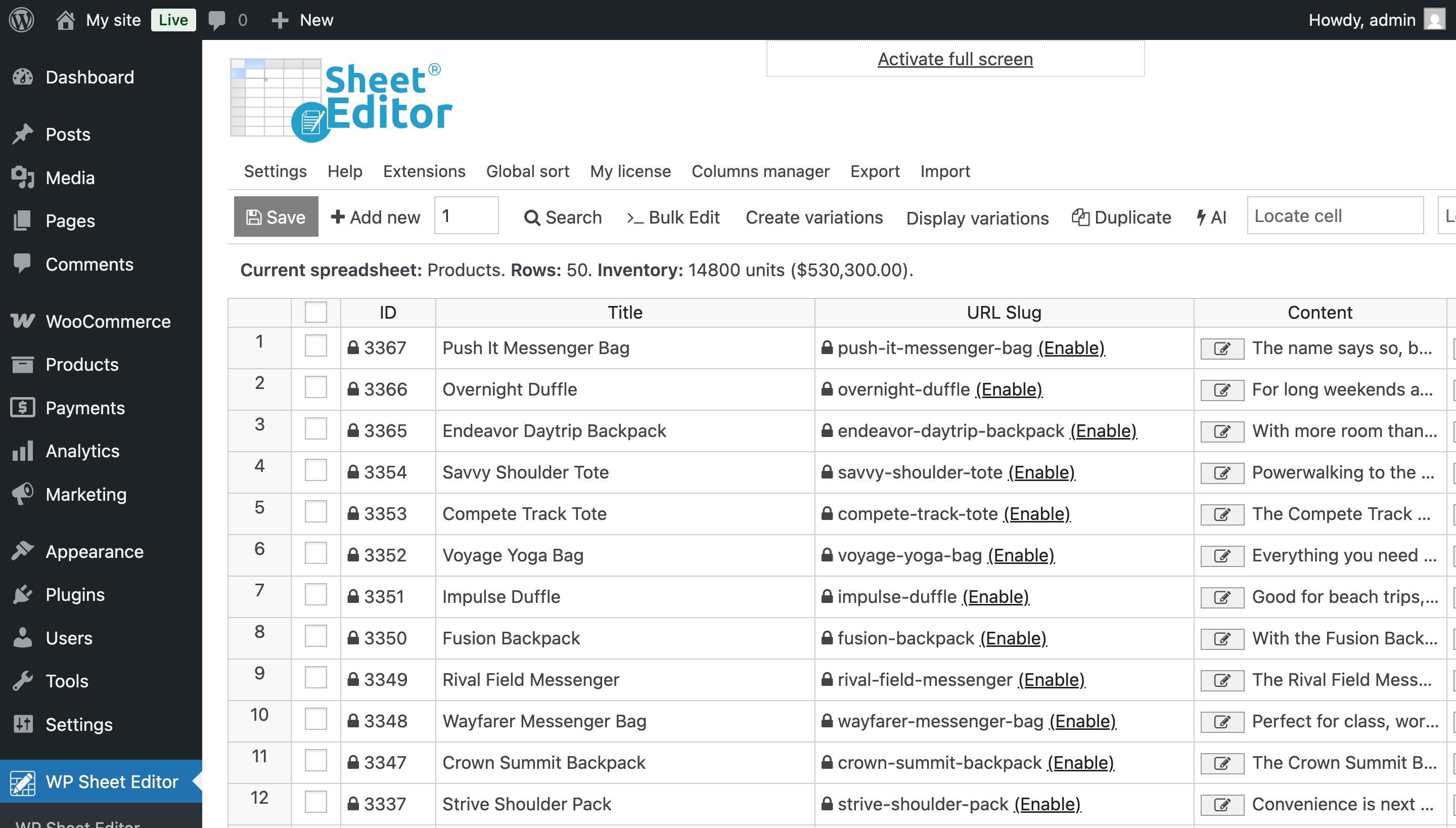
First, search for products by category
Before I show you how to hide products in a category, I want you to see how to search for products that belong to a specific category so you can target only those products.
Click on the Search tool.
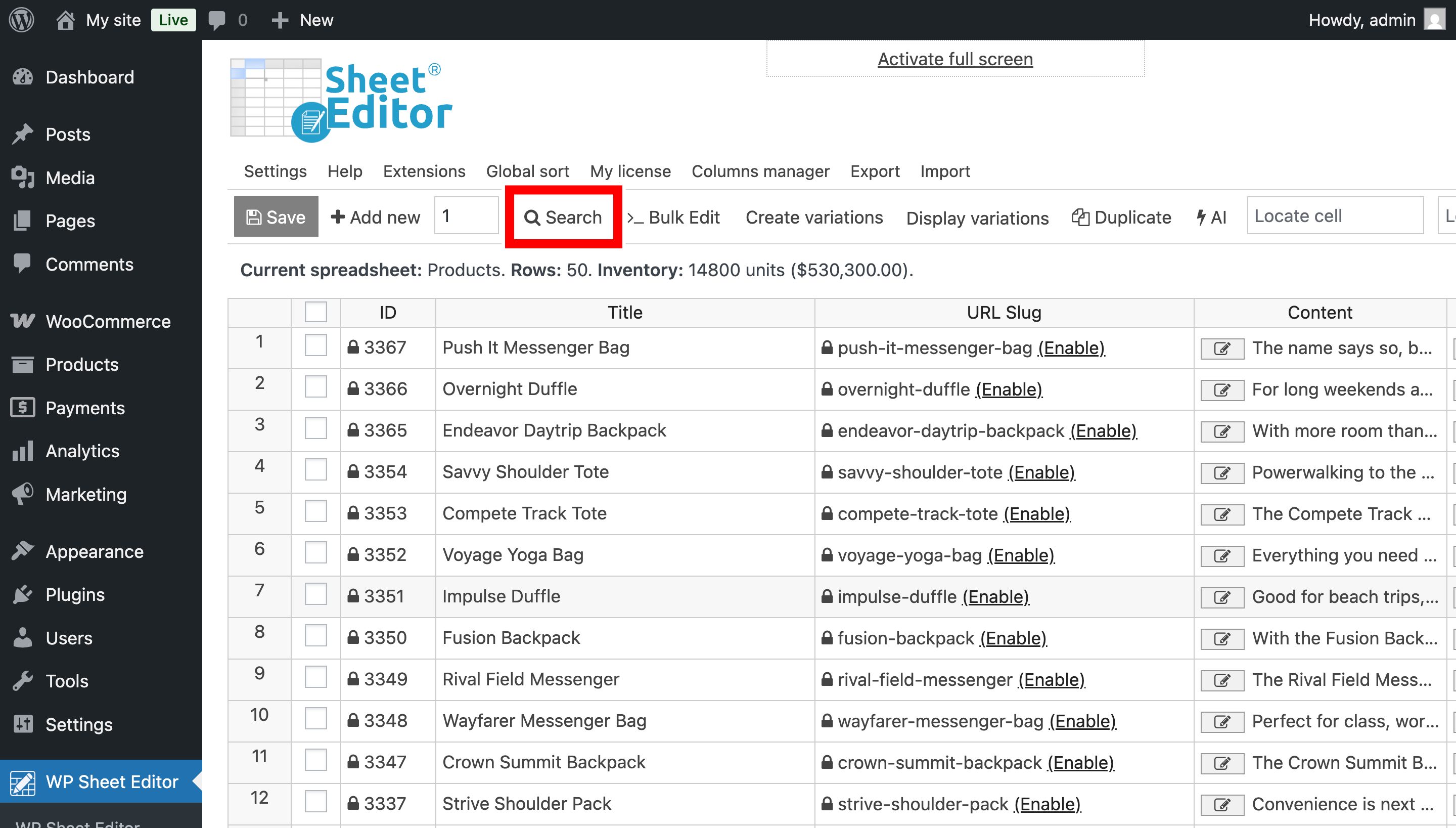
Enter the name of the category you want to hide in the Enter Product Categories field and click on Run Search.
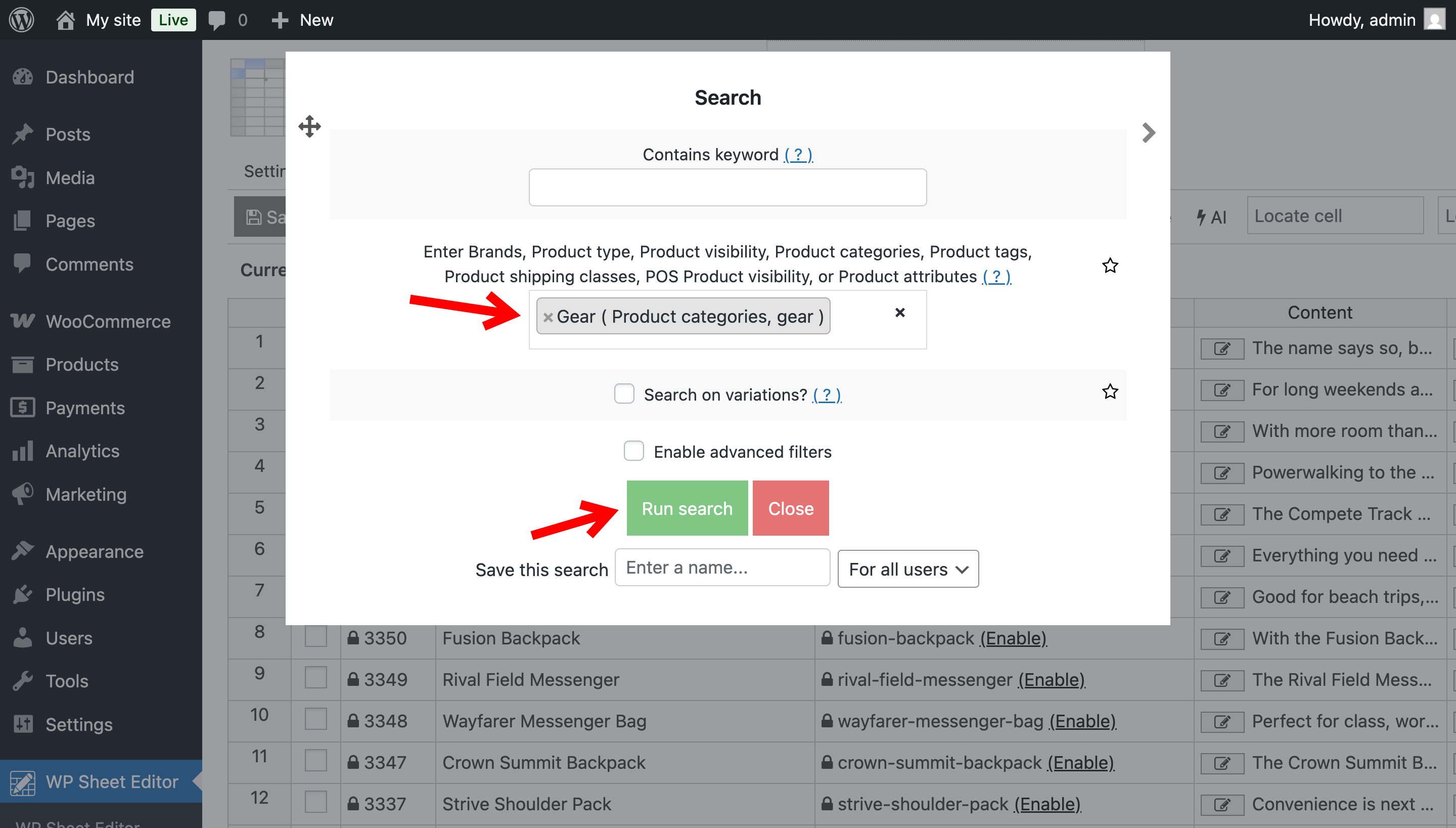
The spreadsheet will refresh and only display the products that belong to your selected category.
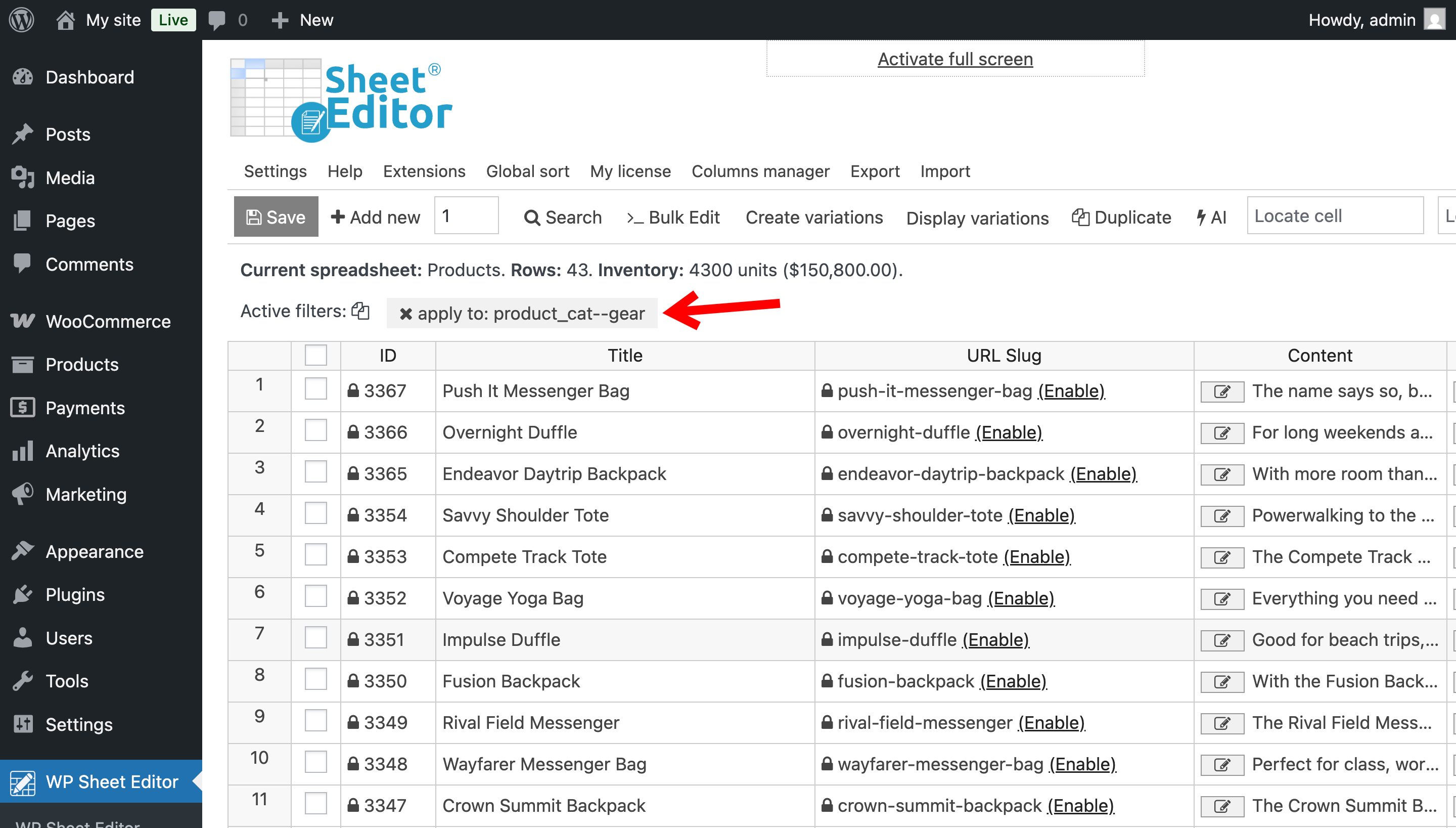
How to hide a category from the catalog and/or search
I’ll show you how to edit the visibility of all products in a specific category in bulk, using either the spreadsheet or the bulk editor. But first, I want to explain how the values you’ll be selecting work in both the spreadsheet and the bulk editor:
Empty cell =The product appears in Shop and search resultsexclude-from-catalog =The product appears in the Search results onlyexclude-from-search =The product appears in the Shop only- If you want to completelly hide the product from the shop and the search results (Hidden), enter
exclude-from-catalog, exclude-from-search.
Method 1: Hide products individually in the spreadsheet
- Locate the Visibility column
- Select any of the values I showed you above:
- Leave the cell empty
exclude-from-catalogexclude from search- Enter both values separated by commas to hide completely
exclude-from-catalog, exclude-from-search) - You can edit multiple products by entering the values in the cells. And once you’re done, you need to Save the changes.
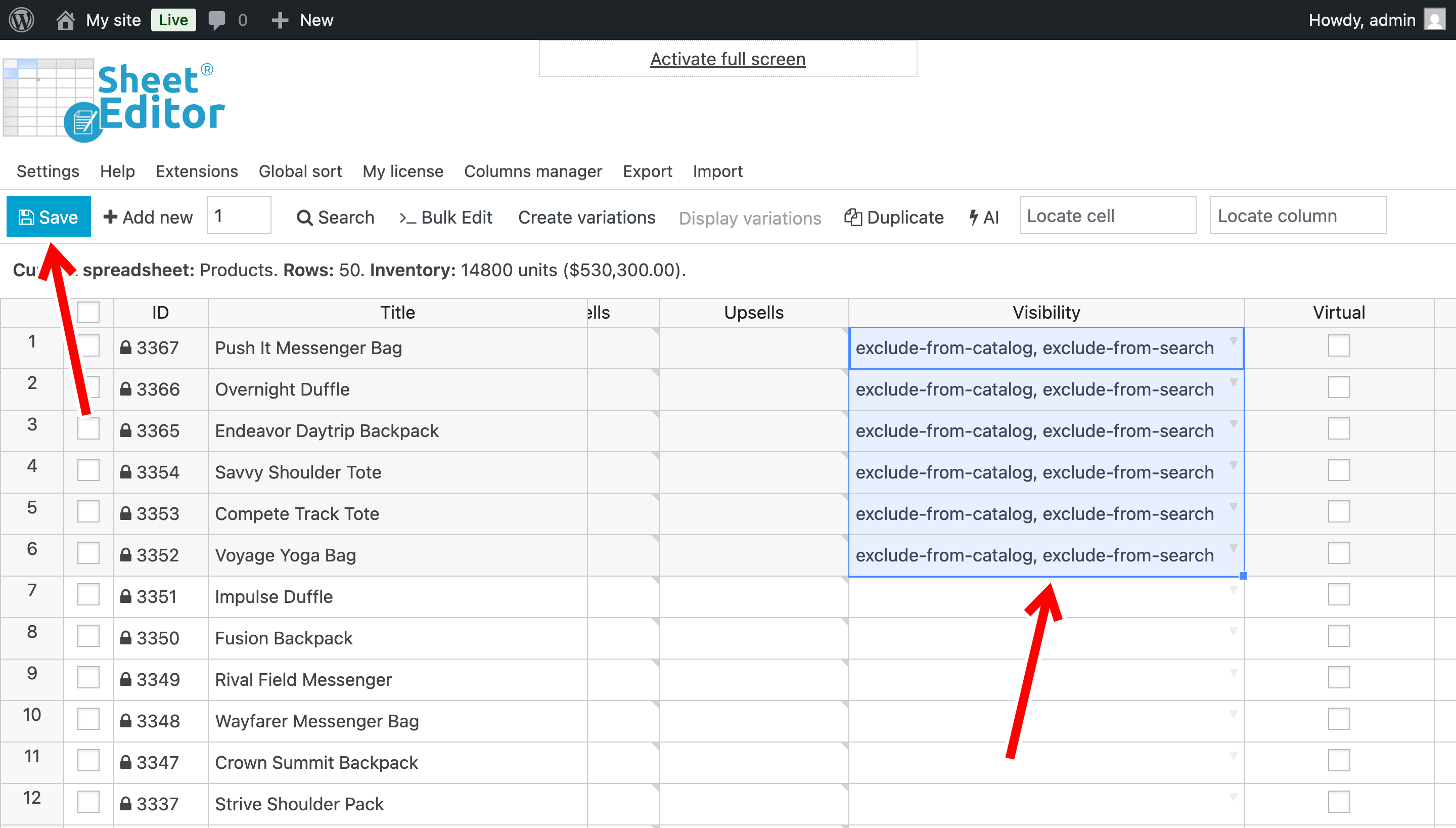
Method 2: Hide an entire WooCommerce category in bulk
After you filter the products by specific category, you can open the Bulk Edit tool.
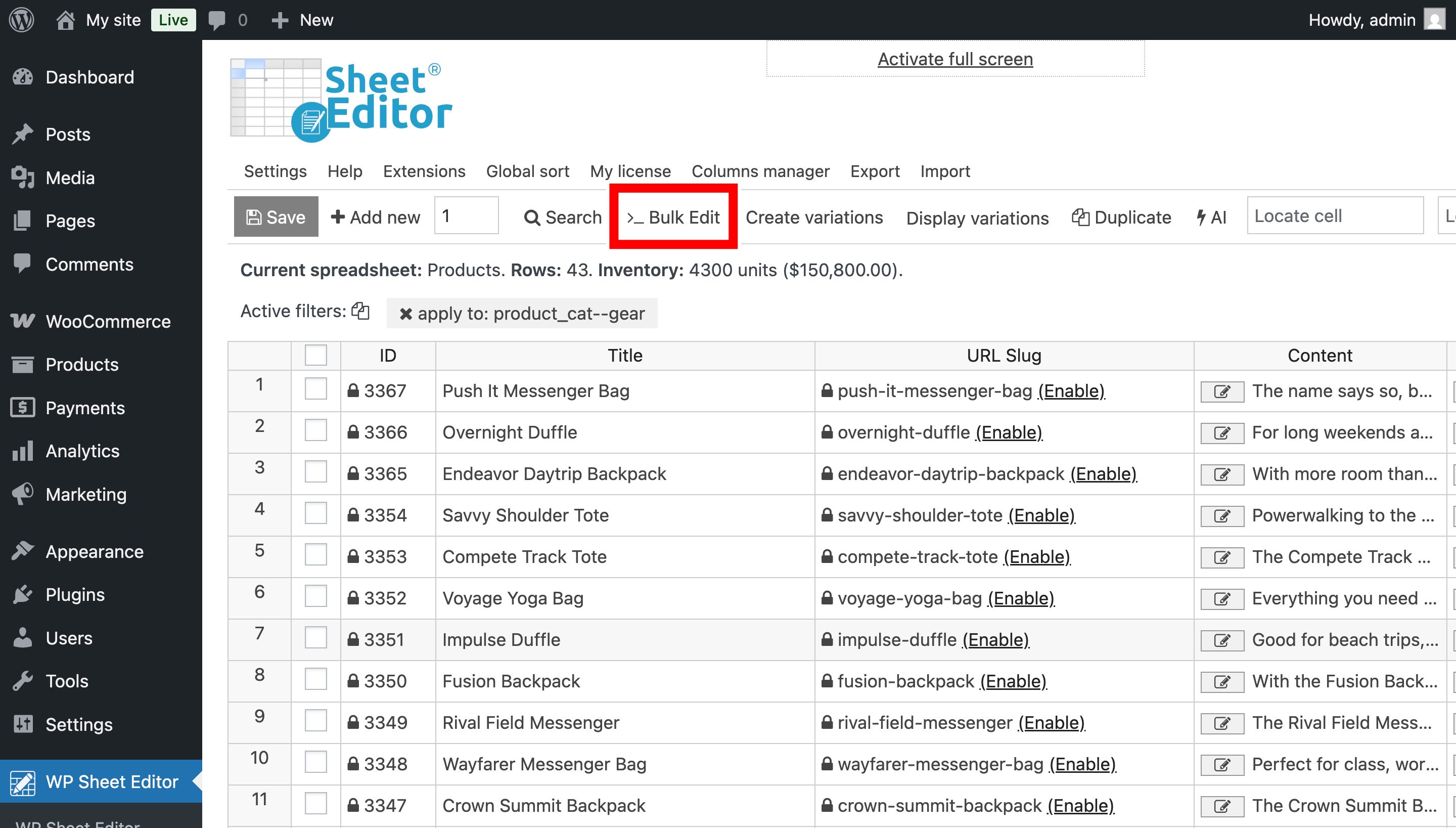
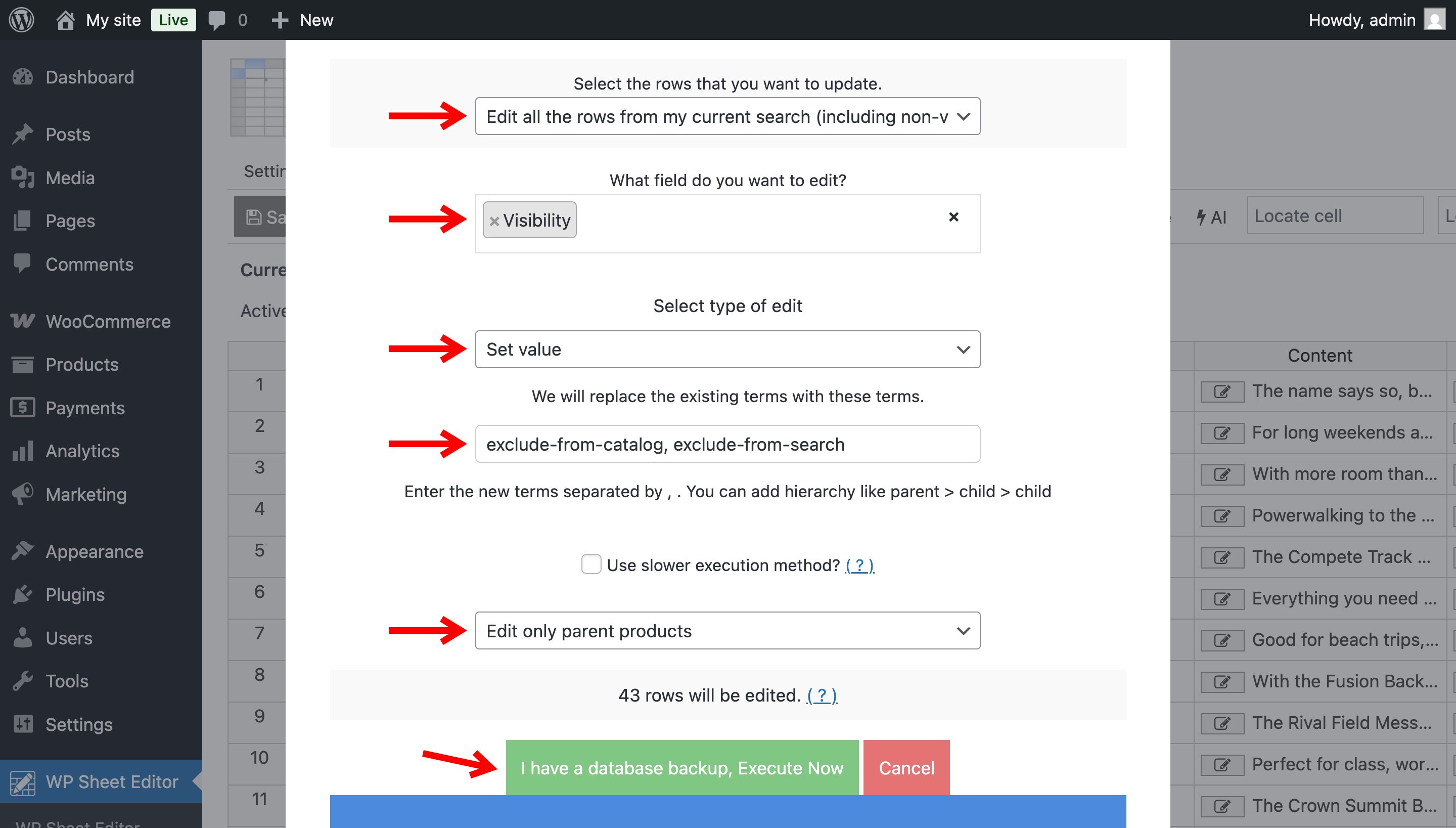
Now select these values in the Bulk Edit tool:
- Select the rows that you want to update: Edit all the rows from my current search
- What field do you want to edit: Visibility
- Select type of edit: Set value
- Replace existing value with this value:
- If you want to exclude products from the catalog only, enter
exclude-from-catalog - If you want to exclude products from the search results only, type
exclude-from-search - If you want to completely hide the product from both the shop catalog and the internal search results, add
exclude-from-catalog, exclude-from-search.
- If you want to exclude products from the catalog only, enter
- Select Edit only parent products.
- Click the Execute Now button.
Now WP Sheet Editor will process the filtered rows and every single product within that category will be updated to “hidden” status.
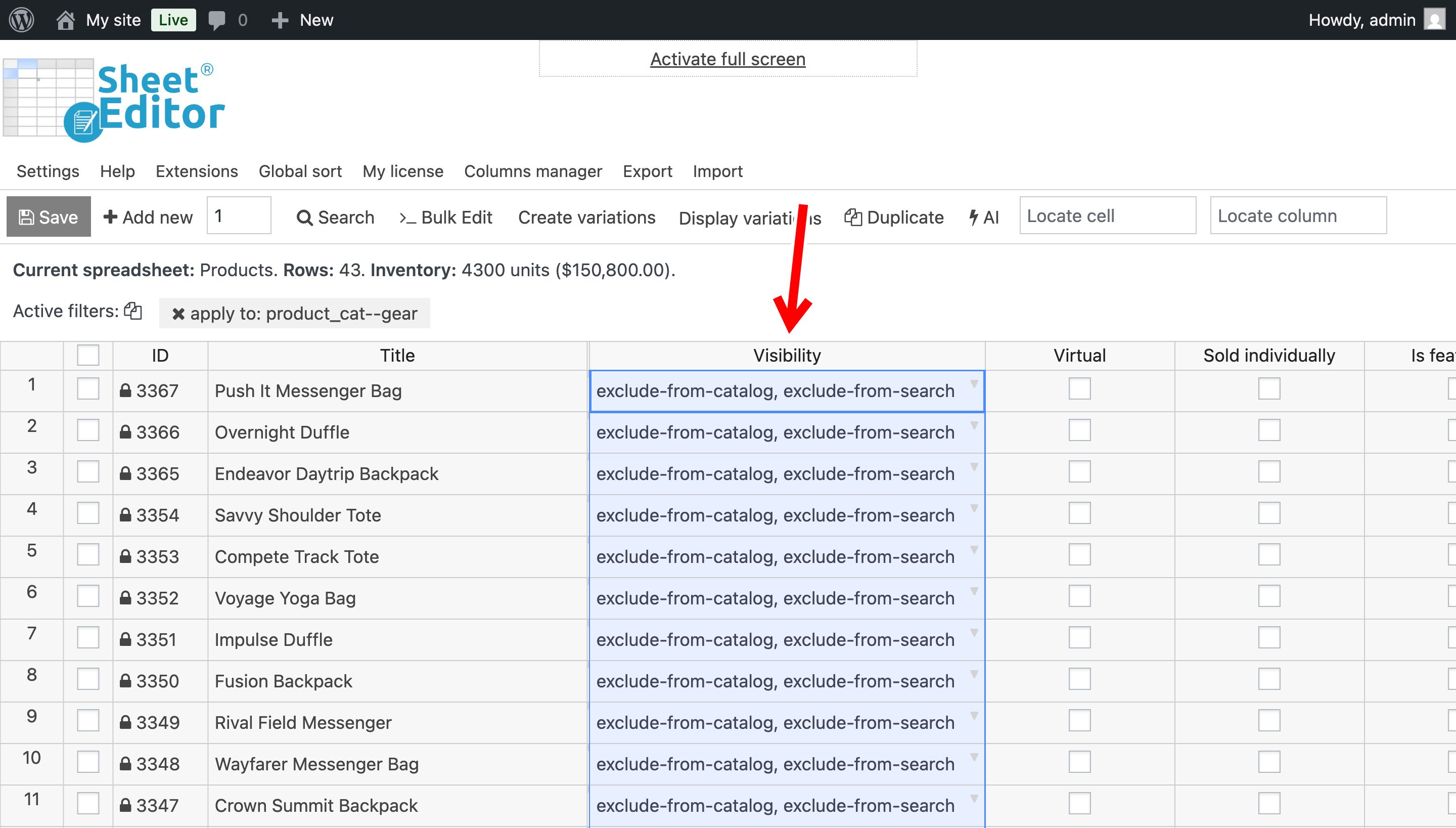
And that’s how you can use WP Sheet Editor to hide products from specific categories in WooCommerce.
You can download the plugin here:
Download WooCommerce Products Spreadsheet Plugin - or - Check the features