
What to manage WooCommerce product visibility in Google Sheets? You can use the WP Sheet Editor plugin and its Google Sheets Sync service.
By default, WooCommerce allows you to change the Catalog visibility of a product to:
- Shop and search results
- Shop only
- Search results only
- Hidden
However, if you want to edit the visibility options manually, you have to open each product to edit it individually. That takes a lot of time.
Why Manage WooCommerce Product Visibility from Google Sheets?
Editing product visibility options in Google Sheets allows you to:
- Change the visibility of hundreds of seasonal or out-of-stock products at once using the spreadsheet.
- Filter the products to see all hidden products and verify if they should be visible again.
- Let your store managers or marketing team decide which products to feature or hide directly in a shared spreadsheet.
What you Need to Manage Product Visibility
WP Sheet Editor for WooCommerce Products plugin:
You can purchase the plugin here:
Get the WooCommerce Products spreadsheet - or - Check the features
Google Sheets Sync service:
You can sign up to the service here:
Sign up to the Google Sheets Sync Service - or - Check the features
Step 1. Connect WordPress to Google Sheets
When you subscribe to the Google Sheets Sync service, you will receive a helper plugin that helps you connect your WordPress site with your Google account.
Follow our installation guide to complete the setup.
Step 2. Export WooCommerce Products to Google Sheets
Open the WooCommerce products spreadsheet by going to WP Sheet Editor > Edit Products.
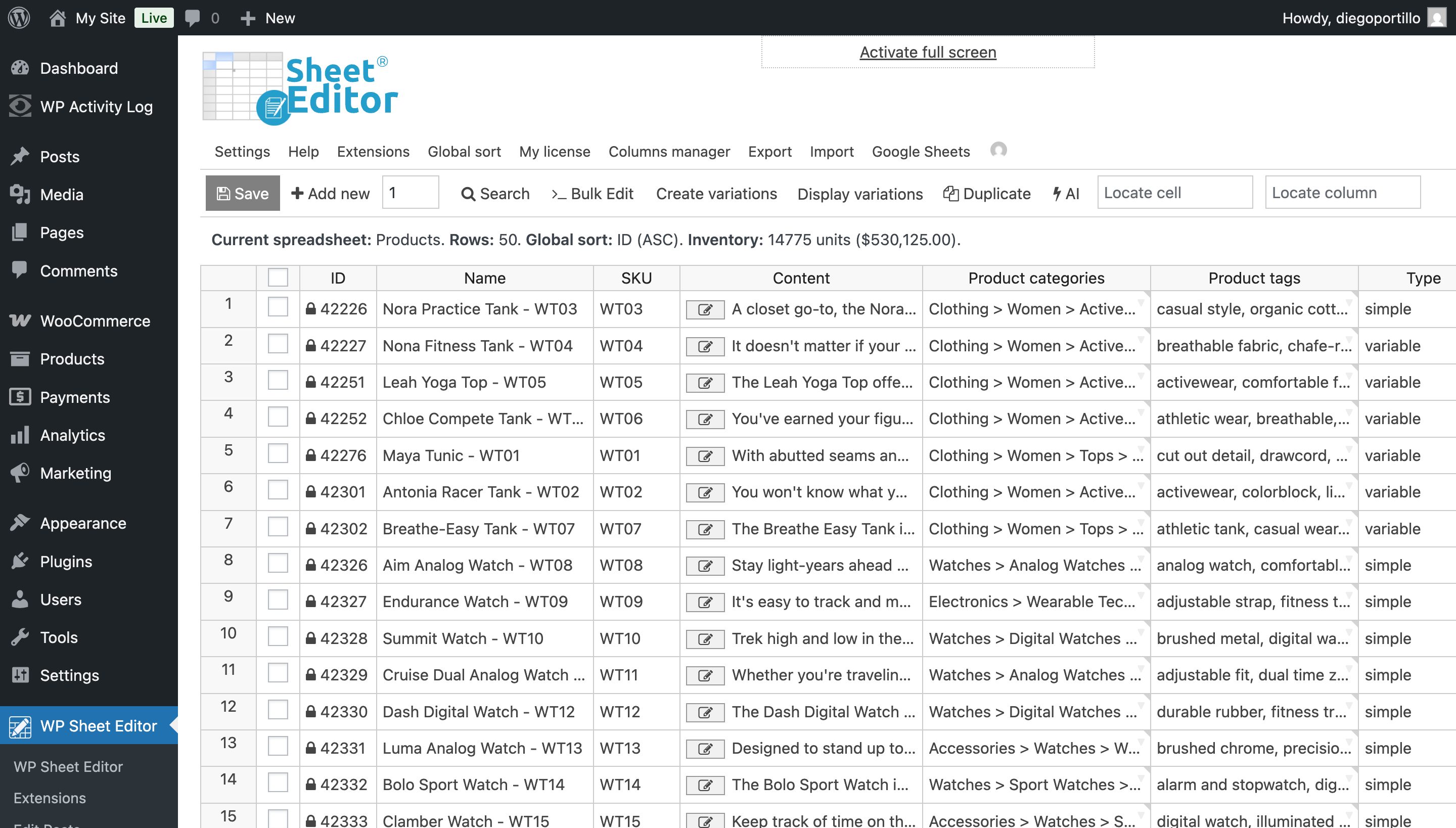
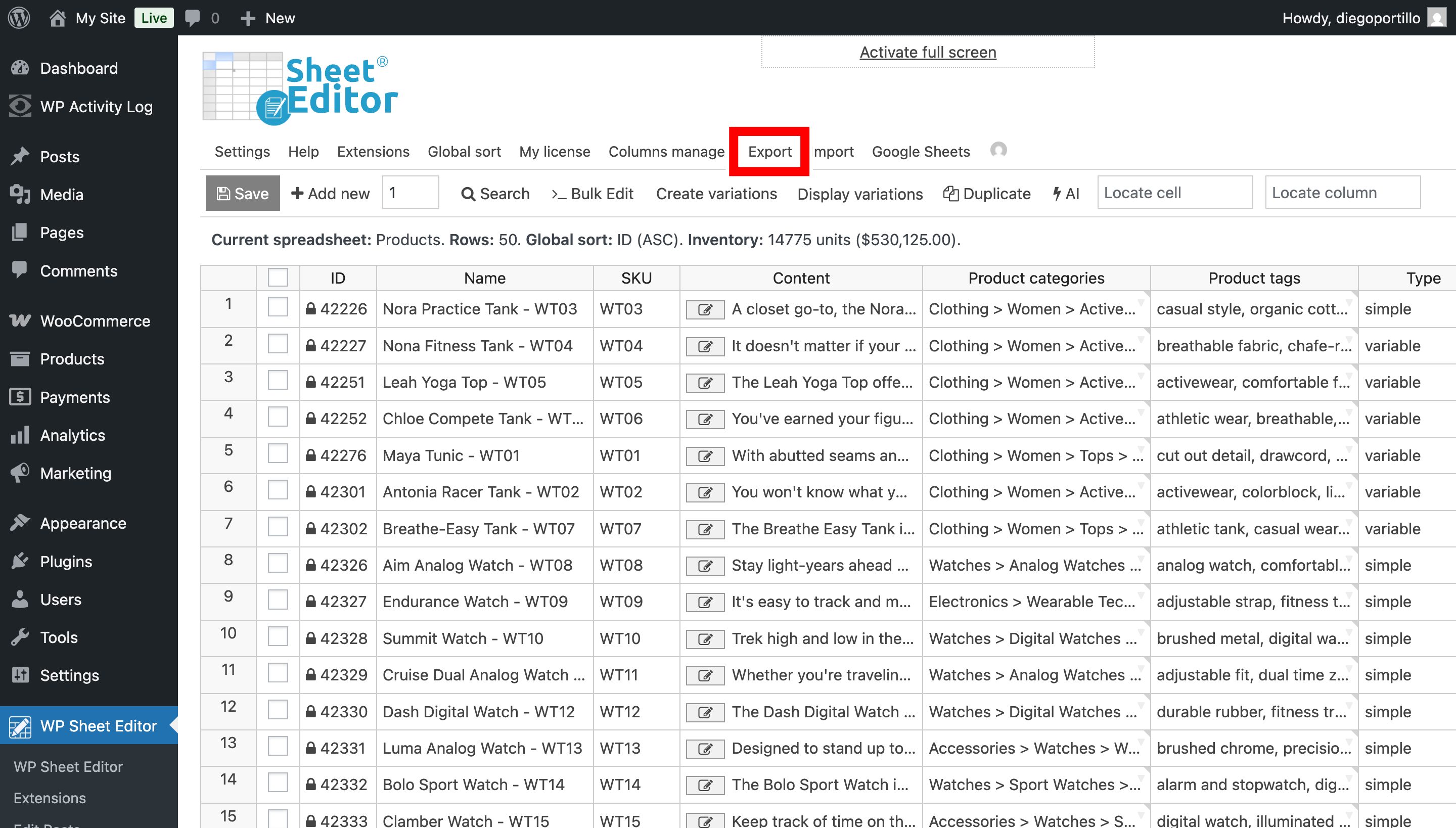
Click on the Export tool on the top toolbar.
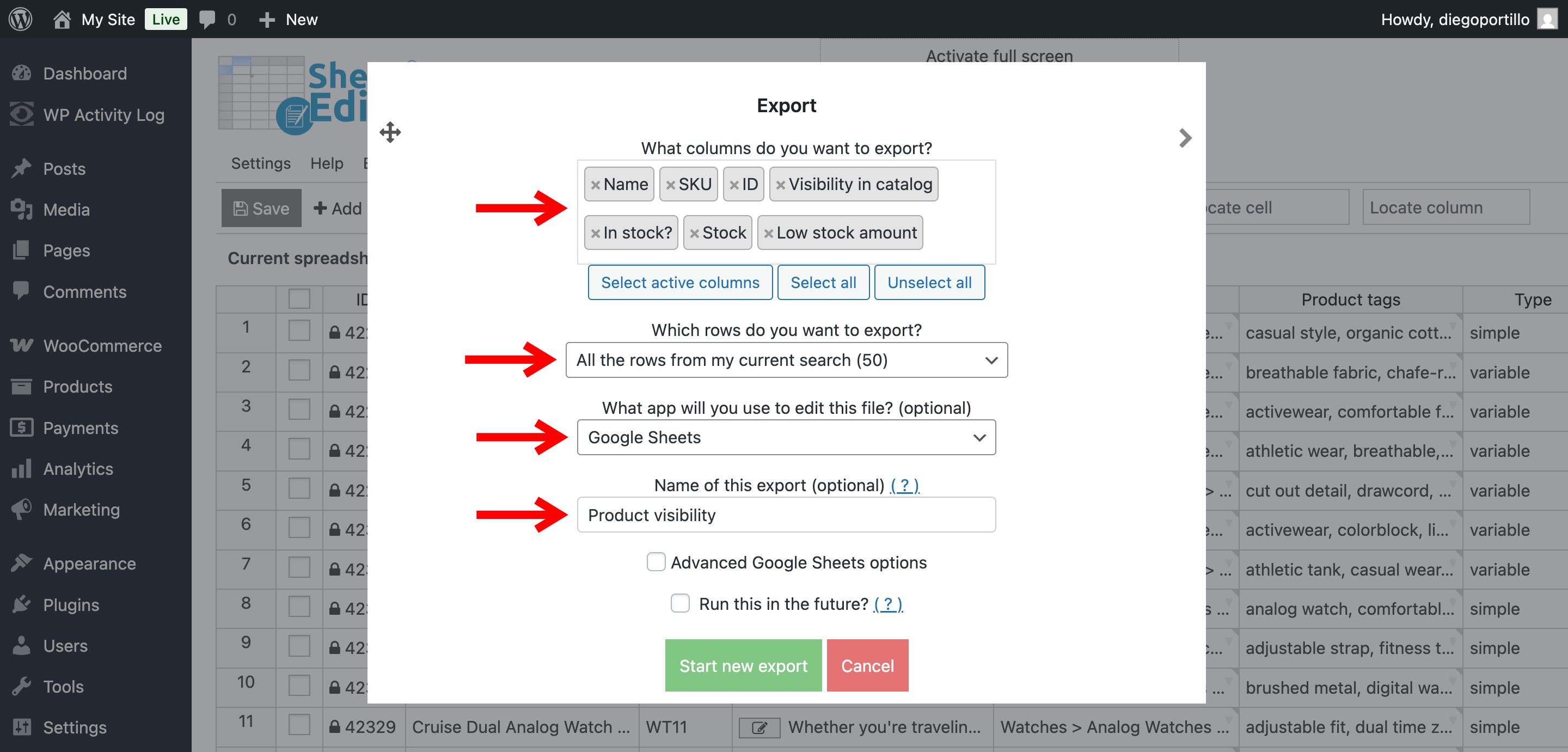
Select the following settings in the export tool:
- What columns do you want to export: You can select the specific columns you need. For example:
- Name
- SKU
- Visibility in catalog
- In stock (Stock status)
- Stock
- Low stock amount
- Which rows do you want to export: We will export all the products, so let’s select “All rows from my current search”.
- What app will you use to edit this file: Select Google Sheets.
- Name of this export: Type a name for your Google Sheet.
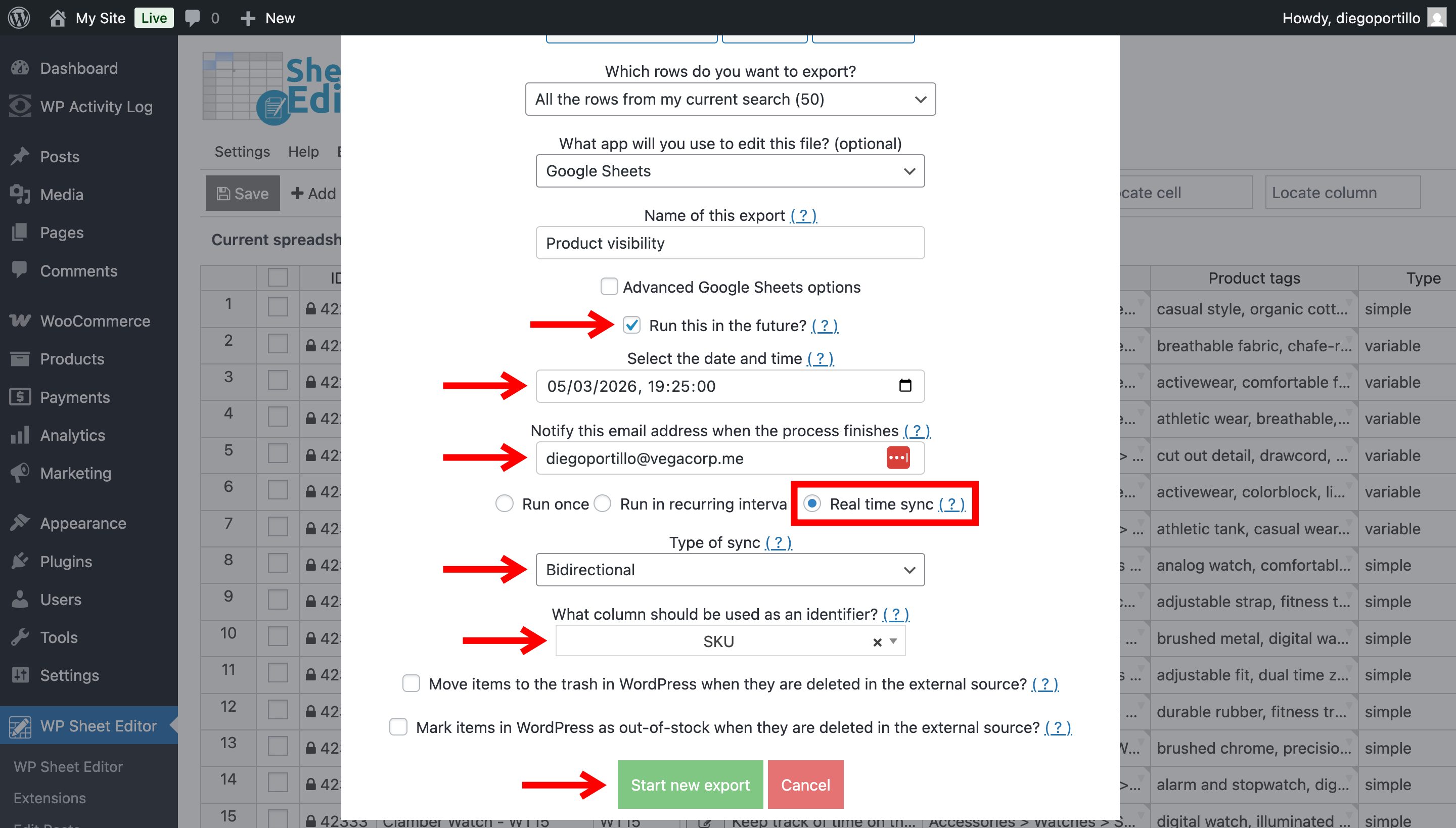
- Tick the Run this in the future checkbox.
- Notify this email address when the process finishes: Enter your email address here, and you’ll get an email notification every time the products are updated in any direction.
- Select Real time sync.
- Type of sync: In this example, we will create a Bidirectional sync.
- What column should be used as an identifier: In this example, we will use the SKU field as an identifier to match the products in WordPress with the products in Google Sheets.
- Click on Start new export.
Now if you go to Export > View scheduled exports, you’ll see the details of the newly created sync.
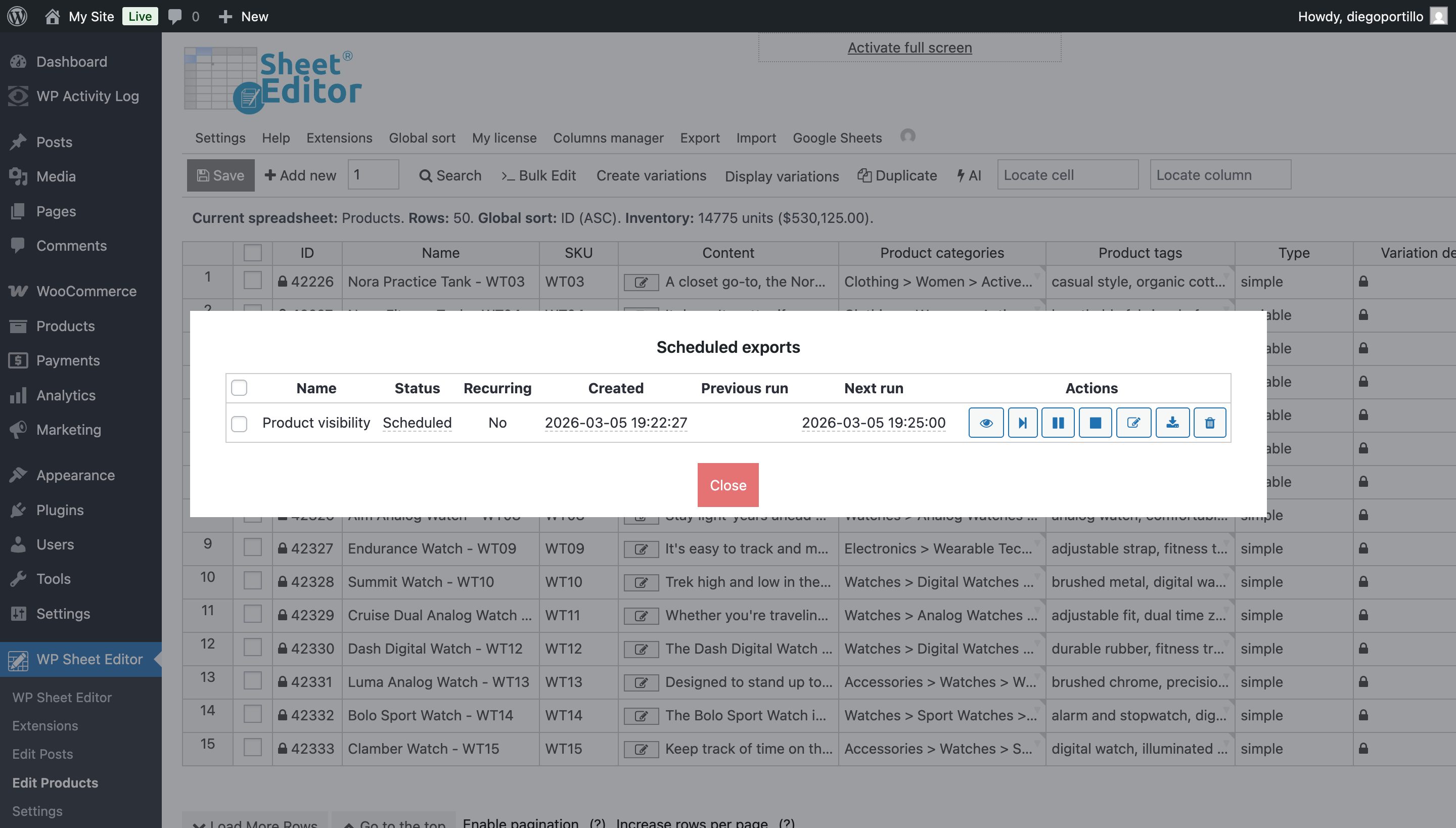
Since this is a bidirectional sync, the plugin will automatically create an import to auto monitor the changes made in Google Sheets. This is the feature that will allow you to manage your products’ visibility in Google Sheets. Every time you make product visibility changes in Google Sheets, these changes will be automatically imported into WordPress.
And once the process is complete, you’ll be able to open the new Google Sheet by clicking on the scheduled export/import name.

Step 3. Manage WooCommerce product visibility in Google Sheets
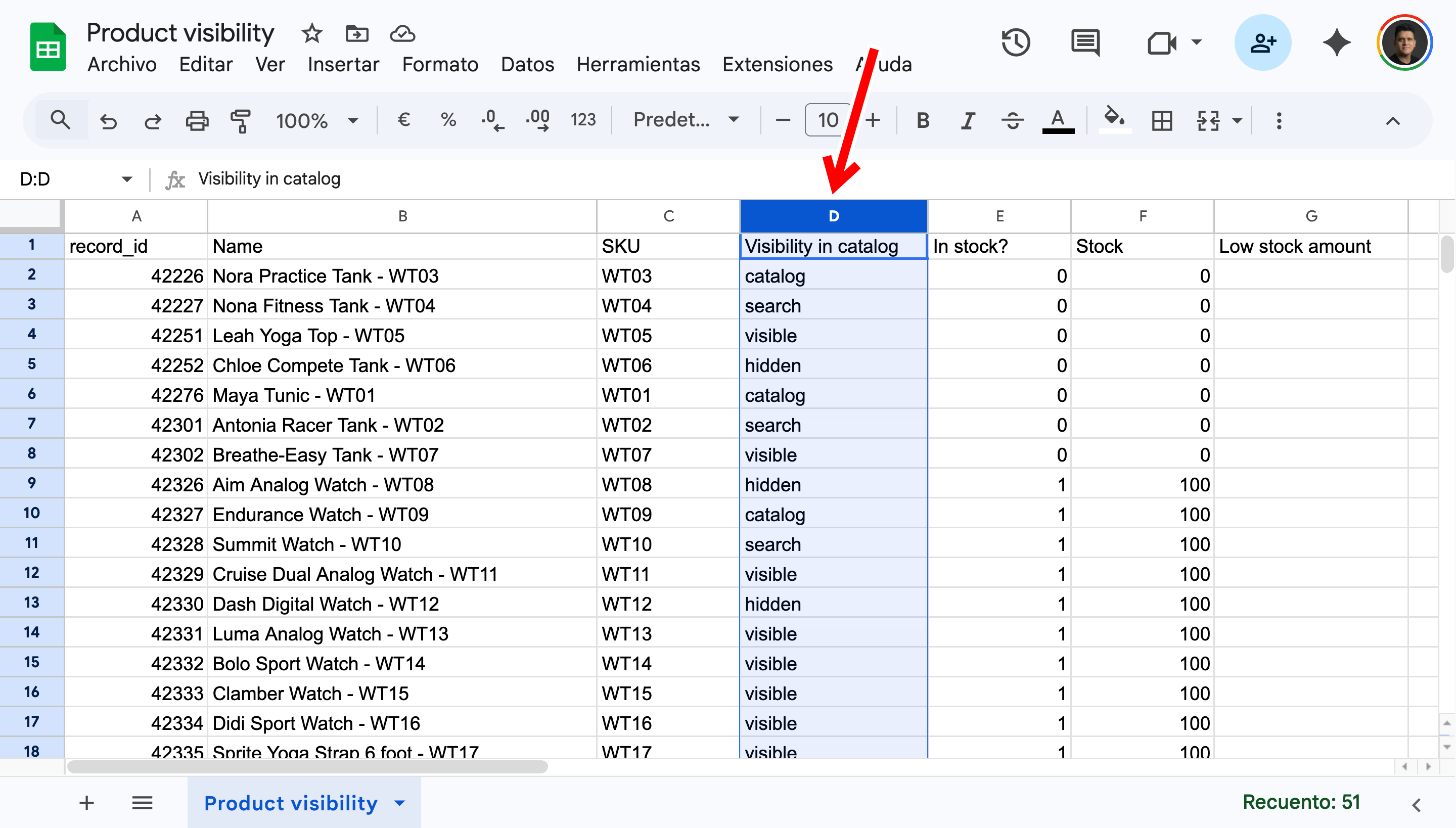
Once the export is complete, click on the link provided to open your new Google Sheet.
Locate the Visibility in catalog column. In this column, WooCommerce uses specific text values to determine the visibility status of each product. You can input any of the following values:
- visible: Shows the product in both the shop page and search results.
- catalog: Shows the product in the shop page only.
- search: Shows the product in search results only.
- hidden: Hides the product completely from the shop and search results.
Step 4. Import changes back to WooCommerce
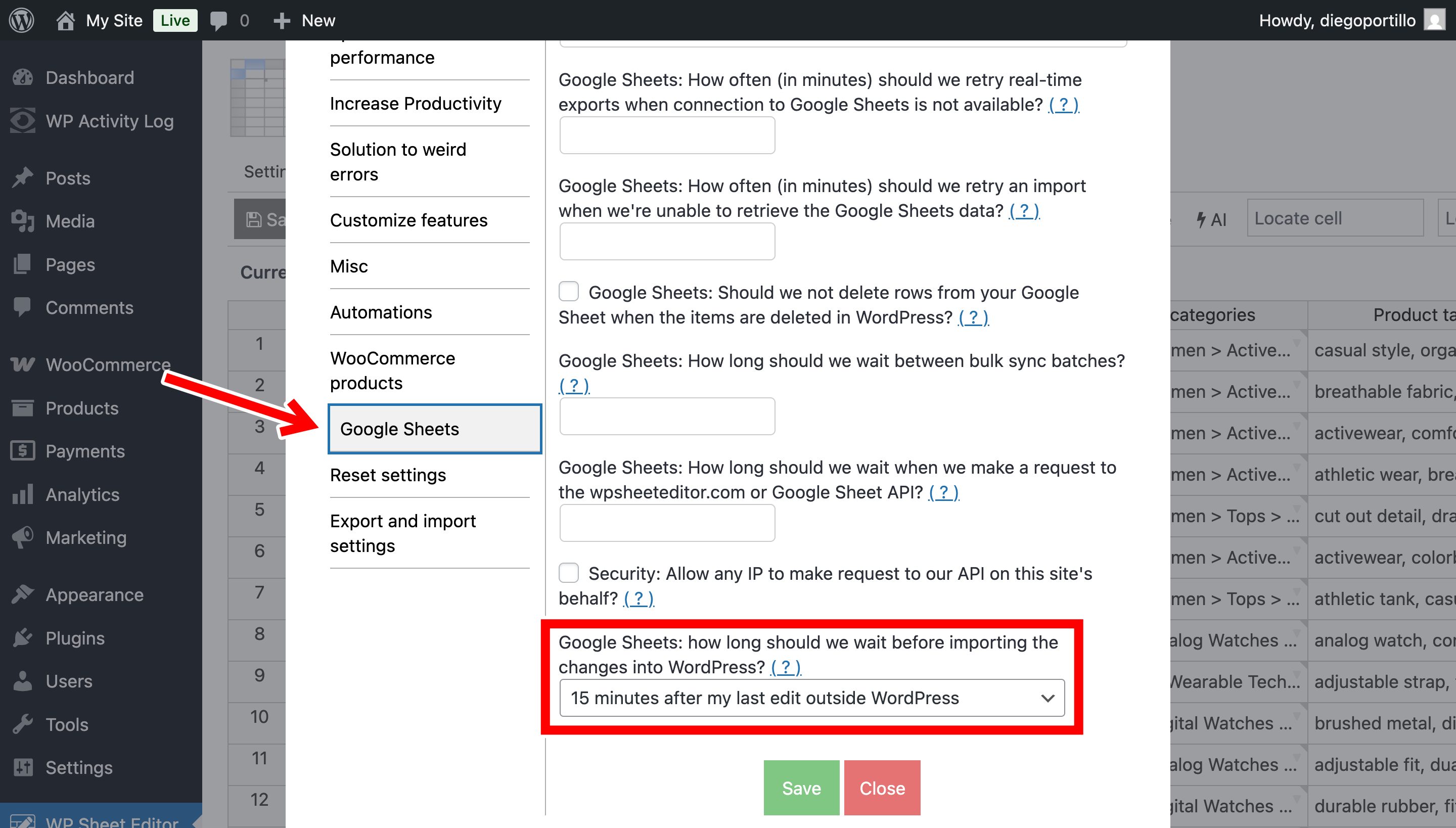
To avoid importing incomplete or incorrect data, WP Sheet Editor has a delay that allows for a waiting period after you have finished editing in Google Sheets. For example, you can select our plugin to wait from 15 minutes to 12 hours.
To select this, you can go to Settings > Advanced Settings > Google Sheets and select the time in the Google Sheets: How long should we wait before importing the changes into WordPress.
You can start managing your WooCommerce products live from Google Sheets.