
You can bulk add or edit alt text for WordPress images by filtering your Media Library for images with missing alt tags, editing the Alt text column in a spreadsheet, applying bulk changes to multiple images, or importing alt text from a CSV file.
With WP Sheet Editor – Media Library, you can manage your WordPress images in a spreadsheet-style interface instead of opening and editing each media item individually. This makes it easier to update alt text across hundreds or thousands of images.
In this guide, you’ll learn how to:
- Find WordPress images that are missing alt text.
- Add unique alt tags to individual images from the spreadsheet.
- Set the same alt text for multiple images.
- Copy information from another Media Library field into the Alt text field.
- Import alt text from a CSV file.
You can download the plugin here:
Download Media Library Spreadsheet Plugin - or - Check the features
Step 1. Open the WordPress Media Library spreadsheet
WP Sheet Editor – Media Library turns your WordPress Media Library into a spreadsheet-style editor. You can view your media files in rows and edit fields such as:
- Image title
- Alt text
- Caption
- Description
- File URL
- Metadata and custom fields
After installing and activating the plugin, go to Sheet Editor > Edit Media to open the Media Library spreadsheet.

Step 2. Find WordPress images that are missing alt text
If you have many images without alt text, you can filter your Media Library to show only the images that need to be updated.
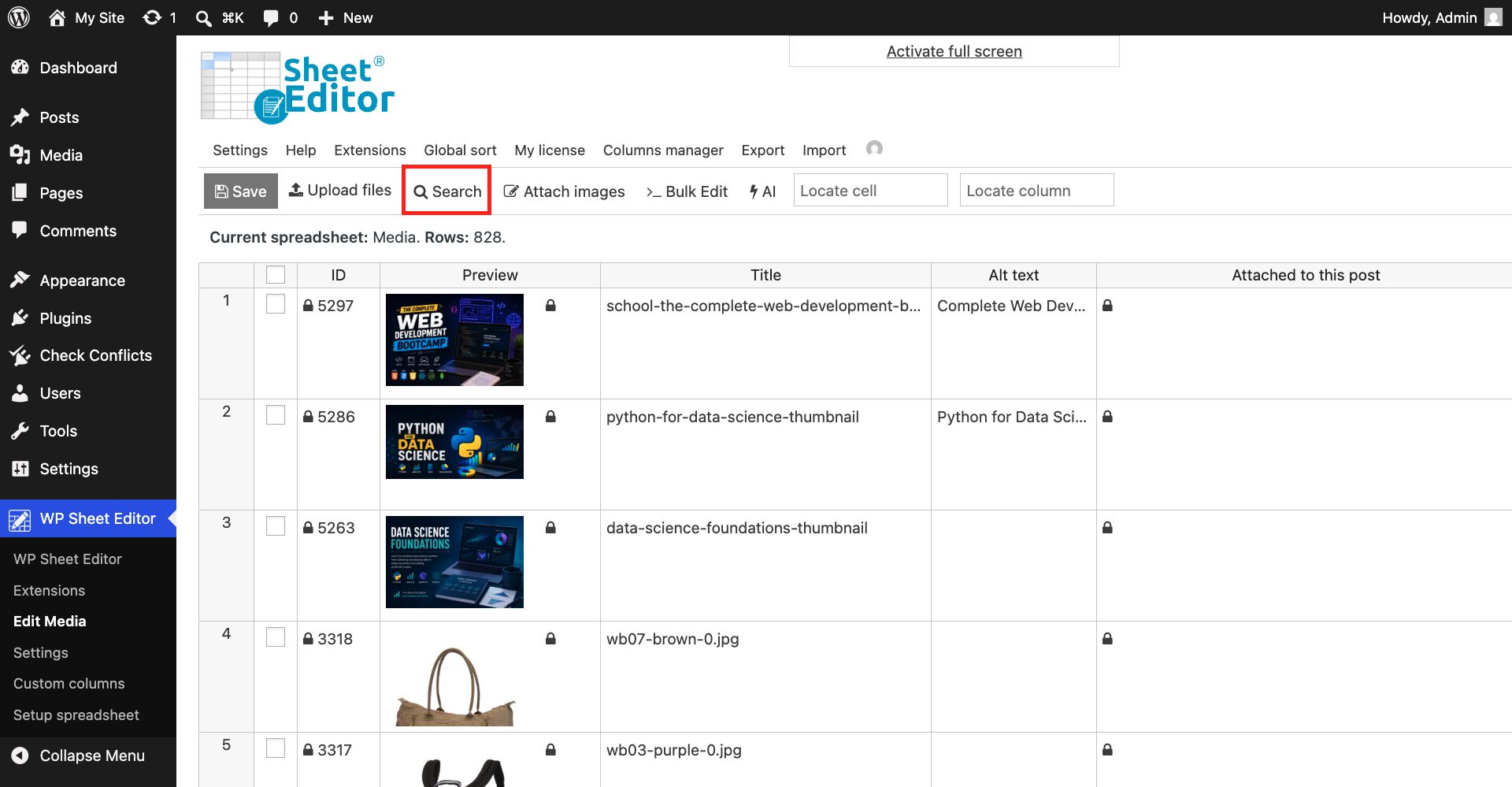
Click Search on the toolbar.
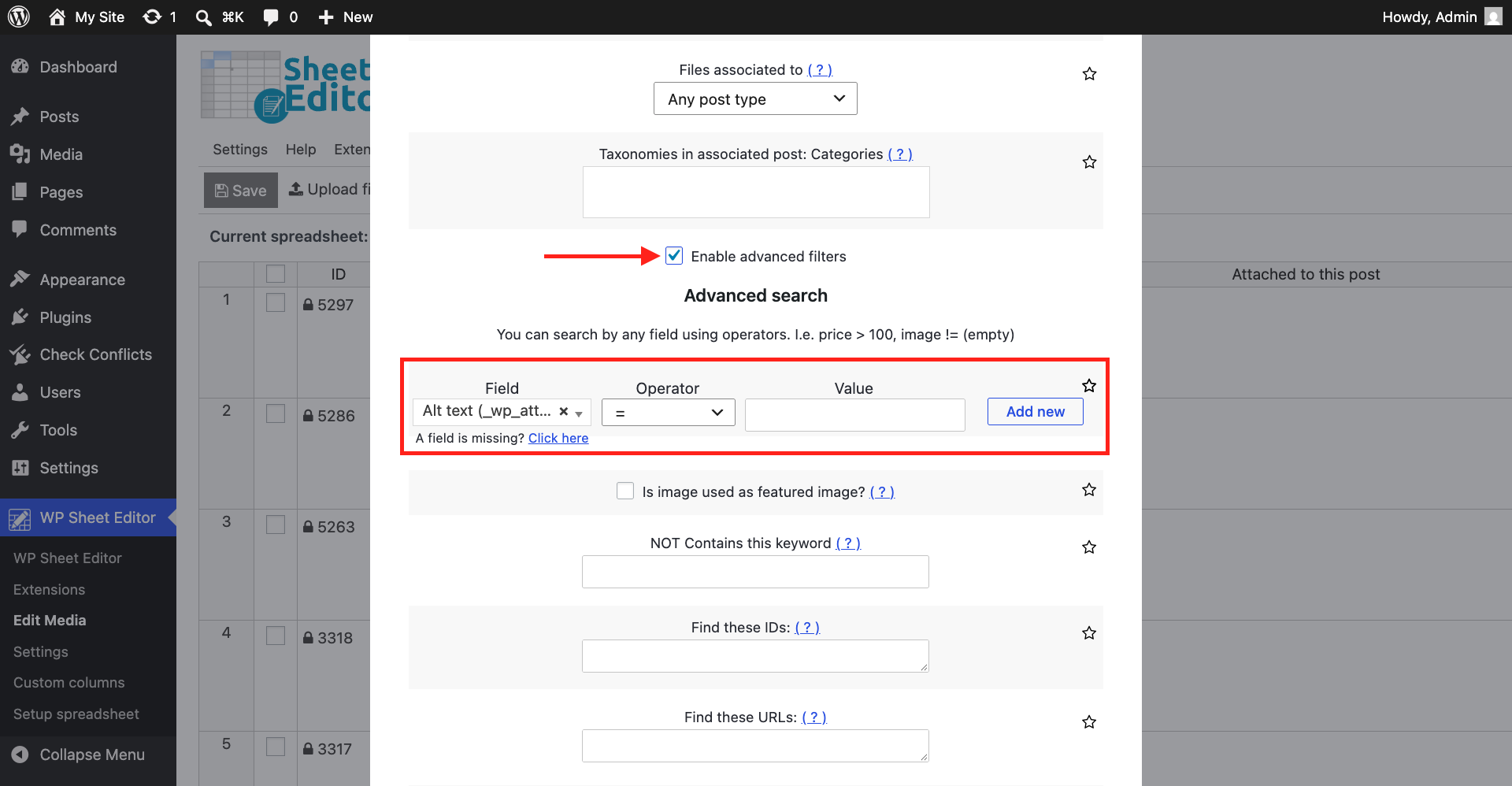
Select these values to find images with missing or empty alt text:
- Tick the Enable advanced filters checkbox.
- Field: Alt text
- Operator: =
- Value: Leave this field empty.
- Click Run search.
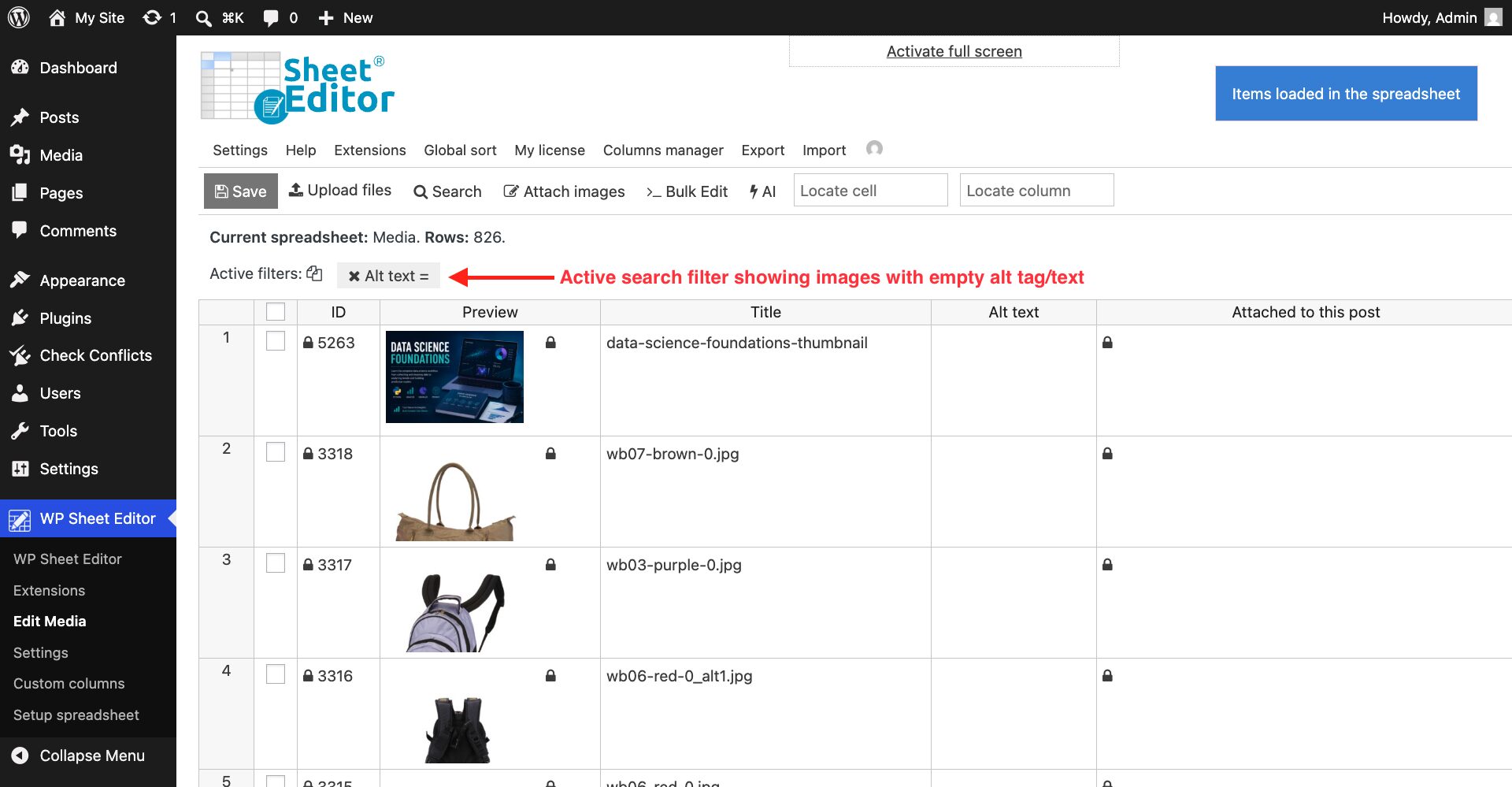
After you run the search, the spreadsheet will display the WordPress images that have no alt text.
You can also combine the alt text filter with other search filters to find a specific group of images. The Search tool can filter media files using fields such as:
- Keyword
- User who uploaded the file
- Keyword in title of associated post
- Post type the file is attached to
- Taxonomies in associated post
- Format
- Date
- Comment count
- Etc.
Once you have found the images you want to update, choose one of the following methods.
Step 3. Choose how to add or update the alt text
WP Sheet Editor gives you several ways to update the alt text for the images you found. Choose the method that matches how you want to prepare the new alt text.
Option 1. Edit or add alt tags directly in the spreadsheet
If each image needs its own alt text, you can edit the values directly in the spreadsheet.
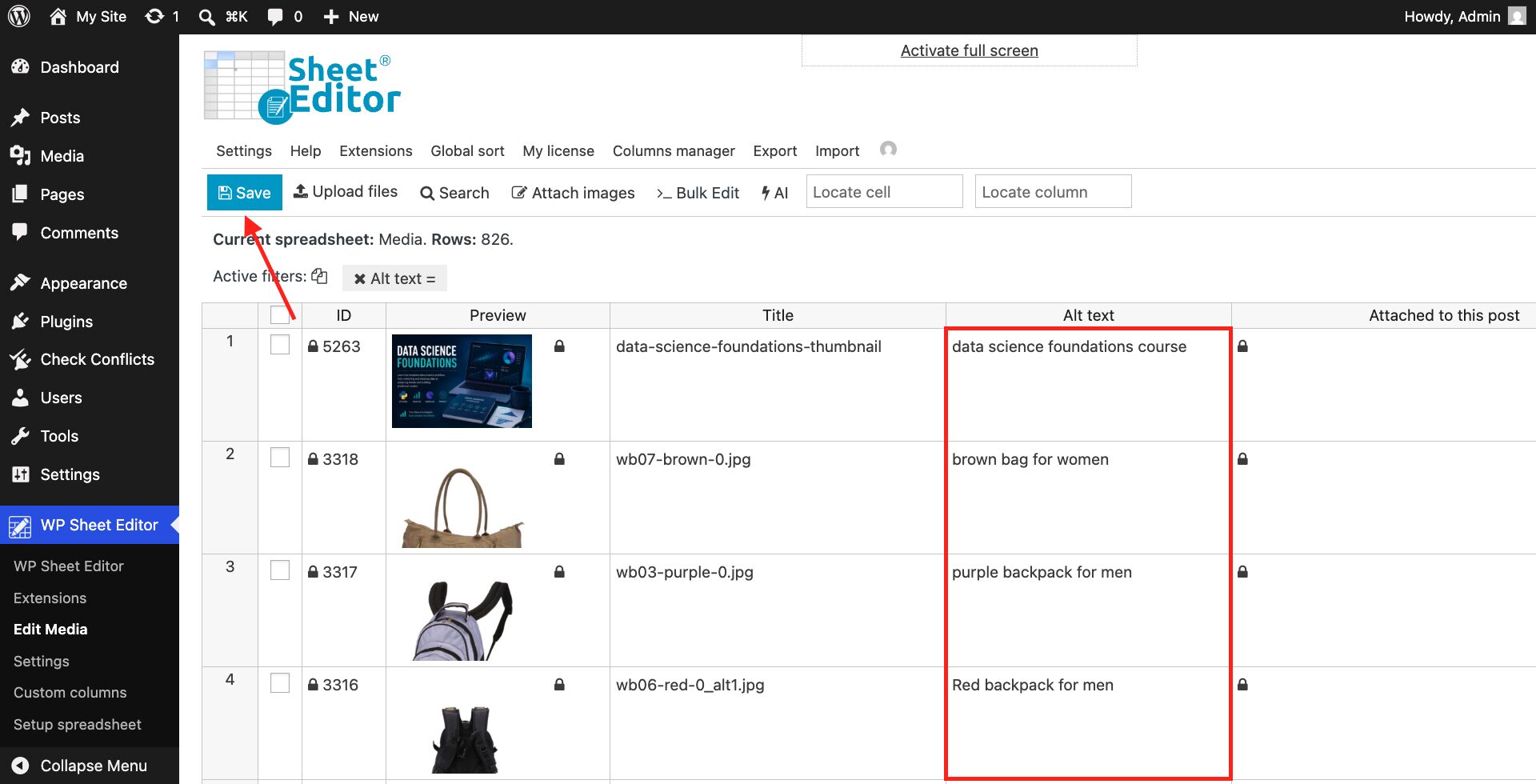
Go to the Alt text column and enter the appropriate alt text for each image. This lets you give every image its own description without opening the media files individually.
When you’re finished editing the alt text, click Save.
Option 2. Use Bulk Edit to update multiple images
If you want to apply the same type of change to multiple images, use the Bulk Edit tool. You can apply a value to all the images in your current search or to manually selected images.
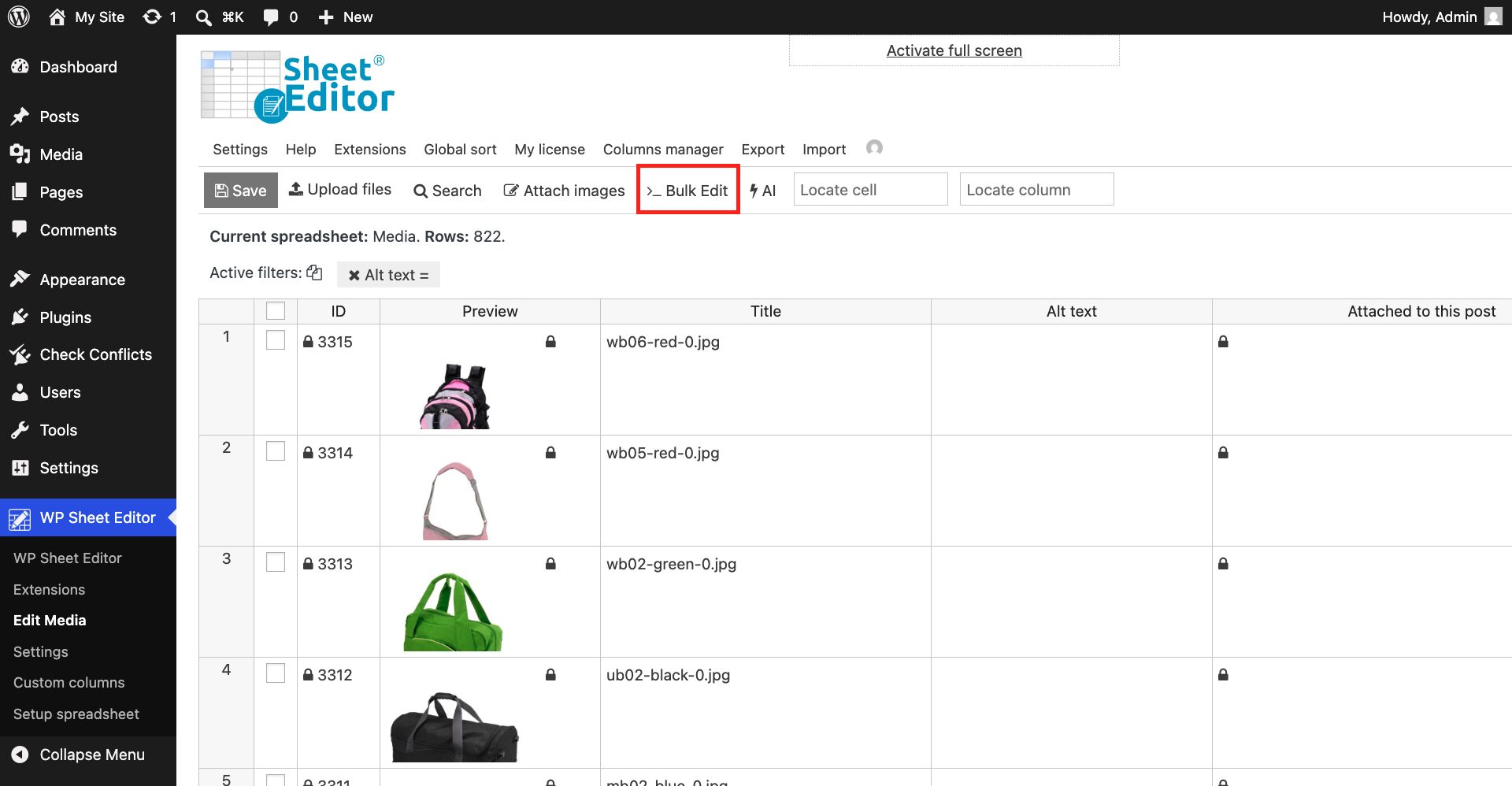
Set the same alt text for multiple images
If several related images need the same alt text, you can set one value for all the selected images.
In the Bulk Edit tool, select these values:
- Select the rows that you want to update: Edit all the rows from my current search
- What field do you want to edit: Alt text
- Select type of edit: Set value
- Replace existing value with this value: Enter your new alt text here
- Click Execute Now.
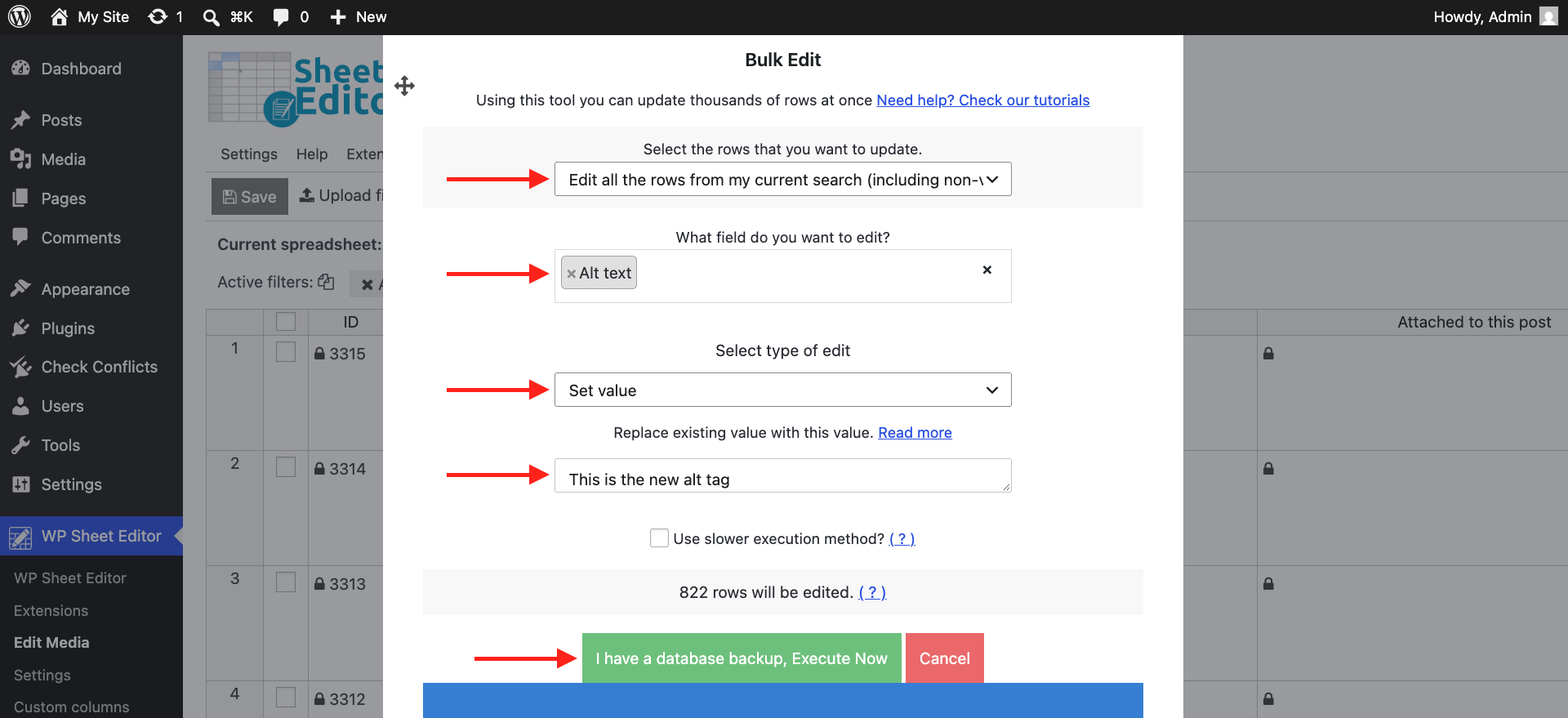
After you execute the bulk edit, the selected images will have the new alt text.
Copy alt text from another Media Library field
You can also use Bulk Edit to populate the Alt text field using information that already exists in another Media Library column.
You can copy information from:
- Title
- Attached to this post
- Caption
- Filename
In the Bulk Edit tool, select these values:
- Select the rows that you want to update: Edit all the rows from my current search
- What field do you want to edit: Alt text
- Select type of edit: Copy from other columns
- Copy from this column: Title, Attached to this post (associated post), Caption, or Filename
- Click Execute Now.
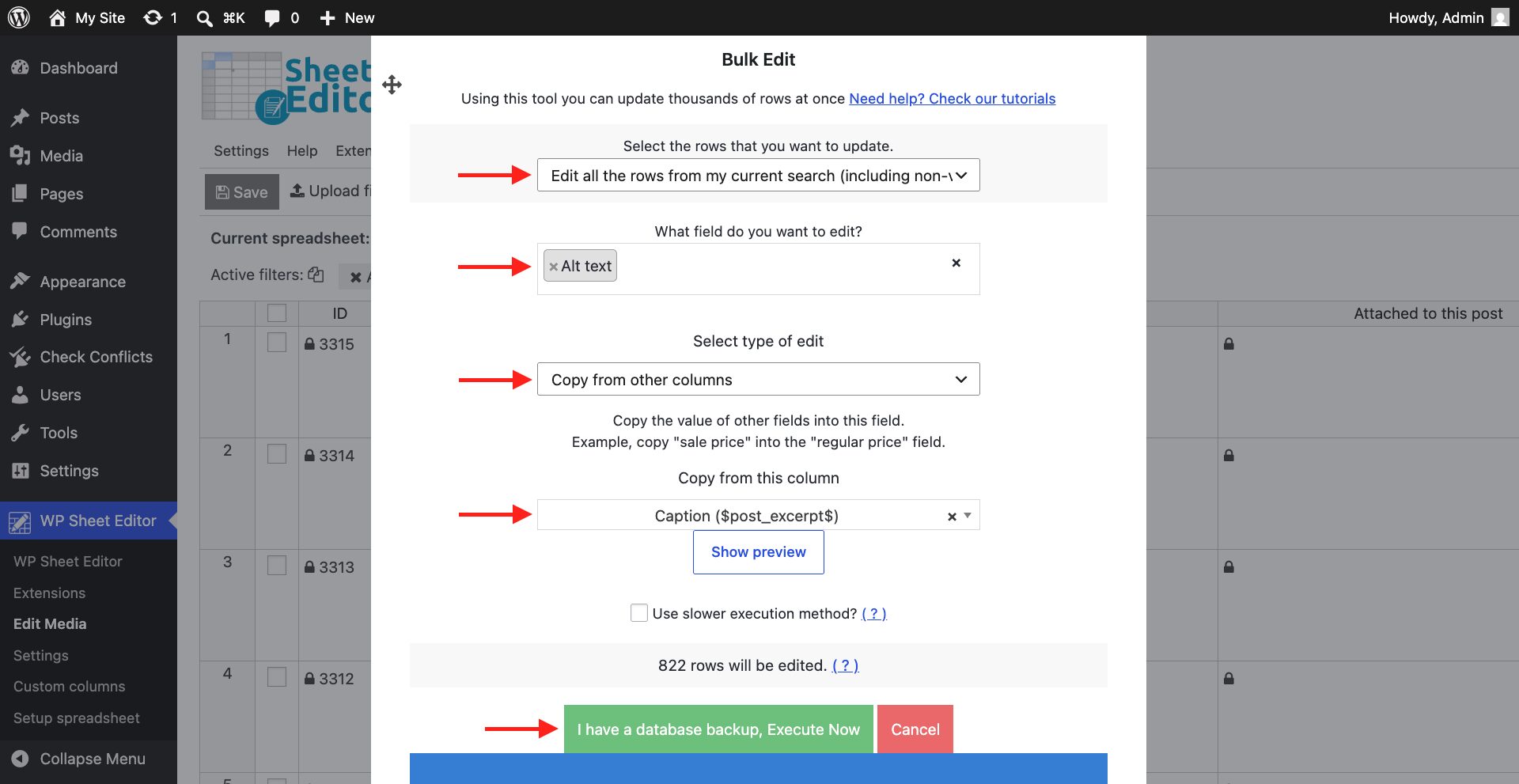
This is useful when the information you need is already stored in your Media Library and you want to use it to populate the Alt text field in bulk.
Option 3. Import alt text from a CSV file
If you already have alt text prepared in a CSV file, you can import it into WP Sheet Editor to update your WordPress images.
You can also export the images you want to update, edit the alt text in Excel, Google Sheets, or another CSV editor, and then import the changes back into WordPress.
After finding the images you want to update, open the Export tool and download their information as a CSV file. You or your team can then add the alt text to the CSV file before importing it back into WordPress.
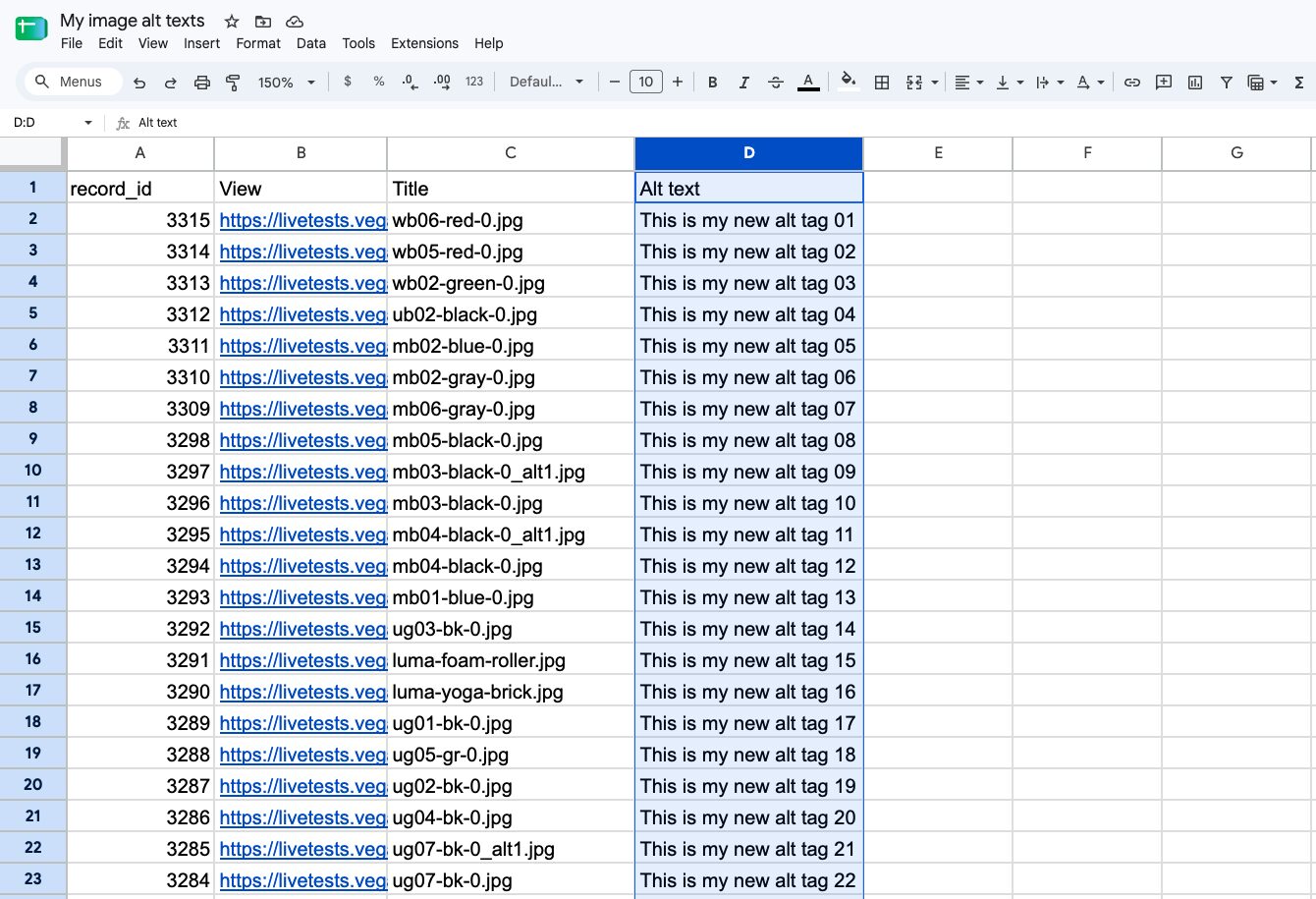
When you’re ready to import the file, click Import.
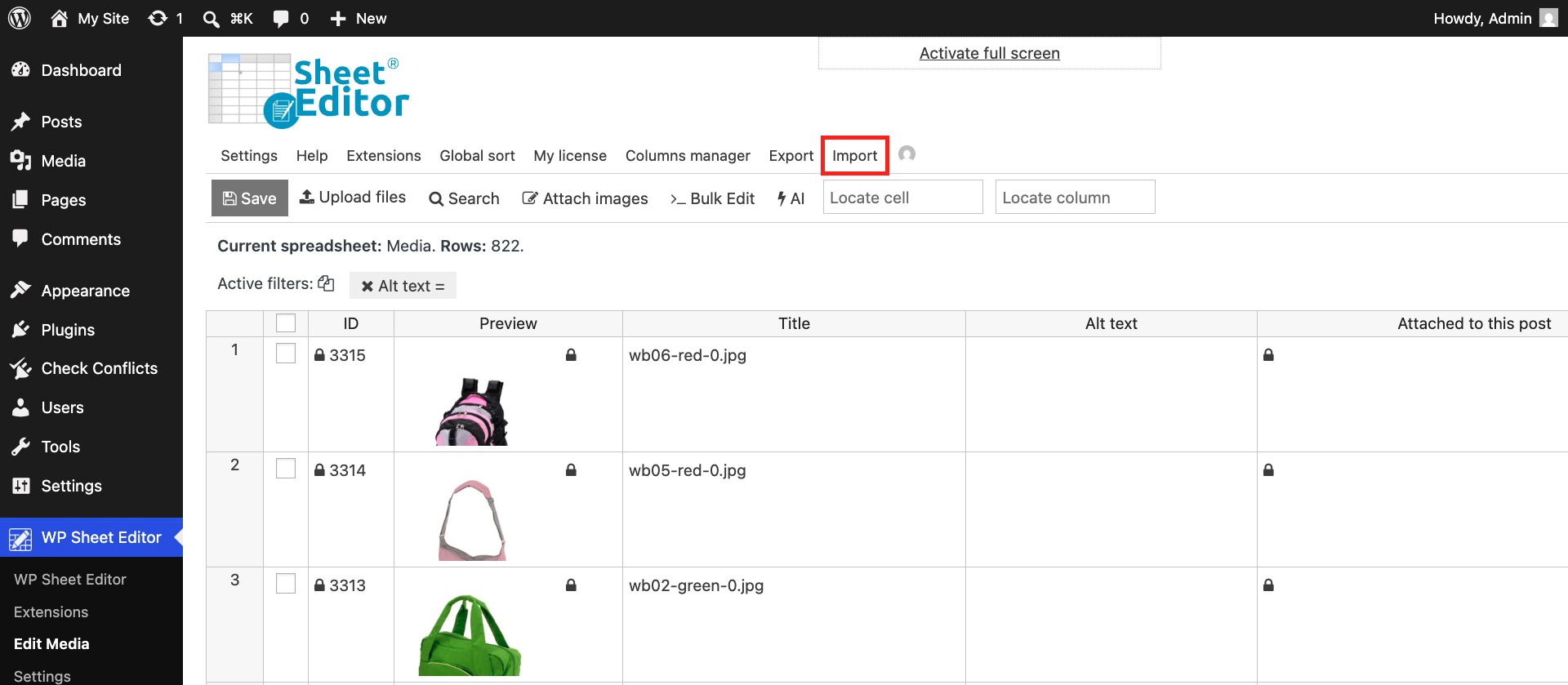
Now select the CSV file you’ll import:
- Source: File from my computer
- Click on Choose File and locate the file.
- Click on Next.
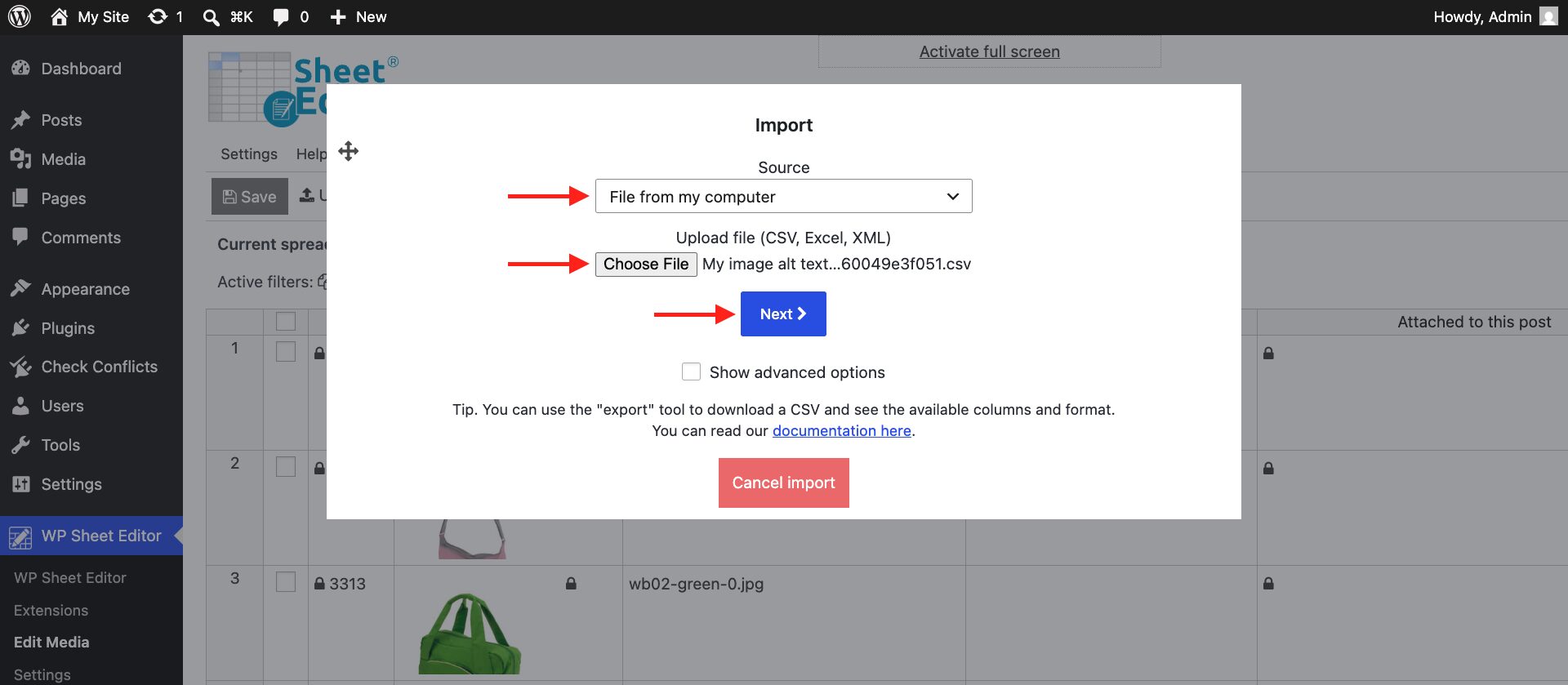
Now click on Import all the columns.
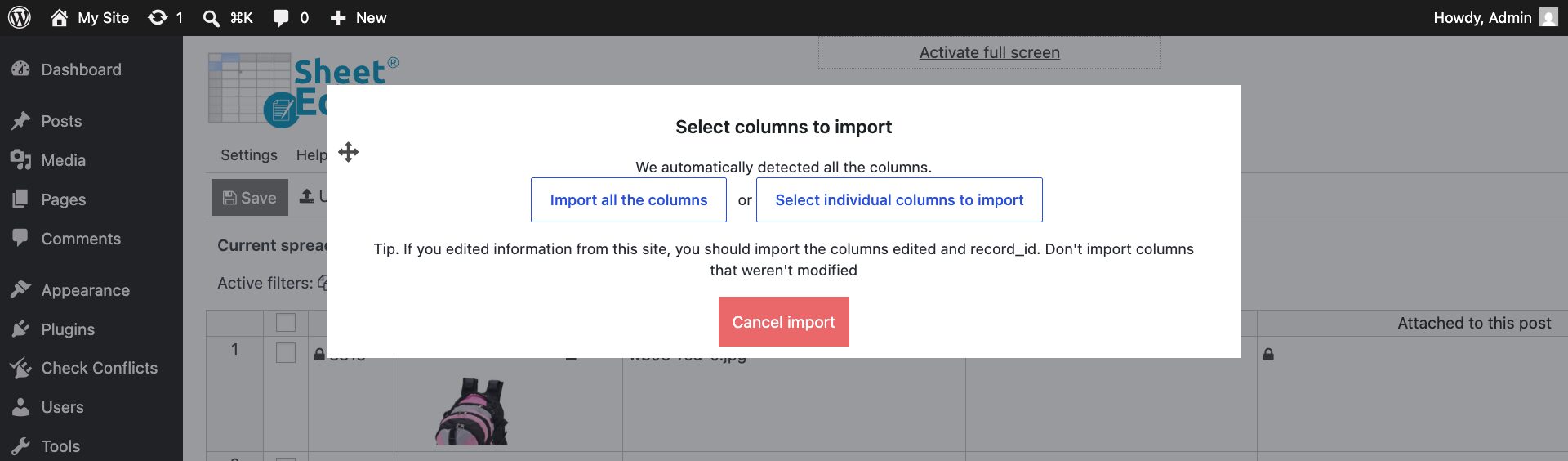
You need to match the rows in the CSV to the corresponding rows in your WordPress database:
- CSV Field: record_id
- WordPress Field: ID
- Click on Next.
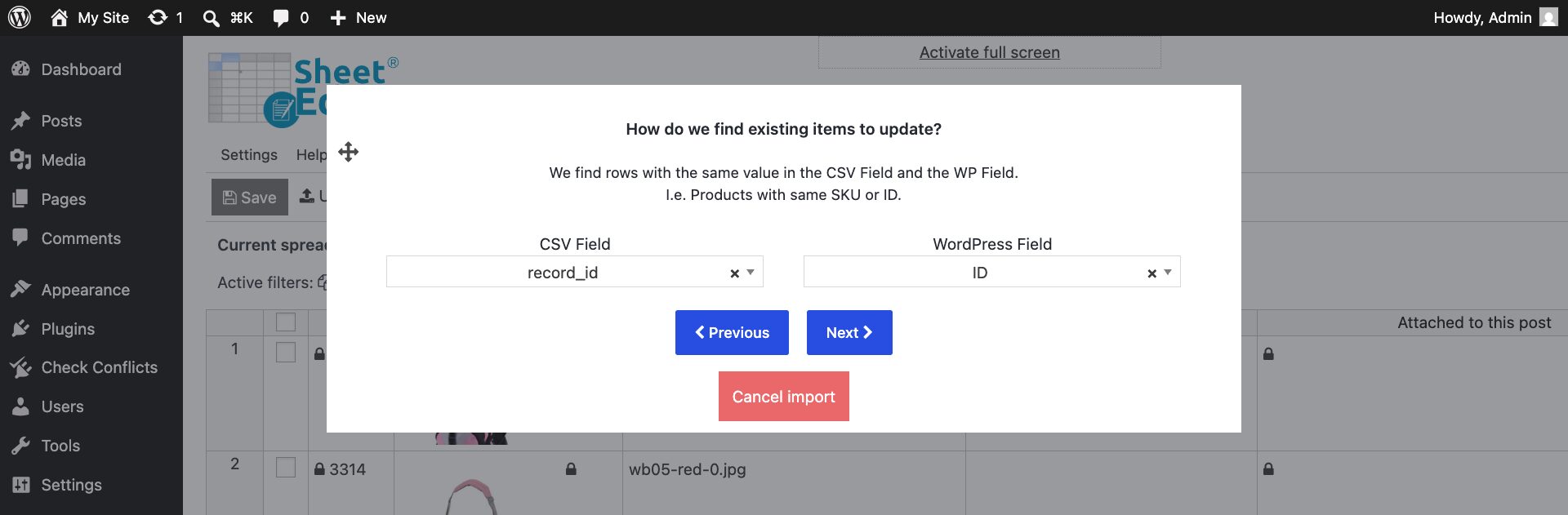
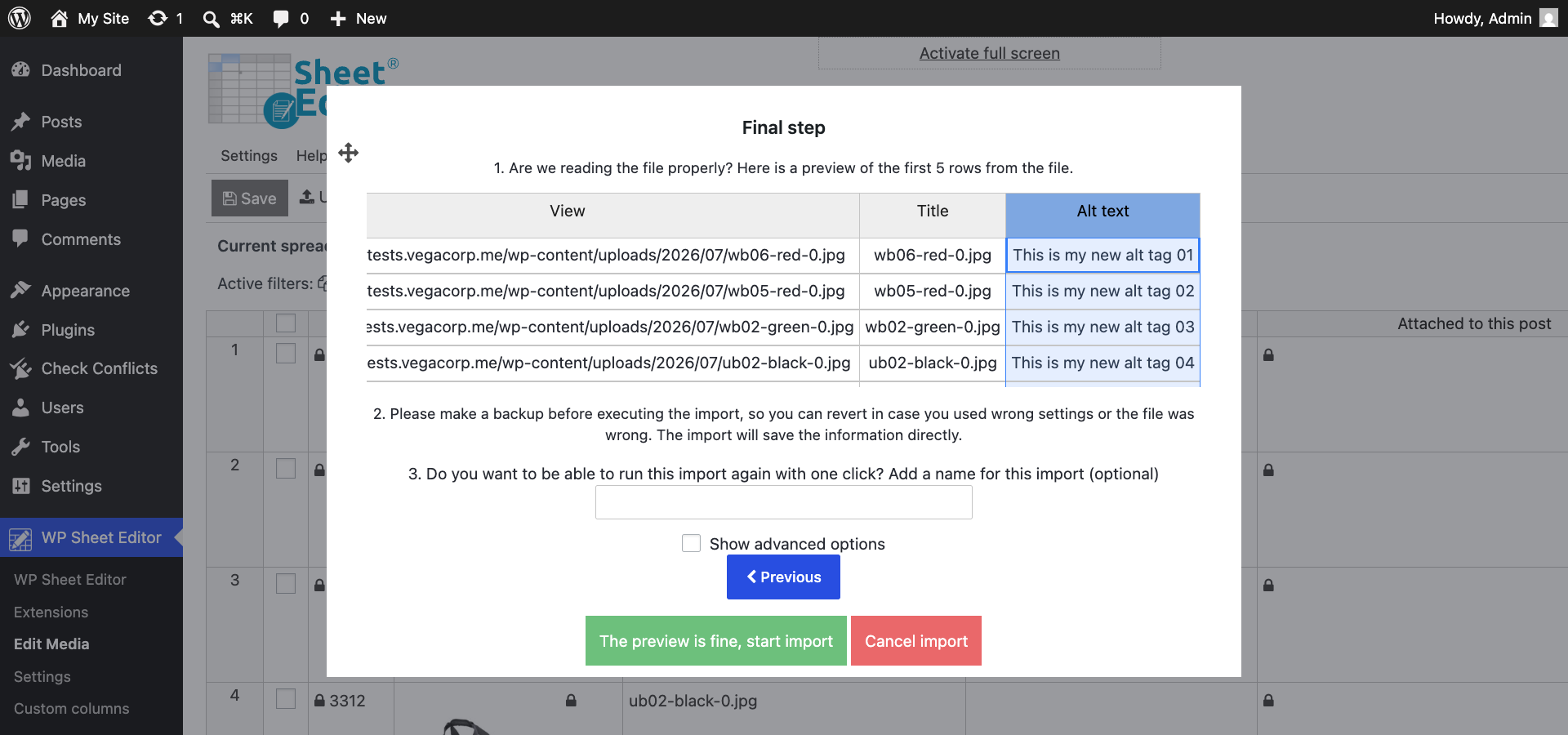
Finally, you’ll see a preview of the changes. Check that everything is correct, then click The preview is fine, start import.
How to choose a method for bulk editing WordPress image alt text
The best method depends on how you want to prepare the alt text:
- Need unique alt text for each image? Edit the Alt text column directly in the spreadsheet.
- Need to apply the same change to many images? Use the Bulk Edit tool.
- Already have useful information in another Media Library field? Use Copy from other columns to copy the title, associated post, caption, or filename.
- Already have the alt text in a spreadsheet? Import it from a CSV file.
Bulk add and edit WordPress image alt tags
Updating alt text for a large WordPress Media Library doesn’t require opening every image individually. With WP Sheet Editor – Media Library, you can find images with missing alt text, edit unique values directly in a spreadsheet, apply changes to multiple images with Bulk Edit, or import prepared alt text from a CSV file.
This gives you a single workflow for finding and updating image alt text across hundreds or thousands of WordPress media files.
You can download the plugin here:
Download Media Library Spreadsheet Plugin - or - Check the features