
Managing a growing e-learning platform requires constant organization. As your catalog of LearnDash courses expands, simple tasks like auditing course titles, updating price types, or reviewing access settings can become overwhelming if you have to click through the default WordPress interface one by one.
Do you need to share a list of your courses with a marketing team that doesn’t have WordPress access? Or perhaps you need to perform a bulk audit of your course materials and certificates? Doing this manually involves opening dozens of tabs and copy-pasting data, which is prone to errors.
In this tutorial, we will show you how to export LearnDash courses to Google Sheets in a few simple steps. By connecting your WordPress site directly to Google Sheets, you can create instant reports, backups, and editable spreadsheets without dealing with complex CSV files.
Why export LearnDash Courses to Google Sheets?
Exporting your course data offers several strategic advantages for LMS administrators. It transforms your static WordPress data into a dynamic, shareable format. Here are the main benefits:
- Data Portability: Easily share course lists, descriptions, and pricing models with external stakeholders or team members.
- Bulk Auditing: Quickly scan columns to see which courses are missing Featured Images, excerpts, or specific categorization.
- Offline Editing: Make changes to course titles, slugs, or content in Google Sheets (even from your phone) and import them back later.
- Reporting: Generate monthly reports on new course creations or status updates for your management team.
What you need to export courses
To follow this guide, we will use the WP Sheet Editor suite. This toolset allows you to view and manage your WordPress data in an intuitive spreadsheet interface, right inside your dashboard.
WP Sheet Editor – Courses: This plugin allows you to manage LearnDash Courses, Lessons, Topics, and Quizzes in a spreadsheet.
You can purchase the plugin here:
Google Sheets Sync: This service connects your WP Sheet Editor spreadsheet to your Google Drive account for seamless exports and imports.
You can sign up to the service here:
Sign up to the Google Sheets Sync Service - or - Check the features
Once you sign up for the service, you will receive a helper plugin that handles the secure API connection between your site and Google.
Step 1. Connect WordPress to Google Sheets
When you subscribe to the Google Sheets Sync service, you’ll receive a helper plugin that links your WordPress site with your Google Sheets account, the Google API, and the WP Sheet Editor API.
Follow this installation guide to complete the setup.
Step 2. Open the LearnDash Courses Spreadsheet
Navigate to WP Sheet Editor > Edit Courses.
The plugin will load a spreadsheet containing all your courses. You will immediately see the difference compared to the standard WordPress list table. Here, every field is visible and editable.
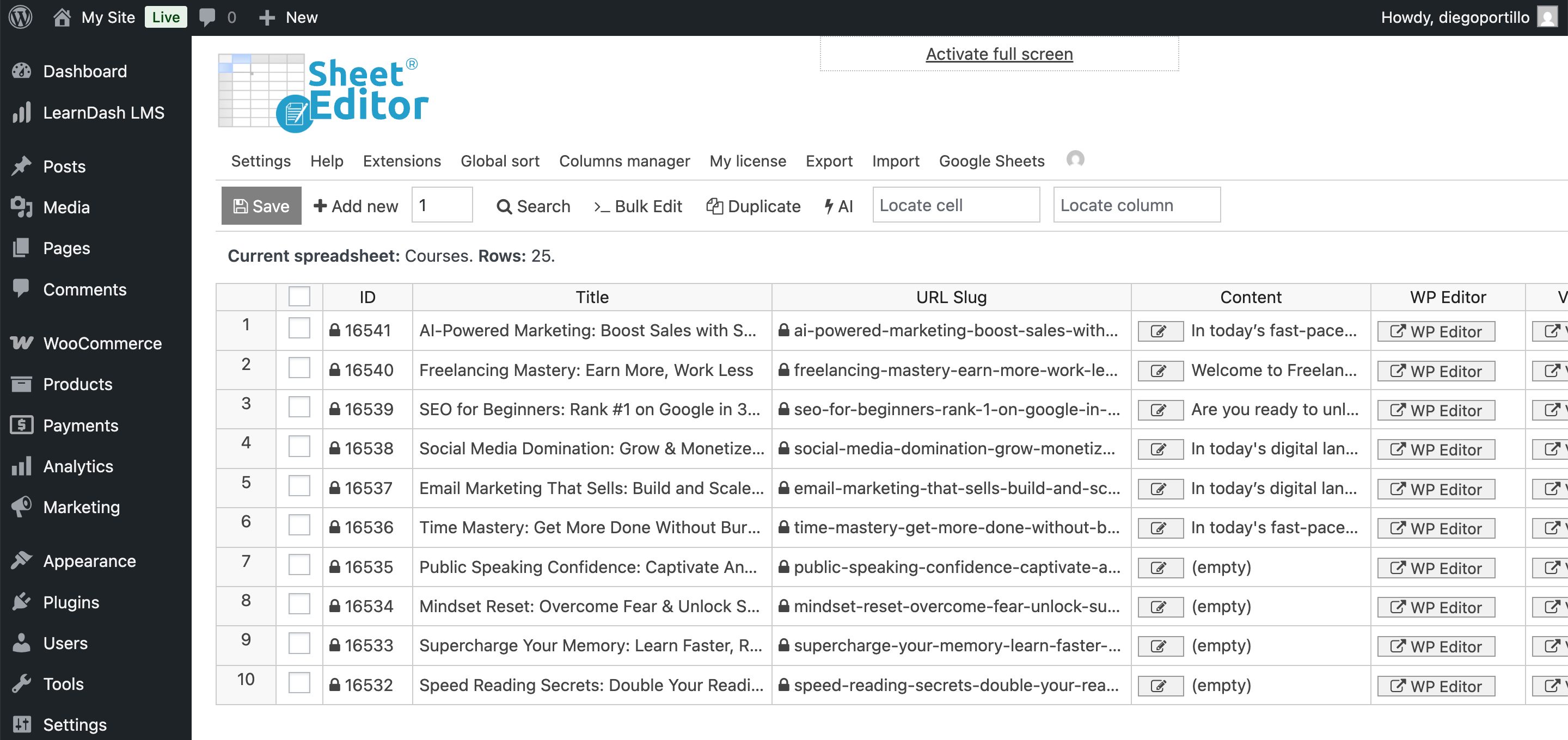
You can see columns for:
- Course Title and Content: The main course information.
- LearnDash Settings: Price Type (Open, Free, Buy Now, Recurring), Access Mode, Course Materials, and Certificates.
- Taxonomies: Course Categories and Tags.
- Status: Published, Draft, or Trash.
- Featured Image: The URL of the course cover image.
If you don’t see a specific column you need (like a custom field added by another plugin), use the Column Manager tool to enable it.
Step 3. Select the courses you want to export (optional)
You have total control over which data you want to export. You can export your entire catalog of courses or just a specific segment.
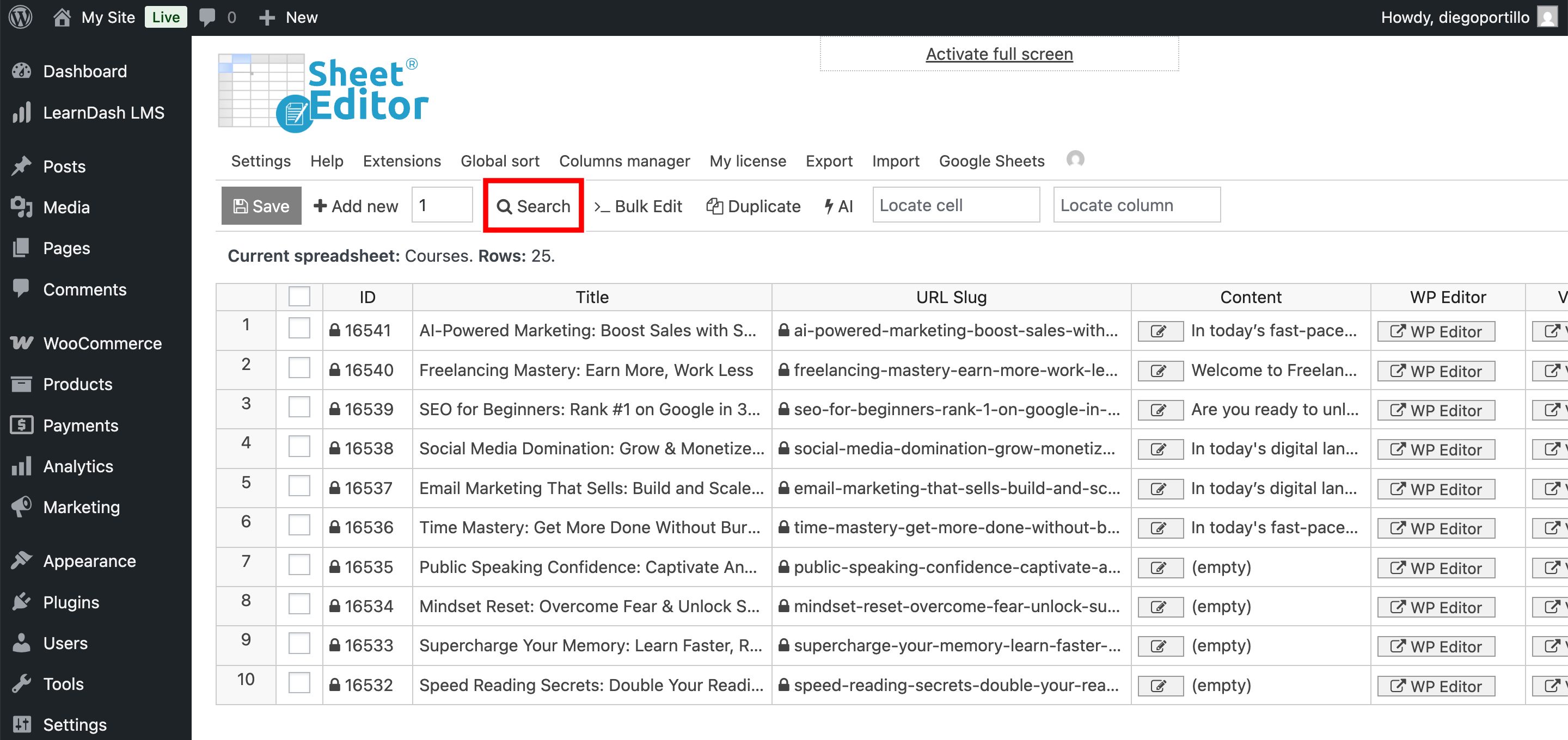
To filter your LearnDash LMS courses, click the Search tool on the toolbar.
This will open a search form where you can filter by:
- Keyword: Find courses with specific words in the title.
- Taxonomy (category, tag, etc.): Export courses from a specific category (e.g., “Marketing” or “Development”).
- Status: Export only “Published” courses and ignore drafts.
- Use any column as a search filter.
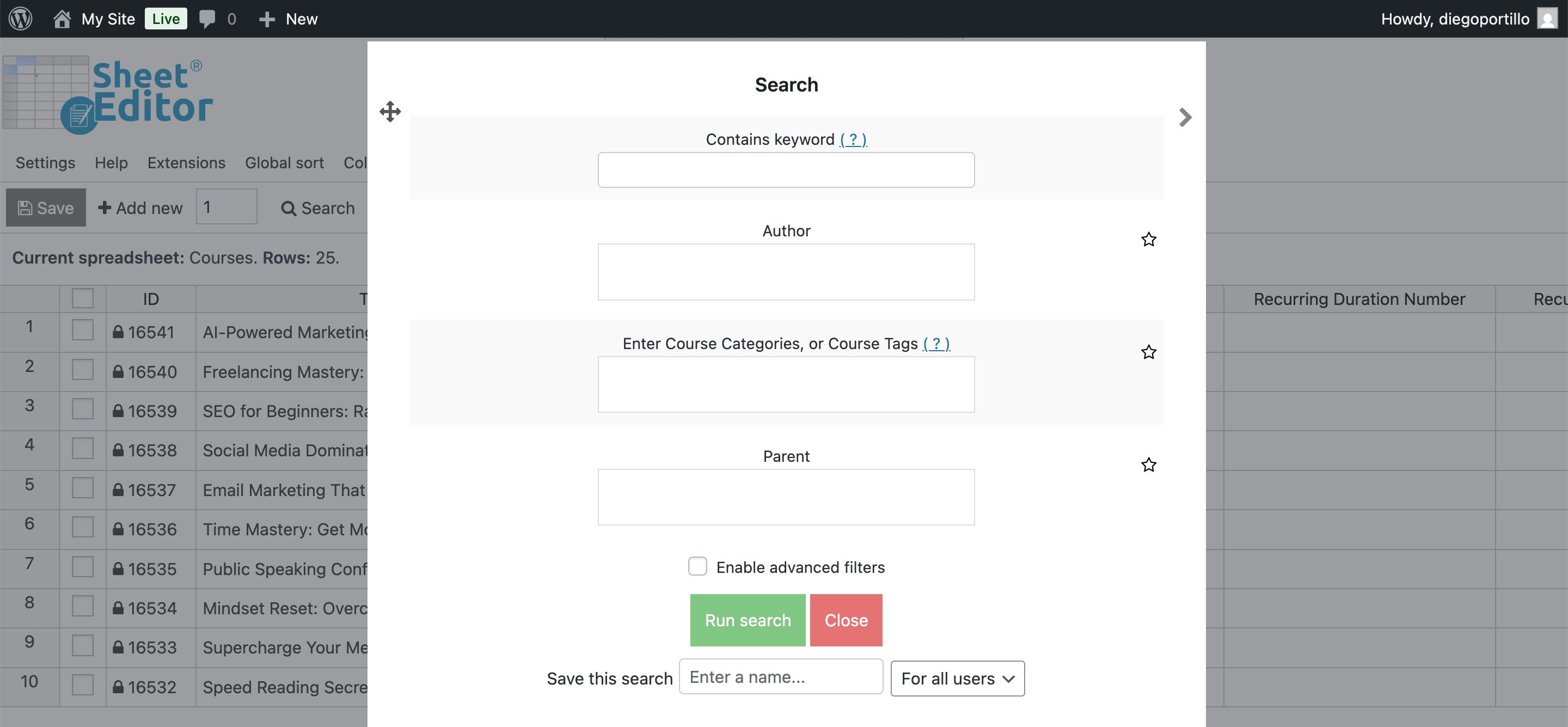
Click Run Search to apply the filters, and the spreadsheet will update to show only the matching courses. These are the rows that will be included in your export.
Step 4. Export LearnDash Courses to Google Sheets
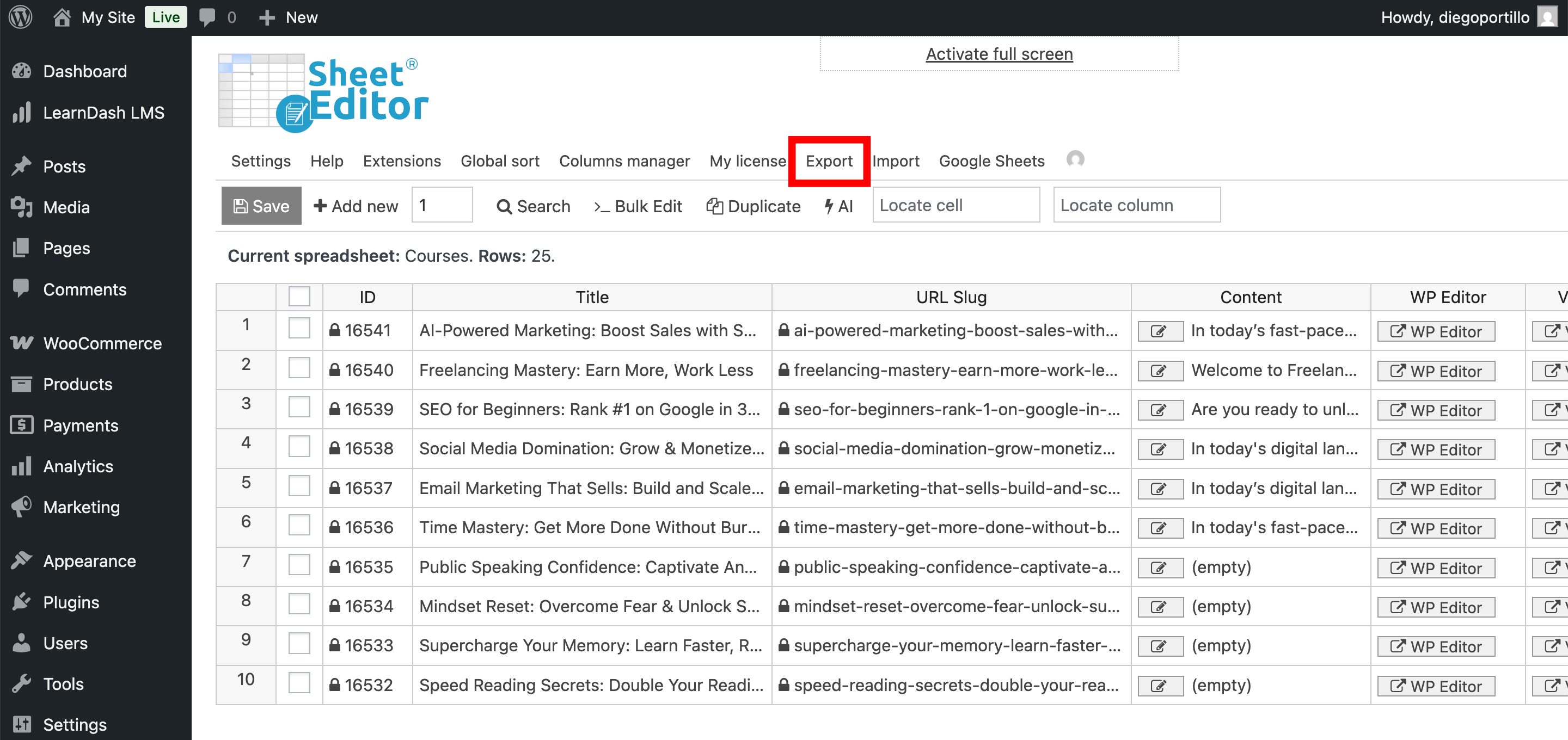
Now, let’s send the data to Google Sheets. To do this, click on the Export tool on the top toolbar.
Now select these files to export your LearnDash courses to Google Sheets:
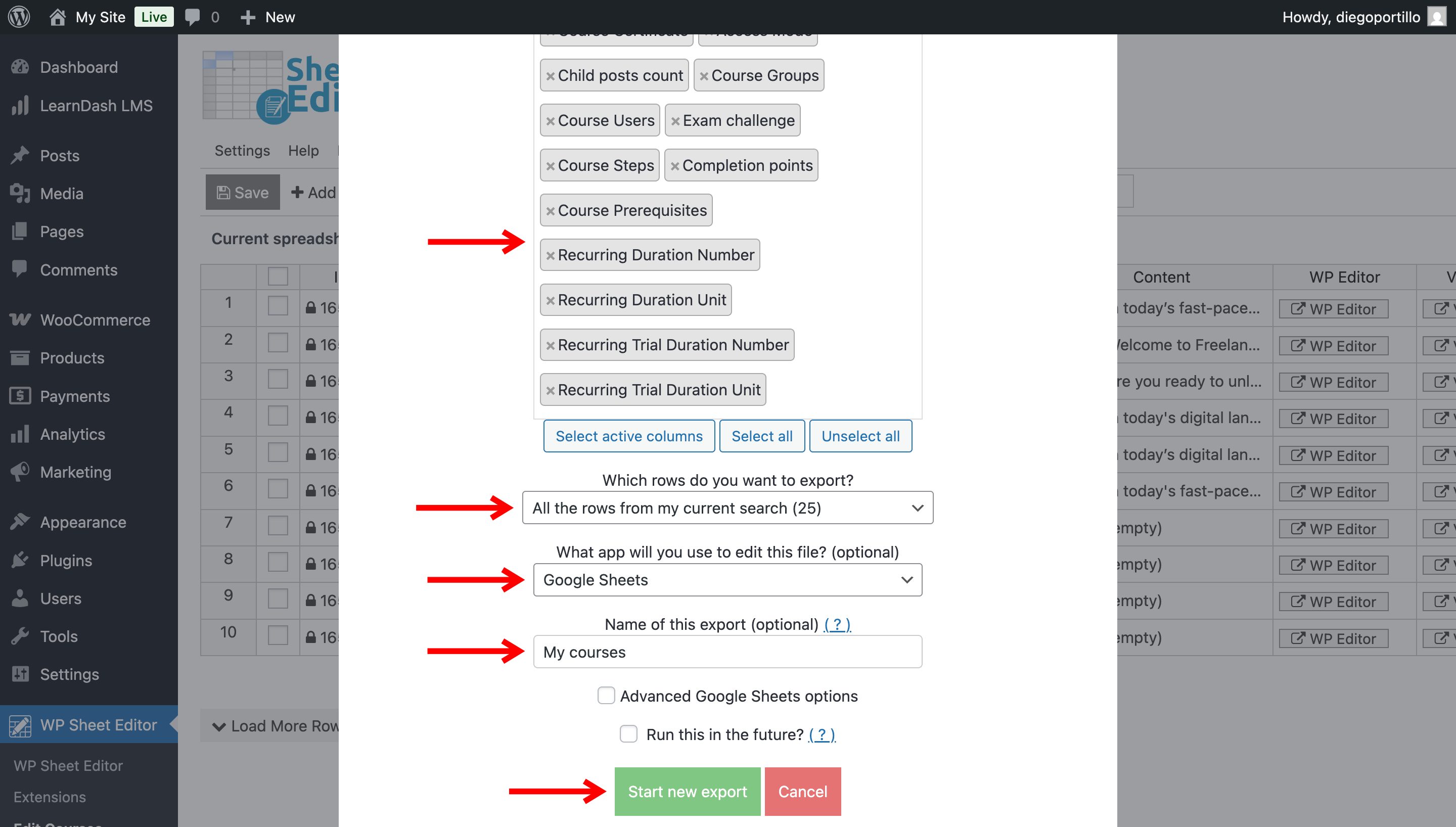
- : Choose “Select all” for a full backup, or manually select specific columns (e.g., Title, Content, Access Mode, Course Steps, etc.) for a focused report.
- : You can export all the courses from your current search, all courses, all manually selected courses.
- What app will you use to edit this file: Select Google Sheets.
- Name of this export: Enter a descriptive name, such as “LearnDash Courses Audit – [Date]”.
- Click Start new export.
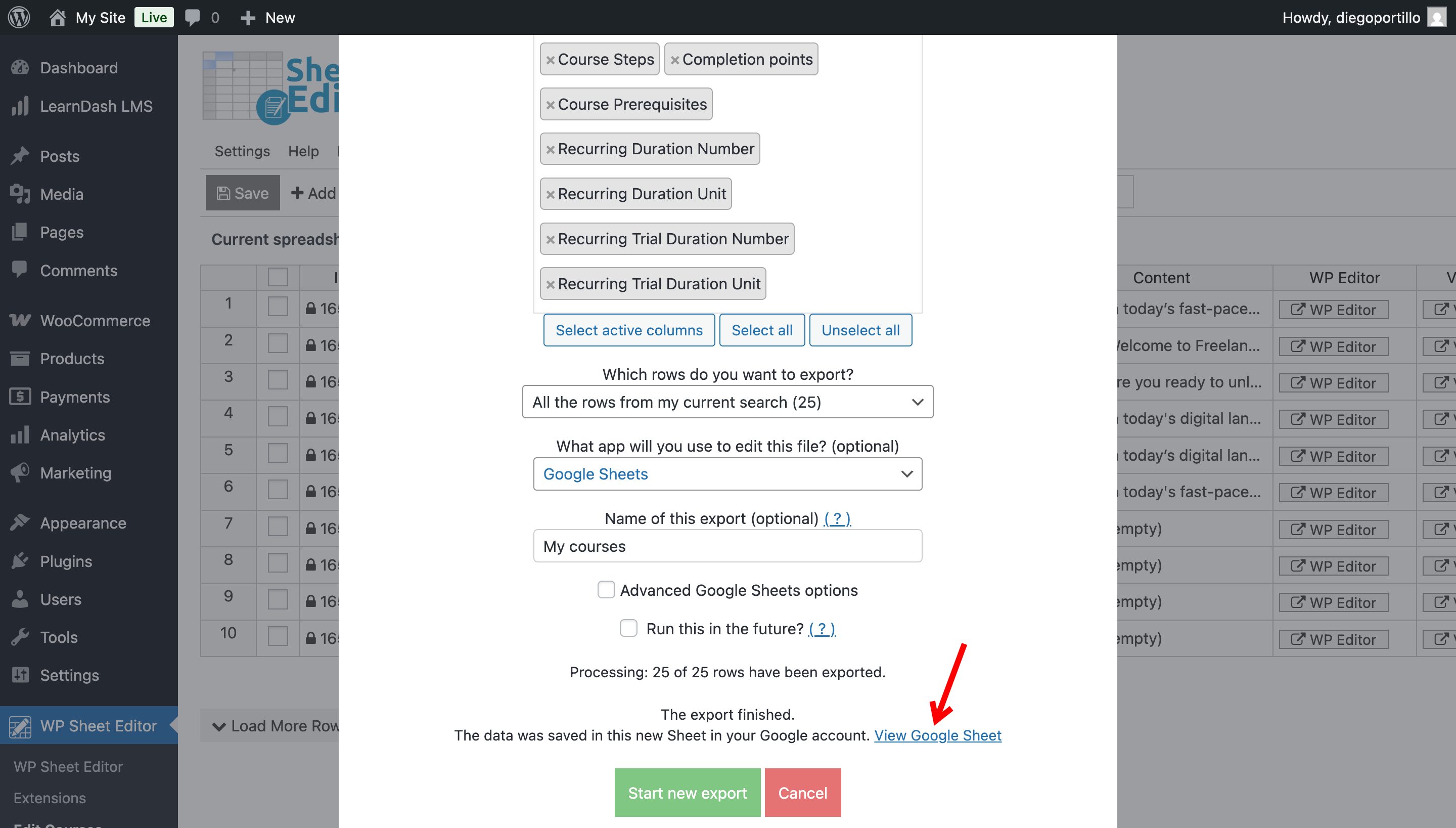
The plugin will process the request and instantly create a new Google Sheet in your account. A link will appear: “View Google Sheet”. Click it to open your new file.
Step 5. Manage your Course Data in Google Sheets
Your data is now in a cloud-based spreadsheet. You can use this file to:
- Collaborate with your team to rewrite course descriptions.
- Use formulas to calculate potential revenue based on course prices.
- Sort and filter data using Google Sheets’ native tools.
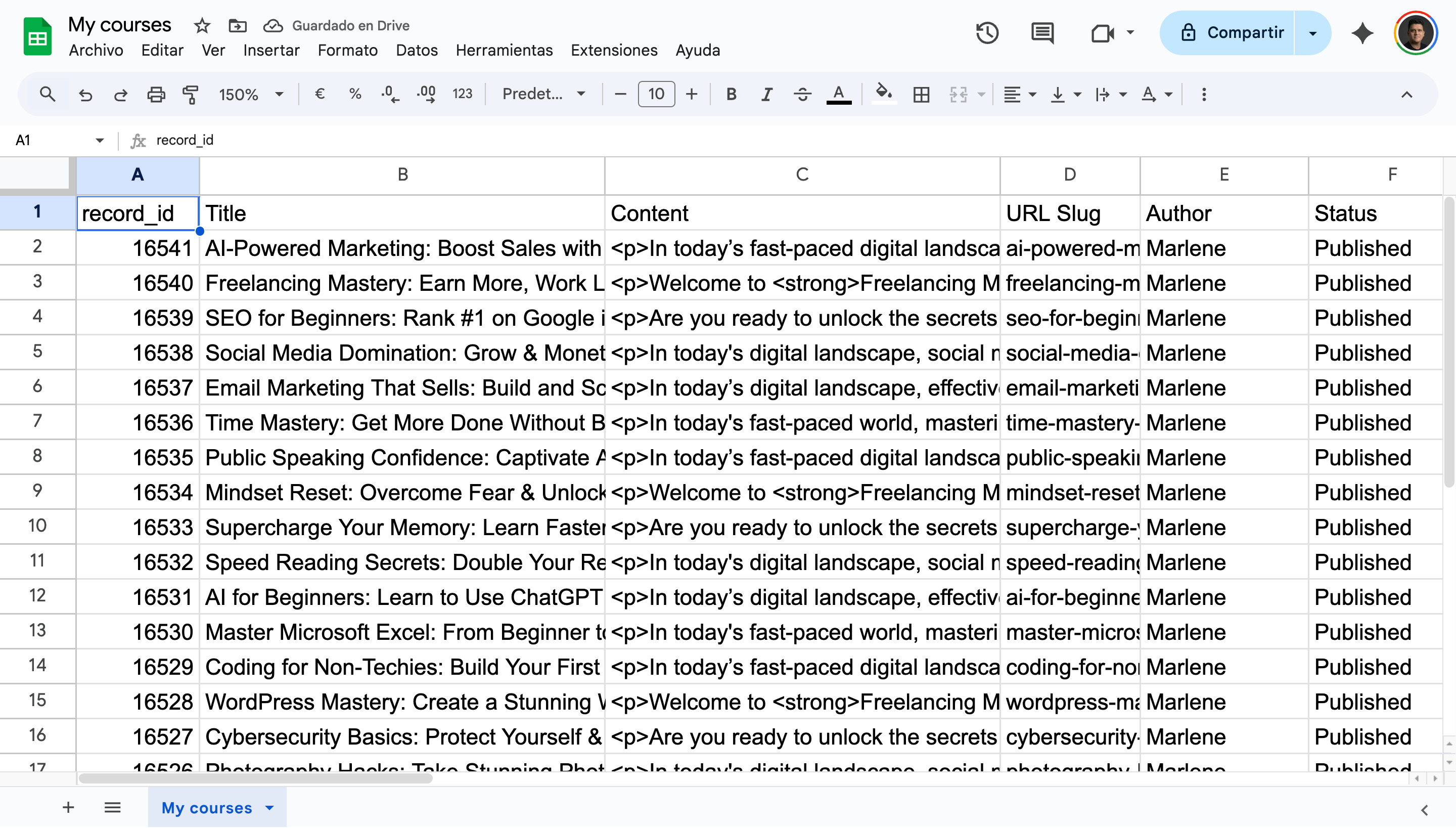
Important: Since the Google Sheets Sync service by WP Sheet Editor supports two-way synchronization, you can also edit this data in Google Sheets and import the changes back to WordPress later. This is perfect for bulk updating prices or fixing typos across hundreds of courses at once.
Manage LearnDash data in Google Sheets!
Exporting LearnDash courses to Google Sheets removes the friction from managing your LMS data. With WP Sheet Editor and the Google Sheets Sync service, you can generate reports, create backups, and prepare for bulk edits in seconds, freeing up your time to focus on creating great course content.