
Let’s see how to find and fix duplicate SKUs in WooCommerce products. You can end up with duplicate SKUs for many reasons; for example, when you use custom code using false wc_product_has_unique_sku, or when you import flawed CSV or XML files, and even when you use third party tools for syncing inventory or even POS systems.
Of course, having products with duplicate SKUs in WooCommerce can cause serious issues. For example, you can have issues with incorrect stock counts or confusions when managing orders and syncing inventory with other platforms. And clearly, identifying and fixing these duplicate SKU manually can take hours if you have hundreds or thousands of products.
Fortunately, with the WP Sheet Editor for WooCommerce Products plugin, you can search for all products with duplicate SKUs in a few clicks and then use the spreadsheet to fix them easily.
You can download the plugin here:
Download WooCommerce Products Spreadsheet Plugin - or - Check the features
Once you have set up the plugin and the license, you need to follow the steps below to fix duplicate SKUs in WooCommerce.
1- Open the Products Spreadsheet
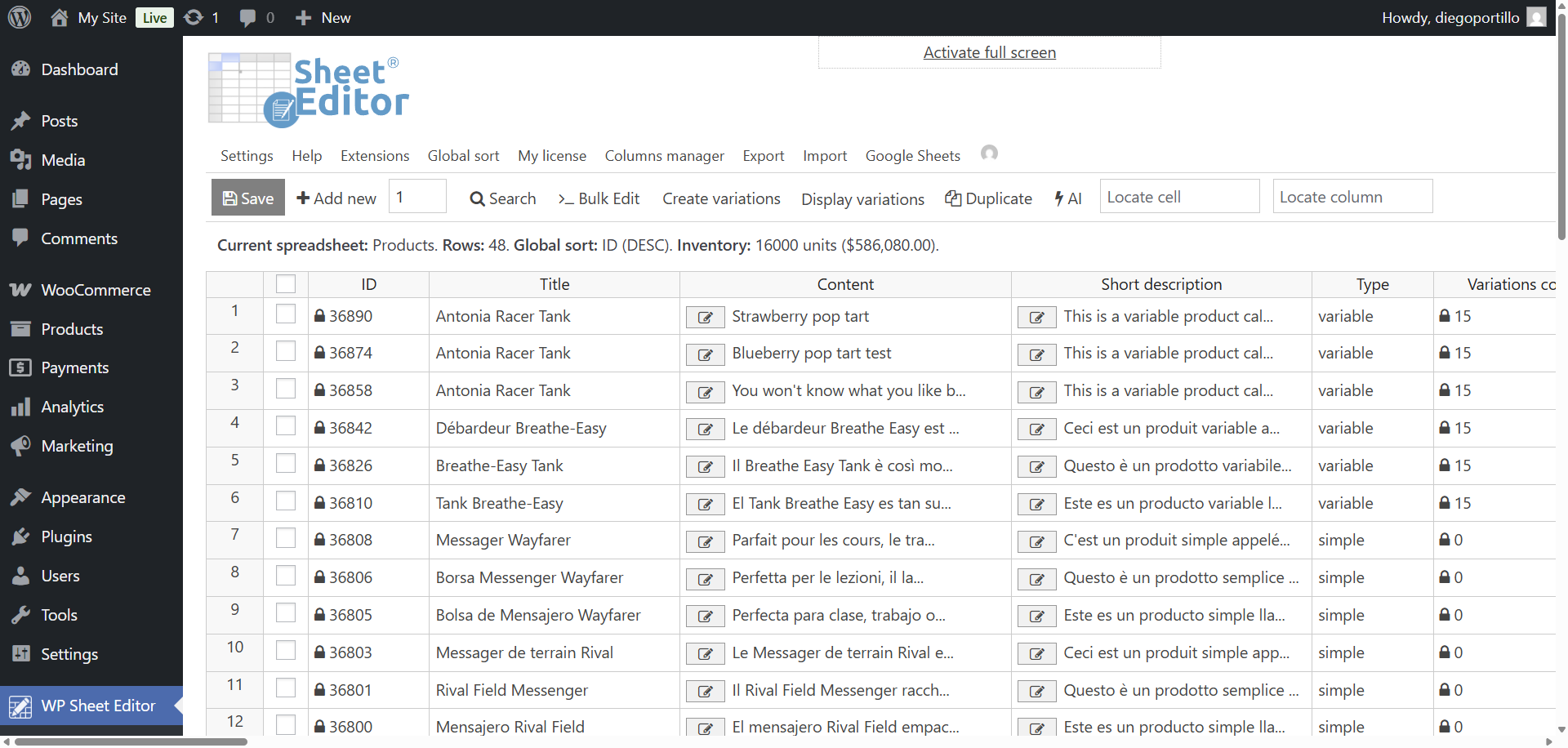
To get started, go to WP Sheet Editor > Edit Products. The spreadsheet will load all your WooCommerce products, allowing you to view and edit fields like SKU, price, stock, category, featured image, and more.
2- Open the “Search” tool
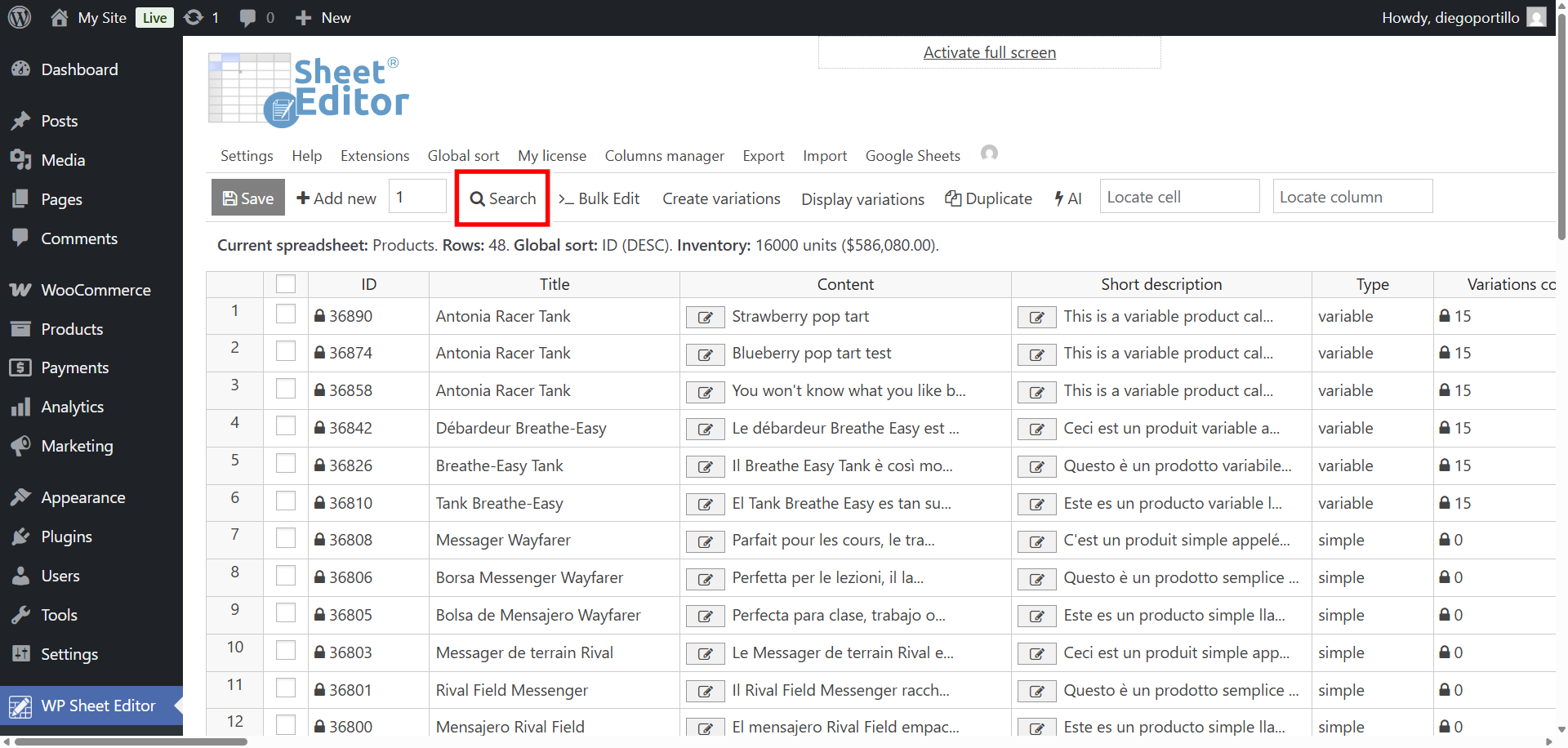
Click on the Search button located in the toolbar to open the advanced search panel. This tool allows you to filter products using any field, including SKU, price, stock status, category, or even custom fields.
3- Find duplicate SKUs in WooCommerce products
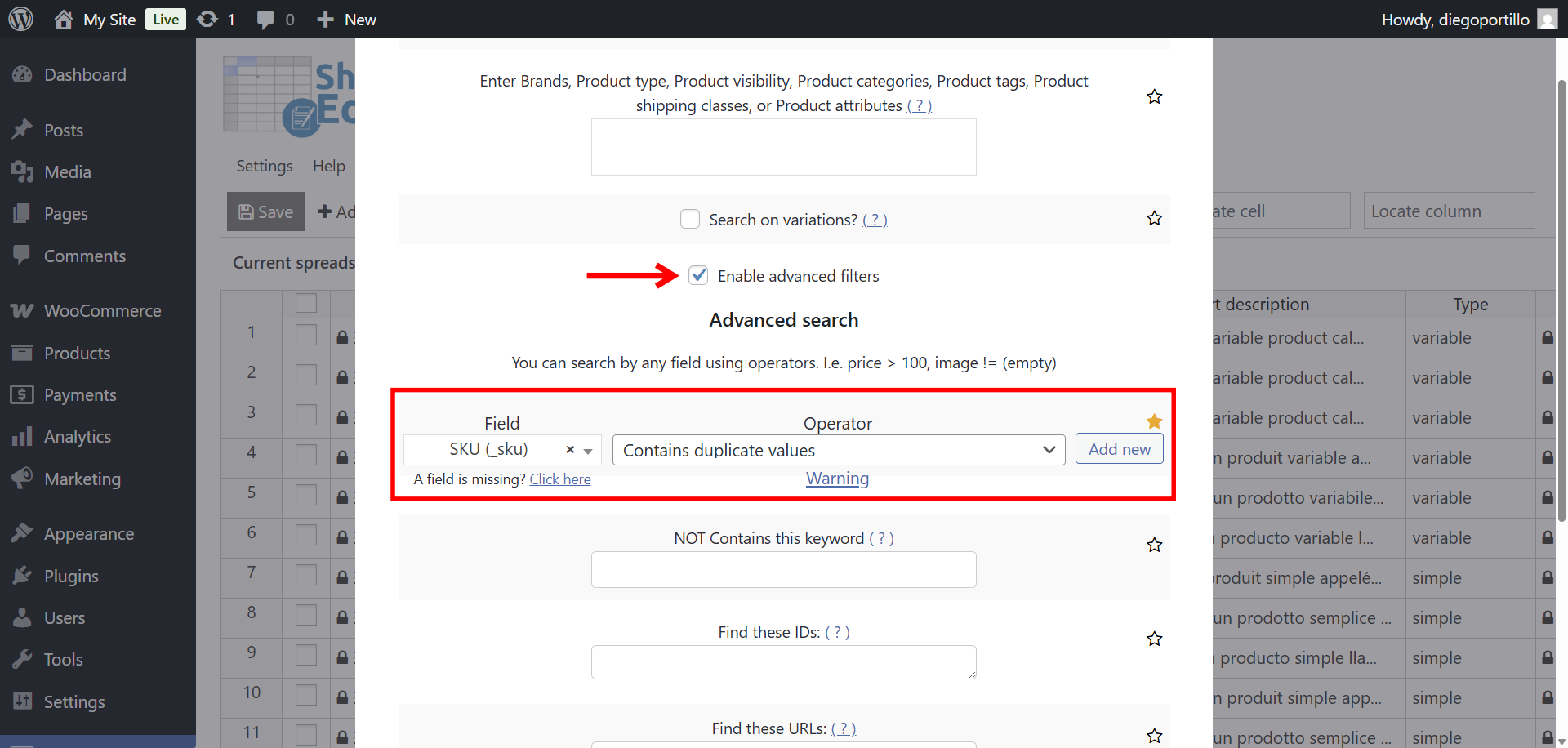
To find duplicate SKUs, set these values in the Search tool:
- Tick the Enable advanced filters checkbox.
- Field: SKU
- Operator: Contains duplicate values
- Click on Run search.
Optional: Tick the “Search on variations” checkbox to filter product variations with duplicate SKU.
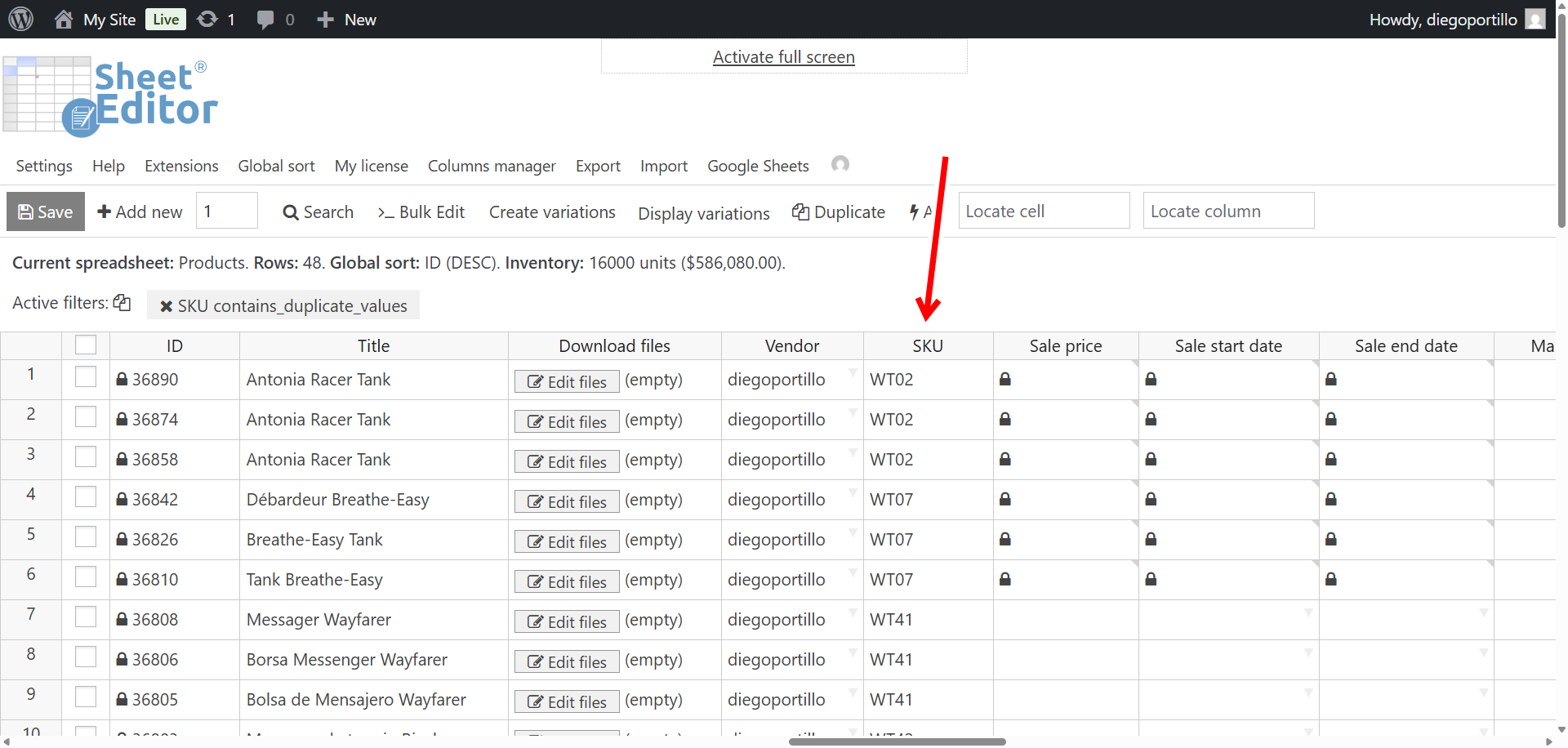
The plugin will display all products that share the same SKU value with one or more other products.
4- Fix duplicate SKUs using WP Sheet Editor
Now you can use WP Sheet Editor to fix the duplicate SKUs. You have several way to do this:
- Update the duplicate SKUs using the spreadsheet
- Import new SKUs from a CSV file, using the Import tool in WP Sheet Editor
- Remove products that contain duplicate SKUs, keeping only one product (the oldest or the newest). We have prepared a step by step guide for you to delete products with duplicate SKUs, and the best part is that you can automatically create redirections so the URLs of the removed products point to the product you’re keeping.
Manage your WooCommerce products with WP Sheet Editor
With the new “Contains duplicate values” operator, finding and fixing duplicate SKUs is simple. Keep your store organized and error-free. All from the WP Sheet Editor spreadsheet for WooCommerce products and variations.
You can download the plugin here:
Download WooCommerce Products Spreadsheet Plugin - or - Check the features