
Let’s see how to generate WooCommerce variation descriptions with AI.
If you sell apparel, furniture, or any customizable goods, you likely rely heavily on WooCommerce variable products. Offering different sizes, colors, and materials is great for customers, but it creates an absolute nightmare for copywriting when it comes to writing variation descriptions.
Most store owners write one general description for the parent product and completely ignore the individual variation descriptions. When a customer selects the “Crimson Red” or “Extra Large” option from the dropdown, the text on the page doesn’t change. This is a missed opportunity to reinforce their specific choice, provide tailored details, and push them toward checkout.
Writing unique copy for 50 different t-shirt color and size combinations by hand, however, is soul-crushing. But with artificial intelligence, it takes a few clicks.
Using WP Sheet Editor – AI, you can automatically generate hyper-specific, conversion-boosting descriptions for every single product variation in your WooCommerce store. Let’s look at how to deploy an AI assistant to handle this massive workload for you.
Table of Contents
What you need to generate variation descriptions
To follow this tutorial and automate your variable product copy, you will need the following plugins active on your site:
1- WP Sheet Editor – WooCommerce Products
This plugin replaces the standard WooCommerce product list with a spreadsheet. Crucially for this task, it includes a “Display Variations” feature that lets you view and edit all your child products (the individual sizes/colors) as their own separate rows.
You can download the plugin here:
Get the WooCommerce Spreadsheet Editor - or - Check the features
2- WP Sheet Editor – AI
This extension links your WooCommerce spreadsheet directly to generative AI models (like GPT, Claude, Gemini, Grok, DeepSeek, etc.), allowing you to create bulk content on the fly.
Ready to automate?
3- An AI API Key
You must have an active API key from a supported provider (OpenAI, OpenRouter, any OpenAI-compatible provider) to process the text generation. If you need assistance setting this up, check out our API configuration guide.
Step 1: Teach the AI how to write variation descriptions
First, we need to create a global prompt that tells the Large Language Model exactly how to handle the specific attributes of a variation (like its color or size) without rewriting a massive essay.
Navigate to WP Sheet Editor > AI > Settings > Prompts and click on Add new.
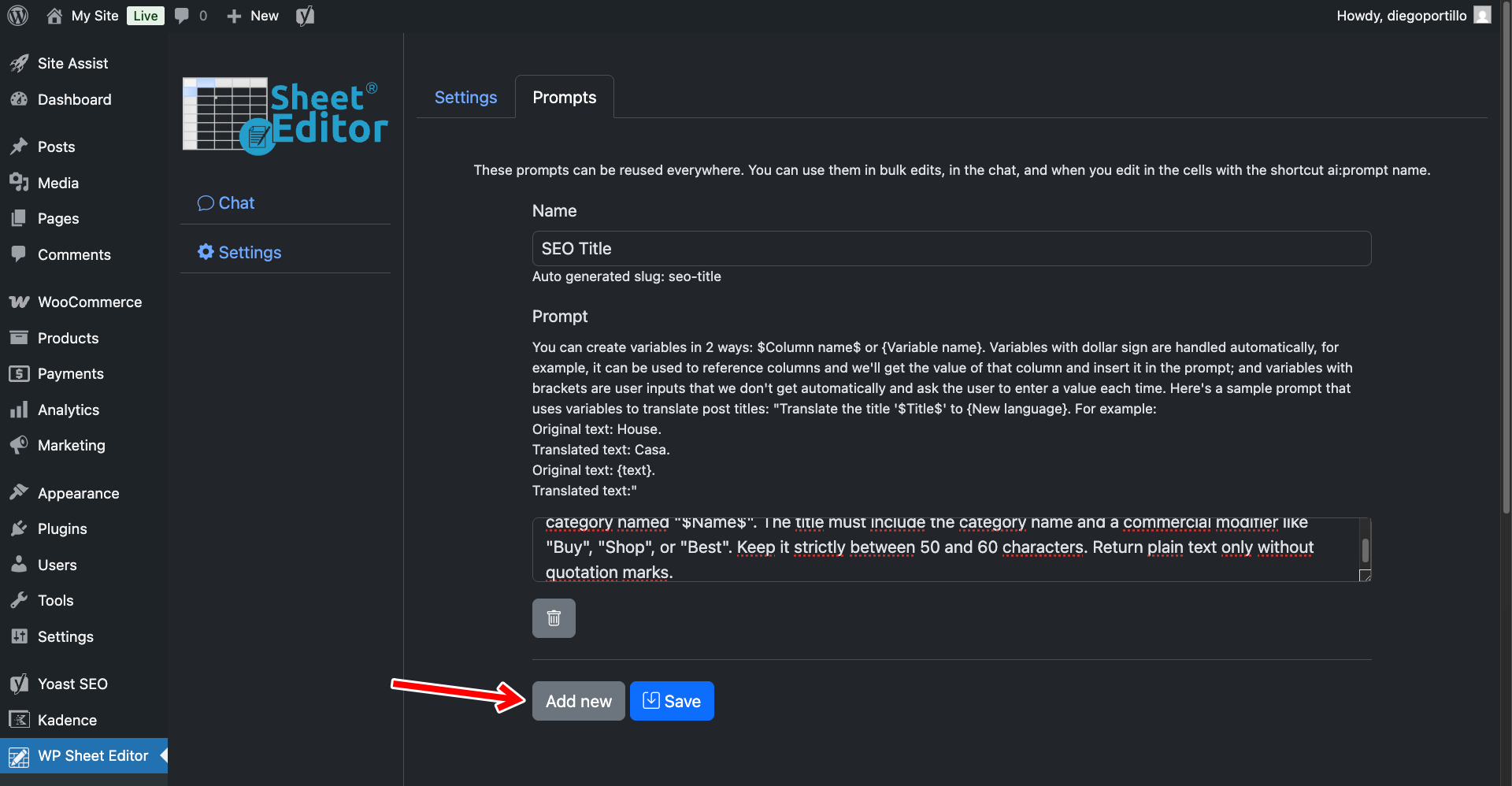
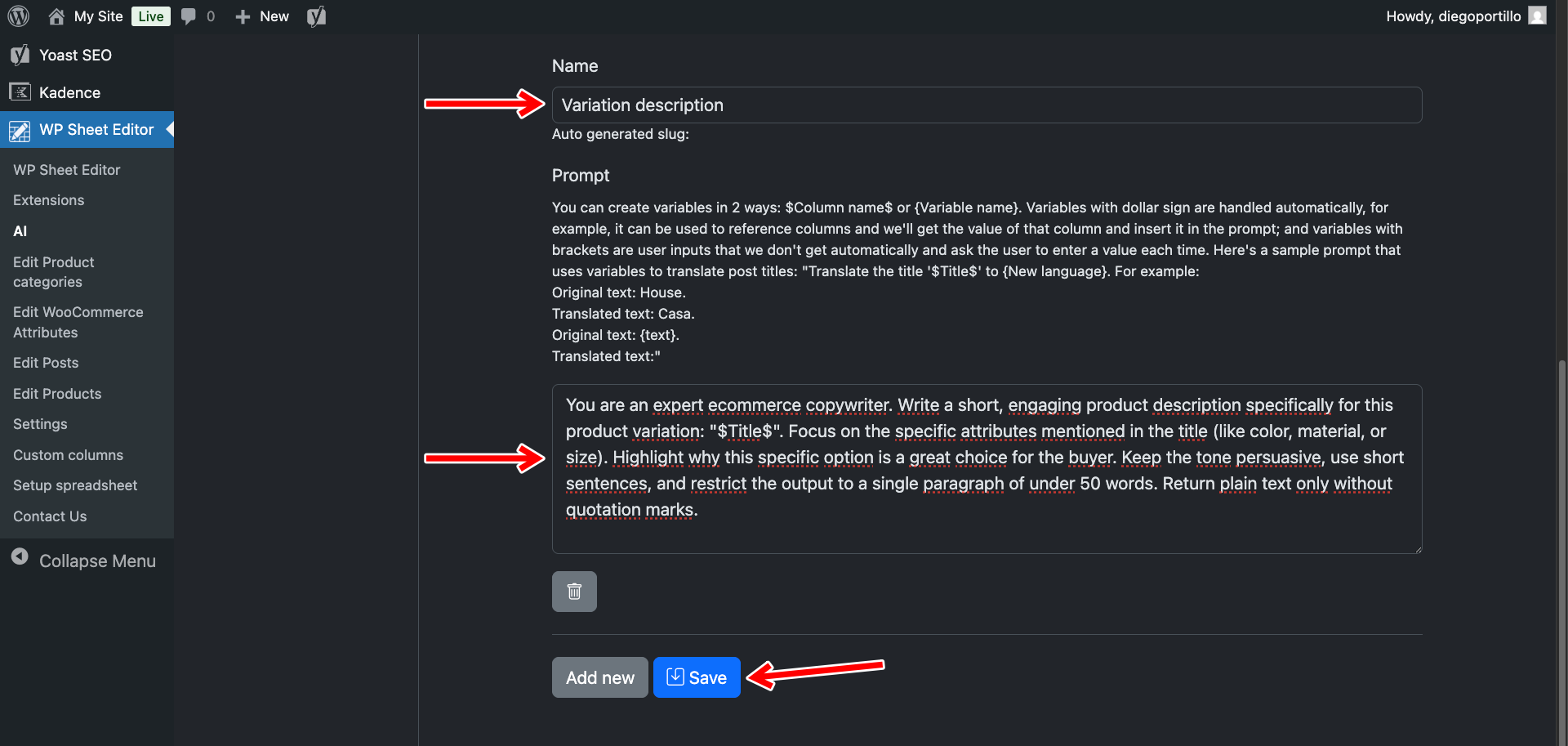
Configure the prompt with these instructions:
- Name your prompt:
Variation Description - Enter this template:
You are an expert ecommerce copywriter. Write a short, engaging product description specifically for this product variation: "$Title$". Focus on the specific attributes mentioned in the title (like color, material, or size). Highlight why this specific option is a great choice for the buyer. Keep the tone persuasive, use short sentences, and restrict the output to a single paragraph of under 50 words. Return plain text only without quotation marks.
- Note: In WP Sheet Editor, variation titles automatically include their attributes (e.g., “Classic T-Shirt – Blue, Large”). The
$Title$placeholder ensures the AI knows exactly which version it is writing about. - Click Save.
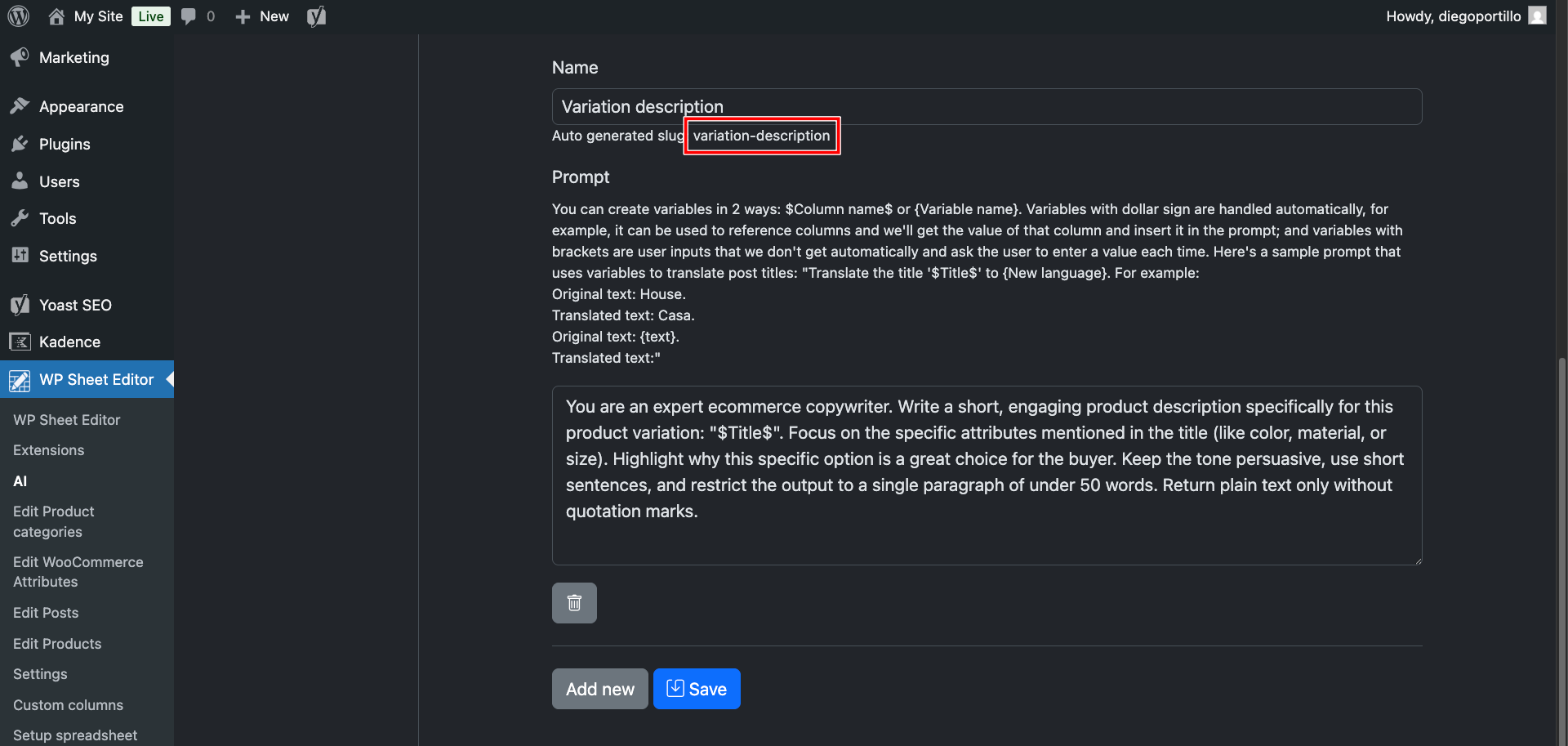
The system will assign this prompt a slug like variation-description, which you then can use in spreadsheet cells like this: ai:variation-description
Step 2: Generate descriptions for specific variations
If you only want to add descriptions to your best-selling variations, you can use the inline shortcut directly inside the spreadsheet grid.
Go to WP Sheet Editor > Edit Products to load your products in the spreadsheet.
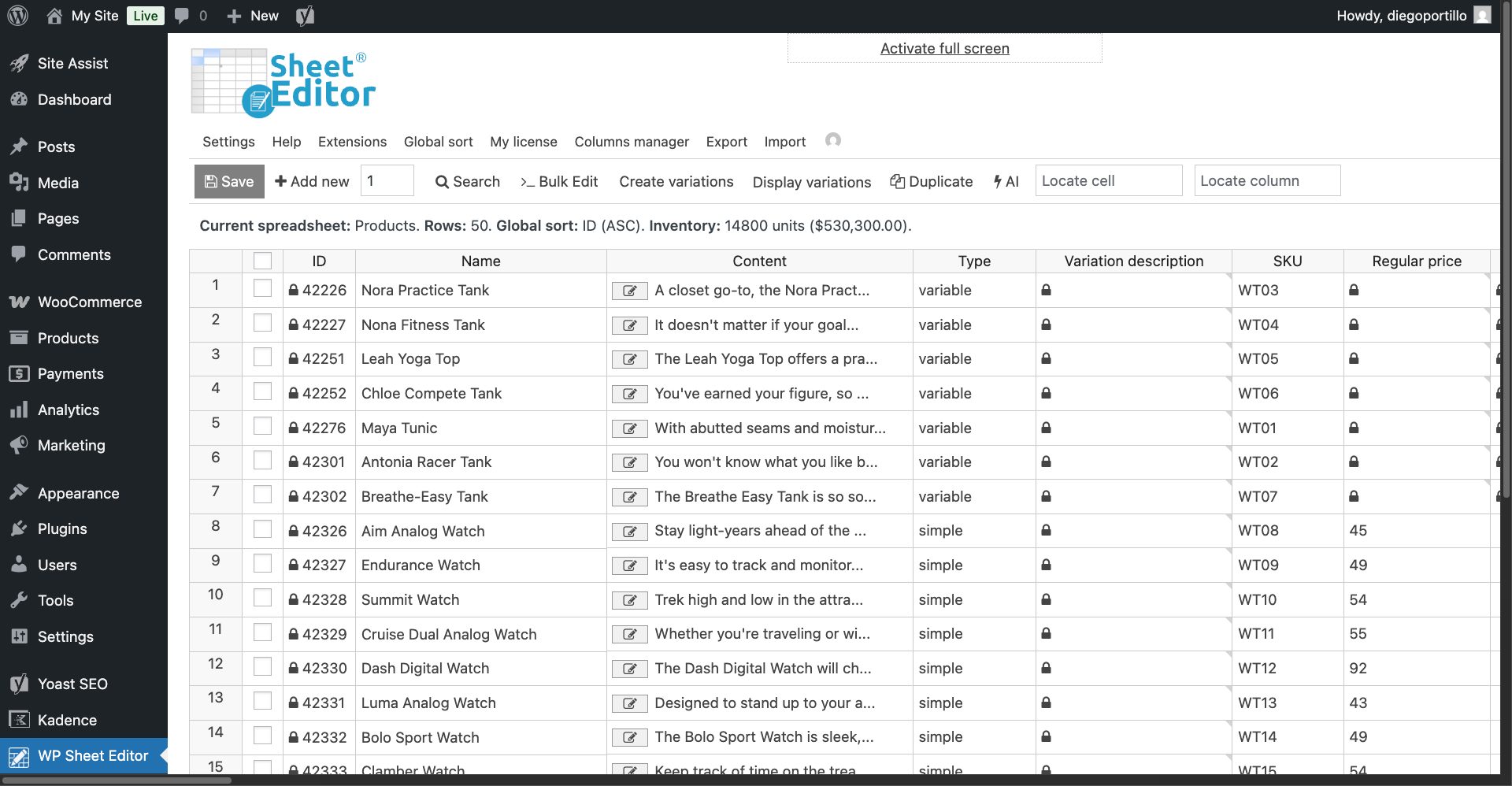
By default, the spreadsheet shows parent products.
To reveal your variations, hover the mouse cursor over the Display variations button and select Only display variable products that have variations.
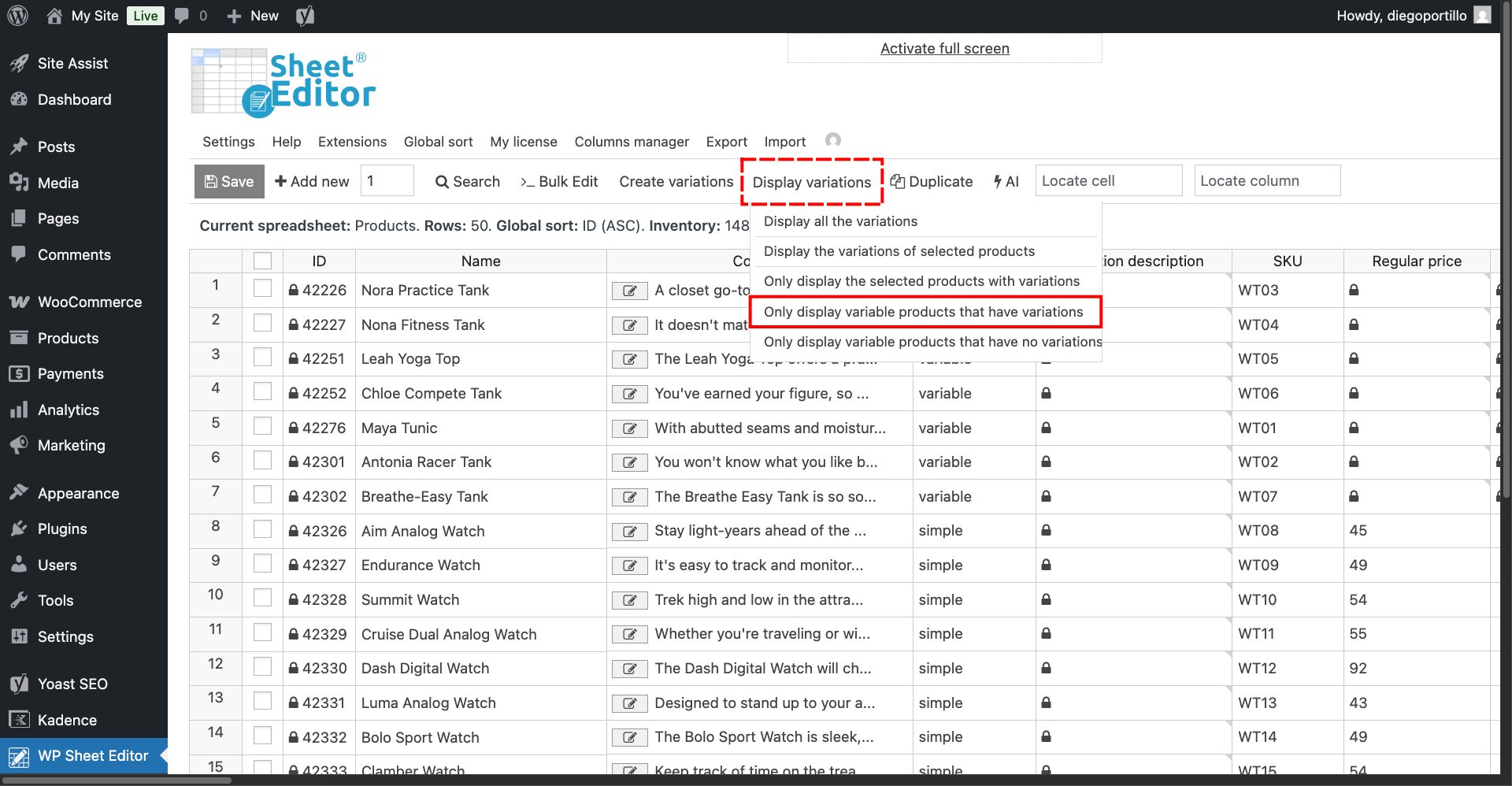
The spreadsheet will expand to show every single variation next to their parent products as its own editable row. You can see the active search filters above the spreadsheet content.
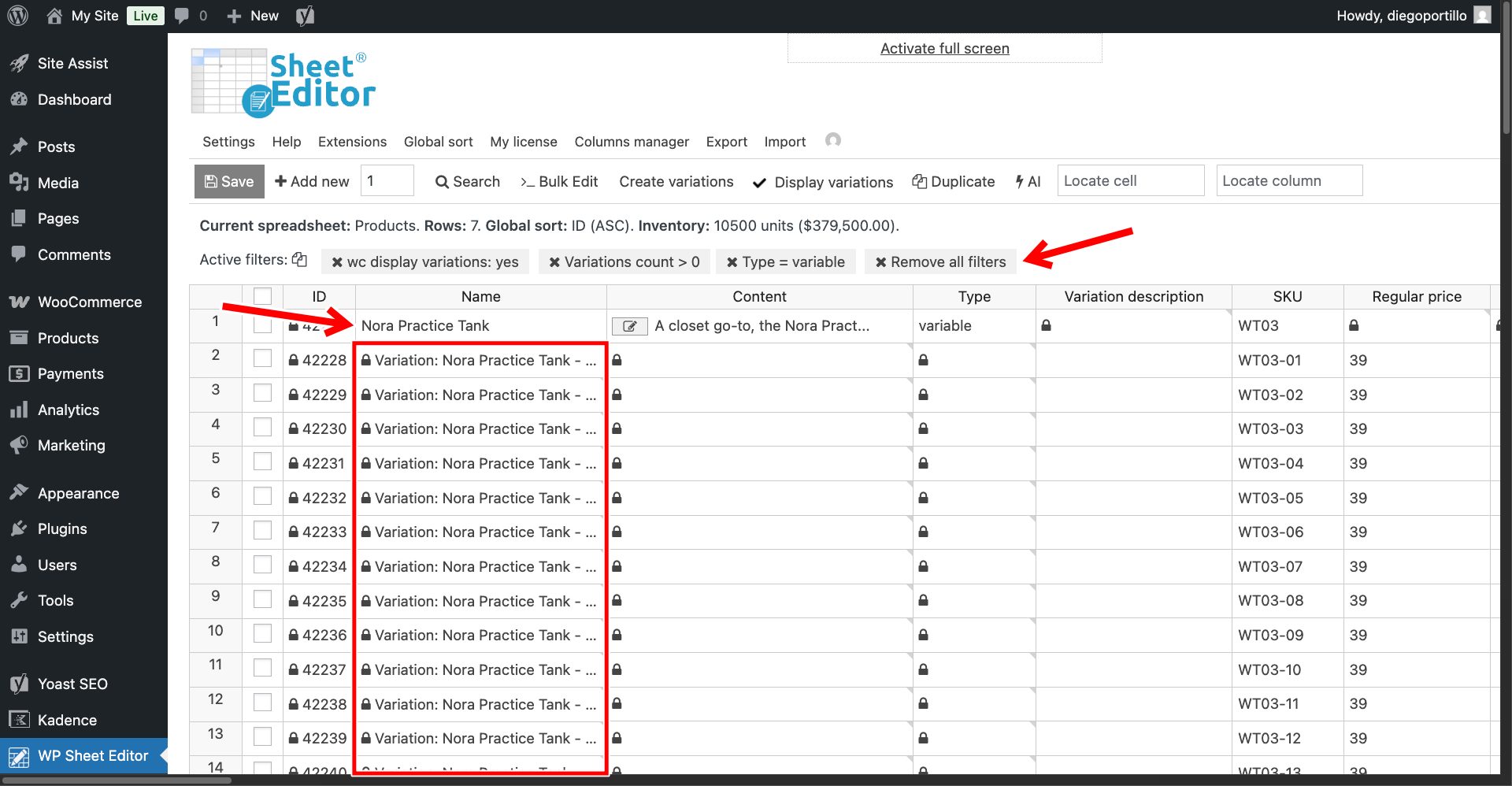
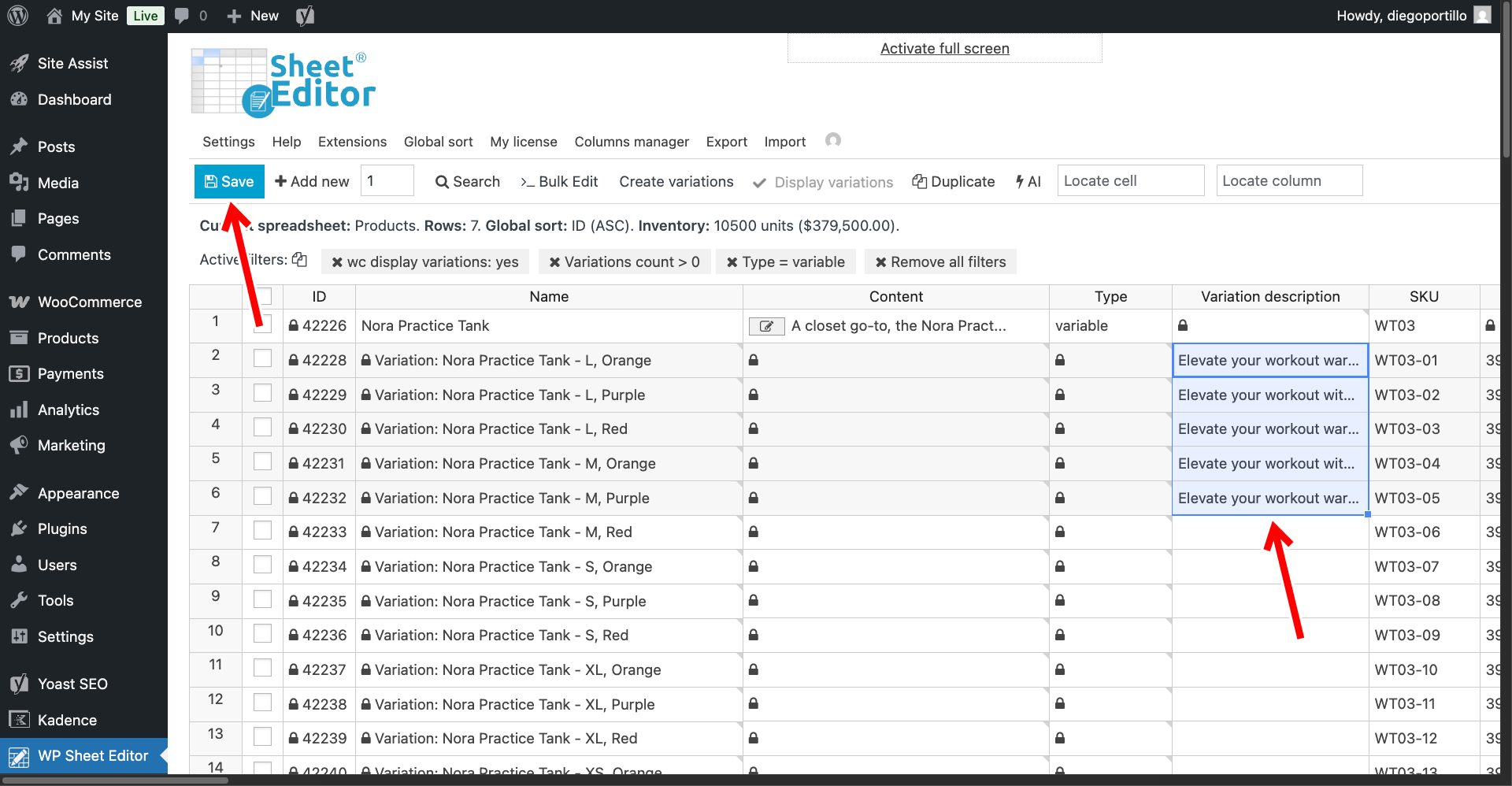
Now, locate the Variation Description column (this is the specific text that changes when a user selects an option from the dropdown menu on the frontend).
Click on the empty cell for a variation, type your shortcut:
ai:variation-description
Once you’ve entered the prompt shortcut, hit Enter.
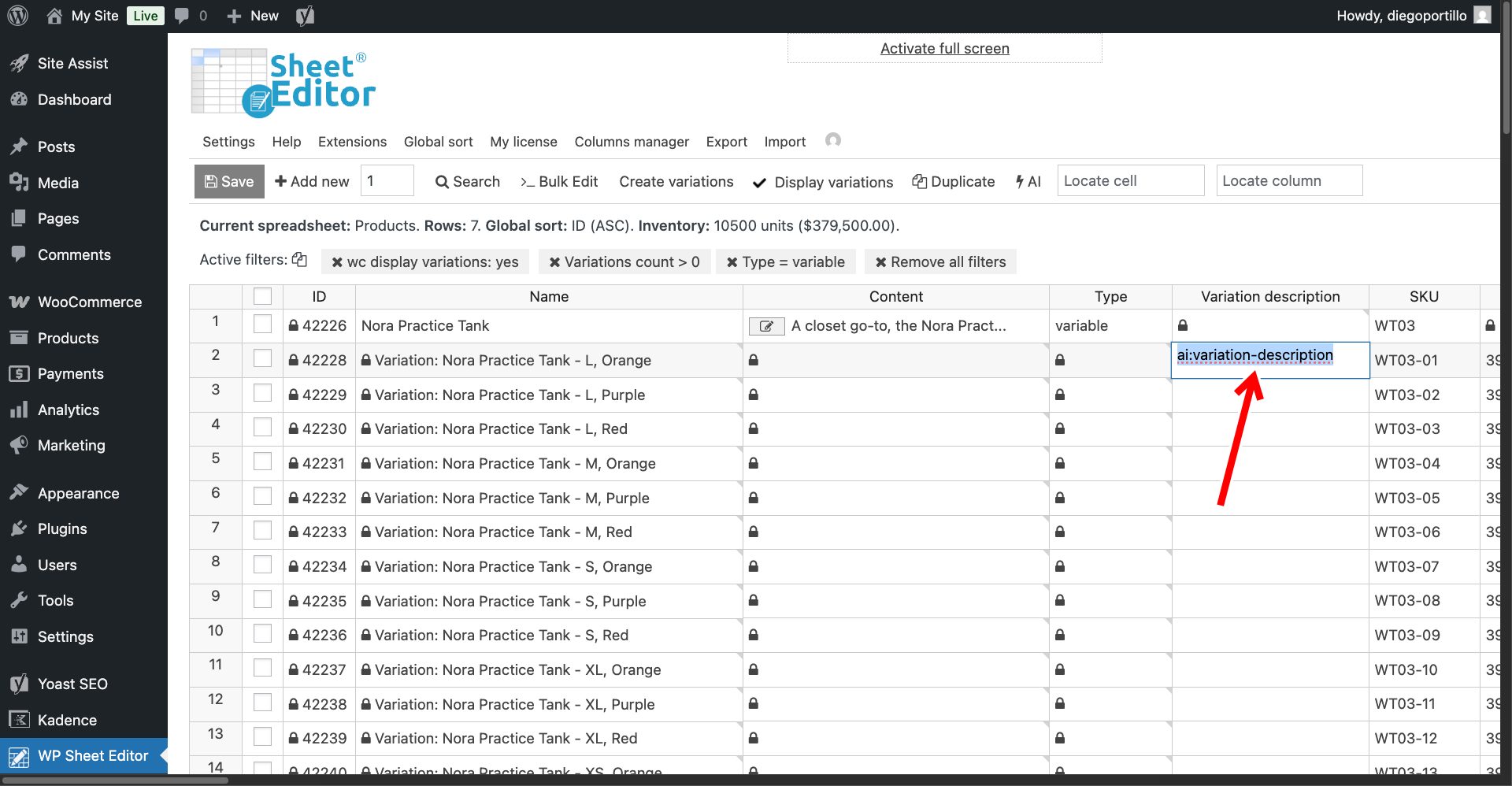
The AI will analyze the variation’s name and attributes, generating a punchy, tailored description that perfectly matches that specific item. You’ll see a loading icon while the AI is working.
As you can see, the variation description has been generated for our selected product variation.
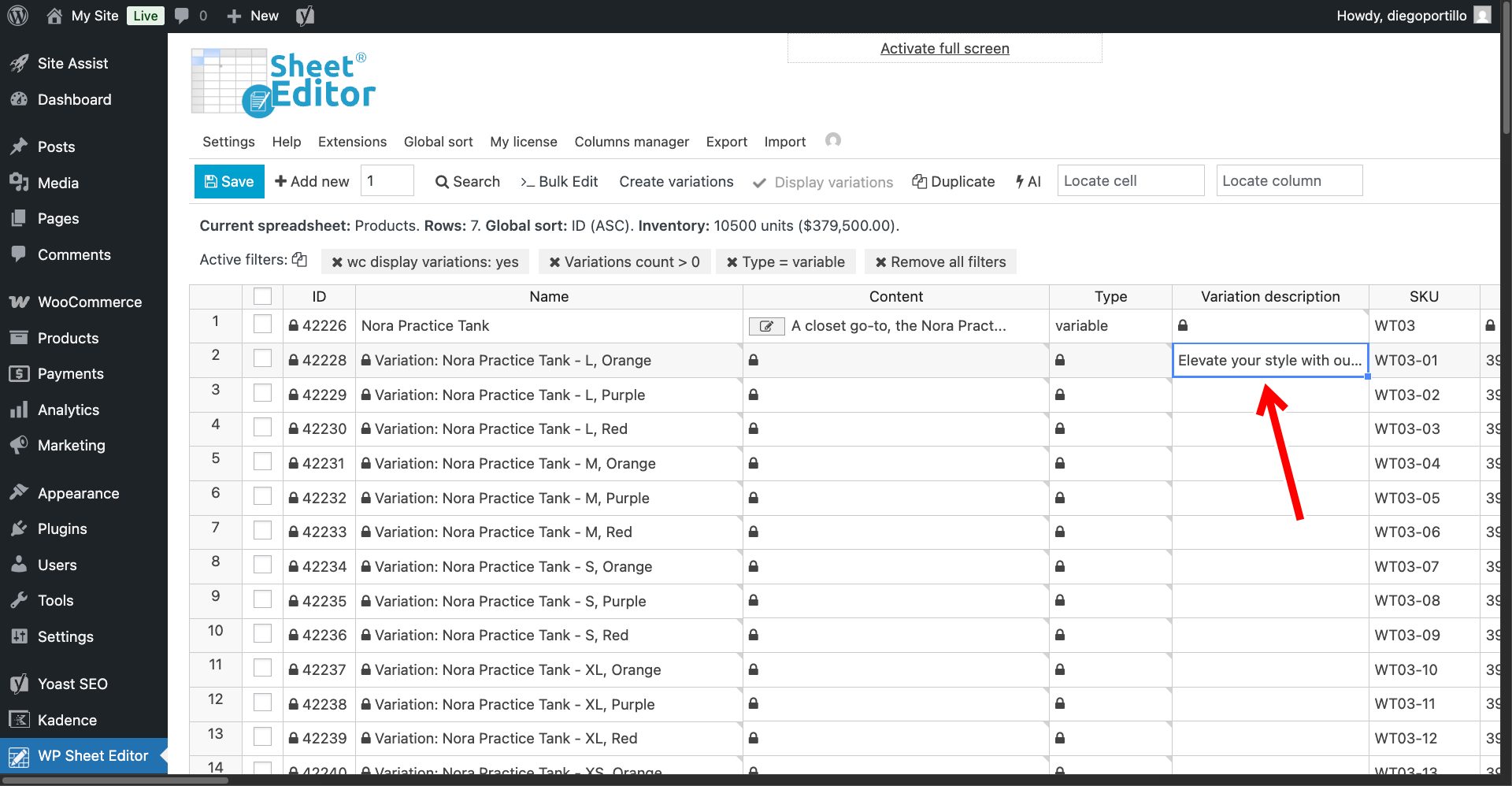
You can paste the same prompt shortcut into multiple cells to generate multiple variation descriptions at once.
Once you’re done generating variation descriptions in the spreadsheet, click on Save to apply the changes.
Step 3: Bulk generate all missing variation descriptions
Do you have thousands of variations with empty descriptions? Let’s use the Bulk Edit tool to process them all simultaneously while you grab a cup of coffee.
First, filter your empty variations
Let’s say you don’t want to overwrite any custom text you might have already written.
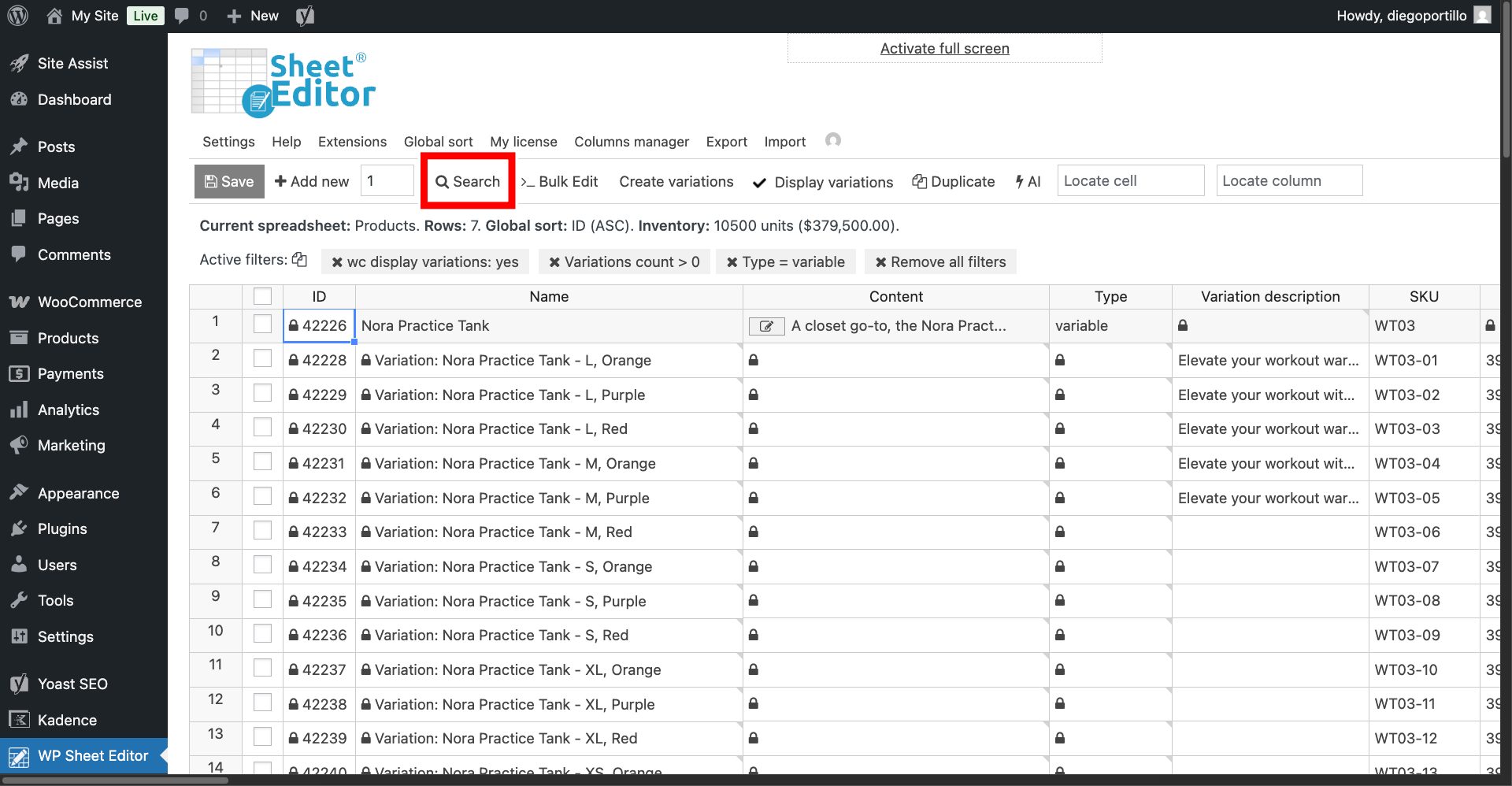
To target only the blank ones, open the Search tool on the toolbar.
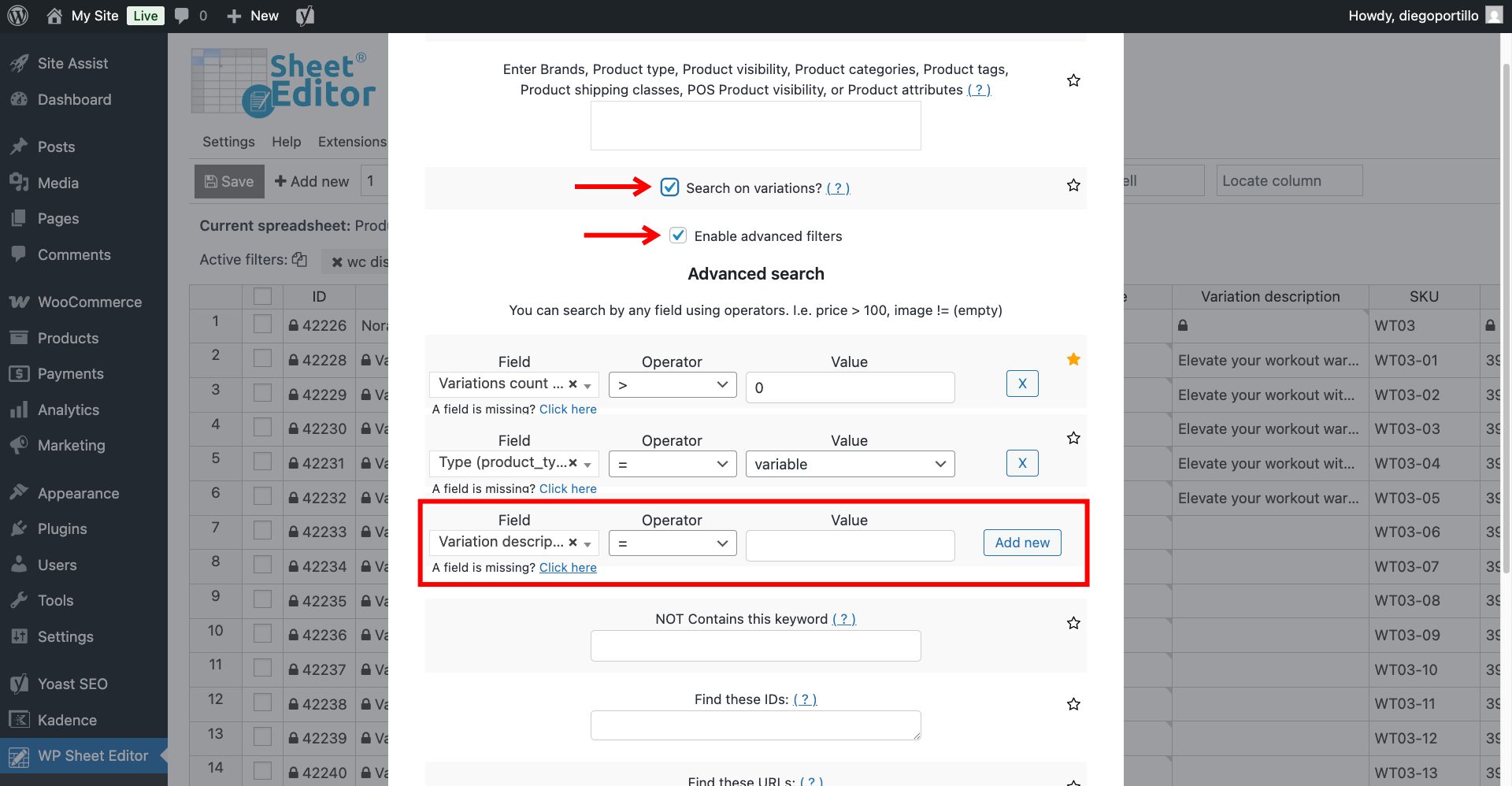
Once there, you need to select these values to spot variations missing description.
- Tick the Search on variations checkbox to apply these filters to variations only.
- Tick the Enable advanced filters checkbox.
- Note: If you have previously displayed the variations in the spreadsheet, you will see two filters:
- Variations count > 0
- Type = variable
- Field: Select the Variation description field.
- Operator: Choose = (equals)
- Value: Leave this field empty.
- Click Run Search.
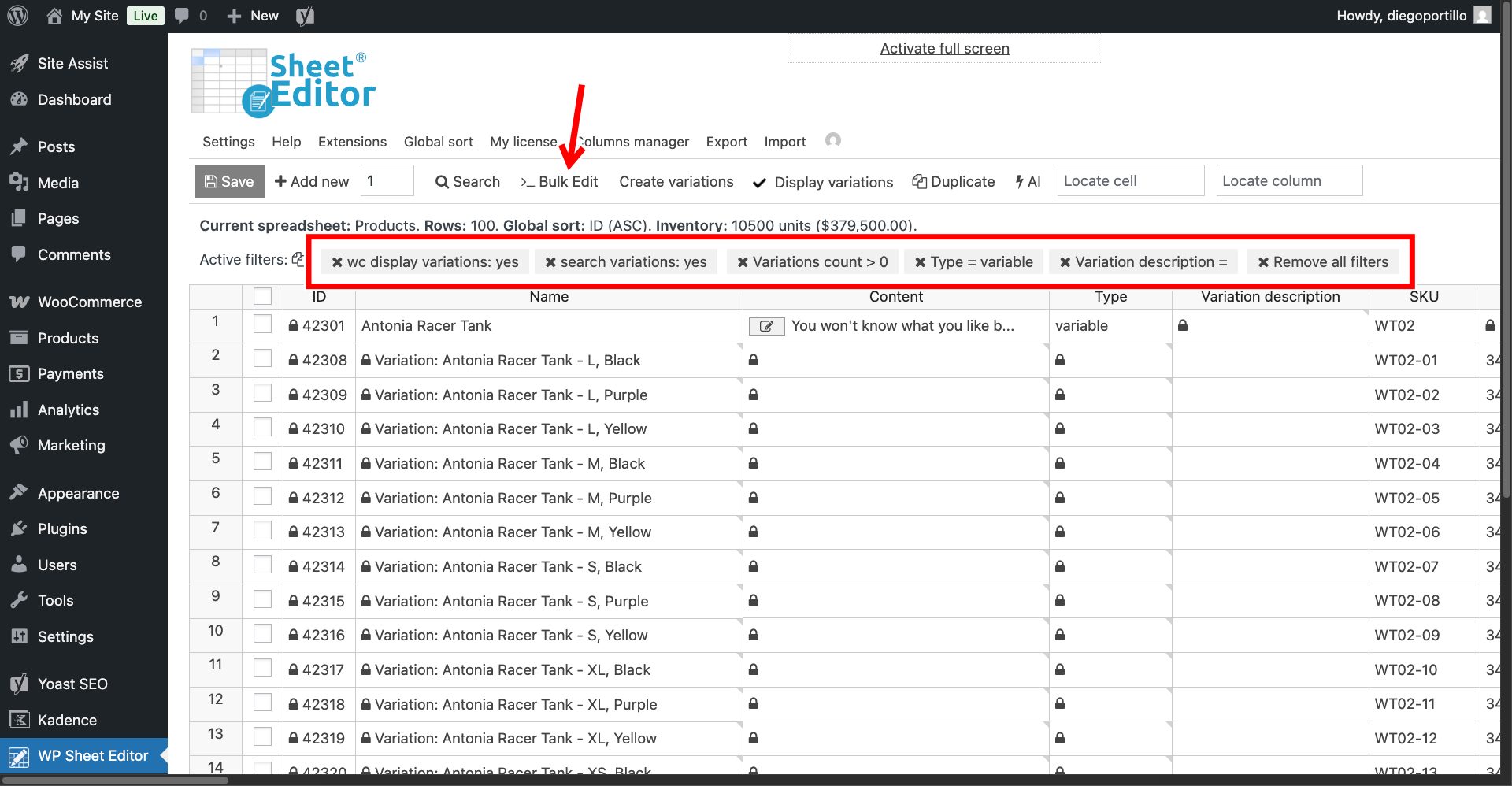
Your spreadsheet will now only show the variations that are desperately in need of copy.
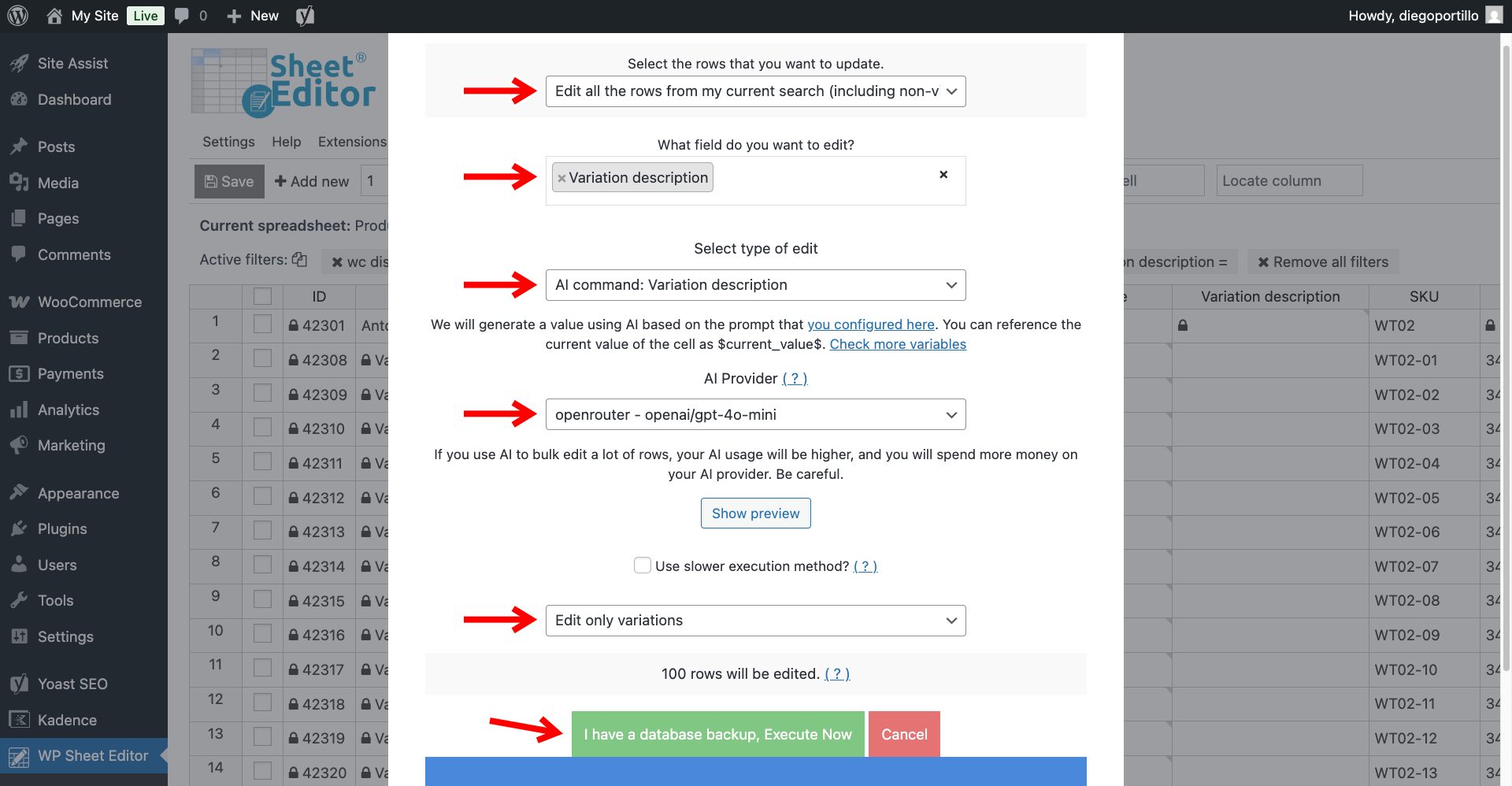
Now click the Bulk Edit button on the toolbar.
Now select these values to configure the AI automation:
- Select the rows that you want to update: Choose “Edit all the rows from my current search”.
- What field do you want to edit: Select the Variation Description field.
- Select the type of edit: Choose AI command: Variation Description.
- AI Provider: Select your preferred AI model; in this example, we will use the GPT-4o model.
- Select Edit only variations.
- Click Execute Now.
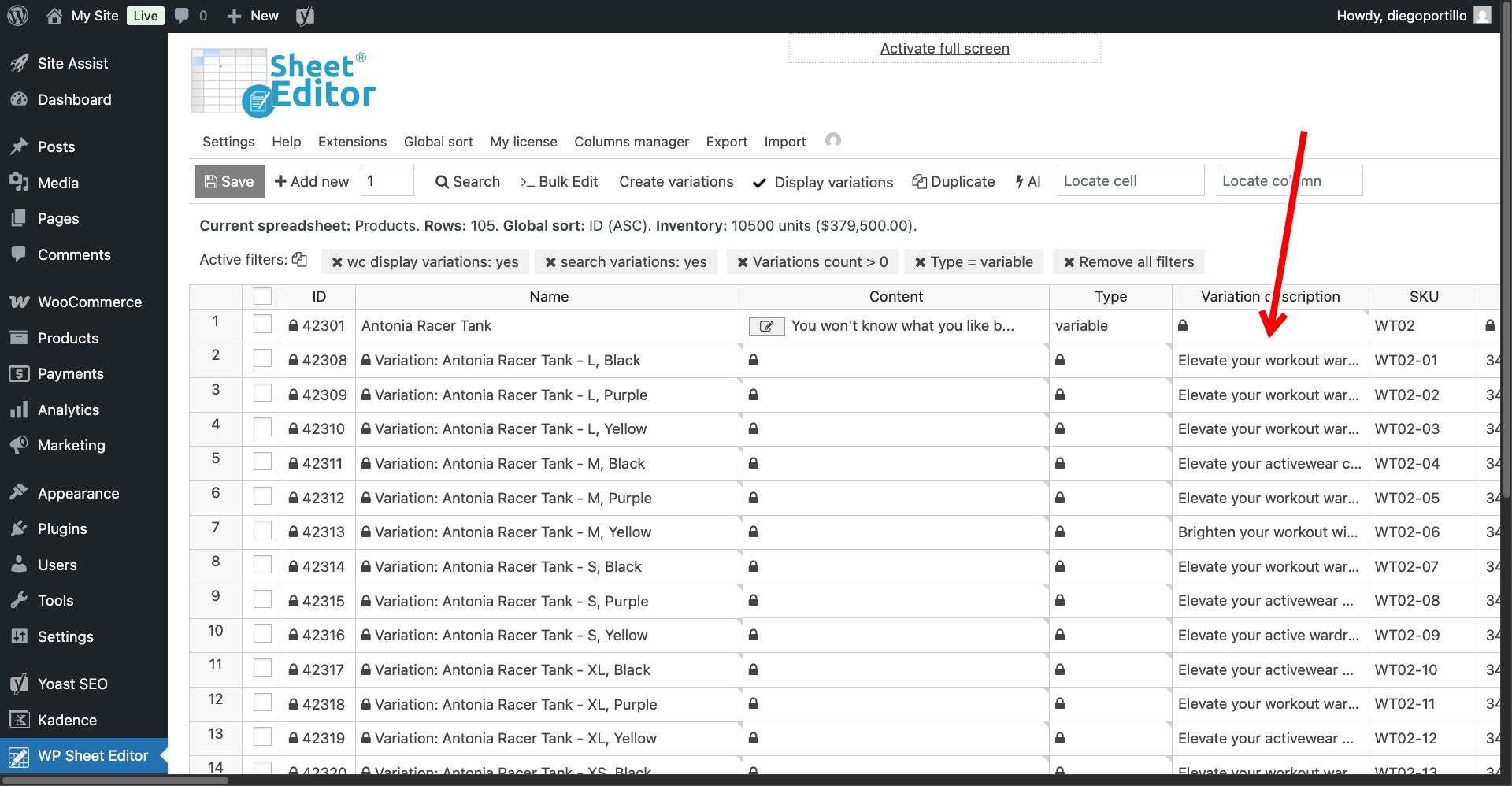
The plugin handles the API requests in safe background batches. Once the process is complete, every single size, color, and style combination in your store will have a unique, professionally written variation description.
Elevate the shopping experience
When a customer selects an option and the description updates to specifically praise the “sleek matte black finish” or the “breathable large fit,” it builds instant trust and significantly increases the likelihood of a sale.
With WP Sheet Editor – AI, you can finally provide this premium shopping experience without sacrificing weeks of your life to manual data entry. Start automating your variation copywriting today!