
With WP Sheet Editor, you can now save your import settings and quickly run them again in the future. This is perfect for recurring tasks like updating products, posts, or custom fields from CSV files without having to configure everything each time.
How to save an import
- Open the Import tool from the top toolbar.
- Select your CSV file and configure your import settings:
- Map columns
- Set rules for updating existing data or creating new data
- Etc.
- Once you’re in the last step, you can add a Name to save this import.
- Click Start import.
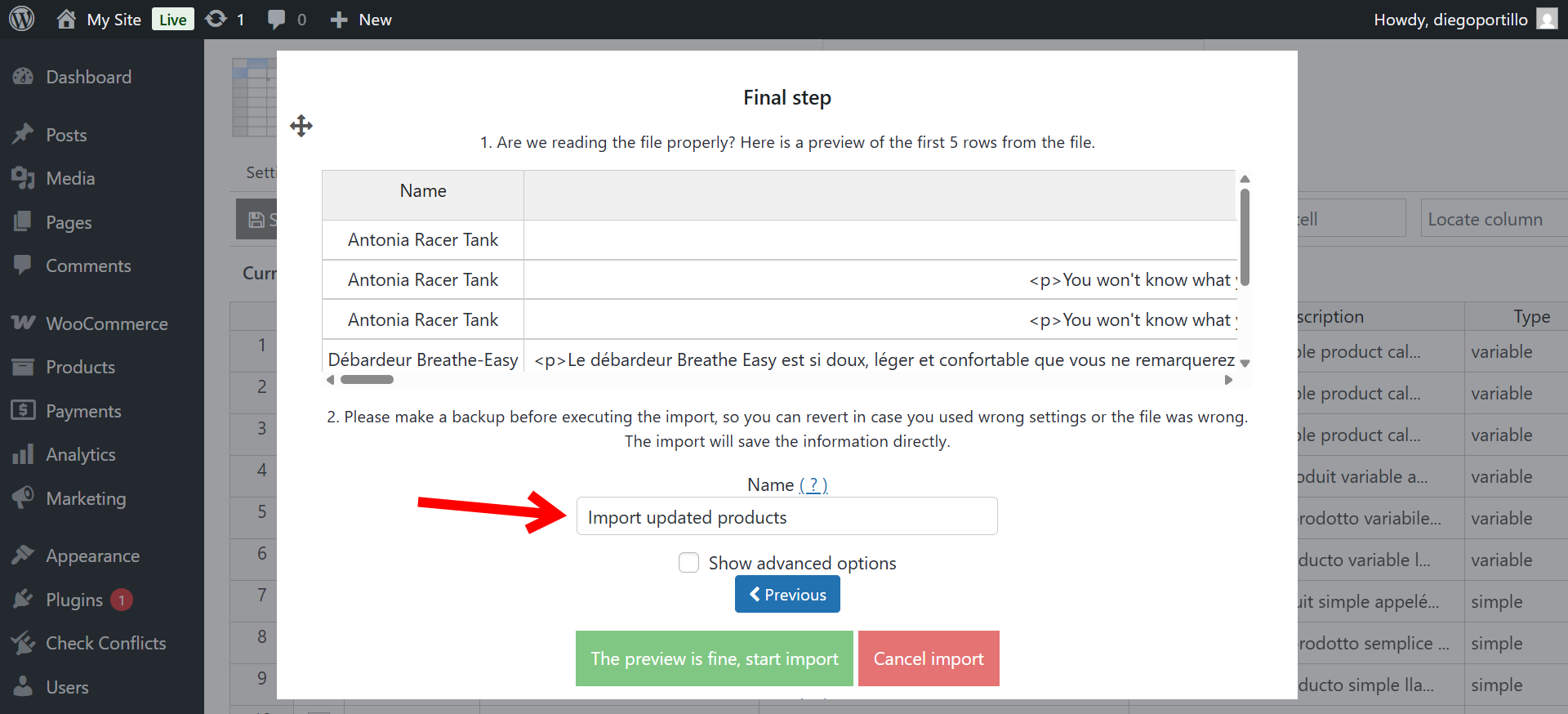
Your import settings will be saved under that name for future use, including column mappings and any filters or update rules you applied.
How to run a saved import
To reuse a previous import, simply hover over the “Import” tool on the toolbar, and click on Run a previous import again.
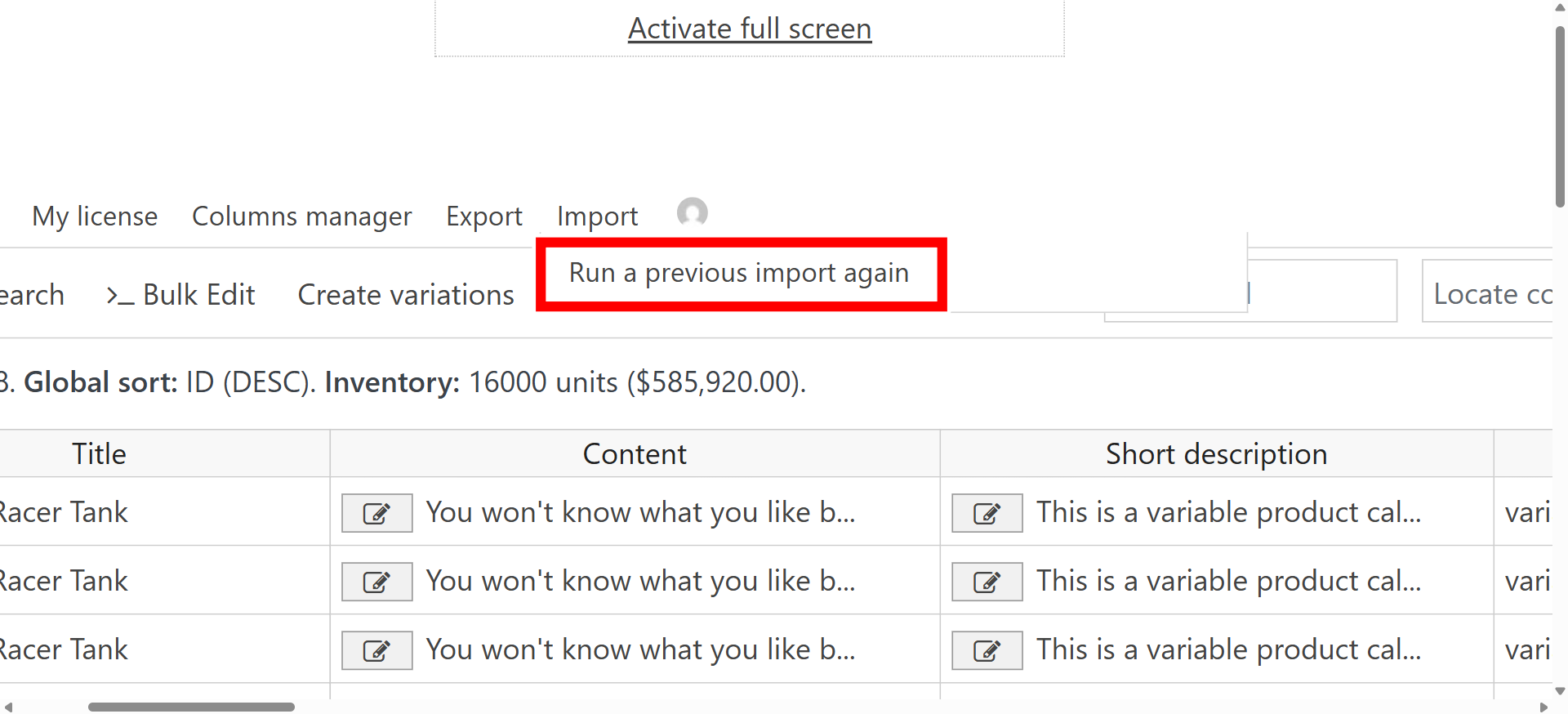
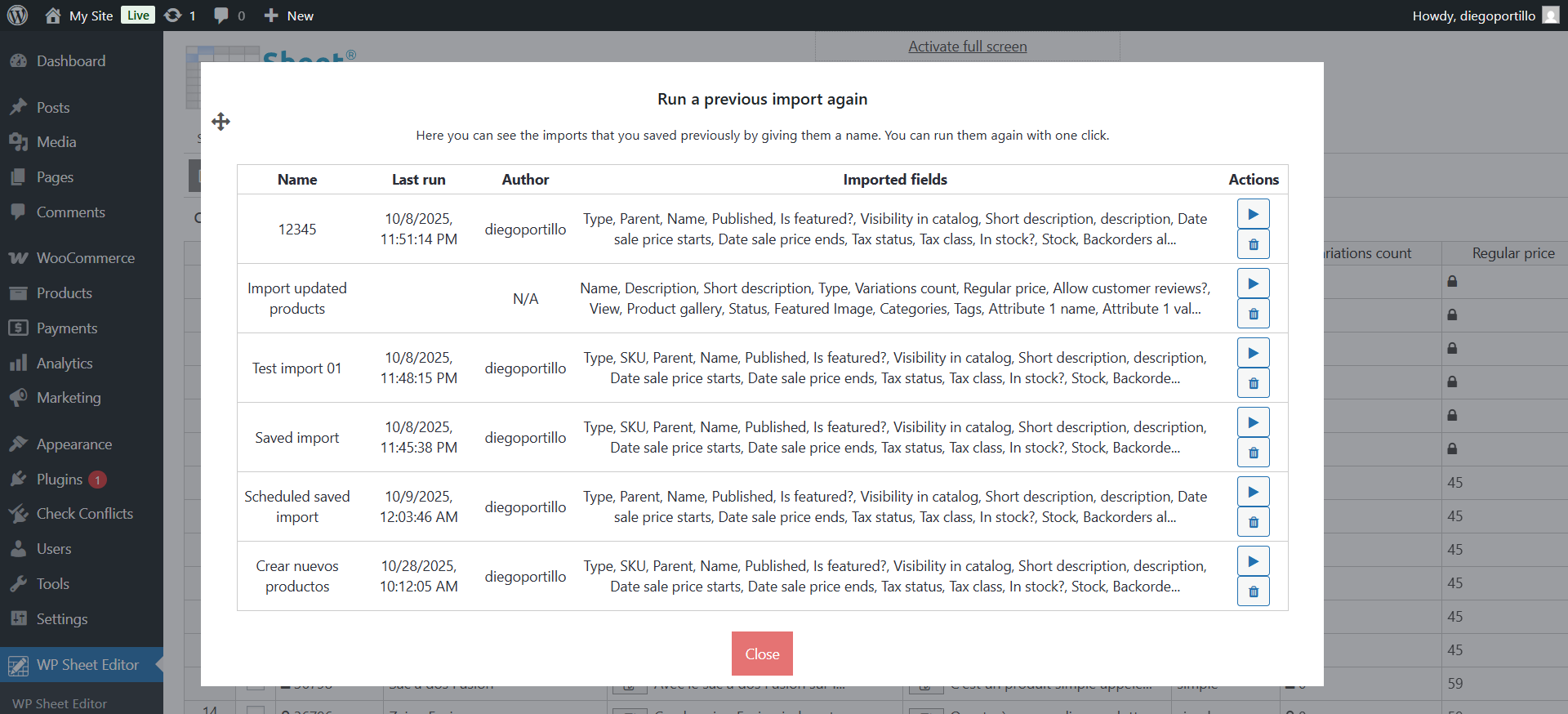
This will open a panel that displays all the saved imports.
Once you decide which import you want to run again, click on the Play/Run button under Actions.
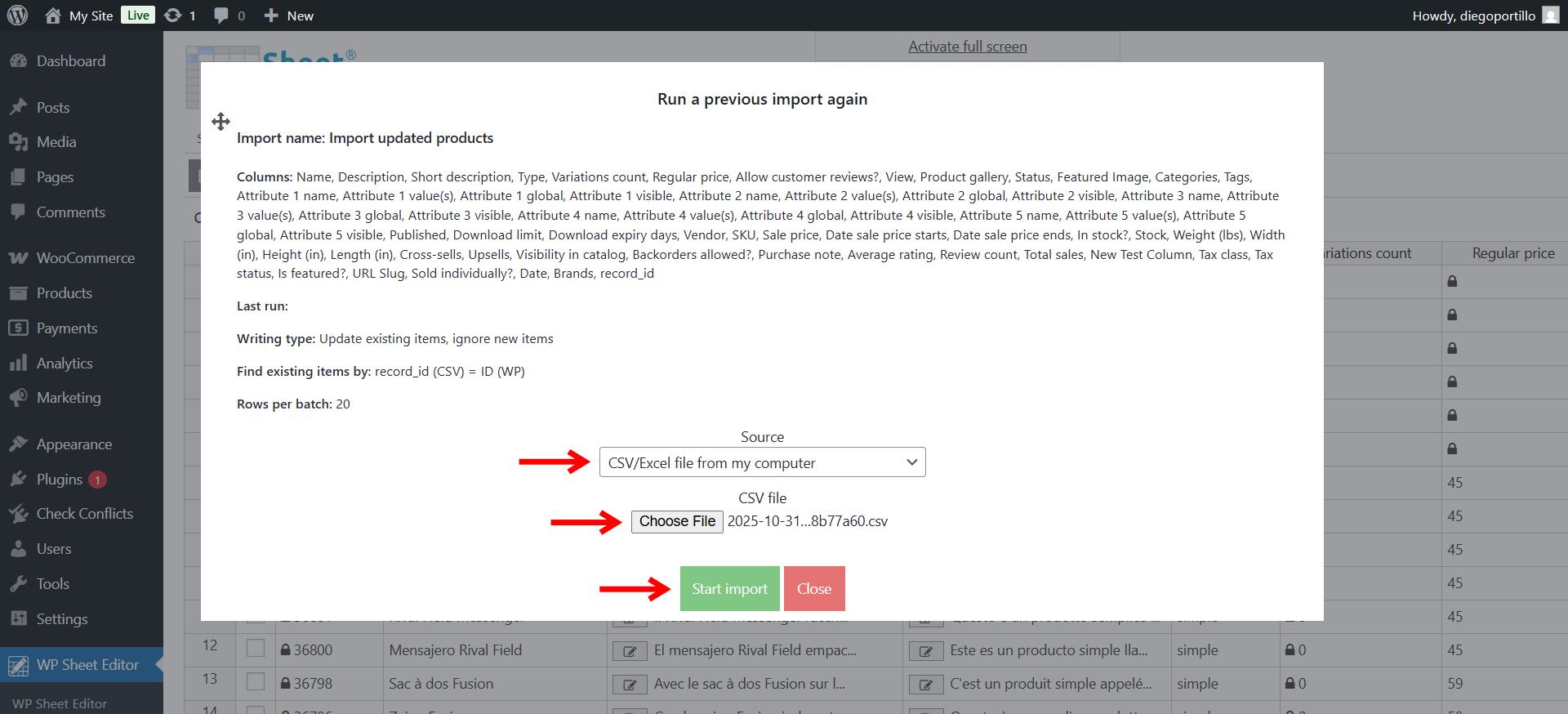
Finally, you just have to select the CSV you want to import:
- Source: CSV/Excel file from my computer
- CSV File: Click on the Choose File button and locate the CSV file on your computer.
- Click on Start import, and the import will run using the settings of the saved import.
This feature makes repetitive imports fast and reliable, helping you maintain your store or site data without redoing the setup each time.