
A visually appealing WooCommerce store relies heavily on high-quality images. While the product’s featured image is crucial, the Product Gallery allows customers to see different angles, close-ups, and use cases of your items. It can be a key factor in increasing conversion rates.
However, by default, adding a product gallery involves opening a single product, scrolling down to the Product Gallery sidebar, clicking “Add product gallery images”, selecting or uploading multiple files, and saving the changes.
And if you have just received a batch of 500 new clothing items and their respective photo shoots from a supplier, assigning these galleries manually is not a viable strategy.
In this tutorial, we will show you how to import WooCommerce product galleries directly from Google Sheets. This workflow allows you to bulk assign multiple images to thousands of products in minutes, making it easy to manage your visual catalog from a single spreadsheet without having to upload images one by one.
Why import WooCommerce product galleries from Google Sheets?
Managing your product images in Google Sheets offers several strategic advantages:
- Bulk assignment: Paste multiple image URLs or attachment IDs across hundreds of products at once using simple comma separation.
- Fast auditing: Filter your spreadsheet to instantly identify which products have empty galleries and need more photos to improve conversions.
- Supplier integration: Easily take the external image links provided by your dropshipping suppliers in an Excel/CSV file and paste them directly into your Google Sheet.
What you need to import product galleries
To follow this guide and bypass the slow WooCommerce interface, we will use these WP Sheet Editor tools:
WP Sheet Editor – WooCommerce Products
This plugin generates a spreadsheet inside your WordPress dashboard where you can view and edit all your WooCommerce products, including their image galleries.
You can purchase the plugin here:
Get the WooCommerce Products spreadsheet - or - Check the features
Google Sheets Sync
This service connects your WordPress site directly to your Google Sheets account for seamless two-way exports and imports in real time.
You can sign up to the service here:
Sign up to the Google Sheets Sync Service - or - Check the features
Step 1. Connect WordPress to Google Sheets
When you subscribe to the Google Sheets Sync service, you will receive a helper plugin that connects your WordPress site with your Google account.
Follow our installation guide to complete the setup and authorize the Google API connection.
Step 2. Export WooCommerce Products to Google Sheets
The safest and fastest way to import new data is to first export your existing products to Google Sheets. This gives you a pre-formatted spreadsheet with the correct product IDs and SKUs, ensuring your new gallery images are assigned to the correct items.
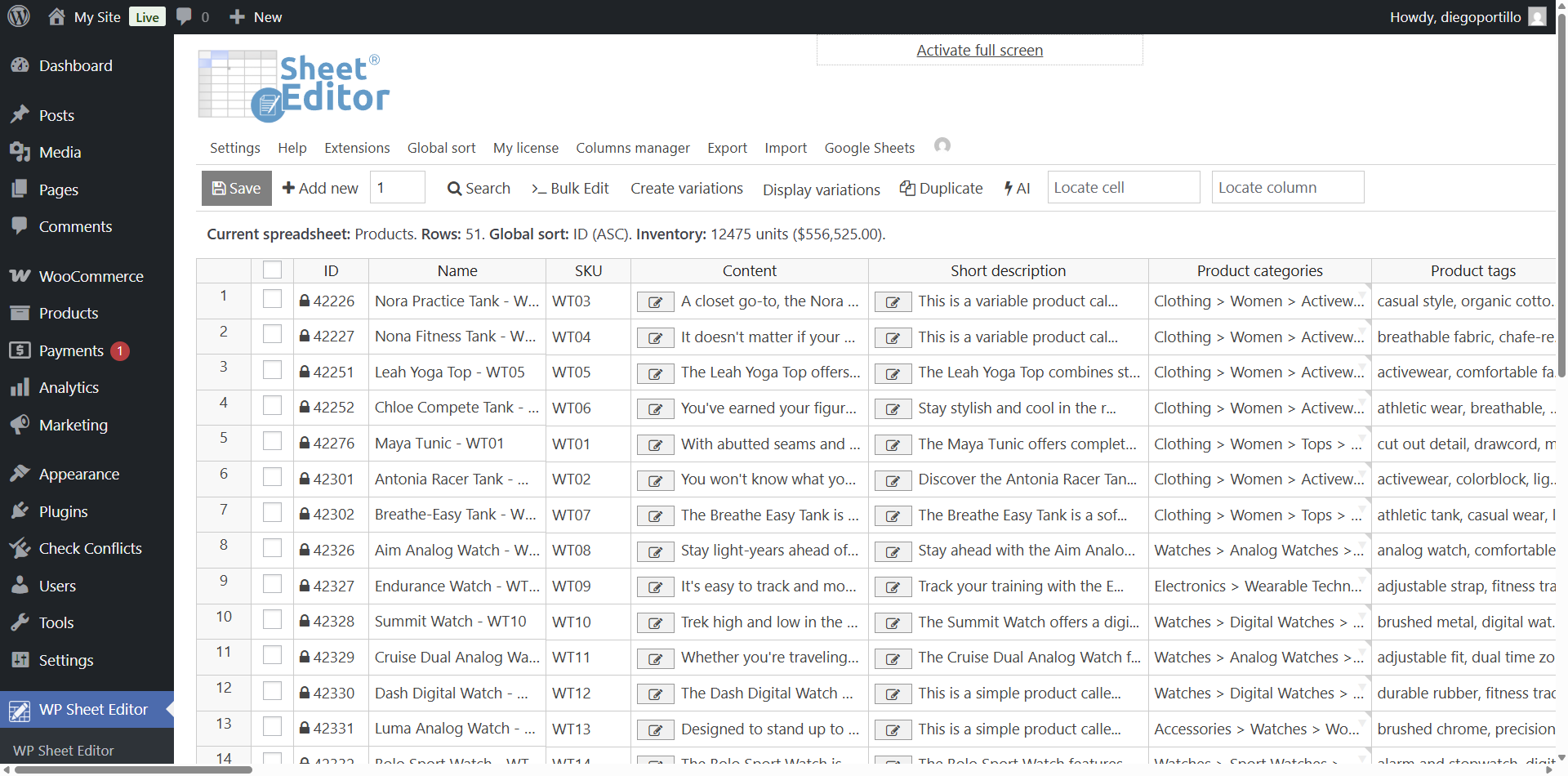
Open the WooCommerce products spreadsheet by going to WP Sheet Editor > Edit Products.
How to export gallery images separately from the featured image
By default, WooCommerce exports product images in a single column, mixing both the featured image URL and all gallery image URLs together. This can make it difficult to manage or edit product gallery images efficiently.
Fortunately, with WP Sheet Editor, you can improve this workflow by exporting images into separate columns:
- One column for the featured image
- Another column for the gallery images
This separation gives you much better control when reviewing, editing, or updating product images in bulk. It also helps prevent mistakes, like overwriting the featured image when you only intended to modify the gallery.
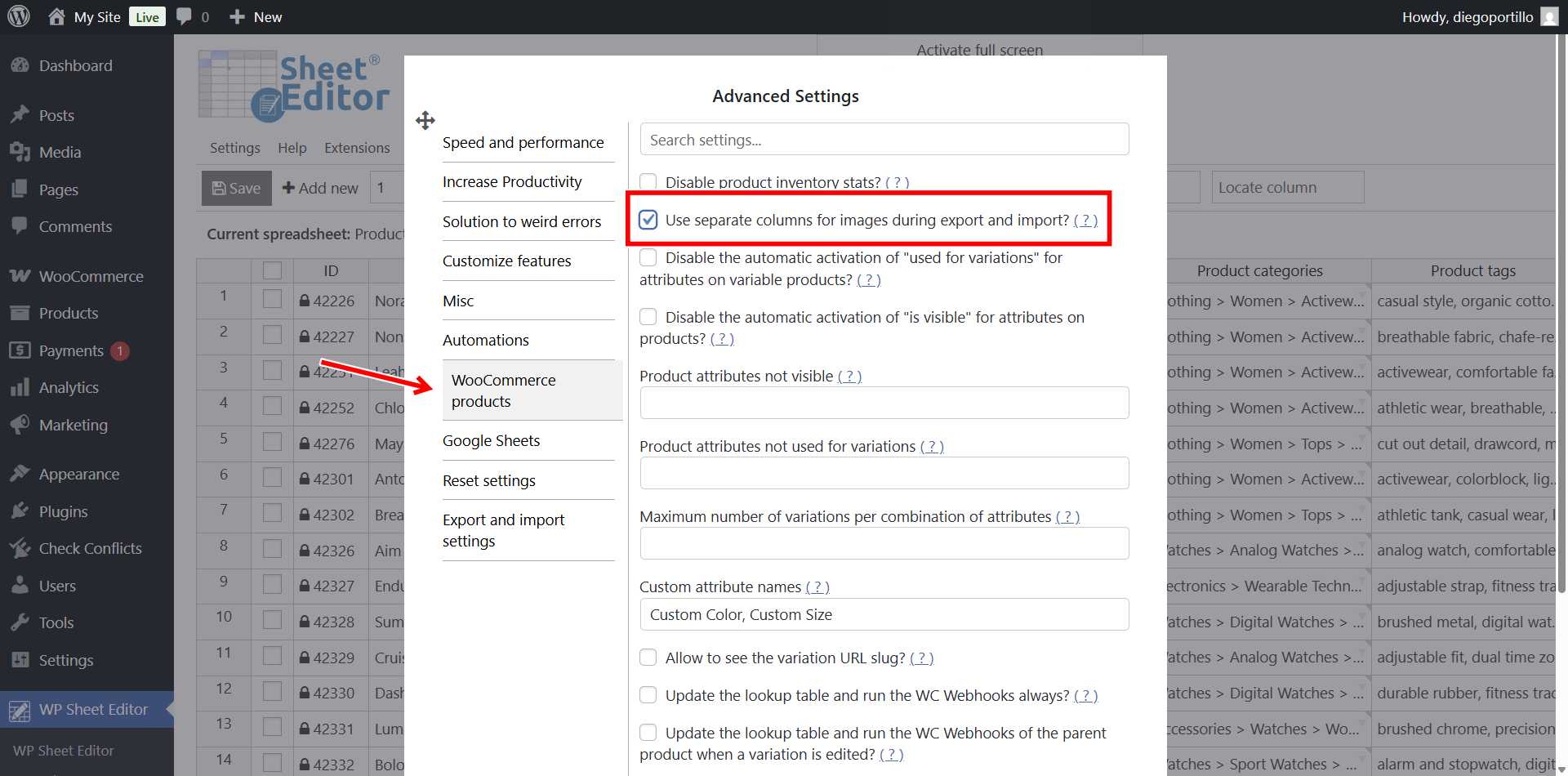
Go to Settings > Advanced settings > WooCommerce products and tick the Use separate columns for images during export and import checkbox.
Click Save to apply the new settings.
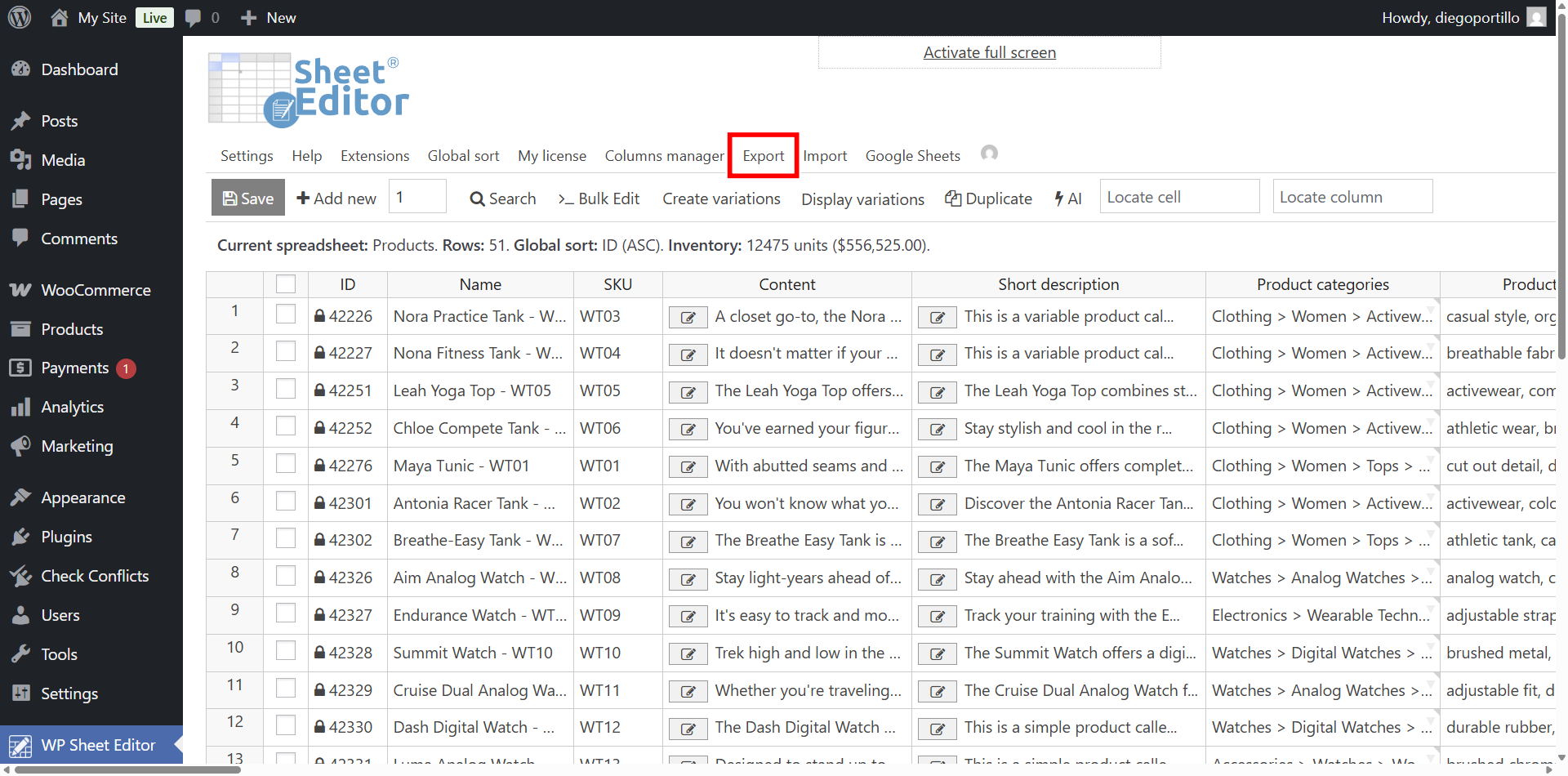
Click on the Export tool on the top toolbar.
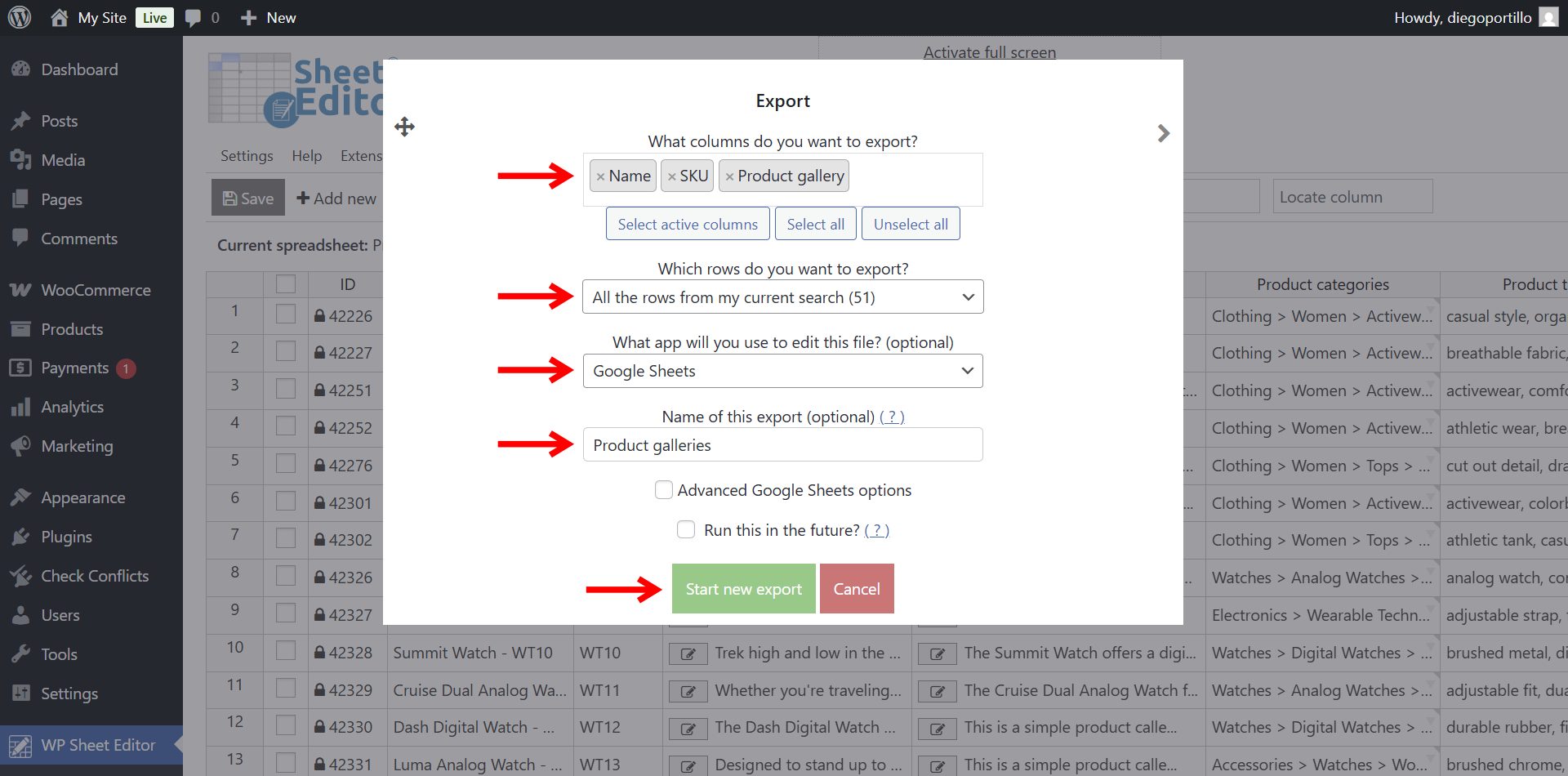
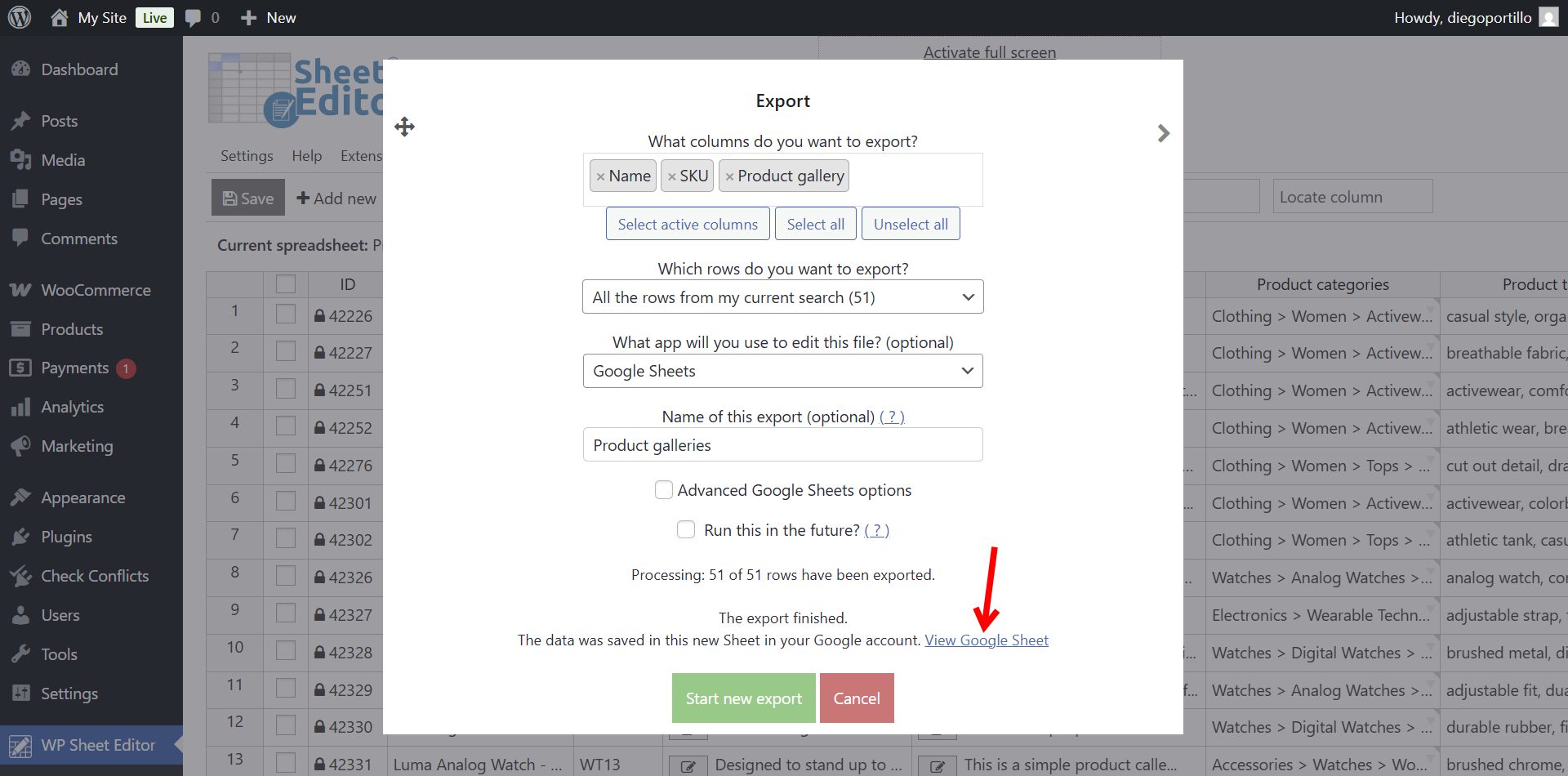
Select the following settings in the export popup:
- What columns do you want to export: You can select the specific columns you need. Make sure to include:
- Name
- SKU
- Product gallery
- Which rows do you want to export?: Select “All rows from my current search” to export your entire catalog, or use the search tool first to filter specific categories.
- What app will you use to edit this file?: Select Google Sheets.
- Name of this export: Type a name for your Google Sheet (e.g., “WooCommerce Product Galleries”).
- Click on Start new export.
Once the process is complete, you’ll be able to open the new Google Sheet by clicking on the View Google Sheet link.
Step 3. Add or edit product galleries in Google Sheets
Now that your data is in Google Sheets, you can easily manage your product images in bulk.
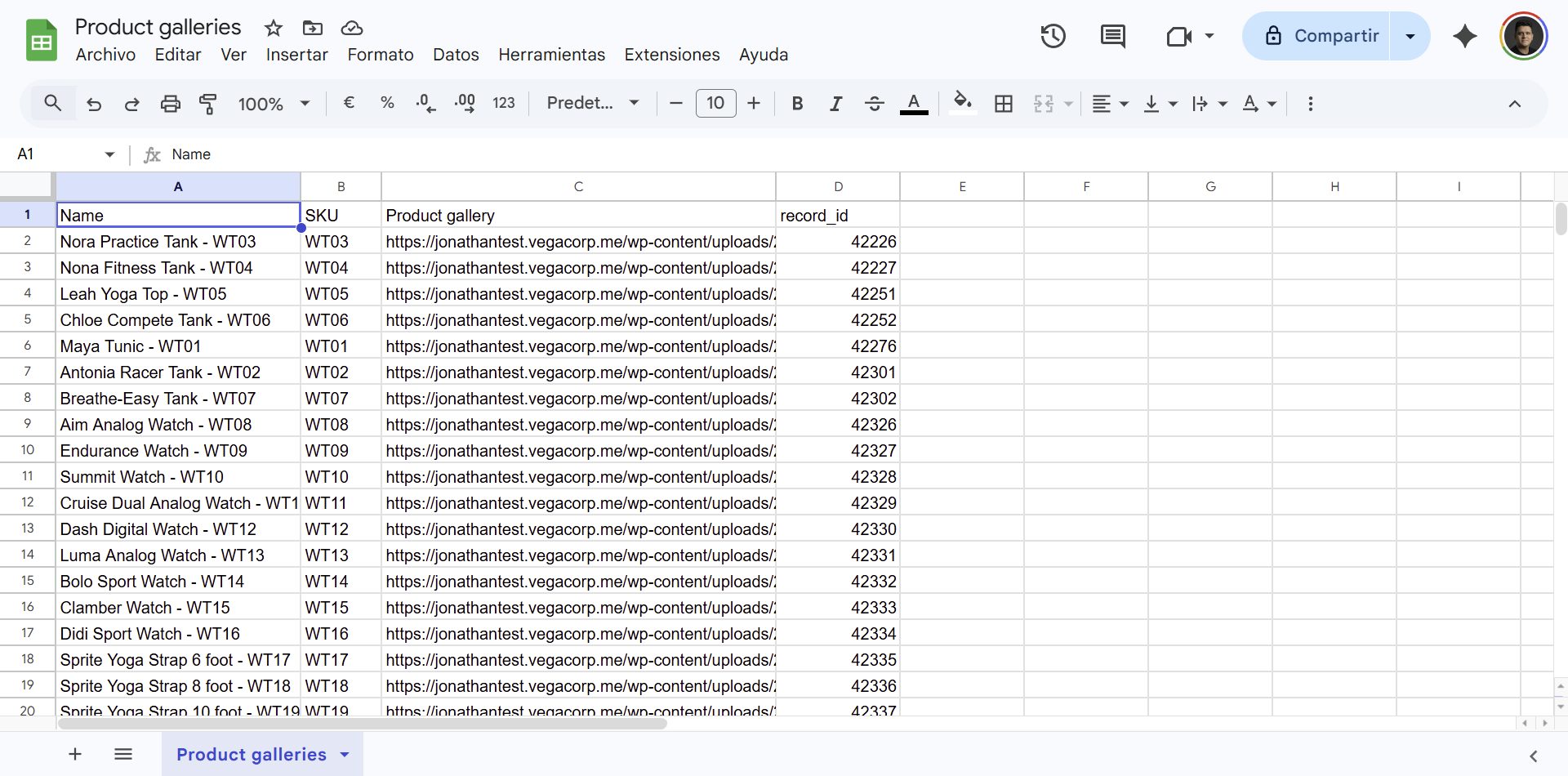
Locate the Product gallery column.
To assign multiple images to a single product, you simply need to enter the image URLs separated by commas.
Once you’re done, you’ll be ready to import product gallery images from Google Sheets into WordPress.
Step 4. Import product galleries back to WooCommerce
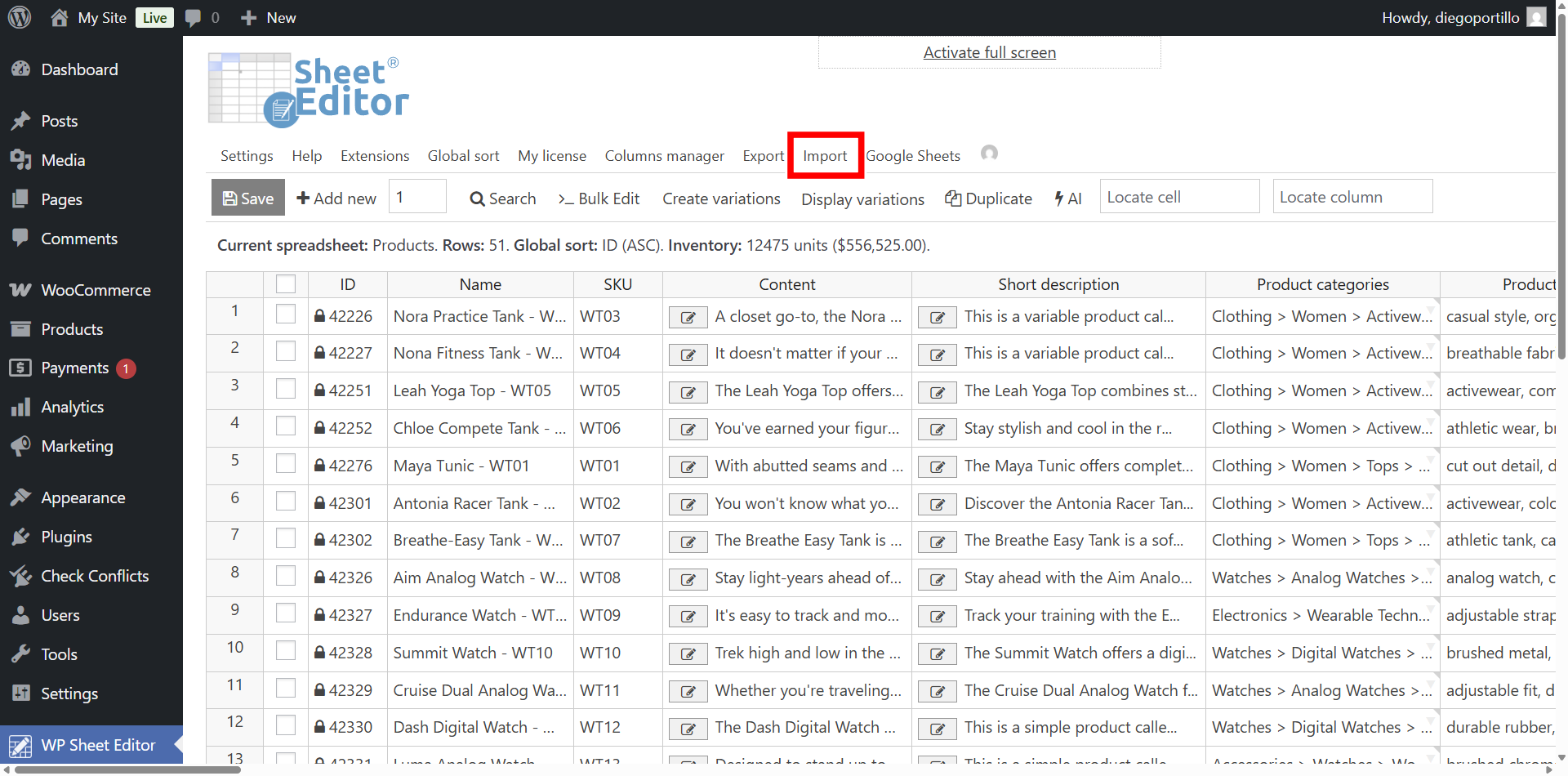
In order to import the image gallery URLs from Google Sheets, open the Import tool.
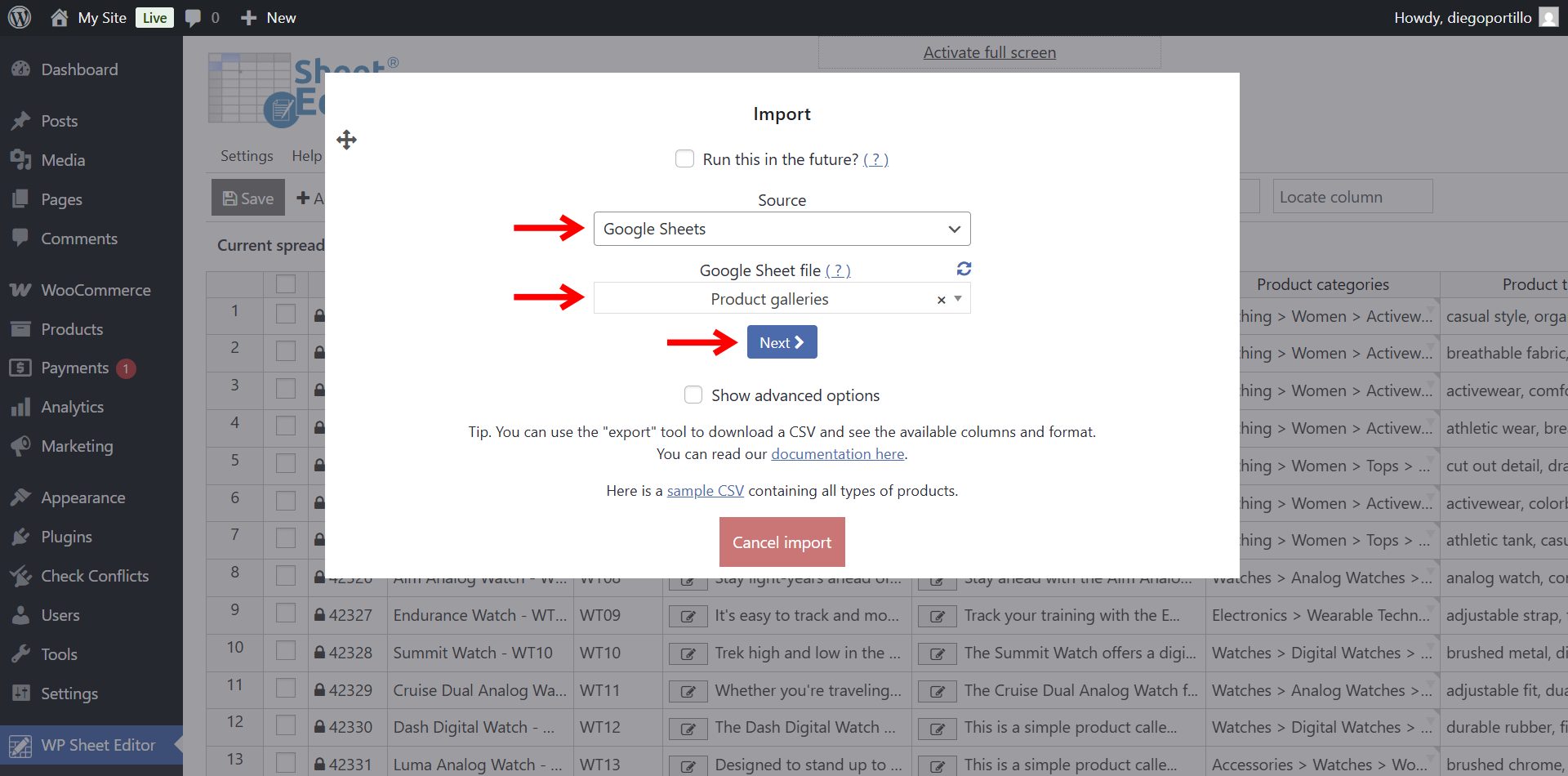
Now select these values:
- Source: Google Sheets
- Google Sheet file: Select the file you exported before, which contains the product gallery URLs.
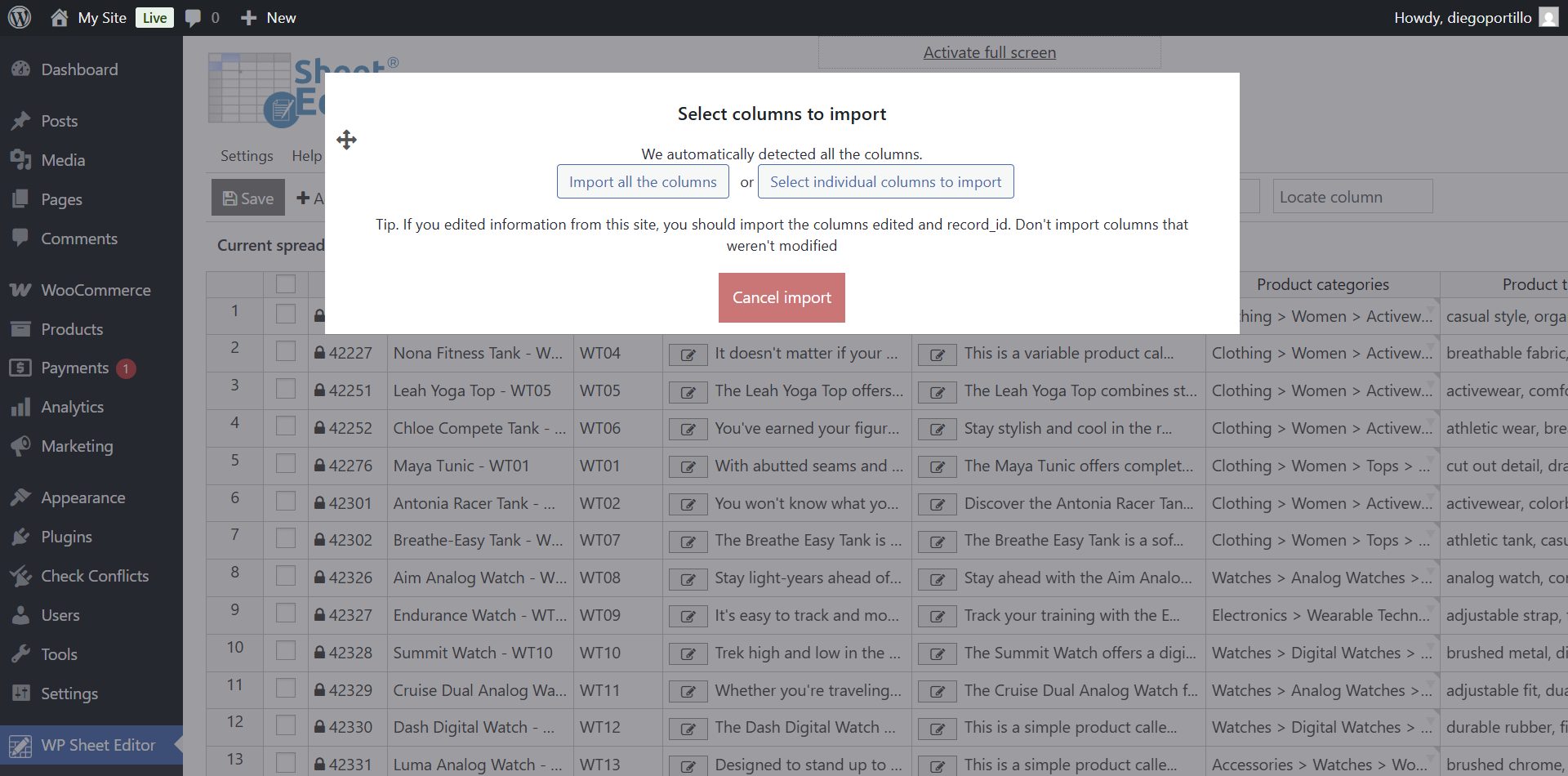
You can click on Import all the columns or Select individual columns to import.
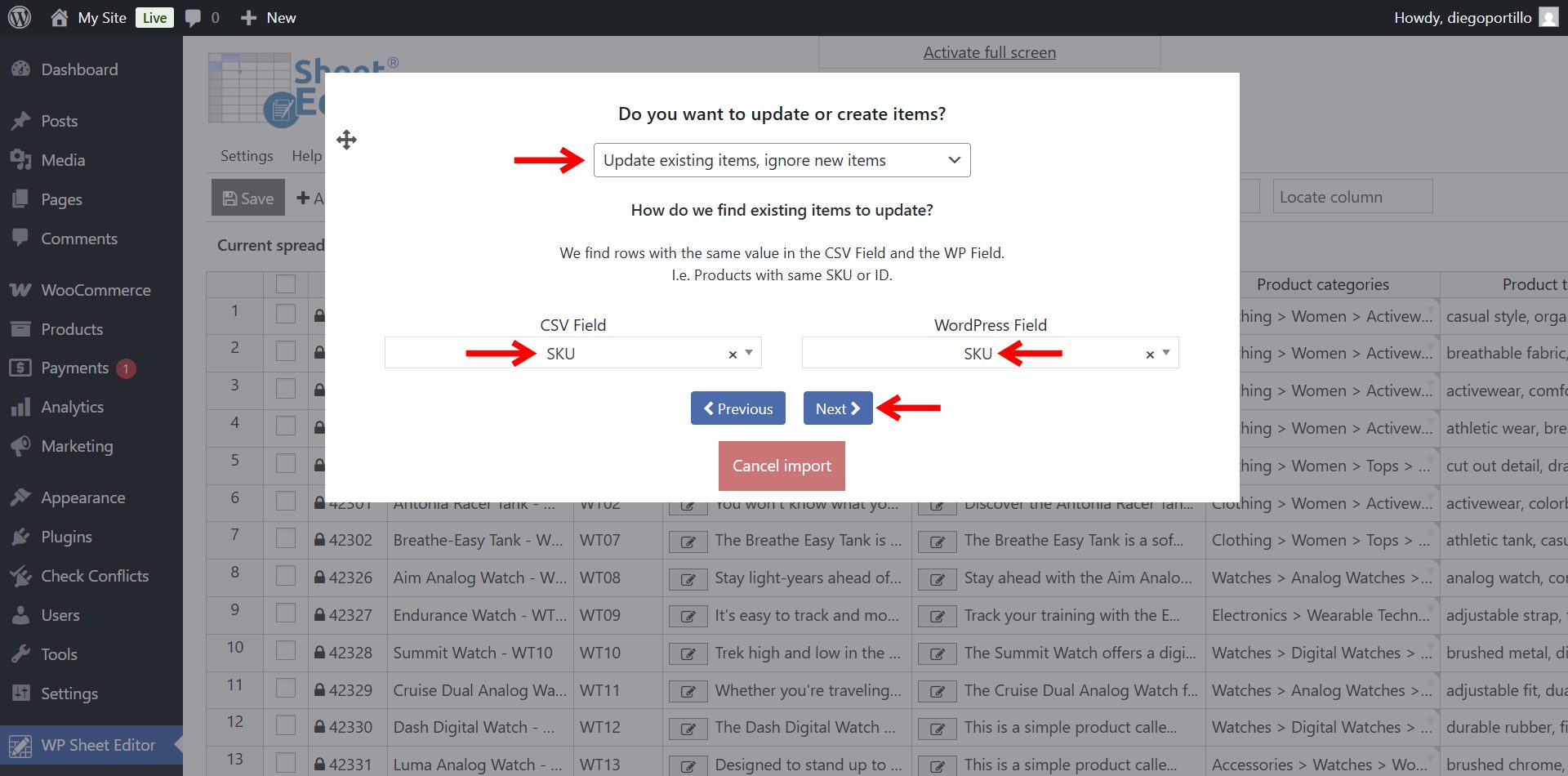
In Do you want to update or create items, select Update existing items, ignore new items.
You’ll need to match the data in the Google Sheet with the data on WordPress.
In this example, we will use the SKU field.
Click Next.
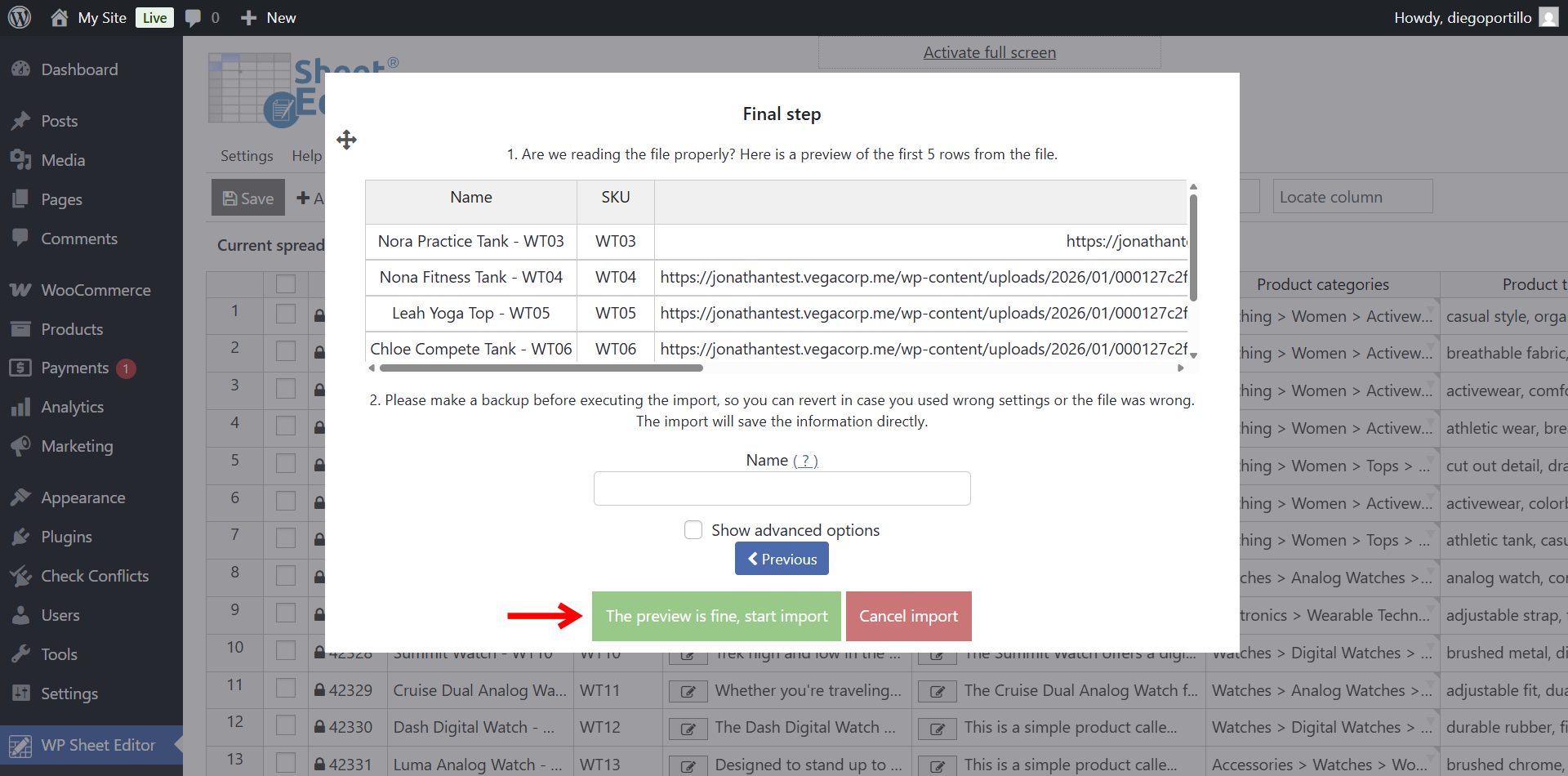
Finally, click on The preview is fine, start import.
By following these steps, you’ll have imported product image galleries from Google Sheets. This is much easier than having to open each product individually.
Manage your WooCommerce product galleries effortlessly
Adding supplementary images to your catalog doesn’t have to be a slow, manual process. By integrating your store with Google Sheets, you can audit your visual content, easily assign photos via URLs from the media library, and update galleries for hundreds of products with complete efficiency.