
Are you preparing a new seasonal collection, managing a private wholesale tier, or dealing with a temporary supply chain issue? There are plenty of reasons why you might need to remove a specific group of products from your public WooCommerce storefront without permanently deleting them from your database.
In WooCommerce, the standard way to remove an item from the main shop page is by changing its “Catalog Visibility” status to “Hidden”. However, doing this natively is incredibly frustrating. You have to open every single product page, locate the publish settings, edit the visibility, and click update. If you need to hide an entire category containing dozens or hundreds of items, this manual process will consume hours of your day.
Fortunately, there is a much faster way to manage your store’s inventory. With WP Sheet Editor, you can modify the catalog visibility of your WooCommerce products directly from a spreadsheet.
In this tutorial, we will show you two methods to hide WooCommerce products: adjusting items individually in the spreadsheet, and hiding an entire category in bulk with just a few clicks.
Table of Contents
WP Sheet Editor for WooCommerce Products completely replaces the slow, paginated default product list with an intutive spreadsheet interface. It displays all of your product data, including the crucial Catalog Visibility field, allowing you to make massive inventory changes in a few clicks.
You can download the plugin here:
Get the WooCommerce Spreadsheet Editor - or - Check the features
Method 1: Hide products individually in the spreadsheet
If you only need to hide a handful of specific products (perhaps a few items that just went out of stock or have outdated packaging), you don’t need to run a bulk edit. You can quickly change their visibility row by row, exactly as you would in an Excel document.
First, navigate to WP Sheet Editor > Edit Products to load your WooCommerce products in the spreadsheet.
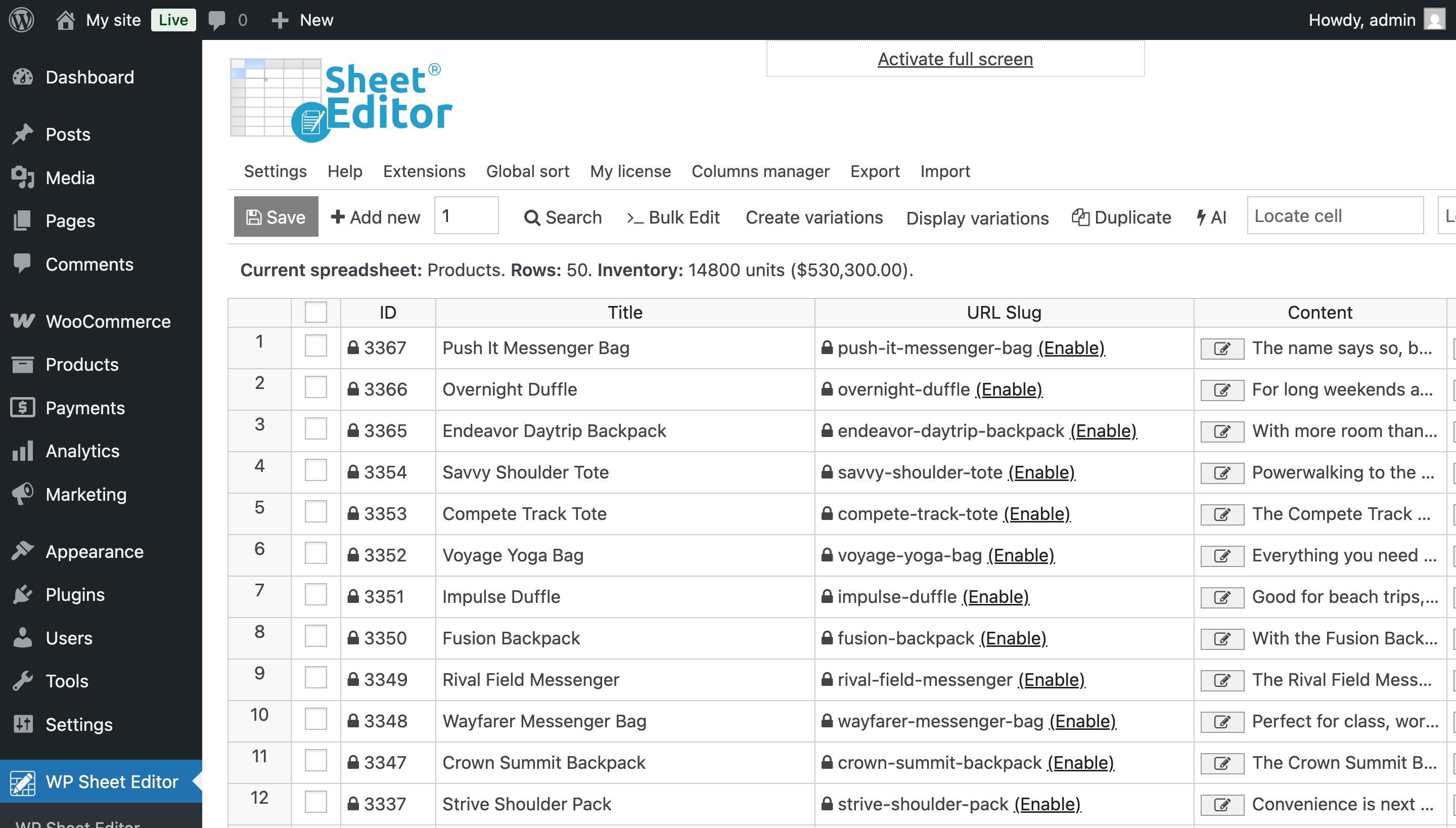
Next, find the Visibility column. This column allows you to decide where a product is allowed to appear on your frontend site.
To hide specific products:
- Click on the cell in the Visibility column for the product you want to remove.
Empty cell =The product appears in Shop and search resultsexclude-from-catalog =The product appears in the Search results onlyexclude-from-search =The product appears in the Shop only- If you want to completelly hide the product from the shop and the search results (Hidden), enter
exclude-from-catalog, exclude-from-search.
- Once you have updated the cells for the products you want to modify, click the Save button on the top toolbar to apply the changes to your live site.
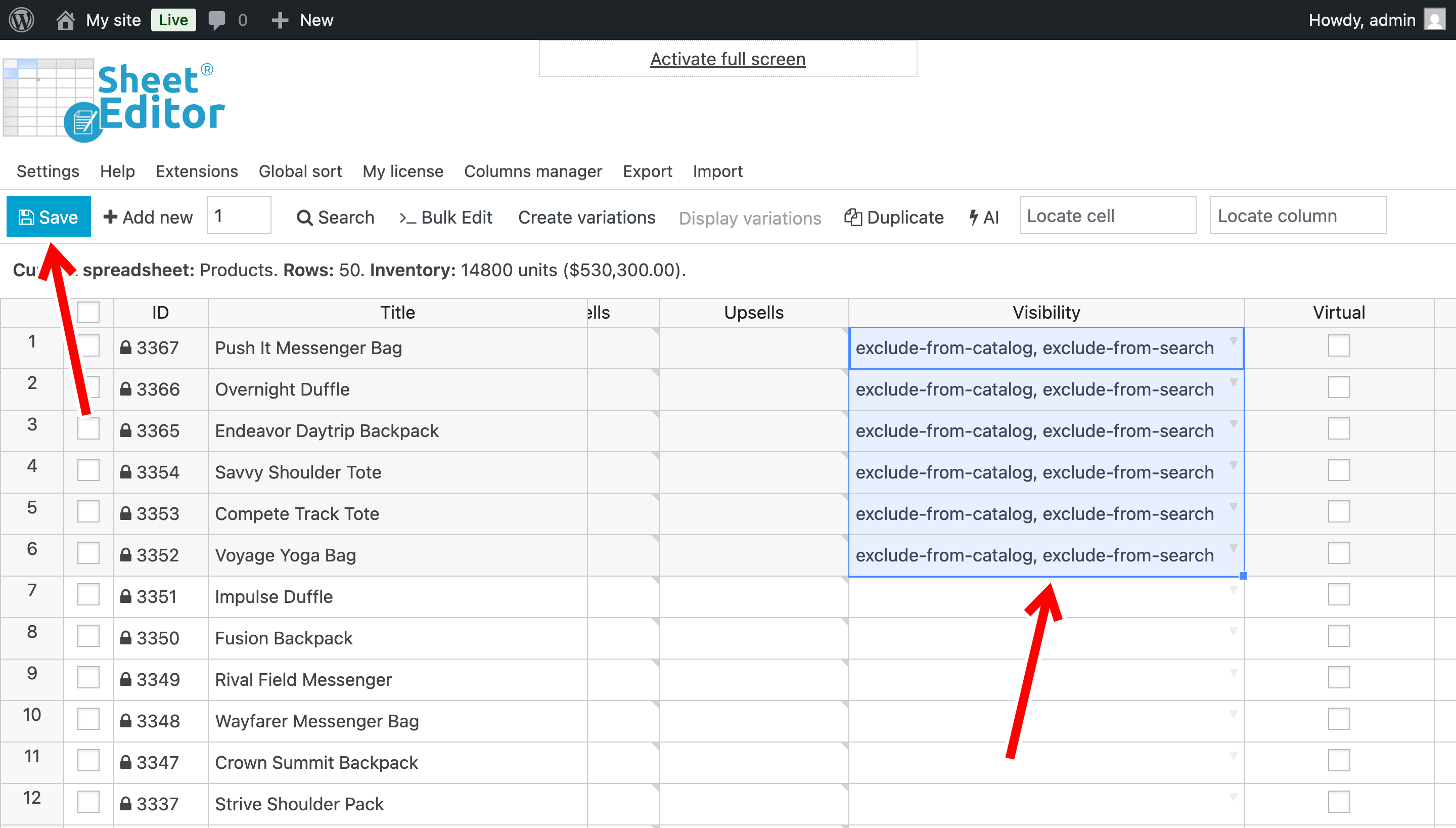
Those specific items will instantly disappear from your main shop page, category archives, and internal search results, while remaining perfectly intact in your backend database. Or depending on your selections.
Method 2: Hide an entire WooCommerce category in bulk
If you are transitioning out of a season (e.g., hiding all “Winter Coats” in the spring) or retiring a specific vendor’s catalog, the cell-by-cell method is a bit slow.
Instead, we can use the plugin’s advanced filtering and bulk update tools to hide an entire category simultaneously.
Step 1: Filter the products by category
First, we need to search for the exact group of products we want to hide so we don’t accidentally affect the rest of products.
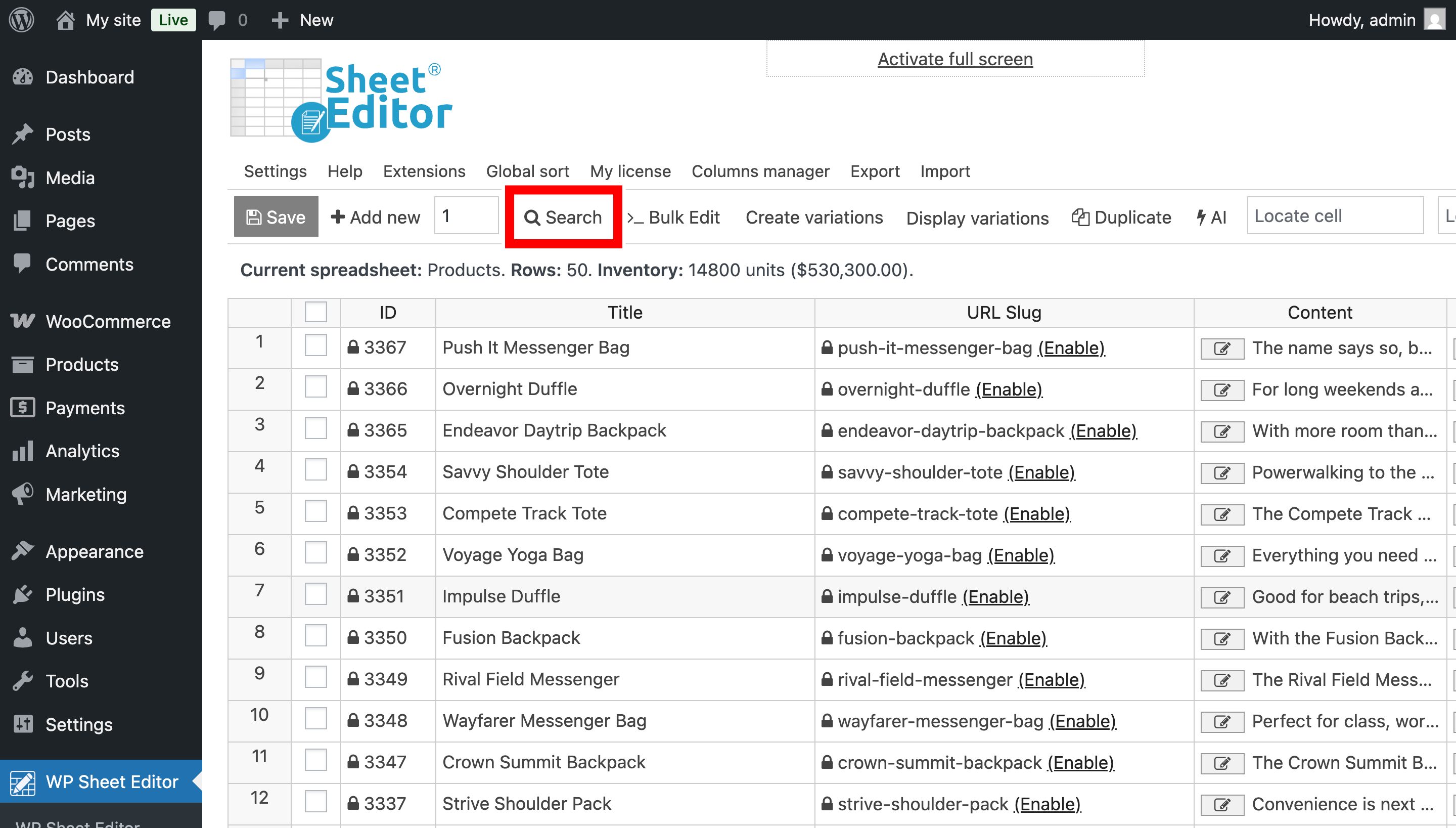
Click on the Search tool.
Configure the search parameters as follows:
- Enter the name of the category you want to hide in the Enter Brands… Product categories… field.
- Click Run Search.
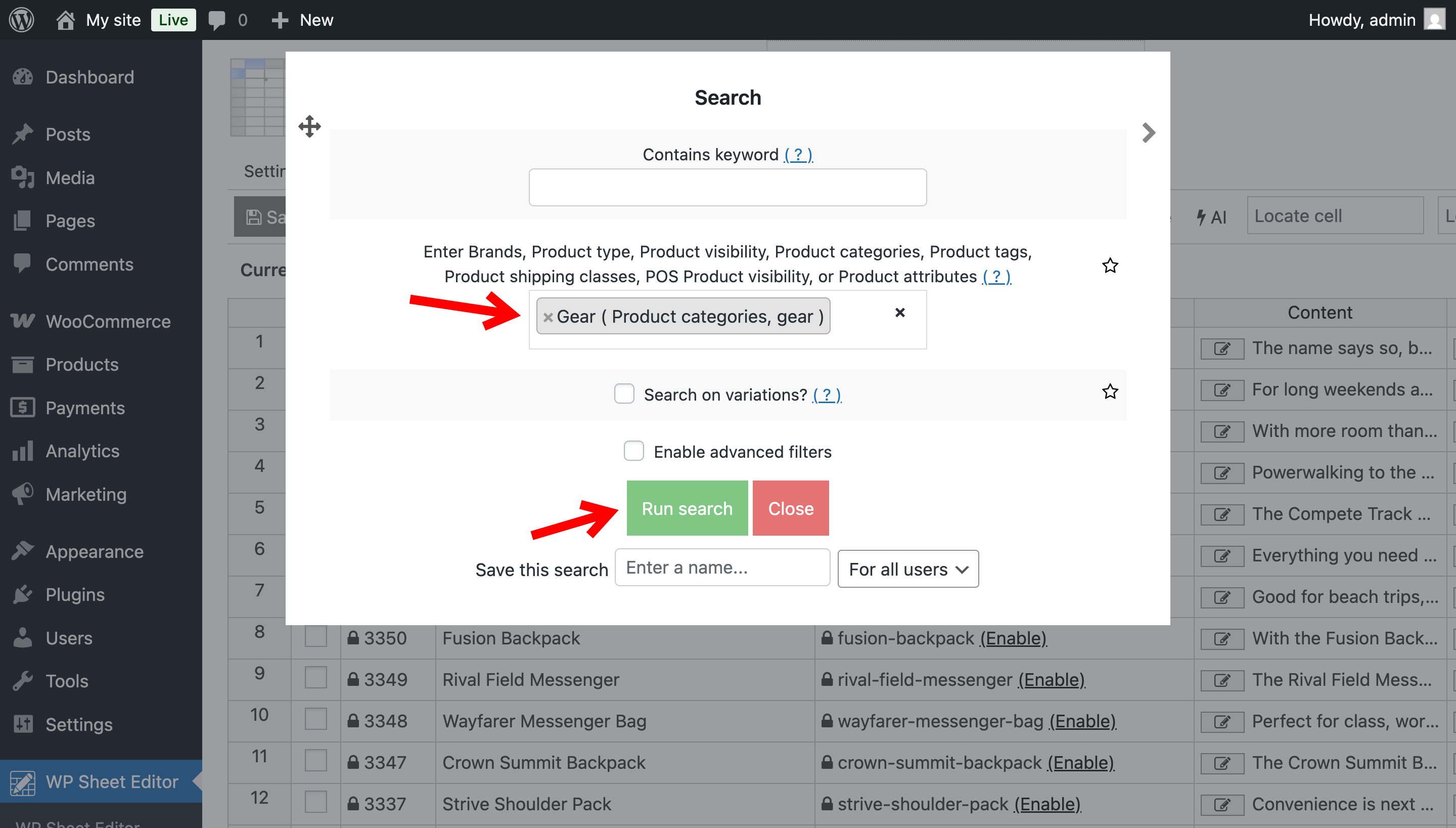
The spreadsheet will immediately refresh and only display the products that belong to your selected category.
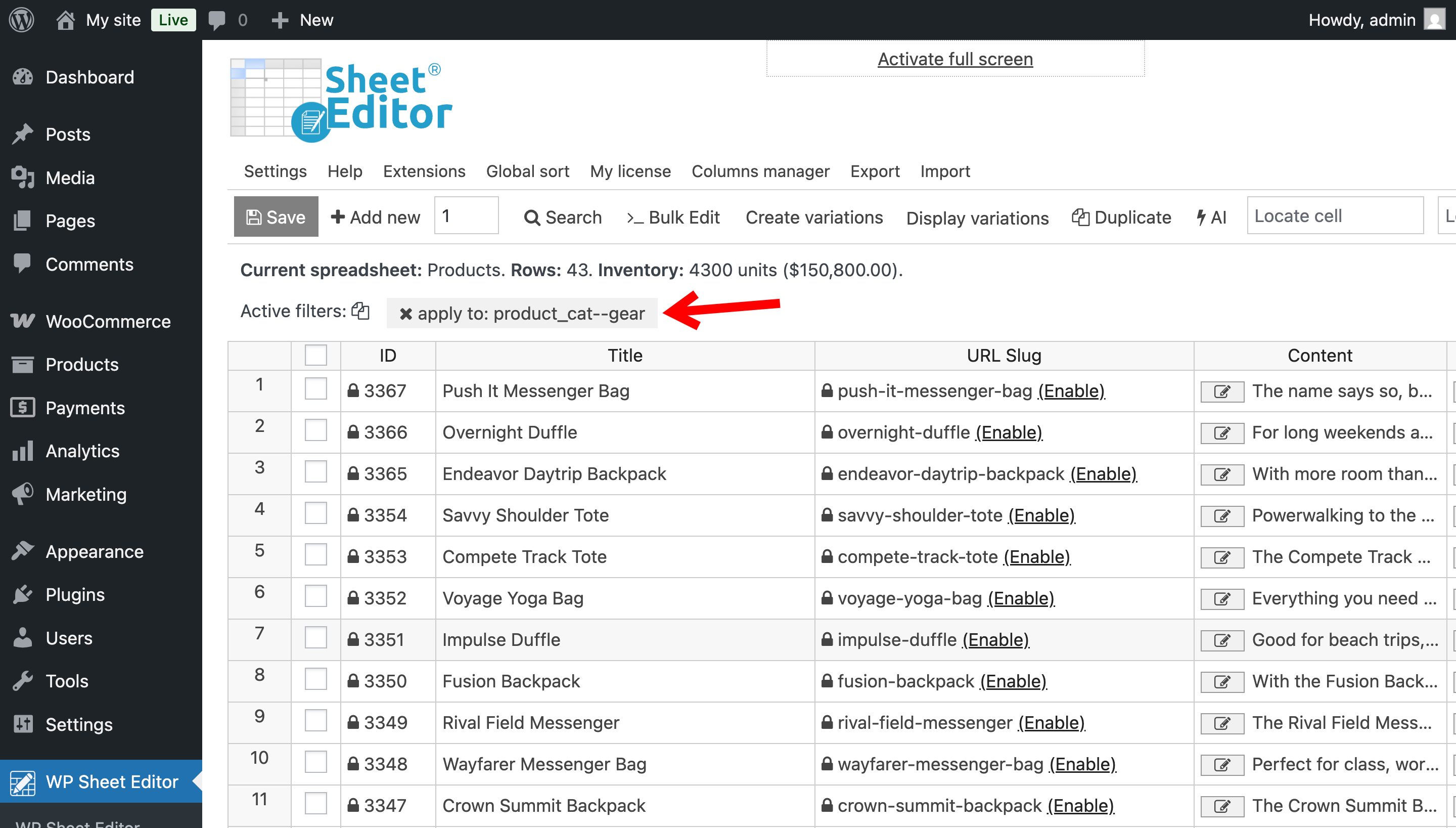
Step 2: Exclude the product category from the catalog
Now that your target products are isolated, it is time to change their visibility status all at once.
Open the Bulk Edit tool.
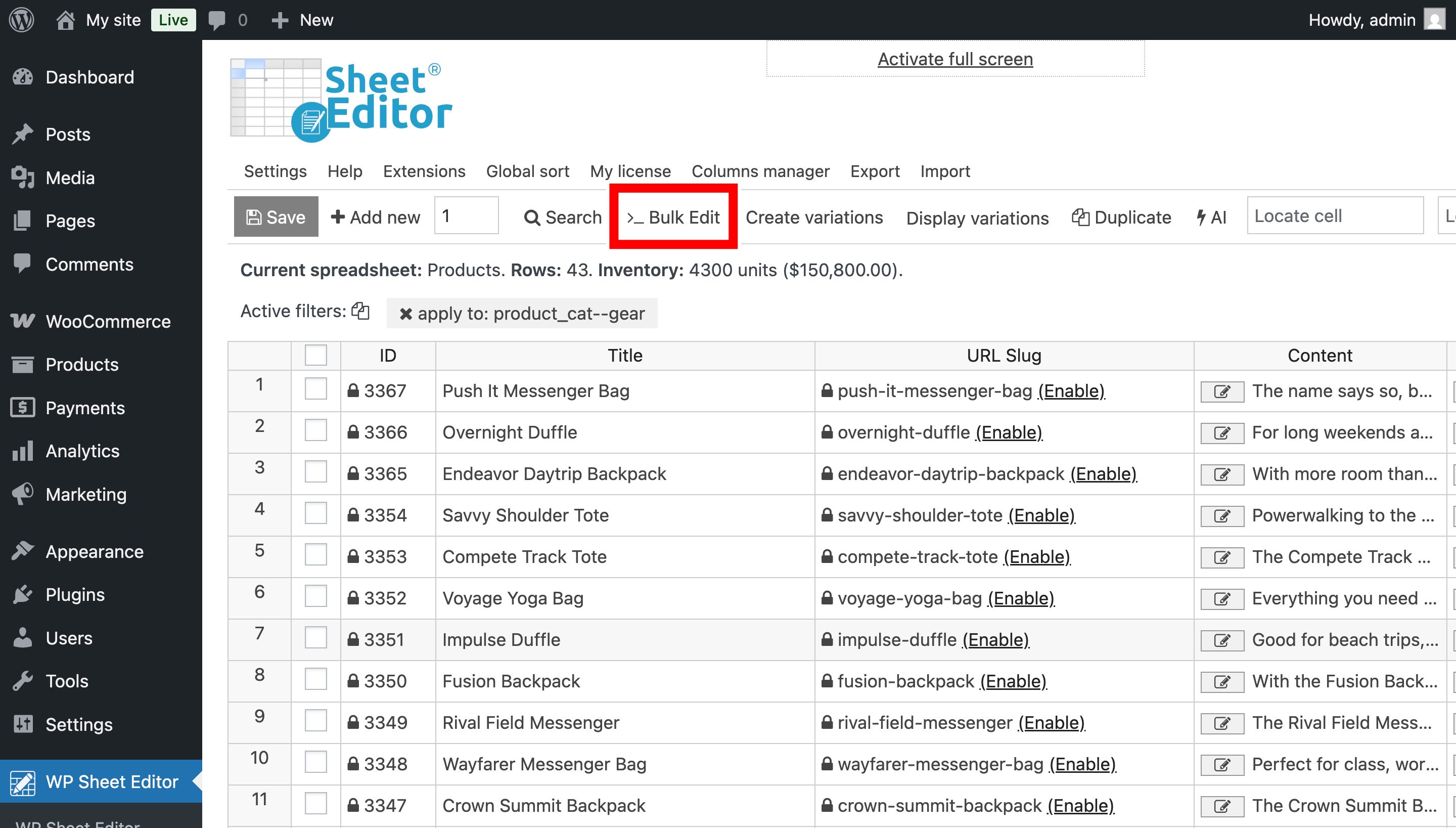
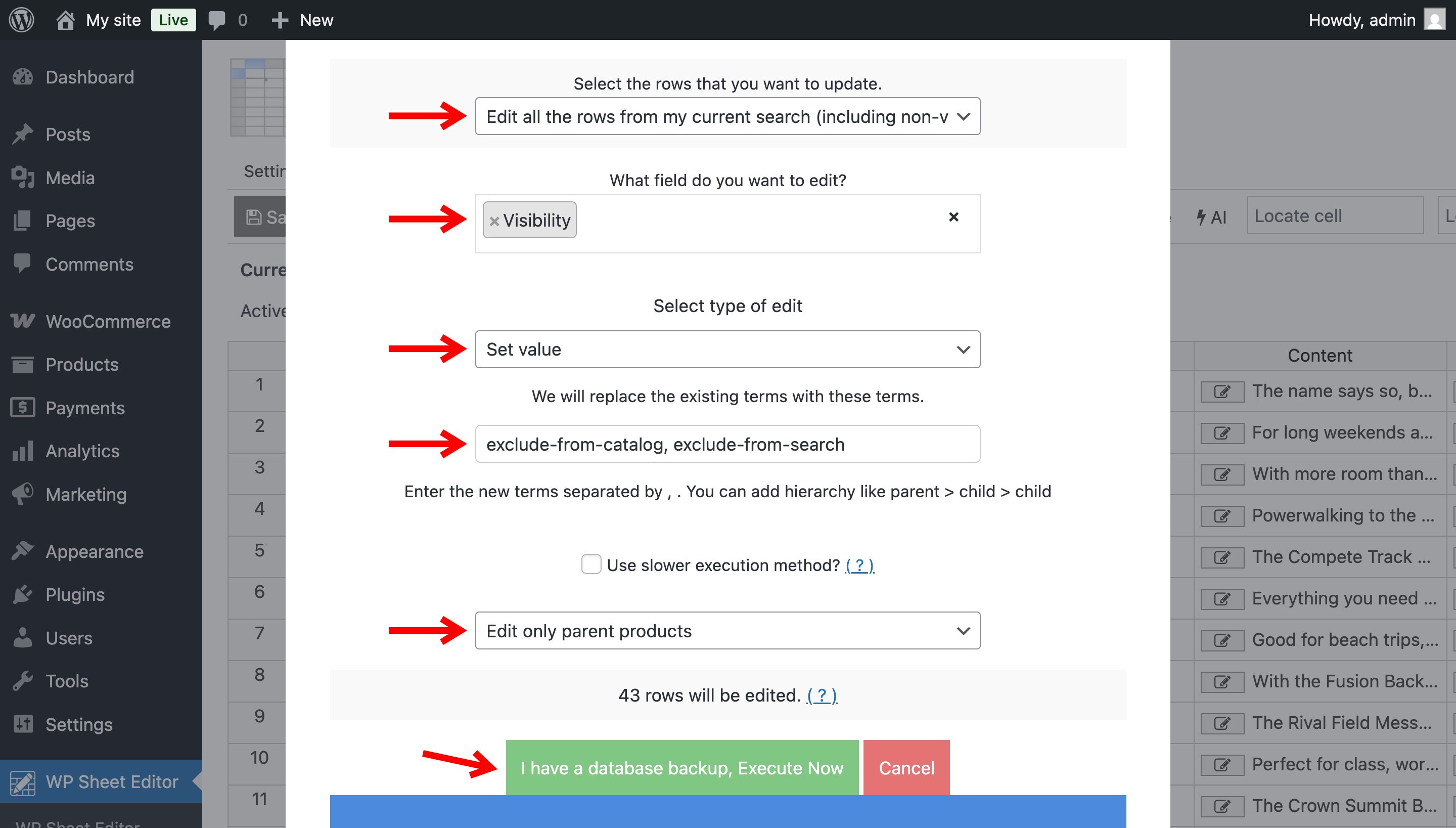
Set up the bulk update using these exact parameters:
- Select the rows that you want to update: Choose “Edit all the rows from my current search”.
- What field do you want to edit: Select the Visibility field.
- Select type of edit: Choose Set value.
- Replace existing value with this value:
- If you want to exclude products from the catalog only, type
exclude-from-catalog - If you want to exclude products from the search results only, type
exclude-from-search - If you want to completely hide the product from both, type
exclude-from-catalog, exclude-from-search.
- If you want to exclude products from the catalog only, type
- Select Edit only parent products.
- Click the Execute Now button.
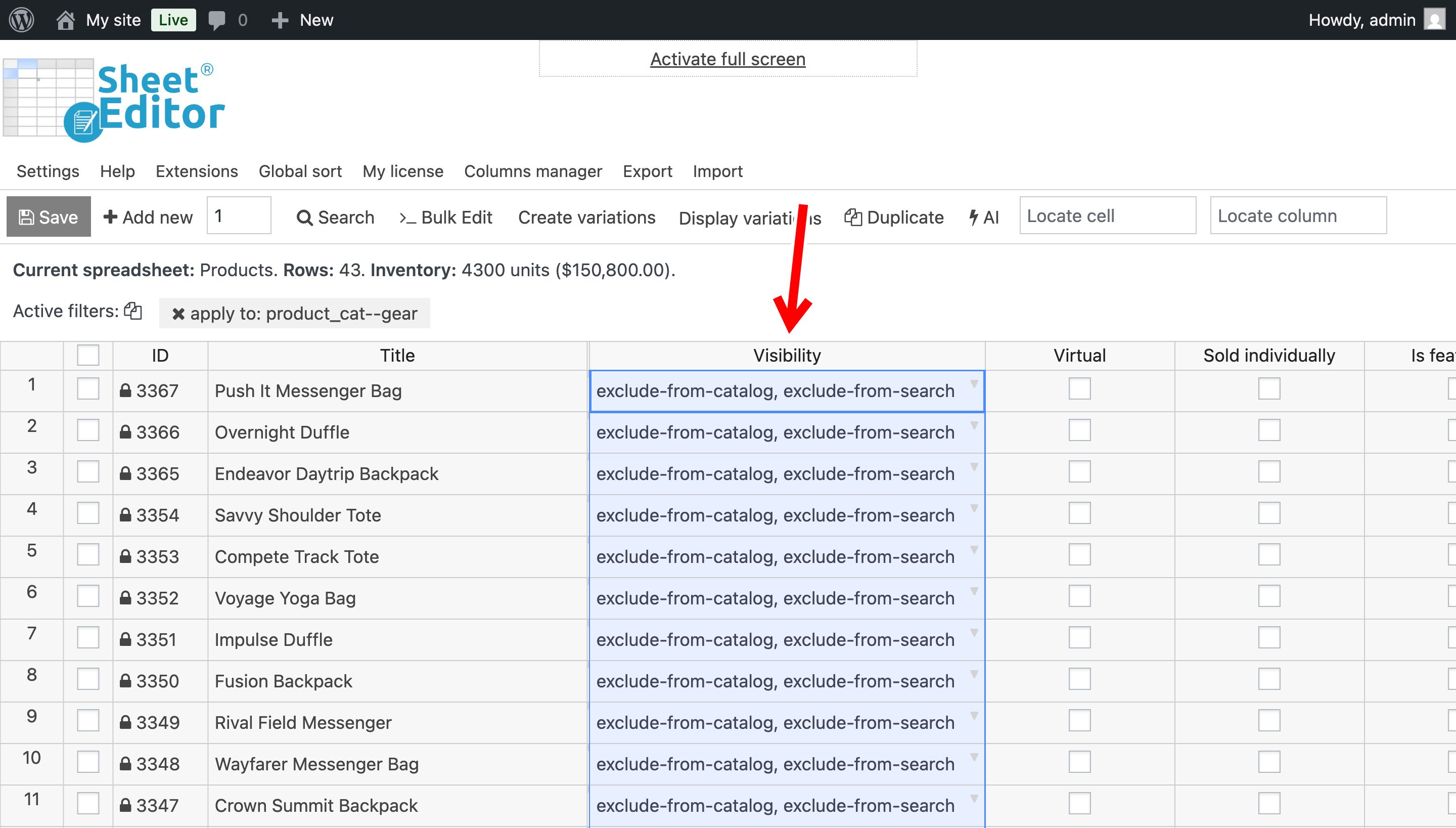
WP Sheet Editor will process the filtered rows and every single product within that category will be updated to “hidden” status.
Managing what your customers can and cannot see should not require hours of tedious data entry. Whether you are performing routine inventory maintenance, curating a seasonal storefront, or restricting access to specific product lines, having the right tools makes all the difference.
By using WP Sheet Editor, you can bypass the clunky WooCommerce interface entirely. Filter your catalog, make surgical adjustments on the spreadsheet, or apply massive bulk edits to hide entire categories with precision.