
Imagine this situation: your supplier just confirmed that a full product line is discontinued. For example, you have 1,500 products in the “Technology” category, and none of them will be available anymore.
Now you need to remove them from your WooCommerce store quickly.
Doing this manually would take hours. You’d have to open each product, click delete, confirm… and repeat the same process hundreds or thousands of times.
Fortunately, there’s a much faster way to bulk delete WooCommerce products using advanced filters like keyword, category, attribute, or tag.
In this guide, you’ll learn how to find and delete thousands of products in seconds using a spreadsheet interface.
We’ll use the WP Sheet Editor – WooCommerce Products Spreadsheet plugin to search, filter, and delete products in bulk without any coding.
1. Install WP Sheet Editor
The first step is to install and activate WP Sheet Editor.
This plugin allows you to manage your WooCommerce products in a spreadsheet (similar to Excel or Google Sheets), which makes bulk editing and bulk deleting much easier.
Instead of editing products one by one, you can apply changes to hundreds or thousands of products at once.
You can download the plugin here:
Download WooCommerce Products Spreadsheet Plugin - or - Check the features
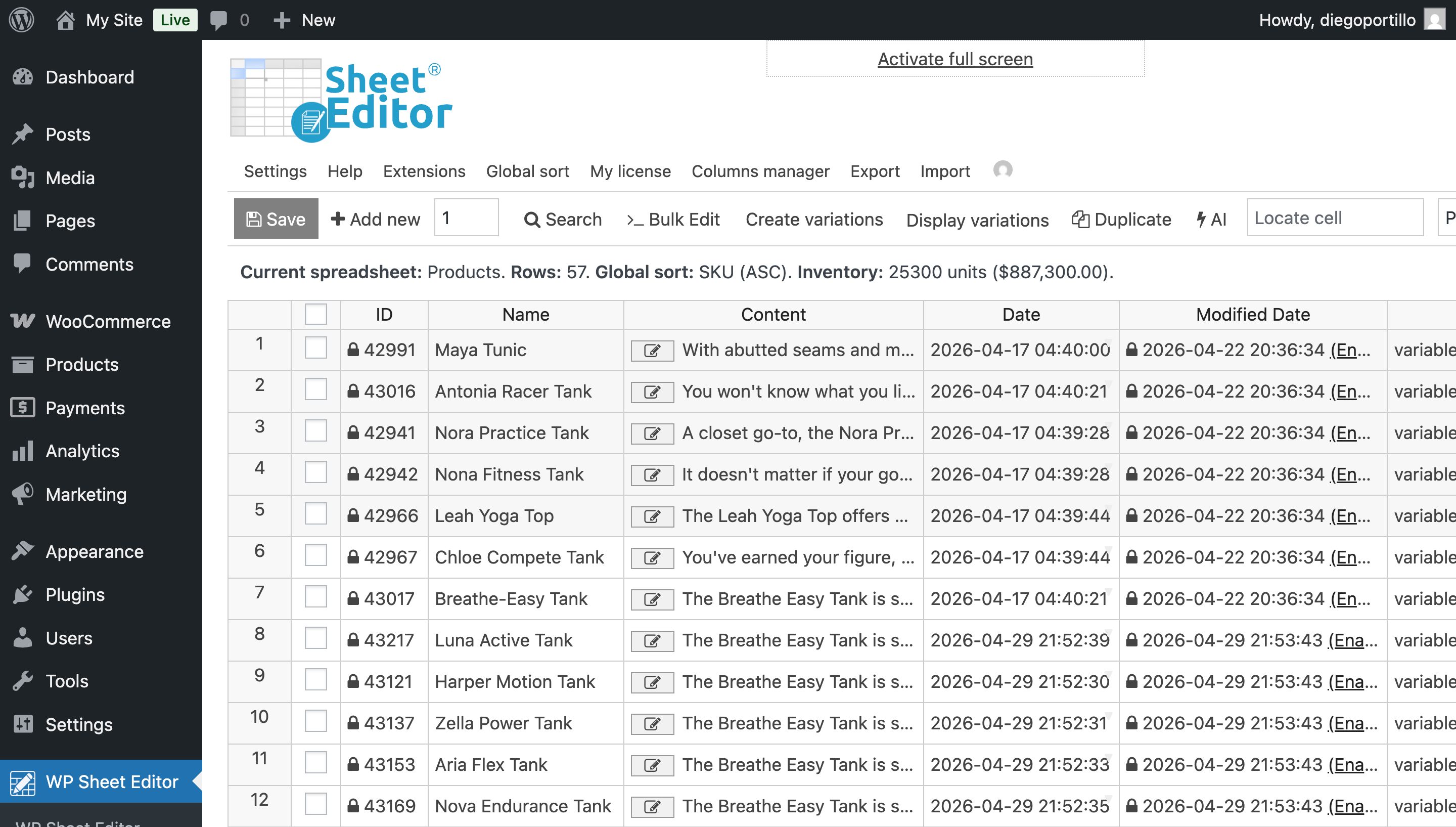
Once installed, open the plugin and you’ll see all your products displayed in a spreadsheet.
This interface includes powerful tools like:
- Search tool – to filter products using advanced conditions
- Bulk Edit tool – to apply changes (including deletion) to multiple products
2. Find the Products You Want to Delete (Using the Search Tool)
Before deleting anything, you need to filter the exact products you want to remove.
This step is critical. If you don’t apply filters, you might delete your entire product catalog by mistake.
To begin, open the Search tool.
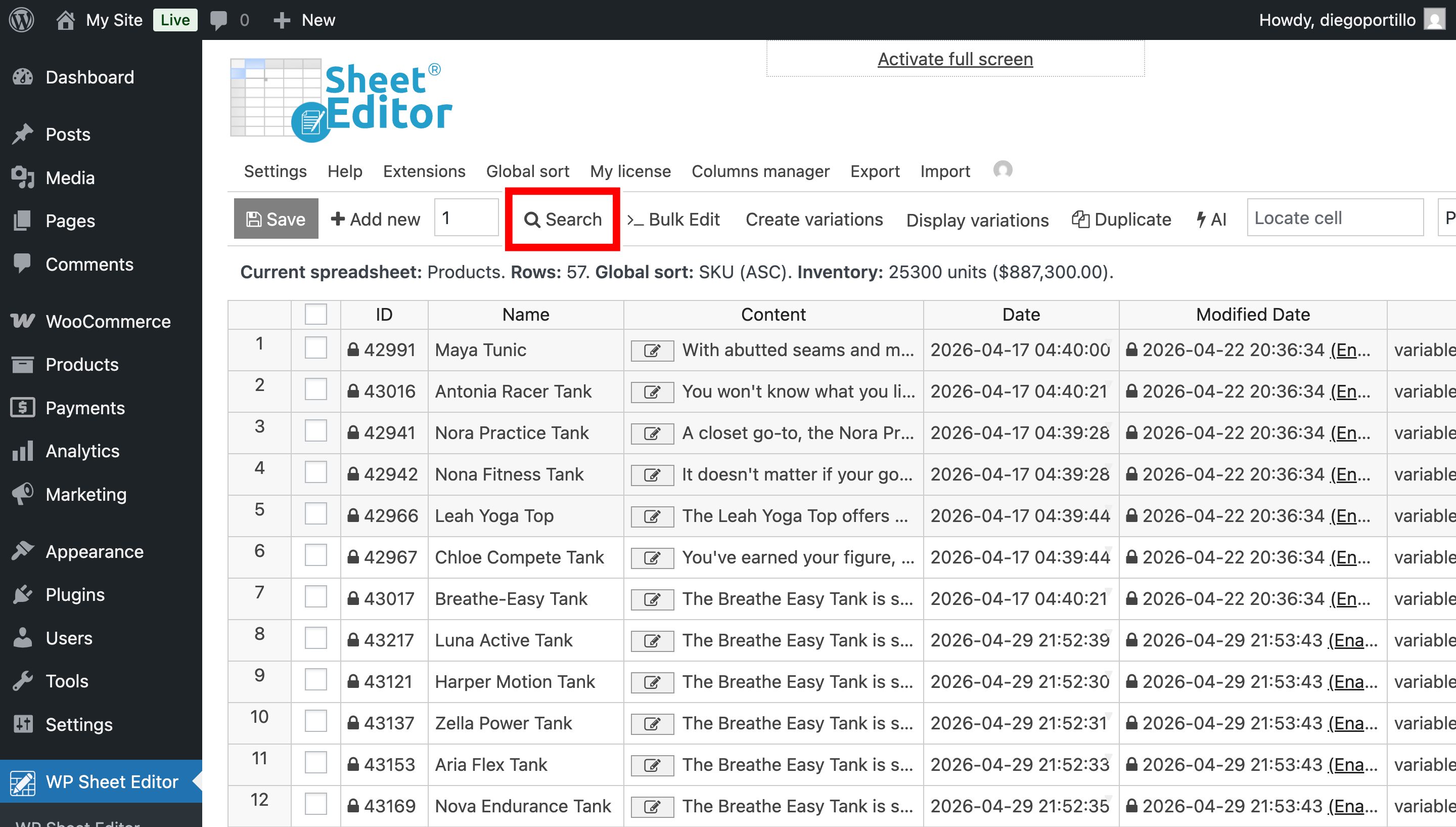
The search tool allows you to filter products using different conditions. Here are the most common ways to find products before deleting them.
Option 1: Find Products by Keyword
This option is perfect when you want to remove products with similar names.
For example, delete all products containing “Notebook”, “Demo”, or “Old Version”.
To do this:
- Enter the keyword in the Contains keyword field
- Click Run search
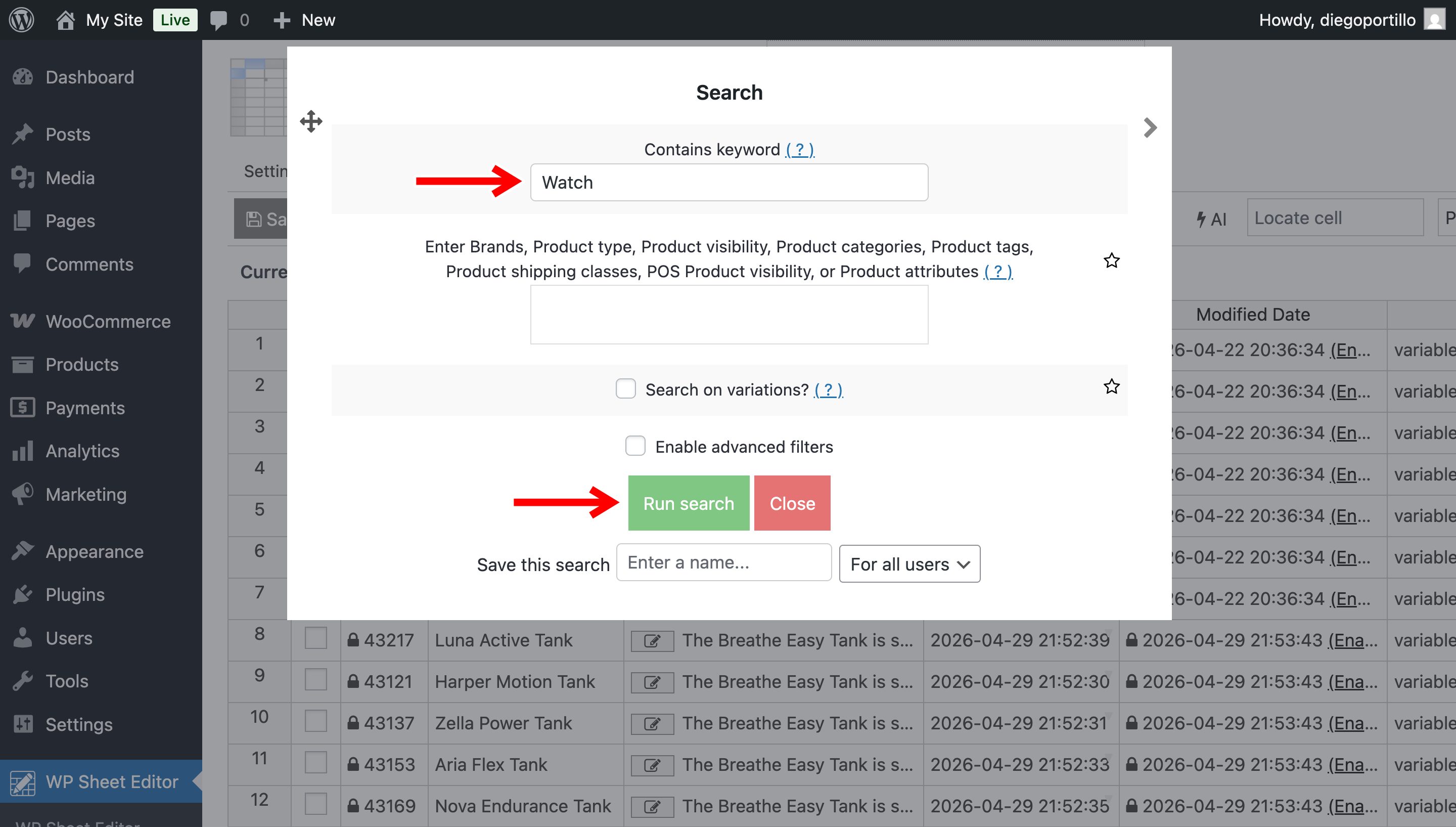
This will instantly display all matching products in the spreadsheet.
Option 2: Find Products by Category, Attribute, or Tag
This option is ideal when you want to delete entire groups of products.
For example:
- All products in a category like “Technology”
- Products with a specific attribute (brand, size, etc.)
- Items with a specific tag like “Discontinued”
To filter them:
- Enter the category, attribute, or tag in the Enter product category… field. The same field works for:
- Brands
- Product type
- Product visibility
- Categories
- Tags
- Shipping classes
- POS visibility
- Attributes
- Click Run search
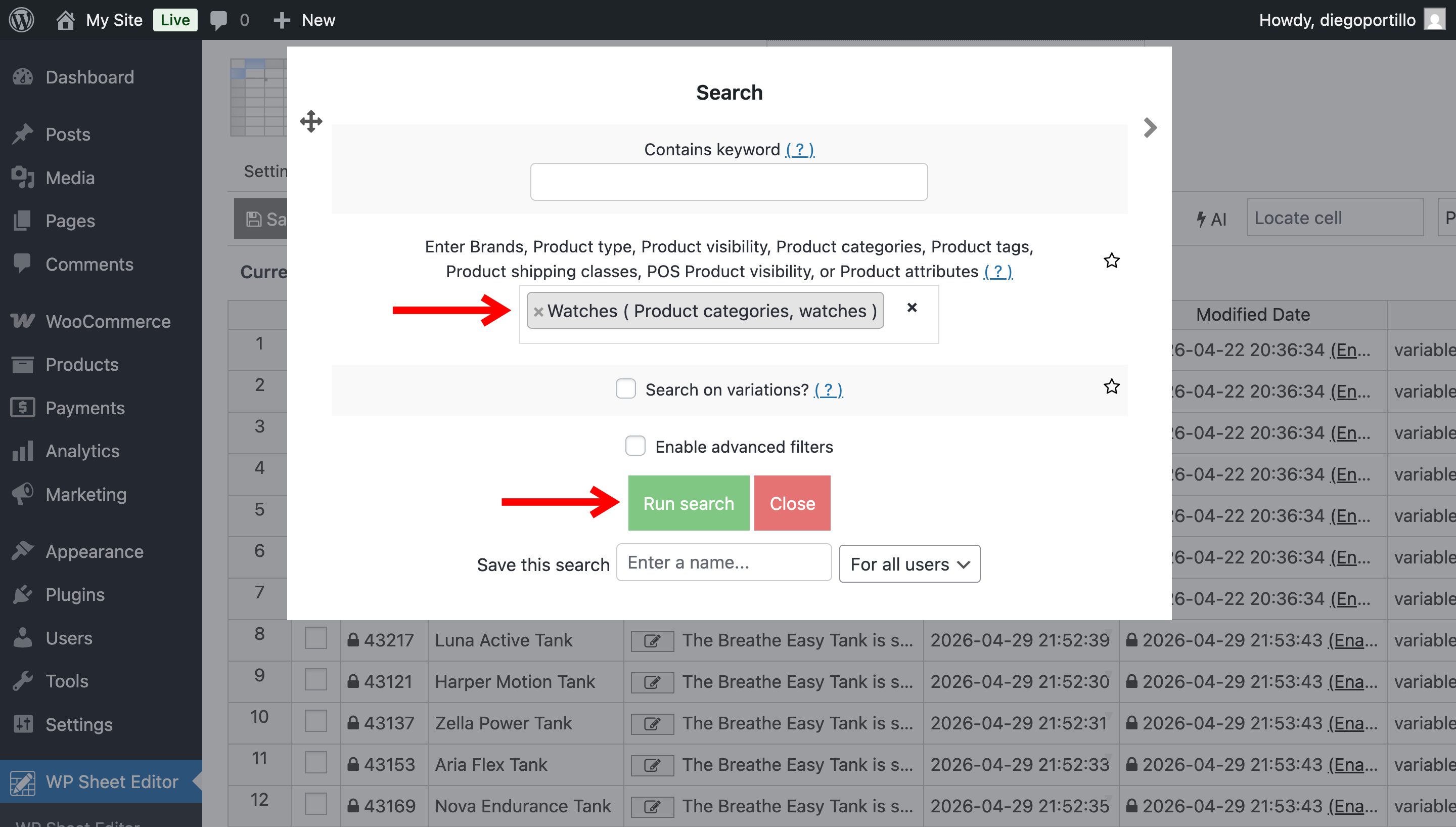
This is one of the fastest ways to clean up large sections of your store.
Option 3: Combine Multiple Filters (Advanced Search)
You can also combine conditions to be more precise.
For example:
- Products in the “Technology” category AND containing the keyword “Old”
- Products with a specific tag AND a specific attribute
This helps you avoid deleting products by mistake and gives you full control over your catalog.
Once you apply your filters and click Run search, you’ll see only the products you want to delete.
3. Delete All Filtered Products in Bulk
After filtering the products, you can delete them in seconds using the Bulk Edit tool.
Open the Bulk Edit tool.
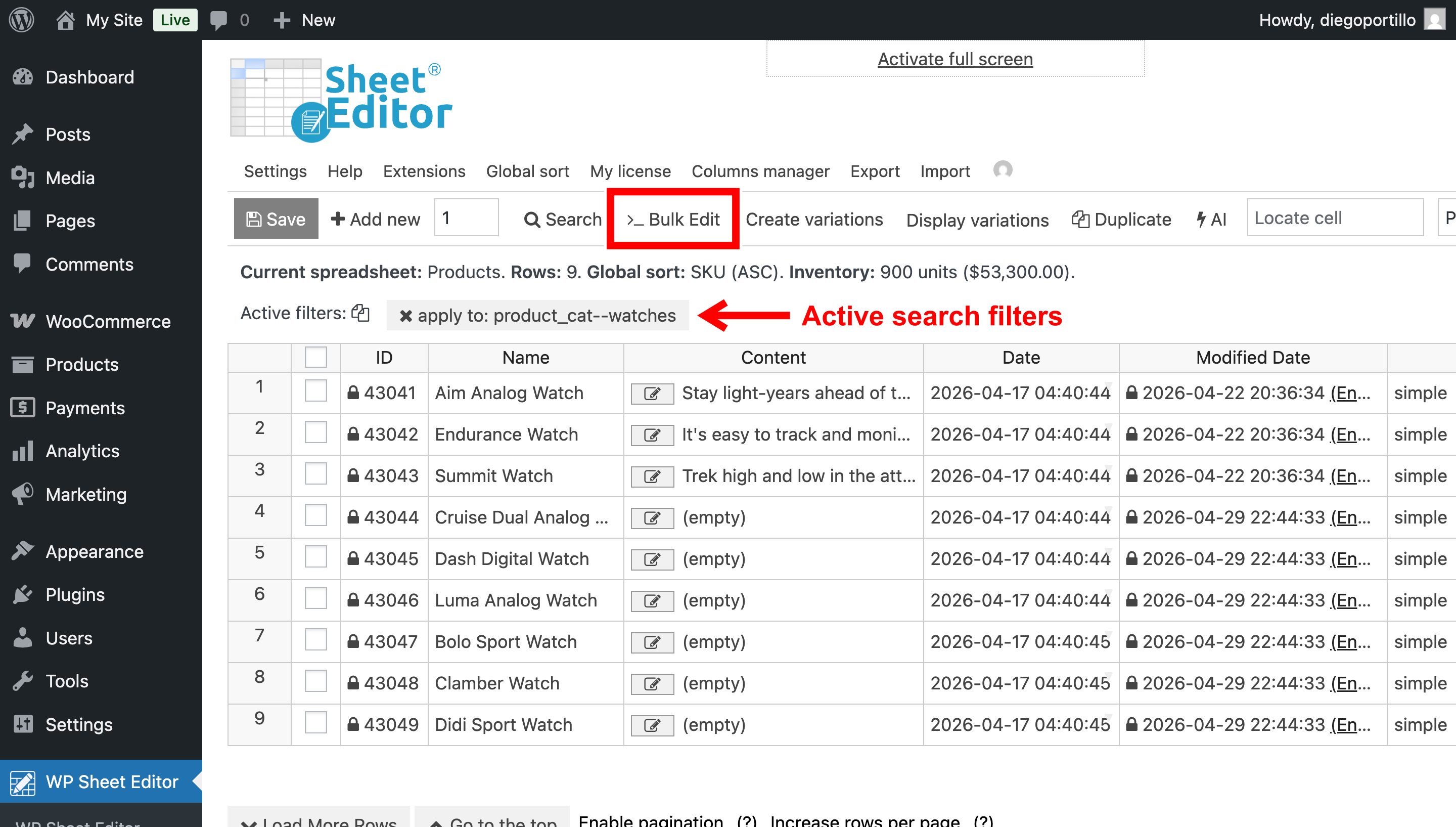
Configure these settings in the Bulk Edit tool:
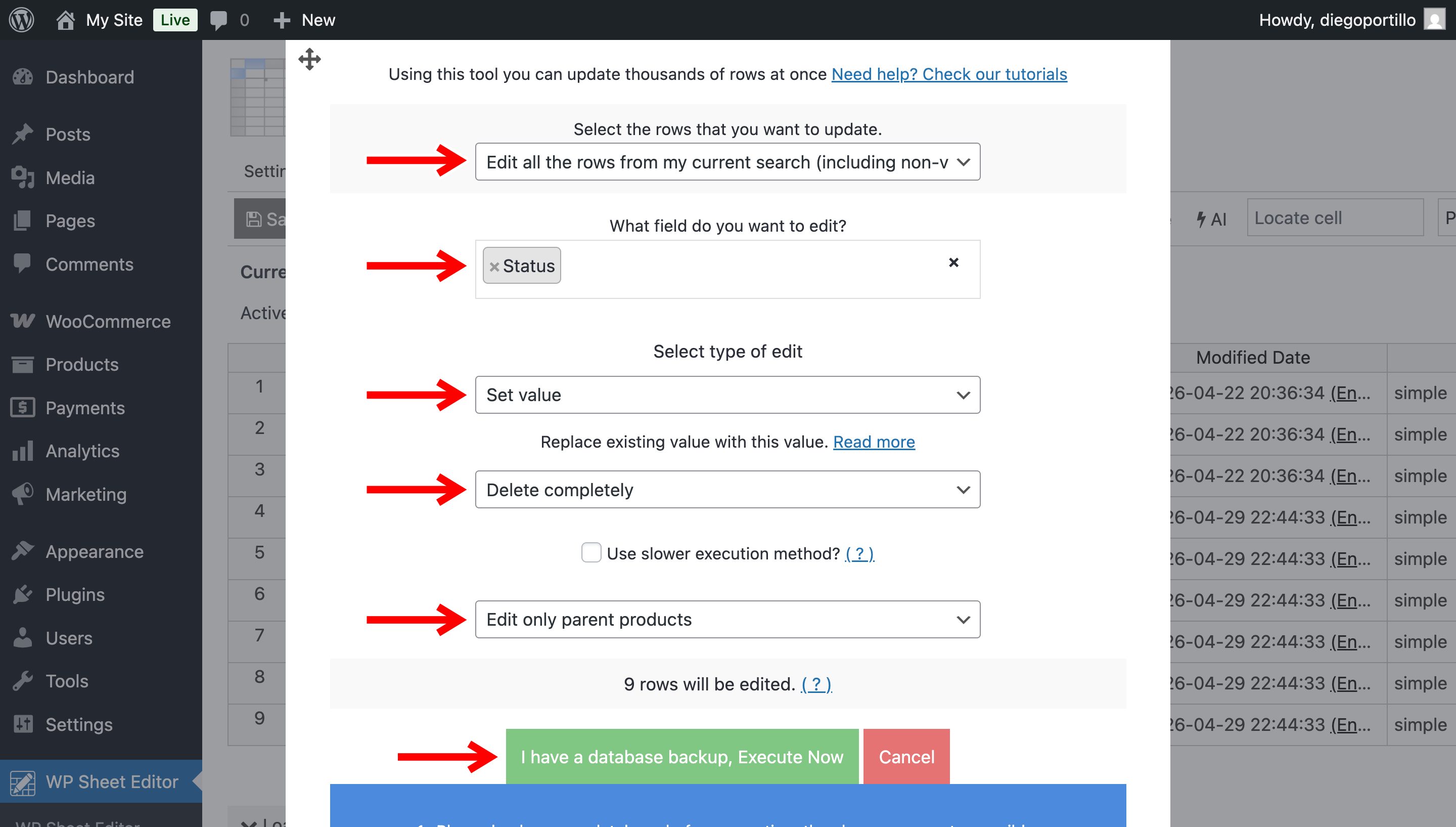
- Select the rows that you want to update: Edit all the rows from my current search
- What field do you want to edit: Status
- Select type of edit: Set value
- Replace existing value with this value: Choose Trash or Delete completely
- Select if you want to Edit only parent products or Edit only variations.
- Click on Execute Now
Tip:
- Select Trash if you want a recovery option
- Select Delete completely if you’re sure the products are no longer needed
Done! Bulk Delete WooCommerce Products in Seconds
As you can see, deleting WooCommerce products by keyword, category, attribute, or tag doesn’t have to be a slow, manual process.
Just filter your products using the search tool and apply the deletion in bulk.
This method is perfect for:
- Removing discontinued products
- Cleaning up large imports
- Deleting outdated inventory
- Managing seasonal catalogs
If you want to go further, you can also bulk edit prices, stock, categories, and more.
You can download the plugin here:
Download WooCommerce Products Spreadsheet Plugin - or - Check the features