
Managing stock for WooCommerce product variations is one of the most time-consuming tasks for any store owner. By default, WooCommerce forces you to:
- open each variable product,
- navigate to the Variations tab,
- expand every single variation,
- edit the stock fields,
- save,
- and repeat the process for every product in your catalog.
If you have hundreds of variable products with multiple sizes and colors, this takes hours of repetitive clicking.
Fortunately, there’s a much faster way to bulk edit WooCommerce variation stock using a spreadsheet interface. In this guide, you’ll learn how to:
- Update the Manage Stock checkbox,
- Change stock quantities,
- And modify stock statuses for hundreds of variations in minutes.
No coding required!
We’ll use the WP Sheet Editor – WooCommerce Products Spreadsheet plugin to display all your variations in a single grid and apply bulk changes instantly.
Here’s what you’ll learn:
- How to bulk enable or disable the “Manage stock” field for variations
- How to bulk set a new stock quantity for hundreds of variations at once
- How to bulk change the stock status (In stock, Out of stock, On backorder)
- How to import stock data from a CSV file
Install WP Sheet Editor to Bulk Edit Variation Stock
WP Sheet Editor – WooCommerce Products turns your default WooCommerce product list into a powerful spreadsheet. You can view parent products and their variations side by side, run advanced searches, and apply bulk updates to thousands of items with a few clicks.
This plugin includes:
- Advanced search — filter products by any field, including category, attribute, stock status, and more
- Bulk Edit tool — update any field across hundreds of products or variations simultaneously
- Export/Import — download your product data to CSV and upload changes back
Skip this step if you already have the plugin installed and activated.
You can download the plugin here:
Download WooCommerce Products Spreadsheet Plugin - or - Check the features
After installing and activating the plugin, follow the steps below to bulk edit WooCommerce variation stock.
Step 1: Open the WooCommerce Products Spreadsheet
Go to WP Sheet Editor > Edit Products in your WordPress dashboard. You’ll see all your products displayed in a spreadsheet where every row is a product and every column is a field.

Step 2: Display Product Variations in the Spreadsheet
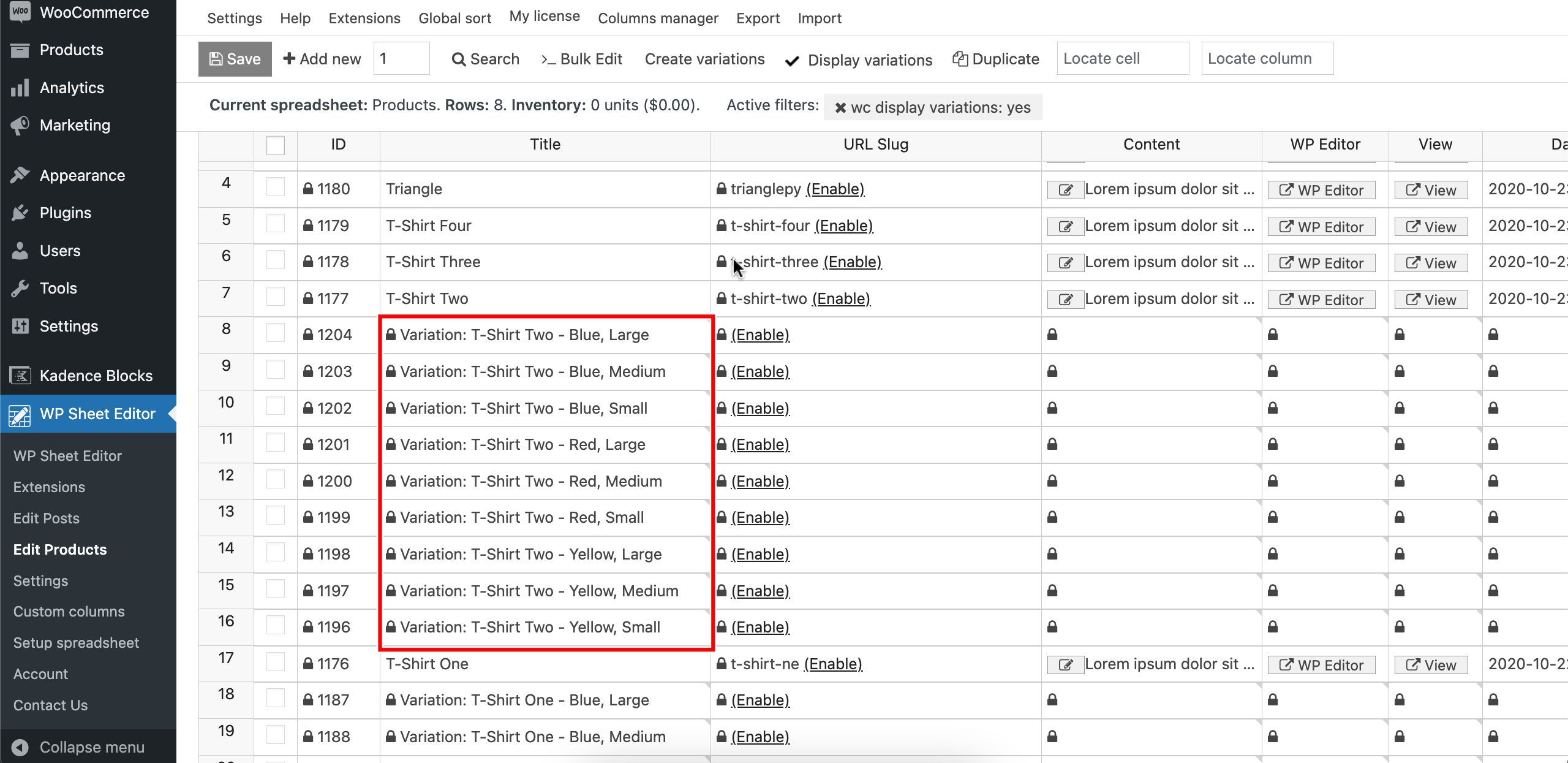
By default, you’ll see only parent products. To view all variations next to their parent products, click the Display variations button on the toolbar.

Now all variations appear directly below their parent products. The Title column shows variation-specific names (e.g., “T-Shirt – Black, Large”), and you can edit variation fields directly in the cells. Fields that belong only to parent products are locked (read-only) on variation rows.
Optional: Filter to Show Only Variable Products
If your store has many simple products, filtering them out helps you focus exclusively on variations. Open the Search tool and configure these settings:

- Tick the Search on variations checkbox
- Tick the Enable advanced filters checkbox
- Field: Type (product_type)
- Operator: =
- Value: variable
- Click Run Search
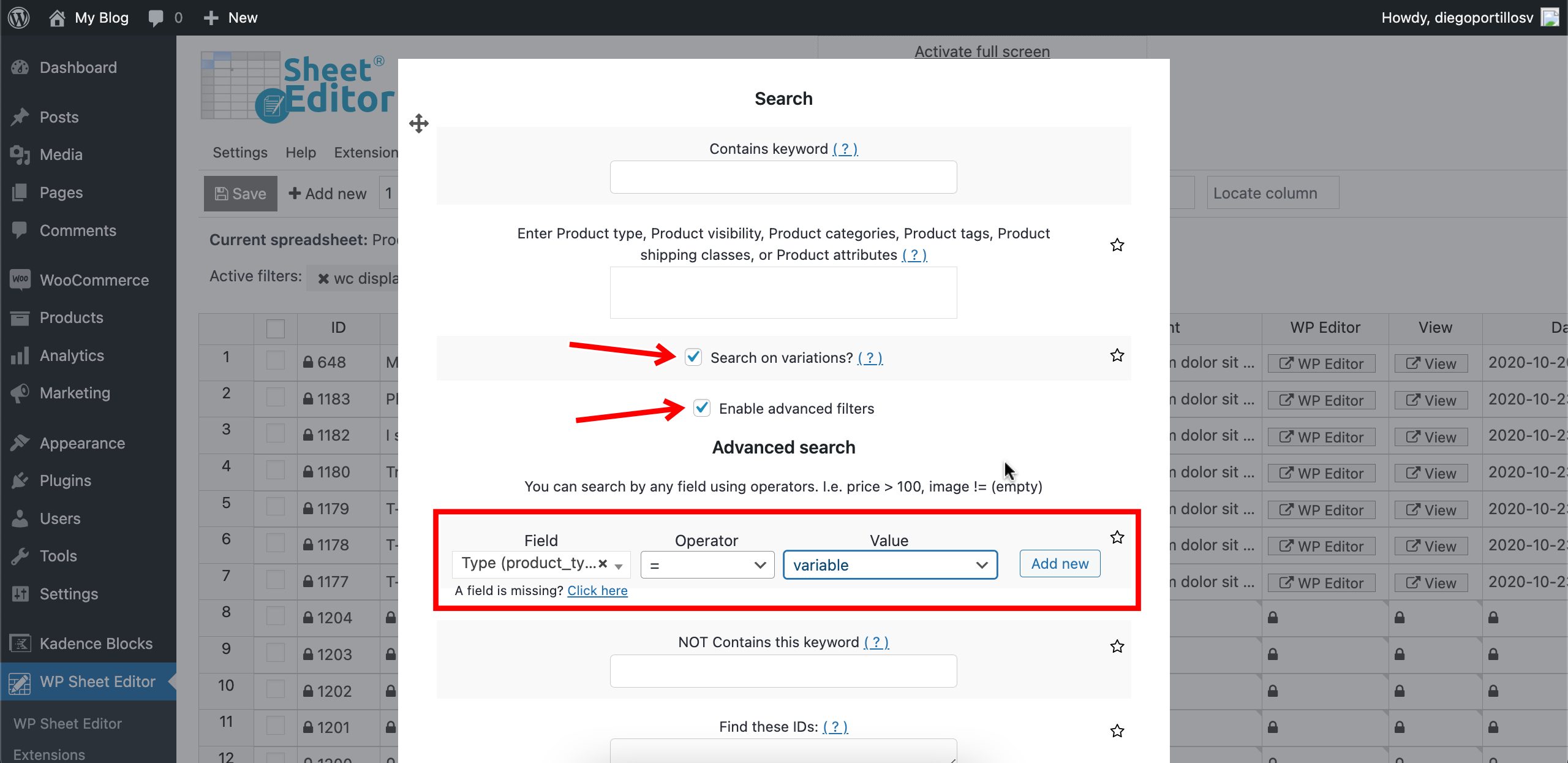
The spreadsheet will now show only variable products with their variations. The active search filters appear above the spreadsheet for easy verification.

Method 1: Edit Variation Stock Directly in the Spreadsheet
If you need to apply different stock values to individual variations, the spreadsheet makes it easy. Locate the following stock-related columns:
- Manage stock — checkbox field (tick to enable stock management for each variation)
- Stock — number field for the stock quantity
- Stock status — dropdown with three options: In stock, Out of stock, On backorder

Each field behaves according to its type. The Manage stock checkbox enables or disables stock tracking per variation. The Stock field accepts numeric values. The Stock status dropdown lets you toggle between In stock, Out of stock, and On backorder.

Once you’ve made your changes, click Save to apply everything at once.
Method 2: Bulk Edit Variation Stock for Hundreds of Variations at Once
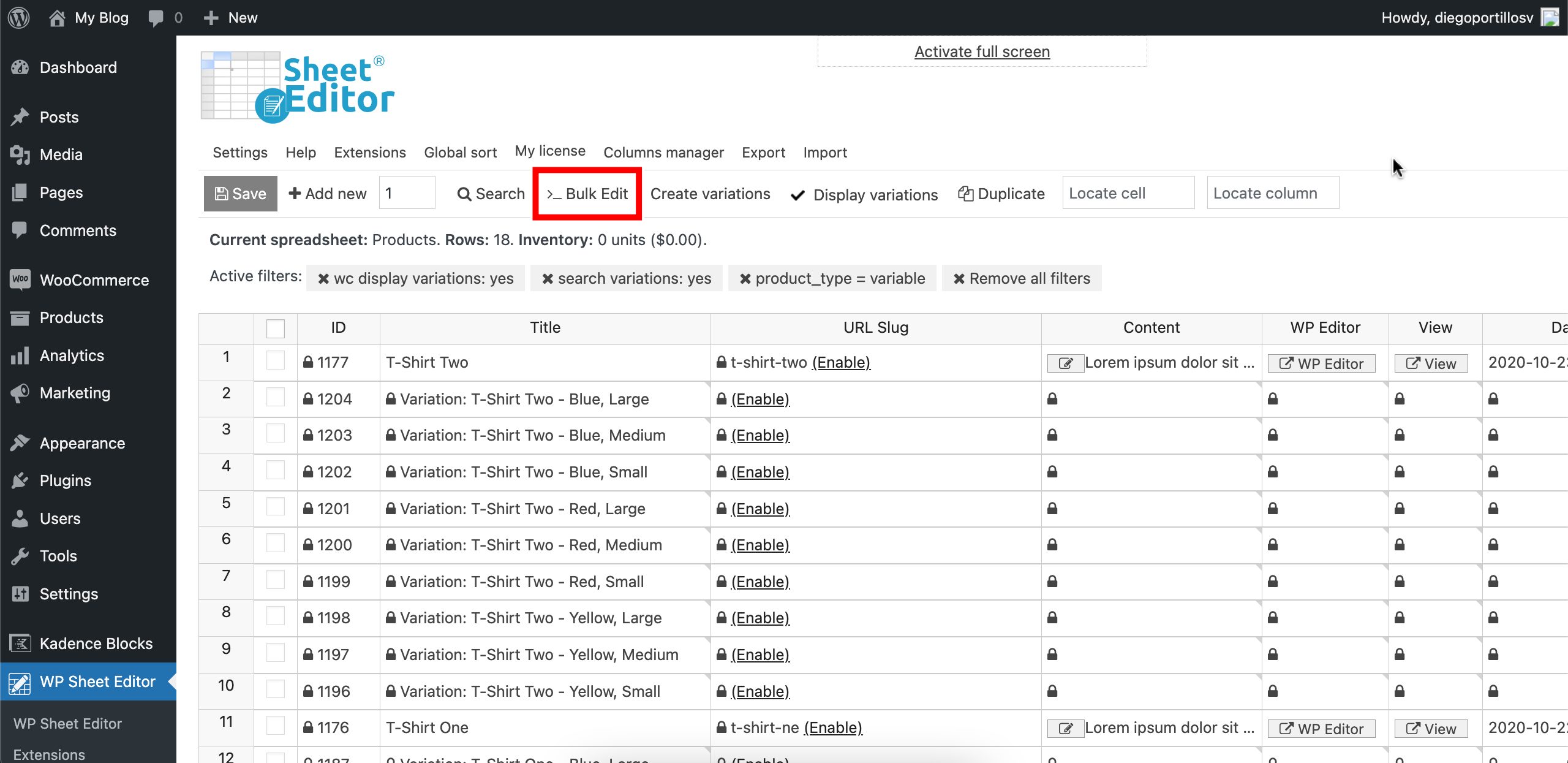
When you need to apply the same stock change to many variations, use the Bulk Edit tool. Open it from the toolbar.
A) Bulk Enable or Disable the “Manage Stock” Field
Configure the Bulk Edit tool with these settings to toggle stock management for all selected variations:
- Select the rows that you want to update: Edit all the rows from my current search
- What field do you want to edit: Manage stock
- Select type of edit: Set value
- Replace existing value with this value: Tick the checkbox to enable, or leave it unchecked to disable
- Select Edit only variations
- Click Execute Now

B) Bulk Set a New Stock Quantity for Variations
Configure the Bulk Edit tool with these settings to assign the same stock number to all selected variations:
- Select the rows that you want to update: Edit all the rows from my current search
- What field do you want to edit: Stock
- Select type of edit: Set value
- Replace existing value with this value: Enter the new stock quantity (e.g., 50)
- Select Edit only variations
- Click Execute Now

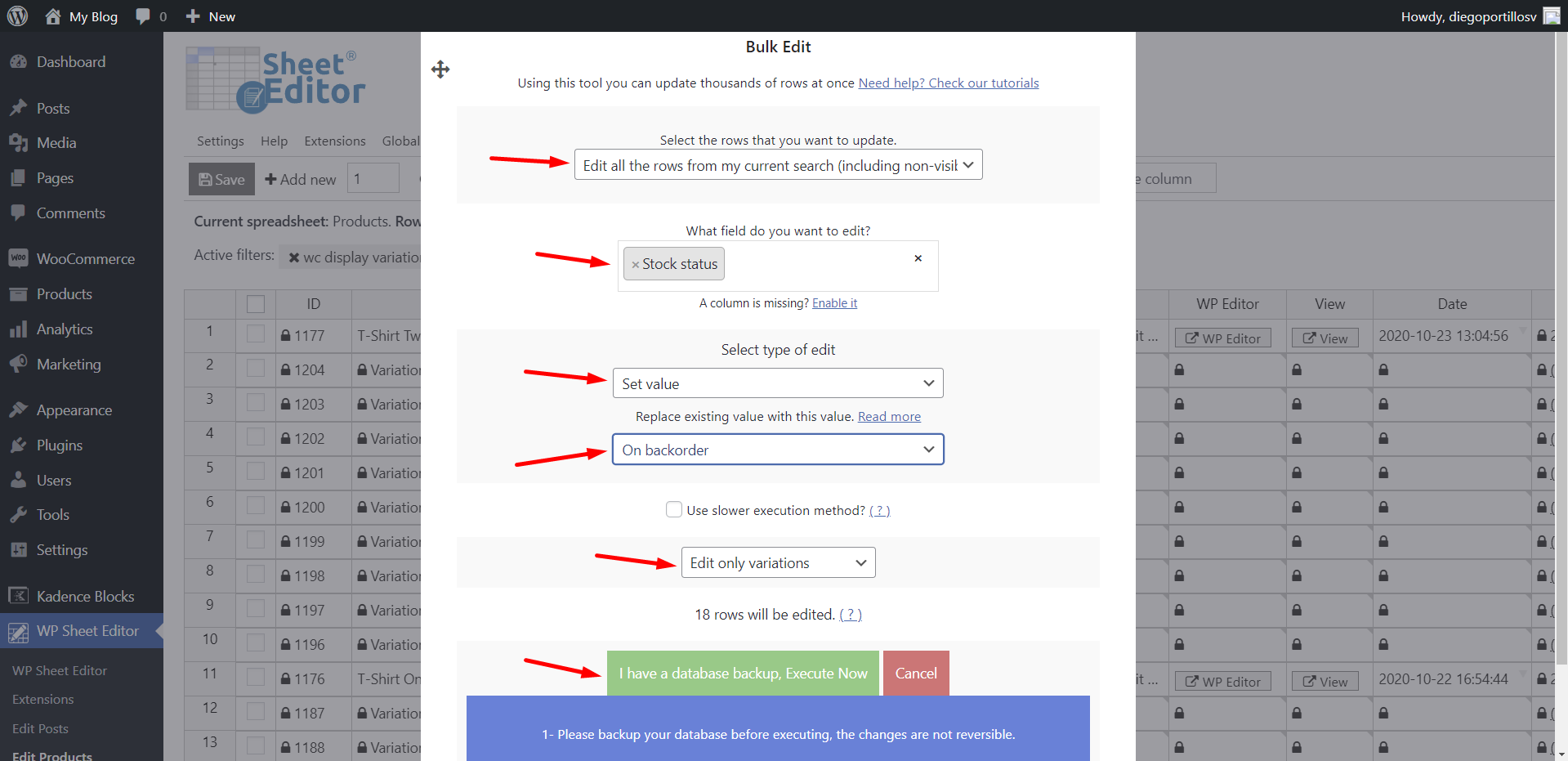
C) Bulk Change the Stock Status for Variations
Configure the Bulk Edit tool with these settings to update the stock status for all selected variations:
- Select the rows that you want to update: Edit all the rows from my current search
- What field do you want to edit: Stock status
- Select type of edit: Set value
- Replace existing value with this value: Choose one of these options:
- In stock
- Out of stock
- On backorder
- Select Edit only variations
- Click Execute Now
Method 3: Import Variation Stock Data from a CSV File
If you prefer to edit stock data offline in Excel or Google Sheets, you can export your variations, edit the stock fields, and import the changes back.
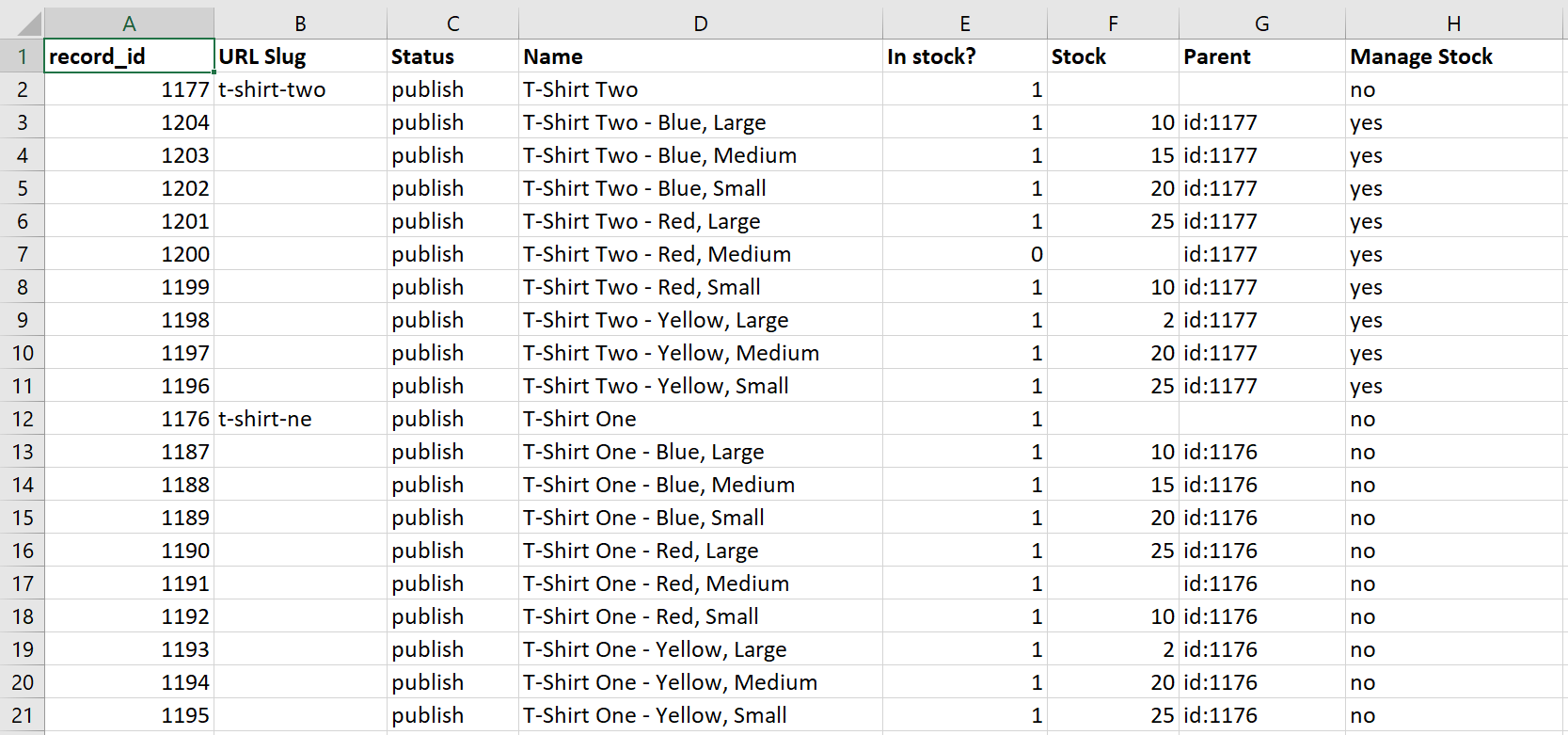
First, prepare your CSV file with the stock-related columns. The example below shows a CSV with variation IDs, stock quantities, and stock statuses.
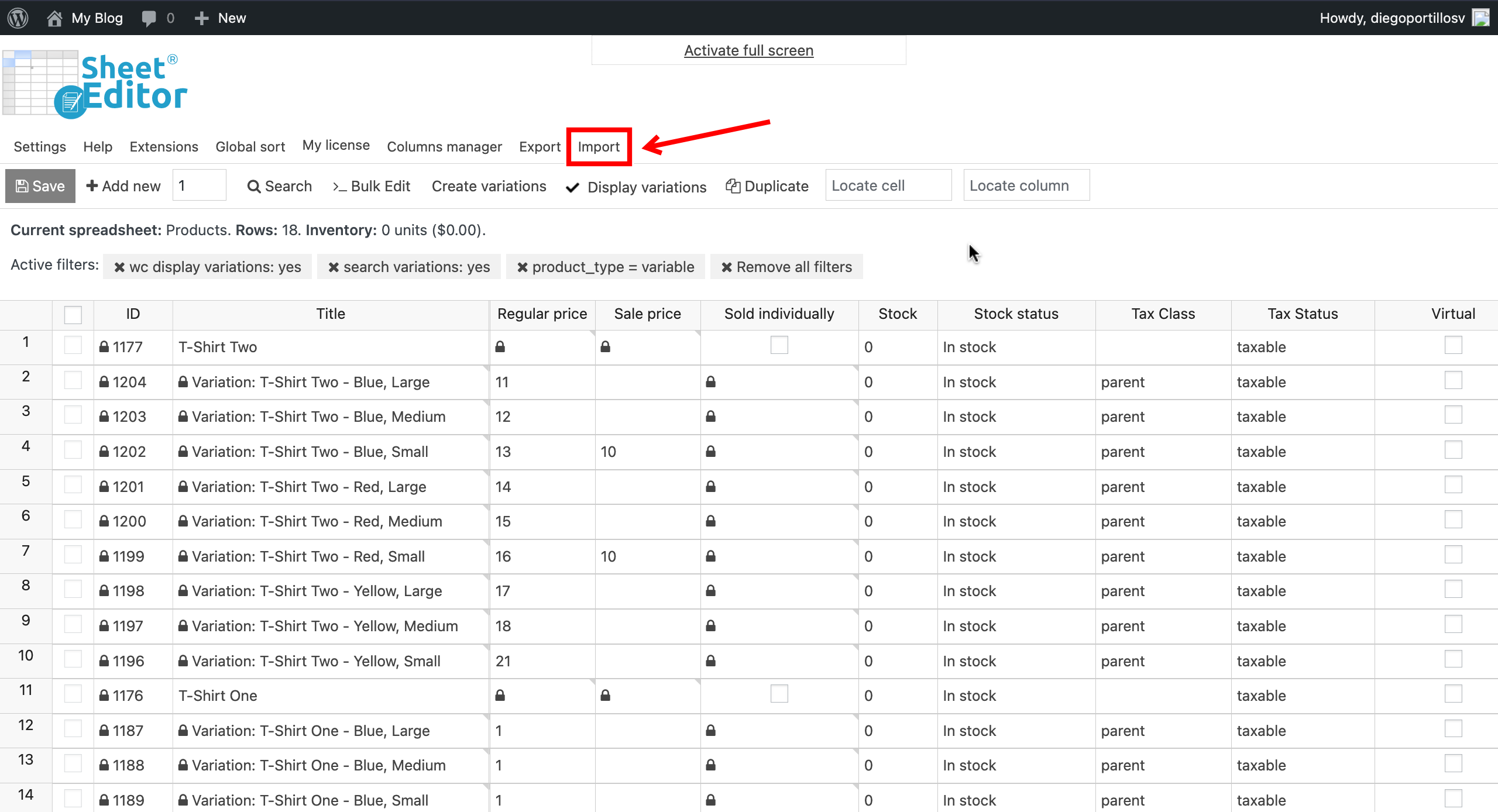
In WP Sheet Editor, open the Import tool.
Select the CSV file you prepared:
- Source: CSV file from my computer
- Click Choose File and select the file from your computer
- Click Next

Click Import all the columns.

Now match the CSV columns with the WordPress fields:
- Select Update existing items, ignore new items
- Match the records using the product variation ID
- Click Next

Review the preview to confirm the data looks correct, then click The preview is fine, start import to bulk import the variation stock data.

Manage Variation Stock Efficiently
As you’ve seen, bulk editing WooCommerce variation stock doesn’t have to be a slow, manual process. With WP Sheet Editor, you can:
- Edit the Manage Stock, Stock quantity, and Stock status fields directly in the spreadsheet
- Apply bulk updates to hundreds of variations in seconds using the Bulk Edit tool
- Import stock changes from a CSV file for offline editing
- Filter variations by category, attribute, or any other field before applying changes
This approach saves hours of tedious work and keeps your inventory accurate and up to date.
You can download the plugin here:
Download WooCommerce Products Spreadsheet Plugin - or - Check the features