
Let’s learn how to hide WooCommerce products from your shop catalog without deleting them or changing their status to Draft. I will show you how you can hide individual products in the spreadsheet, as well as how to use the bulk edit tool to hide products by attribute, stock status, price, and other criteria. I have already shown you how to hide products by category.
I’ll be using WP Sheet Editor – WooCommerce Products to manage product visibility directly in a spreadsheet or in bulk using the Search and Bulk Edit tools. I’ll also show you how to disable specific product variations.
You can download the plugin here:
Download WooCommerce Products Spreadsheet Plugin - or - Check the features
How WooCommerce Product Visibility Works in WP Sheet Editor
In WP Sheet Editor, you have these visibility options which you can edit in the spreadsheet or in bulk:
- Shop and search results (empty cell): The product appears in the shop catalog and internal search results. You need to leave the Visibility field empty if you want this.
- Search results only: The product is excluded from the main shop page, including category and tag pages, but customers can still find it using your store’s internal search. Use
exclude-from-catalog. - Shop only: The product remains visible on the shop catalog (including product category and tag pages), but won’t appear in your store’s internal search results. Use
exclude-from-search. - Hidden: The product is excluded from both the shop catalog and internal search results. Use
exclude-from-catalog, exclude-from-search.
These settings don’t delete or unpublish products. Customers can still access them through their direct URLs.
Note: Excluding products from WooCommerce’s internal search doesn’t prevent them from appearing in Google or other external search engines, so catalog visibility is not an SEO noindex setting or an access restriction.
1. Hide Individual WooCommerce Products Using the Spreadsheet
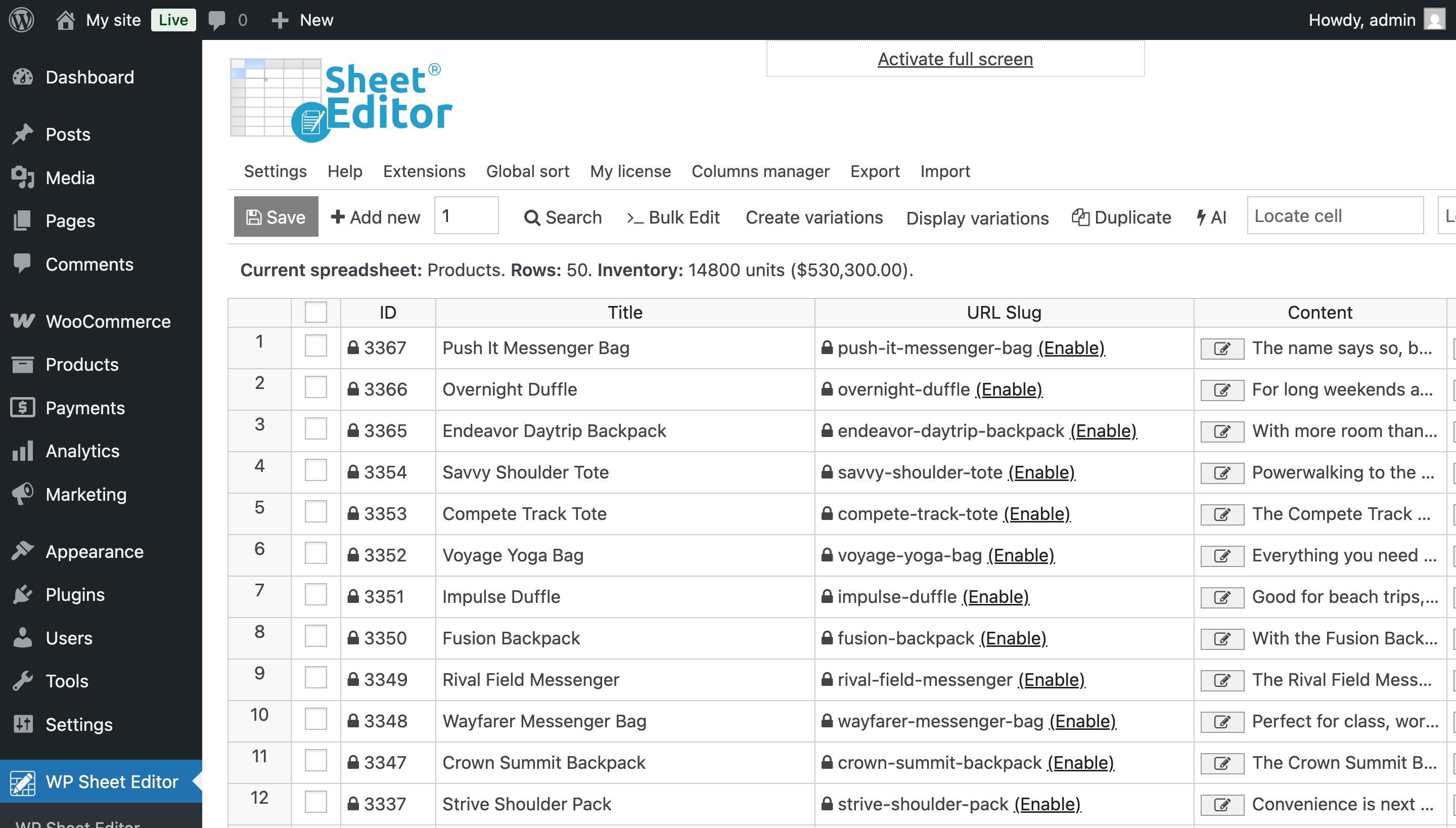
To hide specific products, go to WP Sheet Editor > Edit Products.
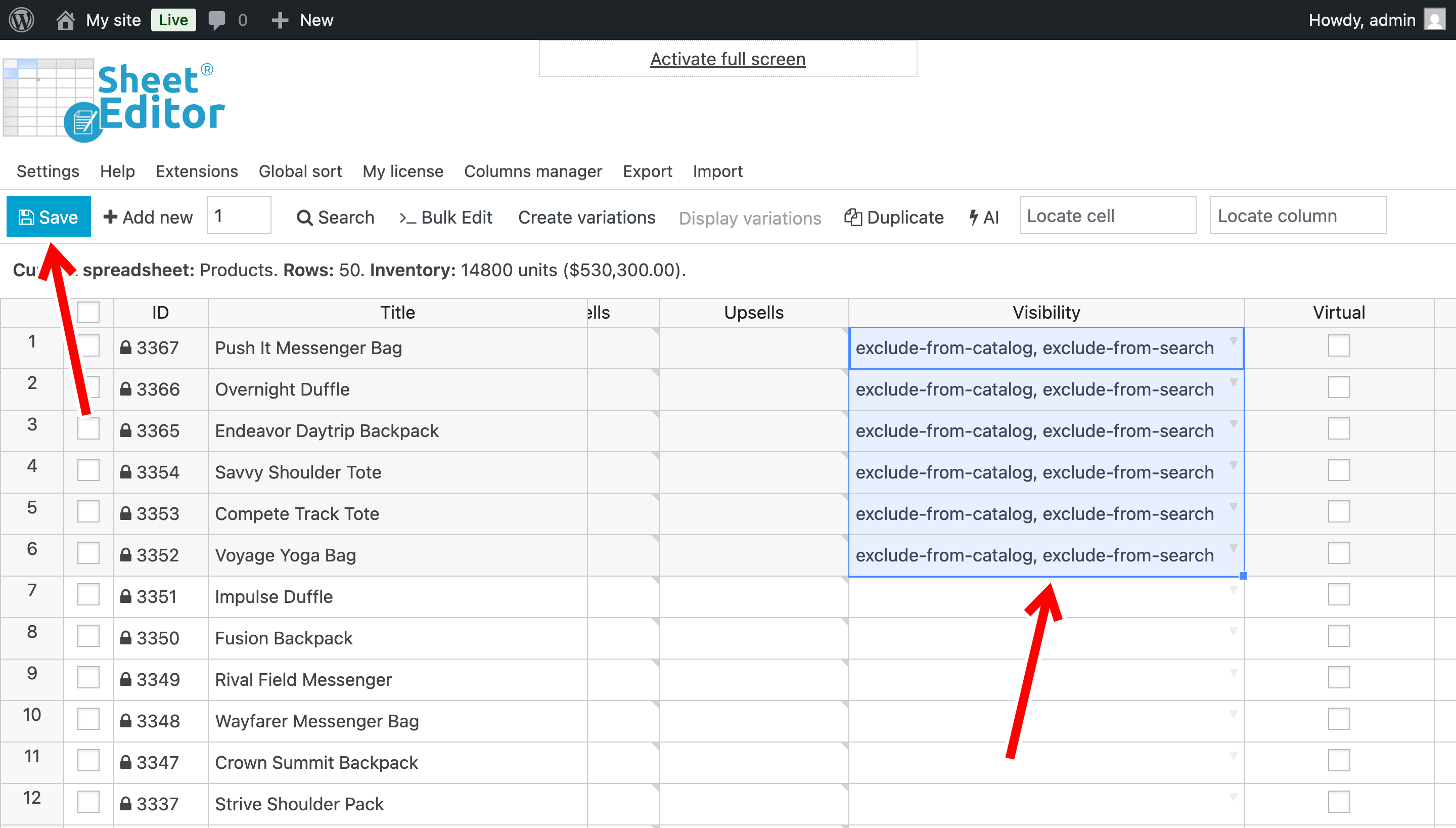
Find the Visibility column and edit the corresponding product cells.
Enter one of these values depending on where you want the product to appear:
exclude-from-catalogexclude-from-searchexclude-from-catalog, exclude-from-search
Click Save to apply your changes.
2. Hide WooCommerce products by attribute, brand, or other taxonomy terms
You can hide multiple products based on their taxonomy terms, including attributes, brands, tags, shipping classes.
Step 1. Search for products in a category
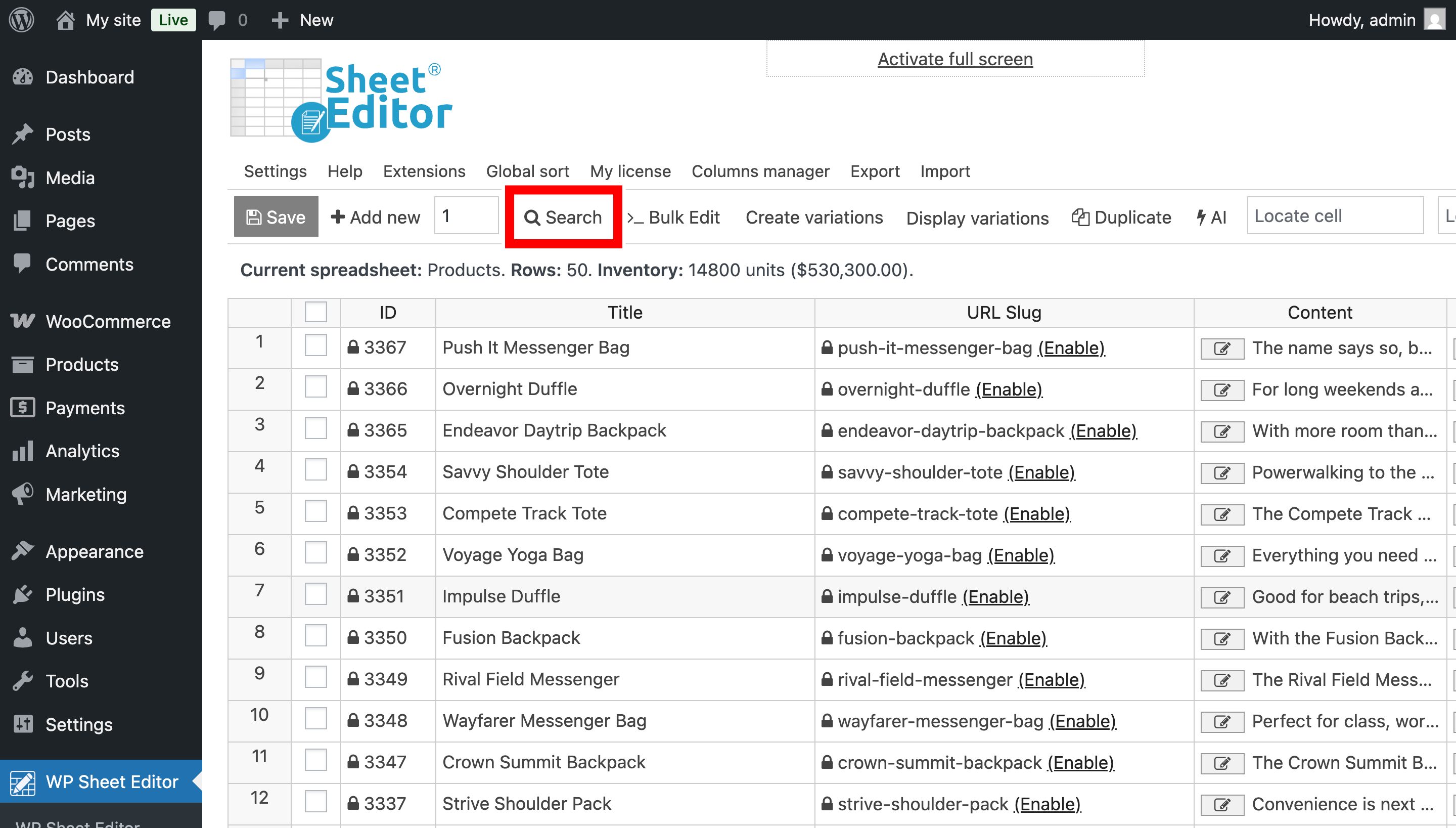
Open the Search tool.
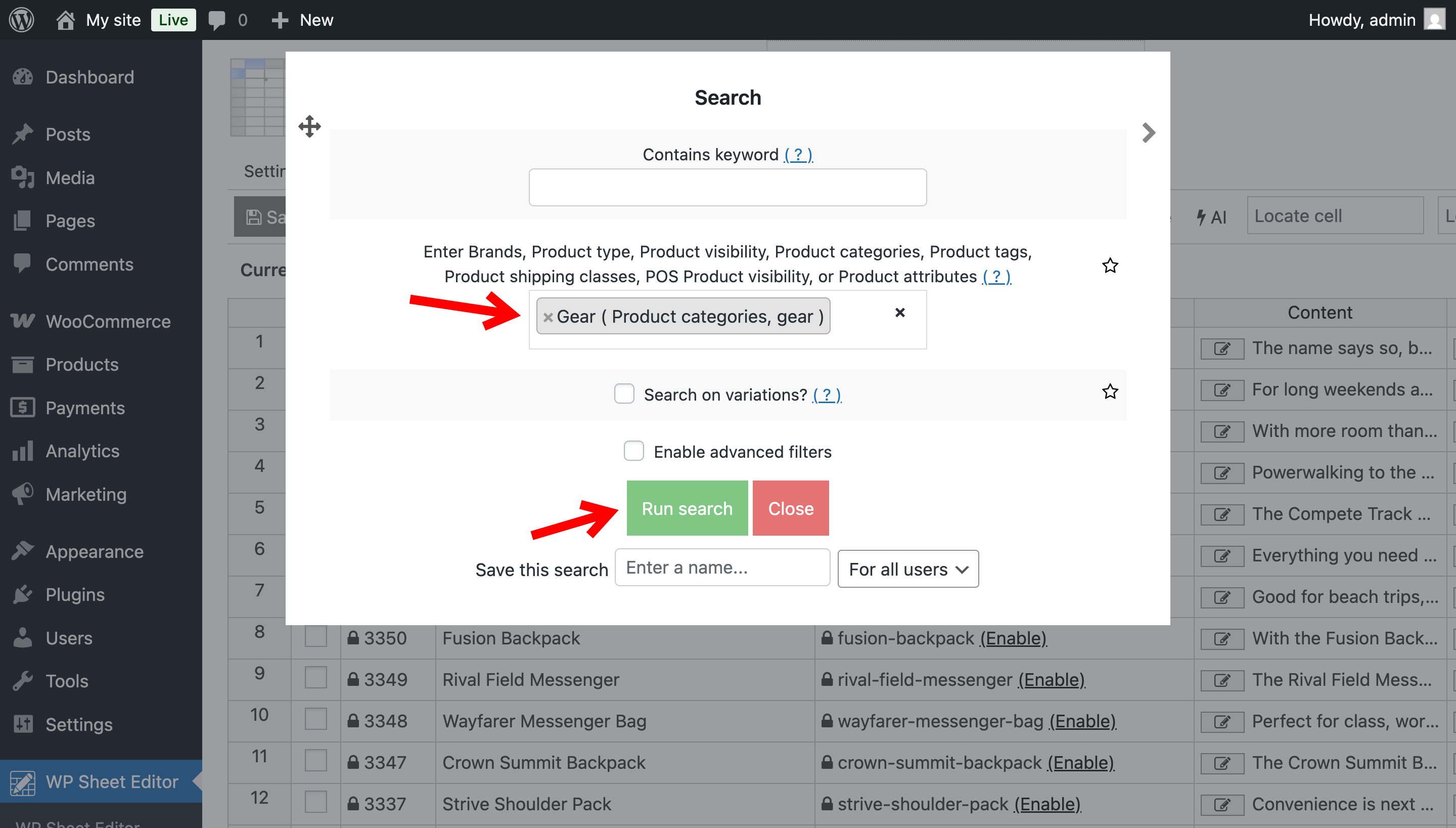
Enter the taxonomy term you want to search for (attribute, tag, brand, category, etc.)
Click Run Search.
The spreadsheet will display the products matching your search.
Step 2. Bulk edit product visibility
Open the Bulk Edit tool.
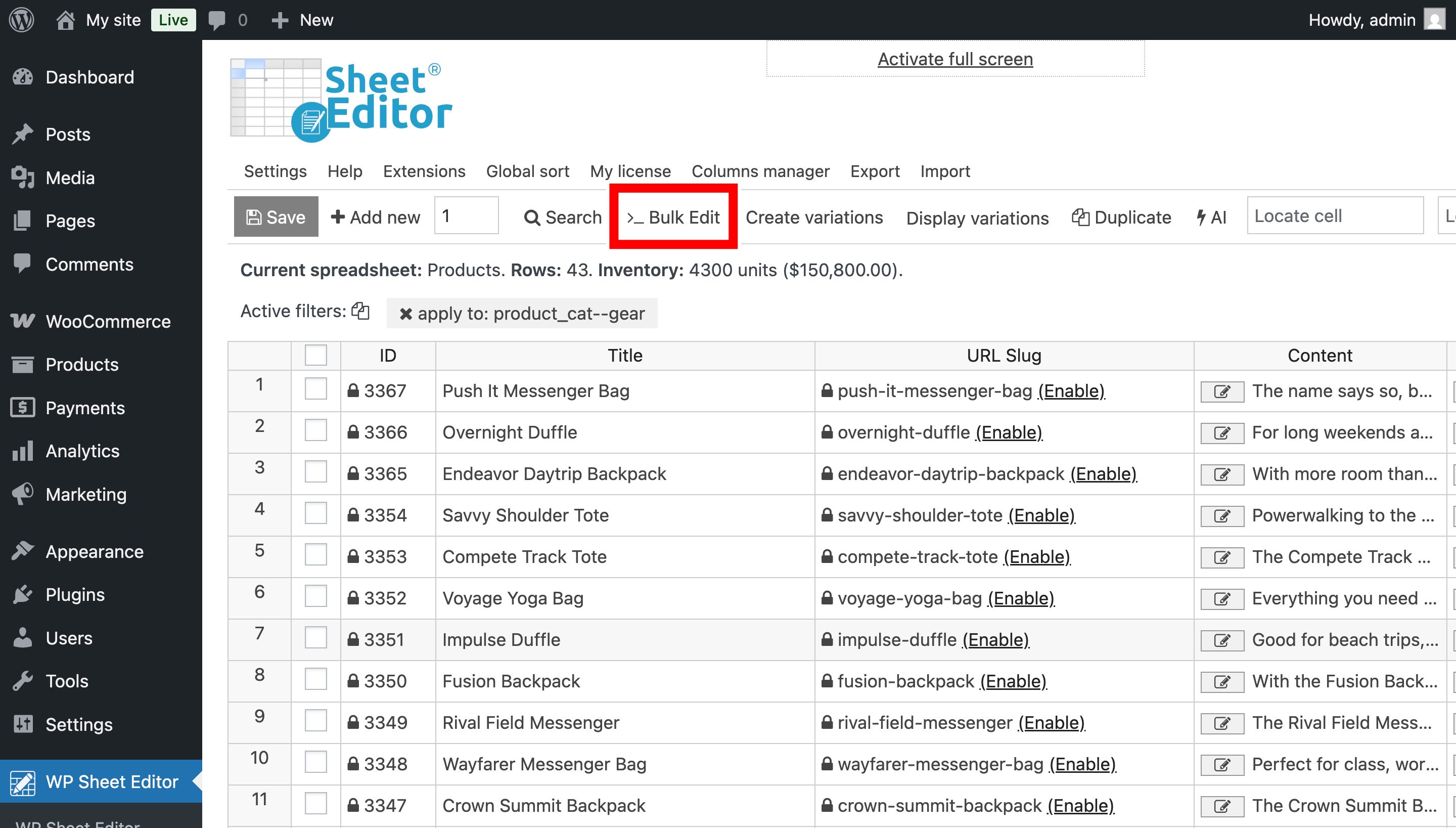
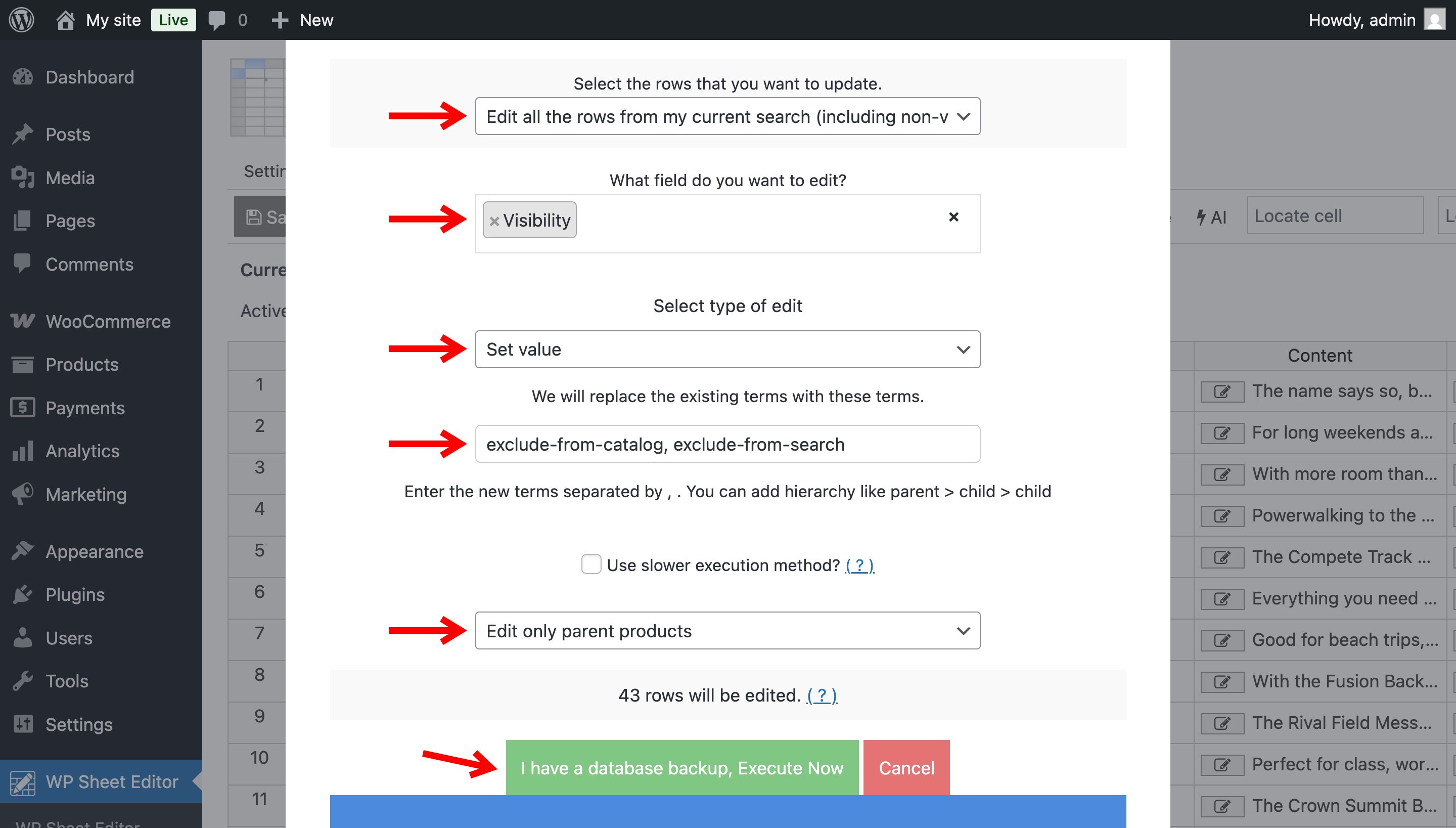
Select these values:
- Select the rows that you want to update: Edit all the rows from my current search.
- What field do you want to edit: Visibility.
- Select type of edit: Set value.
- Replace existing value with this value:
exclude-from-catalog,exclude-from-searchor both terms separated by comas. - Select Edit only parent products.
- Click Execute Now.
3. Hide out-of-stock WooCommerce products in bulk
You can find products with an Out of stock status and hide them from the shop catalog and/or search results.
Step 1. Search for out-of-stock products
Open the Search tool and check Enable advanced filters.
Select these values:
- Field: Stock status
- Operator: =
- Value: Out of stock
- Click Run Search.

The spreadsheet will display only out of stock products.
Step 2. Bulk hide out-of-stock products
Open the Bulk Edit tool and select:
- Select the rows that you want to update: Edit all the rows from my current search.
- What field do you want to edit: Visibility.
- Select type of edit: Set value.
- Replace existing value with this value:
exclude-from-catalog,exclude-from-searchor both terms separated by comas. - Select Edit only parent products.
- Click Execute Now.
4. Hide WooCommerce products by price
You can also hide products based on their regular price. For example, let’s hide products with a regular price below $10.
Step 1. Search for products by price
Open the Search tool and check Enable advanced filters.
Select these values:
- Field: Regular Price
- Operator: < (Less than)
- Value: 10
- Click Run Search.

Step 2. Bulk hide products matching the price filter
Open Bulk Edit and select:
- Select the rows that you want to update: Edit all the rows from my current search.
- What field do you want to edit: Visibility.
- Select type of edit: Set value.
- Replace existing value with this value:
exclude-from-catalog,exclude-from-searchor both terms separated by comas. - Select Edit only parent products.
- Click Execute Now.
5. Disable WooCommerce product variations in bulk
If you want to prevent customers from selecting specific product variations, such as a particular color or size, you can disable them in bulk.
Unlike the previous methods, we’ll edit the Variation enabled field instead of the Visibility field.
Step 1. Search for product variations by attribute
Open the Search tool and select:
- Enter […] Product atributes: Select the attribute value you want to find. For example, select the Yellow color.
- Check Search on variations.
- Click Run Search.

Step 2. Bulk disable the variations to hide them from the product page
Open the Bulk Edit tool.

Select these values:
- Select the rows that you want to update: Edit all the rows from my current search.
- What field do you want to edit: Variation enabled.
- Select type of edit: Set value.
- Replace existing value with this value: Leave the checkbox deselected.
- Select Edit only variations.
- Click Execute Now.

The matching variations will be disabled and won’t be available for customers to select on the parent product page. This doesn’t hide the parent variable product from the shop catalog. To hide the entire product, change its Visibility field using one of the previous methods.
Conclusion
WP Sheet Editor lets you hide individual WooCommerce products or change product visibility in bulk based on categories, stock status, price, and other search criteria.
You can download the plugin here:
Download WooCommerce Products Spreadsheet Plugin - or - Check the features