
We all know how frustrating it is to see our e-commerce products struggling to get a better position in Google search results. You upload a great item, but it just seems to not exist on the internet. Consequently, if potential customers don’t find your products on the first pages of search engines, they won’t shop with you. Often, poor search engine rankings happen simply because we’ve forgotten to configure our products’ SEO titles or meta descriptions.
Video Guide: Search for products missing SEO
If you prefer a visual walkthrough, watch this quick tutorial on how to locate your missing SEO metadata:
Finding all your products missing essential SEO metadata can be tedious and time-consuming if you have to open each product page one by one in the standard WordPress editor. But don’t worry, we have a highly efficient solution to your dilemma!
In this tutorial, we will show you how to find all your WooCommerce products missing an SEO title or meta description using the WP Sheet Editor plugin. This guide specifically uses the custom fields generated by the popular Yoast SEO plugin, but the logic applies to other SEO plugins as well.
1. Install WP Sheet Editor
WP Sheet Editor – WooCommerce Products displays your entire product catalog in a clean, easy-to-use spreadsheet interface where you can view and edit data freely.
It also contains an advanced Bulk Edit tool to help you apply widespread changes to thousands of products with a few clicks, making it an essential tool for WooCommerce store management.
You can download the plugin here:
Download WooCommerce Products Spreadsheet Plugin - or - Check the features
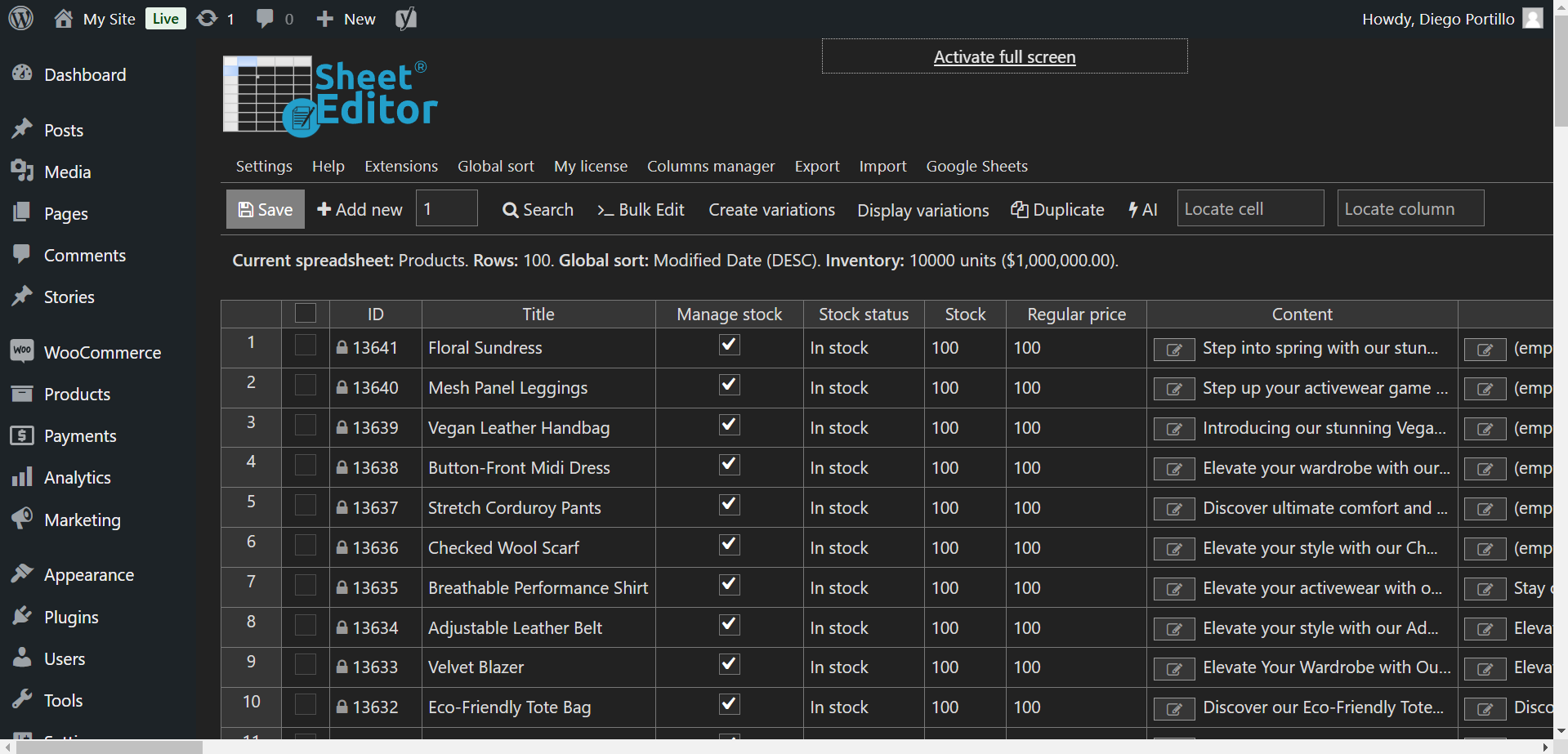
Once you install and activate the plugin, navigate to the products spreadsheet. You’ll see an interface like this:
2. Open the Advanced Search Tool
This powerful search tool helps you filter your products in multiple ways. In this case, it will help you isolate all the products with empty SEO metadata fields.
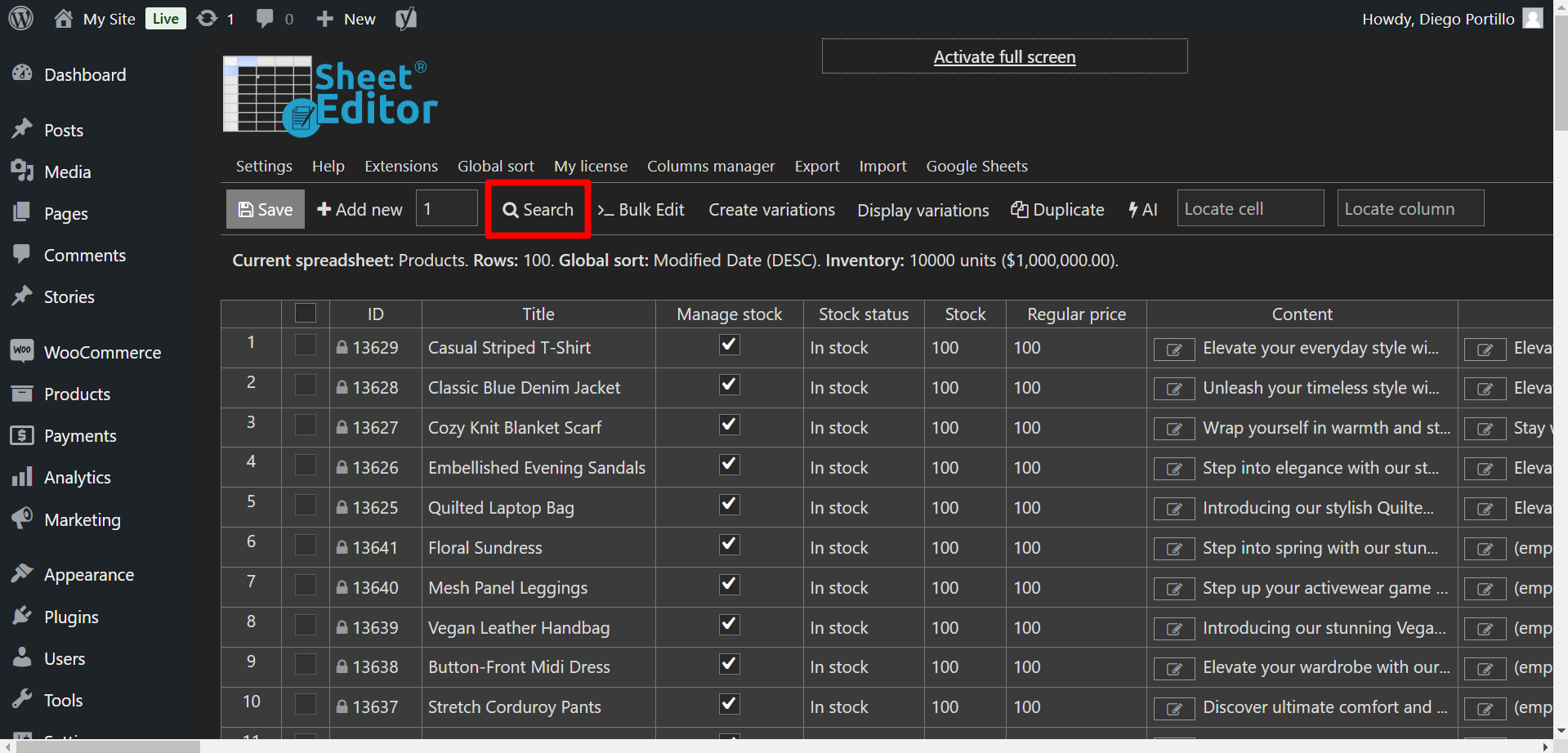
To get started, simply click on the Search icon on the top toolbar.
3. Filter Products Missing Yoast SEO Data
After opening the Search tool, you need to configure the advanced filters to search for all your products missing an SEO title or description.
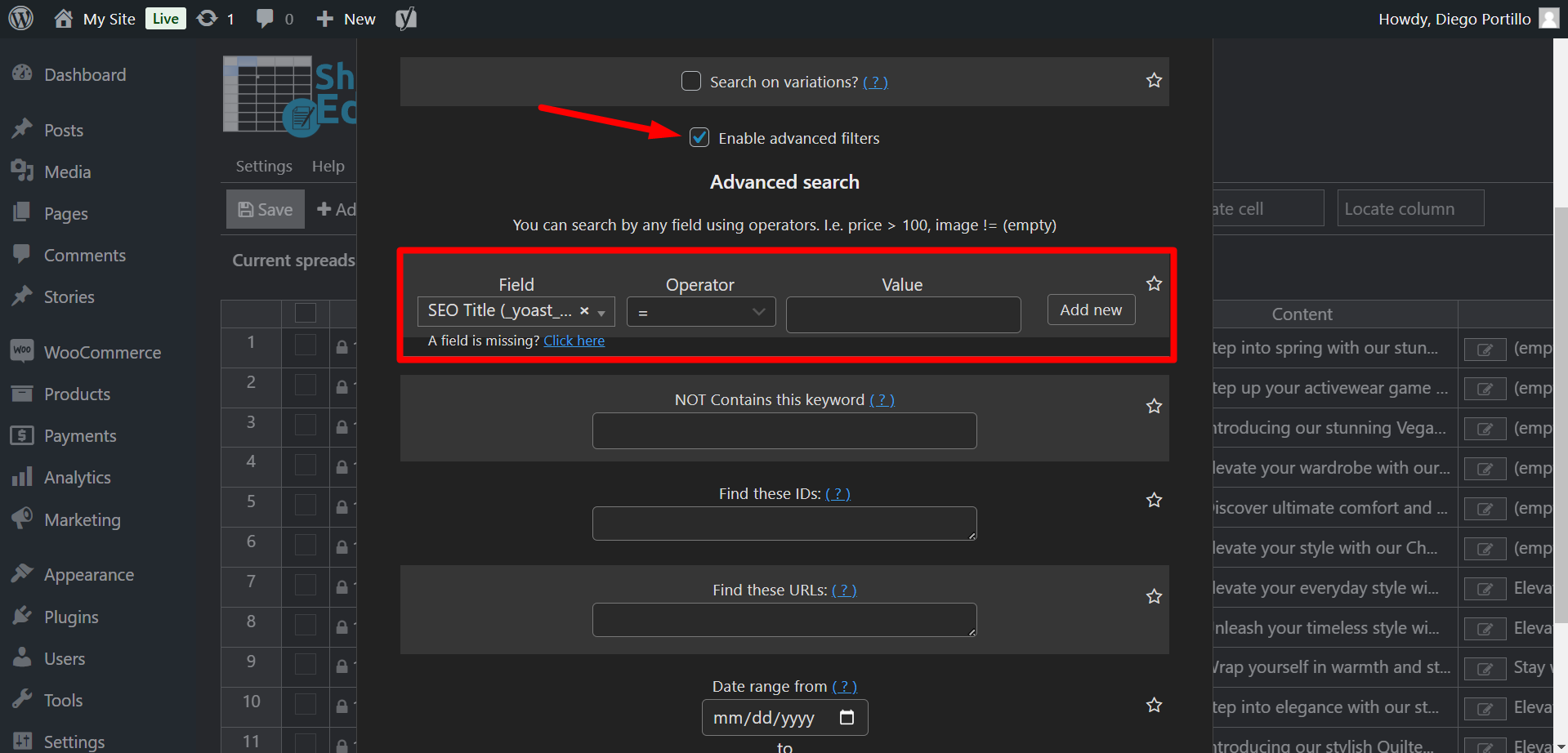
Tick the Enable advanced filters checkbox, and then use the following values depending on what you want to find:
To Find Missing SEO Titles
- Field key: SEO Title (_yoast_wpseo_title)
- Operator: =
- Value: (leave this field empty)
To Find Missing SEO Meta Descriptions
- Field key: SEO Description (_yoast_wpseo_metadesc)
- Operator: =
- Value: (leave this field empty)
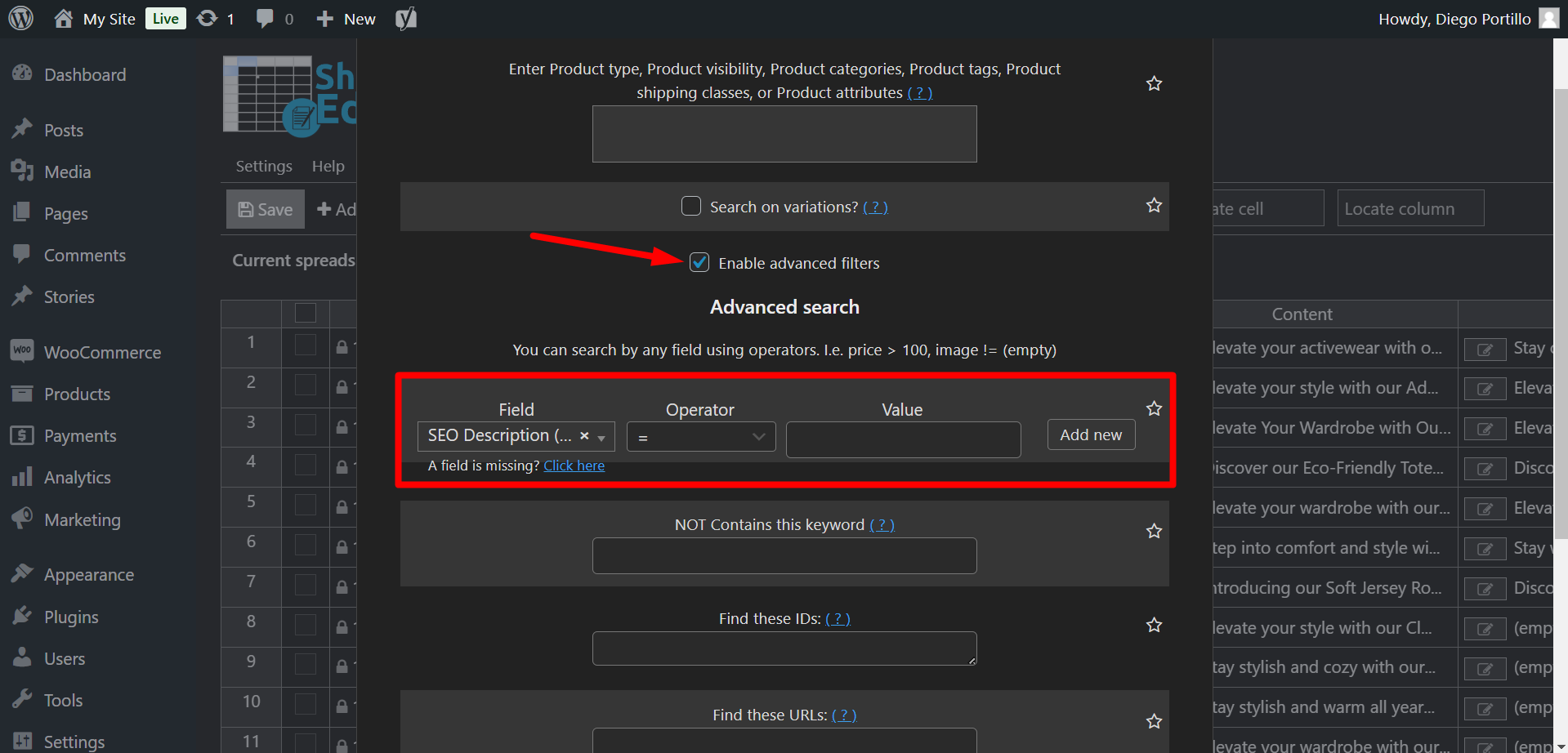
Once you have entered the correct parameters, hit the Run search button.
4. Update Your SEO Metadata Directly in the Spreadsheet
Now, only your products missing SEO titles or descriptions will be displayed on the spreadsheet.
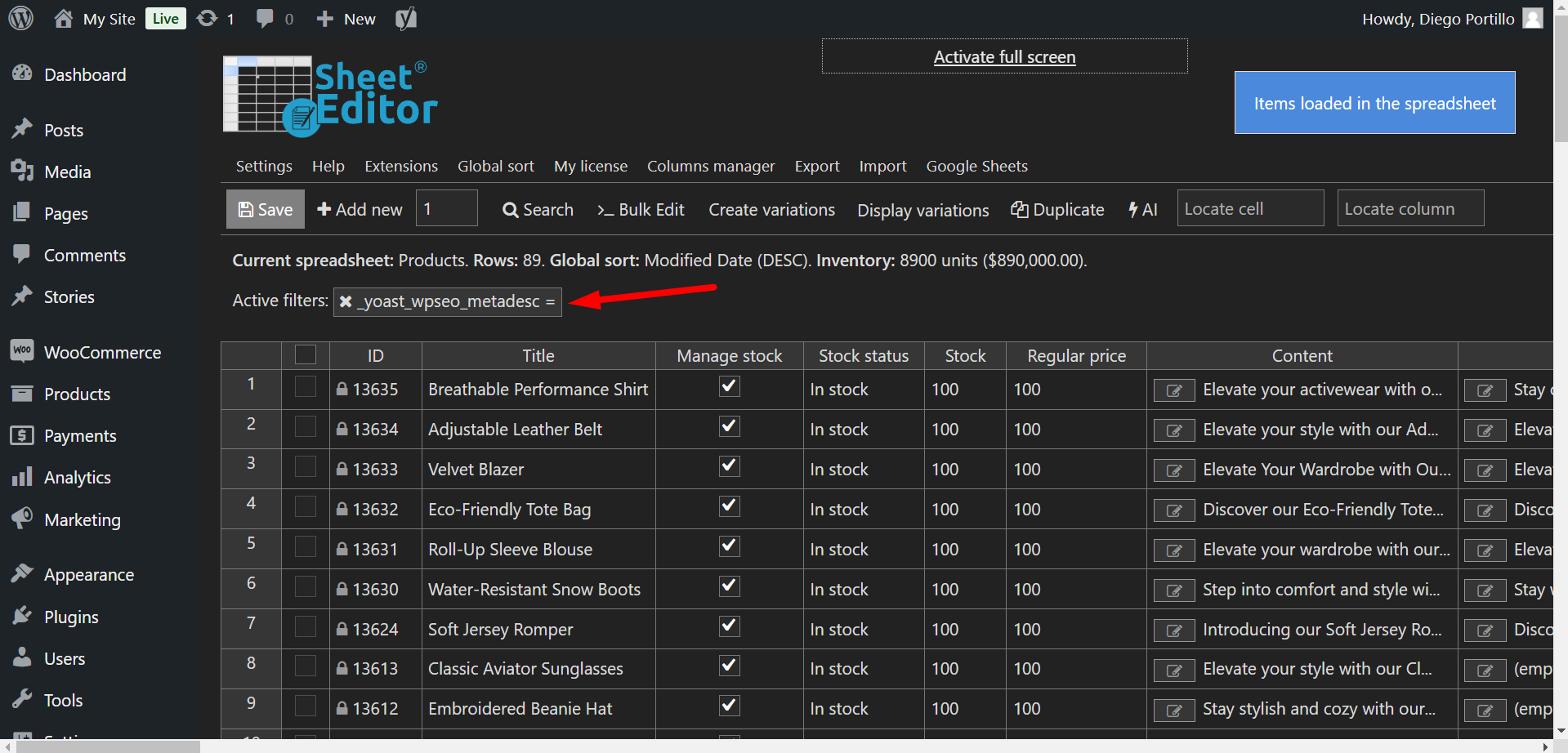
After finding them, you can easily write their new SEO titles and meta descriptions. Just navigate to the respective Yoast SEO columns in the spreadsheet and type your optimized text directly into the cells, just like you would in Excel or Google Sheets.
You can use AI to bulk generate SEO titles and descriptions.
Conclusion
Maintaining complete and optimized SEO metadata is vital to improve your WooCommerce SEO rankings. By using WP Sheet Editor, you can easily audit your entire catalog, spot missing titles or descriptions, and update them from a single screen. Stop wasting time opening product pages one by one, and start optimizing your store’s visibility today!
You can download the plugin here:
Download WooCommerce Products Spreadsheet Plugin - or - Check the features
Frequently Asked Questions (FAQs)
Does this method work with other SEO plugins like Rank Math or All in One SEO?
Yes! WP Sheet Editor supports custom fields from any plugin.
Can I bulk generate SEO titles and descriptions once I find the missing ones?
Absolutely. You can use AI to bulk generate SEO titles and descriptions.
Will running advanced searches slow down my WooCommerce frontend?
No, WP Sheet Editor operates purely on the WordPress backend and handles queries efficiently. Searching and filtering products in the spreadsheet will not affect the loading speed for your website visitors.