
You can bulk disable out-of-stock WooCommerce variations in just a few clicks by filtering them in WP Sheet Editor, unchecking the Variation enabled field, and running a single bulk edit. No need to open products one by one or manually hunt down every unavailable size and color combination.
If you run a WooCommerce store with variable products — think clothing with sizes and colors, or electronics with different models — you already know how frustrating it is when customers see options they can’t actually buy. Showing out-of-stock variations clutters your product pages, confuses shoppers, and can even drive them to a competitor’s store.
The default WooCommerce editor doesn’t give you a fast way to handle this. You’d have to open each product individually, scroll through every variation, check the stock status, and manually disable each one. With hundreds of products, that’s hours of tedious clicking — and it’s far too easy to miss a variation or make a mistake.
Fortunately, you can hide out-of-stock variations in bulk using a spreadsheet. We’ll use the WP Sheet Editor – WooCommerce Products Spreadsheet plugin to filter your catalog and disable unavailable variations across your entire store in minutes.
This plugin lets you view and manage all your products and variations in an intuitive spreadsheet right inside WordPress. You can run advanced searches, apply bulk updates to thousands of items at once, and keep your product data clean without any manual repetition.
You can download the plugin here:
Download WooCommerce Products Spreadsheet Plugin - or - Check the features
Why can’t I just use WooCommerce’s built-in “hide out of stock” setting?
You might already know that WooCommerce has a built-in setting to Hide out of stock items from the catalog (under WooCommerce > Settings > Products > Inventory). However, the native “Hide out of stock items” setting in WooCommerce hides both out-of-stock simple products and out-of-stock variations — it’s an all-or-nothing, storewide toggle.
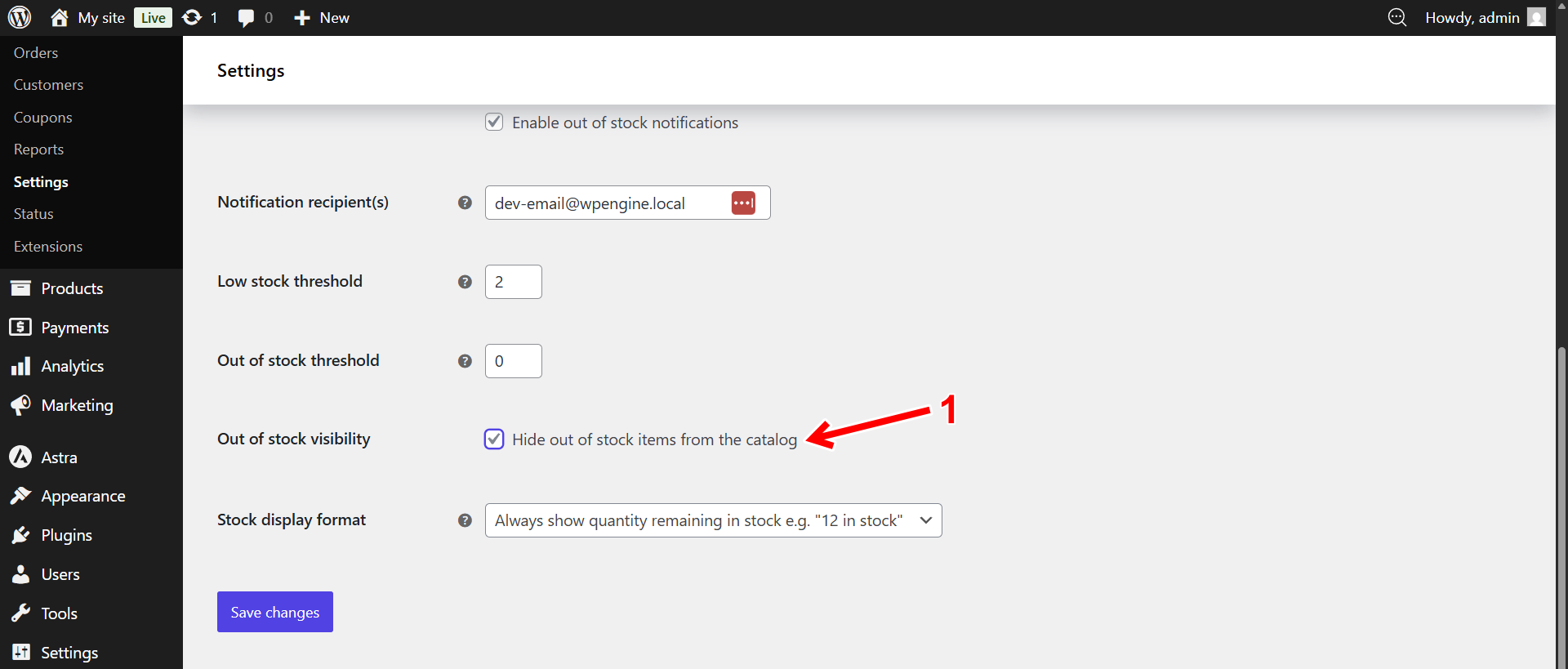
What if you only want to disable out-of-stock variations but keep out-of-stock simple products visible (maybe they’re on backorder, or you want customers to see them with a “Notify me” option)? Or what if you want to disable out-of-stock variations only for a specific category like “Clearance,” while leaving other categories alone? The default WooCommerce setting can’t make those distinctions. But with WP Sheet Editor, you can filter variations by stock status and category, then disable only the exact ones you choose — no storewide changes, no collateral hiding of products you want to keep visible.
Once you’ve installed the plugin and activated your license, follow the steps below to bulk disable out-of-stock variations.
Should I disable or delete out-of-stock variations in WooCommerce?
When you’re managing variable products, you have two ways to handle variations that are out of stock: disabling them or deleting them. Both options remove the variation from your storefront, but they work very differently, and choosing the right one matters for your workflow.
What does disabling a variation mean?
Disabling a variation keeps it in your database, but customers won’t see it on the product page — they won’t be able to select or view that specific option. You do this by unchecking the Variation enabled checkbox (labeled “Enabled” in the default WooCommerce editor).
The variation’s data — its price, SKU, stock quantity, image, and attributes — stays preserved. If the item comes back in stock, you can re-enable it instantly without recreating anything. This is the safest and most flexible approach for most stores.
- Data is preserved: All variation information stays intact in your database.
- Reversible: You can re-enable the variation with a single click when stock returns.
- No data loss: Past orders linked to that variation remain connected.
What does deleting a variation mean?
Deleting a variation removes it permanently from your product. All its data — price, attributes, stock history, and images — is erased. If you ever want to sell that variation again, you’ll need to recreate it from scratch.
This option is only recommended when you’re certain that variation will never be sold again. For a related workflow, see our tutorial on how to bulk delete out-of-stock variations.
- Permanent removal: The variation and all its data are erased from your store.
- Irreversible: You’ll need to recreate the variation if you want to sell it later.
- Use only when certain: Best for discontinued product lines or permanently unavailable options.
Which option should you choose?
For most store owners, disabling out-of-stock variations is the best choice. It saves time, protects your product data, and makes it easy to restore availability later. With WP Sheet Editor, you can disable hundreds of variations at once instead of manually editing each product — something the default WooCommerce editor simply can’t do.
How do I open the WooCommerce products spreadsheet?
To get started, open your product catalog in the spreadsheet interface. This is where you’ll view, filter, and bulk edit your variations without opening individual product pages.
Go to WP Sheet Editor > Edit products in your WordPress dashboard. You’ll see all your WooCommerce products displayed in a clean spreadsheet, with each row representing a product and each column representing a field like price, stock, or category.

How do I disable out-of-stock variations individually in the spreadsheet?
If you only need to disable a handful of specific variations — perhaps items you plan to restock soon, or variations you want to review one by one — you can do it directly in the spreadsheet cells. This method gives you full control over exactly which variations stay visible and which ones are hidden.
Start by clicking the Display variations button on the top toolbar. This expands the spreadsheet to show every variation nested directly below its parent product, so you can see all your variable inventory in one place.

Now locate these three columns in the spreadsheet:
- Stock: Shows the current stock quantity for each variation.
- Stock status: Displays whether the variation is In stock, Out of stock, or On backorder.
- Variation enabled: A checkbox that controls whether the variation is visible to customers. Checked means enabled and visible; unchecked means disabled and hidden.
For each out-of-stock variation you want to hide, simply uncheck the Variation enabled checkbox. You can use the Stock status column as your guide to quickly spot which variations need attention.
This approach is perfect when you want to be selective — for example, disabling variations that won’t be restocked while keeping visible those arriving in the next shipment. Once you’ve finished, click Save to apply all your changes at once.

How do I bulk disable all out-of-stock WooCommerce variations at once?
If you have dozens or hundreds of out-of-stock variations across your store, disabling them one by one — even in a spreadsheet — isn’t the fastest approach. The Bulk Edit tool lets you filter all out-of-stock variations and disable them simultaneously with a single operation.
This method is ideal when you want to clean up your entire catalog at once, ensuring no unavailable options appear on any product page.
Step 1: Filter all out-of-stock variations
First, you need to tell the plugin exactly which variations to edit. Open the Search tool from the top toolbar to access the advanced filtering panel.

Configure the search with these values to isolate only the out-of-stock variations:
- Tick the Search on variations checkbox. This tells the plugin to look inside parent products and find individual variations.
- Tick the Enable advanced filters checkbox and add this condition:
- Field: Stock status
- Operator: =
- Value: Out of stock
- Click on Run search.

Pro Tip: You can combine this filter with any other search criteria to target a more specific group. For example, search for out-of-stock variations only within the “Shoes” category, or only those containing the “Red” attribute, or only variations with a regular price above $50. Just add your extra filters — keyword, category, tag, attribute, price range, or any other field — alongside the stock status condition before clicking Run search.
After running the search, the spreadsheet refreshes to display only the variations with a stock status of “Out of stock.” You can verify the active search filters displayed above the spreadsheet — everything else is safely hidden from view, so you won’t accidentally modify in-stock items.

Step 2: Bulk disable the filtered variations
Now that all out-of-stock variations are isolated, open the Bulk Edit tool to apply the change across every filtered row at once.

Configure the Bulk Edit tool with these exact settings:
- Select the rows that you want to update: Edit all the rows from my current search (including non-visible rows)
- What field do you want to edit: Variation enabled
- Select type of edit: Set value
- Replace existing value with this value: Uncheck this checkbox
- Select Edit only variations
- Click on Execute Now

The plugin processes all the filtered variations and disables them in one operation. Every out-of-stock variation is now hidden from your product pages, and customers will only see the options they can actually purchase.
Keep your WooCommerce product pages clean and shopper-friendly
Showing customers variations they can’t buy creates confusion, hurts the shopping experience, and can send potential buyers straight to a competitor. Disabling out-of-stock variations ensures your product pages only display available options, making it easier for customers to find what they need and complete their purchase.
With WP Sheet Editor, you don’t have to tackle this manually. You can view all your variations in a spreadsheet, filter by stock status, and disable unavailable options in bulk — whether you’re dealing with a handful of variations or thousands across your entire catalog.
This same workflow works for other variation management tasks too. You can use the spreadsheet to bulk edit variation prices, upload variation images in bulk, or delete out-of-stock variations permanently when you’re ready for a deeper cleanup.
You can download the plugin here:
Download WooCommerce Products Spreadsheet Plugin - or - Check the features