
Are your WooCommerce category pages completely blank? Many online store owners focus entirely on writing individual product descriptions but completely neglect their product categories. This is a massive missed opportunity for your ecommerce SEO.
Category pages are often the highest-converting landing pages for broad search terms (like “men’s running shoes” or “vegan skincare products”). If these pages lack content, search engines struggle to understand what you are selling, and you will lose rankings to competitors who have highly optimized, helpful category texts.
However, manually writing 150-300 words for dozens or hundreds of different product categories is exhausting. But what if you could automate this copywriting process?
With WP Sheet Editor – AI, you can use artificial intelligence to generate engaging, keyword-rich WooCommerce category descriptions in minutes. Let an AI model like GPT-4, Claude, or Gemini act as your expert ecommerce copywriter, transforming empty archives into powerful SEO landing pages.
In this tutorial, we will show you how to find empty product categories and generate rich descriptions for them using two different methods directly within a spreadsheet.
Table of Contents
Requirements for generating category descriptions with AI
To follow this guide and automate your store’s copywriting, you need to have the following tools installed on your WordPress site:
1- WP Sheet Editor – Taxonomy Terms
This plugin allows you to manage your WooCommerce Categories, Tags, and Product Attributes in a powerful spreadsheet interface. It is essential for viewing and bulk editing your category descriptions.
You can download the plugin here:
Get the Taxonomy Spreadsheet Editor - or - Check the features
2- WP Sheet Editor – AI
This extension connects your taxonomy spreadsheet to powerful artificial intelligence providers, allowing you to generate content for your categories effortlessly.
You can sign up here:
Sign up to the WP Sheet Editor - AI Service - or - Check the features
3- An external AI Provider
You will need an active API key from a supported provider (like OpenAI, OpenRouter, or any OpenAI-compatible provider). If you haven’t set this up yet, please refer to our complete AI configuration guide.
Creating a global prompt for ecommerce categories
Before jumping into the spreadsheet, let’s create a reusable AI prompt. This ensures the AI knows exactly what tone and length to use for your WooCommerce store without you needing to type it out every single time.
Go to WP Sheet Editor > AI > Settings > Prompts.
Click on Add new.
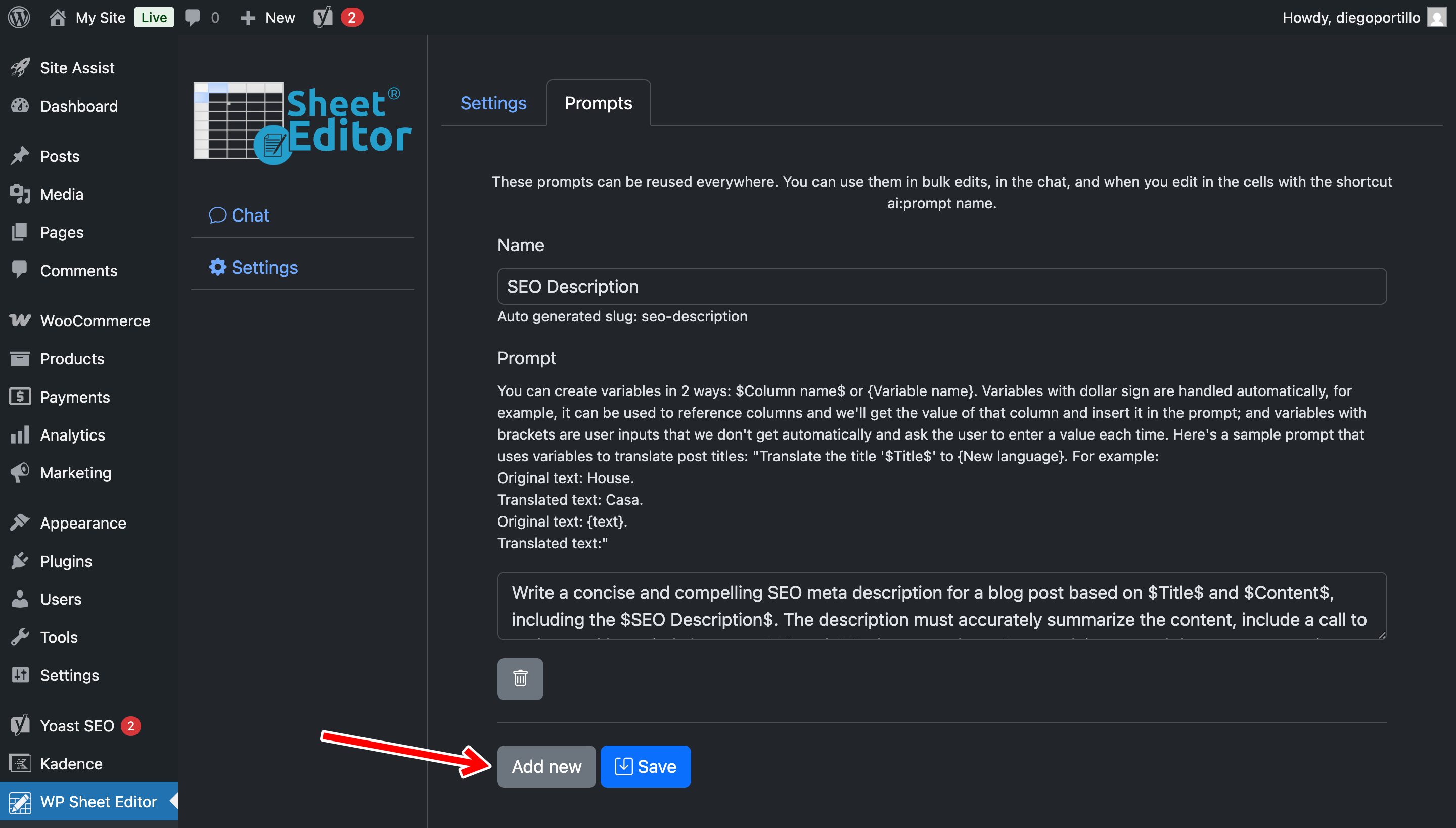
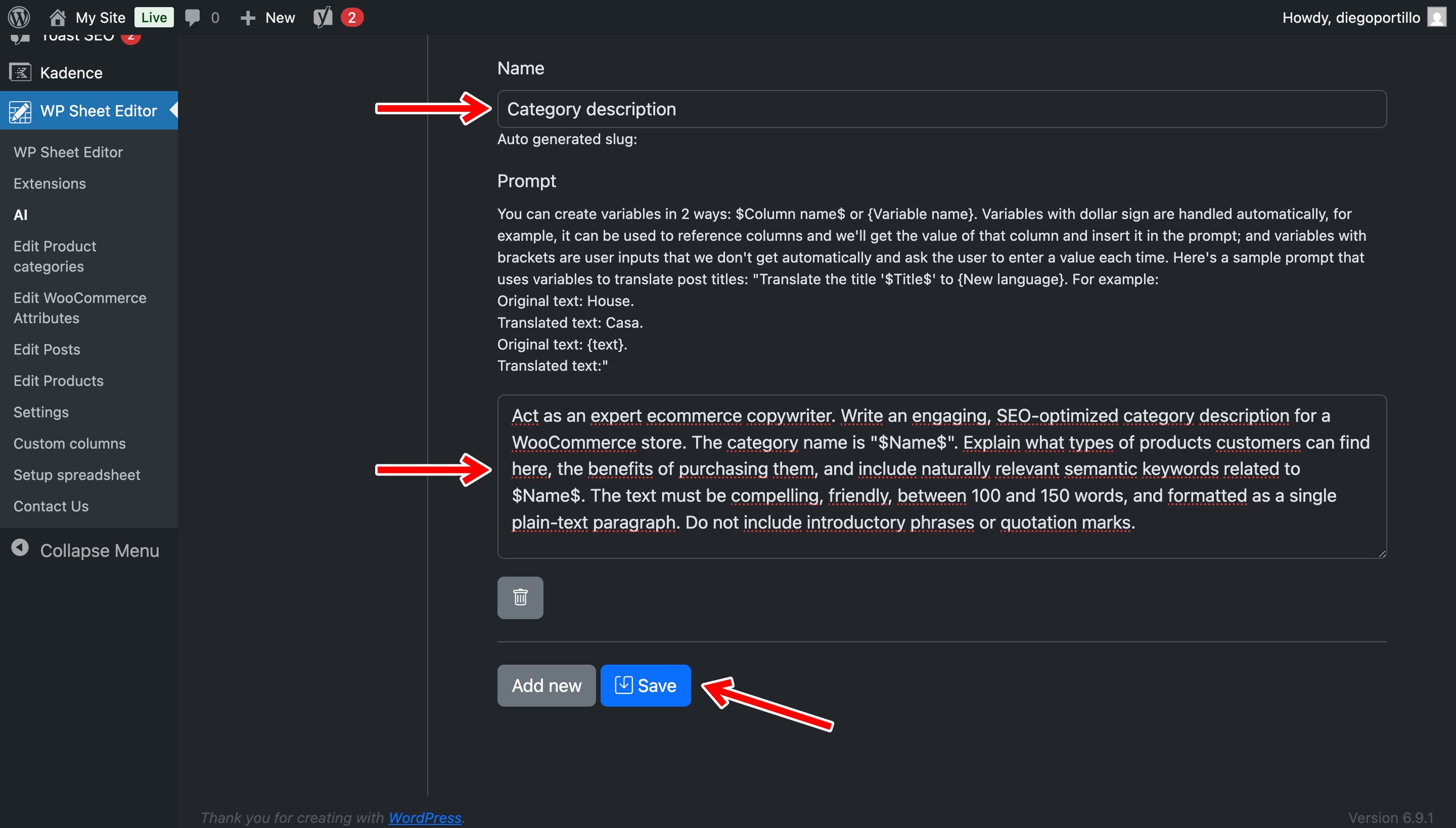
Now, let’s configure the prompt to generate compelling copy:
- Name your prompt: Let’s call it
Category Description - Enter the following prompt template:
Act as an expert ecommerce copywriter. Write an engaging, SEO-optimized category description for a WooCommerce store. The category name is "$Name$". Explain what types of products customers can find here, the benefits of purchasing them, and include naturally relevant semantic keywords related to $Name$. The text must be compelling, friendly, between 100 and 150 words, and formatted as a single plain-text paragraph. Do not include introductory phrases or quotation marks.
- Note: The system will automatically replace the
$Name$placeholder with the actual name of your WooCommerce category (e.g., “Wireless Headphones”). - Click on Save.
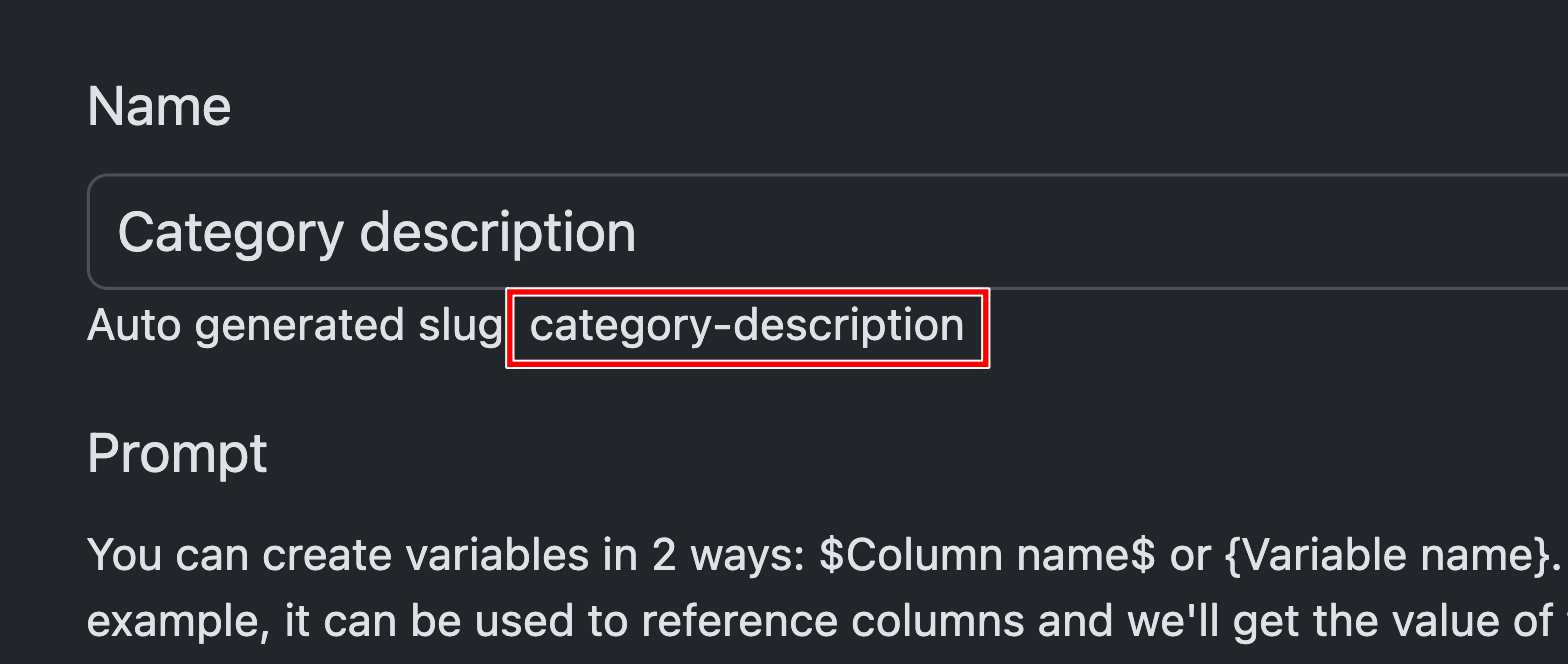
The system will generate a slug for this prompt, which will be:
ai:category-description
Method 1: Write WooCommerce category descriptions in the spreadsheet
If you want to maintain tight quality control over your most important top-level categories, you can use the AI shortcut to generate descriptions one by one.
Navigate to WP Sheet Editor > Edit Product Categories.
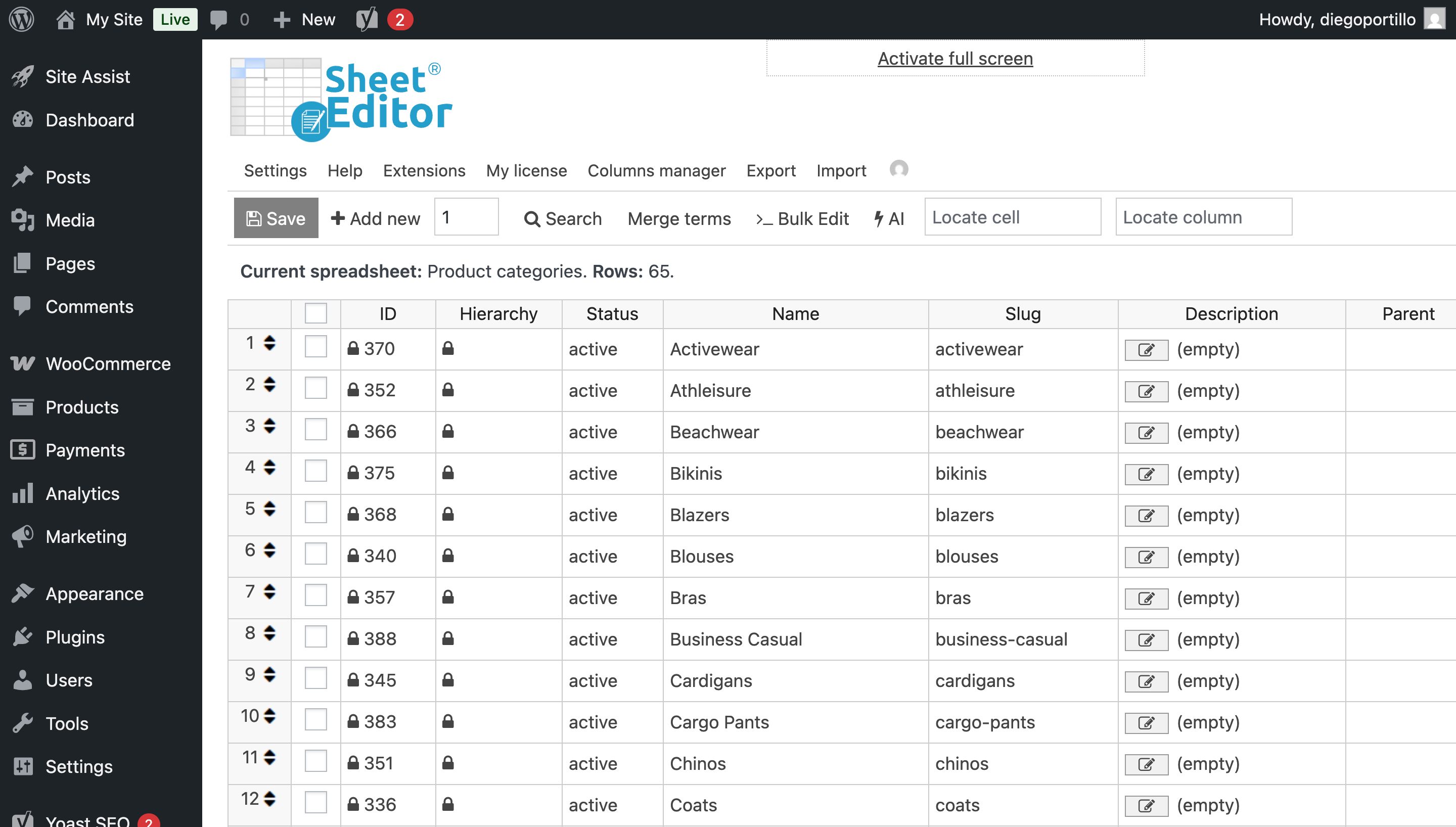
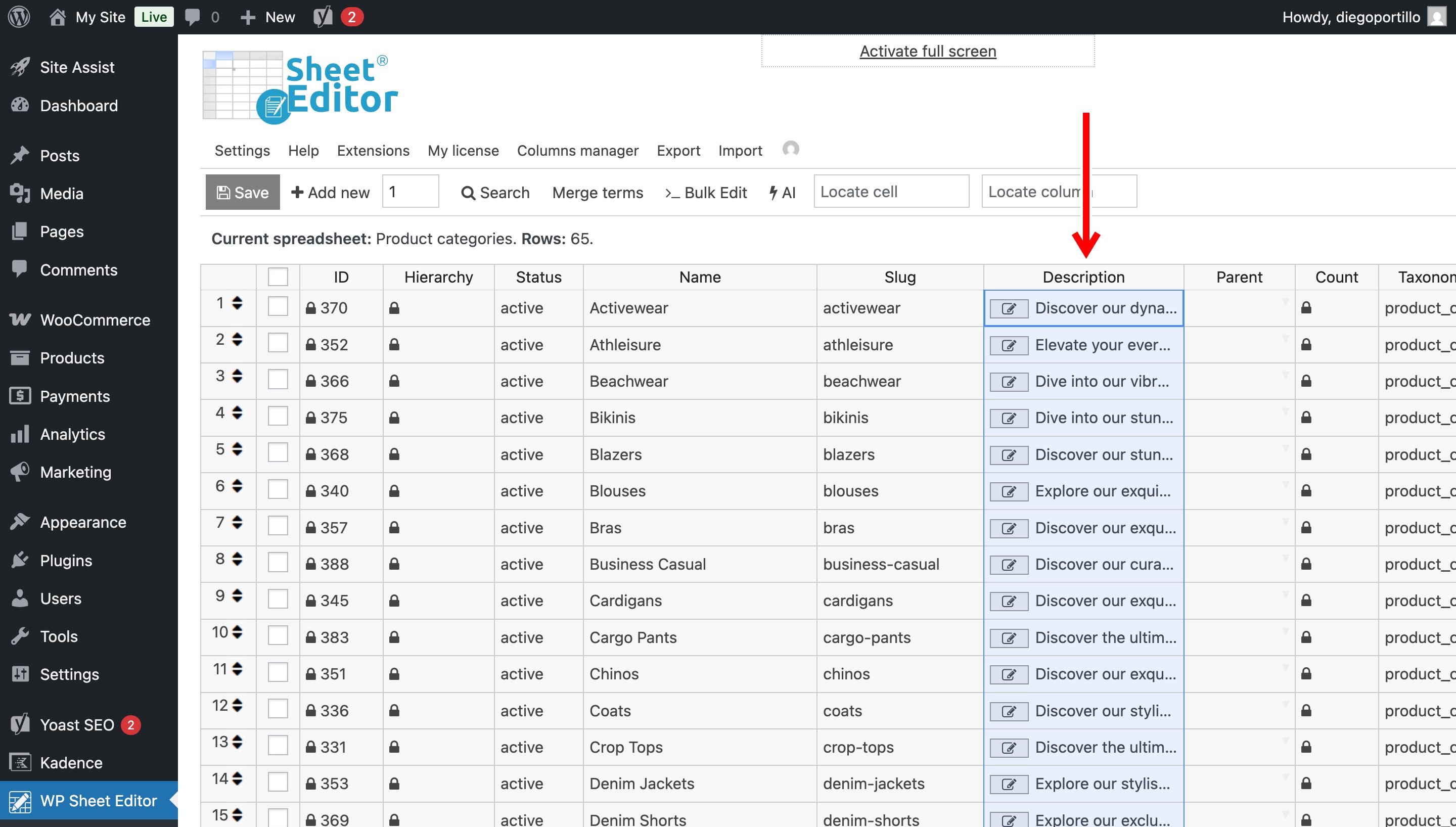
You will now see all your store’s categories in a spreadsheet. Locate the Description column.
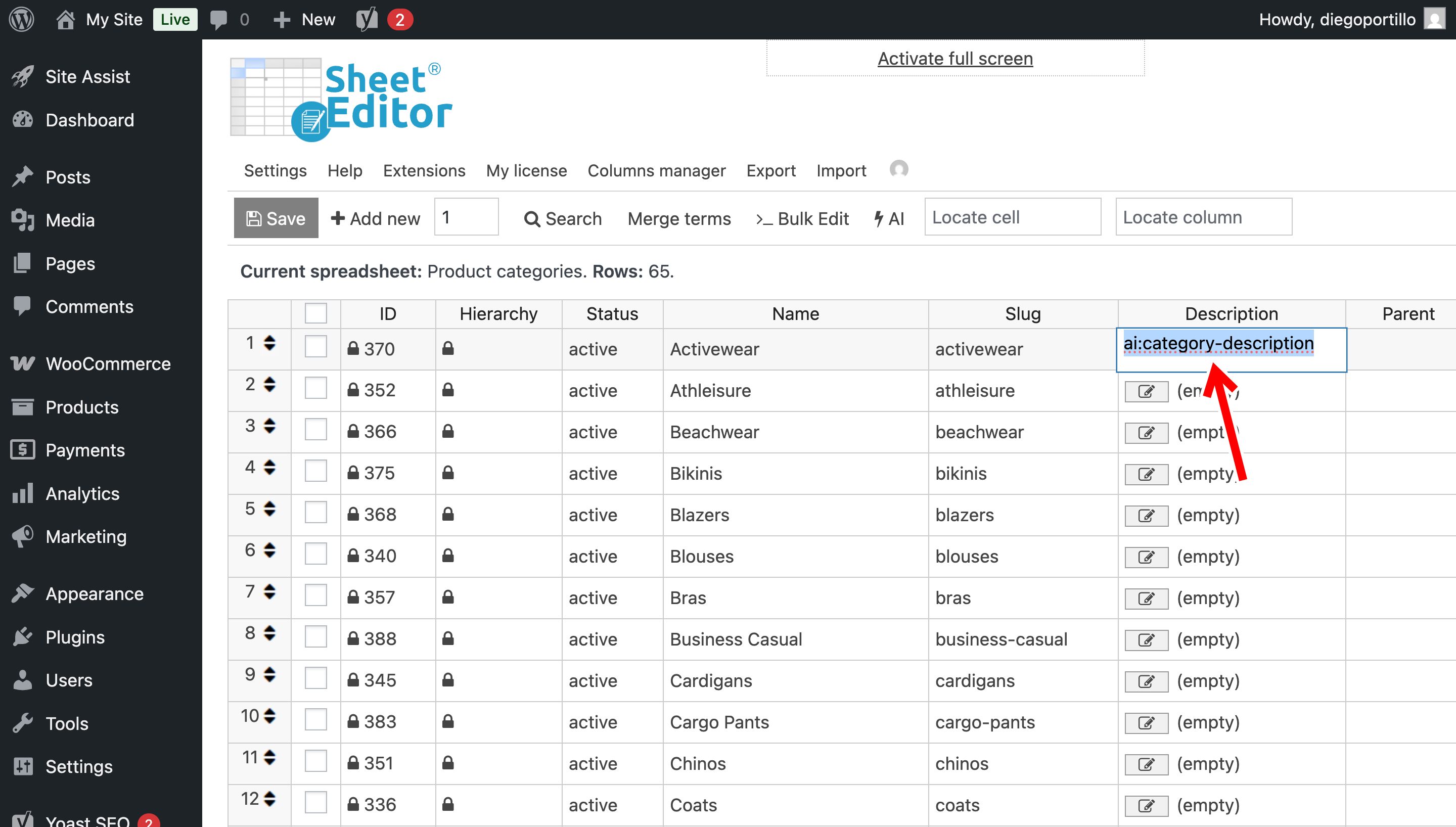
Find a category that is missing its description, click on the empty cell, and type the AI shortcut we just created:
ai:category-description
Press Enter.
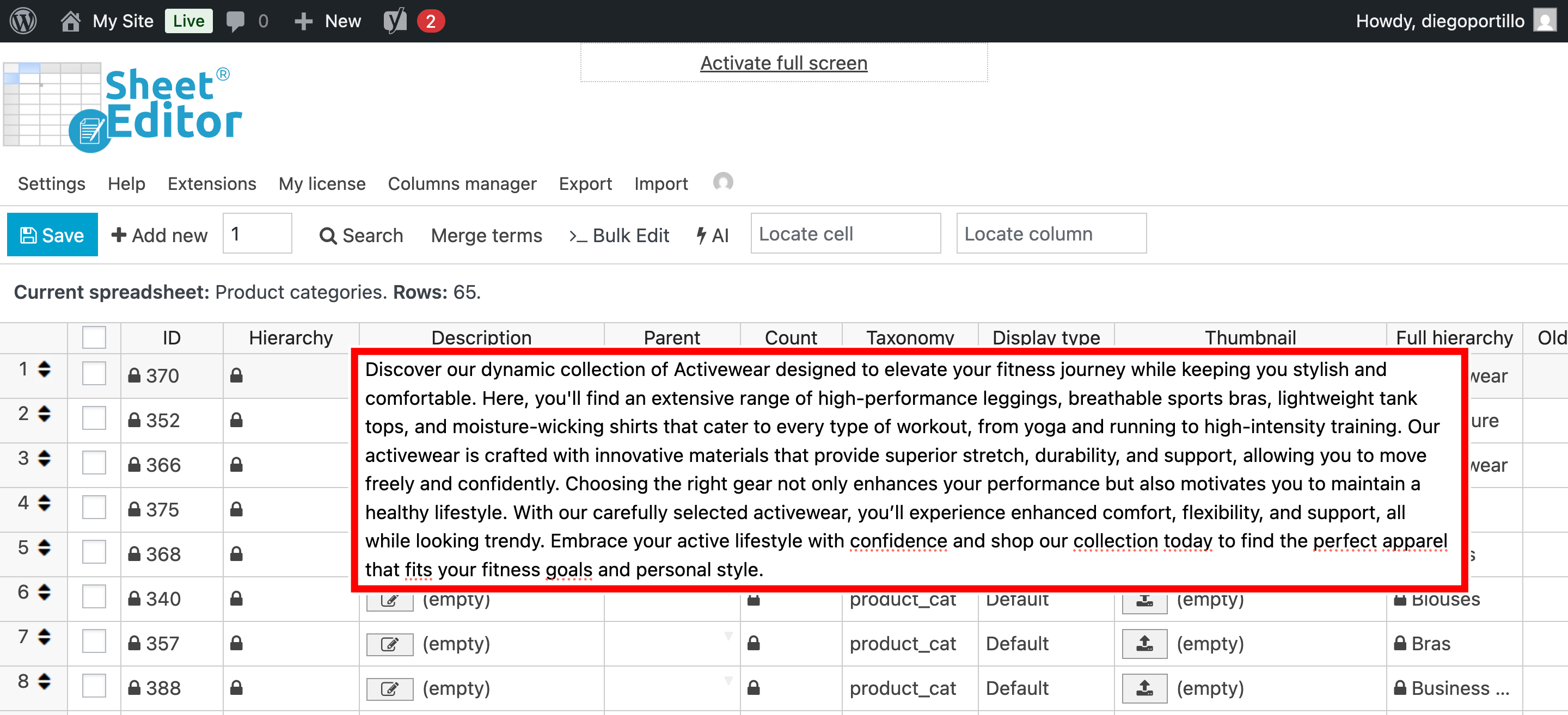
The AI will instantly read the category name, process the prompt, and fill the cell with a professionally written, SEO-optimized paragraph designed to attract buyers.
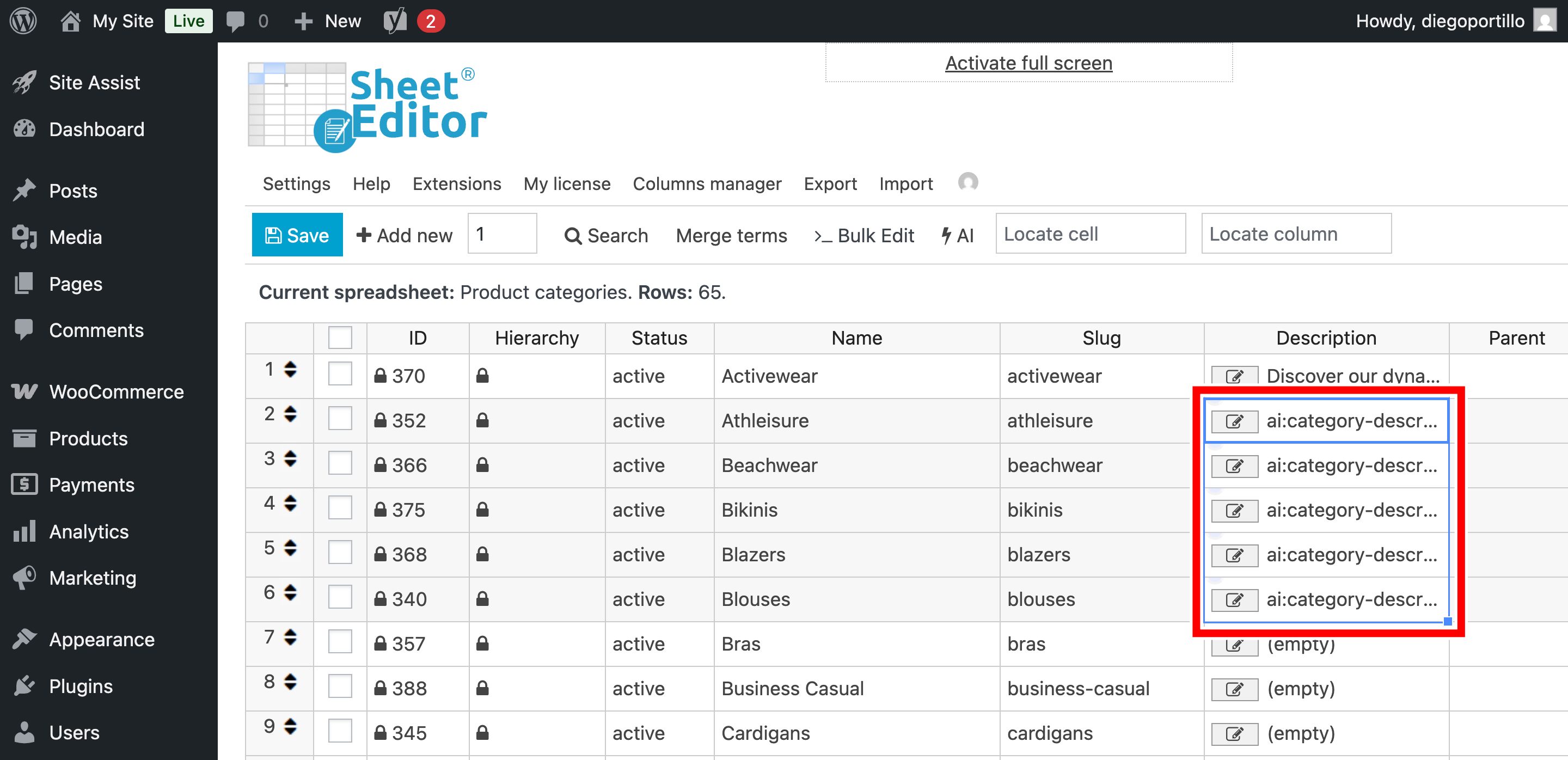
You can paste the AI prompt shortcut into multiple cells at once to generate multiple category descriptions.
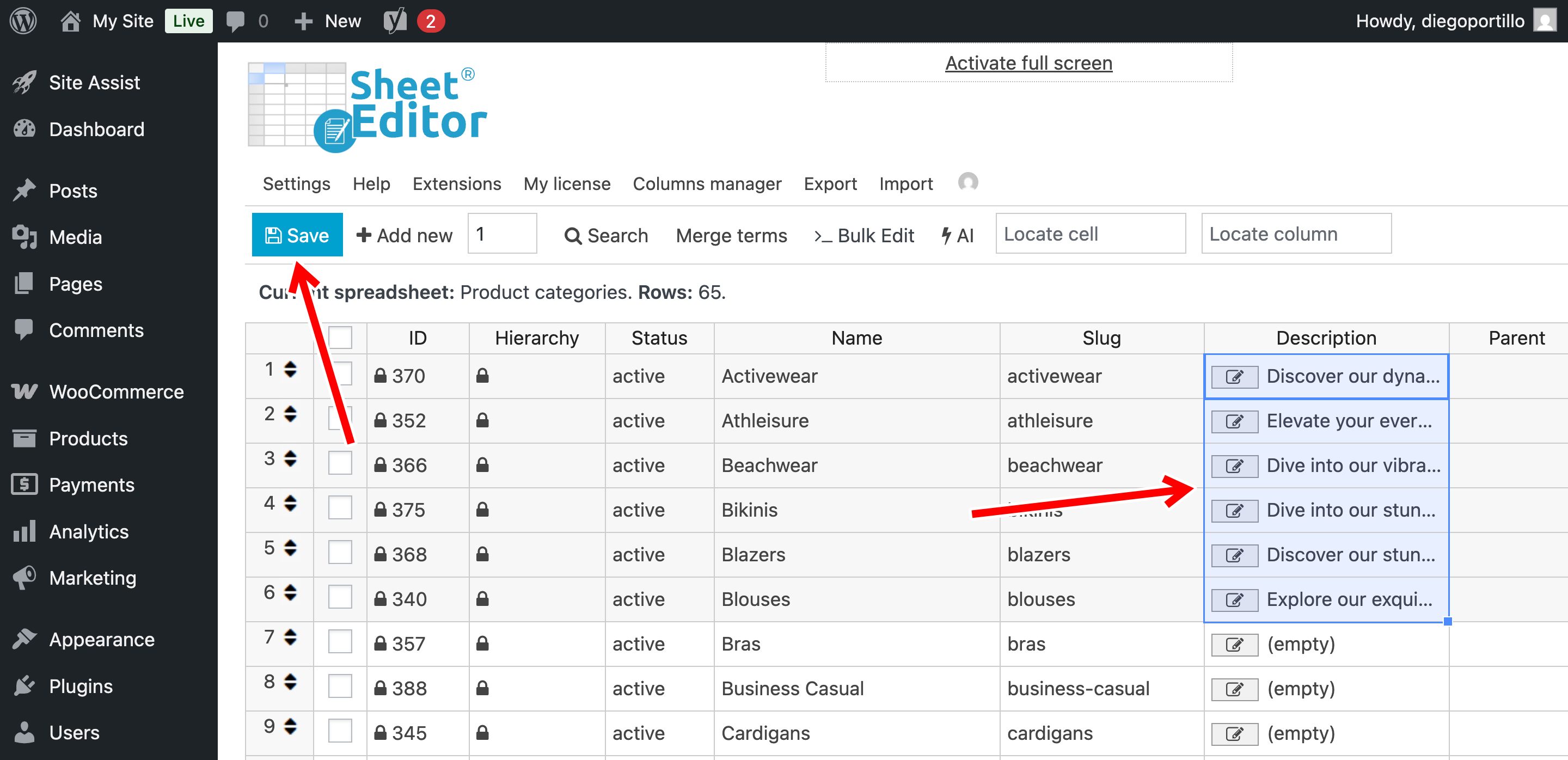
Once you have generated all the catecriptions you want, you can click on Save to apply the changes.
Method 2: Bulk generate descriptions for empty categories
If you have hundreds of sub-categories (like “Men’s Black Shirts”, “Men’s Blue Shirts”, etc.) with completely blank descriptions, the Bulk Edit tool will save you hours of work.
Step 1: Filter categories missing descriptions
We only want to generate content for categories that are currently blank so we don’t overwrite your existing texts.
Click on the Search tool on the toolbar.
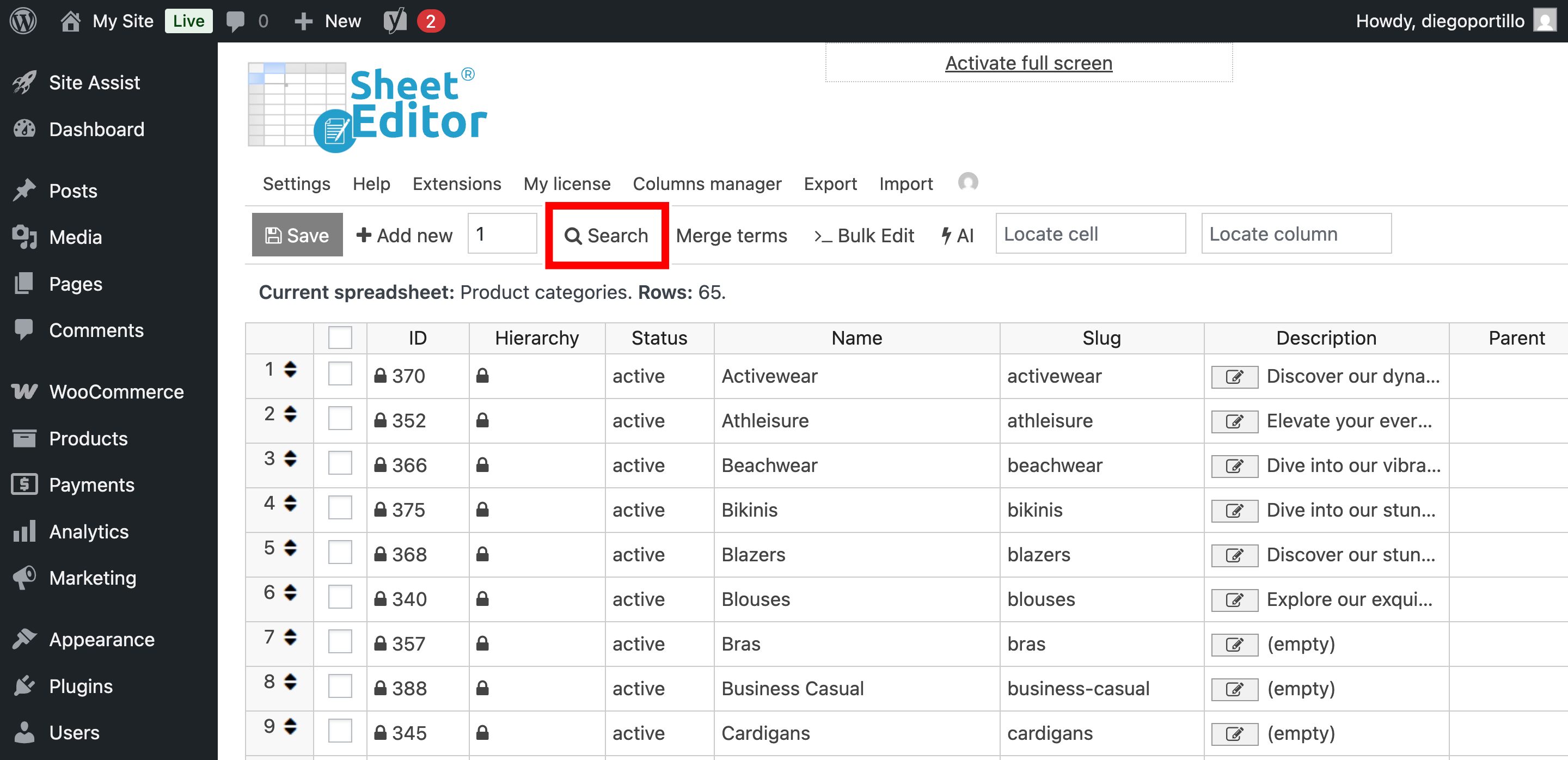
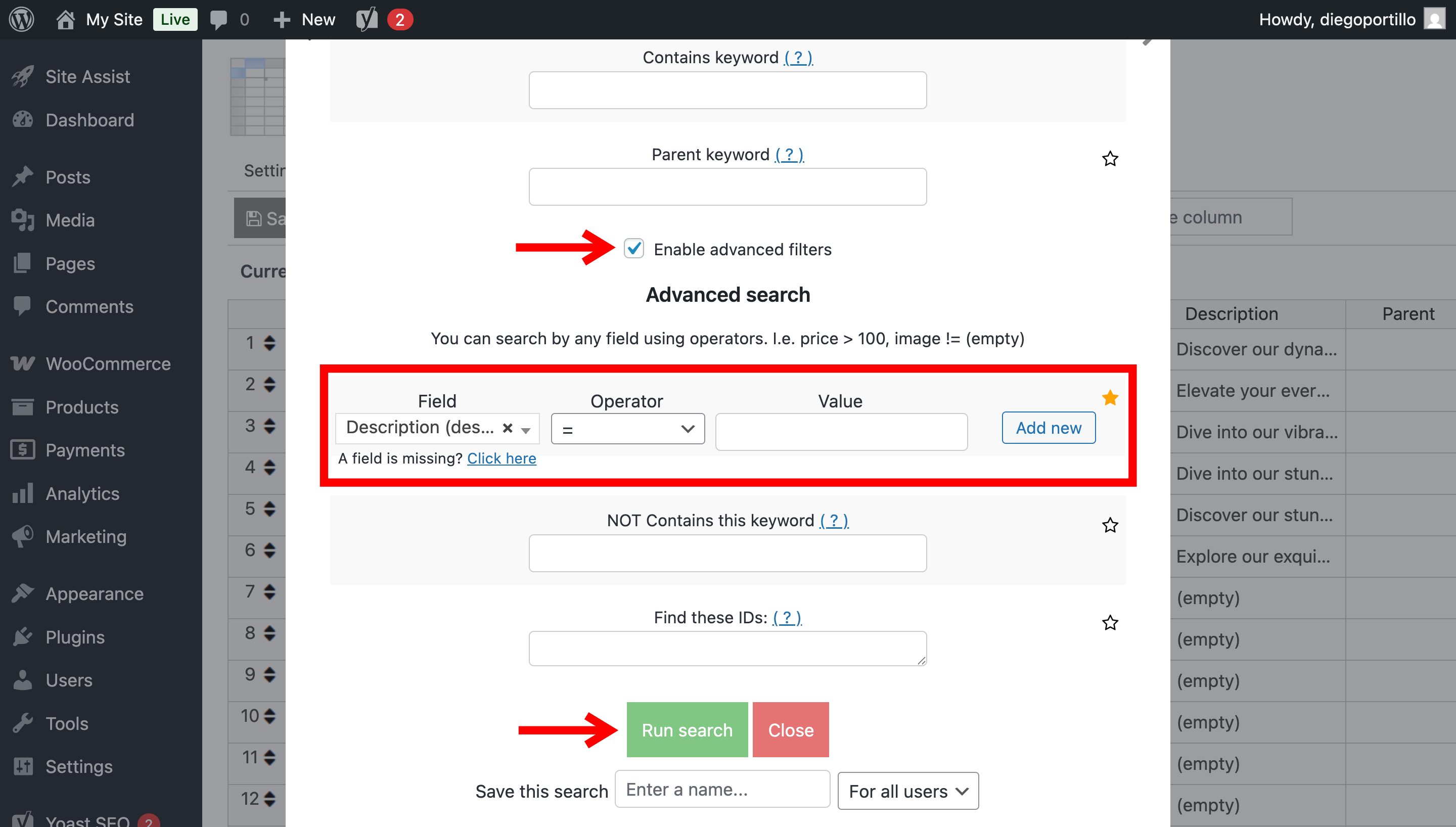
Once there, you need to:
- Check the Enable advanced filters checkbox.
- Field: Select the Description field.
- Operator: =
- Value: Leave this field completely empty.
- Click on Run Search.
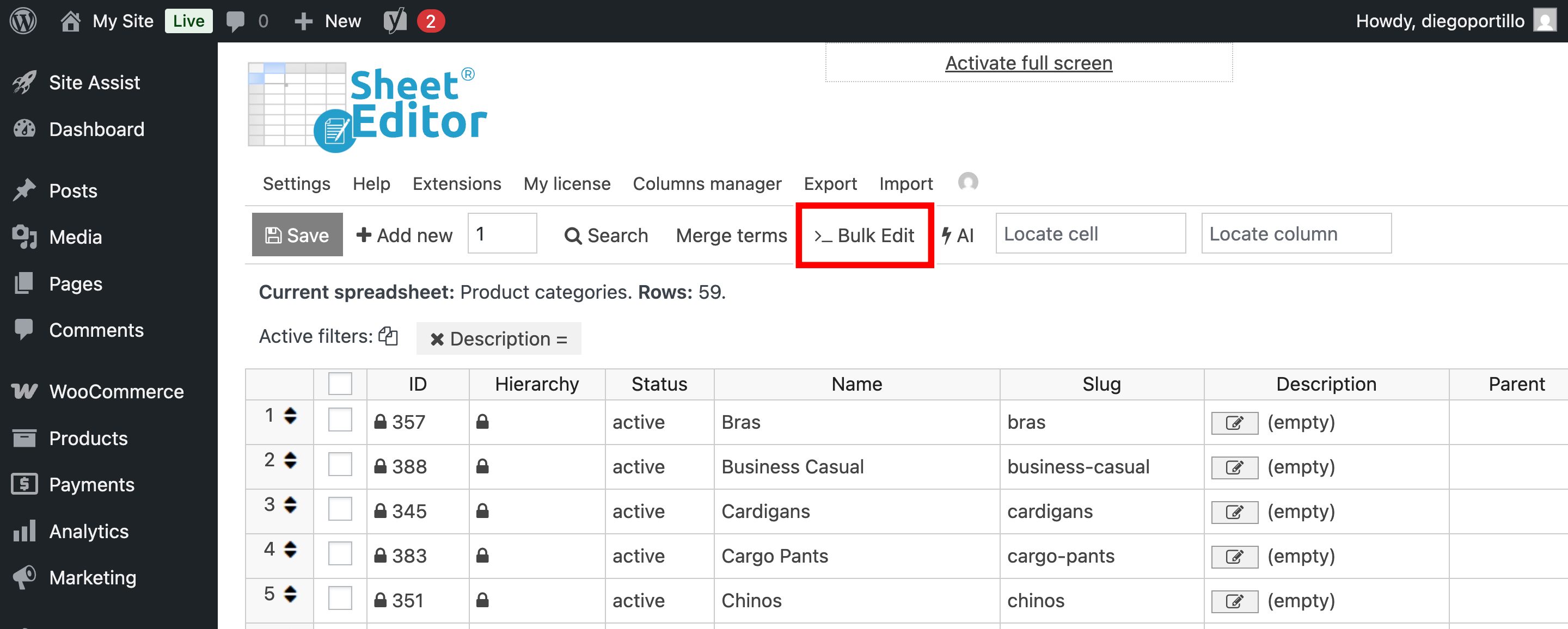
The spreadsheet will refresh, displaying only the product categories that urgently need content.
Step 2: Open the “Bulk Edit” tool
With your empty categories filtered, click on the Bulk Edit tool in the top menu.
Step 3: Configure the AI content generation
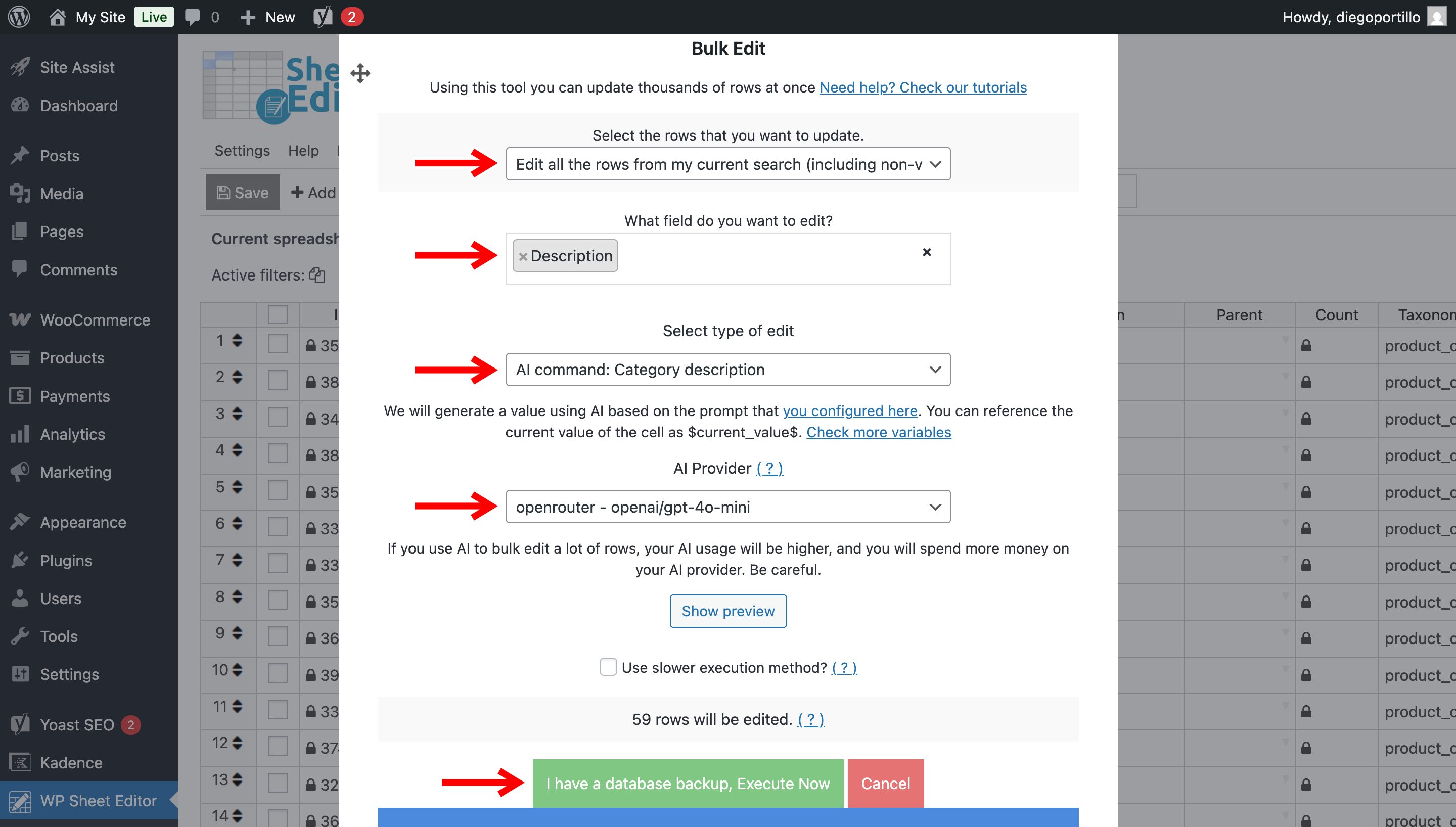
Set up the automation with these exact parameters:
- Select the rows that you want to update: Edit all the rows from my current search
- What field do you want to edit: Choose the Description field.
- Select the type of edit: Select AI command: Category Description.
- AI Provider: Choose your preferred model (for example, GPT-4o mini is very cost-effective for large catalogs).
- Click on Execute Now.
The artificial intelligence engine will begin processing your categories in the background. Because WP Sheet Editor handles the requests in smart batches, your server will not crash, even if you are writing hundreds of WooCommerce categories simultaneously.
Stop leaving money on the table with blank category pages. By generating unique, targeted content for your product archives, you give search engines more context to rank your store higher and give your customers the buying confidence they need.
With WP Sheet Editor – AI, optimizing your WooCommerce taxonomy is no longer a multi-day chore. Let the AI handle the writing so you can focus on growing your store!