
Quick answer: To generate WooCommerce variation descriptions with AI, install WP Sheet Editor – WooCommerce Products and WP Sheet Editor – AI, connect an AI provider (OpenAI, OpenRouter, or any OpenAI-compatible API), create a prompt using the $Title$ placeholder, then apply it to individual variation rows or bulk-generate it across your entire catalog with Bulk Edit.
If you sell apparel, furniture, or any customizable goods, you likely rely heavily on WooCommerce variable products. Offering different sizes, colors, and materials is great for customers, but it creates an absolute nightmare for copywriting when it comes to writing variation descriptions.
Most store owners write one general description for the parent product and completely ignore the individual variation descriptions. When a customer selects the “Crimson Red” or “Extra Large” option from the dropdown, the text on the page doesn’t change. This is a missed opportunity to reinforce their specific choice, provide tailored details, and push them toward checkout.
Writing unique copy for 50 different t-shirt color and size combinations by hand, however, is soul-crushing. But with artificial intelligence, it takes a few clicks.
Using WP Sheet Editor – AI, you can automatically generate hyper-specific, conversion-boosting WooCommerce variation descriptions for every single product variation in your store. Let’s look at how to deploy an AI assistant to handle this massive workload for you.
- What you’ll learn: how variation descriptions differ from parent product descriptions, why they matter for SEO and conversions, and two ways to generate them with AI. One at a time or in bulk.
- What you’ll need: WP Sheet Editor – WooCommerce Products, WP Sheet Editor – AI, and an API key from a supported AI provider.
Table of Contents
What Are WooCommerce Variation Descriptions?
A variation description is separate text tied to a single child product inside a WooCommerce variable product. For example, the “Blue, Large” version of a t-shirt. It’s different from the main product description, which applies to every color and size at once. When a variation description exists, it can automatically replace or supplement the parent text on the product page the moment a customer picks that specific option, so the copy on screen matches exactly what they’re about to buy.
Why Generate Variation Descriptions with AI?
Manually writing unique WooCommerce variation descriptions for hundreds or thousands of size/color combinations isn’t realistic for most stores, which is why the field usually stays empty. Automating it with AI solves that in a few practical ways:
- SEO: Unique, keyword-rich text per variation gives search engines more indexable content instead of duplicate copy across every color and size.
- Conversions: Shoppers see details specific to the exact option they selected, which builds trust and reduces hesitation at checkout.
- Speed: A single AI prompt can be applied across an entire catalog in one bulk operation instead of hundreds of manual edits.
- Consistency: Every variation follows the same tone and structure, since the AI works from one reusable prompt template.
What You Need to Generate WooCommerce Variation Descriptions with AI
To follow this tutorial and automate your variable product copy, you will need the following plugins active on your site:
1- WP Sheet Editor – WooCommerce Products
This plugin replaces the standard WooCommerce product list with a spreadsheet. Crucially for this task, it includes a “Display Variations” feature that lets you view and edit all your child products (the individual sizes/colors) as their own separate rows.
You can download the plugin here:
Get the WooCommerce Spreadsheet Editor - or - Check the features
2- WP Sheet Editor – AI
This extension links your WooCommerce spreadsheet directly to generative AI models (like GPT, Claude, Gemini, Grok, DeepSeek, etc.), allowing you to create bulk content on the fly.
Ready to automate?
3- An AI API Key
You must have an active API key from a supported provider (OpenAI, OpenRouter, any OpenAI-compatible provider) to process the text generation. If you need assistance setting this up, check out our API configuration guide.
Step 1: Teach the AI How to Write Variation Descriptions
First, we need to create a global prompt that tells the Large Language Model exactly how to handle the specific attributes of a variation (like its color or size) without rewriting a massive essay.
Navigate to WP Sheet Editor > AI > Settings > Prompts and click on Add new.
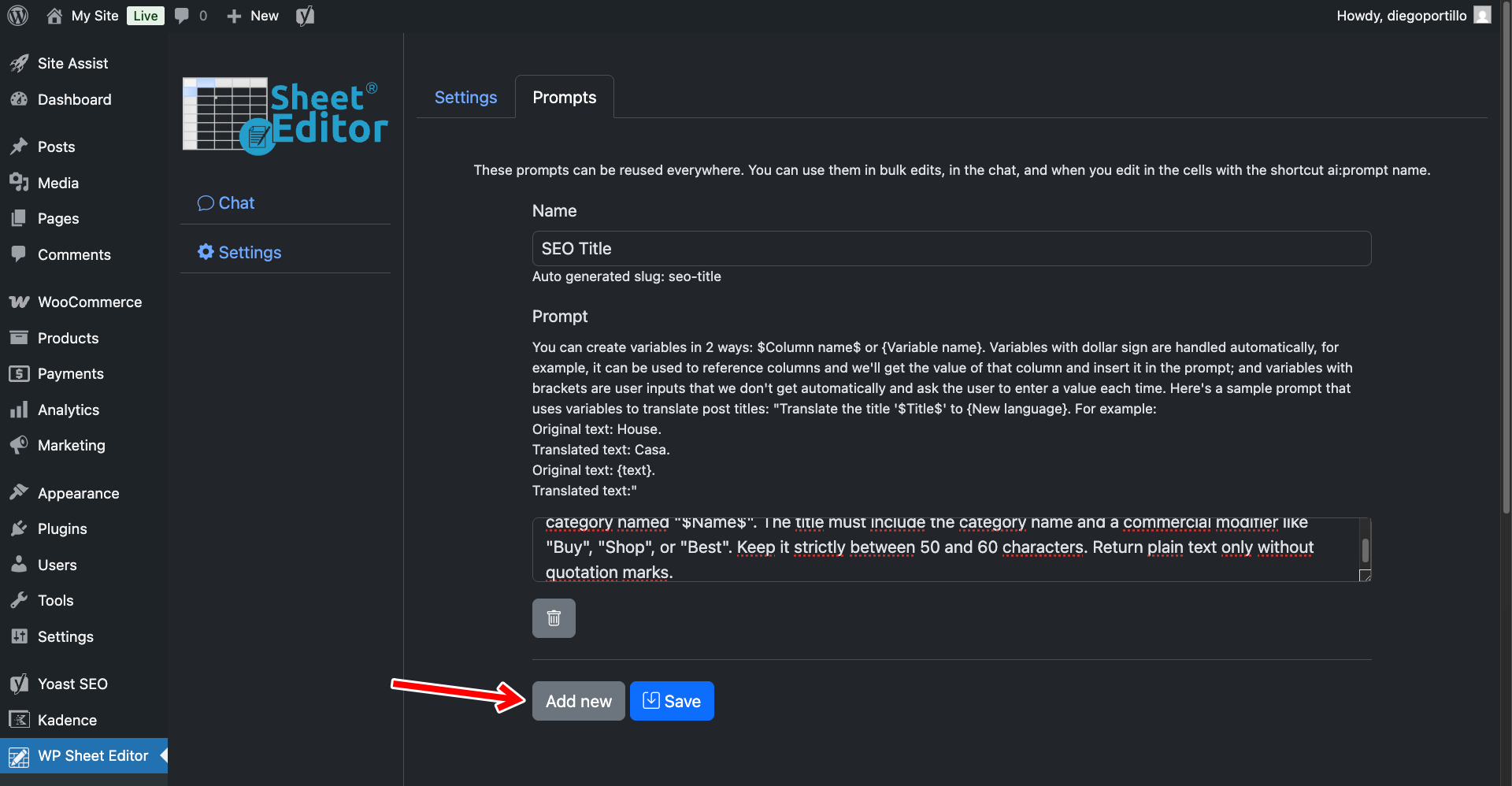
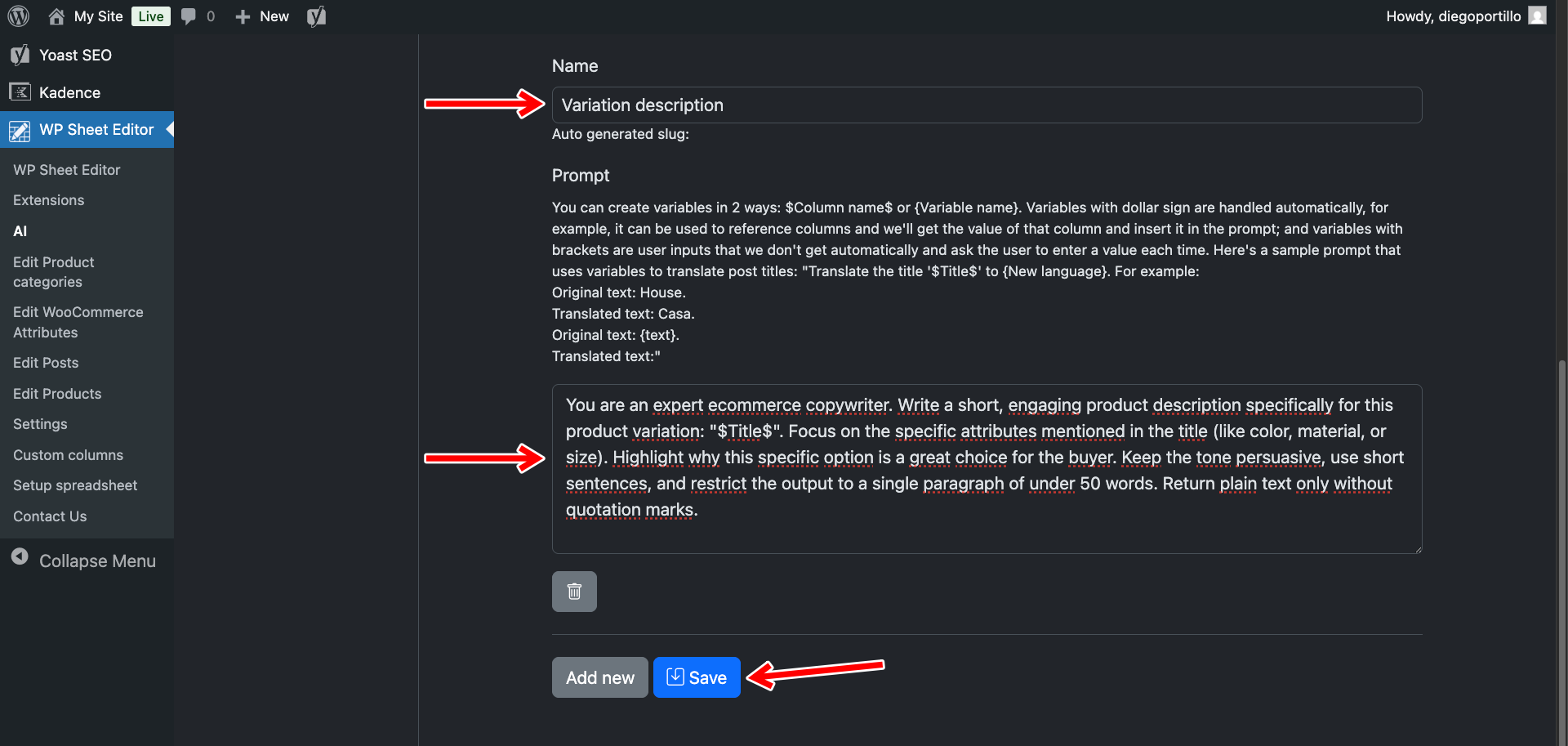
Configure the prompt with these instructions:
- Name your prompt:
Variation Description - Enter this template:
You are an expert ecommerce copywriter. Write a short, engaging product description specifically for this product variation: "$Title$". Focus on the specific attributes mentioned in the title (like color, material, or size). Highlight why this specific option is a great choice for the buyer. Keep the tone persuasive, use short sentences, and restrict the output to a single paragraph of under 50 words. Return plain text only without quotation marks.
- Note: In WP Sheet Editor, variation titles automatically include their attributes (e.g., “Classic T-Shirt – Blue, Large”). The
$Title$placeholder ensures the AI knows exactly which version it is writing about. - Click Save.
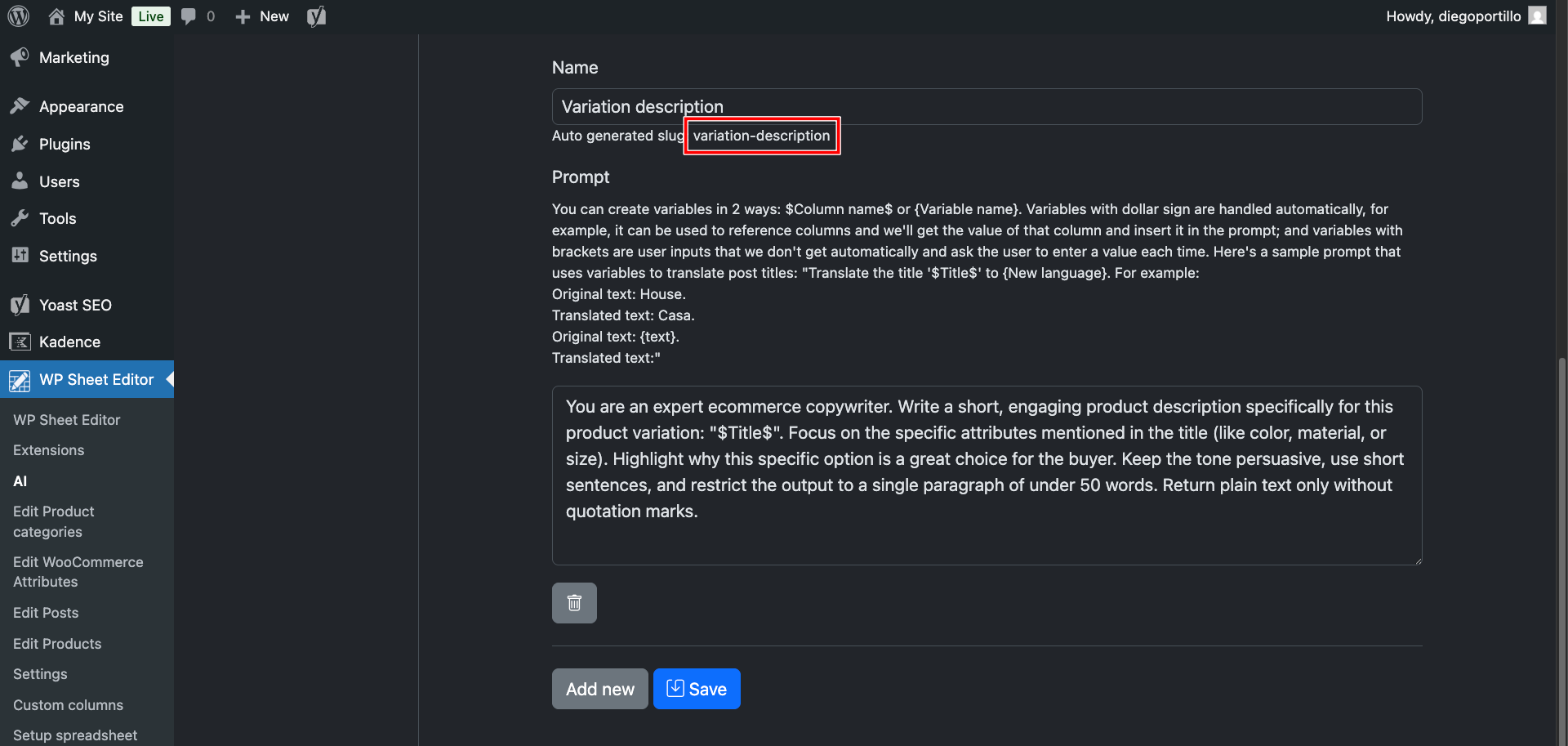
The system will assign this prompt a slug like variation-description, which you then can use in spreadsheet cells like this: ai:variation-description
Step 2: Generate Descriptions for Specific Variations
If you only want to add descriptions to your best-selling variations, you can use the inline shortcut directly inside the spreadsheet grid.
Go to WP Sheet Editor > Edit Products to load your products in the spreadsheet.
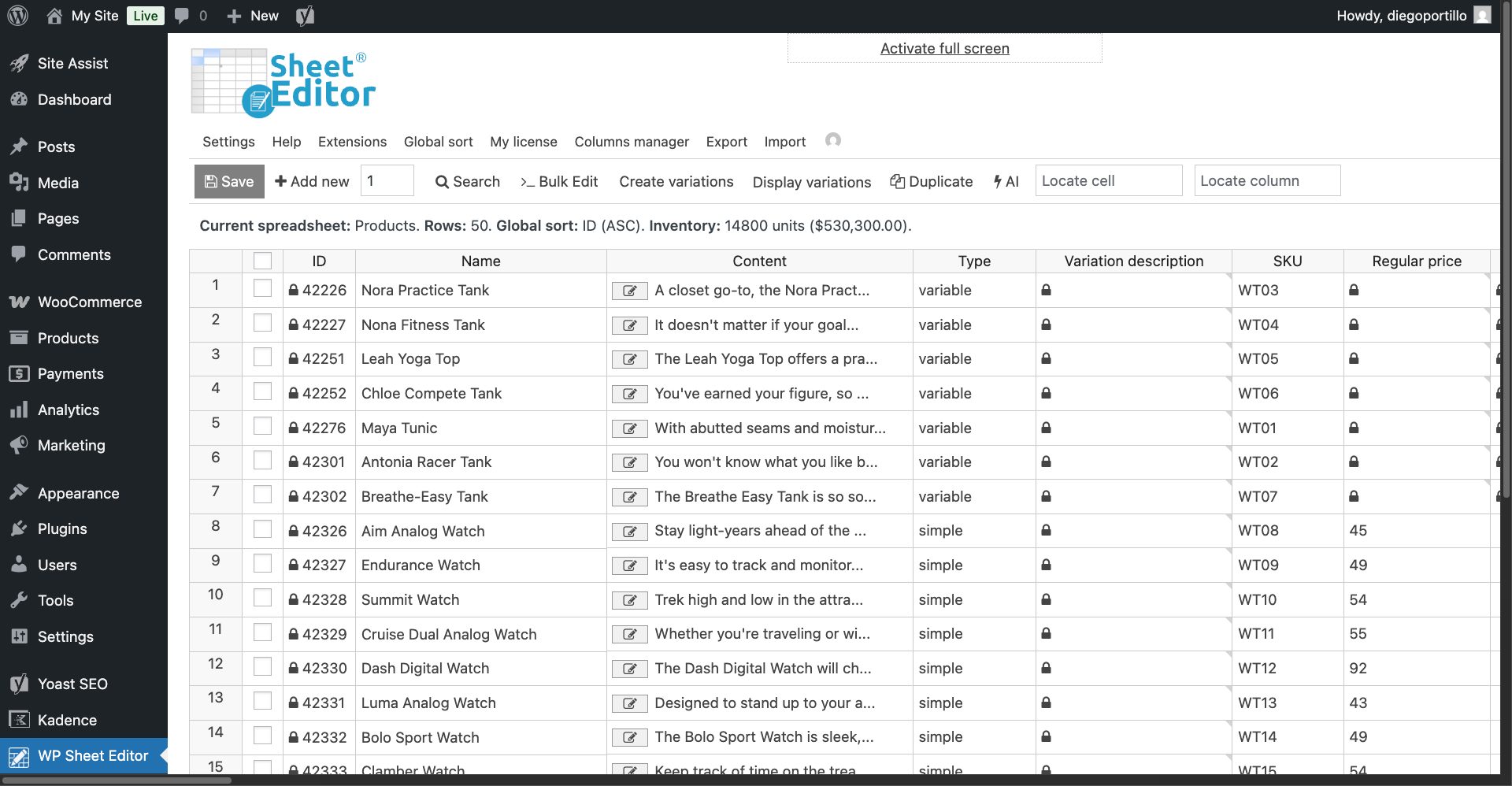
By default, the spreadsheet shows parent products.
To reveal your variations, hover the mouse cursor over the Display variations button and select Only display variable products that have variations.
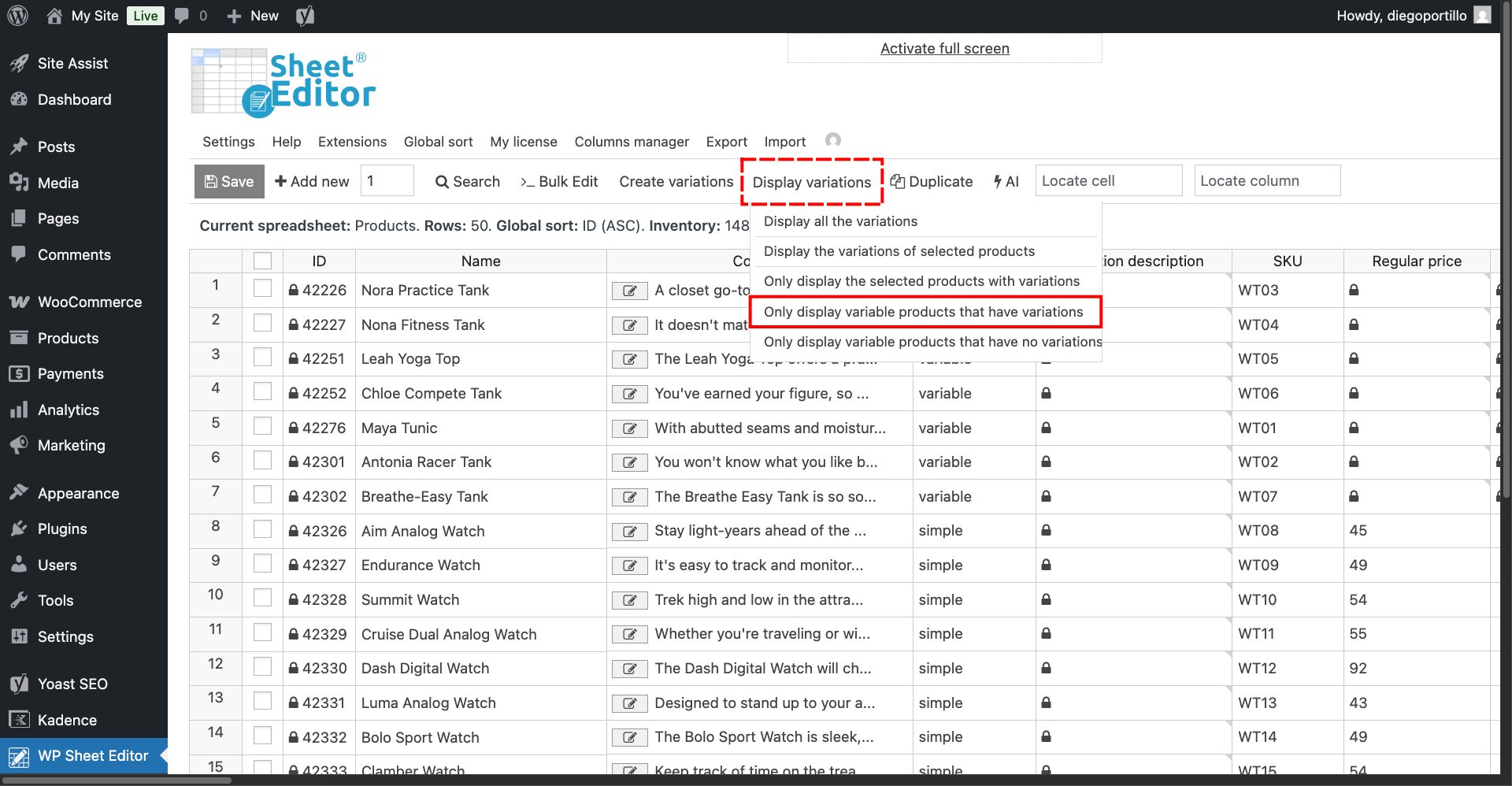
The spreadsheet will expand to show every single variation next to their parent products as its own editable row. You can see the active search filters above the spreadsheet content.
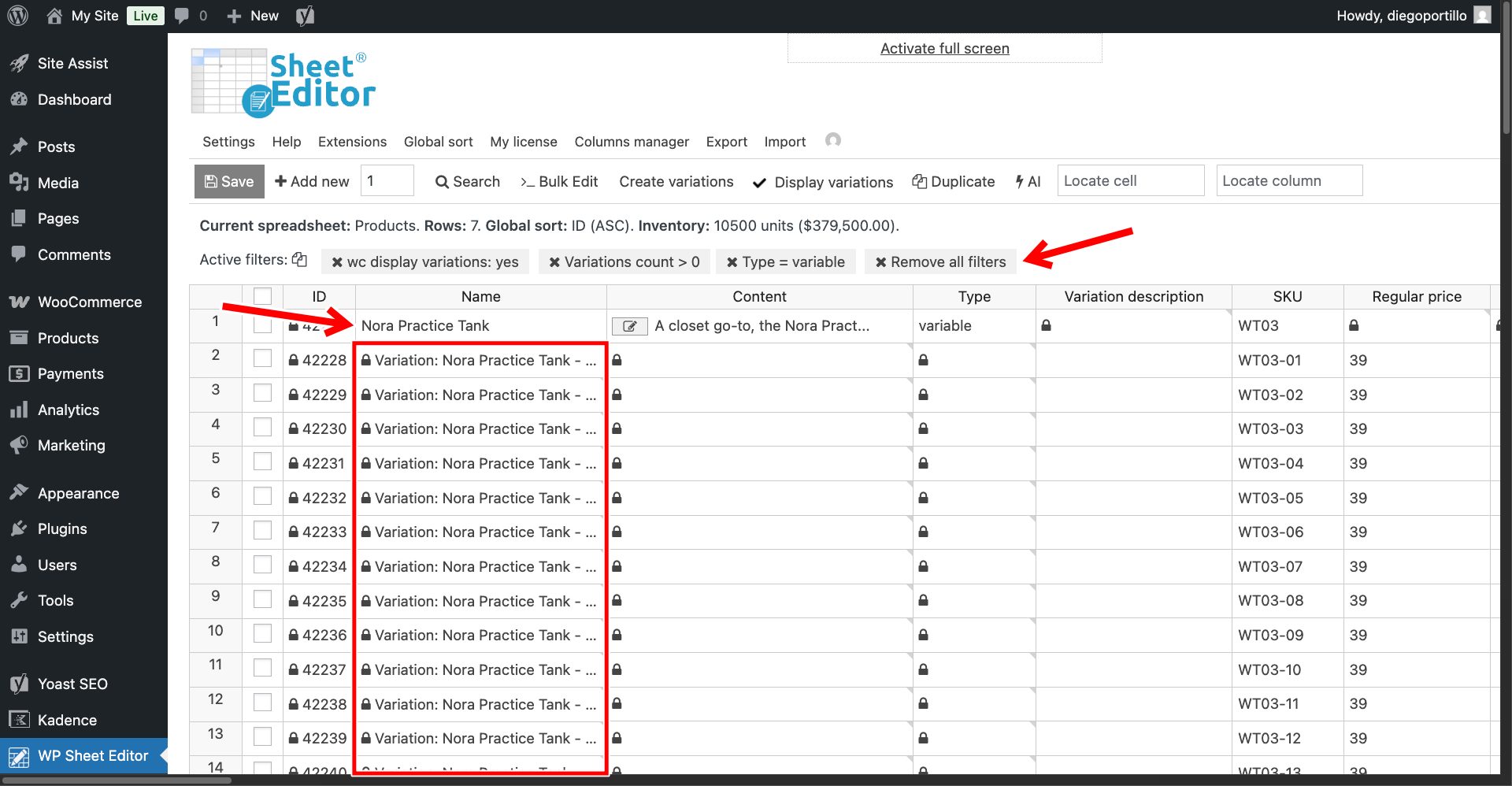
Now, locate the Variation Description column (this is the specific text that changes when a user selects an option from the dropdown menu on the frontend).
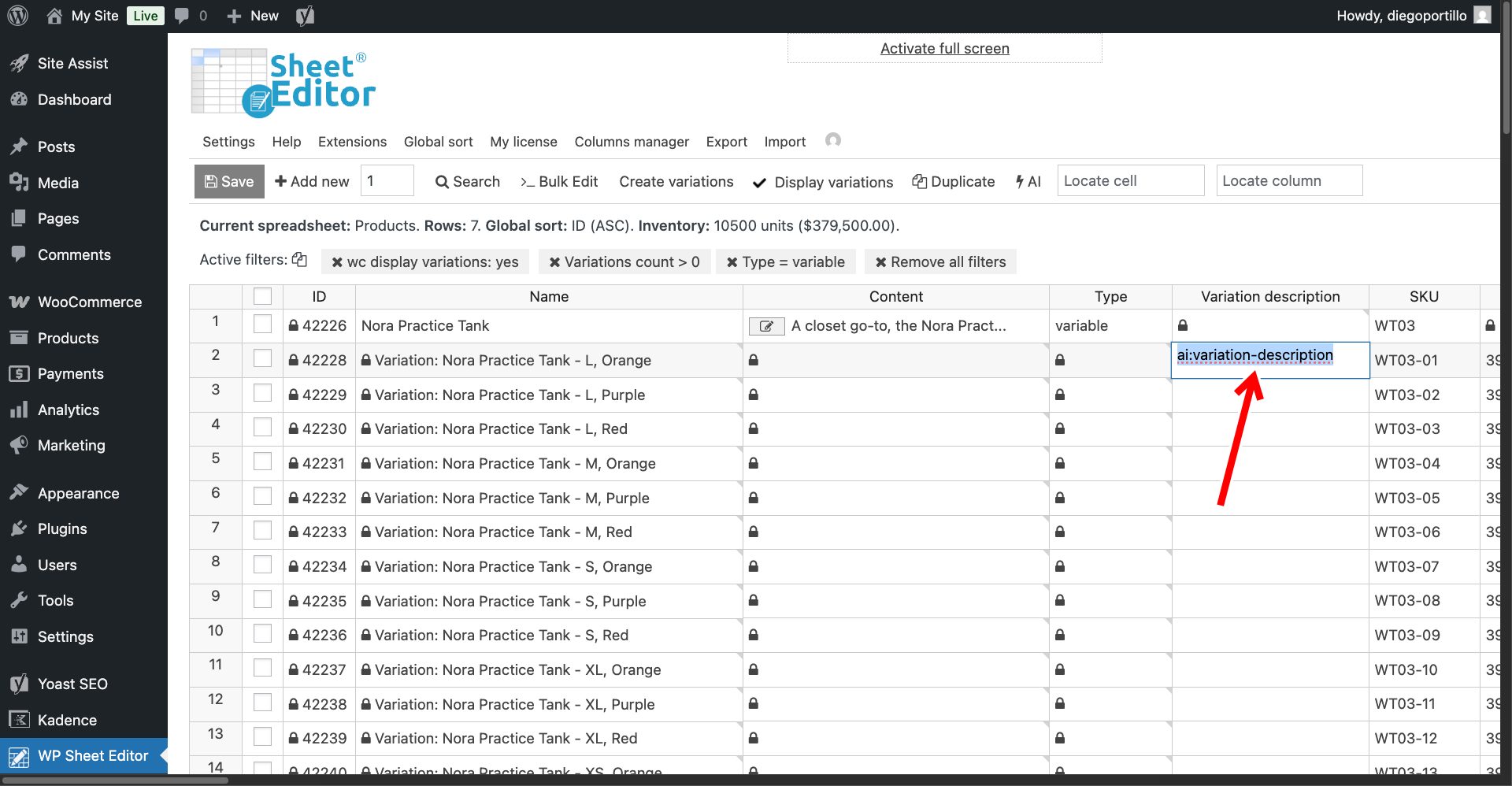
Click on the empty cell for a variation, type your shortcut:
ai:variation-description
Once you’ve entered the prompt shortcut, hit Enter.
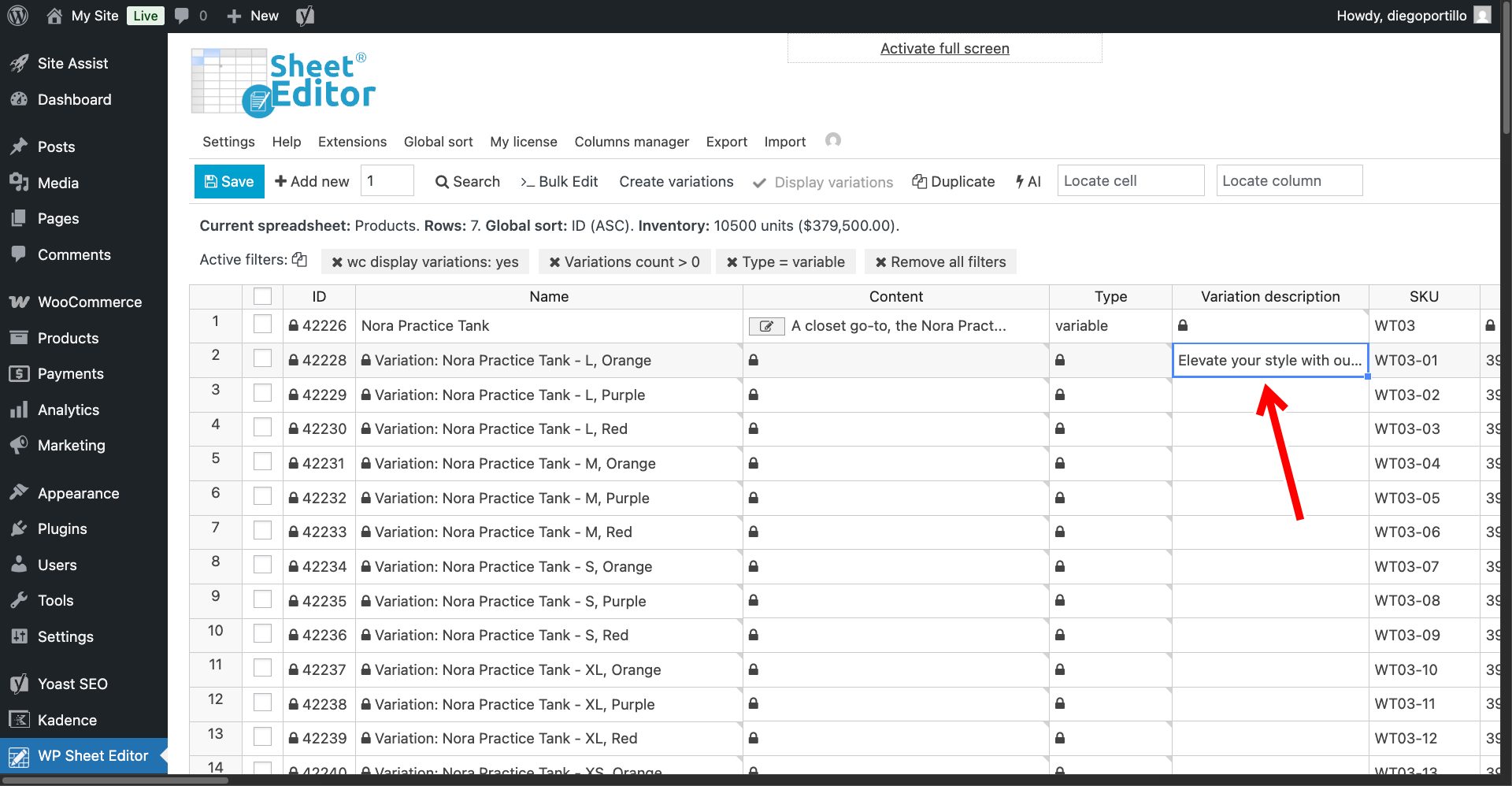
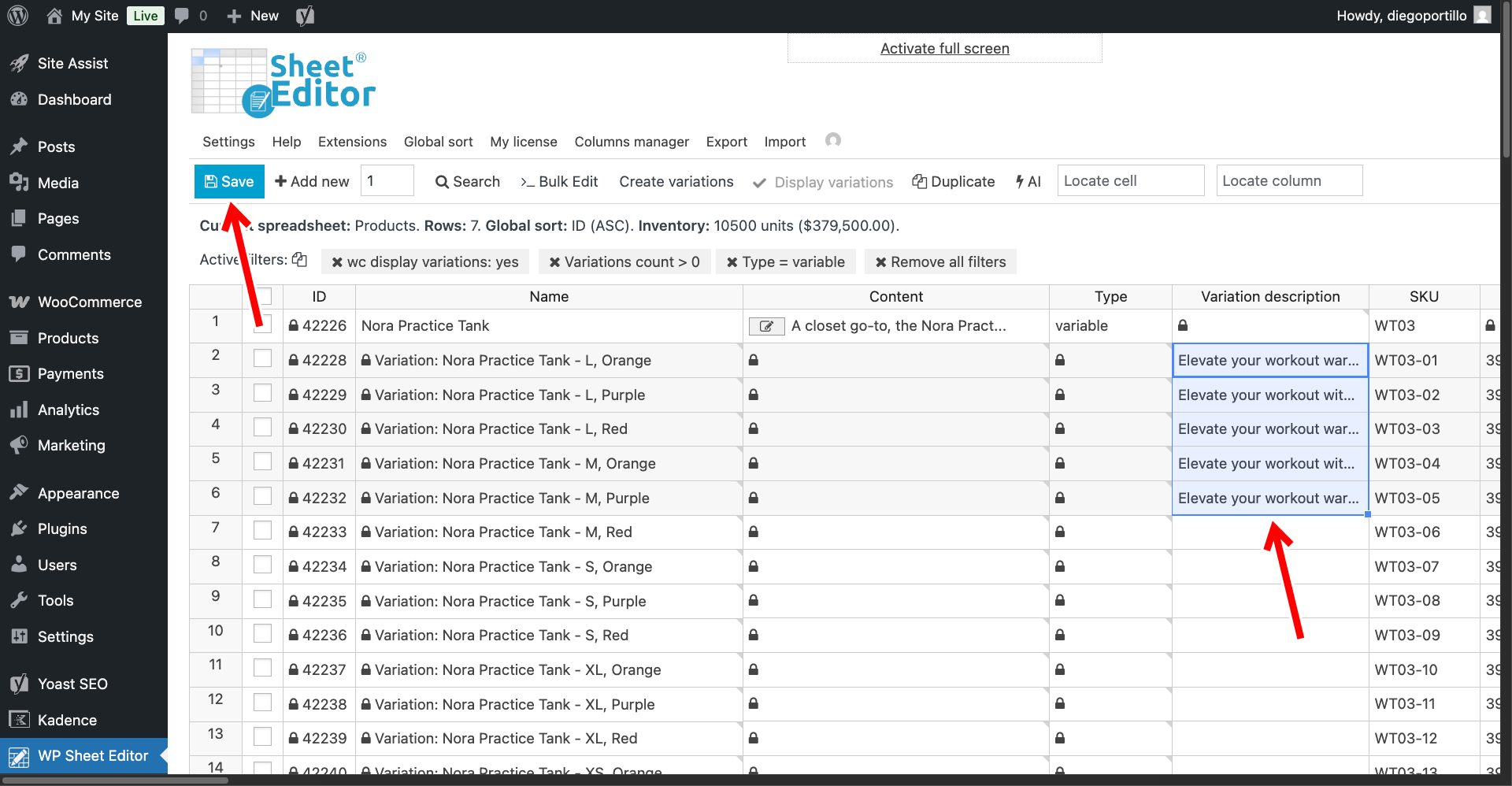
The AI will analyze the variation’s name and attributes, generating a punchy, tailored description that perfectly matches that specific item. You’ll see a loading icon while the AI is working.
As you can see, the variation description has been generated for our selected product variation.
You can paste the same prompt shortcut into multiple cells to generate multiple variation descriptions at once.
Once you’re done generating variation descriptions in the spreadsheet, click on Save to apply the changes.
Step 3: Bulk Generate All Missing Variation Descriptions
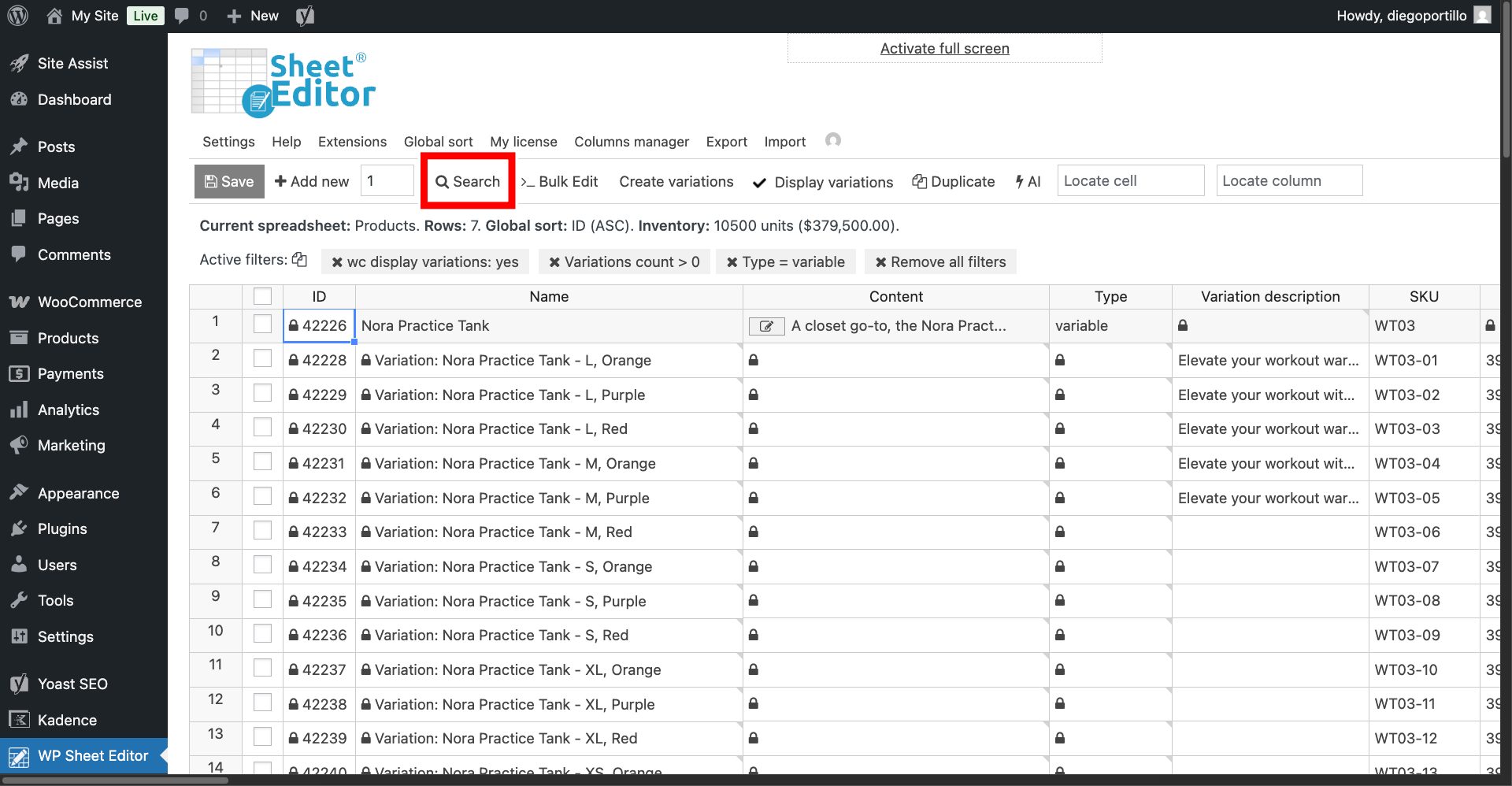
Do you have thousands of variations with empty descriptions? Let’s use the Bulk Edit tool to process them all simultaneously while you grab a cup of coffee.
First, filter your empty variations
Let’s say you don’t want to overwrite any custom text you might have already written.
To target only the blank ones, open the Search tool on the toolbar.
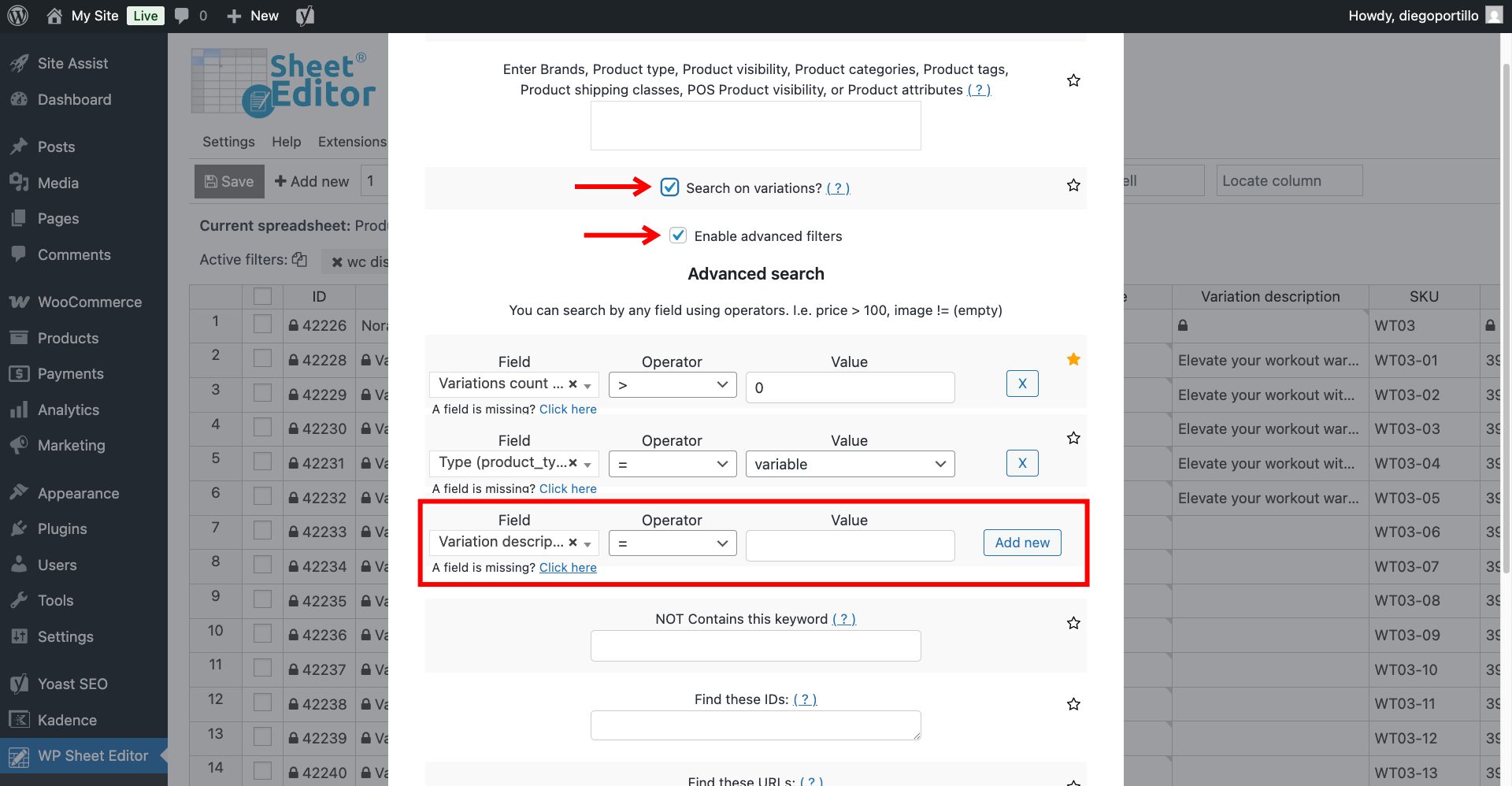
Once there, you need to select these values to spot variations missing description.
- Tick the Search on variations checkbox to apply these filters to variations only.
- Tick the Enable advanced filters checkbox.
- Note: If you have previously displayed the variations in the spreadsheet, you will see two filters:
- Variations count > 0
- Type = variable
- Field: Select the Variation description field.
- Operator: Choose = (equals)
- Value: Leave this field empty.
- Click Run Search.
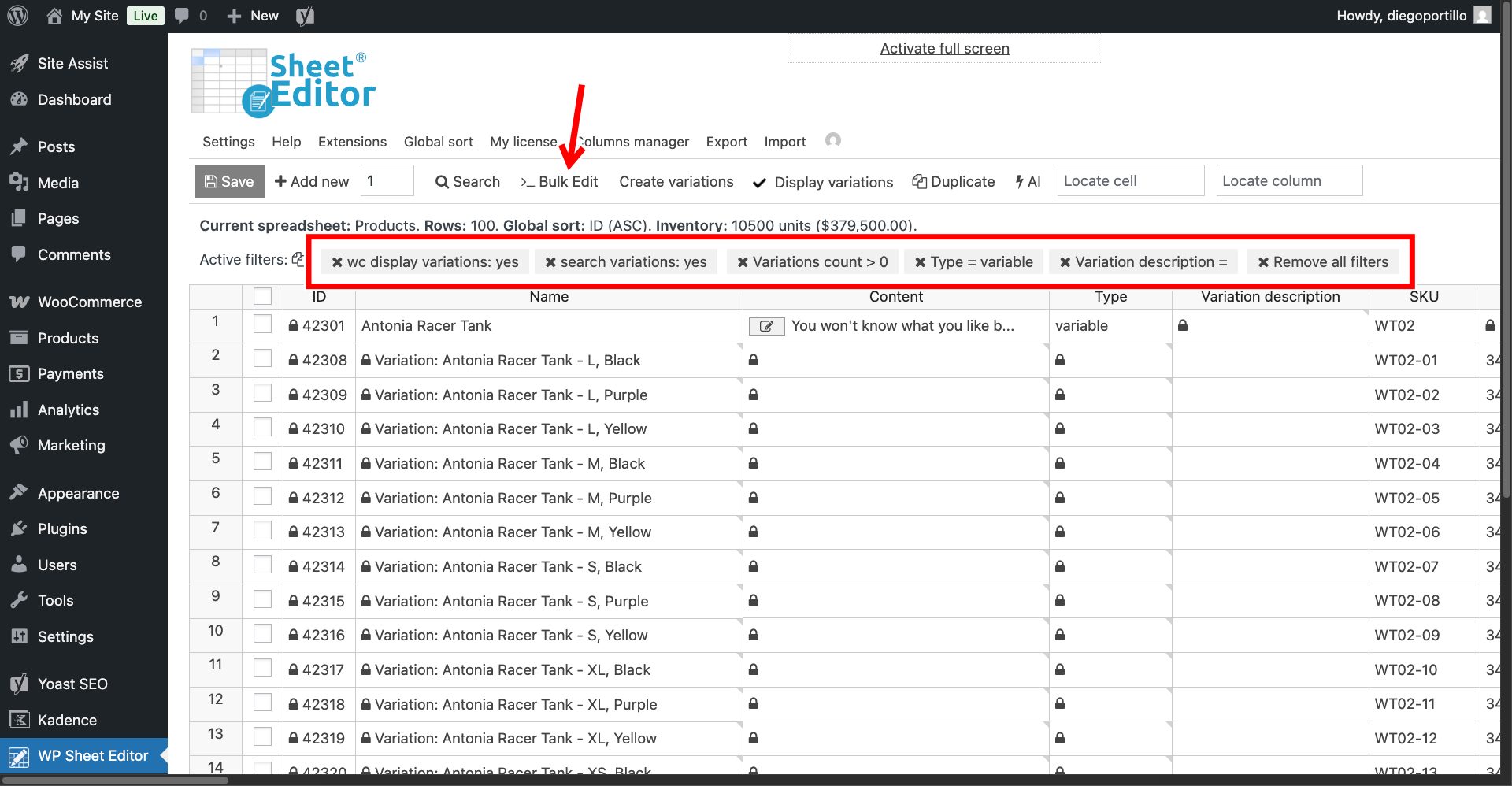
Your spreadsheet will now only show the variations that are desperately in need of copy.
Now click the Bulk Edit button on the toolbar.
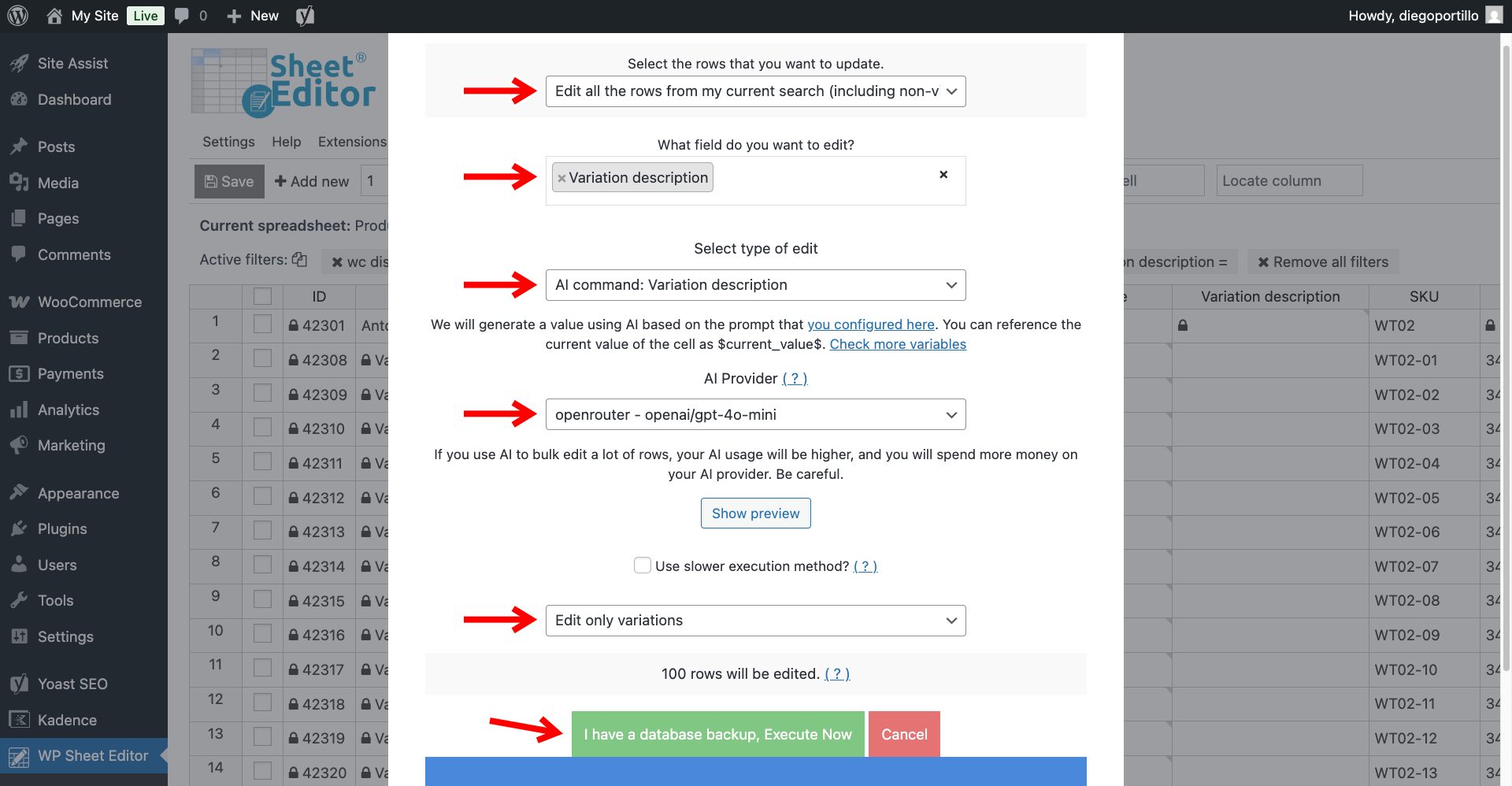
Now select these values to configure the AI automation:
- Select the rows that you want to update: Choose “Edit all the rows from my current search”.
- What field do you want to edit: Select the Variation Description field.
- Select the type of edit: Choose AI command: Variation Description.
- AI Provider: Select your preferred AI model; in this example, we will use the GPT-4o model.
- Select Edit only variations.
- Click Execute Now.
The plugin handles the API requests in safe background batches. Once the process is complete, every single size, color, and style combination in your store will have a unique, professionally written variation description.
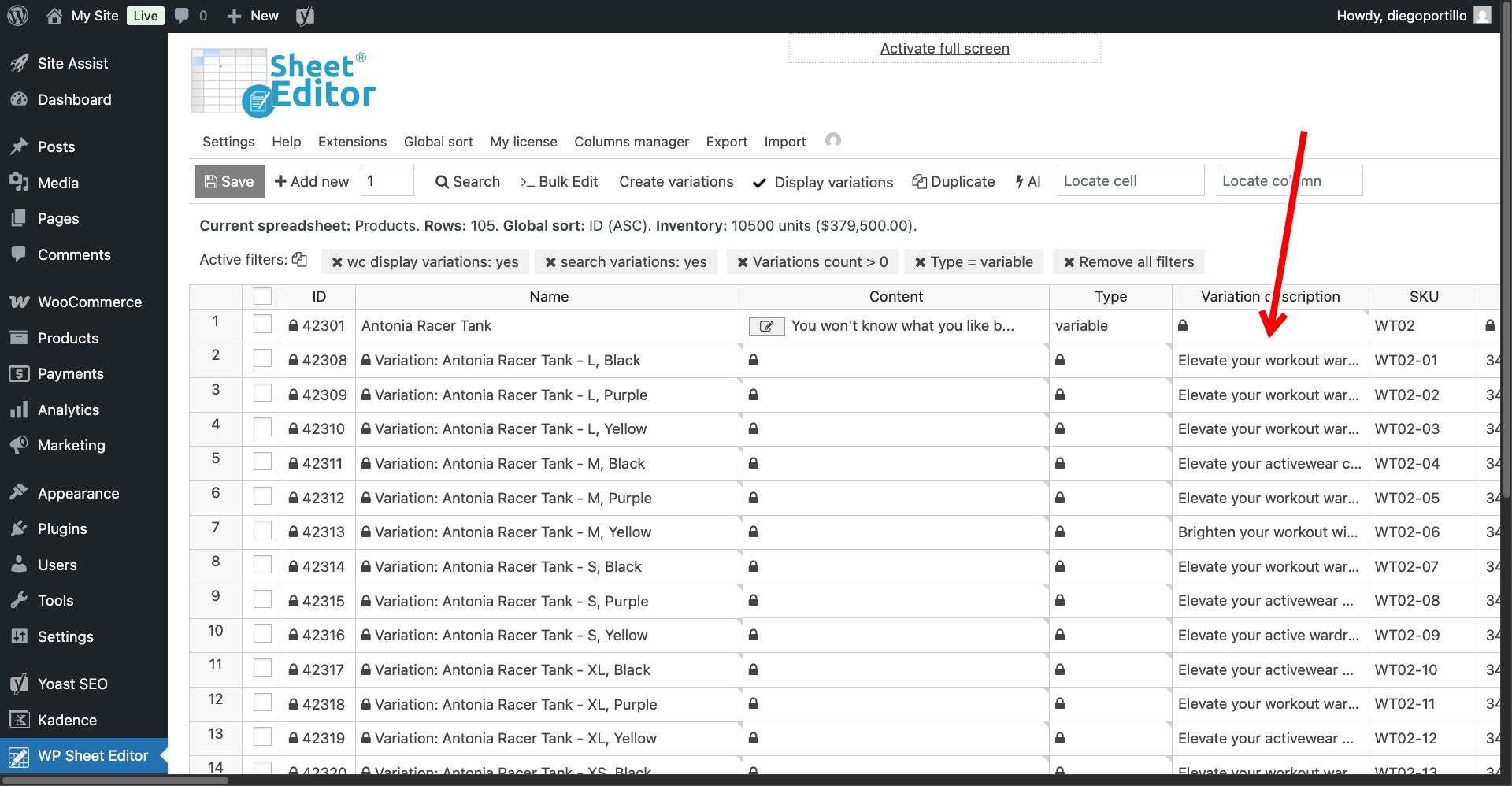
Write Unique Variation Descriptions with AI
When a customer selects an option and the description updates to specifically praise the “sleek matte black finish” or the “breathable large fit,” it builds instant trust and significantly increases the likelihood of a sale.
With WP Sheet Editor – AI, you can finally provide this premium shopping experience without sacrificing weeks of your life to manual data entry. Start automating your variation copywriting today!
Frequently Asked Questions About WooCommerce Variation Descriptions and AI
What’s the difference between a product description and a variation description?
The product description applies to the entire variable product and stays the same no matter which options a customer picks. The variation description is tied to one specific size/color/material combination and can change dynamically on the product page as the customer selects it.
Can I generate variation descriptions for my whole store at once?
Yes. Use the Search tool to filter for variations with an empty Variation description field, then run Bulk Edit with the AI command: Variation Description option to process every matching row in one operation.
Which AI providers can I use?
WP Sheet Editor – AI connects to OpenAI, OpenRouter, LM Studio and any other provider that uses an OpenAI-compatible API, so you can choose models like GPT-4o, Claude, Gemini, Grok, or DeepSeek depending on your account.
Will AI-generated variation descriptions overwrite text I already wrote?
Not if you filter first. Searching for variations where the Variation description field equals nothing before running Bulk Edit ensures only the empty rows are touched.
Do I need coding skills to set this up?
No. The entire workflow (creating the prompt, applying the shortcut, and running the bulk operation) happens through the WP Sheet Editor spreadsheet interface and