
Want to set the same price for multiple WooCommerce products? You can filter the products you want to change, enter one fixed price, and apply that identical price to the entire group at once.
A fixed-price bulk update means replacing the existing price of each selected product with the same new value. In other words, every product in the selected group receives one identical price. For example, you can change 50 products with different prices to $25 each.
WooCommerce’s built-in bulk editor can work well when you only need to change a small number of products. But when you’re working with a larger product catalog or need to update a specific group of products, WP Sheet Editor for WooCommerce Products gives you a spreadsheet-style view where you can find and filter the products you want, then update their prices together.
You can download the plugin here:
Download WooCommerce Products Spreadsheet Plugin - or - Check the features
Set the same price for a few WooCommerce products
If you only need to assign one fixed price to a small group of products, WooCommerce’s built-in bulk editor may be enough.
- Select the products you want to update.
- Open Bulk Actions and select Bulk Edit.
- Find the Price field and select Change to.
- Enter the fixed price you want to assign to all selected products.
- Click Update.
This replaces the existing price of each selected product with the same value. For example, products priced at $15, $18, and $35 can all be changed to $20.
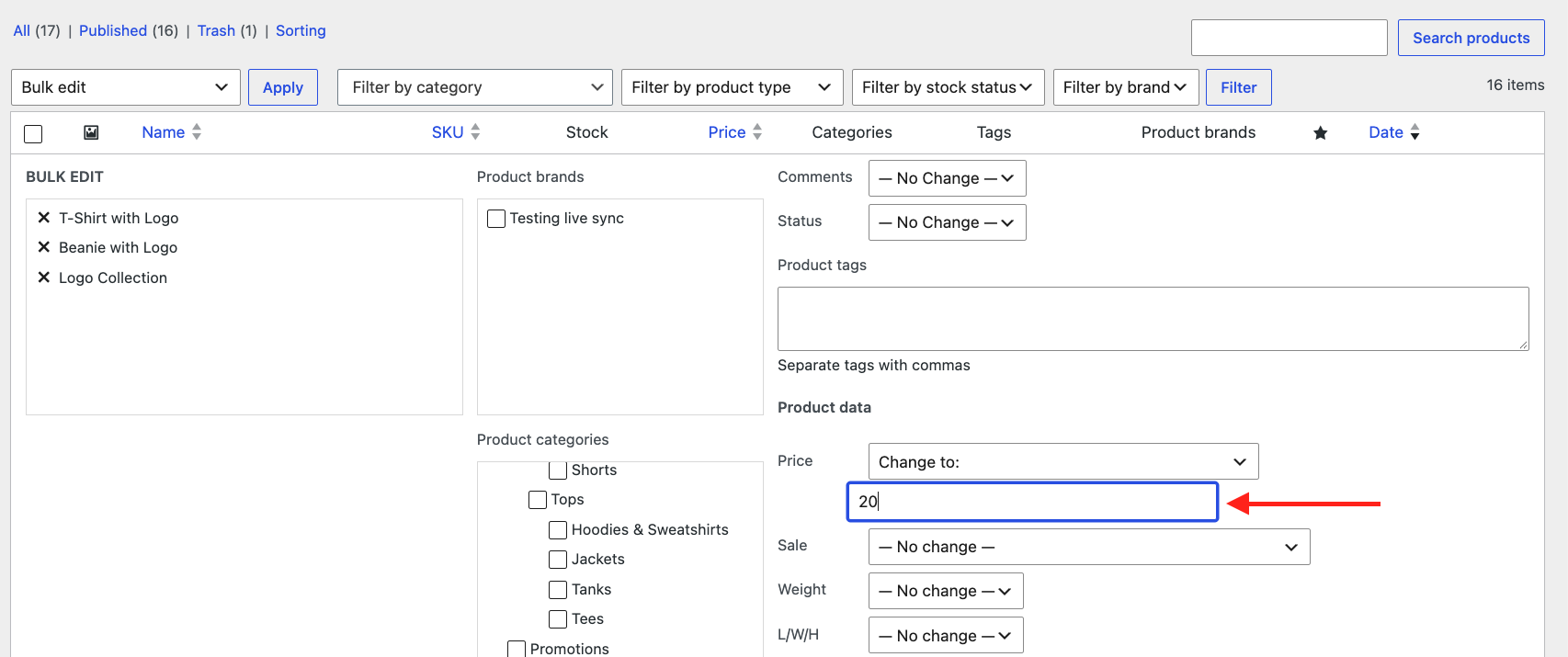
Why WooCommerce bulk editing can be difficult with many products
WooCommerce’s native bulk editor is convenient for smaller price updates, but large catalogs can make bulk editing more difficult to manage. Updating many products at once depends on your server resources and configuration, so large operations may take longer or encounter processing limits.
When you’re assigning the same price to a large product group, it helps to identify the exact products first and then apply one fixed value to that group. This gives you more control over which products receive the new price instead of editing products individually.
How to set the same price for multiple WooCommerce products
WP Sheet Editor displays your WooCommerce products in a spreadsheet, making it easier to find, filter, and manage a specific group of products from one screen.
For a fixed-price update, the workflow is simple: filter the products, set the Regular Price to one value, and apply the bulk update.
The key is that you’re replacing the existing price with one identical value. You are not calculating a new price from each product’s current price. If the selected products currently cost $15, $25, and $40, setting the price to $20 changes all three products to $20.
Step 1. Filter the products you want to edit
Go to WP Sheet Editor > Edit Products to open your WooCommerce products spreadsheet.
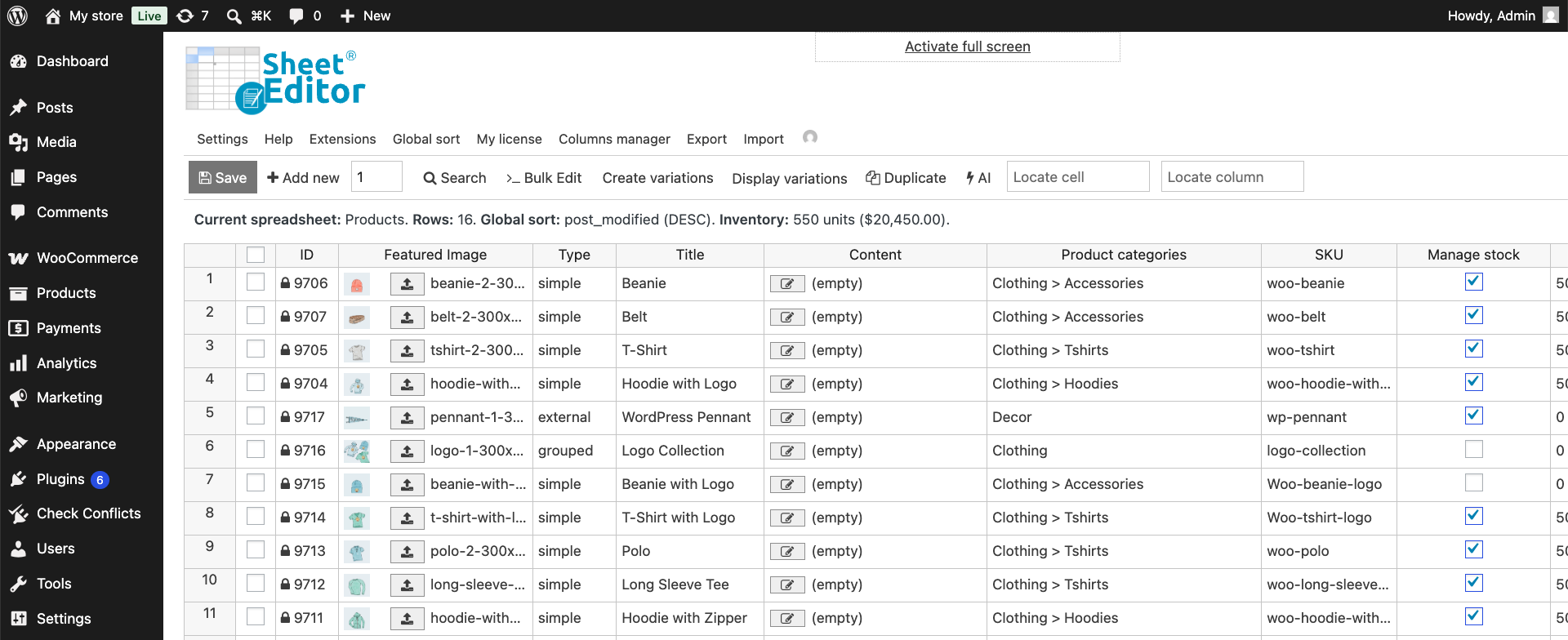
Before changing any prices, filter the spreadsheet so it shows only the products that should receive the new price. You can use product information such as category, product name, SKU, specific price or other product fields to find the exact group you want to update.
For example, suppose you want every product in a particular WooCommerce category to have the same price of $20. Use the Search tool to find only the products in that category.
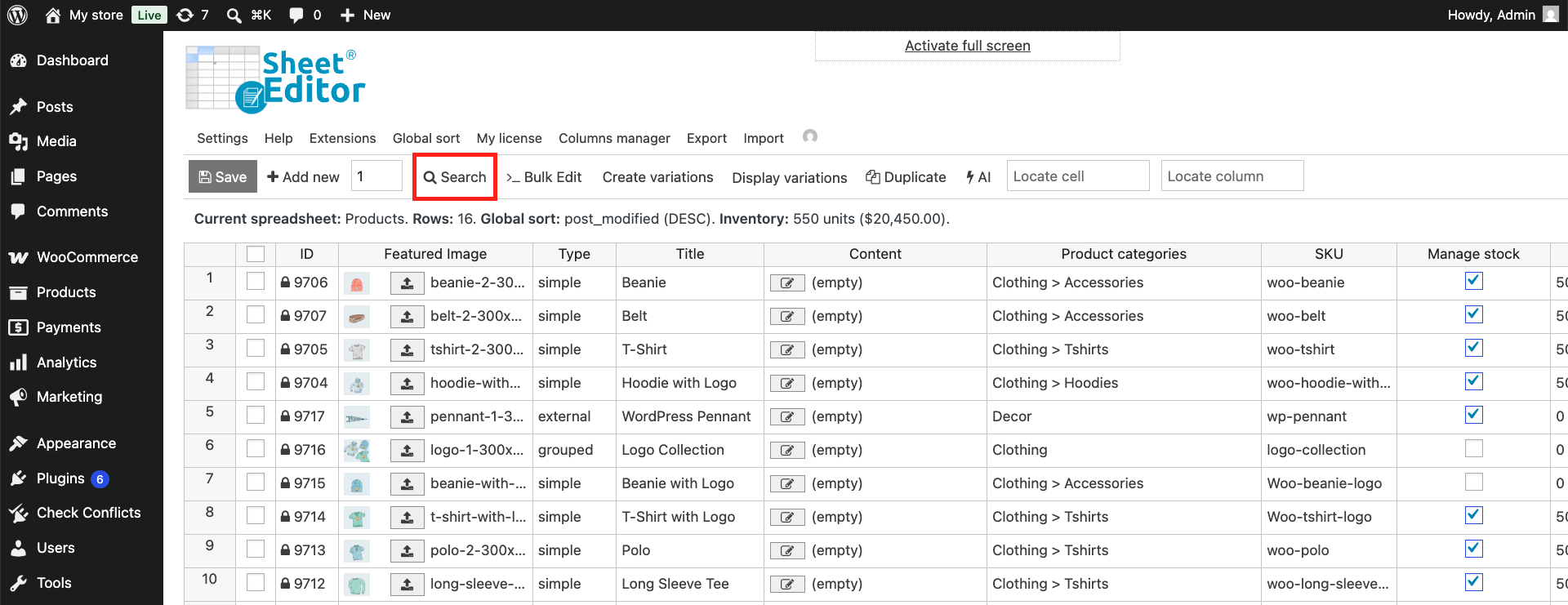
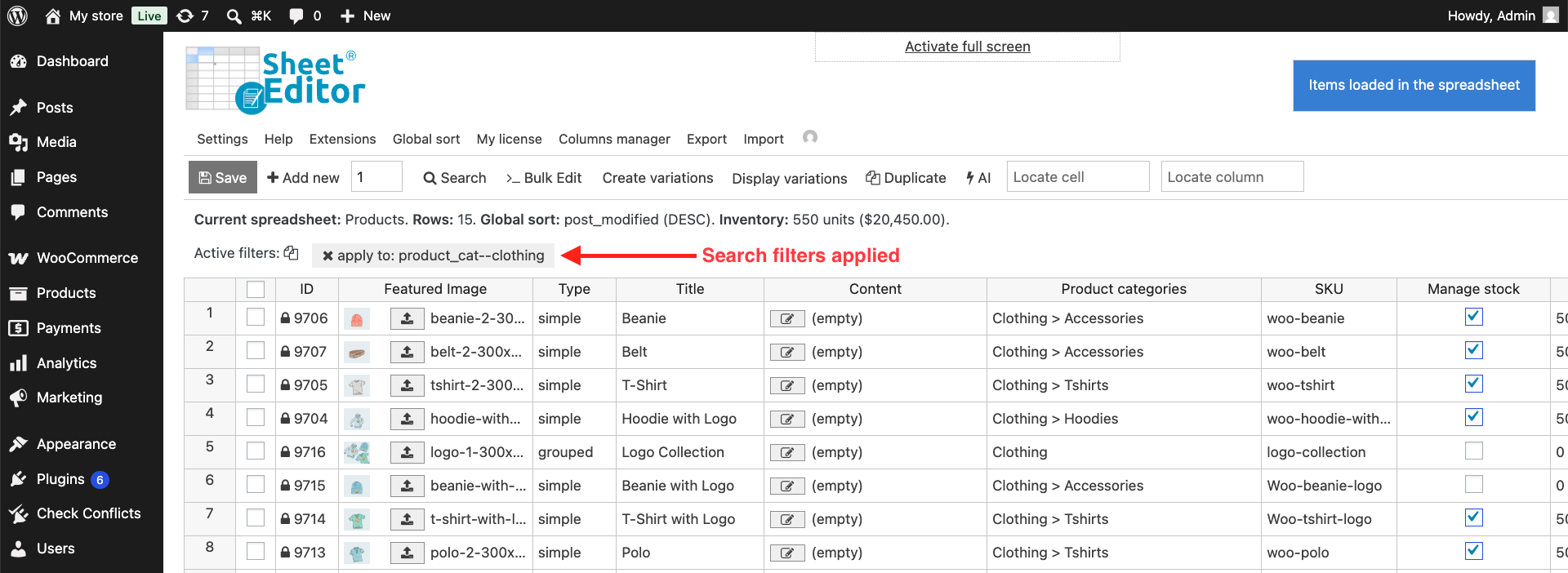
In this example, we’ll set the same price for all products in the clothing category, so we need to select the Clothing category and click on Run search.
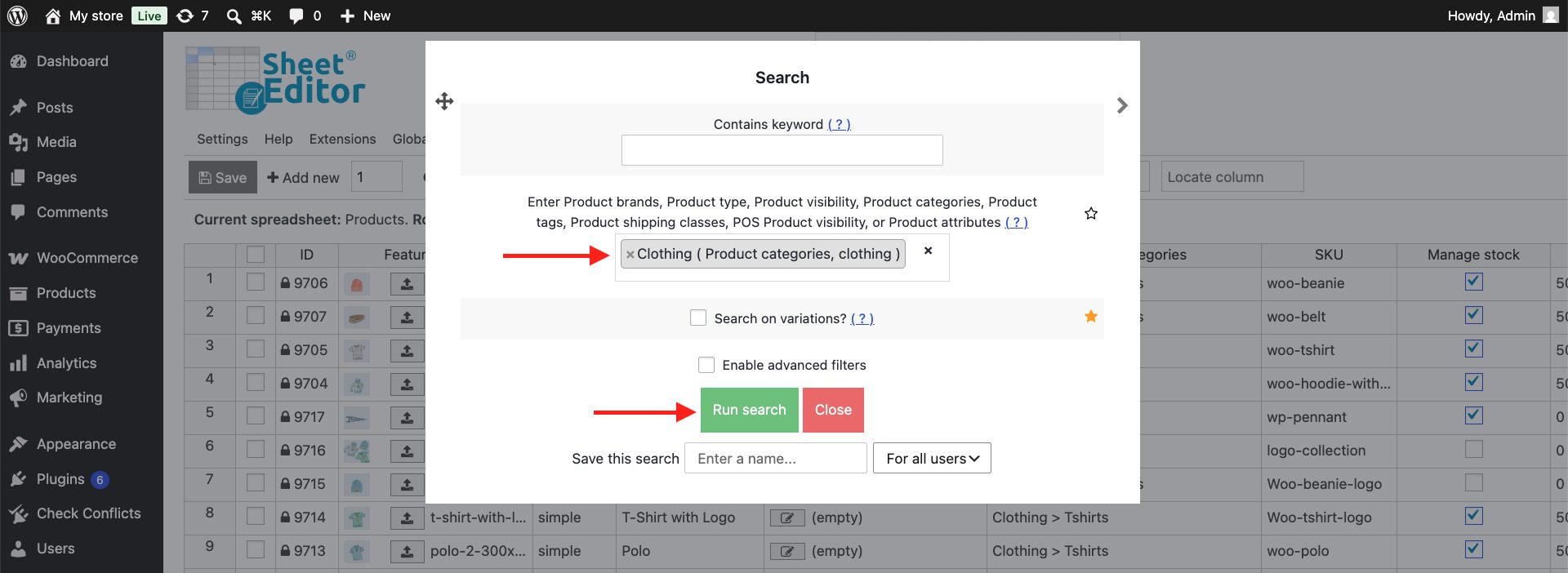
The spreadsheet will display only the products with the selected category. These filtered products are the group that will receive the new fixed price.
Step 2. Edit the regular price field to set the same price
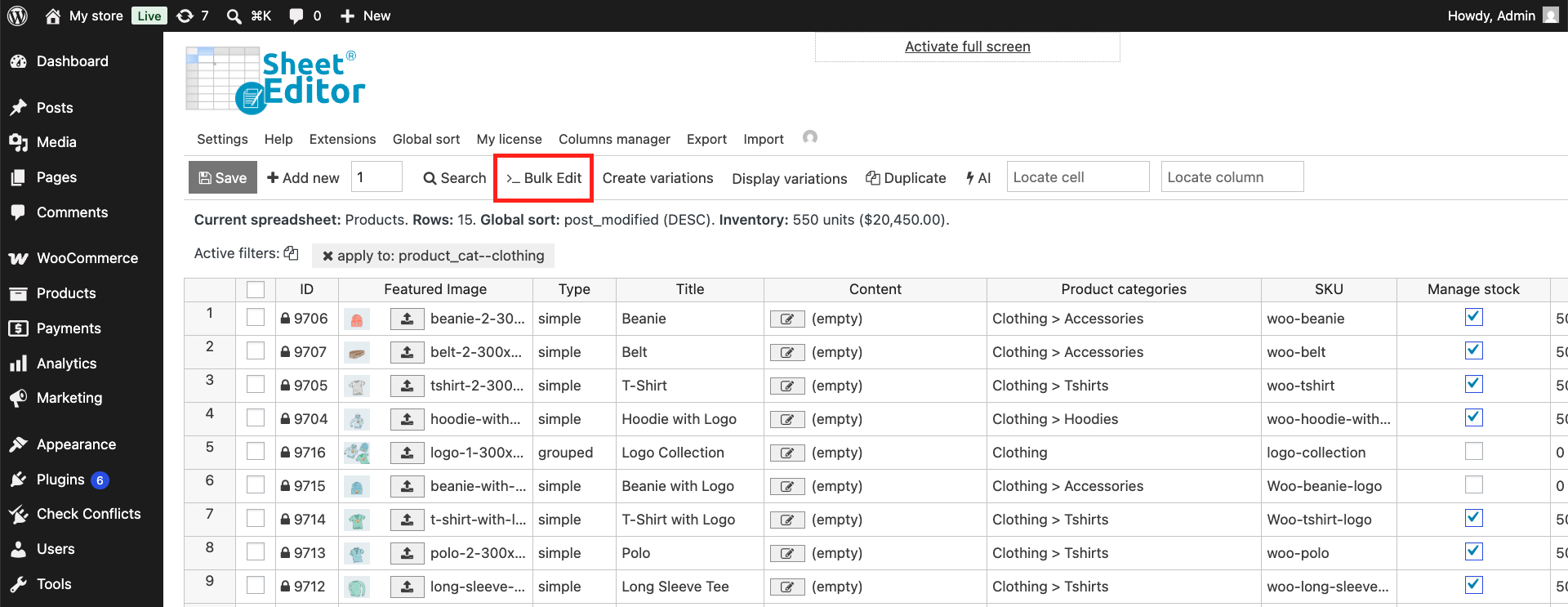
After filtering the products, click Bulk Edit in the top toolbar.
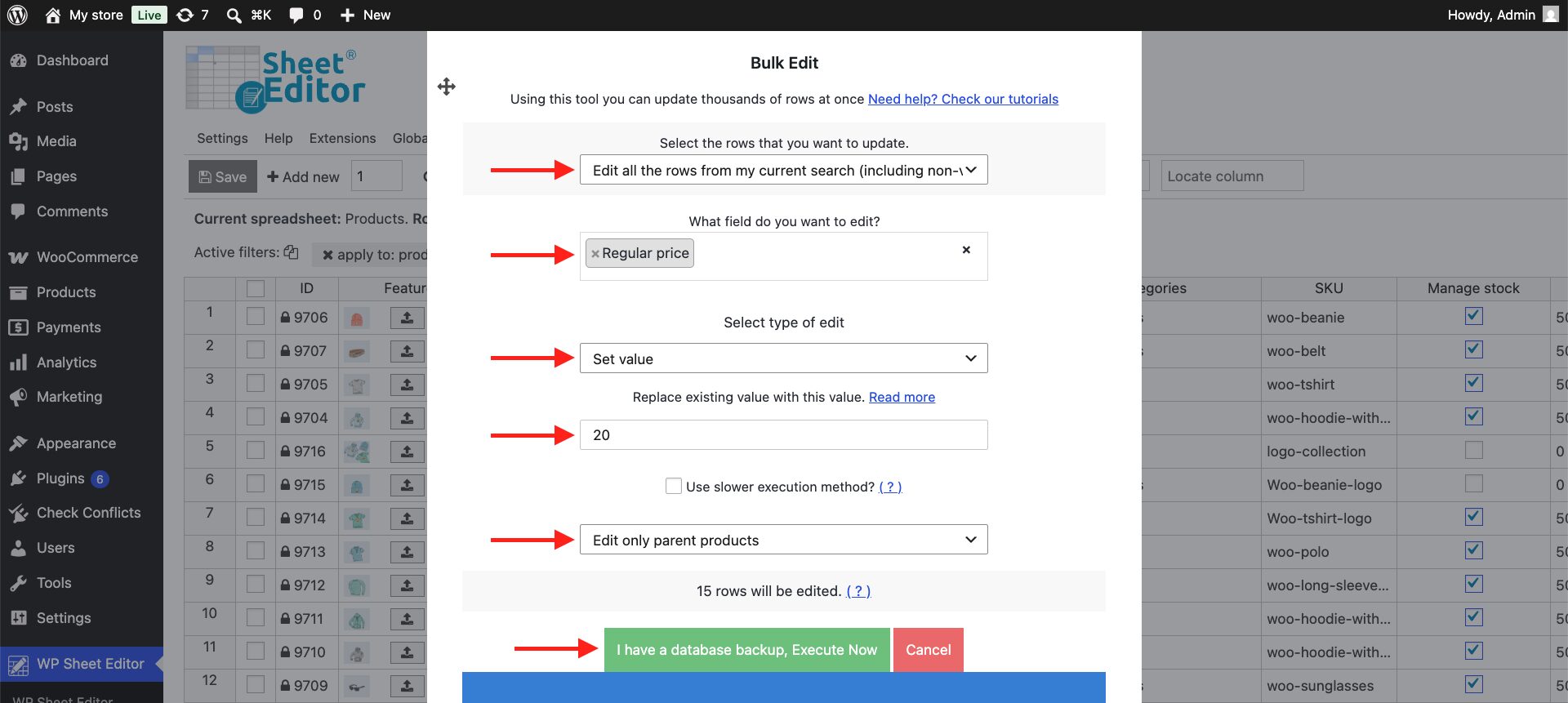
Enter the following values update the price in bulk:
- Select the rows that you want to update: Edit all the rows from my current search
- What field do you want to edit: Regular price
- Select type of edit: Set value
- Replace existing value with this value: Enter the new price, such as
20. This value will replace the current price with the same fixed value on every selected product. - Select what you will edit: Choose if you want to update parent products only or product variations:
- Edit only parent products
- Edit only variations
- Click Execute Now.
Is setting the same price the same as increasing WooCommerce prices?
No. Setting the same price assigns one identical value to every selected product. Increasing prices calculates a new price from each product’s existing price, such as increasing every product by 10% (percentage) or $10 (fixed amount).
For example, if three products cost $15, $20, and $30, setting the same price to $25 makes all three products cost $25. A 10% increase would instead produce a different new price for each product.
Conclusion
Setting the same price for multiple WooCommerce products means replacing their existing prices with one fixed value. For a few products, WooCommerce’s built-in bulk editor can be enough. For larger catalogs or more specific product groups, it helps to filter the products first and then apply the same price to the entire group.
With WP Sheet Editor, you can filter your WooCommerce products by category, product name, SKU, or other fields, identify the exact group you want to change, and assign one fixed value to their Regular Price field. Whether you’re pricing an entire category or a smaller group found through a search, the workflow is the same: find the products, set one price, apply the bulk update, and verify the results.
You can download the plugin here:
Download WooCommerce Products Spreadsheet Plugin - or - Check the features