
If you have ever imported a massive CSV file containing WooCommerce products, you know the absolute nightmare of a messy product taxonomy. Often, the products arrive with missing categories, or worse, a completely flat, chaotic list of tags that makes no sense to your store’s navigation.
When shoppers cannot seamlessly browse through structured departments—like navigating from Electronics to Computers to Laptops—they get frustrated and leave. A logical, deeply nested category hierarchy is essential for both user experience (UX) and ecommerce SEO. However, manually reading the details of hundreds of unassigned items and mapping them to the correct parent and child categories is an agonizing, days-long data entry project.
Instead of manually sorting your products one by one, you can delegate this entire process to artificial intelligence. With WP Sheet Editor – AI, you can automatically read a product’s name and description, determine its exact place in your store’s taxonomy, and apply the correct category hierarchy instantly.
Table of Contents
Automated WooCommerce product categorization with AI
Automating your WooCommerce categorization is a massive time-saver for several common ecommerce bottlenecks:
- Supplier feed imports: When importing a vendor’s catalog, their category names rarely match yours. AI can act as a translator, reading the product data and assigning it to your specific store structure.
- Migrating platforms: If you are moving from Shopify or Magento to WooCommerce, category hierarchies often get flattened. AI can rebuild the nested relationships (e.g., moving a shirt into Clothing > Men > T-Shirts) automatically.
- Fixing “Uncategorized” products: If you have dozens of legacy products dumped into the default “Uncategorized” category, AI can perform a sweeping audit and sort them into their proper categories.
Tools for AI-powered category sorting in WooCommerce
To implement this category sorting system, you will need the following plugins active on your WordPress dashboard:
1- WP Sheet Editor – WooCommerce Products
This plugin is the ultimate WooCommerce product management solution. It replaces the default WooCommerce product view with an advanced spreadsheet.
You can download the plugin here:
Get the WooCommerce Spreadsheet Editor - or - Check the features
2- WP Sheet Editor – AI
This extension empowers your WP Sheet Editor spreadsheets by connecting to Large Language Models (LLMs). It enables bulk generative tasks, allowing the AI to analyze your product data and output the correct taxonomy paths.
Ready to organize your catalog?
3- An AI Provider API Key
You need an active connection to an AI provider (such as OpenAI, OpenRouter, or any other OpenAI-compatible provider). If you haven’t established this connection yet, please refer to our API setup documentation.
Create a global AI prompt
We need to instruct the AI to analyze the specific details of the product and output the categorization using a hierarchical format. In WP Sheet Editor, you can assign nested categories by separating them with the greater-than symbol (>).
In newer versions, you need to pay attention tothe separator symbol you use, so please read this post.
To create a new global AI prompt, go to WP Sheet Editor > AI > Settings > Prompts and click the Add new button.
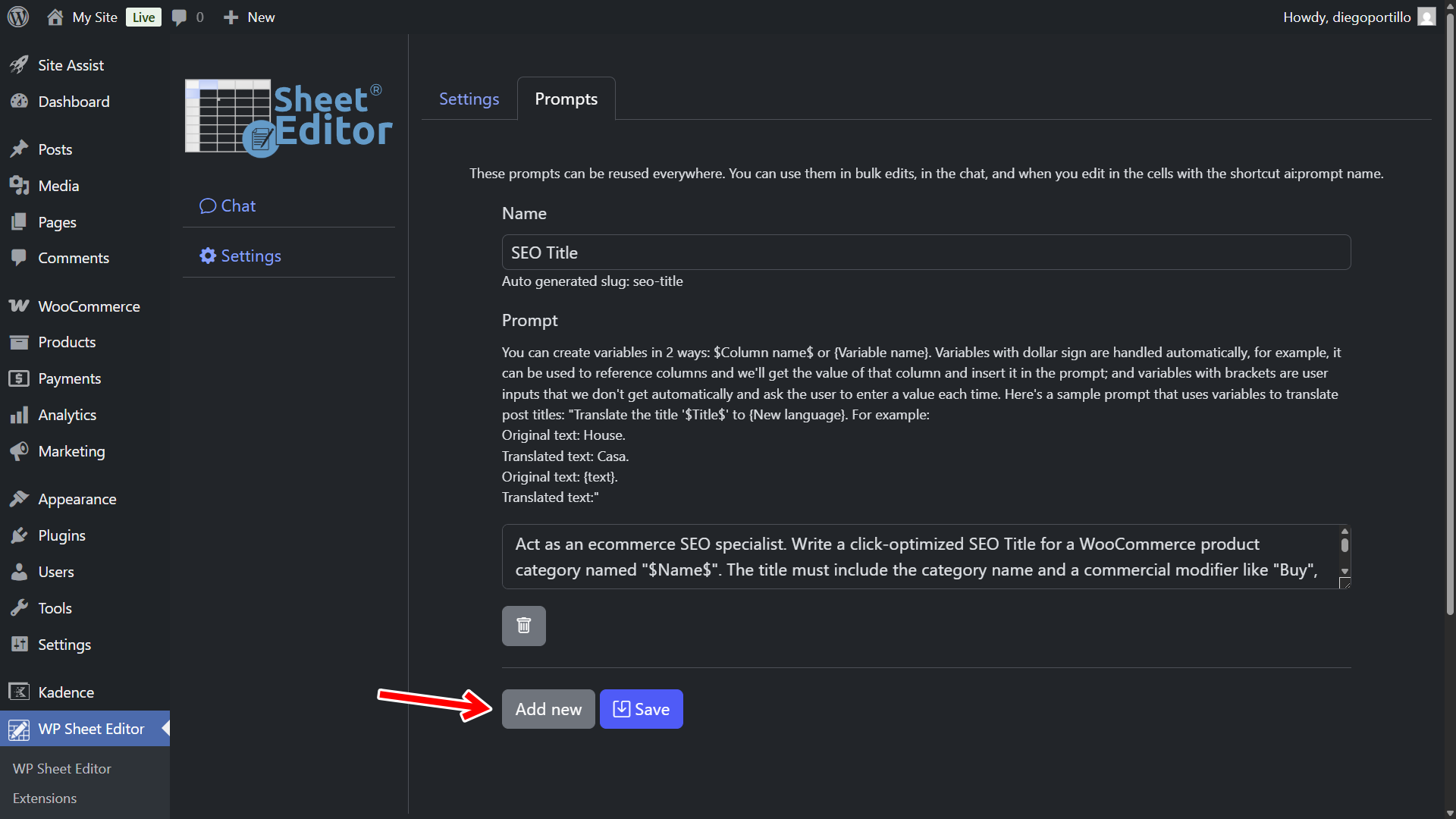
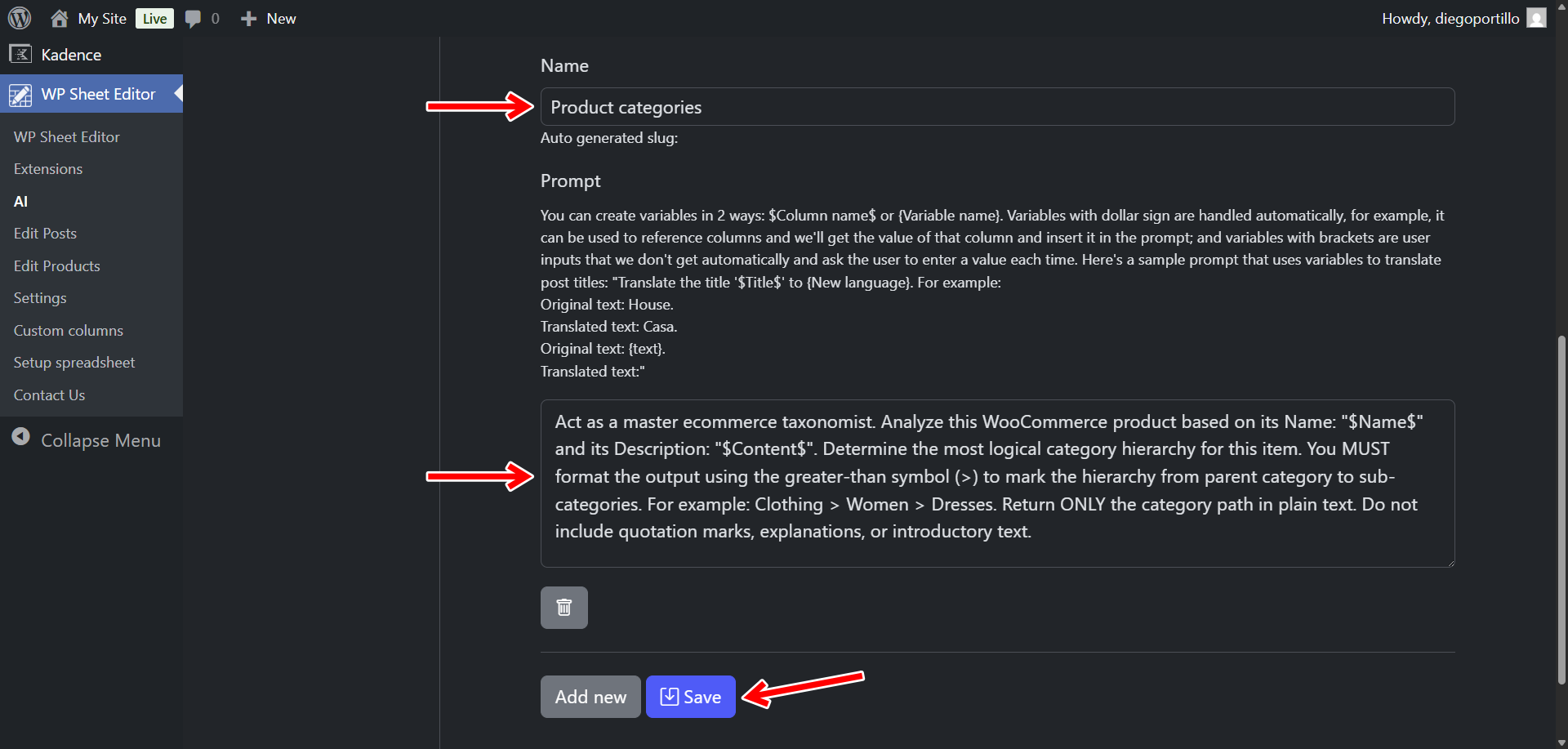
Set up your sorting logic with these parameters:
- Name your prompt:
Product Categories - Prompt:
Act as a master ecommerce taxonomist. Analyze this WooCommerce product based on its Name: "$Name$" and its Description: "$Content$". Determine the most logical category hierarchy for this item. You MUST format the output using the greater-than symbol (>) to mark the hierarchy from parent category to sub-categories. For example: Clothing > Women > Dresses. Return ONLY the category path in plain text. Do not include quotation marks, explanations, or introductory text.
- Click Save.
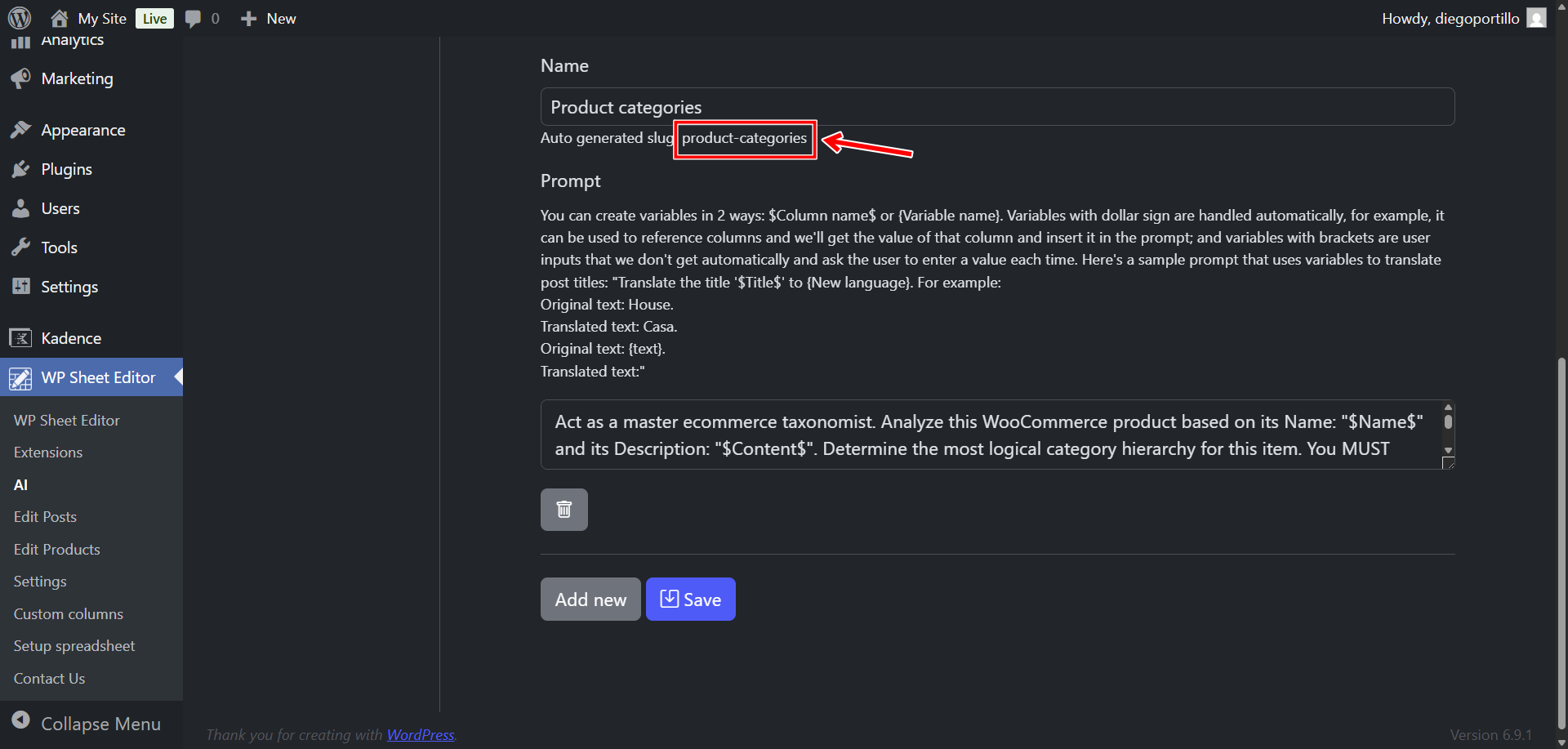
The plugin will assign a slug to this new prompt; in this case, it will be product-categories.
You will be able to use this prompt as a shortcut in spreadsheet cells like this: ai:categorize-product.
Select cell format for taxonomy term cells
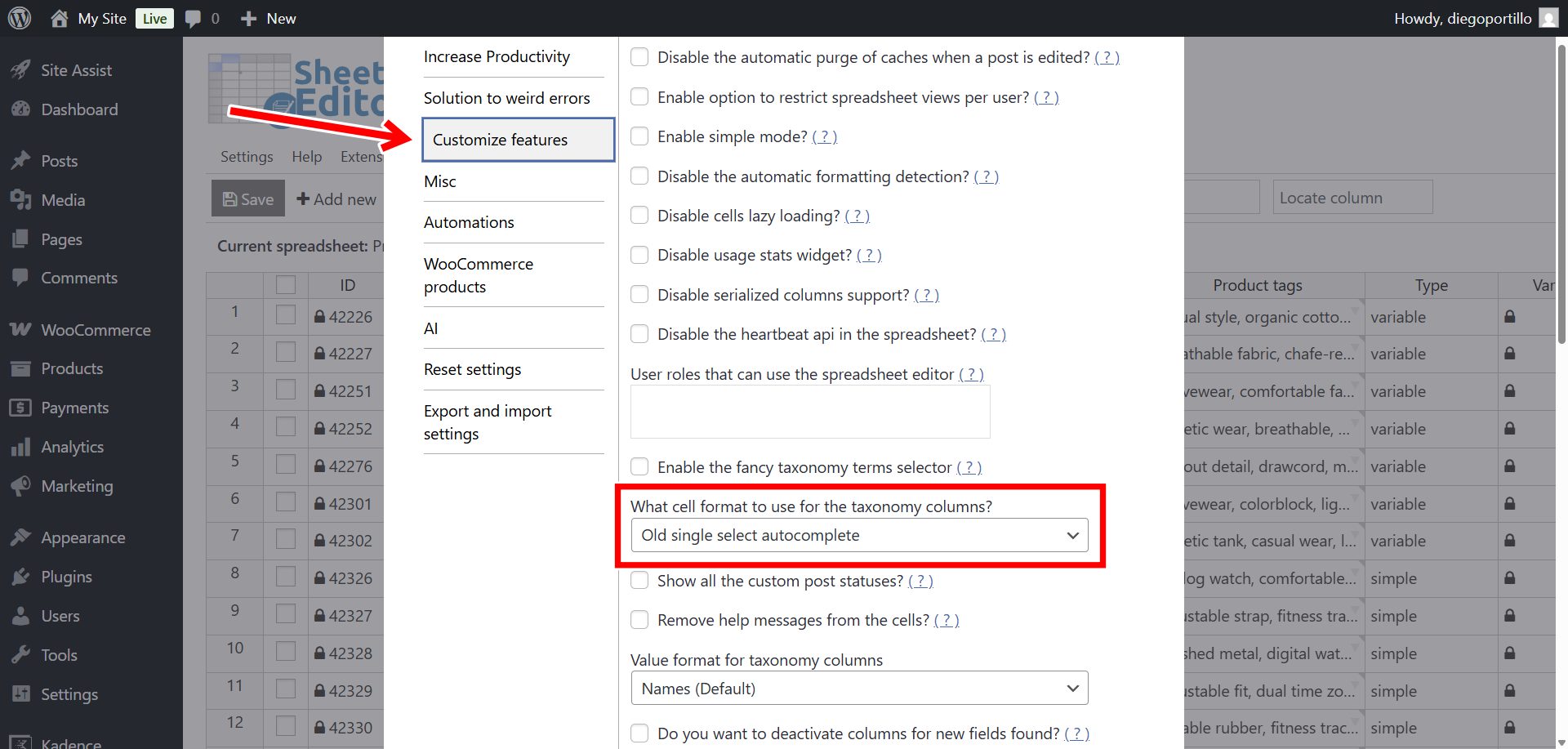
Make sure you select single select autocomplete format for your taxonomy term cells, so that you can write text in those cells.
Go to Settings > Advanced settings.
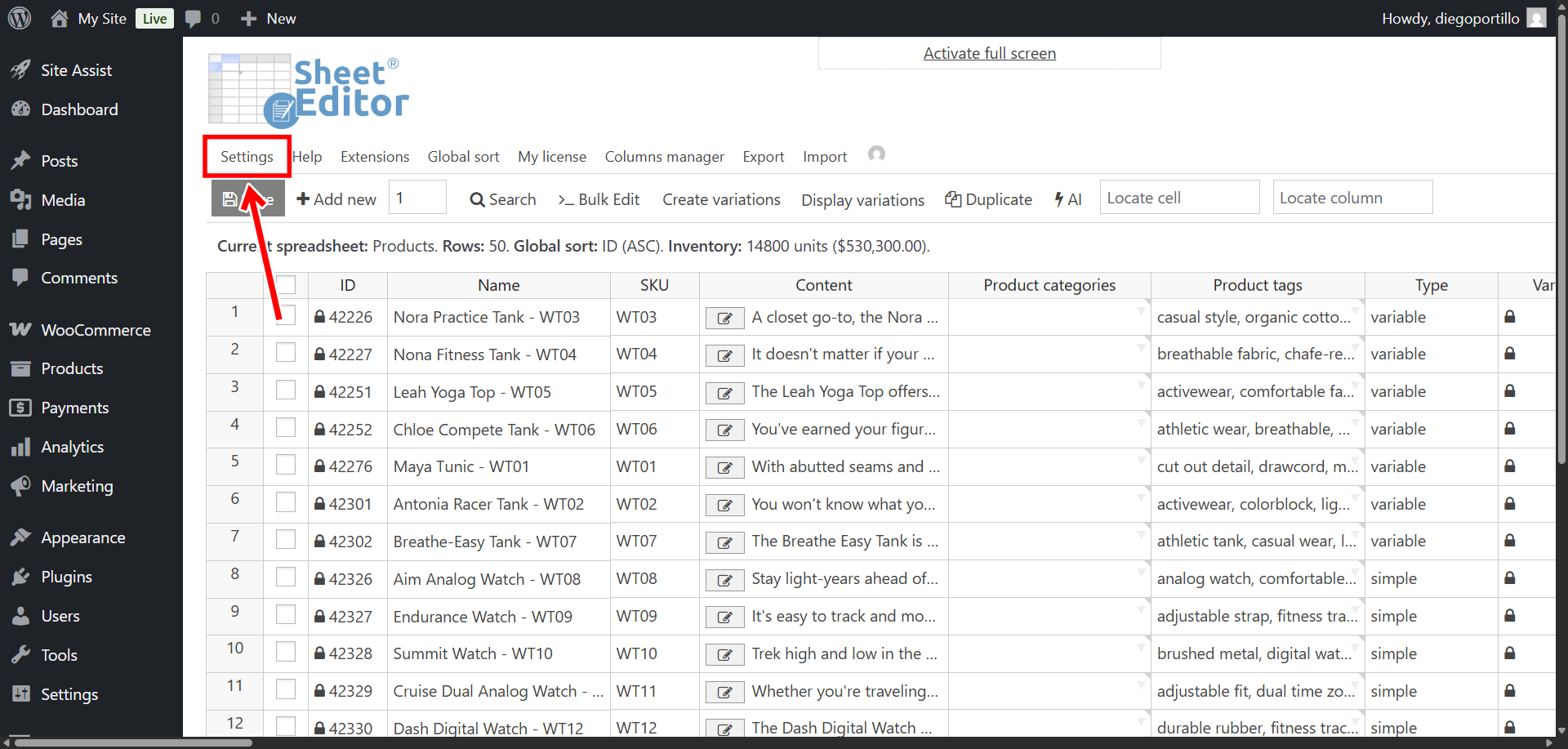
Now navigate to the Customize features tab and select this value:
- What cell format to use for the taxonomy columns: Old single select autocomplete
- Save the changes.
Method 1: Categorize products with AI in the spreadsheet
You can add categories to your WooCommerce products with generative AI in the spreadsheet.
Navigate to WP Sheet Editor > Edit Products to load your WooCommerce products in the spreadsheet.
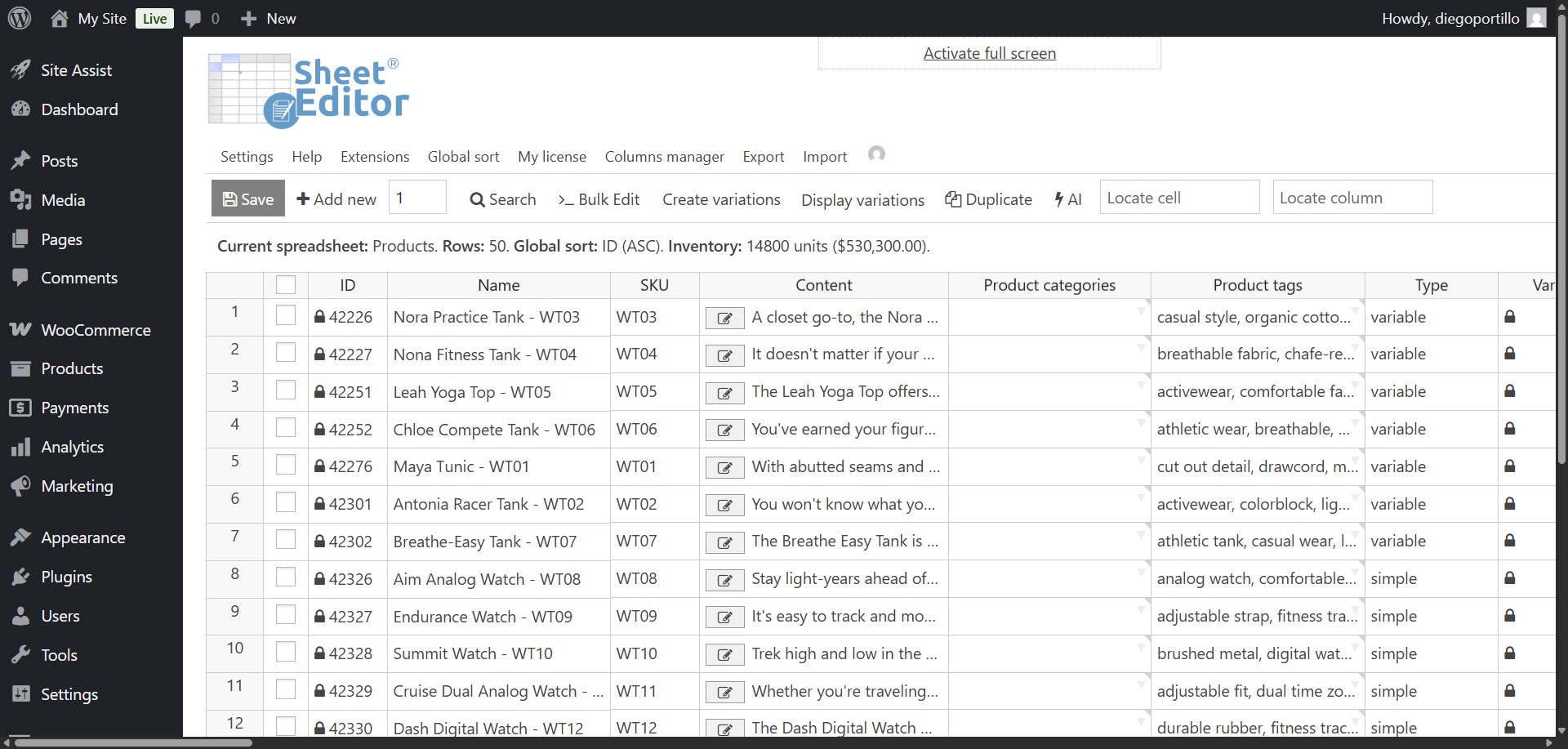
Scroll across the grid until you locate the Categories column.
Find products missing categories or products that currently have the “Uncategorized” category.
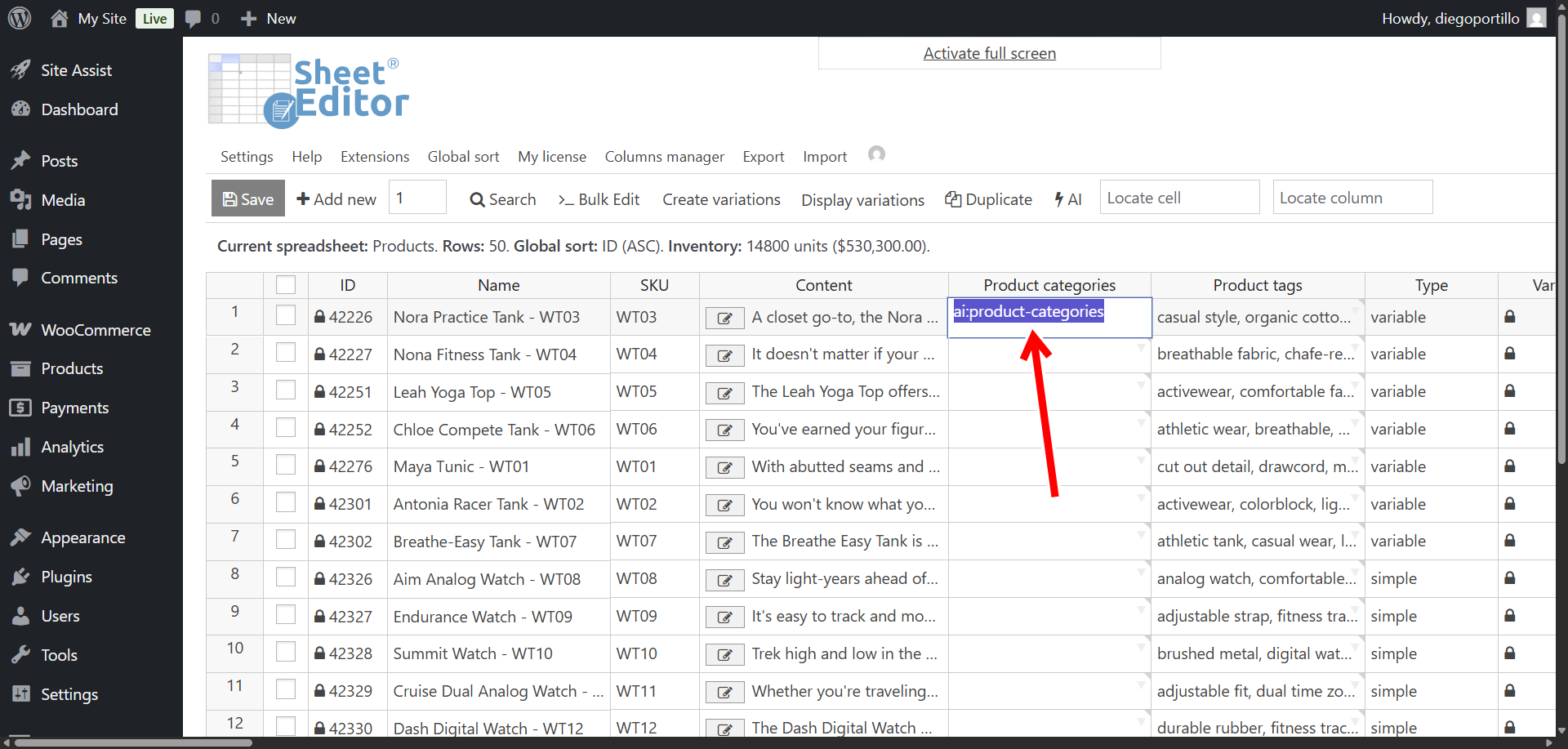
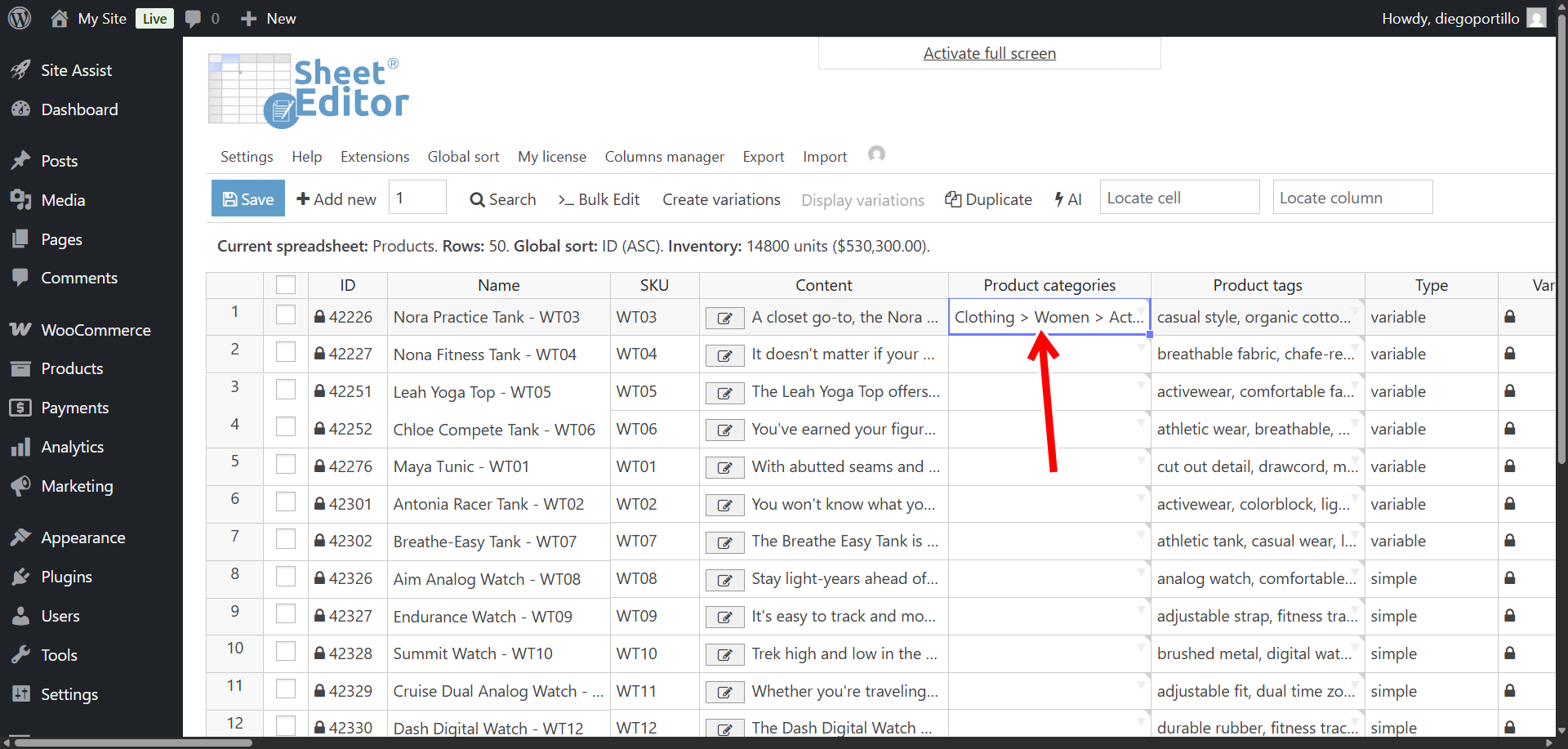
Click directly on that empty cell, and type your newly created shortcut:
ai:categorize-product
Press Enter.
The AI will read the Name and Content fields of that specific row, process the logic, and output a formatted hierarchical string (e.g., Home & Garden > Kitchen > Appliances).
You’ll see a loading icon in the cell while the AI is working.
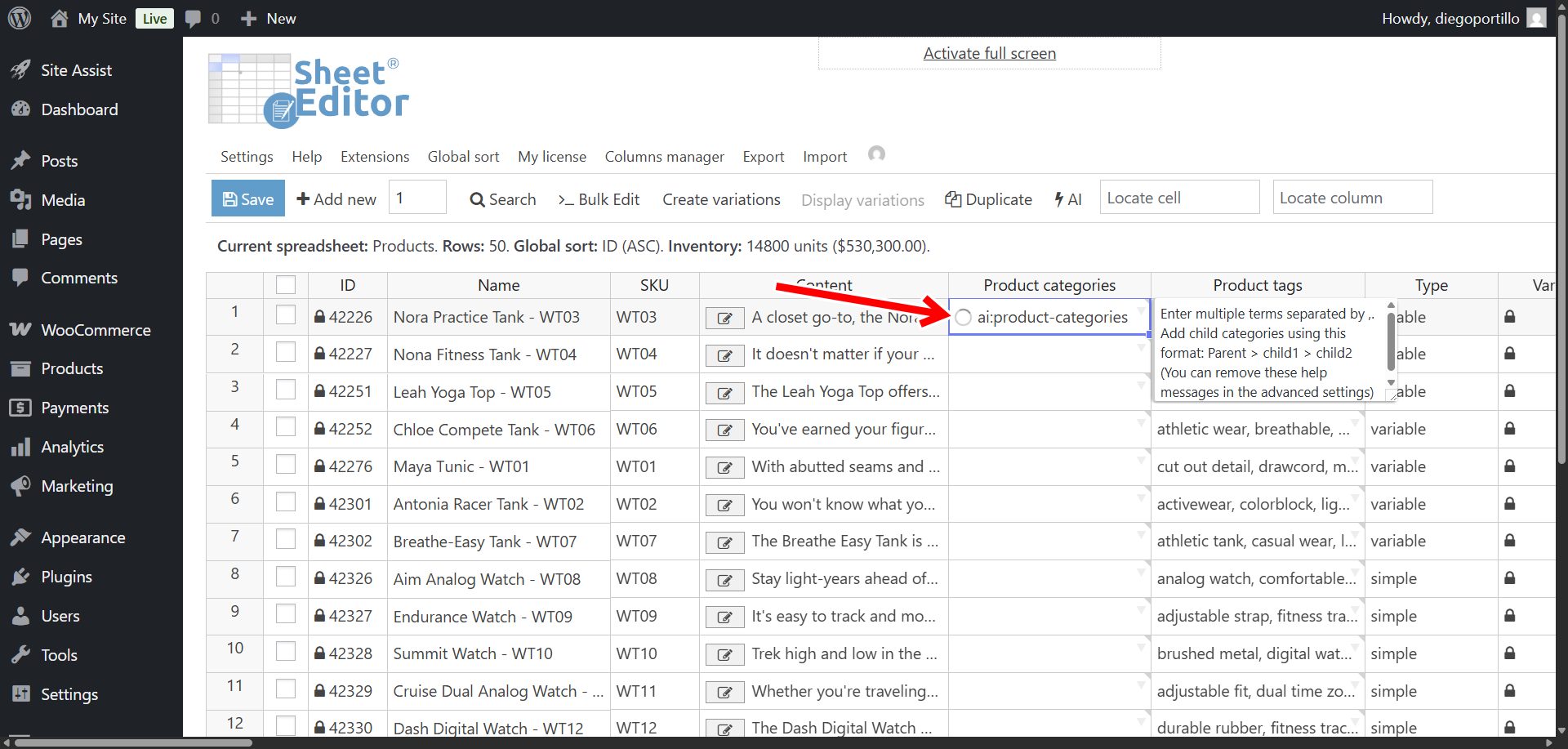
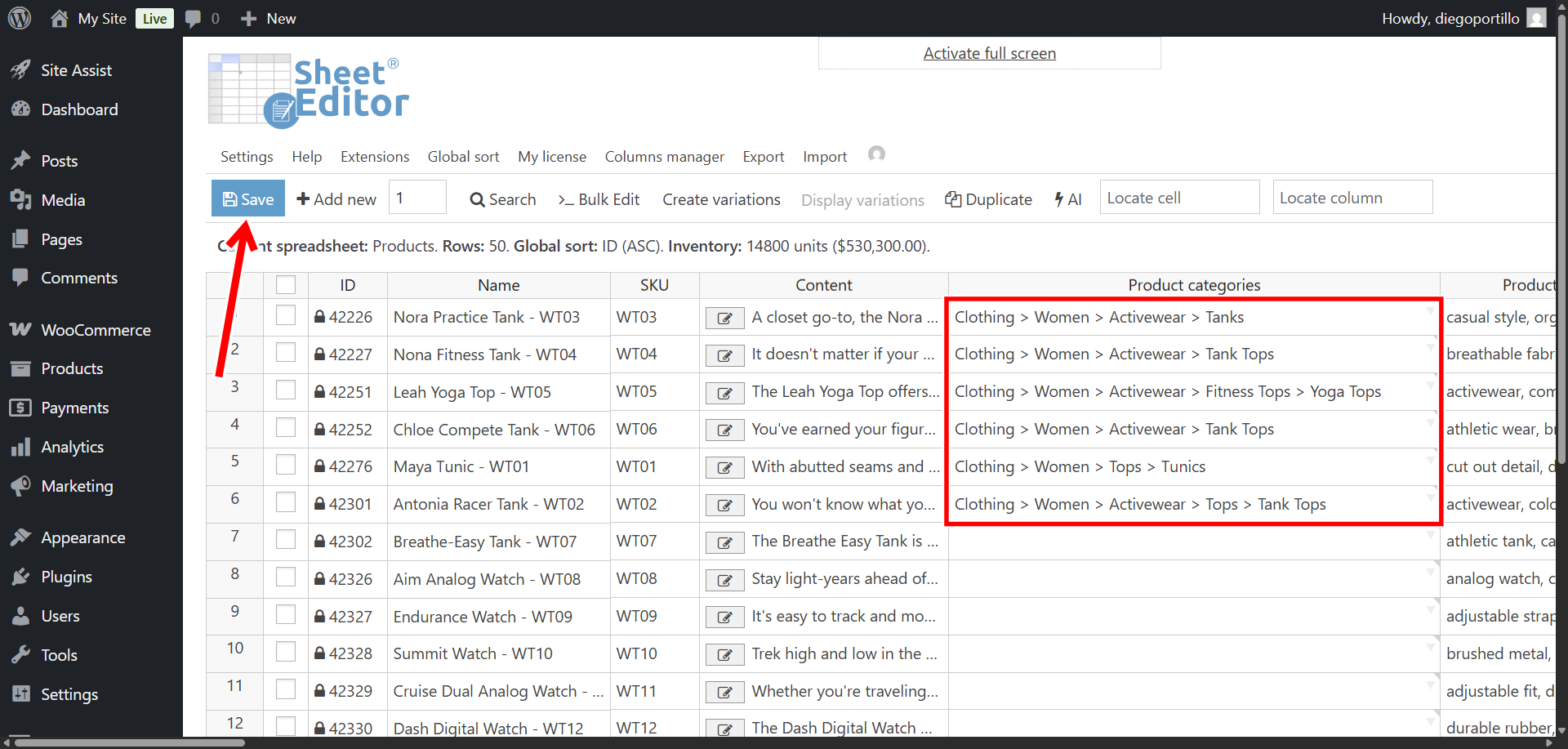
Once the process is complete, you categories with hierarchy will be added to the cell.
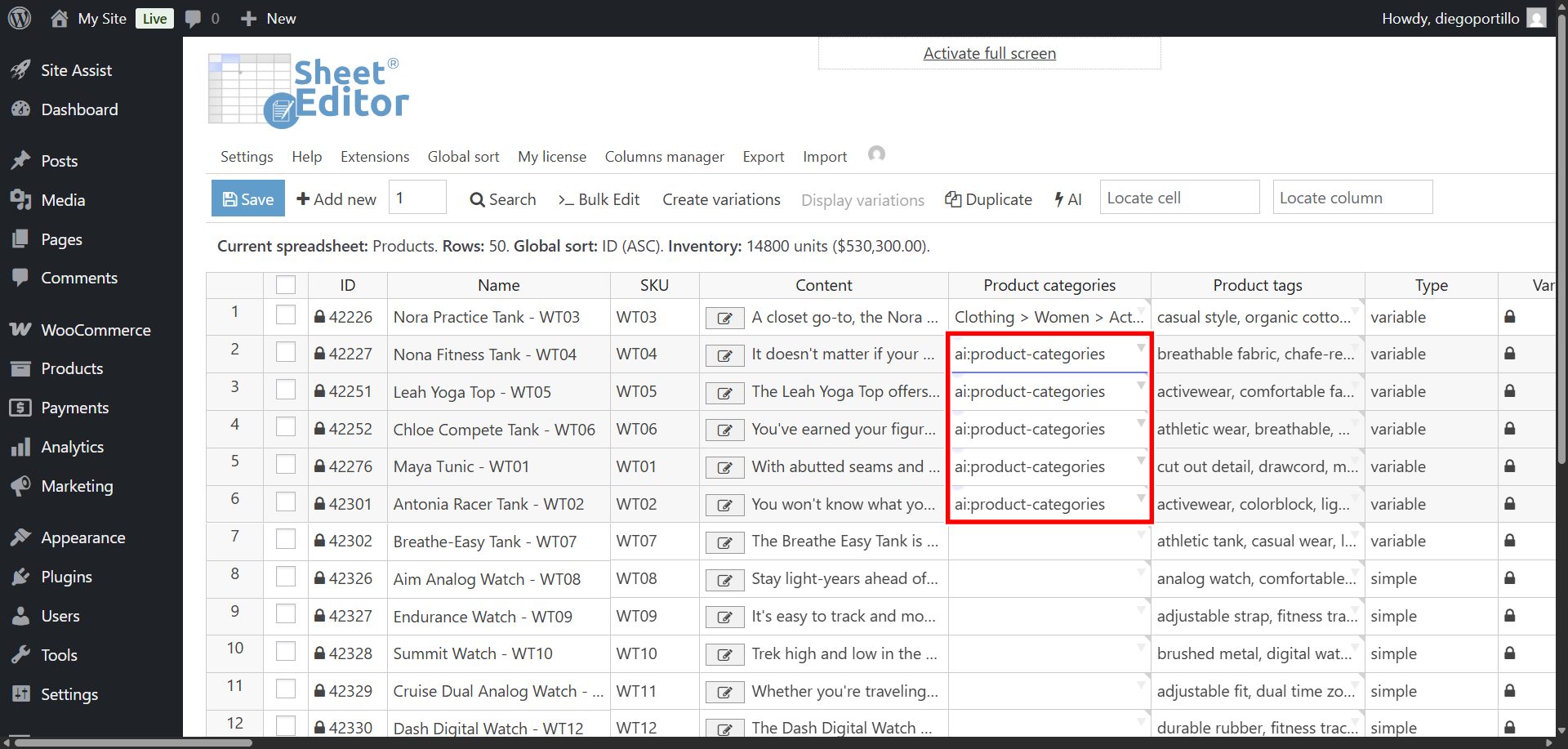
To generate categories for multiple products at once, paste the shortcut into multiple cells and hit Enter.
Once you’re done categorizing your WooCommerce products in the spreadsheet, you can click on Save to apply the changes.
Method 2: Bulk categorize products with AI
Ye can use the Bulk Edit tool to categorize all your products in bulk using generative AI.
Search for products missing categories
Let’s filter the spreadsheet so the AI only processes products that need to be categorized.
Open the Search tool located on the toolbar.
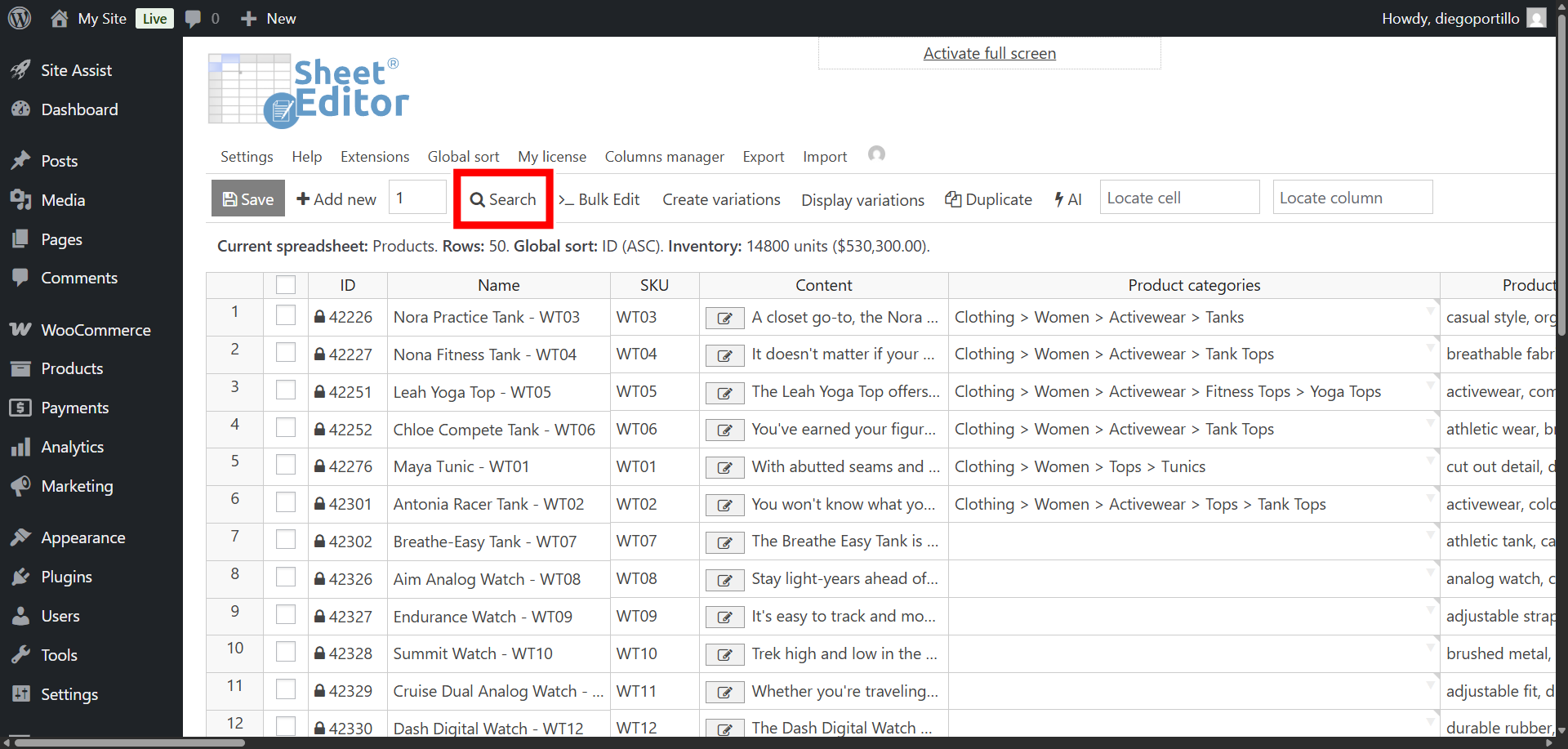
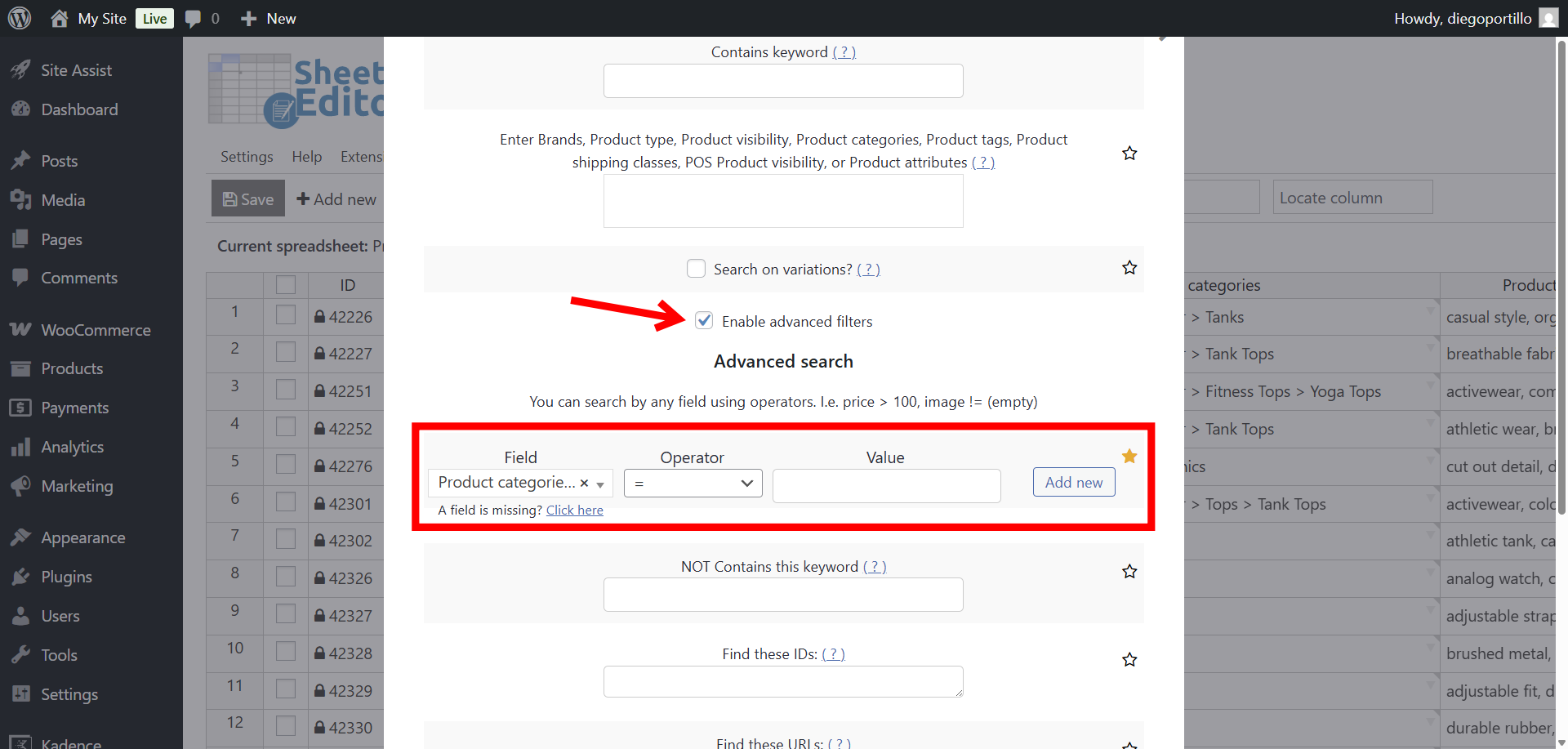
Once there, select these values to filter all products missing categories:
- Activate the Enable advanced filters checkbox.
- Field: Select the Product categories column.
- Operator: =
- Value: Leave this field empty.
- Click Run Search.
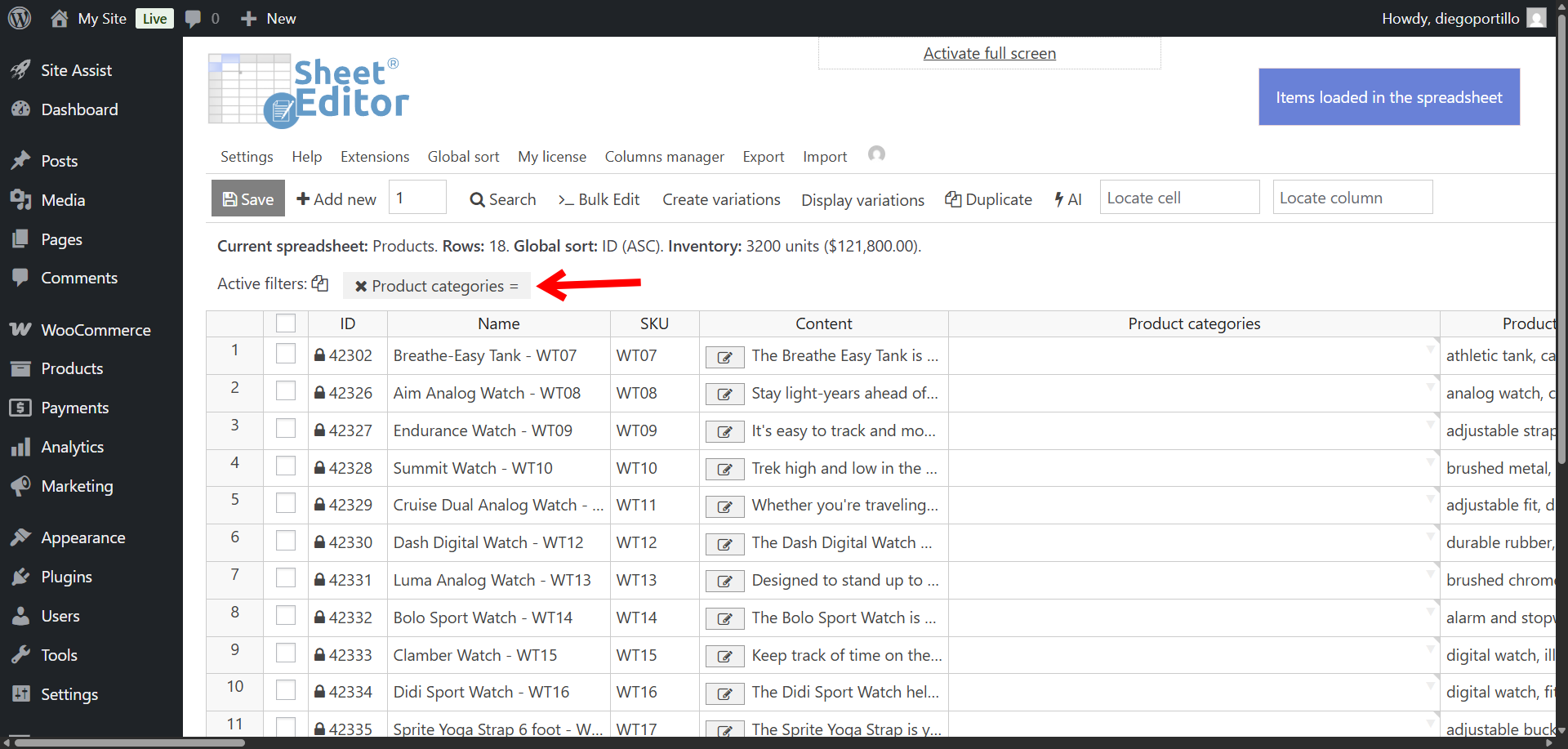
Your spreadsheet will reload, isolating only the stray products that require taxonomy mapping.
Bulk categorize products with artificial intelligence
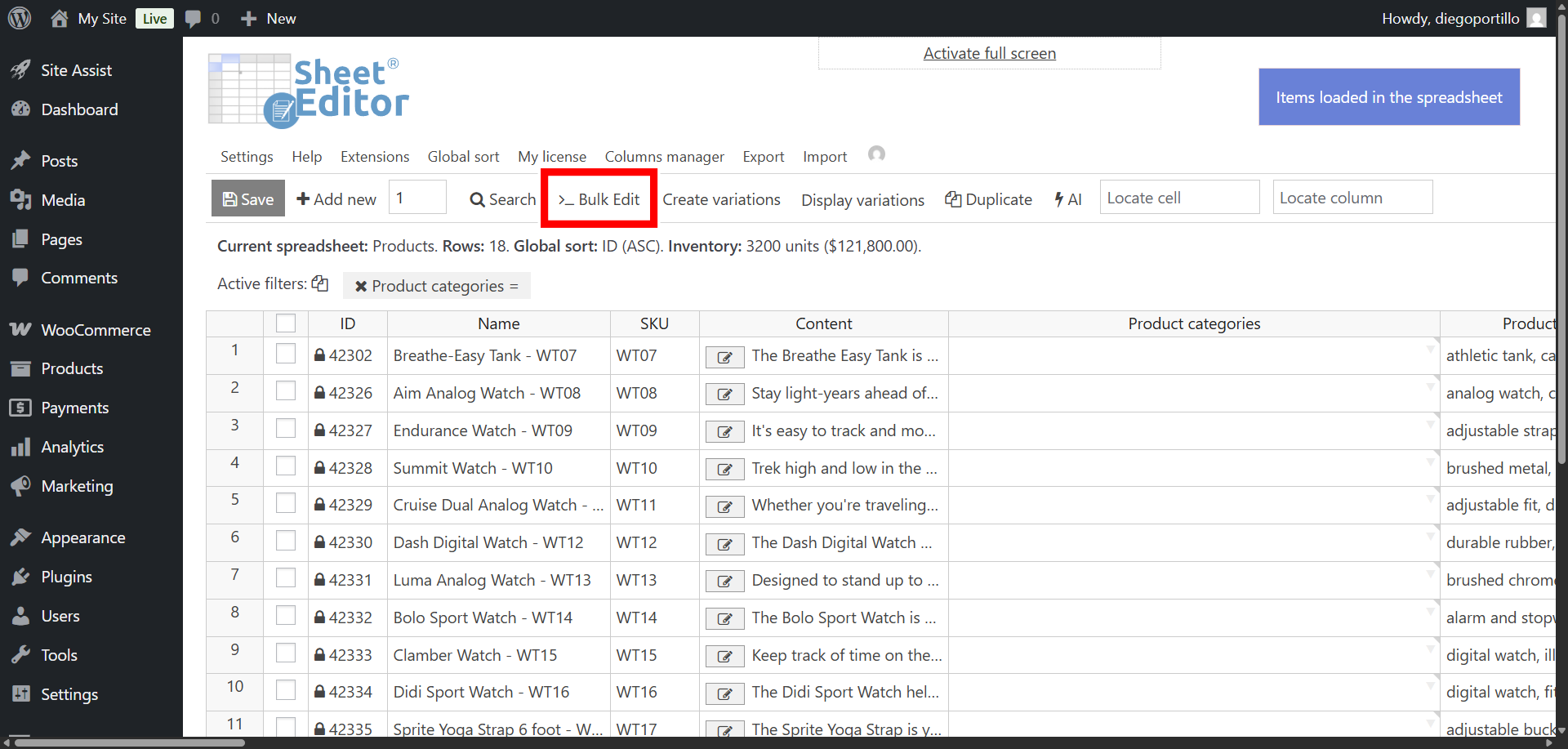
With your products list filtered, click the Bulk Edit tool.
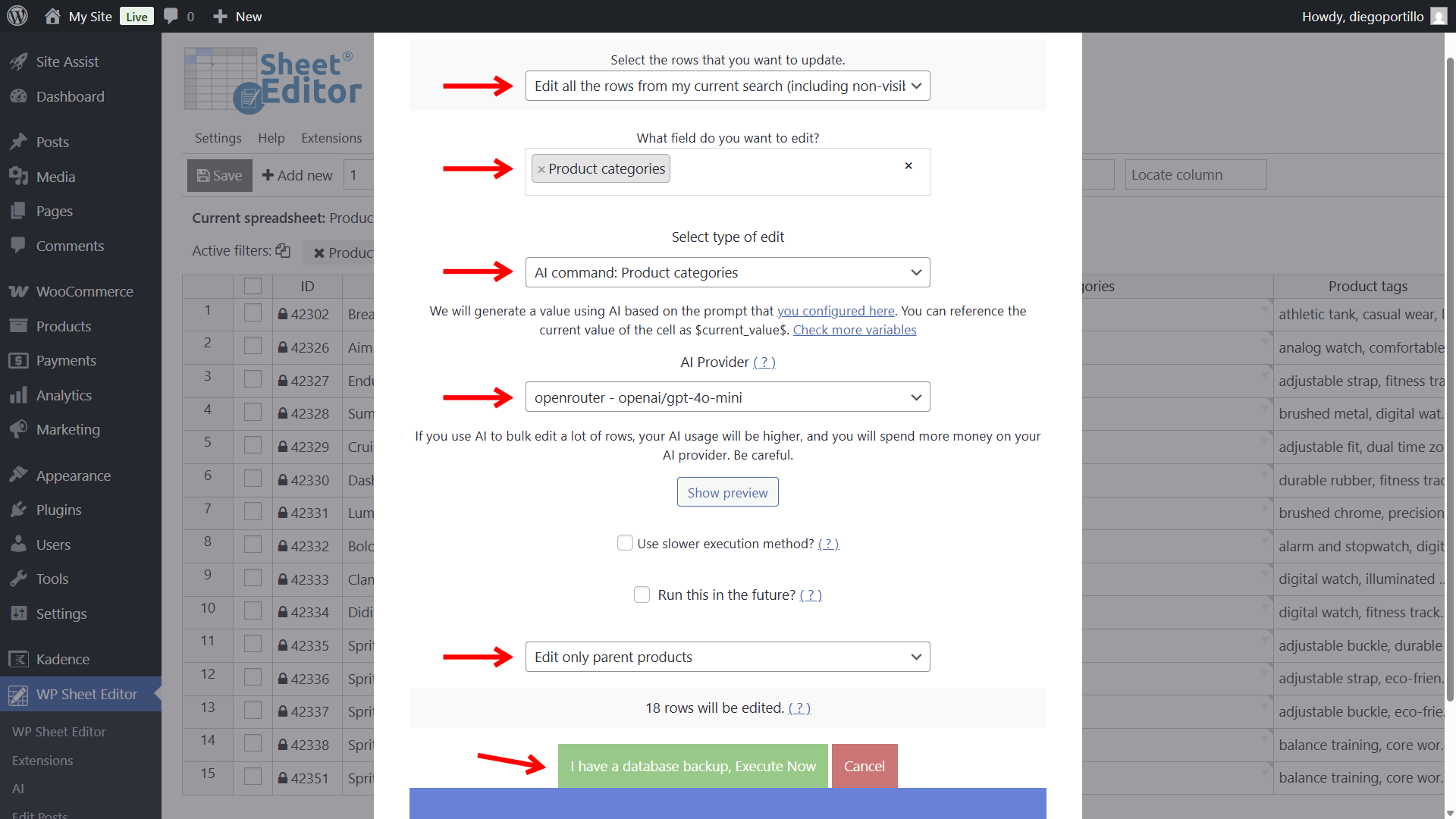
Configure the mass update using these precise settings:
- Select the rows that you want to update: Edit all the rows from my current search
- What field do you want to edit: Product categories
- Select the type of edit: AI command: Product categories
- AI Provider: Select your preferred LLM. In this example, we will use GPT-4o-mini through OpenRouter.
- Select Edit only parent products.
- Finally, click Execute Now.
The plugin will safely batch your products and send their Names and Content to the AI. Once the process is complete, all your products that previously had no categories will have categories with hierarchy.
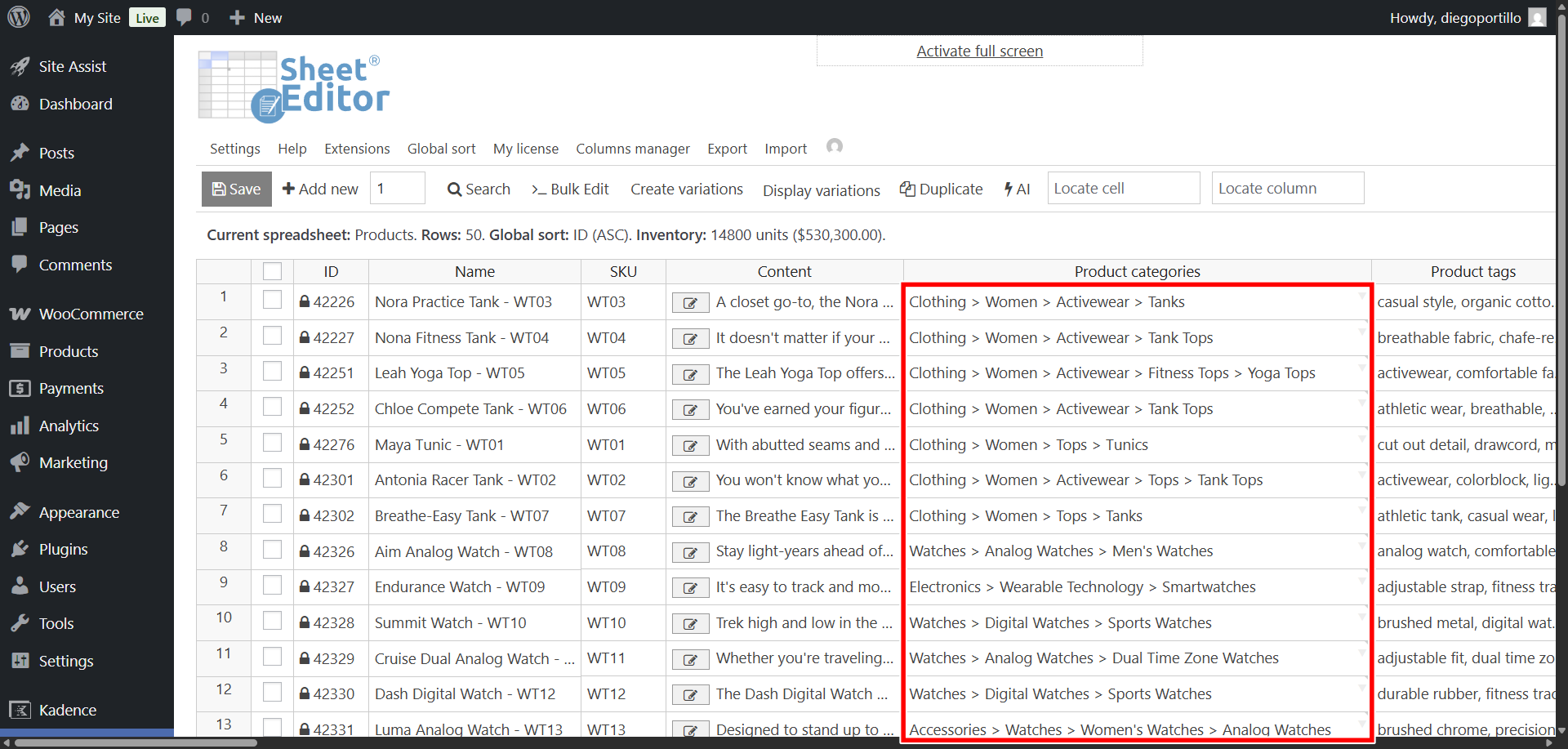
A structured, well-organized catalog is non-negotiable for a professional WooCommerce store. It powers your sidebar navigation, breadcrumbs, and product feeds.
By leveraging WP Sheet Editor – AI, you no longer have to fear massive catalog updates or messy vendor imports. Let artificial intelligence analyze your products, build your category trees, and keep your inventory perfectly organized with zero manual data entry.