
While LearnDash LMS courses are the container, your Lessons are the actual product. But managing them is a completely different beast. You aren’t just looking at prices and access settings; you are dealing with video URLs, assignment uploads, forced timers, and drip schedules.
Have you ever migrated your video hosting from Vimeo to YouTube and realized you need to update 300 lessons? Or perhaps you launched a new course only to realize half the lessons weren’t properly assigned to it?
In this tutorial, we will show you how to export LearnDash lessons to Google Sheets. This isn’t just a backup. It is a way to audit your curriculum’s structure, verify video links, and manage content settings in bulk without opening hundreds of individual editor tabs.
Why export LearnDash Lessons specifically?
Managing lessons requires a more granular approach than managing courses. Exporting this data to Google Sheets solves specific content management problems:
- Video audits: Export the “Lesson Video URL” column to instantly spot missing links or outdated video sources.
- Hierarchy checks: Quickly scan the “Associated Course” column to ensure no orphan lessons are floating around your site.
- “Sample” management: Bulk review which lessons are marked as “Sample Lessons” to ensure you are giving away the right amount of free preview content.
- Materials audit: Check which lessons have downloadable materials attached and which ones are missing them.
What you need to export lessons
Besides the LearnDash LMS plugin, we will use these WP Sheet Editor tools:
WP Sheet Editor – Courses: This plugin generates a specialized spreadsheet for LearnDash Lessons (`sfwd-lessons`) and other LMS post types.
You can purchase the plugin here:
Google Sheets Sync: This service bridges your WordPress site and Google Sheets, allowing for automated or manual exports.
You can sign up to the service here:
Sign up to the Google Sheets Sync Service - or - Check the features
You will receive a helper plugin upon signing up for the service to handle the API authentication.
Step 1. Connect WordPress to Google Sheets
When you subscribe to the Google Sheets Sync service, you’ll receive a helper plugin that links your WordPress site with your Google Sheets account, the Google API, and the WP Sheet Editor API.
Follow this installation guide to complete the setup.
Step 2. Open the LearnDash lessons spreadsheet
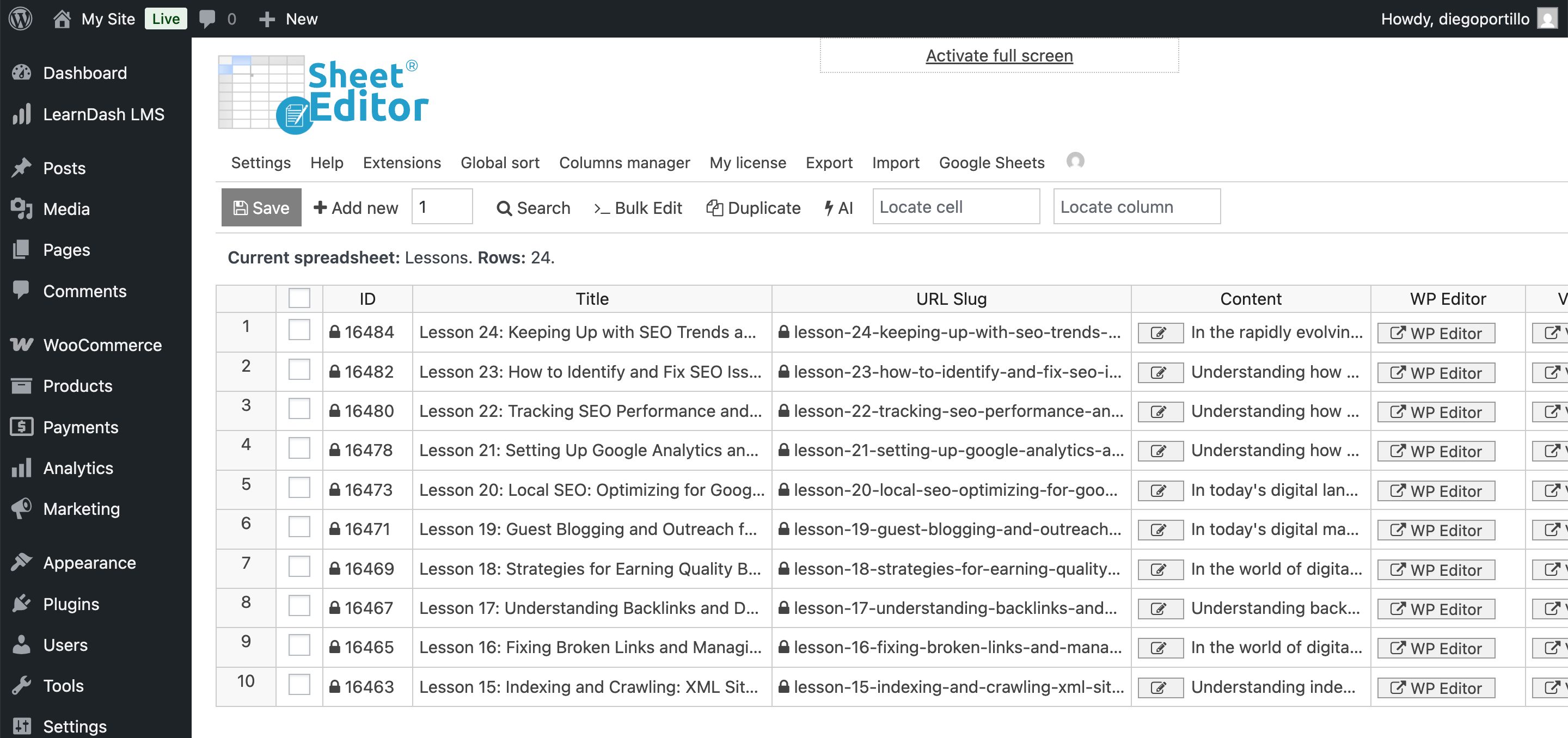
Go to WP Sheet Editor > Edit Lessons. The spreadsheet will show all your LearnDash lessons with columns specifically tailored for LearnDash lessons.
Step 3. Select the lessons you want to export
Maybe you don’t want to export every lesson on your site. You likely want to audit a specific course or category.
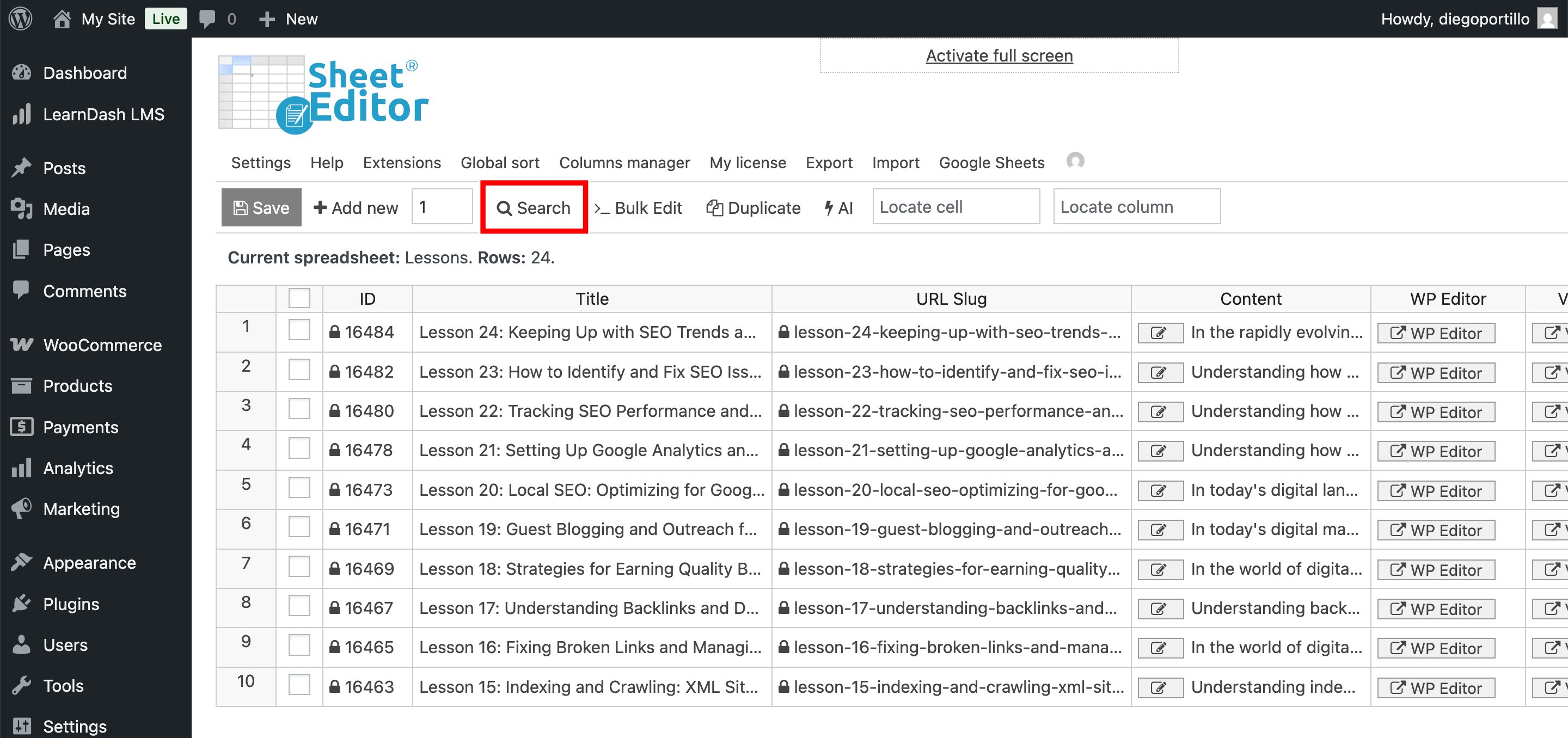
If that’s the case, open the Search tool to filter your data.
You’ll be able to filter your LearnDash lessons by keyword, author, category, tag, course, etc.
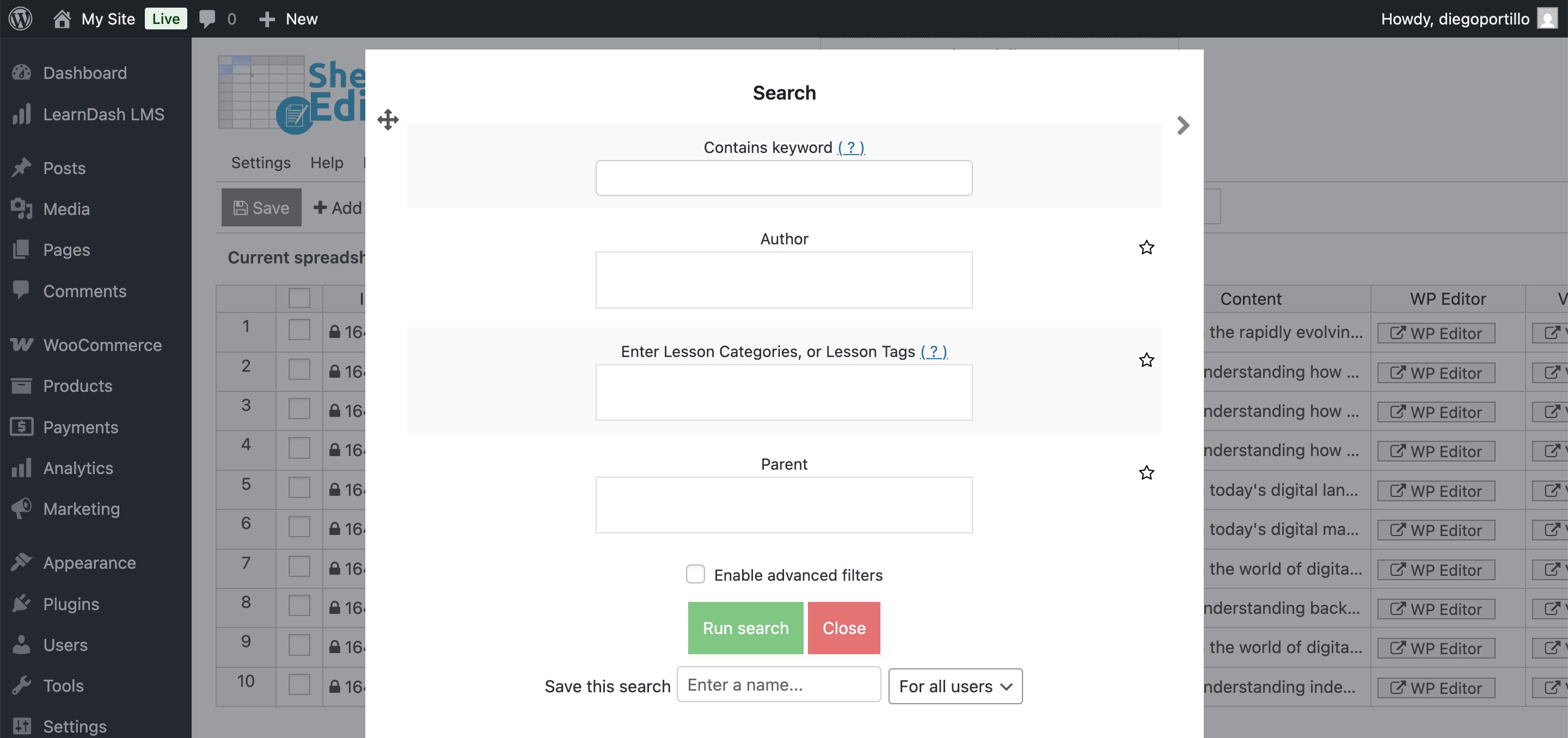
Once you have selected the search terms, click Run Search, and the spreadsheet will show only the lessons matching your criteria.
Step 4. Export LearnDash Lessons to Google Sheets
With your specific lessons filtered, let’s move send their data to Google Sheets.
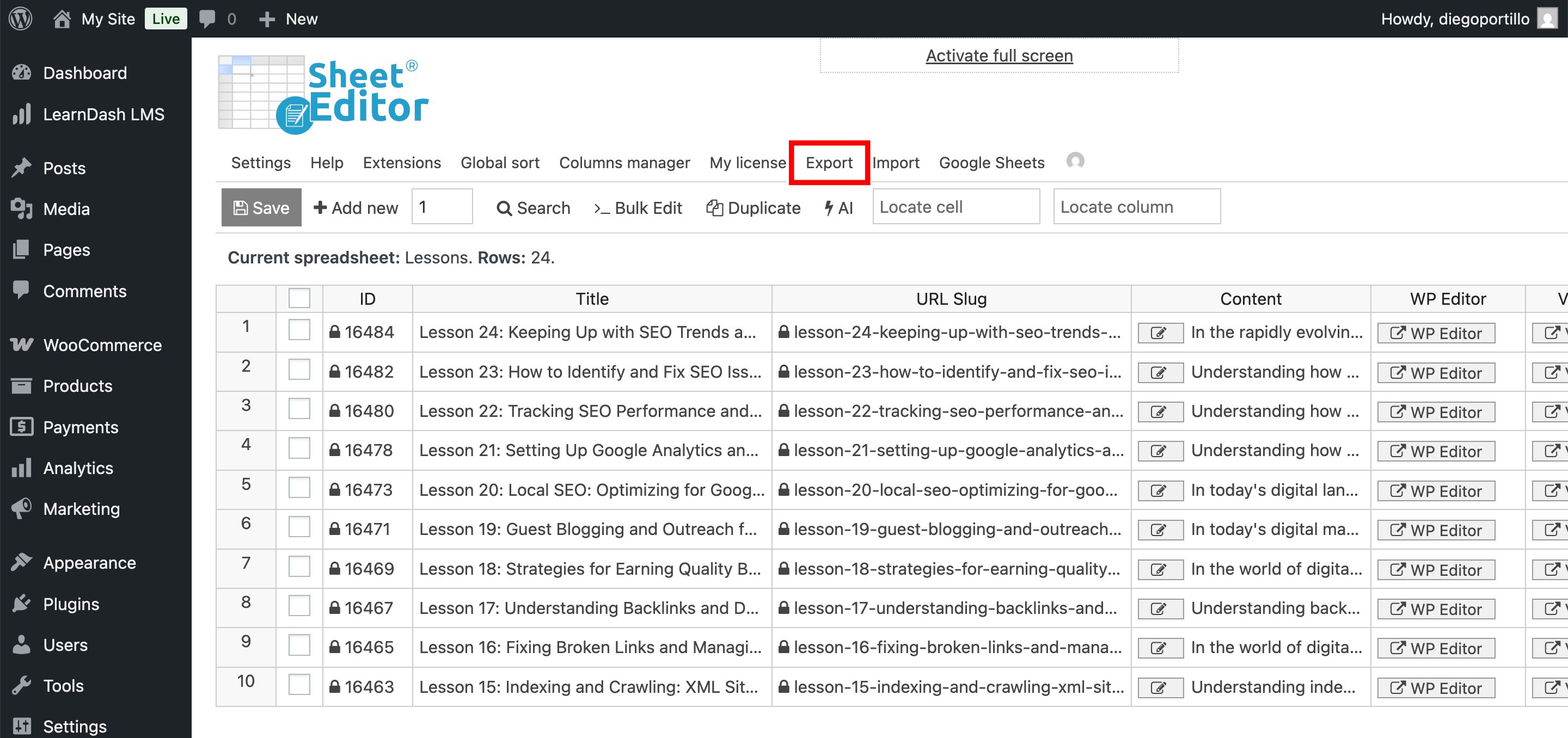
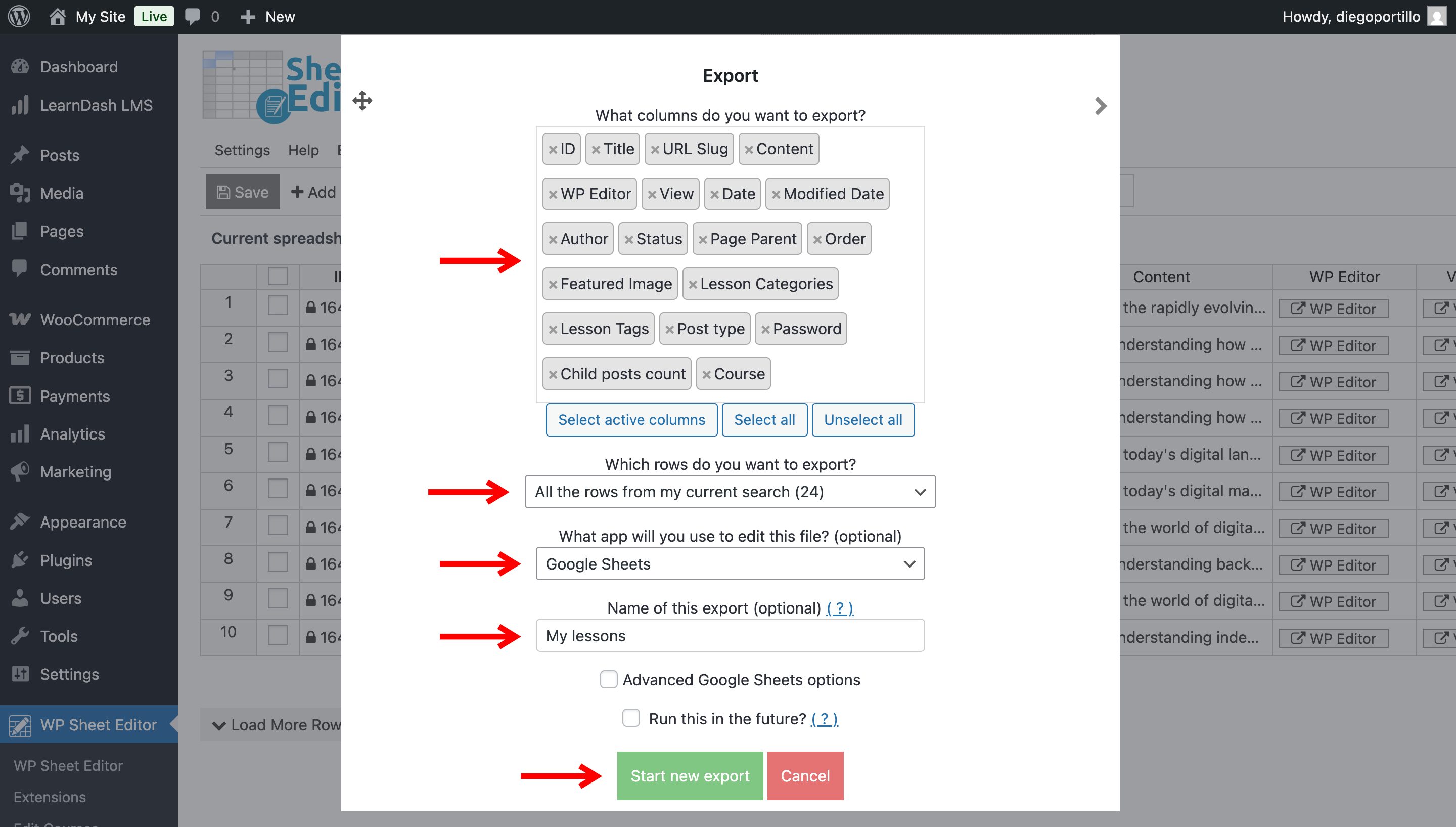
Click Export on the top toolbar.
Now select these values:
- : Choose “Select all” for a full backup, or manually select specific columns for a focused report.
- : You can export all the lessons from your current search, all lessons, all manually selected lessons.
- What app will you use to edit this file: Select Google Sheets.
- Name of this export: Enter a descriptive name, such as “LearnDash Lessons – [Date]”.
- Click Start new export.
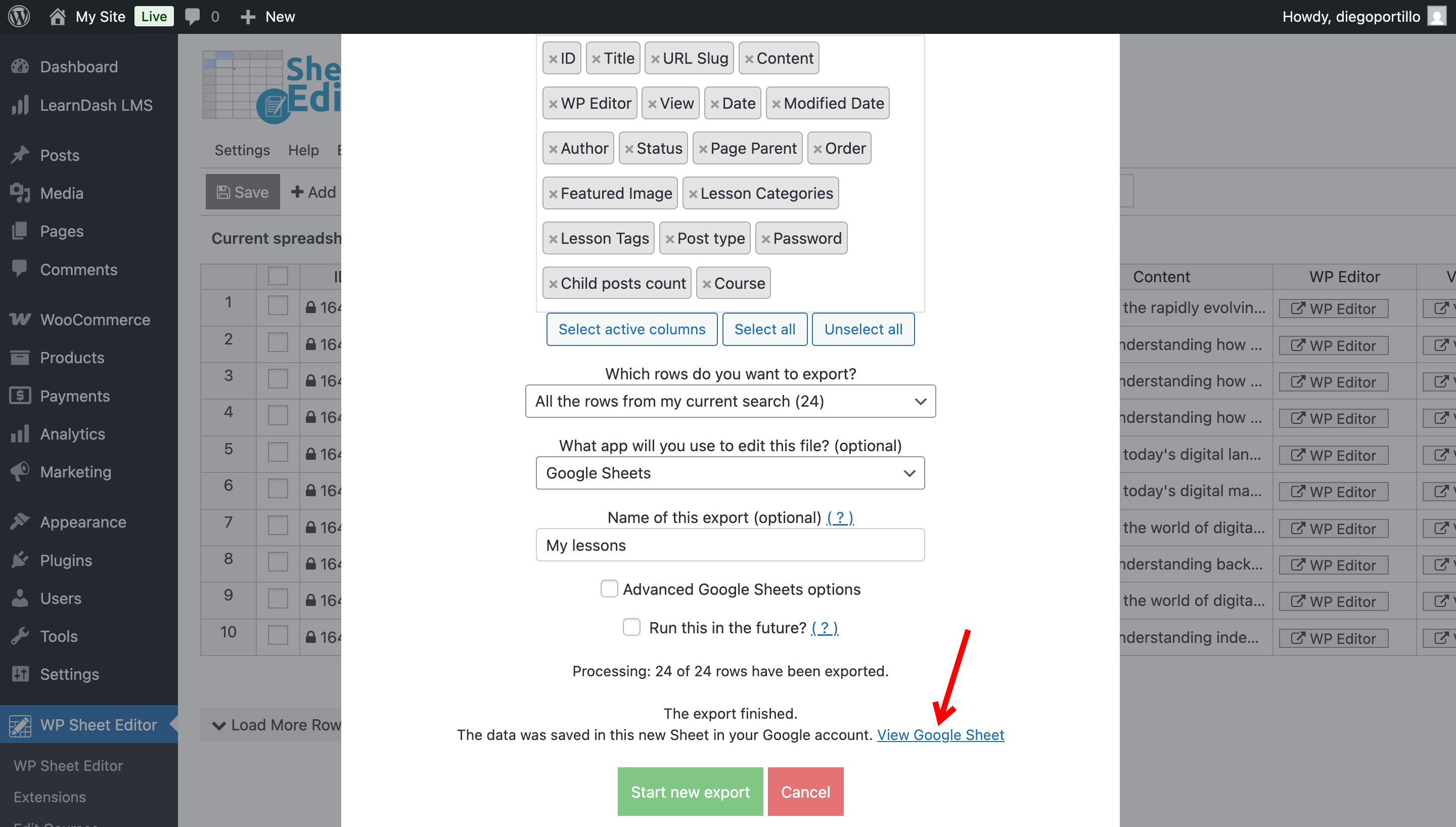
A “View Google Sheet” link will appear. Click it to open your file.
Step 5. Manage your Lesson Data in Google Sheets
Now you have a bird’s-eye view of your curriculum’s details. You can:
- Bulk link videos: Paste new Vimeo/YouTube links down the “Video URL” column in seconds.
- Fix ordering: Adjust the “Lesson Order” numbers to rearrange how content appears to students.
- Review descriptions: Read through all lesson excerpts to ensure they provide clear instructions.
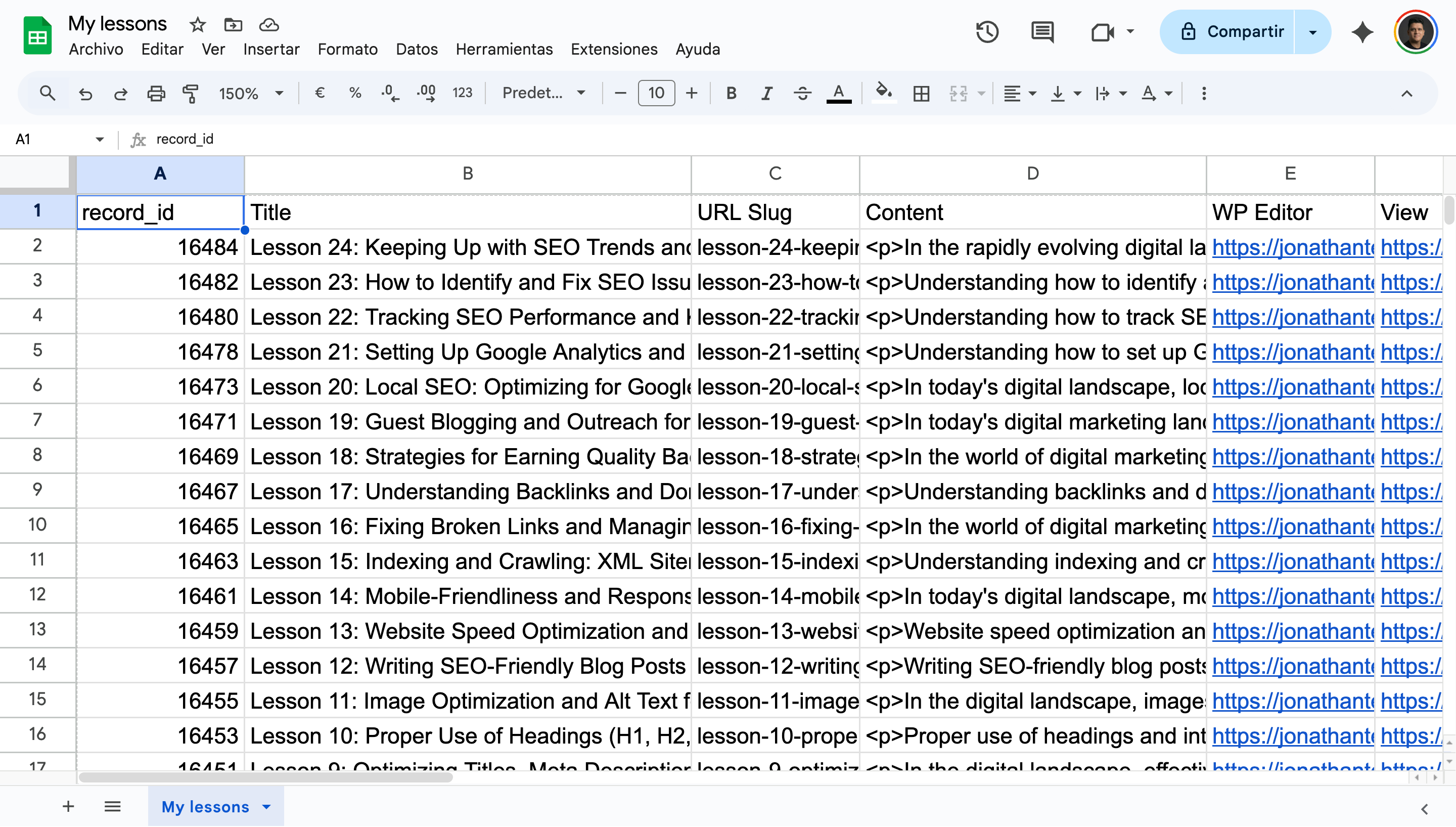
Remember, if you spot errors (like a lesson assigned to the wrong course), you can fix them right there in the sheet and use the Import tool to push those changes back to WordPress.
Conclusion
By exporting LearnDash lessons to Google Sheets, you stop treating your content like a black box. You gain visibility into the specific settings that affect the student experience, allowing you to fix issues bulk instead of one by one.