
Do you need to export WooCommerce orders that have been cancelled? Generating a report of these voided transactions is essential for analyzing lost revenue, managing stock restoration, and understanding why shoppers stop their purchases.
While WooCommerce lets you see cancelled orders in the dashboard, it doesn’t offer a quick way to download them in bulk with specific details like cancellation notes or dates. Doing this manually one by one is slow and can lead to mistakes.
With WP Sheet Editor – WooCommerce Orders, you can easily filter all stopped purchases, view them in a spreadsheet, and extract them to a CSV or Excel file. This gives you the clean data you need to improve your store’s strategy.
You can download the plugin here:
Download WooCommerce Orders Spreadsheet Plugin - or - Check the features
Why download a report of cancelled WooCommerce orders?
Creating a file with your voided sales helps you with:
- Churn analysis: Discover the main reasons why customers are cancelling their purchases.
- Stock control: Ensure that the inventory from revoked orders has been added back correctly.
- Customer win-back: Contact users who cancelled to offer them help or a discount coupon.
- Accounting accuracy: Make sure these cancelled transactions don’t mess up your revenue reports.
- Security checks: Identify strange patterns that might look like fraud or bot attacks.
- Service improvement: Read customer notes to see if your checkout process is confusing.
Having a clear list of these terminated orders allows you to turn lost opportunities into better business decisions.
Step 1. Open the WooCommerce Orders spreadsheet
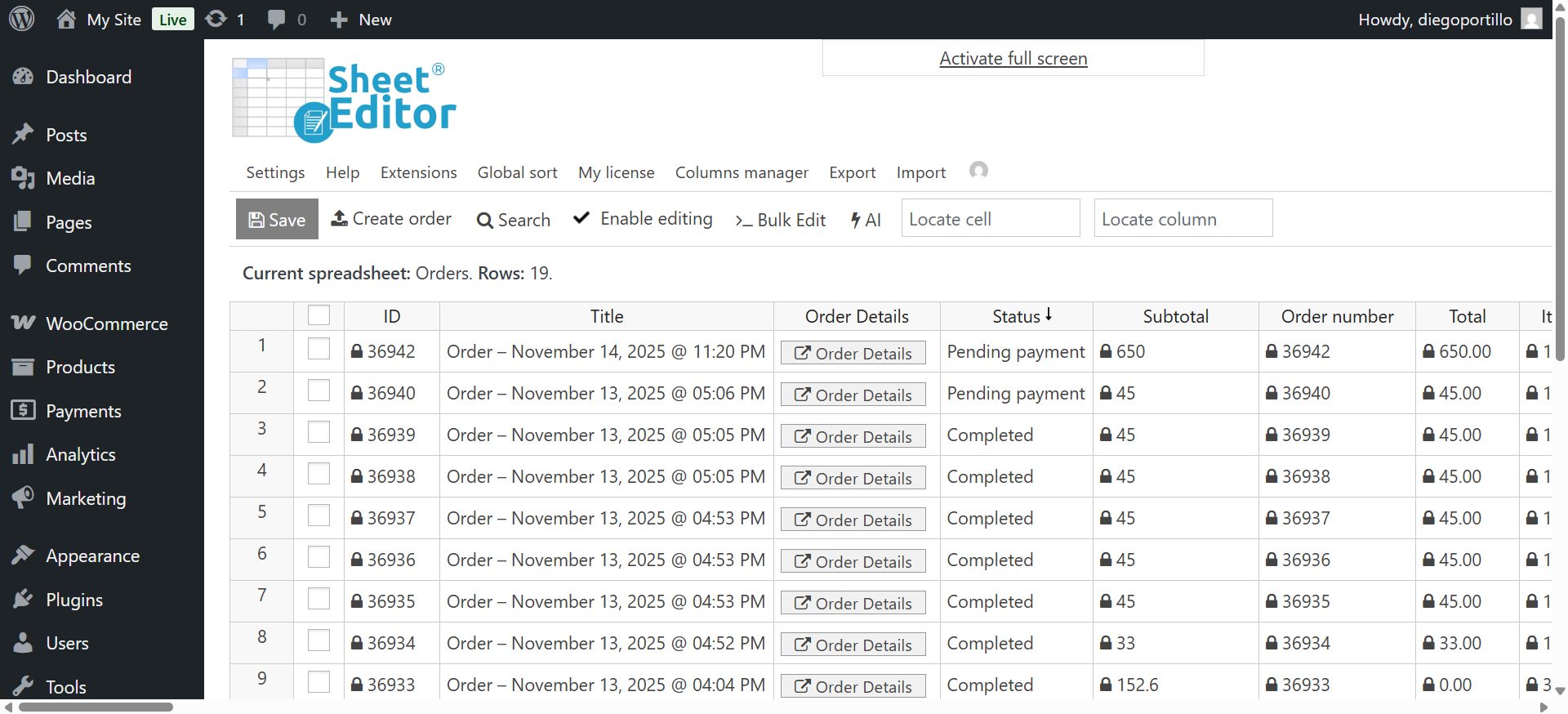
First, go to WP Sheet Editor → Edit orders to open the plugin.
You will see a spreadsheet displaying all your orders, including their current status, billing info, and order totals.
Step 2. Open the “Search” tool
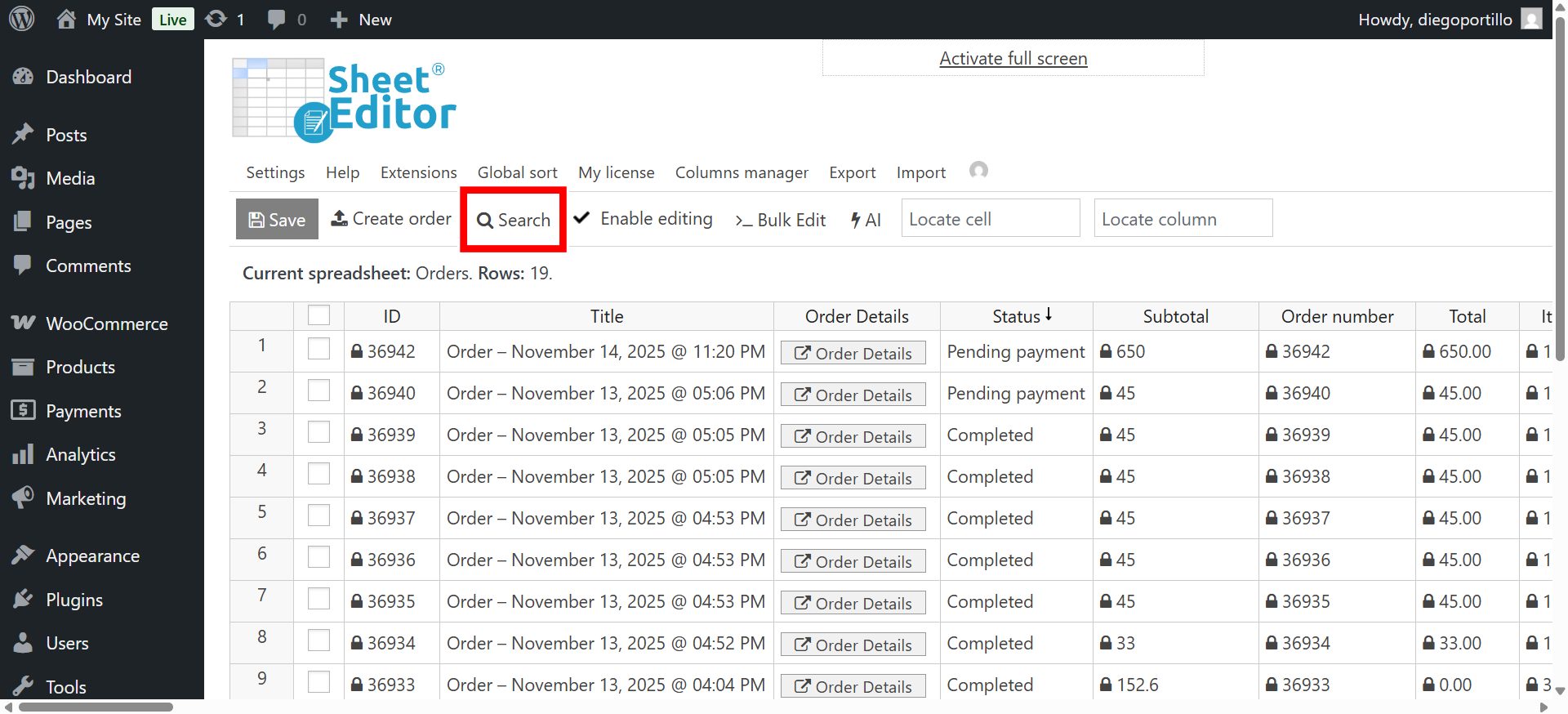
Click the Search button on the toolbar. This feature allows you to find specific data by status, date, or even the customer’s email address.
Step 3. Filter orders with “Cancelled” status
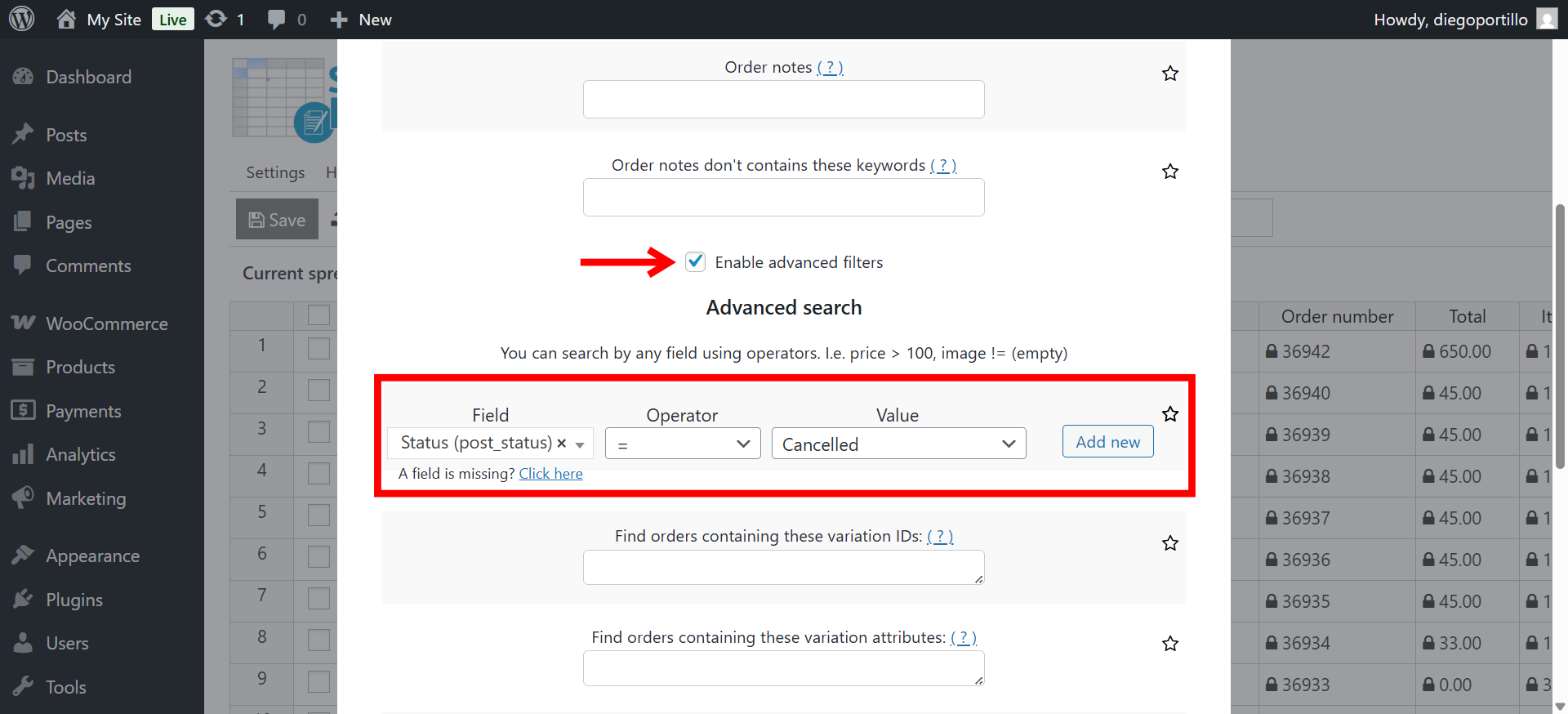
Now, use the Search tool to isolate only the orders that were cancelled. Fill in the fields as follows:
- Check the Enable advanced filters checkbox.
- Field: Status
- Operator: =
- Value: Cancelled
- Click Run search.
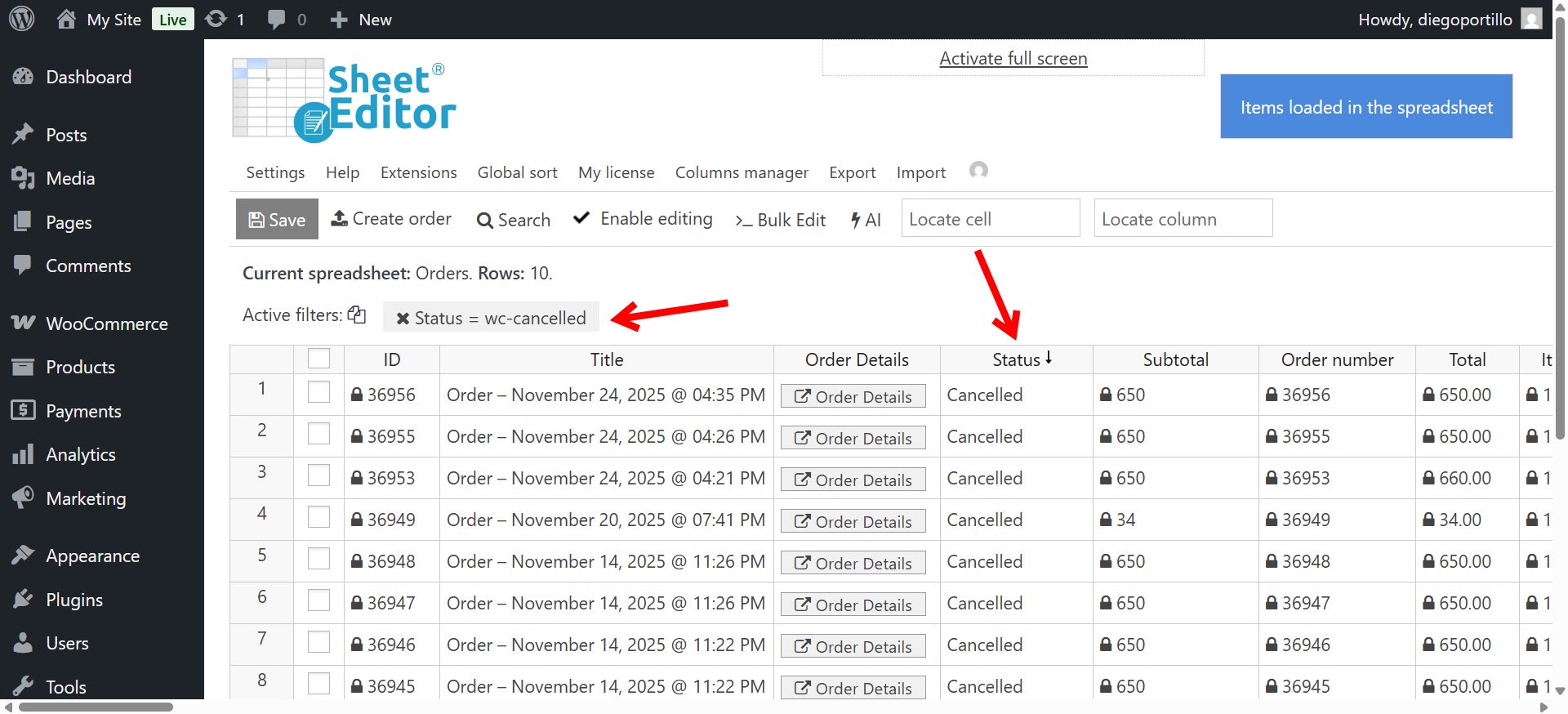
The spreadsheet will refresh and show only the Cancelled orders. You can browse this list or proceed to generate your CSV file.
Optional: Narrow down your results
You can add more conditions to get a more specific report:
- Date range: Find cancellations that happened this month.
- Total amount: Look for high-value orders that were cancelled.
- Product: See which specific items get cancelled the most.
Step 4. Export the cancelled orders to CSV
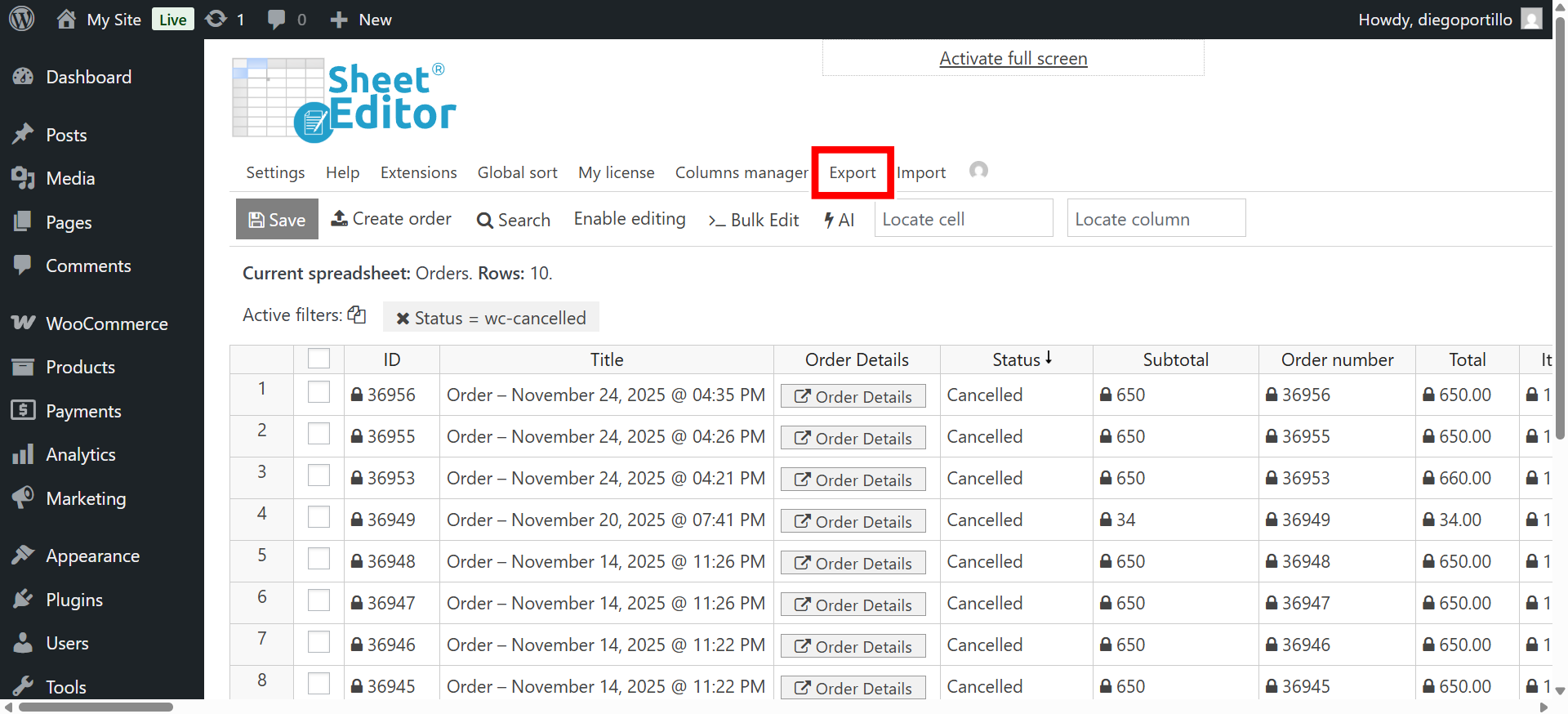
Once you have the list of cancelled transactions, click the Export button on the top toolbar.
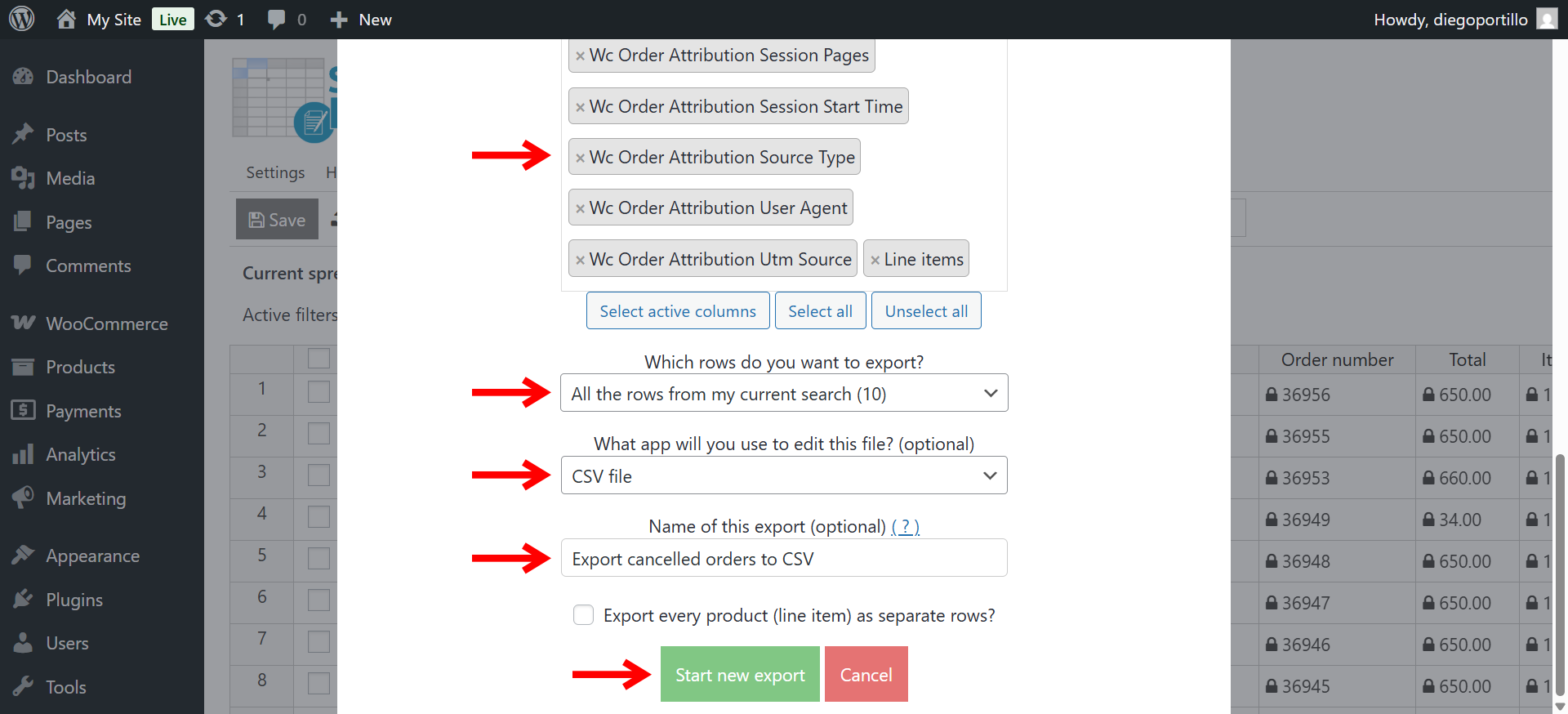
Configure the download settings:
- What columns do you want to export: Choose the specific fields you need (e.g., Order Total, Billing Email, Date) or pick Select all active columns.
- Which rows do you want to export: All rows from my current search.
- What app will you use to edit this file: CSV file or Microsoft Excel file.
- Name of this export: For example, name the CSV something like “Export cancelled orders to CSV”.
- Click Start new export.
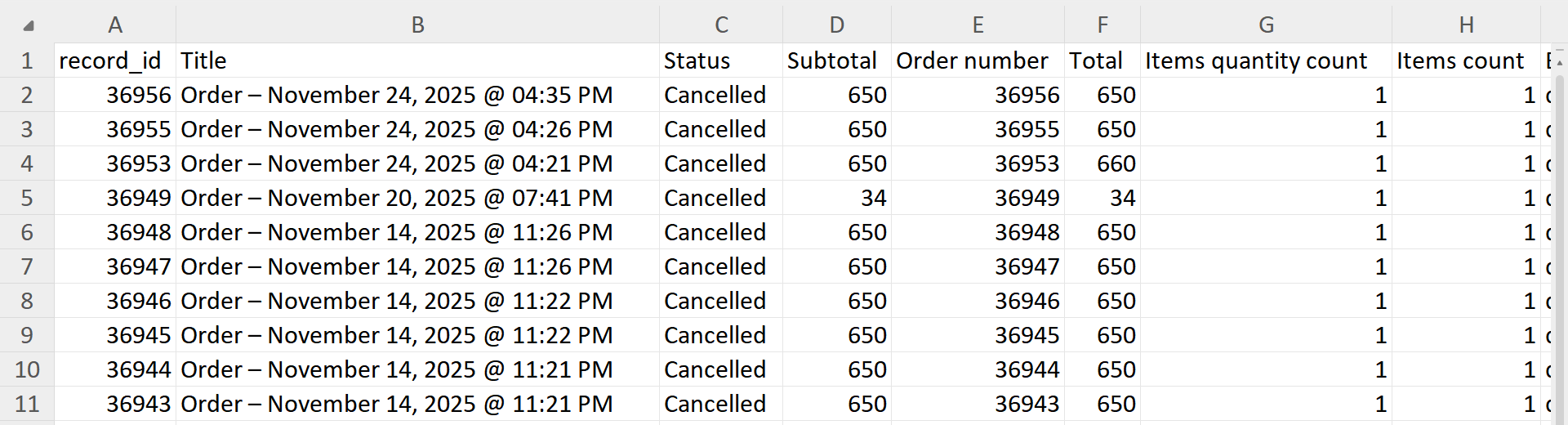
Your file containing all the cancelled order data will be downloaded to your computer.
Regularly pulling reports of WooCommerce cancelled sales helps you:
- Keep your financial records clean.
- Spot trends in product returns or cancellations.
- Recover revenue with targeted marketing.
- Check if your payment gateway is working properly.
With WP Sheet Editor – WooCommerce Orders, managing and exporting cancelled orders is fast and accurate, saving you hours of boring work.
You can download the plugin here:
Download WooCommerce Orders Spreadsheet Plugin - or - Check the features