
If you manage a large WooCommerce store, exporting product data is a necessary task for inventory checks, financial reporting, or system migration. However, the standard WooCommerce export feature often falls short. It typically excludes critical product information, such as data from custom fields (like ACF or PODS), specific variation metadata, or third-party plugin data.
This lack of completeness forces many store owners to spend extra time manually correcting data or dealing with complicated, technical workarounds.
This tutorial provides a clear, practical solution. We will demonstrate a reliable method to export your entire product catalog, including all standard and custom fields, using the WP Sheet Editor – Products Spreadsheet plugin.
You can download the plugin here:
Download WooCommerce Products Spreadsheet Plugin - or - Check the features
Using the spreadsheet interface, you can quickly:
- Filter and export specific subsets of products (e.g., only low-stock items or products from a single category).
- Ensure the export includes all product variations and their unique details.
- Guarantee data integrity by including every custom field you use.
Follow this guide to produce a complete, accurate, and organized CSV export file. This approach simplifies your data management workflow and ensures you get all your product information quickly and efficiently.
Let’s begin the export process.
Section 1: Setup and basic export (the quick start)
If you need a complete CSV of all your products right now, this is the quickest method. This process handles thousands of products efficiently and includes all standard WooCommerce fields.
Step 1: Open the WooCommerce Products spreadsheet
First, you need to access the WP Sheet Editor interface where your product data is displayed.
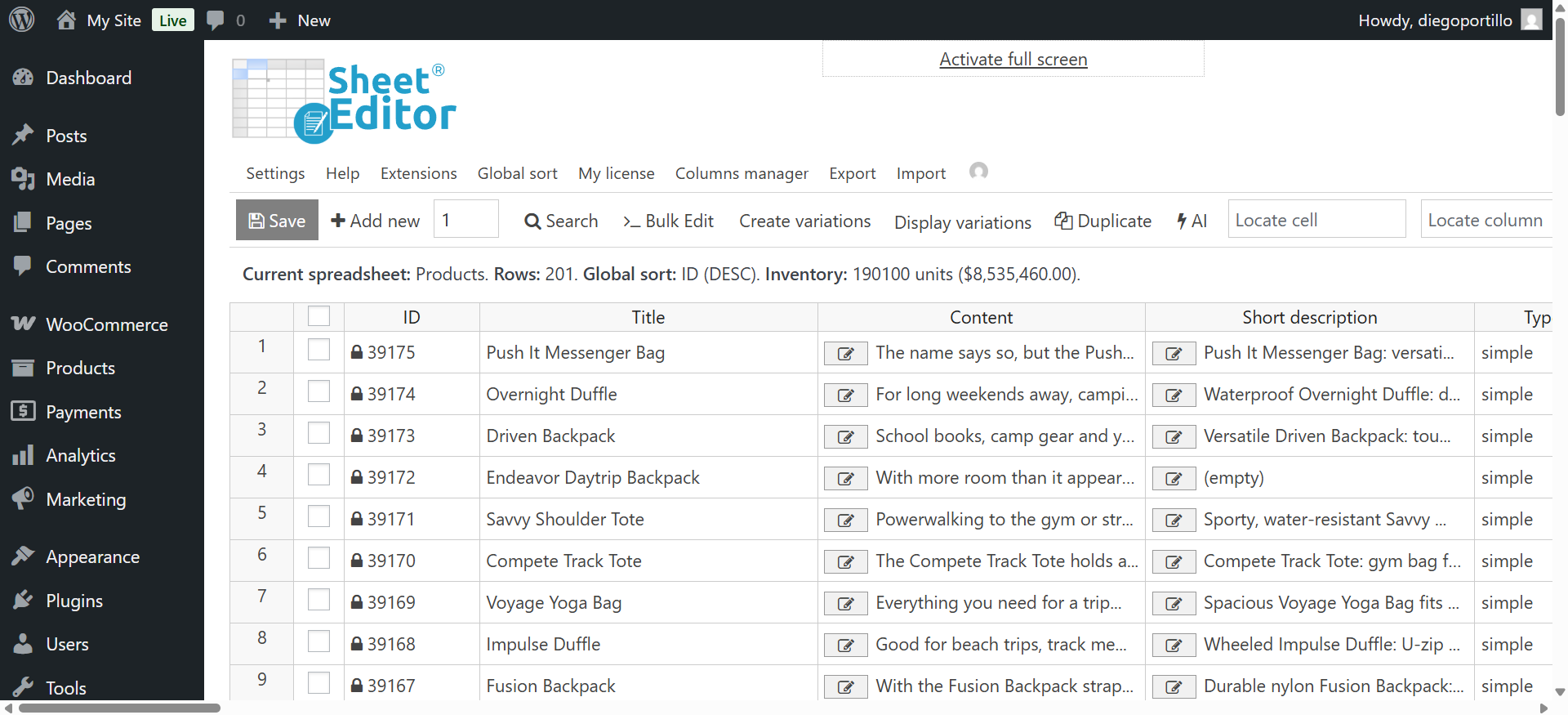
In your WordPress dashboard, go to WP Sheet Editor and click on Edit Products to load the spreadsheet.
The screen will display all your WooCommerce products and their information in an easy-to-use table format, similar to Excel or Google Sheets.
Step 2: Open the “Export” tool
The export tool is located in the top toolbar above the spreadsheet.
Look for the Export button in the top menu of the product spreadsheet.
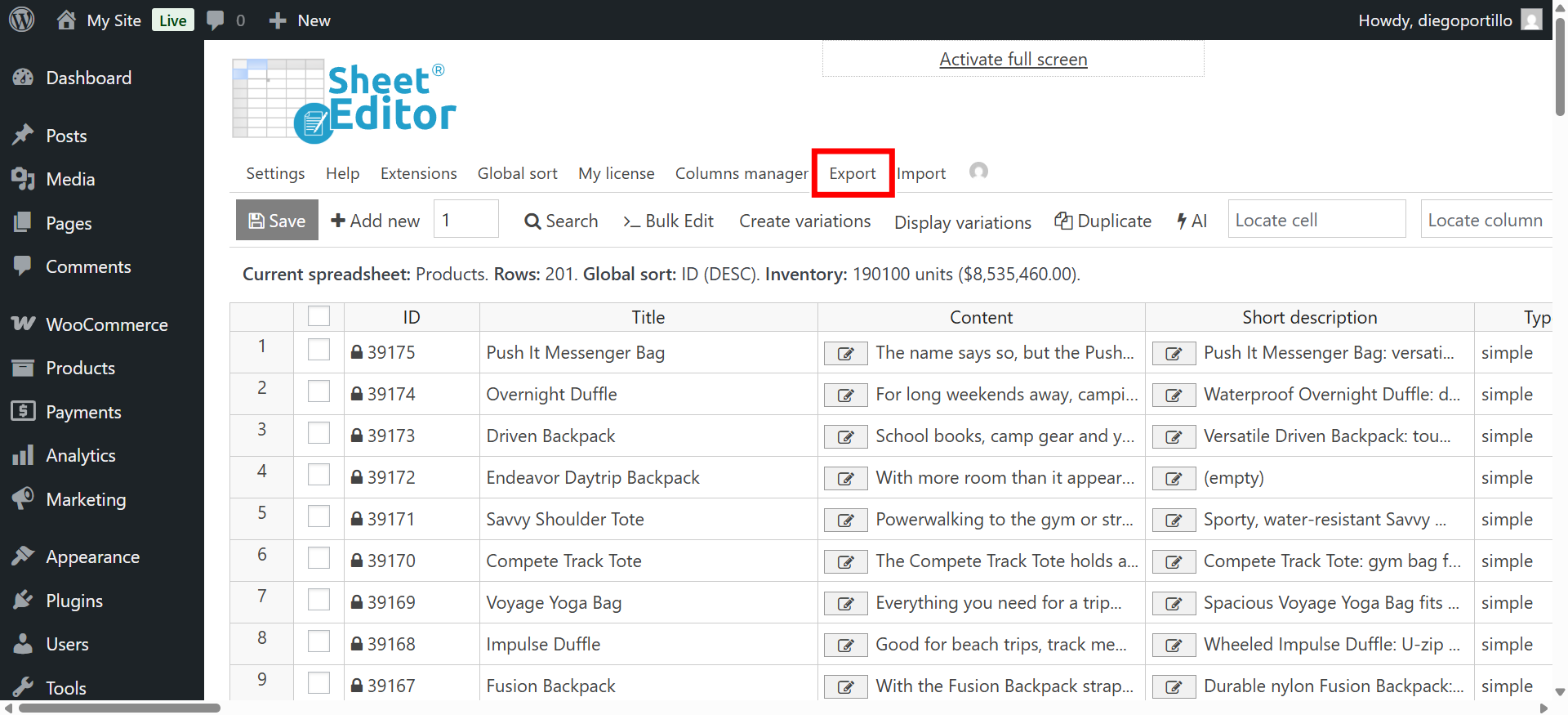
A new settings pop-up window will open.
Step 3: Set up the export CSV settings
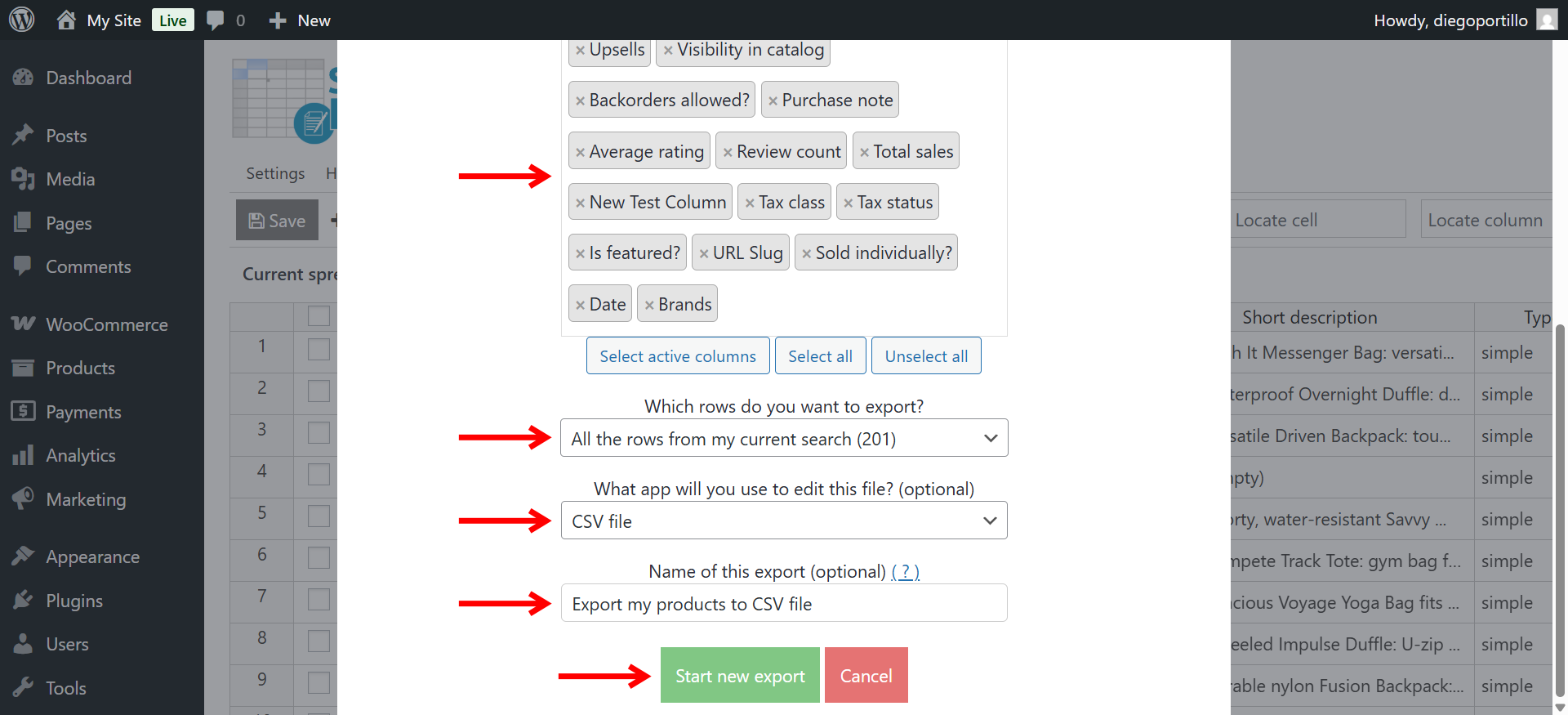
In the export pop-up, you will decide which product fields (columns) will be included in your CSV file and set up the export settings.
- What columns do you want to export: You can:
- Export specific columns. If you only need a few specific fields (like just Name, SKU, and Price), you can select individual columns and pick them from the list. For a complete backup or report, stick with All active columns.
- Export all active columns. This ensures that every piece of data currently visible in your spreadsheet, including custom fields from other plugins, is prepared for export.
- Export all columns. This will export both the visible and the hidden columns.
- Which rows do you want to export: Select All the rows from my current search to get the complete catalog. (If you want to filter products first, see Section 2).
- What application will you use to open this file: Select CSV file format.
- You can optionally enter a name for your file in the Name of this export field (e.g., Export my products to CSV).
- Click the Start new export button.
The plugin will process your request. Depending on the size of your catalog, this may take a moment.
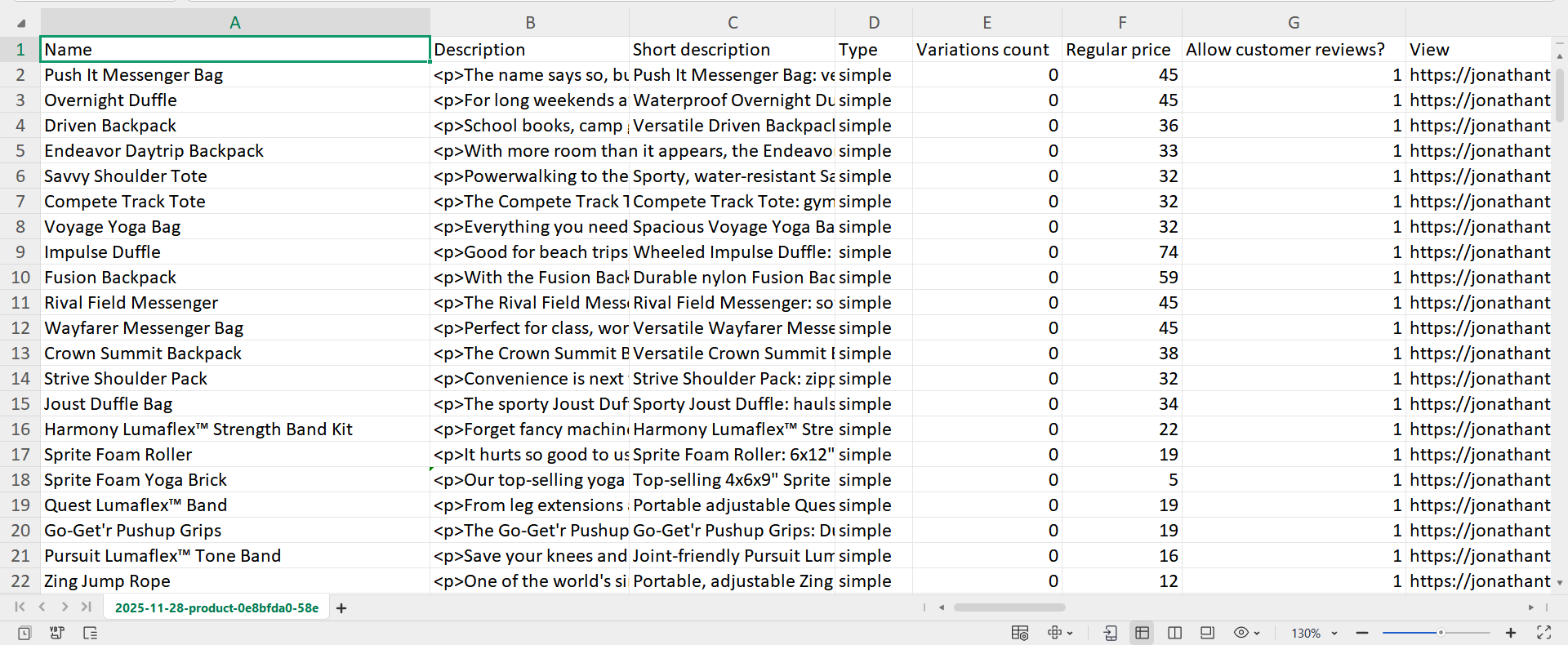
Once complete, your browser will automatically download the CSV file to your computer. You now have a complete, accurate CSV file of all your WooCommerce products.
Advanced export scenarios
The true value of using the spreadsheet editor is the ability to export only the data you need. Instead of downloading your entire catalog and manually filtering it later, you can filter the sheet first and export just the relevant products.
This is essential when reporting to a supplier, updating specific inventory, or analyzing segments of your business.
Scenario A: Exporting only products with specific conditions (Filtering)
You can use the powerful Search tool to filter your spreadsheet by any condition before you export.
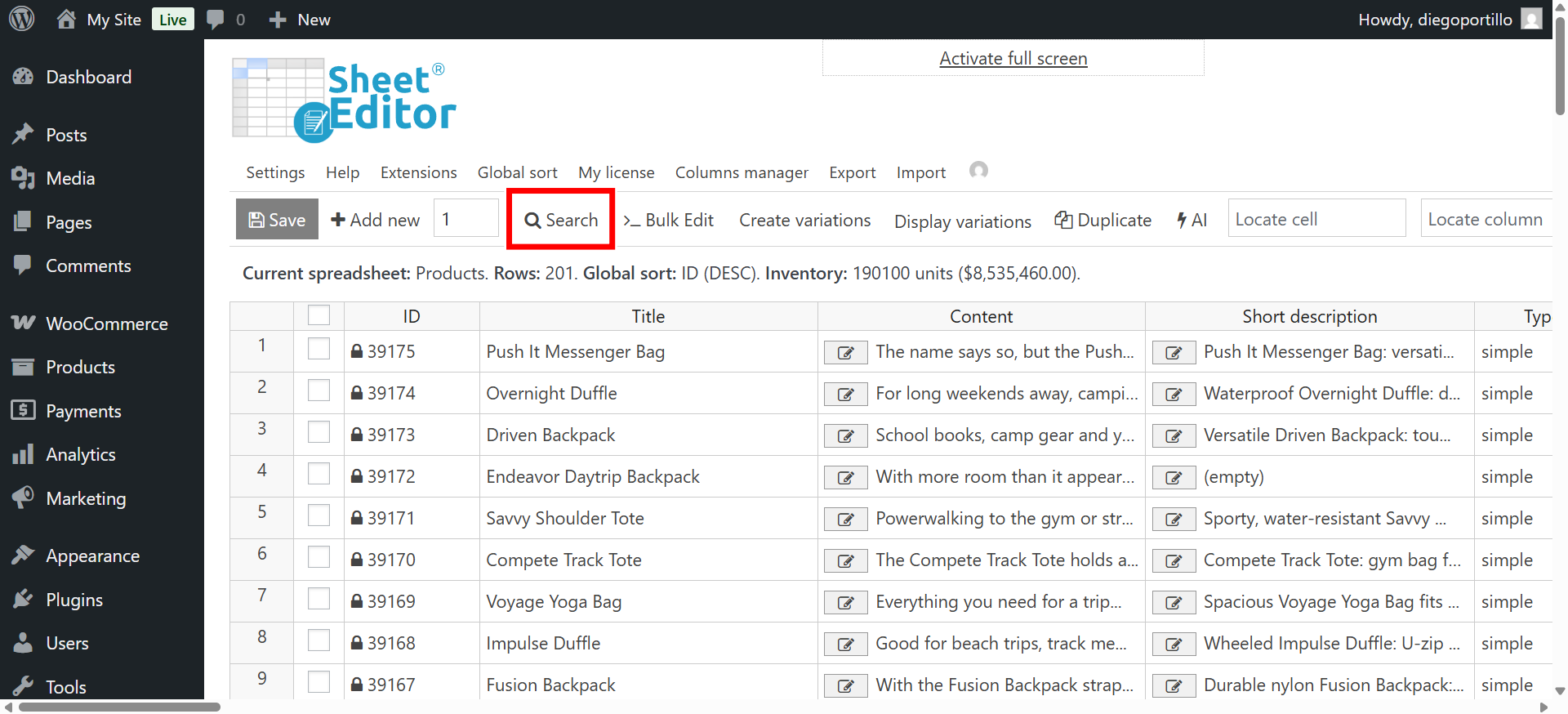
How to export products by category or tag
If you only need data for products in your “Summer Collection” category, follow these steps:
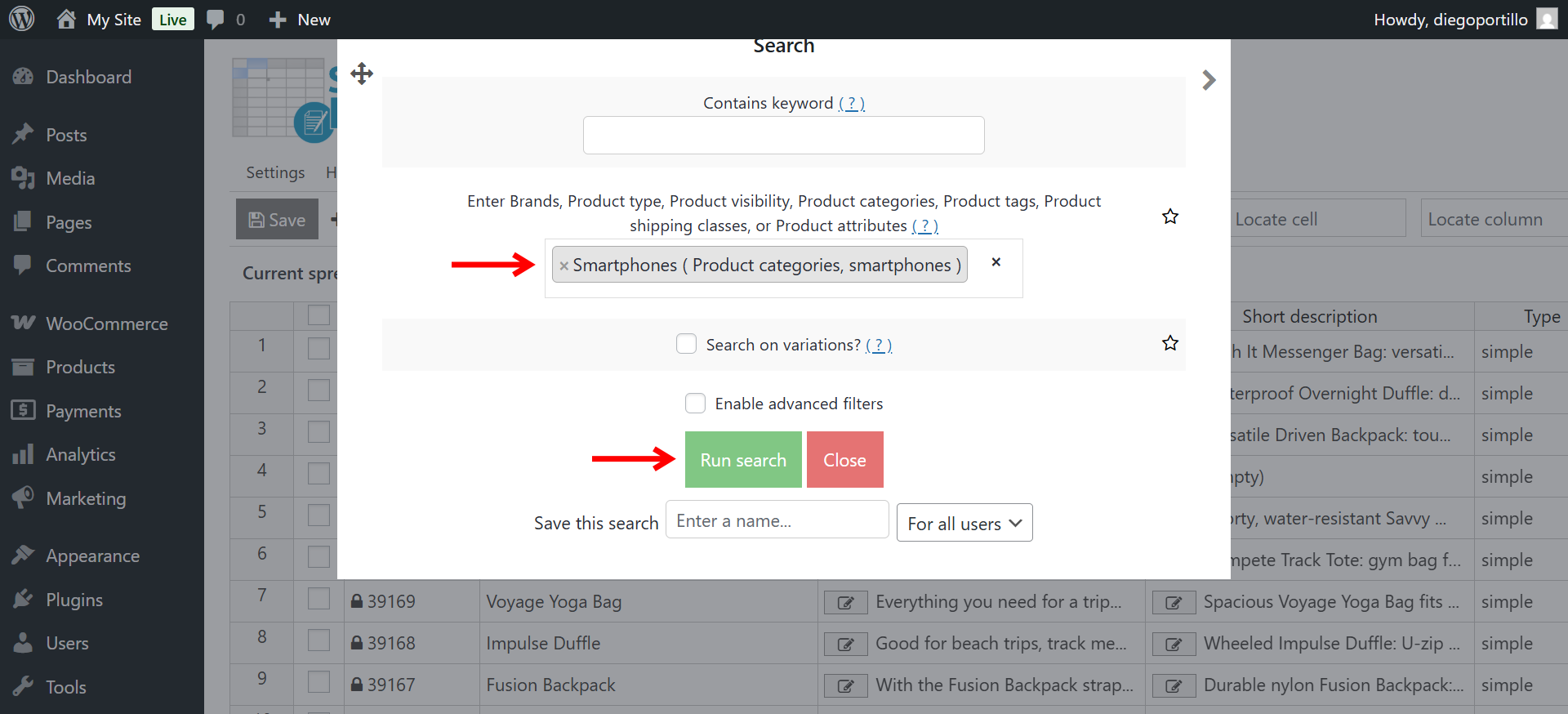
- In the Enter product categories field, enter your category (e.g.,
Smartphones). - Click the Run Search button.
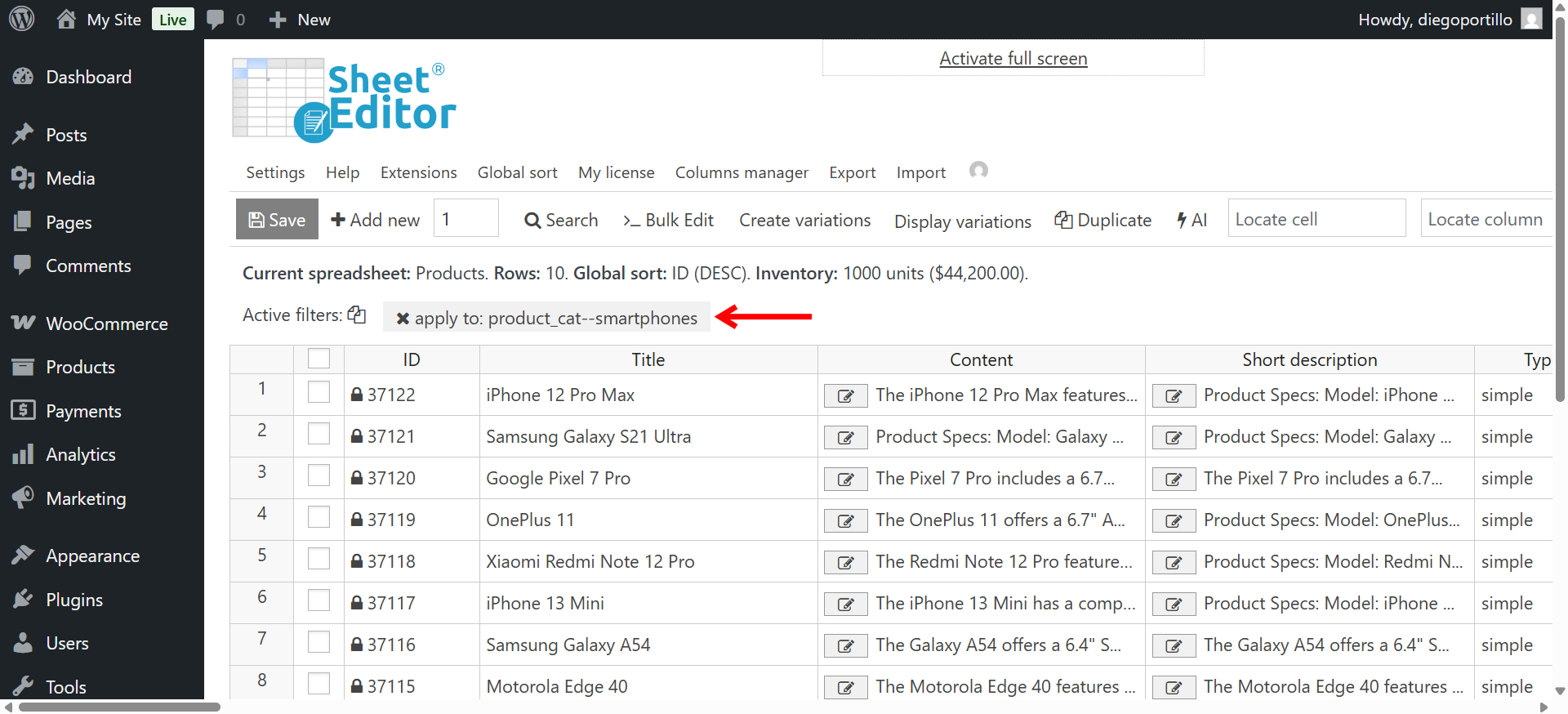
The spreadsheet will now only show products from that specific category. You can now proceed with the export (following Steps 2-4 from Section 1) to create a CSV with only the products within the selected category.
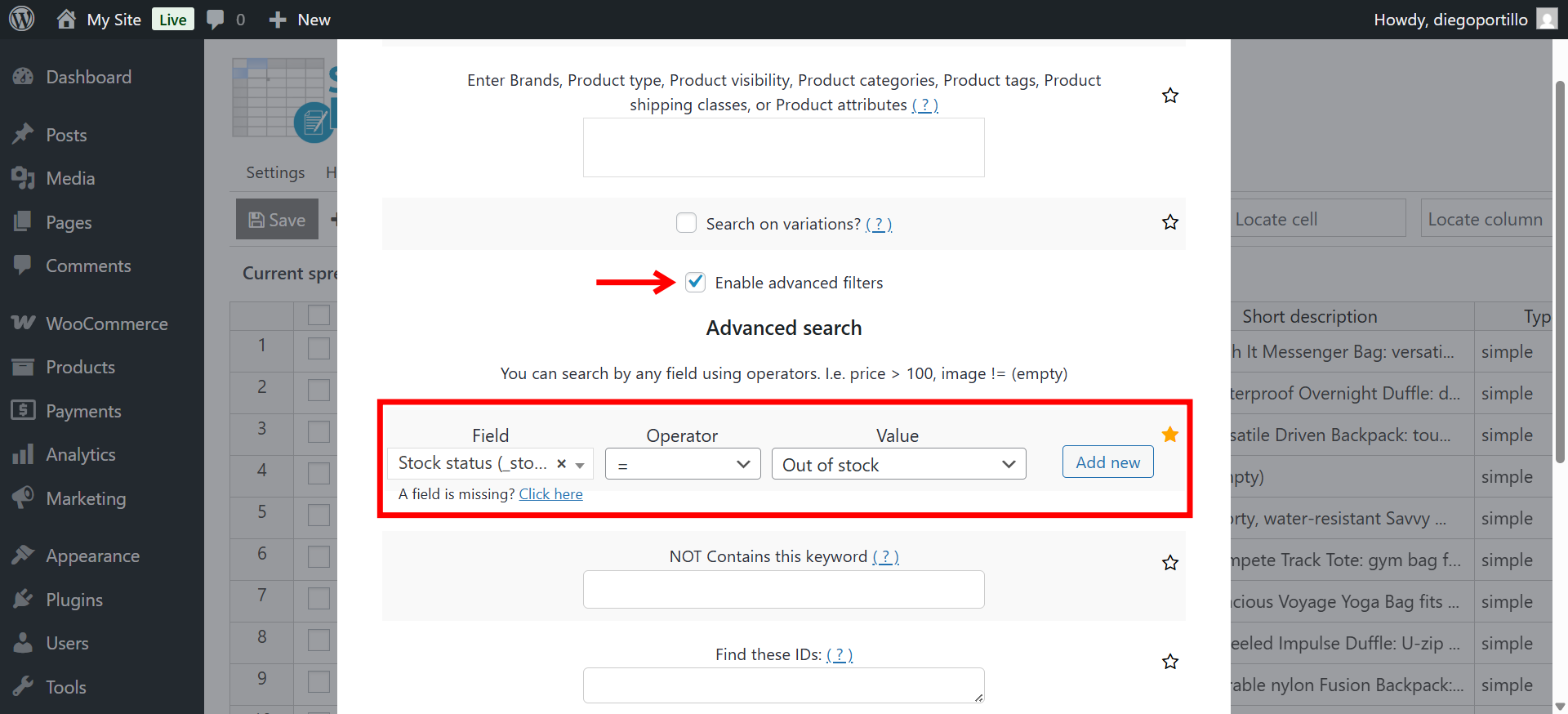
Exporting only products that are out of stock or low stock
This is vital for inventory reporting.
- Tick the Enable advanced filters checkbox.
- Field: Stock status
- Operator: =
- Value: Out of stock
- Click Run Search.
Only products marked as out of stock will appear in the spreadsheet. You can now proceed with the export (following Steps 2-4 from Section 1) to create a CSV with only the out-of-stock items.
Exporting Products by Price Range
You can search for products within a defined range, such as items you want to put on sale.
- Tick the Enable advanced filters checkbox.
- Field: Stock status
- Operator: Select an operator here (e.g., > for greater than)
- Value: Enter the price range (e.g.,
100for products over $100). - Click Run Search.
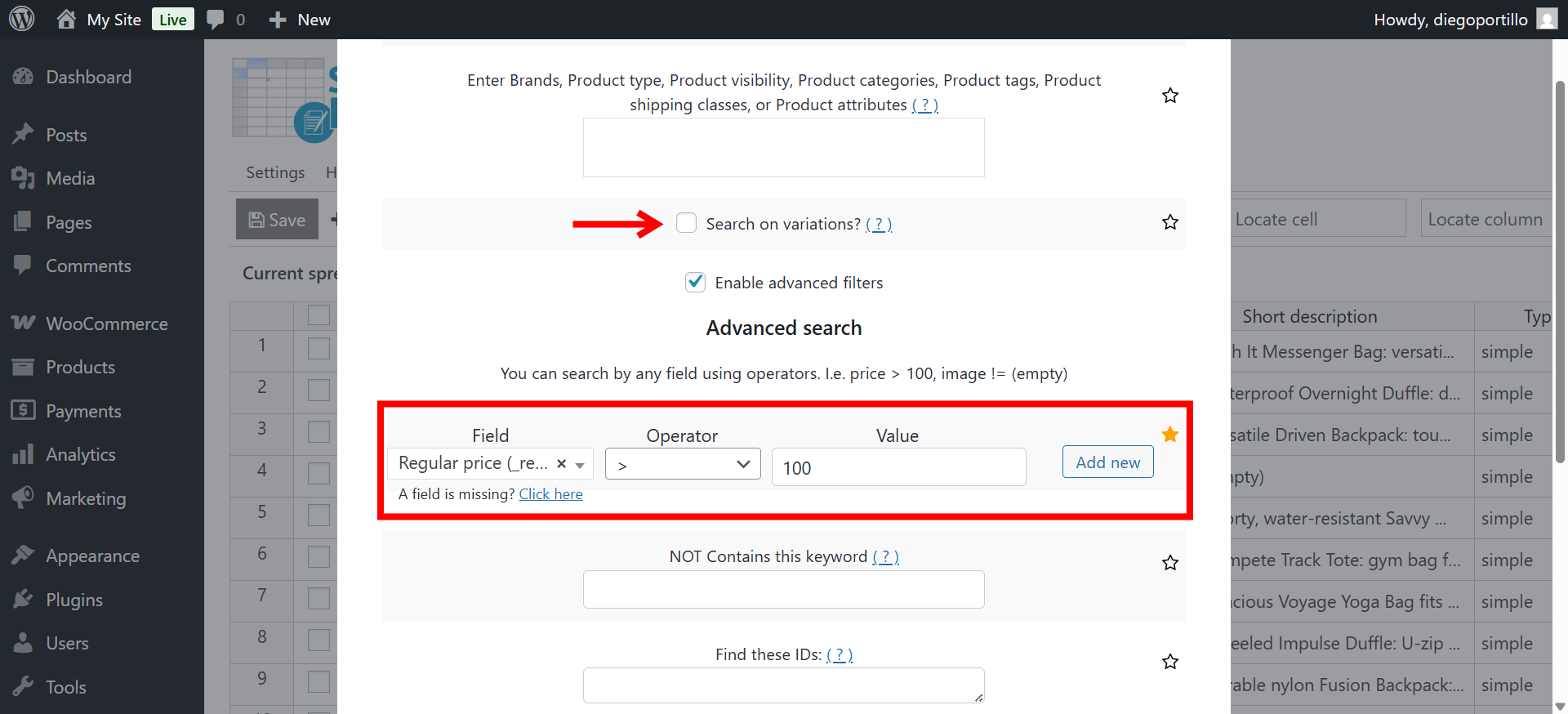
Only products with the selected regular price will be displayed in the spreadsheet. You can now proceed with the export (following Steps 2-4 from Section 1).
Scenario B: Exporting variable products with variations
If you are dealing with suppliers or a third-party warehouse, you often need a CSV that cleanly lists every product variation, its unique SKU, and its stock level.
WP Sheet Editor allows you to filter and export only variable products with variations.
Go to Display variations > Only display variable products that have variations.
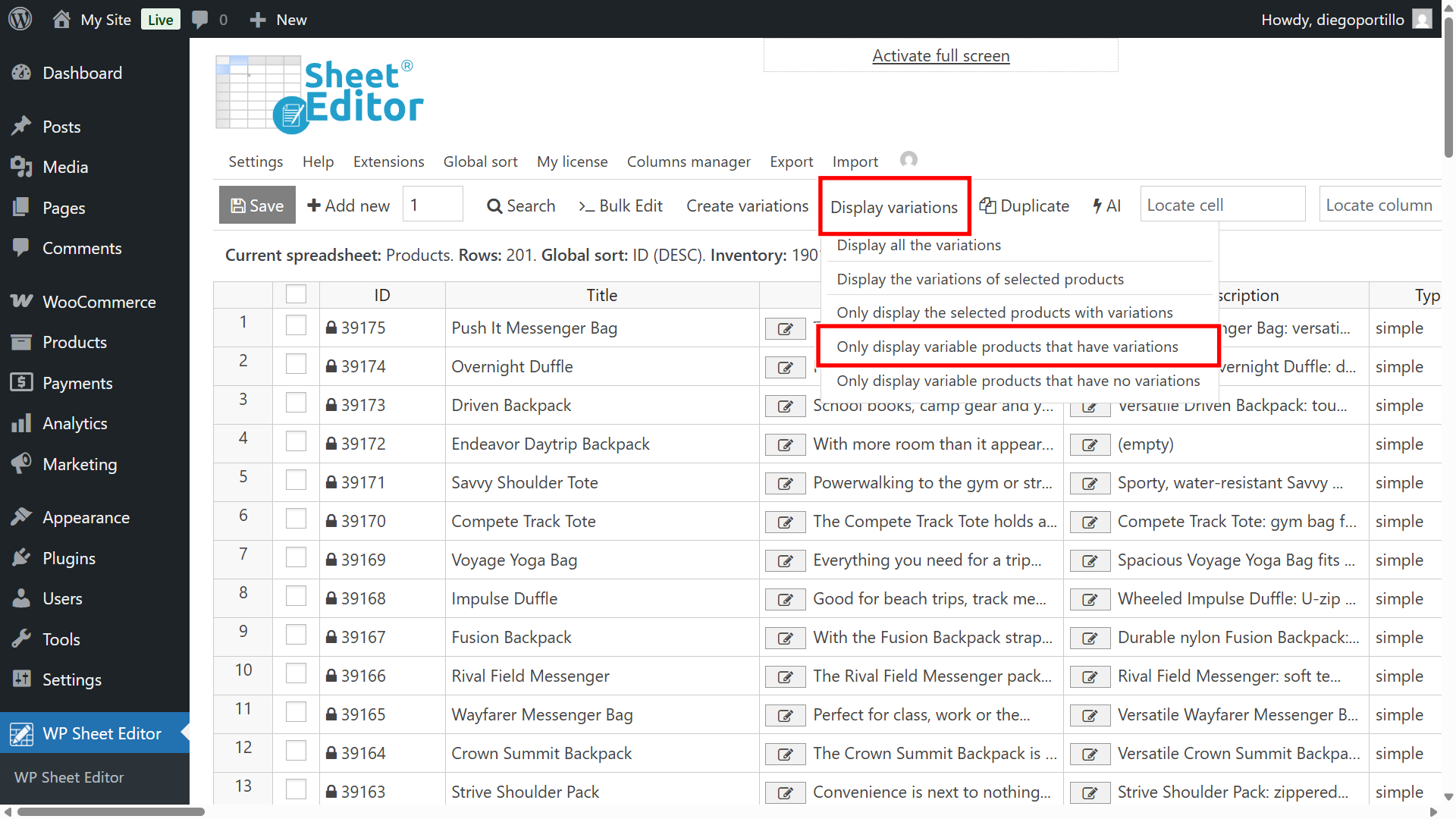
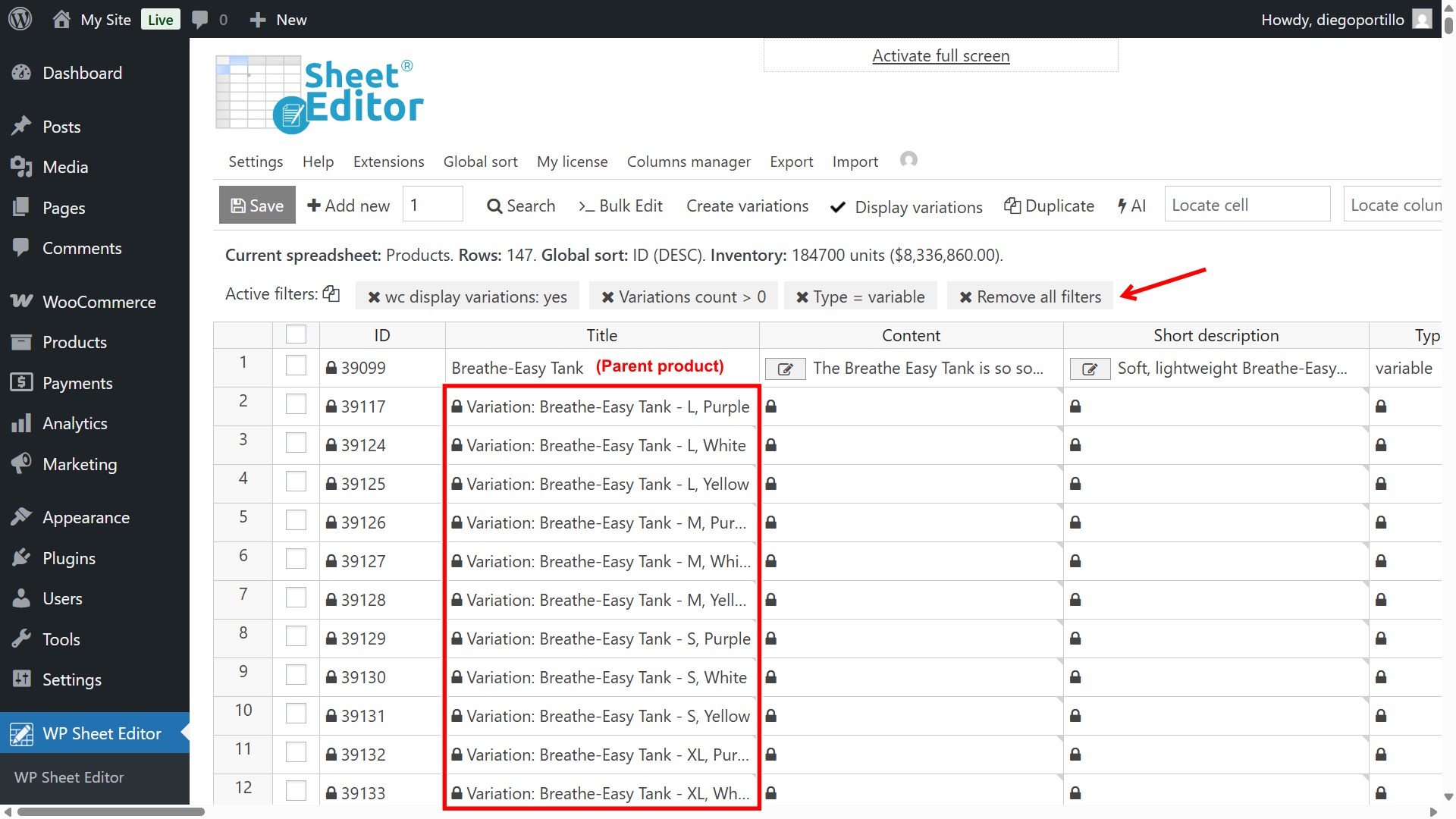
The spreadsheet will display the variable products with the variations next to them. You can view the search filters applied above the spreadsheet.
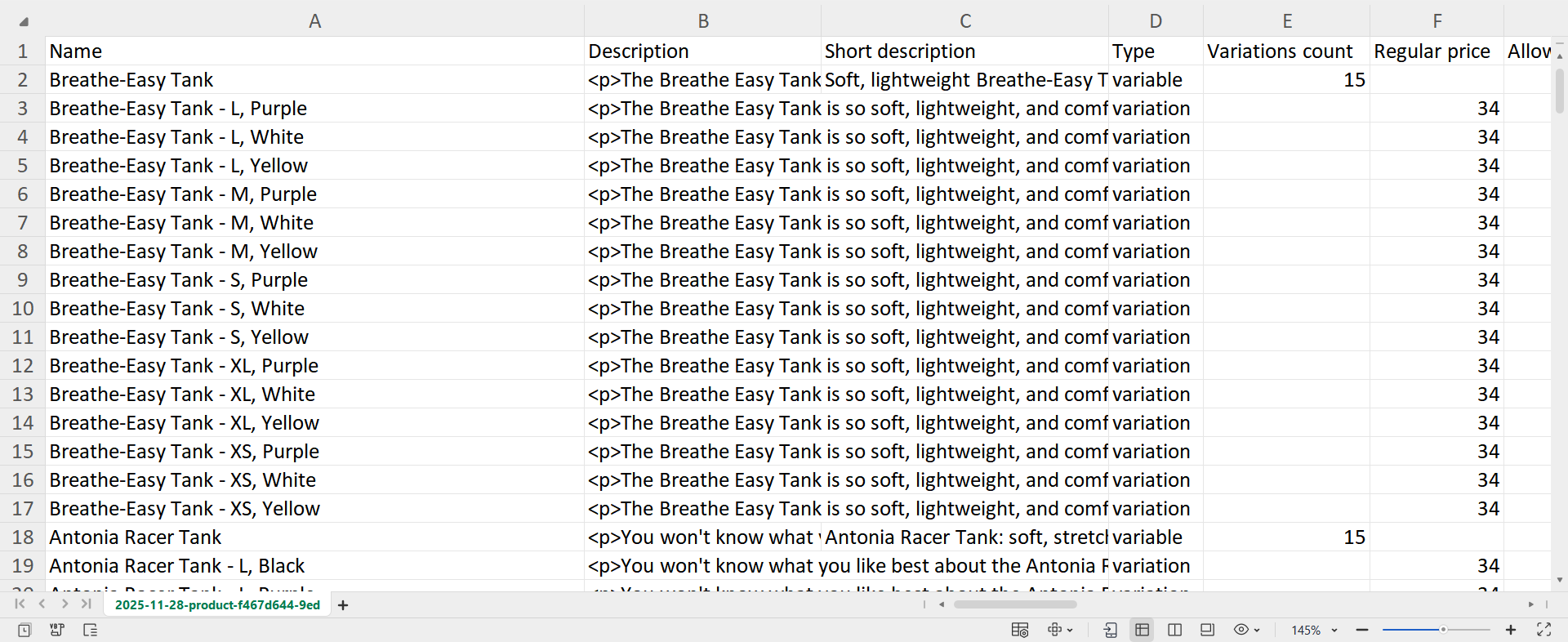
You can now proceed with the export (following Steps 2-4 from Section 1). Here’s our exported CSV file containing the data of our variable products and their variations.
Simplify your WooCommerce data management
You have successfully learned the most efficient method to export your WooCommerce products to a complete CSV file using the WP Sheet Editor – Products plugin.
By filtering and exporting directly from the spreadsheet, you eliminate the headaches of incomplete files and manual data filtering. You now have full control over your product data, whether you needed to report on low stock items or get a list of all custom fields. This process saves you significant time and guarantees the accuracy of your exports for any purpose, including inventory management or store migration.
This approach gives you a professional, reliable solution for managing your entire catalog data. Now that you have your accurate product data in a CSV file, the next step is often to make bulk updates and re-import the changes.
You can download the plugin here:
Download WooCommerce Products Spreadsheet Plugin - or - Check the features