
Let’s see how to generate WooCommerce category SEO with AI. You’ll be able to generate SEO meta titles and meta descriptions for your WooCommerce categories.
If you run a WooCommerce store, your product category pages are like your digital aisles. They group your products together and are often the exact pages that rank for high-volume, broad search terms like “women’s winter coats” or “mechanical gaming keyboards.”
Despite their massive ranking potential, most store owners completely ignore the SEO metadata for their categories. Leaving the SEO title and meta description blank means search engines have to guess what your archive page is about, often pulling random product snippets that look messy and fail to drive clicks.
However, we know that manually opening every single WooCommerce category, navigating to the SEO settings, and writing unique metadata is a grueling chore. But using WP Sheet Editor – AI, you can automate this entire task. You can leverage artificial intelligence to instantly generate perfectly measured SEO titles and compelling meta descriptions for all your product categories.
In this guide, we will show you how to transform empty taxonomy archives into optimized search engine landing pages in a fraction of the time.
Table of Contents
What you need to optimize WooCommerce category SEO
To execute this automated workflow, you will need the following tools active on your WordPress installation:
1- WP Sheet Editor – Taxonomy Terms
Unlike standard posts or products, categories are “taxonomies” in WordPress. This specific extension allows you to manage all your WooCommerce categories, tags, attributes, brands, and even custom taxonomies in an easy-to-use spreadsheet interface, exposing the hidden SEO fields for quick editing.
You can download the plugin here:
Get the Taxonomy Spreadsheet Editor - or - Check the features
2- WP Sheet Editor – AI
This is the core engine that connects your WP Sheet Editor spreadsheets to external Large Language Models (LLMs), allowing you to generate text directly inside your rows and columns.
Ready to automate?
3- An SEO plugin
You need an active SEO plugin (like Yoast SEO, Rank Math, SEOPress or AIOSEO) so the custom metadata fields exist. In this example, we will use Yoast SEO, but you can apply the same steps if you use any other WordPress SEO plugin.
4- An AI API key
You will need an active API key from a supported provider (like OpenAI, OpenRouter, or any OpenAI-compatible provider).
If you haven’t set this up yet, please refer to our complete AI configuration guide.
Step 1: Create your AI prompts for generating SEO Titles and Descriptions
Since we are generating two different pieces of content (a title and a description), the most efficient approach is to create two separate global prompts.
This tells the AI exactly what formatting rules to follow for each specific field, and saves you the time of having to type the instructions every time you want to run the prompt.
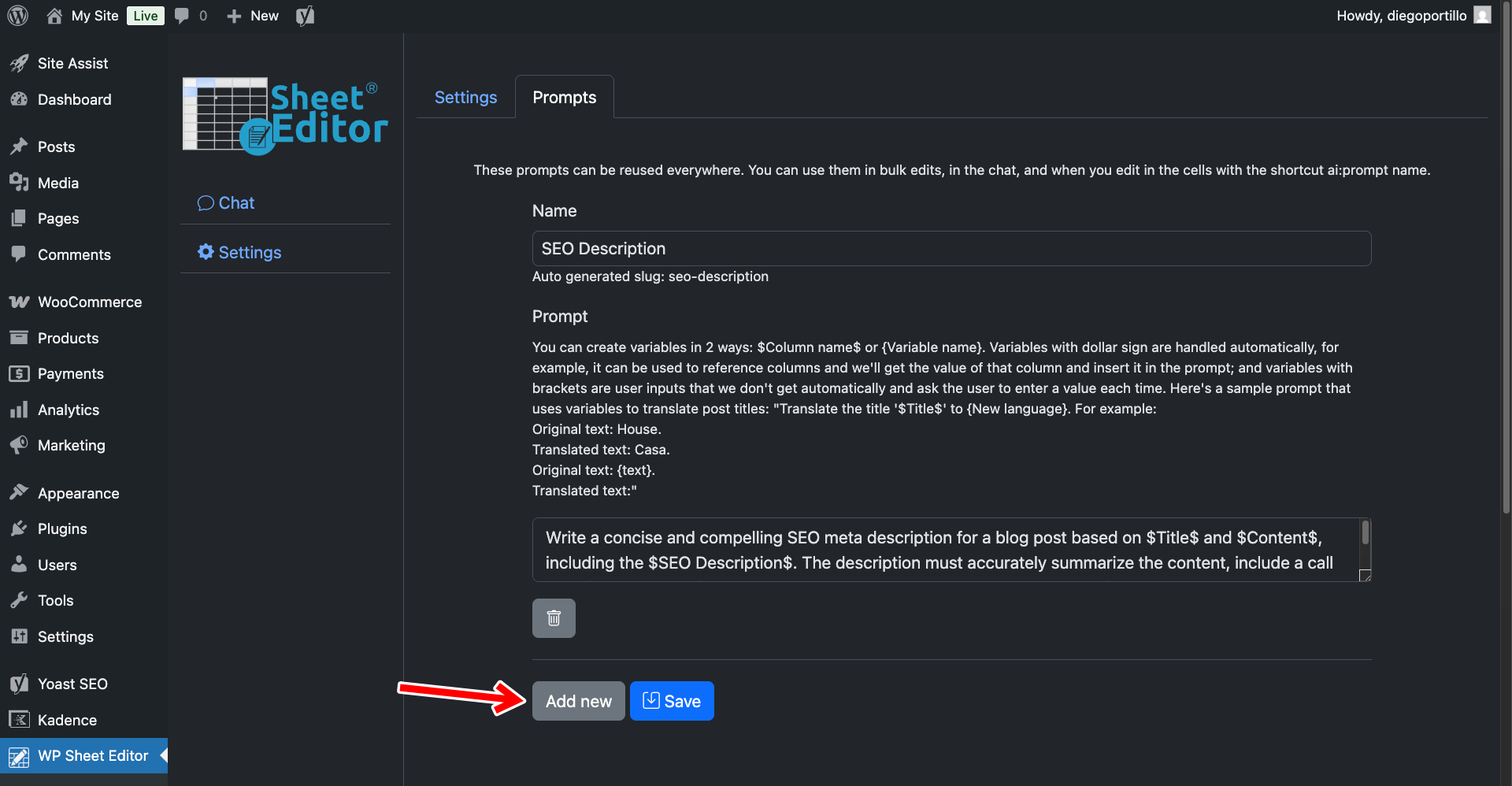
Navigate to WP Sheet Editor > AI > Settings > Prompts and click Add new to create your first prompt.
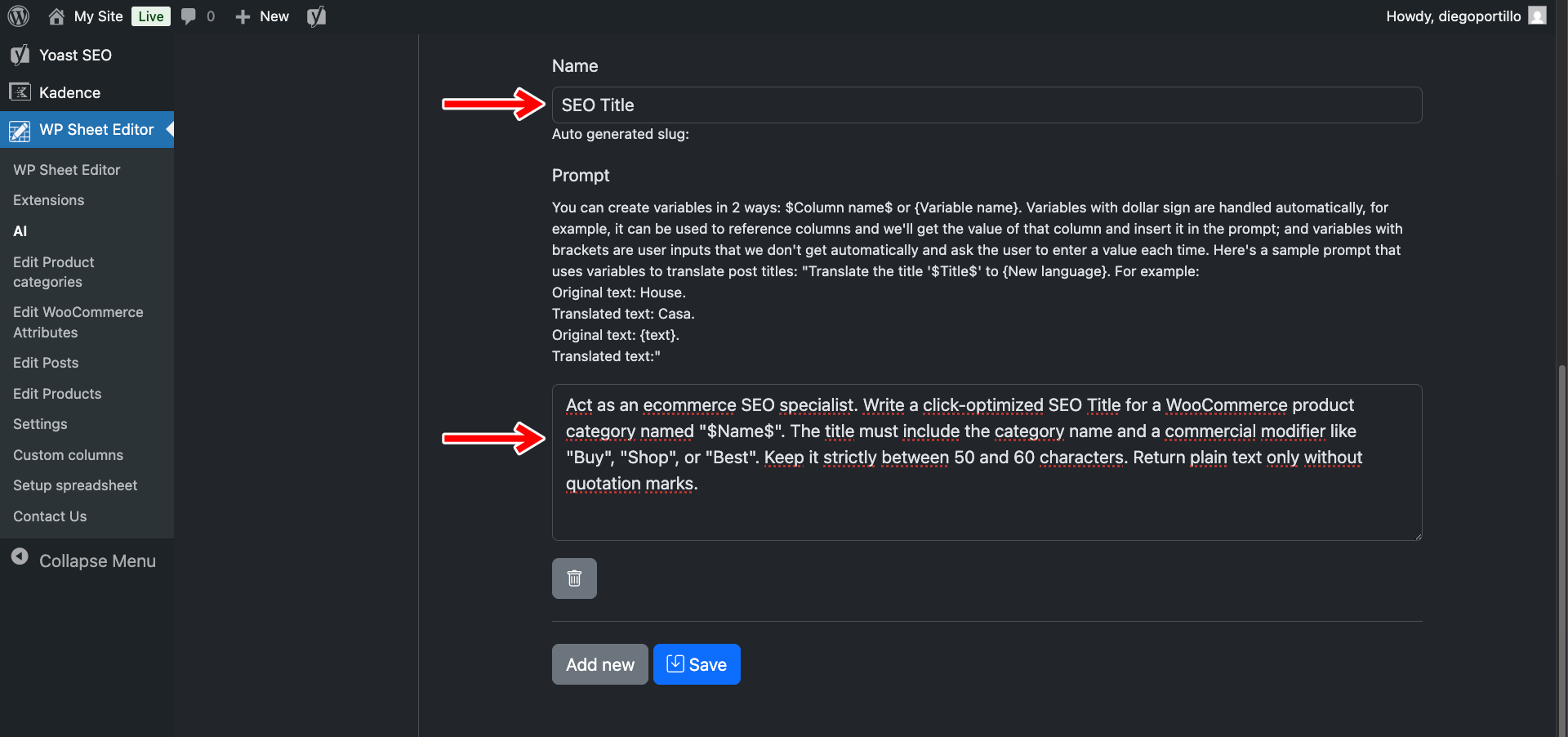
Prompt 1: Category SEO Title
- Name your prompt:
SEO Title - Enter this template:
Act as an ecommerce SEO specialist. Write a click-optimized SEO Title for a WooCommerce product category named "$Name$". The title must include the category name and a commercial modifier like "Buy", "Shop", or "Best". Keep it strictly between 50 and 60 characters. Return plain text only without quotation marks.
- Click Save.
Prompt 2: Category SEO Description
Click Add new again to create the second prompt.
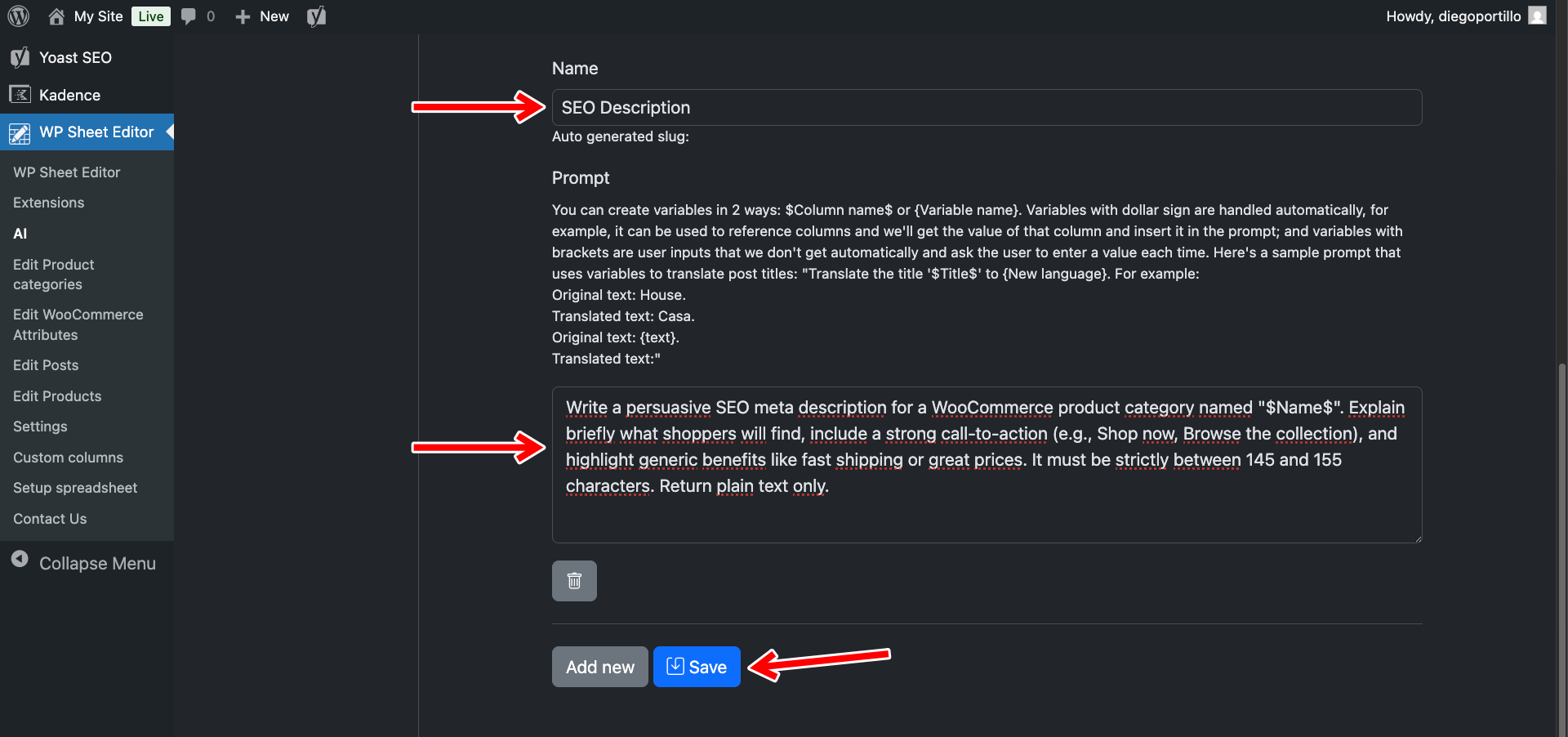
- Name your prompt:
SEO Description - Enter this template:
Write a persuasive SEO meta description for a WooCommerce product category named "$Name$", based on $Name$ and $Description$, and including the $SEO Keyword$. Explain briefly what shoppers will find, include a strong call-to-action (e.g., Shop now, Browse the collection), and highlight generic benefits like fast shipping or great prices. It must be strictly between 145 and 155 characters. Return plain text only.
- Click Save.
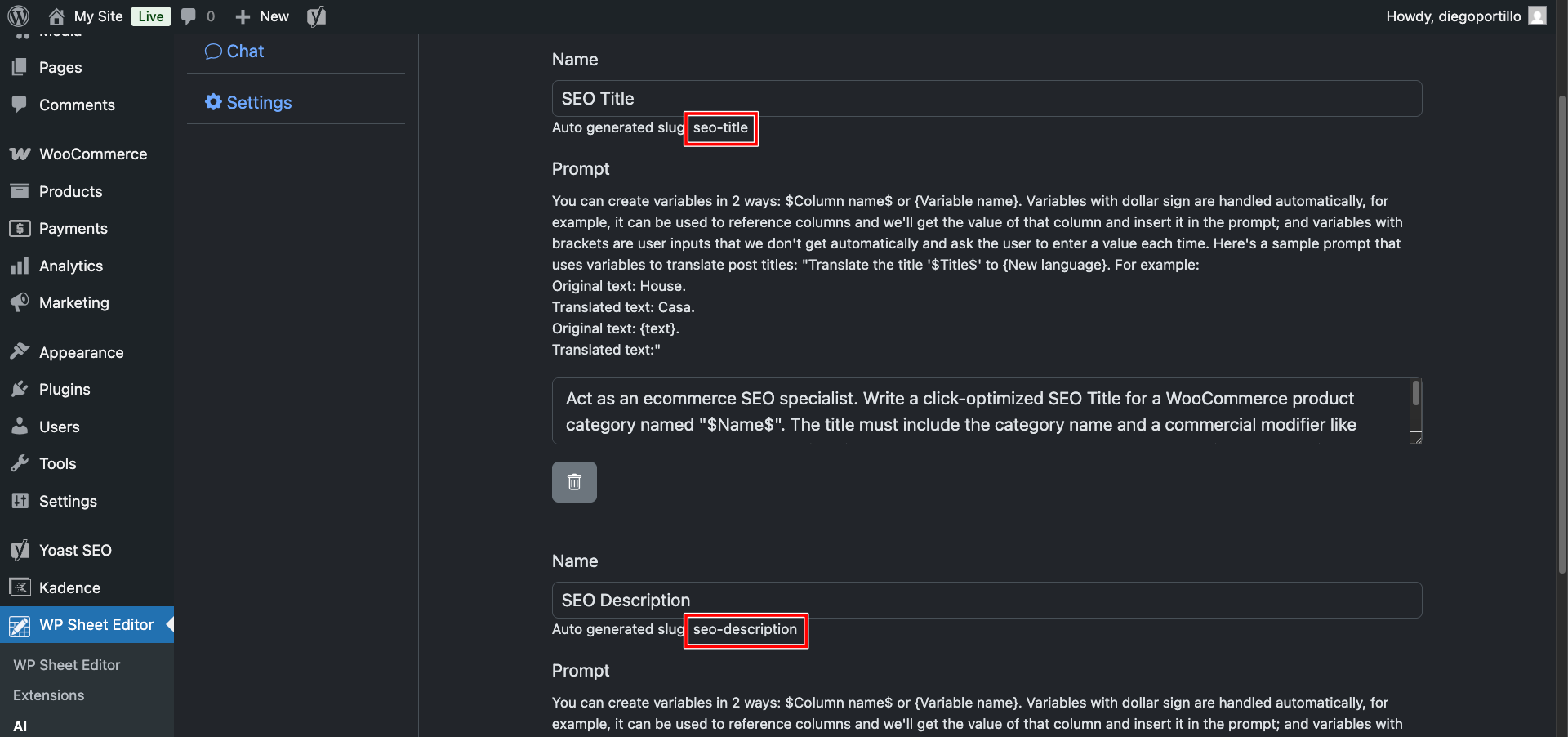
Once you save your global prompts, you will see that the plugin will automatically generate slugs for each prompt.
In this case:
- SEO Title:
seo-title - SEO Description:
ai:seo-description
Step 2: Generate Category SEO metadata directly in the spreadsheet
With your prompts ready, let’s look at your store’s taxonomy data.
Go to WP Sheet Editor > Edit product categories to load the spreadsheet.
Locate the columns generated by your SEO plugin. You can use the Columns manager to sort the columns and put them next to each other.
For example, if you use Yoast, look for SEO Title and SEO Description.
To optimize a specific category quickly without opening its settings page:
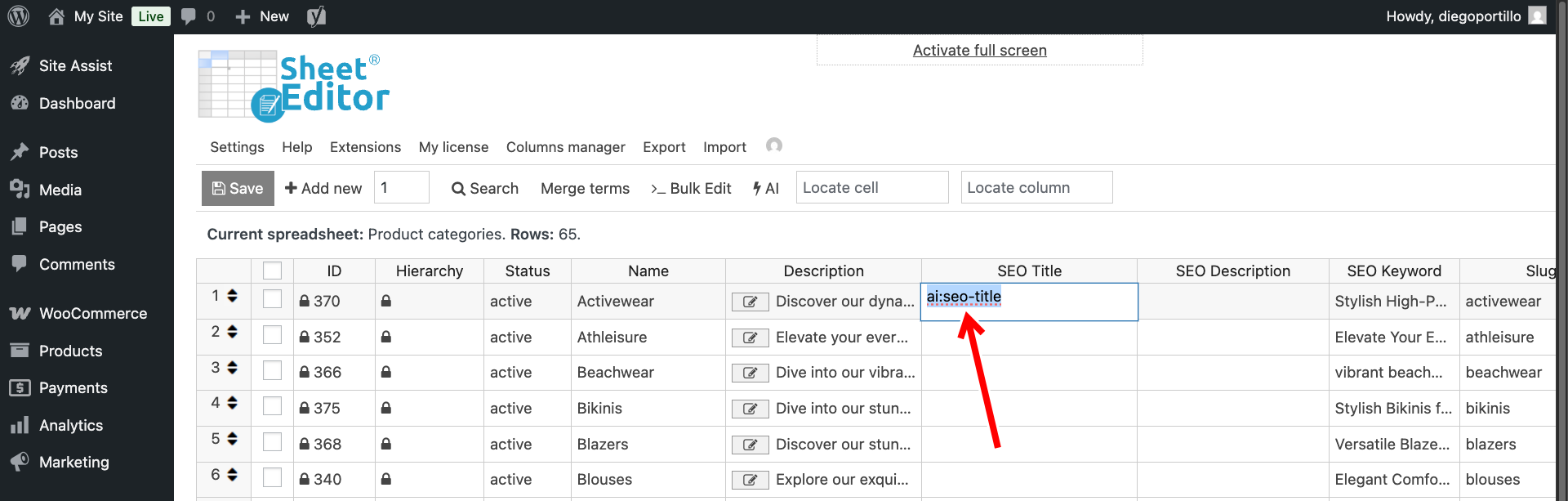
- Click on the empty SEO title cell for that category and type
ai:seo-title, then hit Enter.
- Click on the empty SEO description cell for the same category, type
ai:seo-description, and hit Enter.
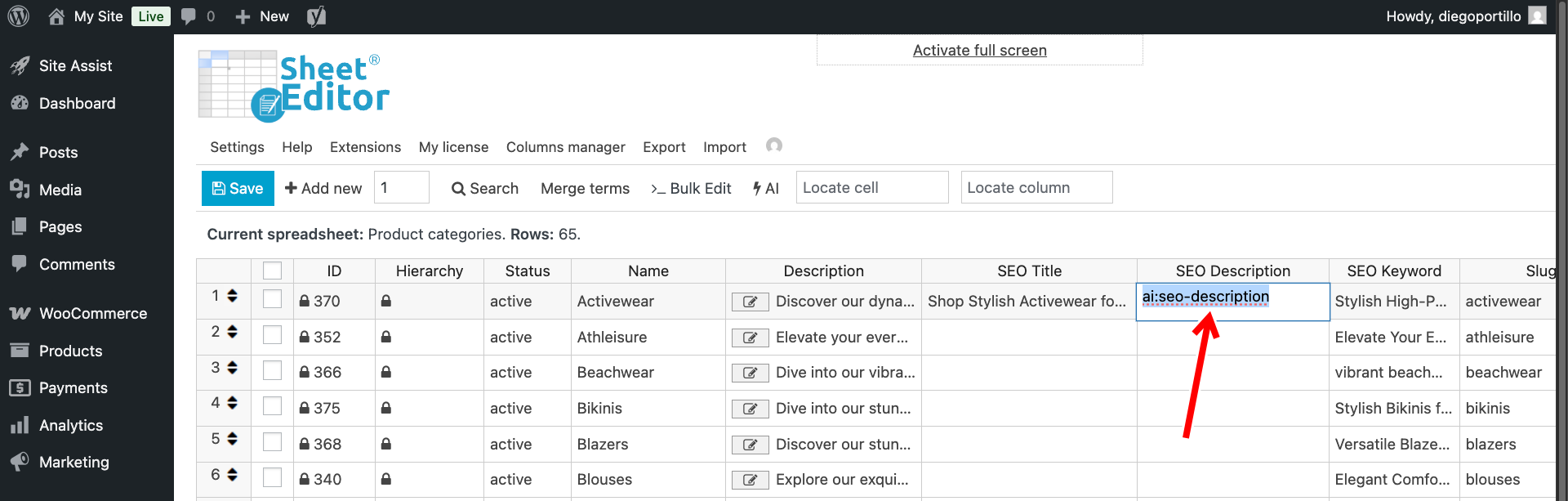
The AI will immediately read the category name and populate both cells with perfectly measured, commercial-intent SEO metadata.
You can paste the same prompt shortcut into multiple cells to generate SEO titles and descriptions for multiple categories at once.
Step 3: Bulk generate SEO data for all empty categories
If your store has dozens of product categories and subcategories lacking SEO data, filling them cell-by-cell is inefficient.
You can use the Bulk Edit tool to process them all simultaneously.
Note: You will run the bulk edit twice: once for the titles, and once for the descriptions.
Open the Bulk Edit tool from the top toolbar.
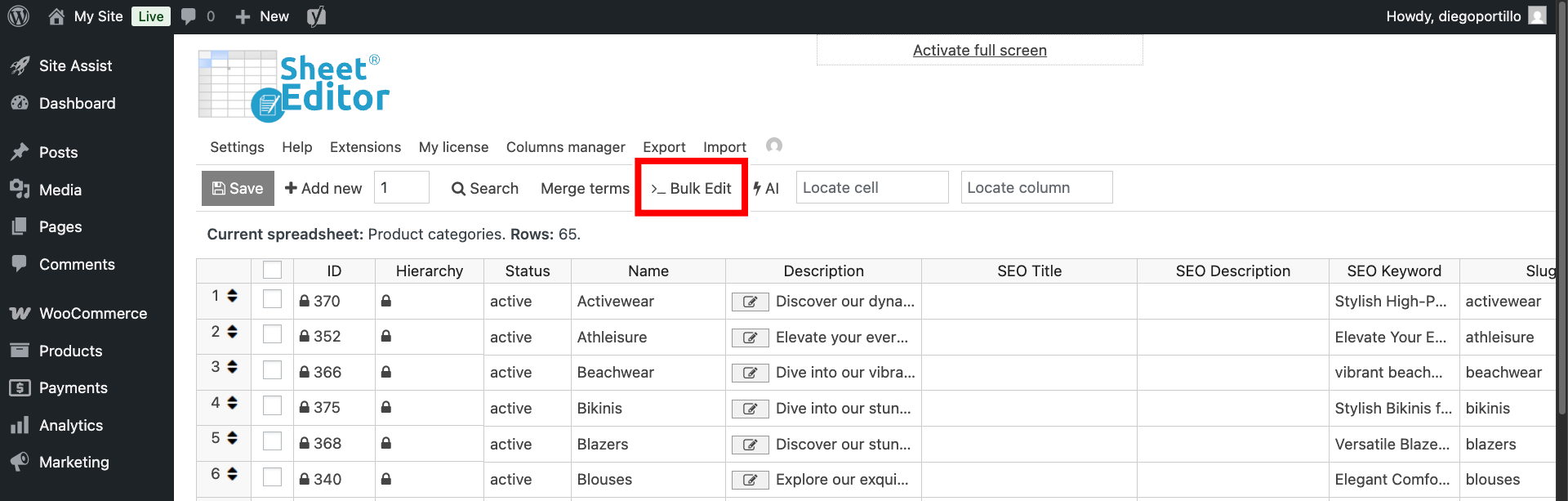
Once there, select these values to generate WooCommerce category SEO with AI.
- Select the rows that you want to update: Choose “Edit all the rows from my current search”.
- What field do you want to edit: Select your SEO title or SEO description field (e.g.,
SEO TitleorSEO Description). It all depends on what you want to edit right now. - Select the type of edit: Choose AI command: SEO Title. or AI command: SEO Description, depending on what you chose in the previous field.
- AI Provider: Choose your preferred model; in this case, we will use GPT-4o mini through OpenRouter.
- Click Execute Now.
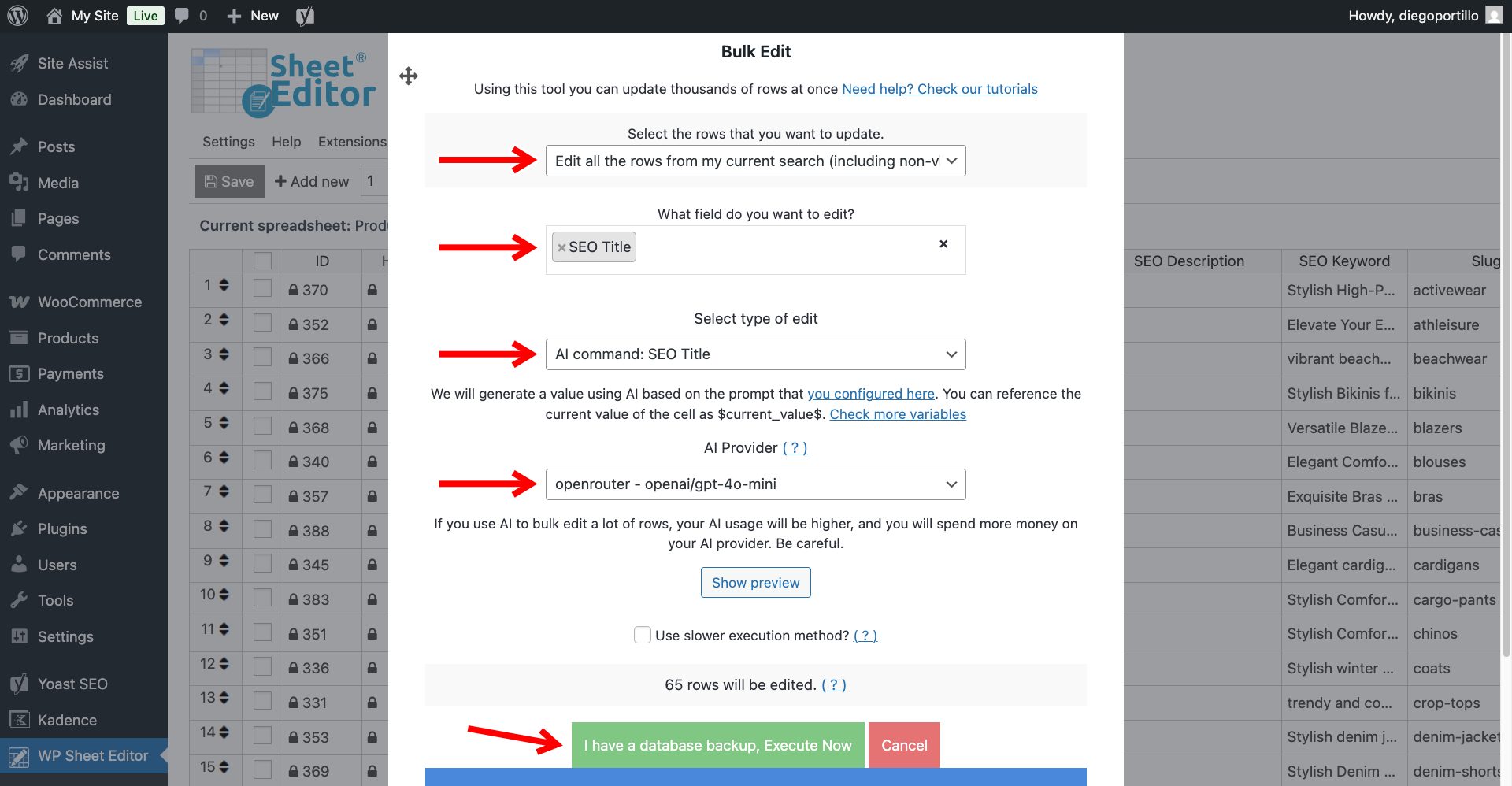
The AI will evaluate your taxonomy structure and inject highly relevant, traffic-driving metadata into every single product archive on your WooCommerce site.
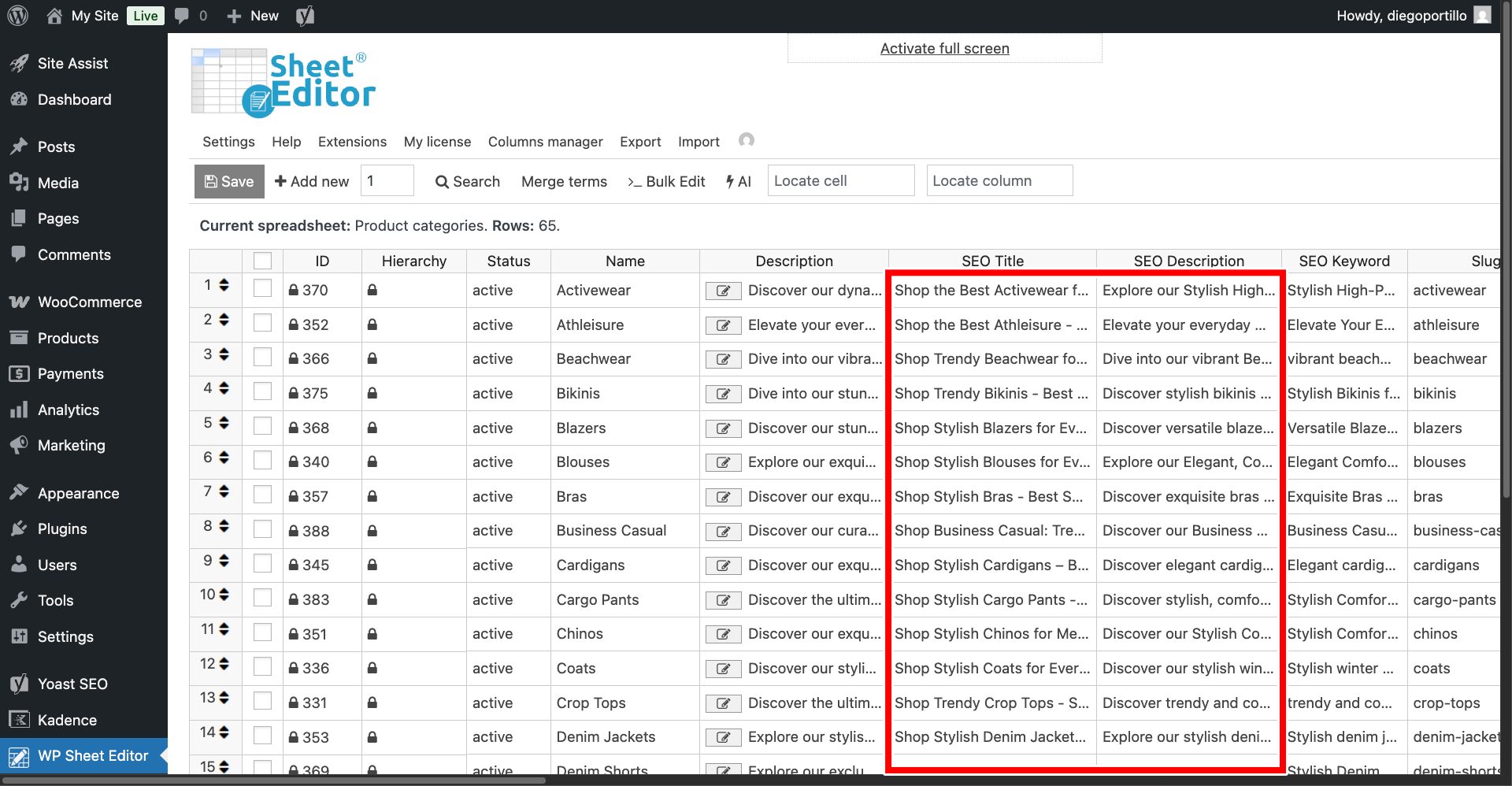
As you can see below, we have written SEO titles and SEO descriptions with AI in bulk.
Dominate search results with optimized categories
Category pages are the backbone of a logical, SEO-friendly WooCommerce architecture. Leaving their metadata blank means throwing away valuable organic traffic.
By pairing your SEO plugin with WP Sheet Editor – AI, you eliminate the massive friction of writing manual meta tags. Give your categories the context search engines crave, and watch your store’s visibility soar!