
Need to export the same type of data regularly? Now you can save your export settings in WP Sheet Editor and run the exports again with just one click.
How to save an export
- Open the Export tool from the top toolbar.
- Set up your export options: columns, rows, file format, etc.
- Enter a name in the “Export name” field.
- Click Run export.
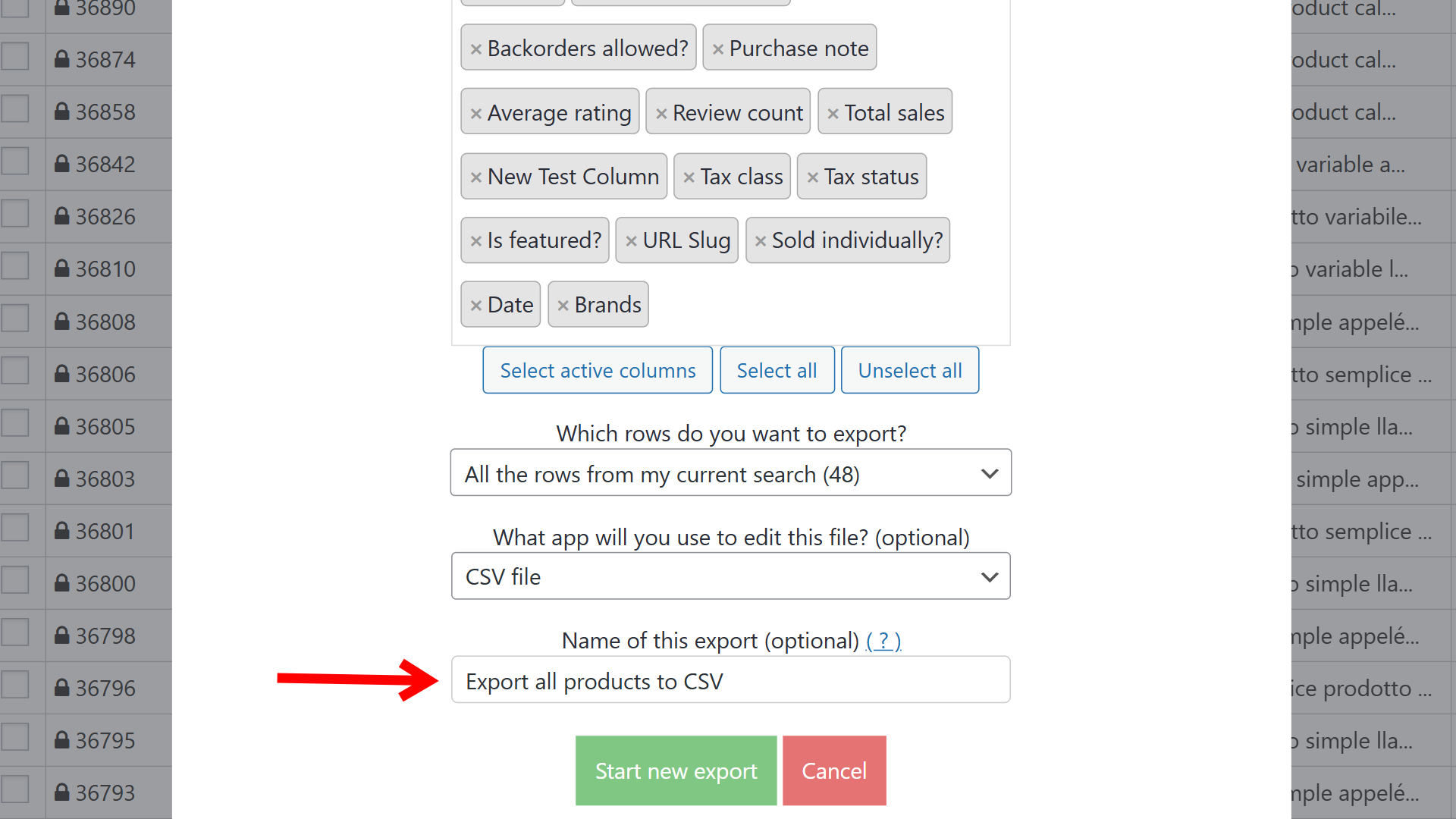
Your export will be saved automatically under that name, along with all its settings.
How to run a saved export
To run a saved export in the future, just hover over the “Export” tool on the toolbar and click on any saved export. It will immediately export the data using the same filters, columns, and configuration as before — no setup required.
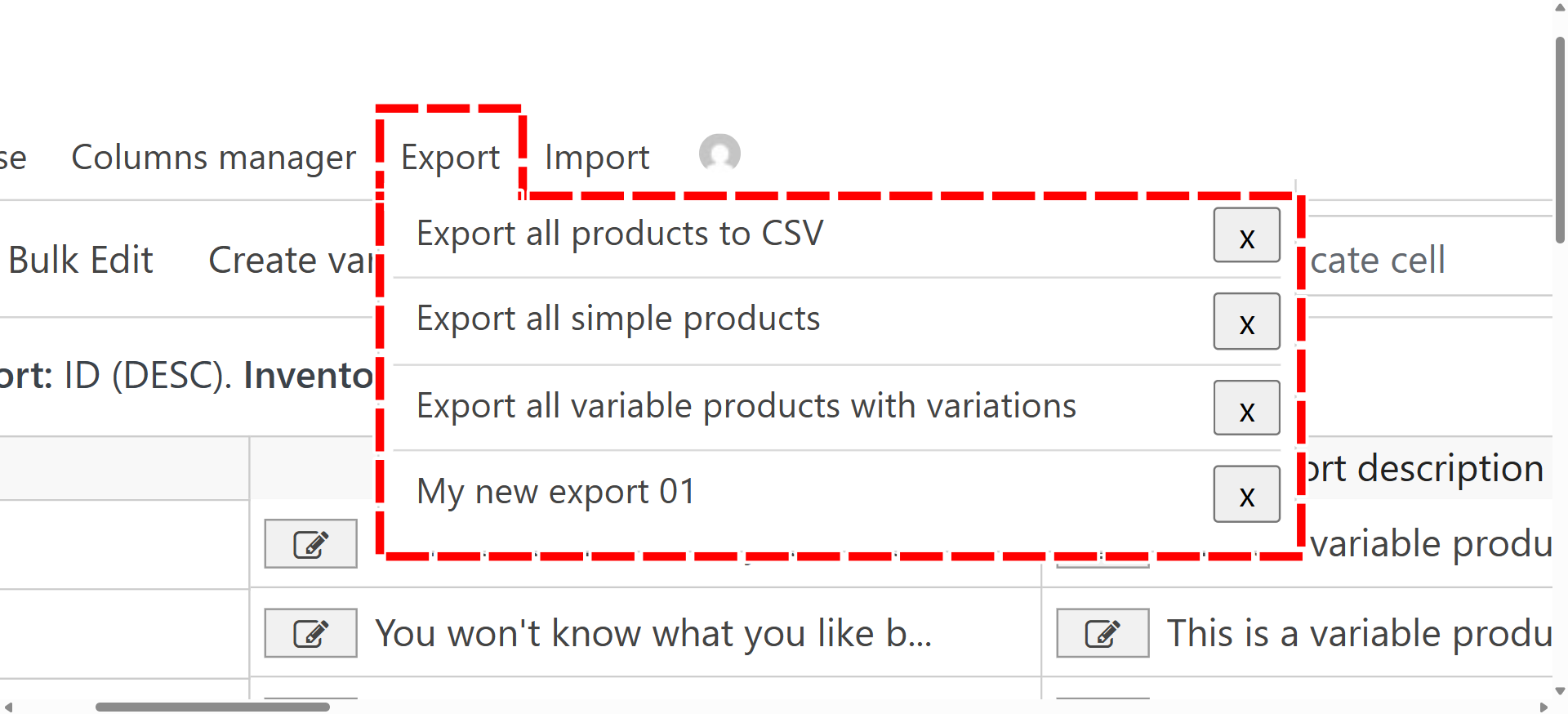
This feature is perfect for repetitive tasks like weekly sales reports, inventory backups, or client data exports. Save once, and from then on, every export is just one click away.