
In this tutorial, we will show you how to search for WooCommerce variable products by their number of variations.
Sometimes, we create variable products with dozens of variations — for example, clothing items with multiple sizes and colors — and we need to find which products have too few or too many variations. Other times, imports or CSV migrations produce unexpected variation counts, and we need to quickly locate affected products.
Doing this manually would normally require opening each product one by one, which is slow and inefficient.
Fortunately, with WP Sheet Editor – WoCommerce Products, you can view, search, and edit all your WooCommerce products directly in a spreadsheet. The plugin includes a Variations Count field that allows you to run advanced searches by the exact number of variations a product has.
You can download the plugin here:
Download WooCommerce Products Spreadsheet Plugin - or - Check the features
After installing the plugin and activating your license, follow the steps below to search for WooCommerce variable products by variations count.
Open the products spreadsheet
To open the products spreadsheet, go to WP Sheet Editor → Edit Products.
You’ll see all your WooCommerce products displayed in an editable spreadsheet where each row is a product and each column is a field like title, SKU, price, stock, and more.
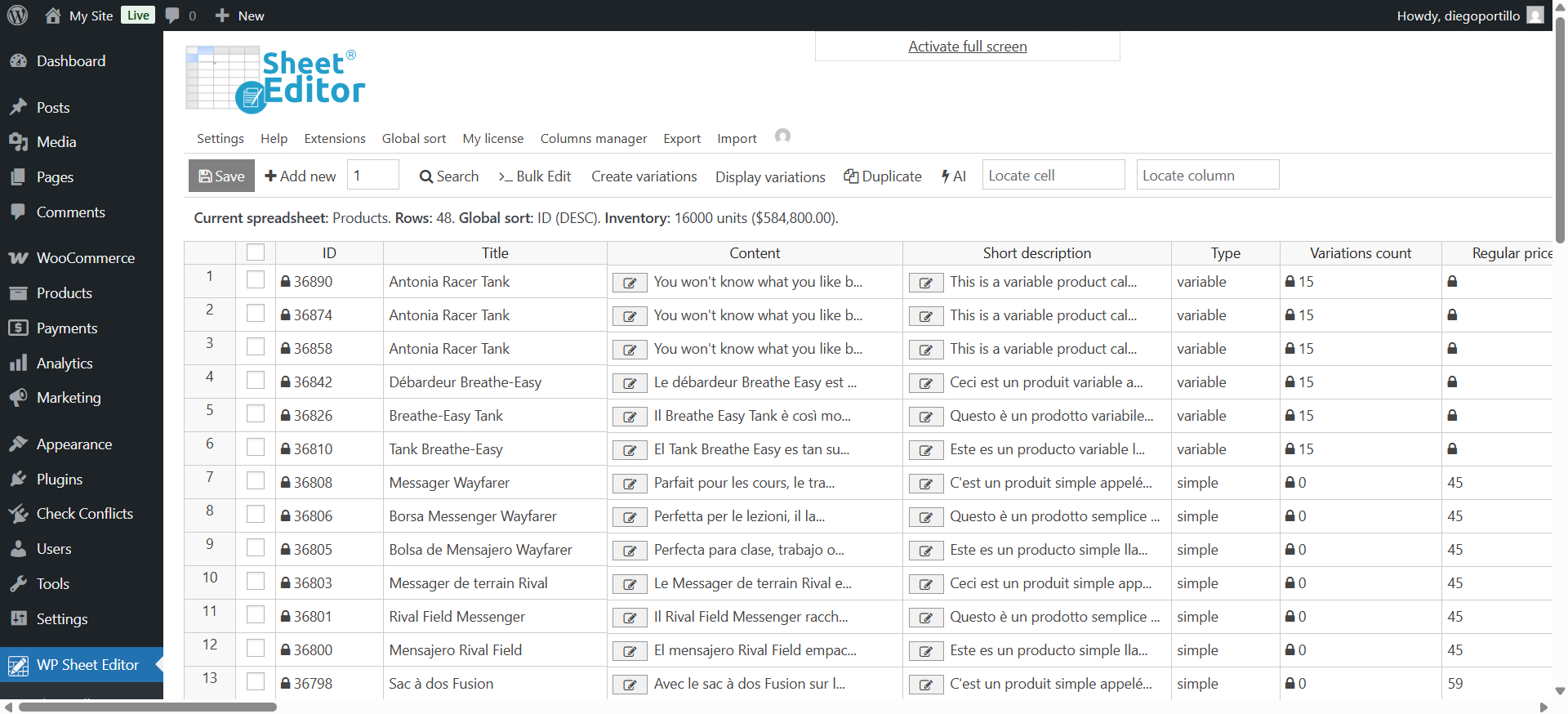
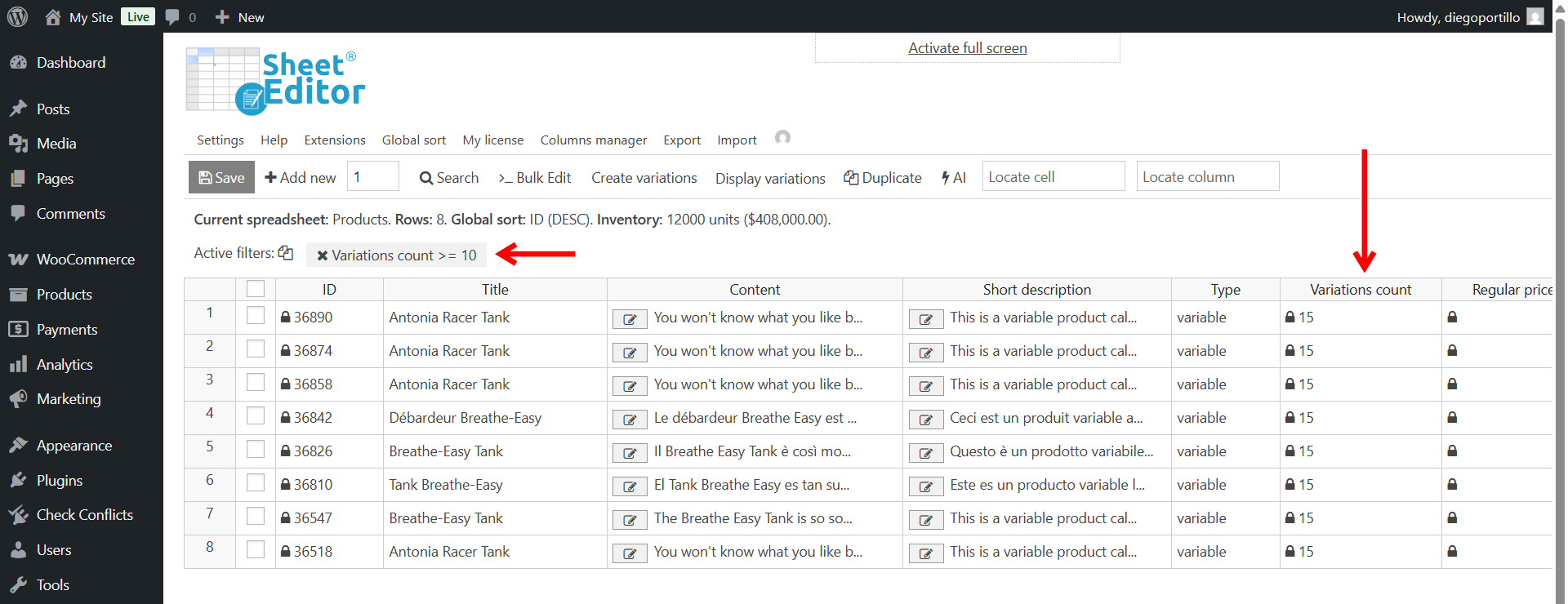
The new Variations count column displays the number of variations each product in your WooCommerce store has. You can use this column as a search filter to find products by variations count.
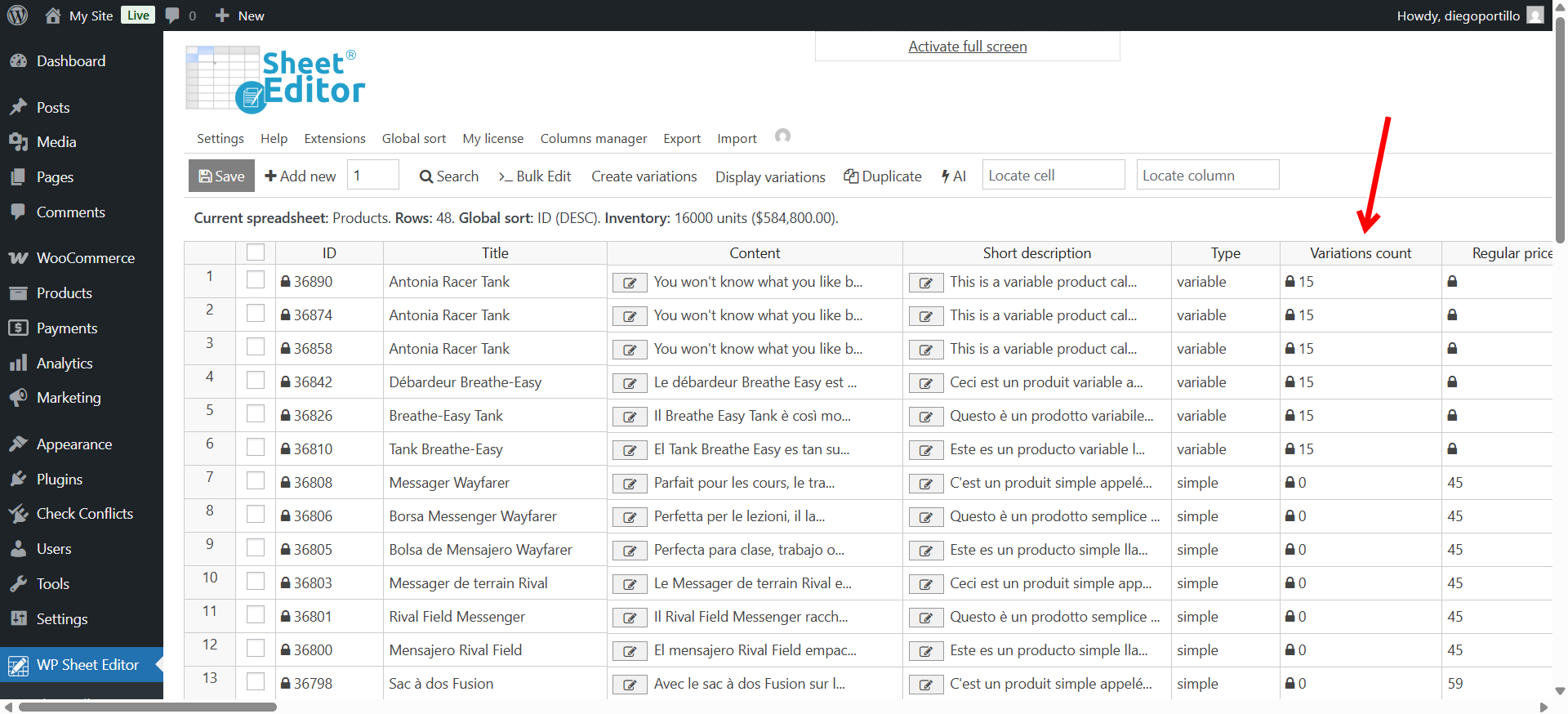
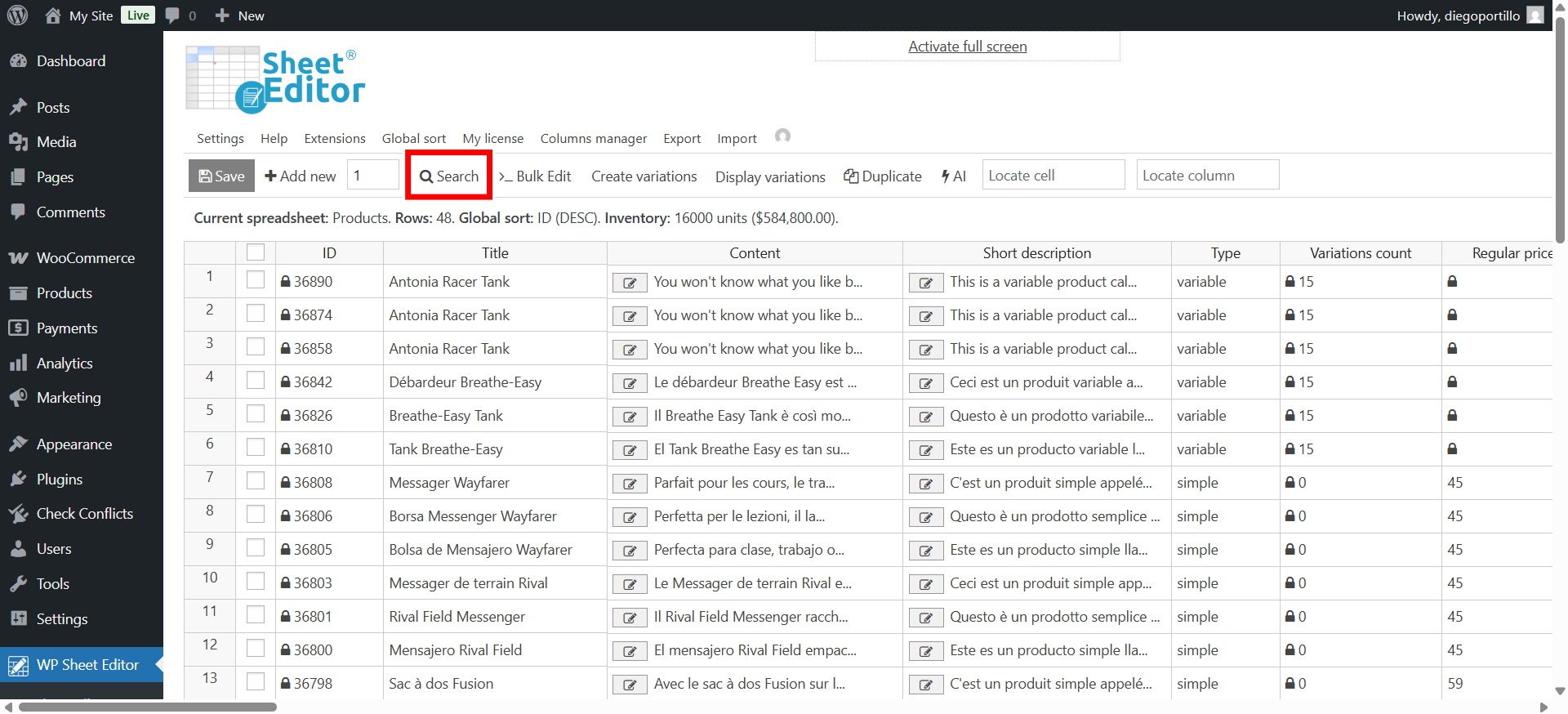
Use the Search tool to filter by variations count
The Search tool lets you find products using any field as a filter, including product type, category, price, attributes, and now, Variations Count.
This makes it easy to locate variable products that have a specific number of variations, such as:
- Products with no variations (count = 0)
- Products with too many variations (count > 30)
- Products with a limited number of variations (count < 5)
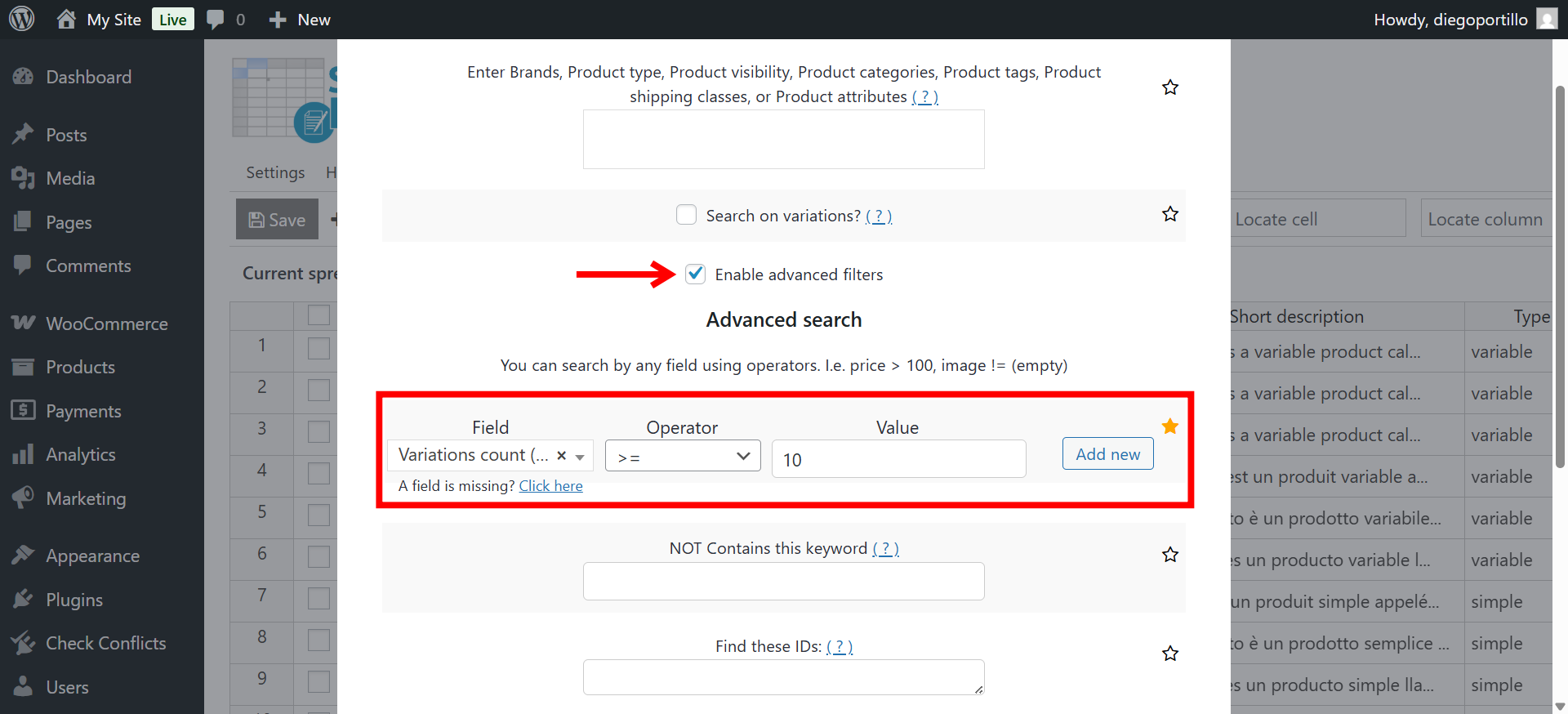
In this example, we will search for all products with 10 variations or more. You just need to select these values in the Search tool:
- Tick the Enable advanced filters checkbox.
- Field: Variations count
- Operator: In this case, we will select the “equal or higher than” operator (=>), but you can use any other operator, depending on the search you want to run.
- Value: Enter the number of variations here.
- Click on Run search.
The spreadsheet will instantly display all variable products matching your criteria. As you can see below, we have filtered all the products with 10 variations or more.
Examples:
- To find products with no variations, use
Variations Count = 0. - To find products with more than 20 variations, use
Variations Count > 20. - To find products with less than 5 variations, use
Variations Count < 5.
Bonus: Combine multiple filters for advanced searches
You can combine the Variations Count field with other filters to refine your search even more. For example:
- Find variable products with more than 10 variations and low stock
- Find variable products with 0 variations and in a specific category
- Find variable products with 5–10 variations and authored by a specific vendor
The Search tool supports multiple filters at once, so you can create powerful, customized searches to match any workflow.
Manage your WooCommerce products efficiently with WP Sheet Editor
Searching for WooCommerce variable products by variations count is quick and effortless.
With the Variations Count field in WP Sheet Editor, you can instantly identify products that are missing variations, have too many variations, or fall within a specific range, without having to open product pages one by one.
Whether you’re cleaning up your product catalog, optimizing store performance, or organizing variations for bulk editing, everything can be done in just a few clicks from the spreadsheet view.
Start managing your WooCommerce products smarter today. Everything you need is right inside WP Sheet Editor.
You can download the plugin here:
Download WooCommerce Products Spreadsheet Plugin - or - Check the features