
In this tutorial, we’ll show you how to search for WooCommerce variable products by their variations count.
Want to find variable products missing variations? Follow this guide.
WooCommerce doesn’t let you filter products by the number of variations they have using the native filters. That’s why we’ll use the WP Sheet Editor for WooCommerce Products plugin. It lets you view, search, and edit all your WooCommerce products directly in a spreadsheet, and it includes a Variations Count field that allows you to run advanced searches based on the exact number of variations a product has.
You can download the plugin here:
Download WooCommerce Products Spreadsheet Plugin - or - Check the features
After installing the plugin and activating your license, follow the steps below to search for WooCommerce variable products by variations count.
1- Open the products spreadsheet
Go to WP Sheet Editor > Edit Products.
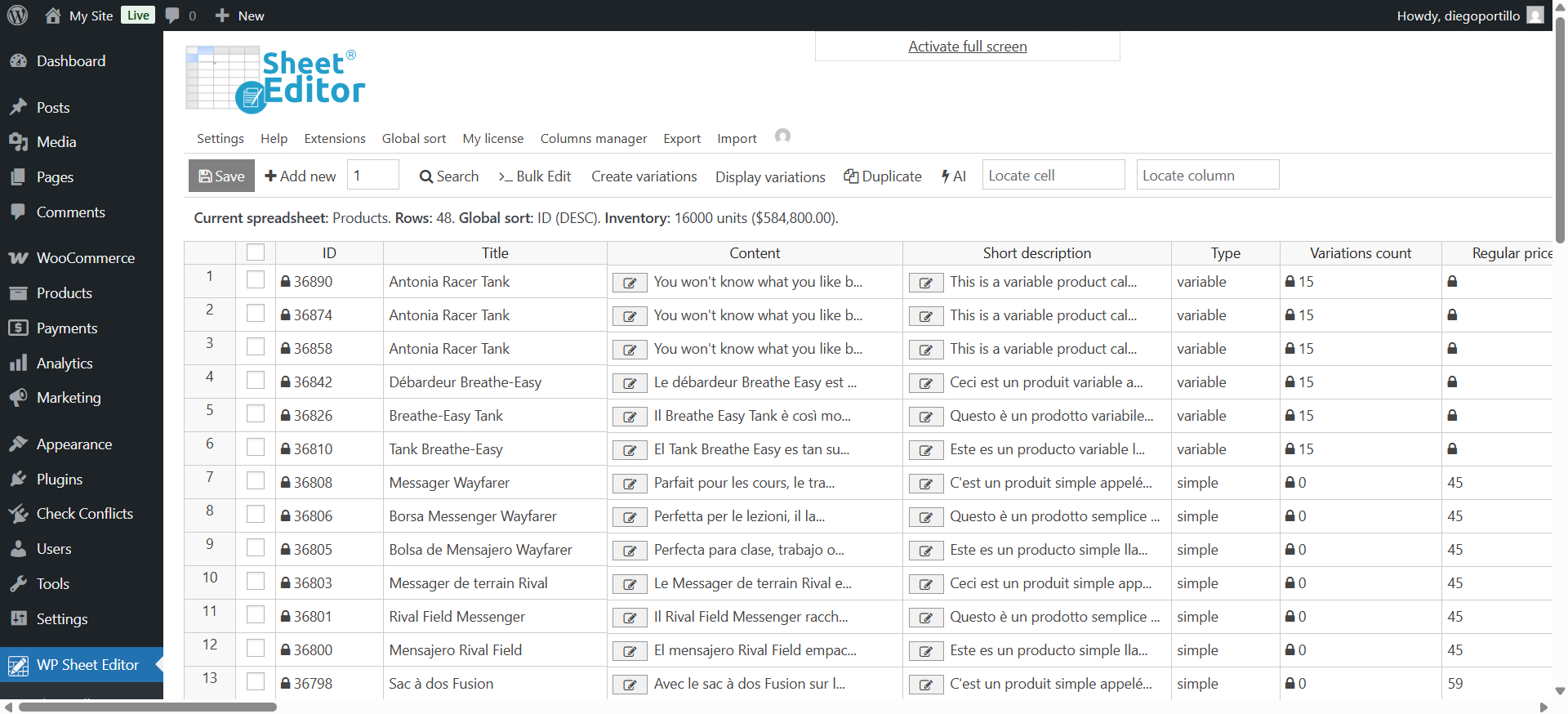
The new Variations count column displays the number of variations each product in your WooCommerce store has. You can use this column as a search filter to find products by variations count.
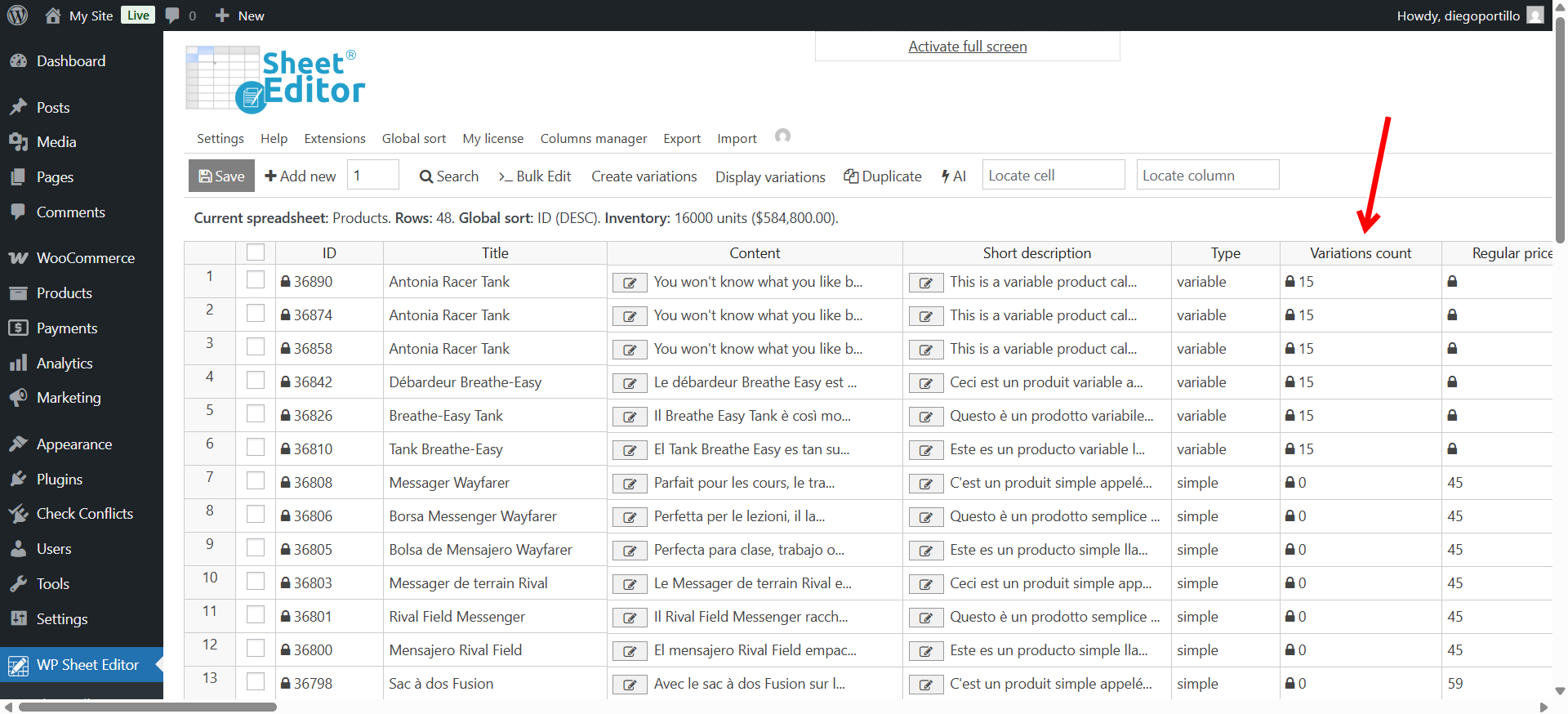
2- Open the “Search” tool
The Search tool lets you find products using any field as a filter, including product type, category, price, attributes, and now Variations Count.
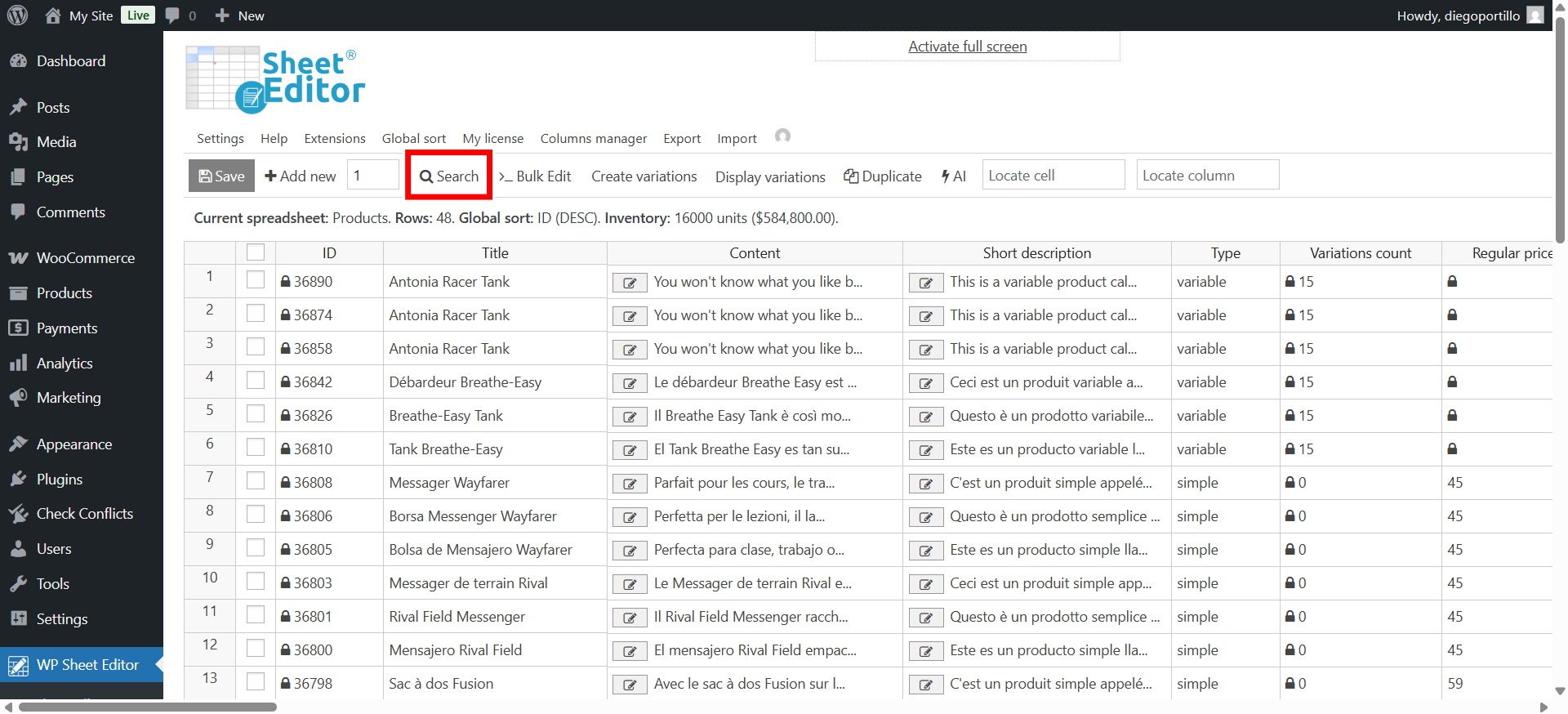
In this example, we’ll search for all products with 10 variations or more:
- Tick the Enable advanced filters checkbox.
- Field: Variations count
- Operator: In this case, we’ll select the “equal or higher than” operator (=>), but you can use any other operator, depending on the search you want to execute.
- Value: Enter the number of variations here.
- Click on Run search.
The spreadsheet will display all variable products matching your criteria. We have filtered all the products with 10 variations or more.
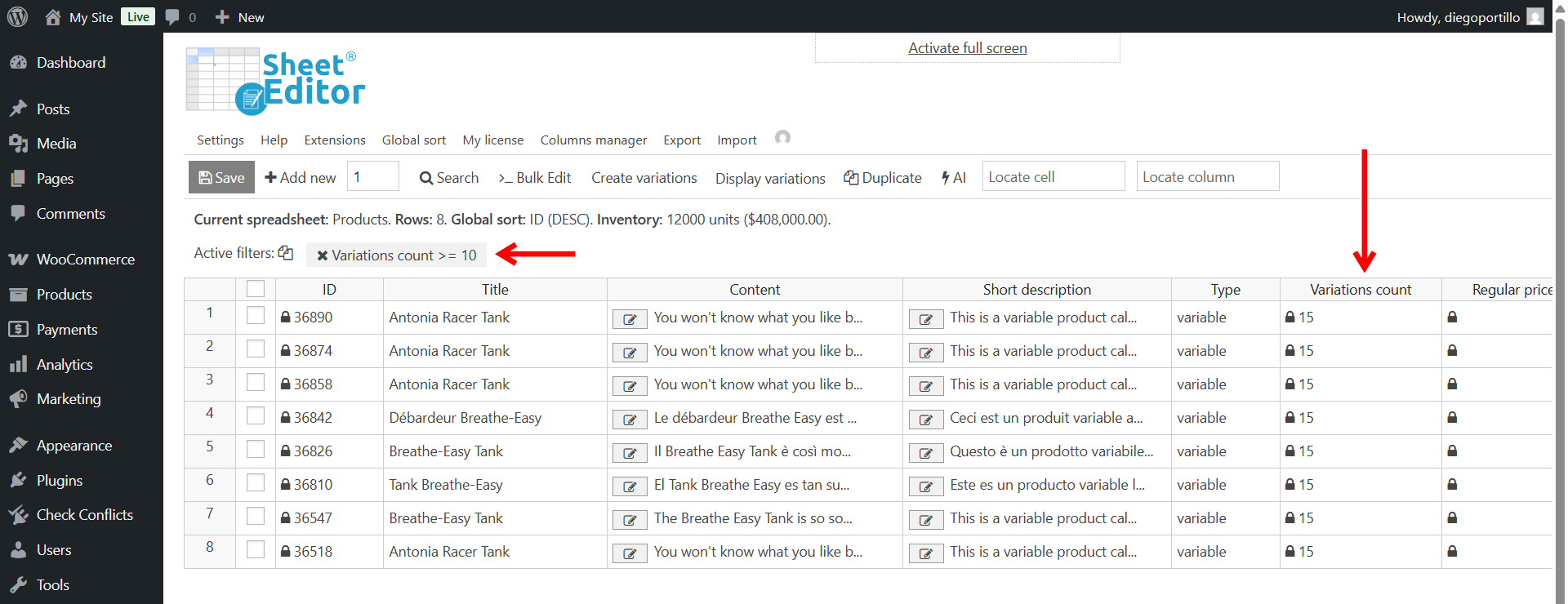
Here are other examples you can use to find products based on their variations count:
- To find products missing variations, use
Variations Count = 0. - To find products with more than 20 variations, use
Variations Count > 20. - To find products with less than 5 variations, use
Variations Count < 5. - To find products with exactly 10 variations, use
Variations Count = 10. - To find products with 5 to 15 variations, combine
Variations Count => 5withVariations Count <= 15.
You can download the plugin here:
Download WooCommerce Products Spreadsheet Plugin - or - Check the features