
Running a promotional campaign or a seasonal sale on a WooCommerce store with hundreds or thousands of products requires constant pricing updates. Sometimes, you need to apply a 20% discount to an entire category, set specific sale dates for Black Friday, or revert prices to normal once a promotion ends.
By default, WooCommerce allows you to change the Regular price and Sale price of a product, as well as schedule the sale dates. However, doing this manually involves opening each product, clicking edit, typing the new prices, setting the calendar dates, and saving. If you need to update 500 products for a weekend flash sale, this is not a viable strategy.
In this tutorial, we will show you how to manage WooCommerce sale prices using Google Sheets. This workflow allows you to bulk update the pricing of thousands of products, calculate discounts using formulas, and collaborate with your marketing team without giving them WordPress admin access.
Why manage WooCommerce sale prices from Google Sheets?
Exporting and importing your pricing data with Google Sheets offers several strategic advantages:
- Bulk updates: Change the sale prices of hundreds of products at once using drag-and-fill, copy-pasting, or spreadsheet formulas (e.g., automatically applying a flat 15% discount to the regular price).
- Fast auditing: Filter your spreadsheet to instantly see all products currently on sale and verify their scheduled start and end dates.
- Collaboration: Let your store managers or marketing team plan out the pricing strategy and schedule sales directly in a shared spreadsheet.
What you need to manage sale prices in Google Sheets
To follow this guide, we will use these WP Sheet Editor tools besides the WooCommerce plugin:
WP Sheet Editor – WooCommerce Products: This plugin generates a spreadsheet inside your WordPress dashboard where you can view and edit all your WooCommerce products.
You can purchase the plugin here:
Get the WooCommerce Products spreadsheet - or - Check the features
Google Sheets Sync: This service connects your WP Sheet Editor spreadsheets to your Google Sheets account for seamless two-way exports and imports.
You can sign up to the service here:
Sign up to the Google Sheets Sync Service - or - Check the features
Step 1. Connect WordPress to Google Sheets
When you subscribe to the Google Sheets Sync service, you will receive a helper plugin that connects your WordPress site with your Google account.
Follow our installation guide to complete the setup and authorize the Google API connection.
Step 2. Create a new live sync
WP Sheet Editor allows you to easily set up a live sync to manage your WooCommerce sale prices in real time in Google Sheets. Every change you make in WordPress will be automatically exported to Google Sheets, and every change you apply in Google Sheets will be imported into WordPress.
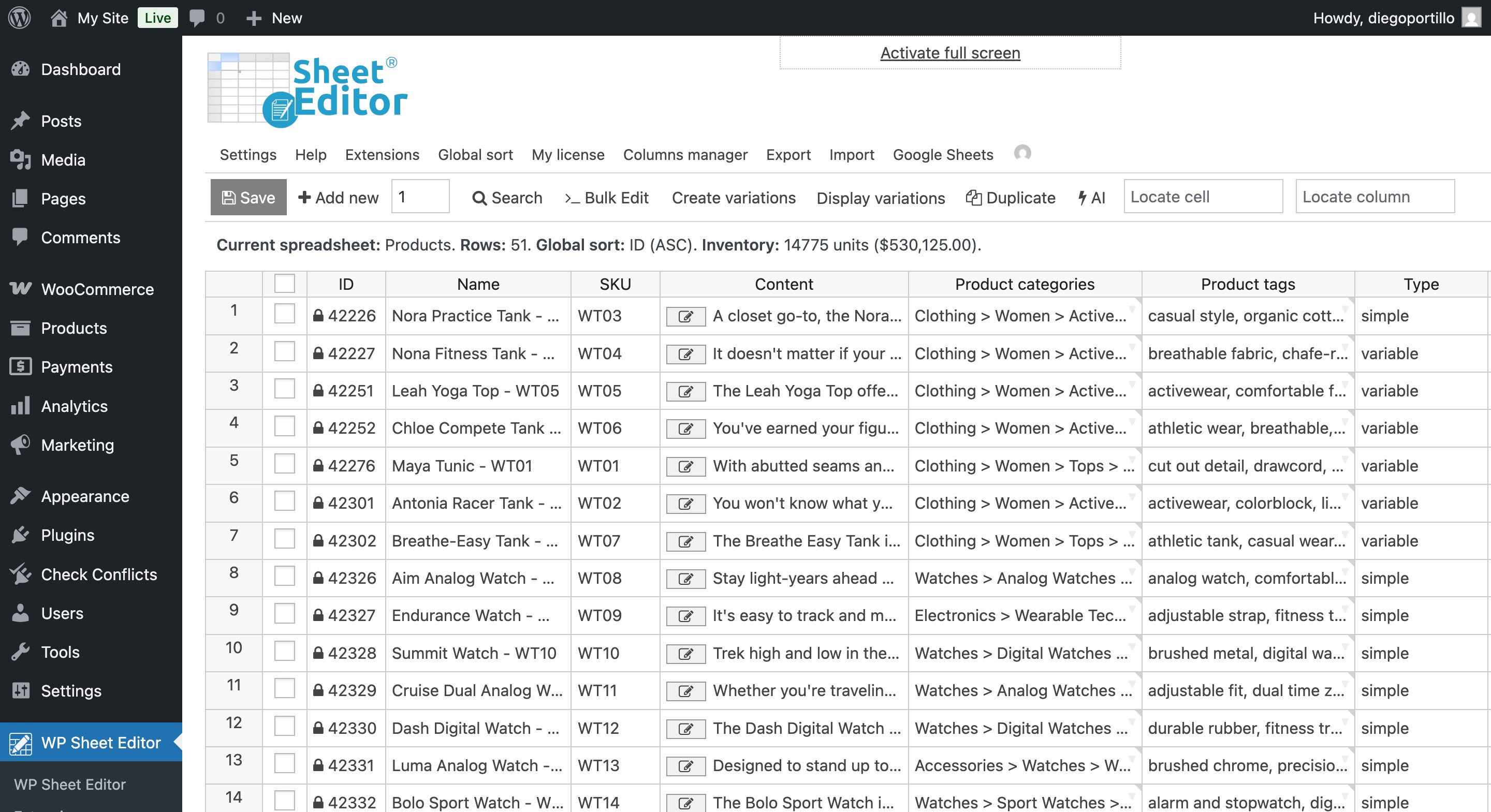
Start by opening the WooCommerce products spreadsheet by going to WP Sheet Editor > Edit Products.
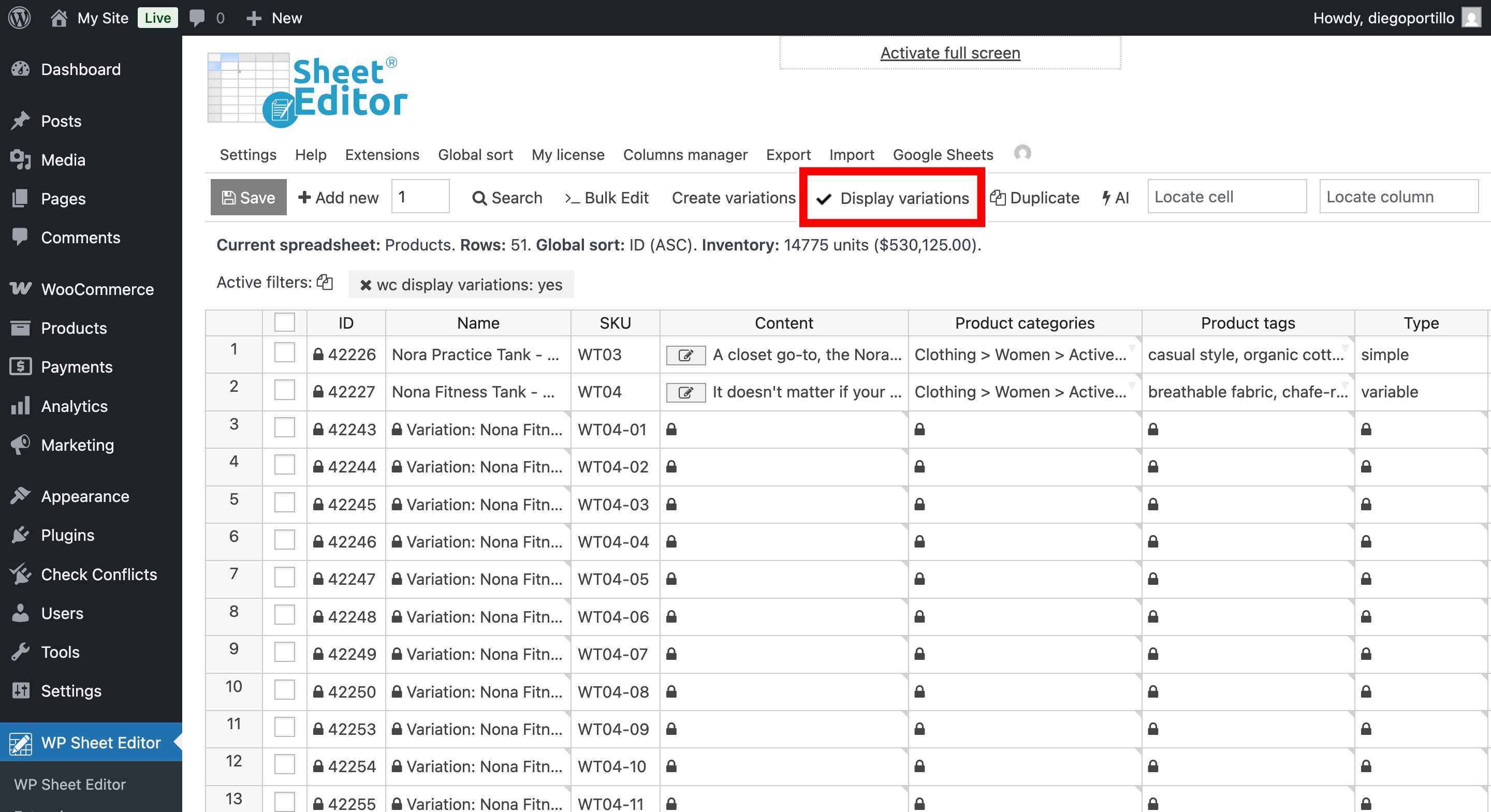
In order to also manage the variation sale pricing in Google Sheets, click on Display variations to display the variations in the spreadsheet and include them in the live sync.
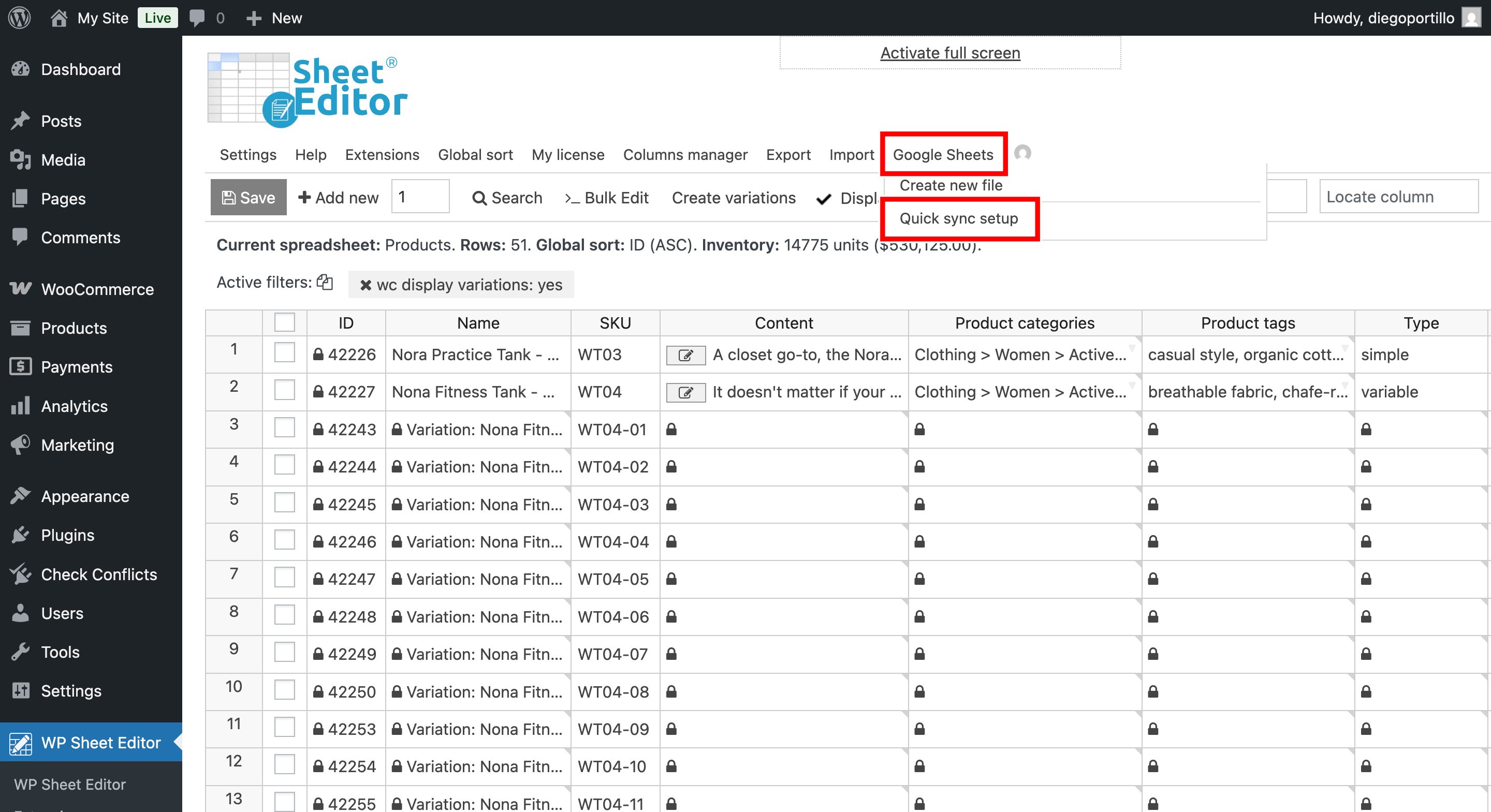
Once you’ve displayed the variations in the spreadsheet, hover the mouse cursor over Google Sheets and click on Quick sync setup.
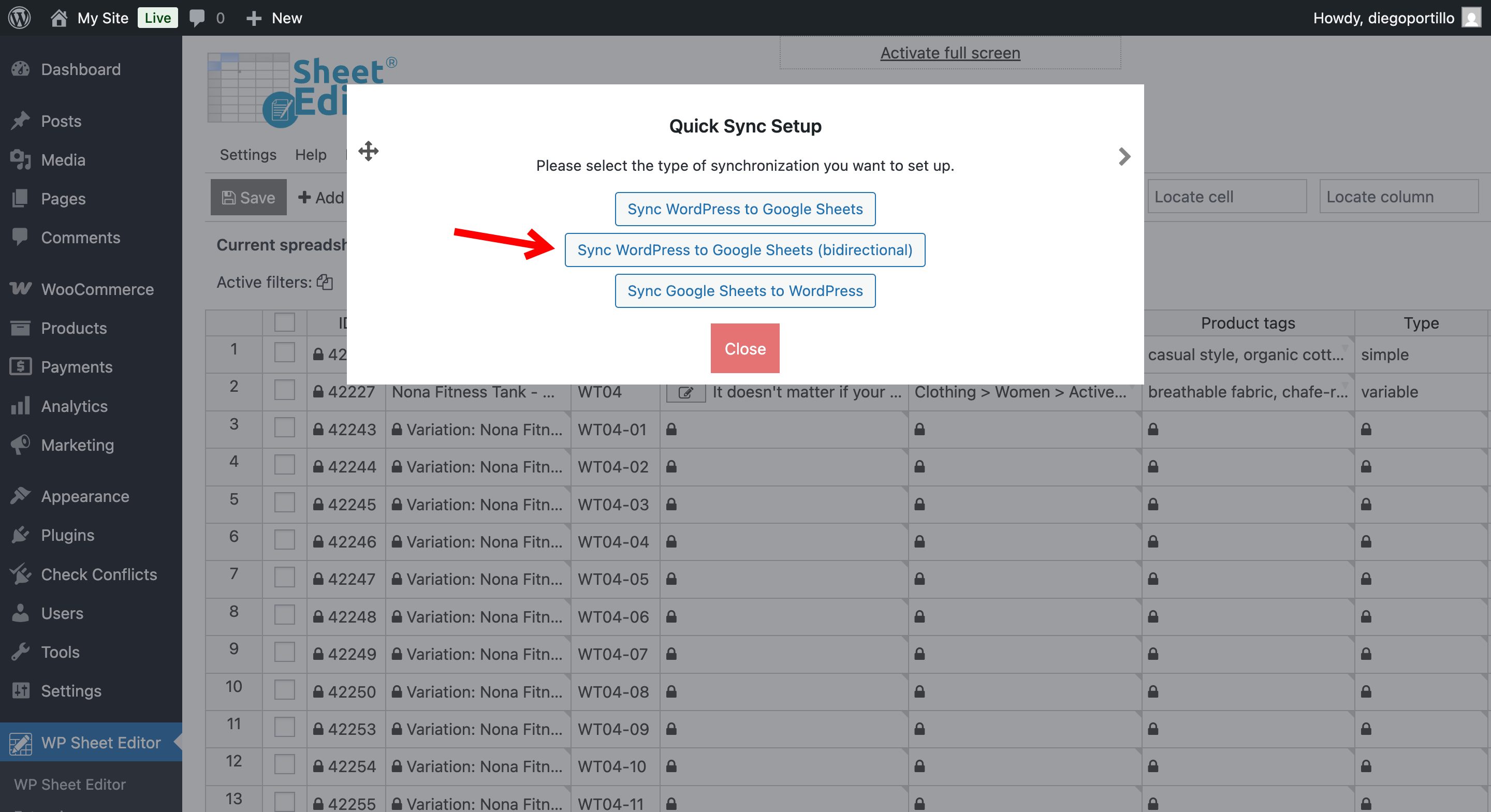
Once your in the quick sync setup popup, click on Sync WordPress to Google Sheets (bidirectional).
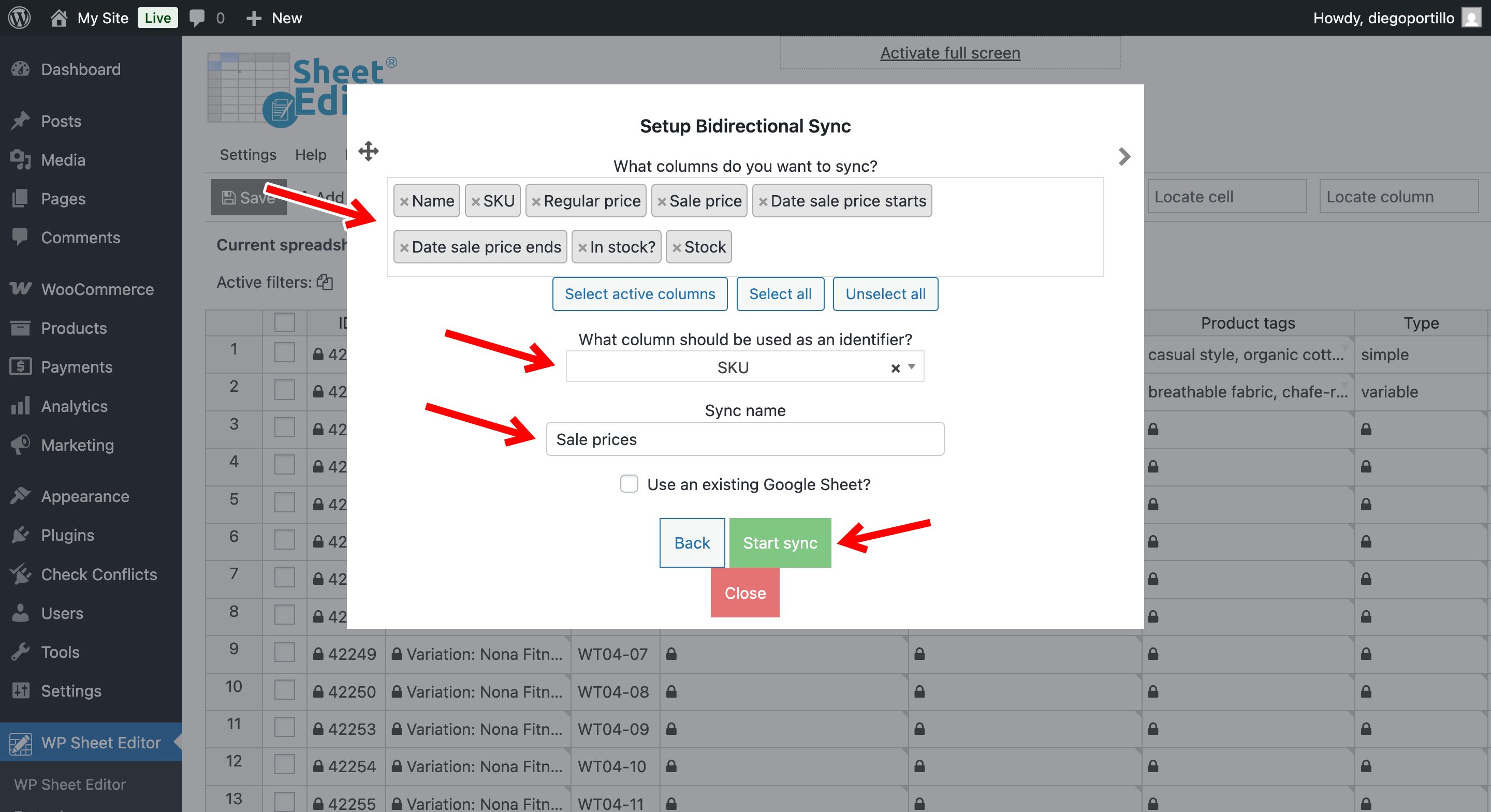
Now select these values in order to create a new quick live sync:
- What columns do you want to sync: In this example, we will select specific fields like:
- Name
- SKU
- Regular price
- Sale price
- Date sale price starts
- Date sale price ends
- In stock (stock status)
- Stock (quantity)
- What column should be used as an identifier: We use this field to match the products and variations in the Google Sheet with the products and variations in WordPress.
- Sync name: Add a name for this real-time sync.
- Click on Start sync.
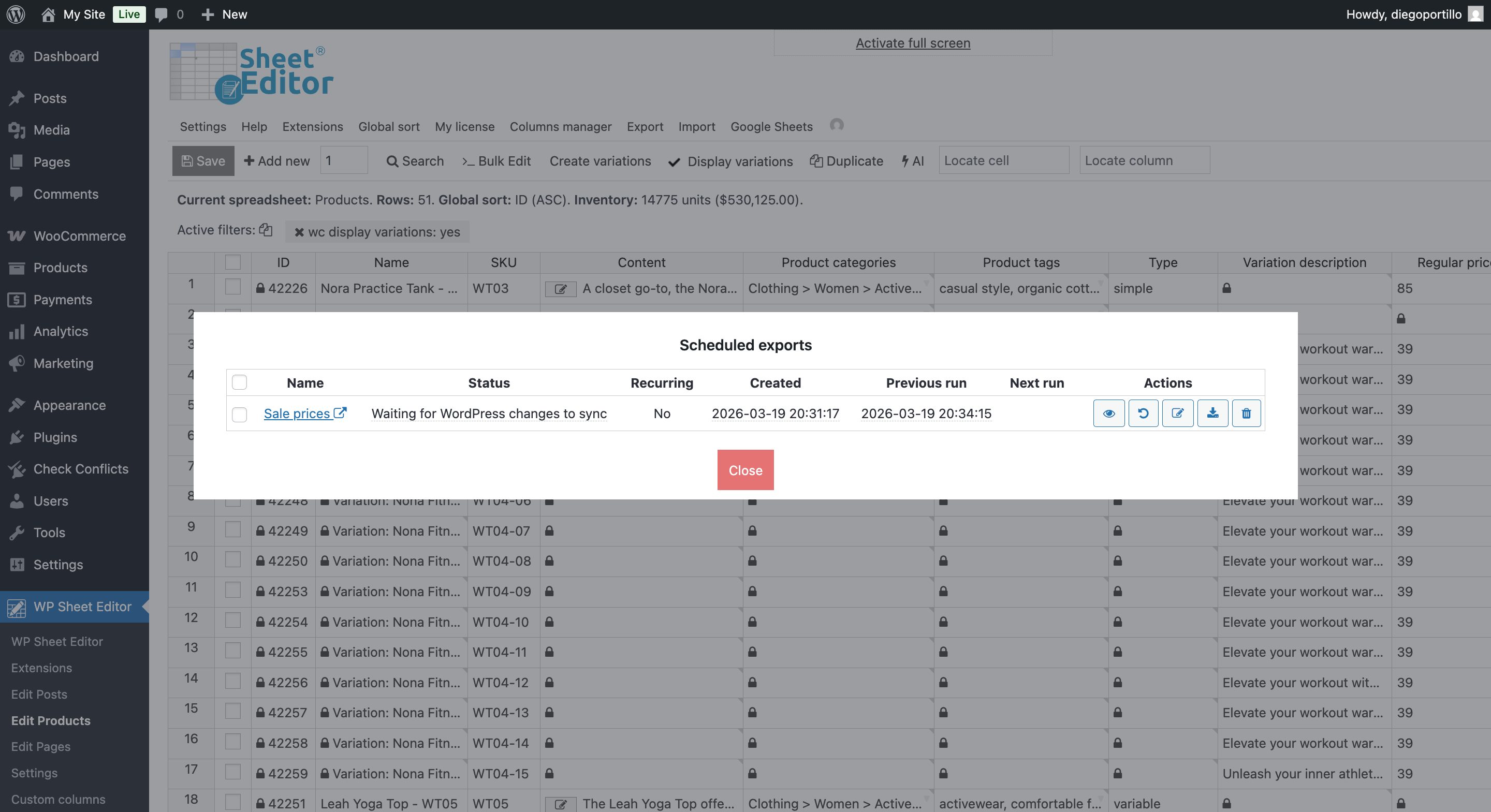
After creating the new real-time sync, you can go to Export > View scheduled exports to see the new export.
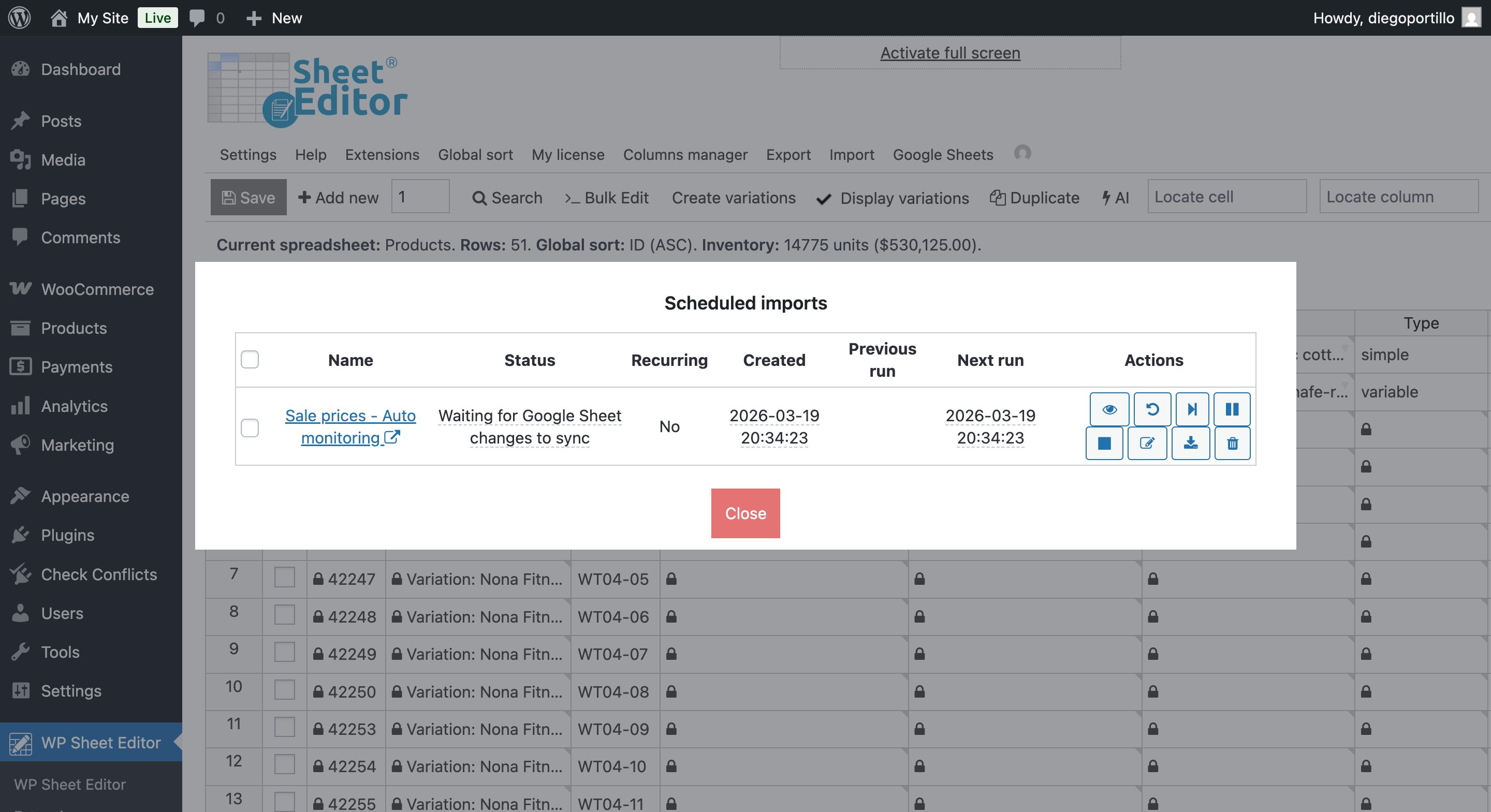
Since this is a bidirectional sync, the plugin will automatically create an import to auto monitor the changes made in Google Sheets. This is the feature that will allow you to manage your products’ pricing in Google Sheets. Every time you make sale price changes in Google Sheets, these changes will be automatically imported into WordPress.
You can open the Google Sheet by clicking on the export/import name.
Step 3. Manage WooCommerce sale prices in Google Sheets
Once the export is complete, click on the link provided to open your new Google Sheet.
Locate the Sale price, Sale price date starts, and Sale price date ends columns.
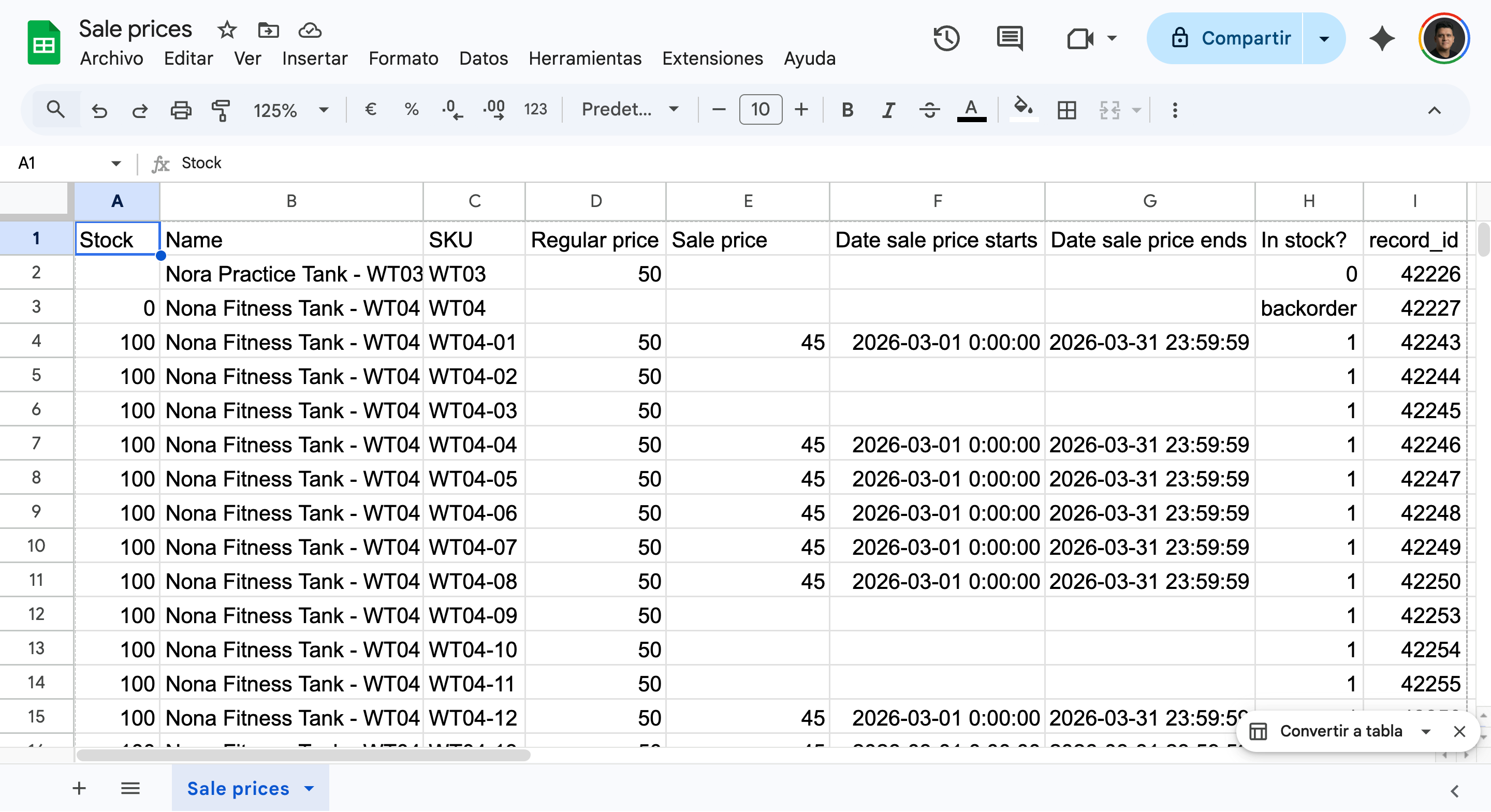
Here is how you can manage your pricing data:
- Sale price: Simply input the numeric value of the discounted price (e.g., 19.99). You can also use Google Sheets formulas to calculate this automatically based on your Regular price column.
- Sale price date starts/Sale price date ends: Use the standard date format (YYYY-MM-DD HH:MM:SS) to schedule exactly when the sale starts and ends. Leave these blank if the sale applies indefinitely.
- Regular price: You can easily update your standard base prices alongside your sales.
You can now use Google Sheets’ powerful features to manage these prices. Sort your sheet by categories, apply formulas to calculate markdowns, and update thousands of rows in bulk.
Step 4. Import changes back to WooCommerce
As we have indicated, since this is a bidirectional sync, the plugin will automatically import the changes made in Google Sheets into WordPress. Every time you make pricing changes in Google Sheets, these changes will be automatically imported into WordPress.
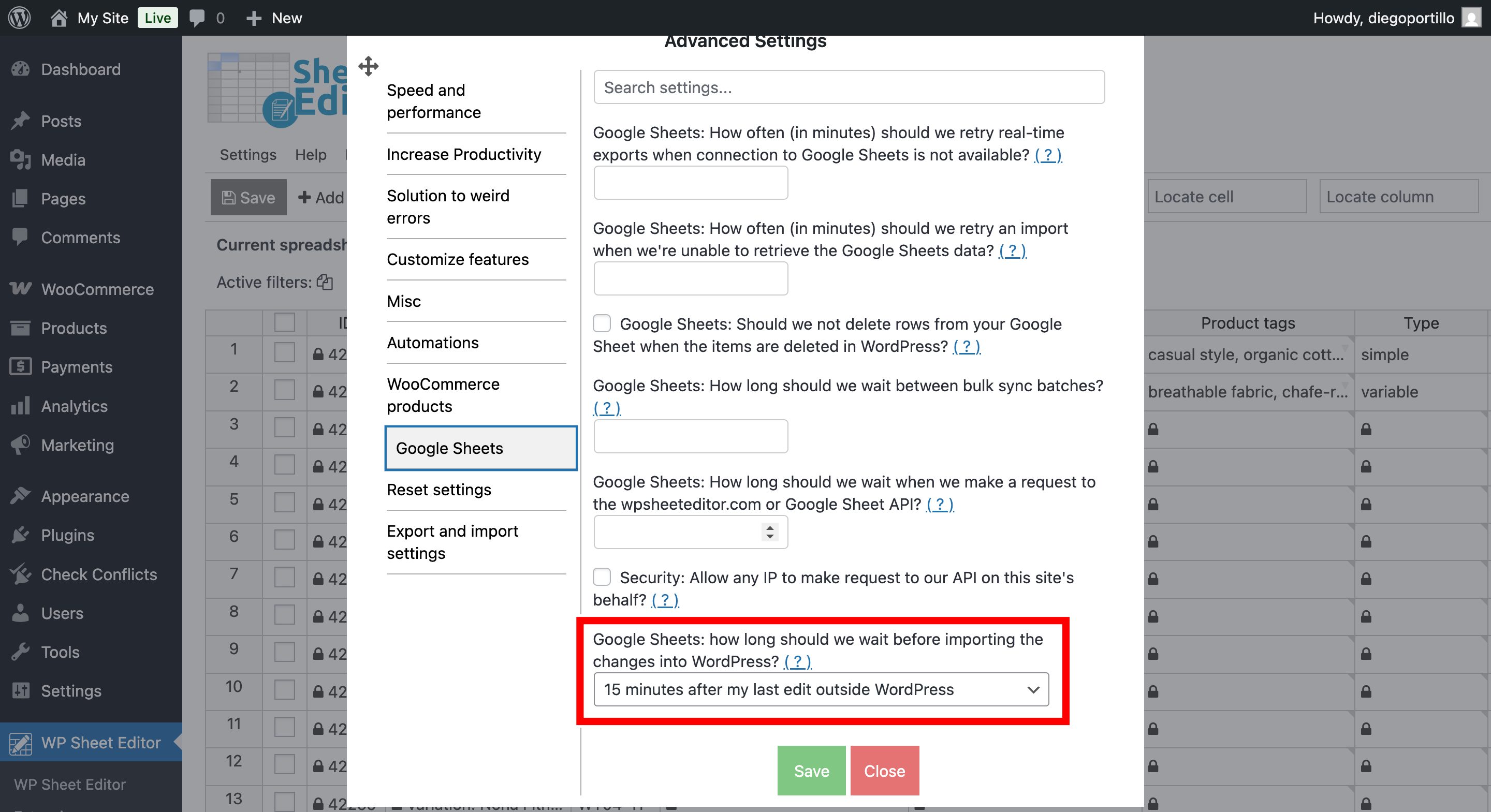
To avoid importing incomplete or incorrect data, we have a delay that allows for a waiting period after you have finished editing in Google Sheets. For example, you can select our plugin to wait from 15 minutes to 12 hours.
To select this, you can go to Settings > Advanced Settings > Google Sheets and select the time in Google Sheets: How long should we wait before importing the changes into WordPress.
Manage your WooCommerce sale prices in Google Sheets
Managing WooCommerce promotional pricing doesn’t have to be a slow, manual process. By integrating your store with Google Sheets, you can calculate discounts, schedule holiday sales, and update standard prices with complete efficiency. Using WP Sheet Editor and the Google Sheets Sync service eliminates manual data entry, making large-scale store management simple.