
If you sell products that require extra instructions after purchase (like a PDF manual, setup steps, or even a discount code for the next order) you’ll need to use purchase notes in WooCommerce.
For example:
- You sell digital products and need to share a download guide
- You want to include a 10% discount code for future purchases
- You provide installation instructions for physical products
The problem? Adding purchase notes manually can be extremely time-consuming if you have dozens or hundreds of products.
And until recently, many store owners relied on custom .php code to achieve this… which is not ideal if you want a fast and flexible solution.
In this guide, you’ll learn how to add purchase notes to WooCommerce products in bulk using a spreadsheet—no coding required.
We’ll use the WP Sheet Editor – WooCommerce Products Spreadsheet plugin to get this done in just a few clicks.
Install WP Sheet Editor
This plugin allows you to manage your WooCommerce products in a spreadsheet interface, making bulk edits incredibly fast and intuitive.
You can update hundreds (or thousands) of products at once, including prices, categories, stock, and in this case, purchase notes.
*Skip this step if you already have the plugin installed and activated.
You can download the plugin here:
Download WooCommerce Products Spreadsheet Plugin - or - Check the features
Video Guide
Text Guide
Once you open the plugin, you’ll see all your products displayed in a spreadsheet format, similar to Excel.
This view gives you full control over your store data and makes bulk editing much easier.
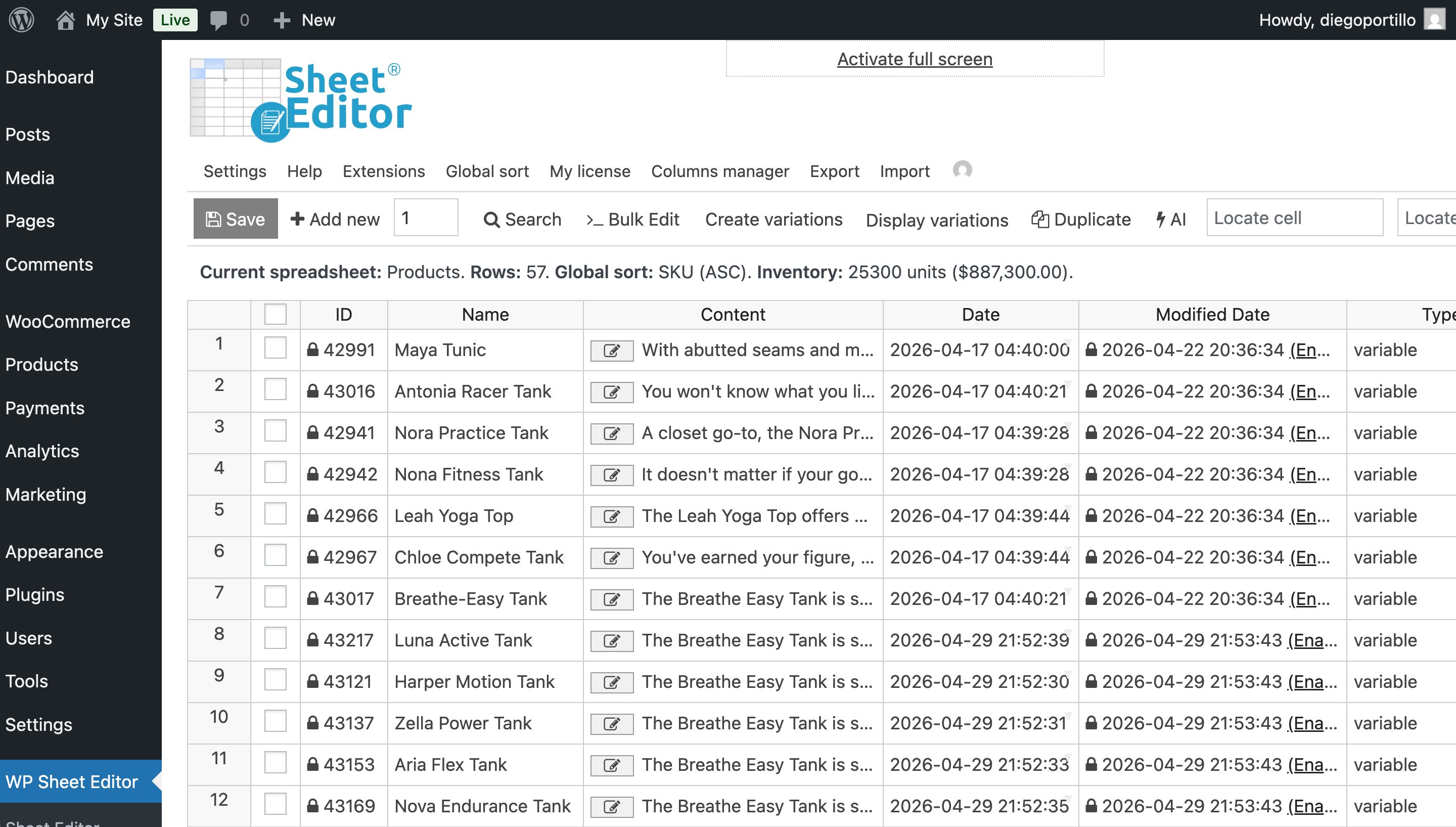
Step 1. Open the Bulk Edit Tool
This is the tool that allows you to apply changes to multiple products at once.
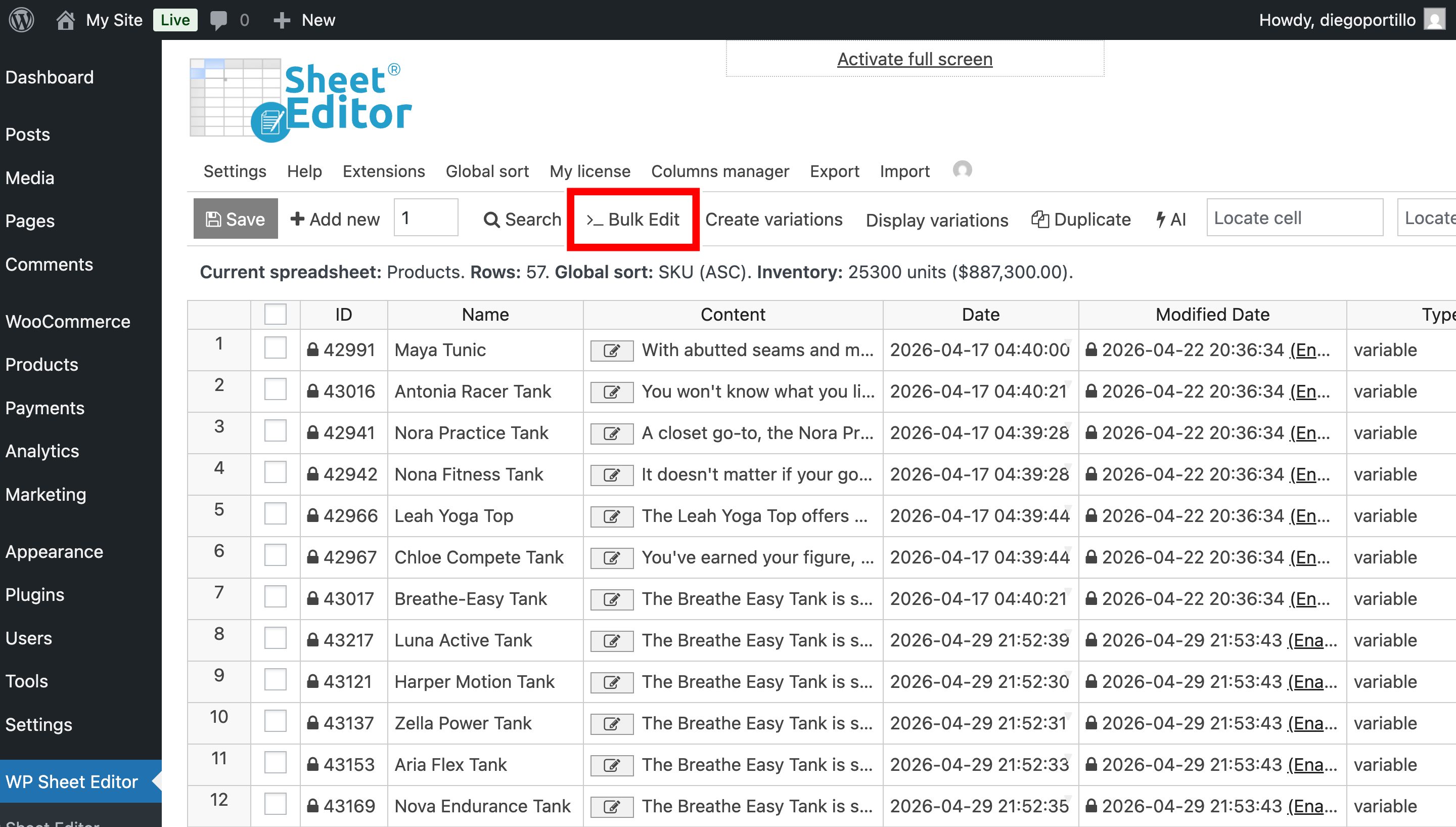
Step 2. Select the Products You Want to Edit
Select I want to search rows to update in the Select the rows that you want to update field.
This will open the advanced search tool, where you can filter your products before applying any changes.
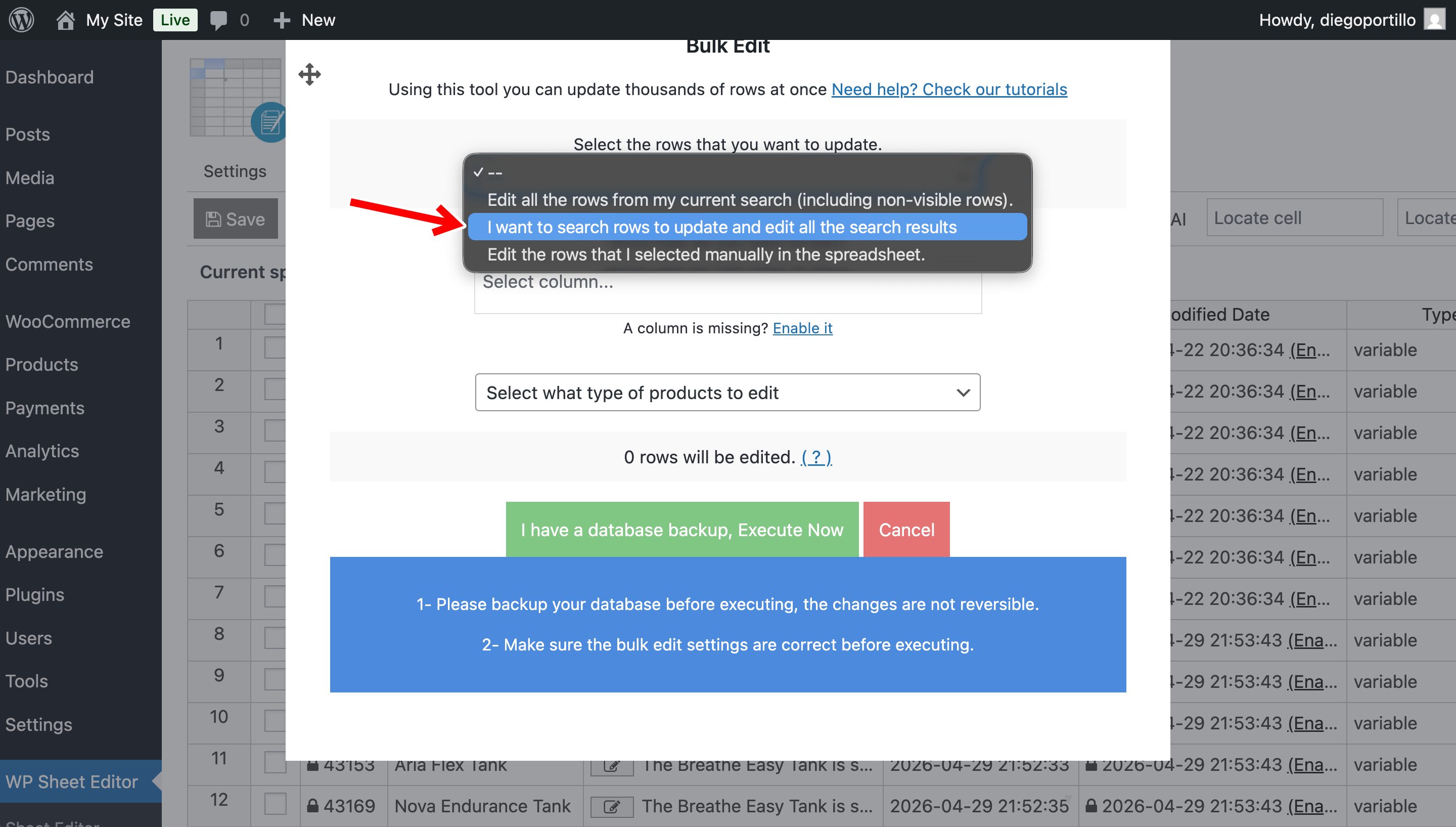
Step 3. Choose How You Want to Find the Products (Search Options)
Now comes the important part: selecting which products will receive the purchase note.
You can use different search methods depending on your use case.
Option 1: Filter Products by Keyword
Use this when you want to target products with similar names.
For example: “Shirt”, “Course”, “License”, etc.
Enter the keyword in the Contains keyword field and click Run search.
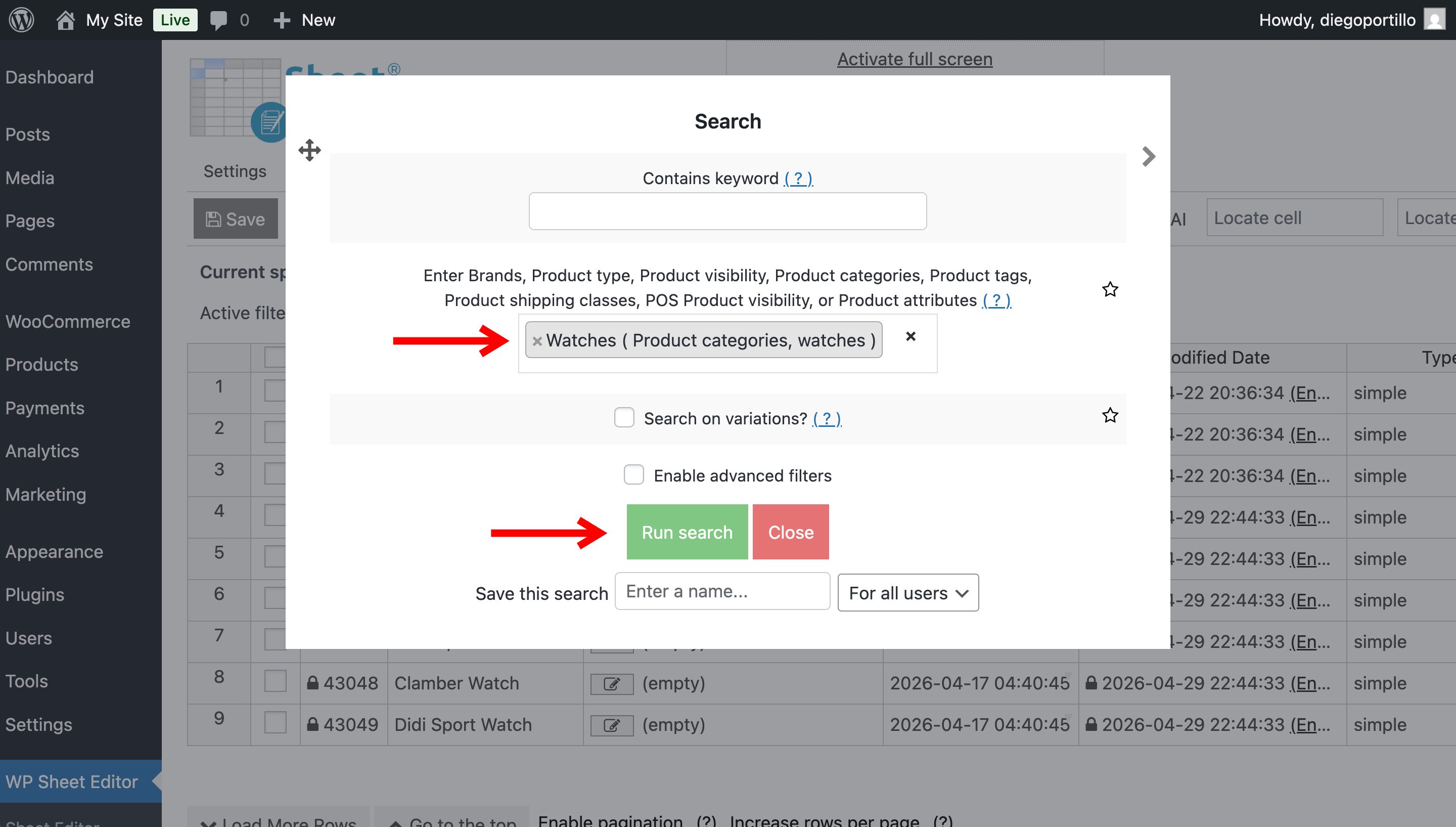
Option 2: Filter Products by Category, Attribute, or Tag
Use this when you want to target groups of related products.
For example:
- All products in a category like “Clothing”
- Products with a specific attribute (brand, size, etc.)
- Items with a specific tag like “Digital”
Enter the value in the Enter product category… field and click Run search.
Option 3: Filter All Downloadable Products
This is perfect for digital products like PDFs, courses, or software.
Enable advanced filters and configure them like this:
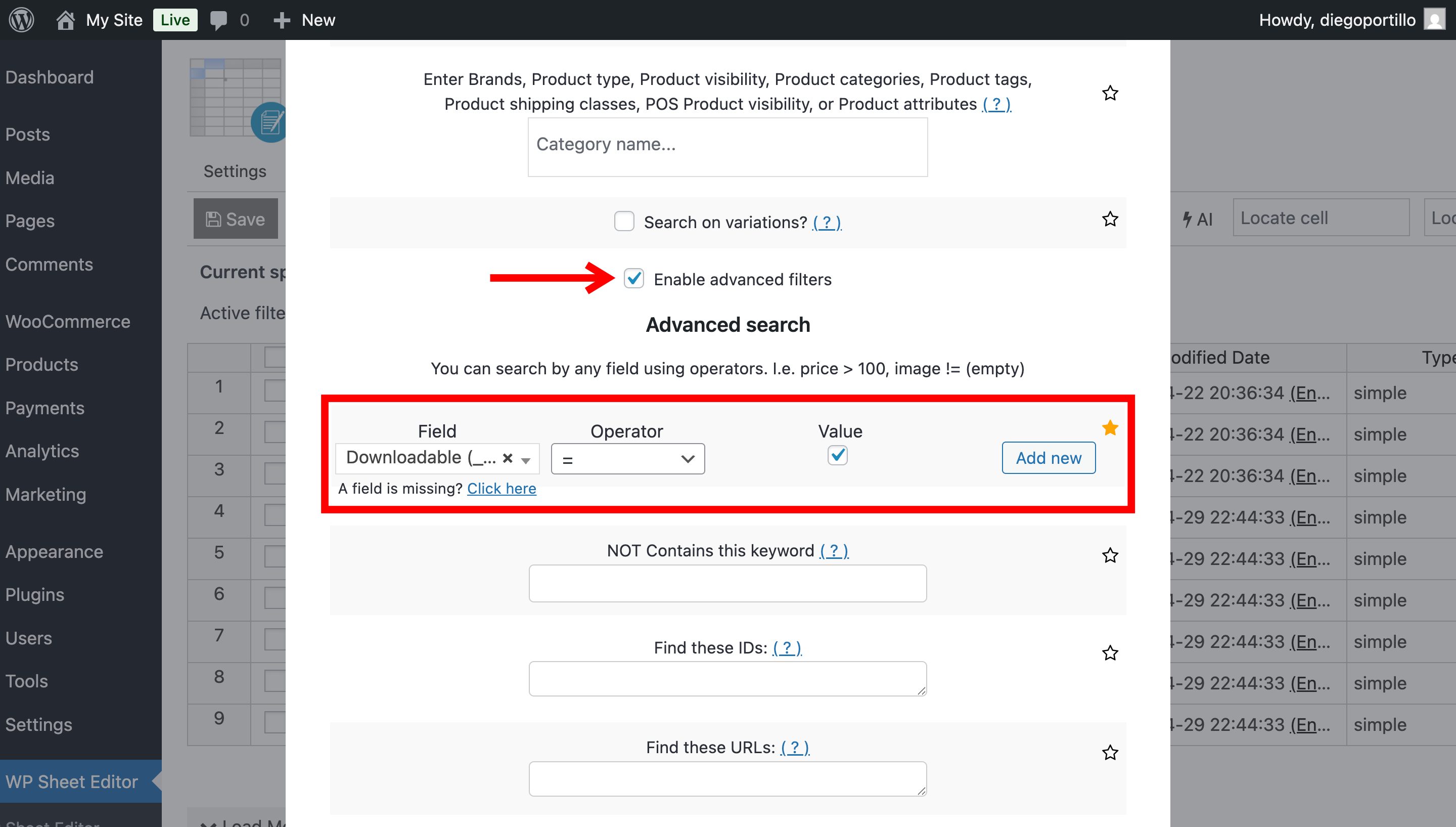
- Tick the Enable advanced filters checkbox.
- Field: Downloadable
- Operator: =
- Value: Yes
Then click Run search.
Step 4. Add the Purchase Note to All Filtered Products
Once you’ve filtered the products using any of the options above, you can apply the purchase note in bulk.
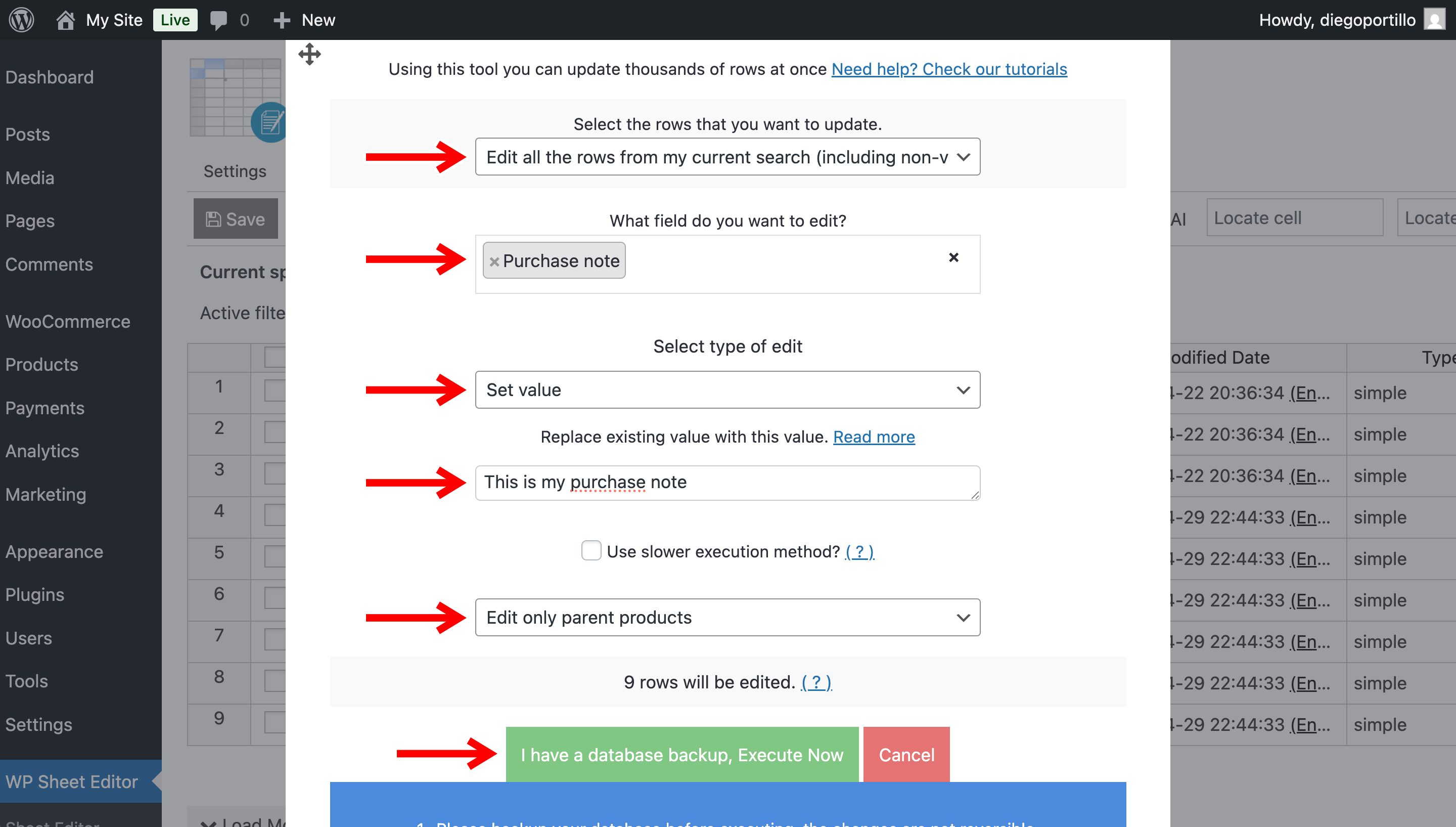
- Select the rows that you want to update: Edit all the rows from my current search
- What field do you want to edit: Purchase note
- Select type of edit: Set value
- Replace existing value with this value: Enter your purchase note
- Select Edit only parent products.
- Click on Execute Now
For example:
“Thanks for your purchase! Download your manual here: [link]. Use code SAVE10 for your next order.”
Done! Add Purchase Notes Easily
As you can see, you don’t need to edit products one by one anymore.
Just filter your products using any condition (keyword, category, attribute, tag, or downloadable status), and apply the purchase note in bulk.
This approach is perfect for:
- Adding instructions to digital products
- Sharing discount codes after purchase
- Providing setup or installation guidance
- Improving the post-purchase experience
You can download the plugin here:
Download WooCommerce Products Spreadsheet Plugin - or - Check the features