
Let’s see how to bulk sync variation prices and stock between WooCommerce and Google Sheets. This allows you to update variation prices, manage stock levels, and push those updates automatically into WooCommerce. Instead of editing variations one by one inside WordPress, you can manage everything from a single Google Sheets file and let the system sync changes for you.
Syncing WooCommerce variation prices and stock from Google Sheets offers many advantages:
- You can edit hundreds of variations at once directly in Google Sheets
- Team members can collaborate without needing WordPress access
- Reduces errors by keeping everything in one centralized spreadsheet
- You can automate recurring updates for stock and pricing
- Great for stores with large catalogs or suppliers providing sheets
- Makes seasonal or bulk price updates extremely fast
- You can track variation pricing and stock changes over time inside Google Sheets
Tools to sync variation prices and stock with Google Sheets
To sync WooCommerce product variations with Google Sheets, you will need:
1- WP Sheet Editor – WooCommerce Products gives you a spreadsheet interface inside WordPress where you can view and edit all product details, including variation fields such as prices, stock, attributes, SKU, and more. It streamlines bulk editing and simplifies working with large catalogs.
You can download the plugin here:
Download WooCommerce Products Spreadsheet Plugin - or - Check the features
2- Google Sheets Sync connects your WooCommerce store with Google Sheets and allows two-way syncing of product data. You can export products and variations, edit them in Google Sheets, and sync updates back into WooCommerce automatically or on a schedule.
You can sign up to the service here:
Sign up to the Google Sheets Sync Service - or - Check the features
Follow the steps below to sync WooCommerce variation pricing and stock with Google Sheets.
Step 1. Connect WordPress to Google Sheets
When you subscribe to the Google Sheets Sync service, you’ll receive a helper plugin that links your WordPress site with your Google Sheets account, the Google API, and the WP Sheet Editor API.
Follow this installation guide to complete the setup.
Step 2. Export variation prices and stock to Google Sheets
Before syncing variation prices and stock, you must export the variations to Google Sheets. The system only accepts Google Sheets generated through the service, ensuring the correct structure for importing the data.
You can optionally click Display variations to export all variations along with parent products.

Click Export to send your variation data to Google Sheets.

Select these export options to send variation prices and stock to Google Sheets:
- What columns do you want to export: Select the columns related to variation pricing and inventory:
- Name
- Type (variation)
- Attributes
- Regular price
- Sale price
- Stock quantity
- Stock status
- Which rows do you want to export: All rows from my current search
- What app will you use to edit this file: Google Sheets
- Name of this export: Add a meaningful name; this becomes the Google Sheet file name
- Click Start new export

Click the View Google Sheet link to open your exported variations.

All product variations will appear in Google Sheets, ready for bulk editing.

Step 3. Sync variation prices and stock from Google Sheets into WooCommerce
Now let’s schedule the import from Google Sheets so the system can monitor and apply future variation updates automatically.
Open the Import tool.

Choose these settings to import variation prices and stock:
- Enable Run this in the future
- Select date and time: Choose when to start monitoring price and stock changes
- Notify this email address: Enter an email to receive import notifications
- Select Run once
- Name: Add a descriptive import name
- Source: Google Sheets
- Google Sheet file: Select the file you exported earlier
- Enable Monitor and import changes made on Google Sheets
- Synchronization delay: Choose how long to wait before importing detected changes
- Optional: Mark variations as out-of-stock if they are removed from the sheet
- Click Next

You can import all variation fields or select only price- or stock-related columns.

Now choose how the importer will update items:
- Do you want to update or create items: Update existing variations and ignore new items
- How do we find existing items: Use the ID column to match variations
- Click Next

When ready, click The preview is fine, start import.

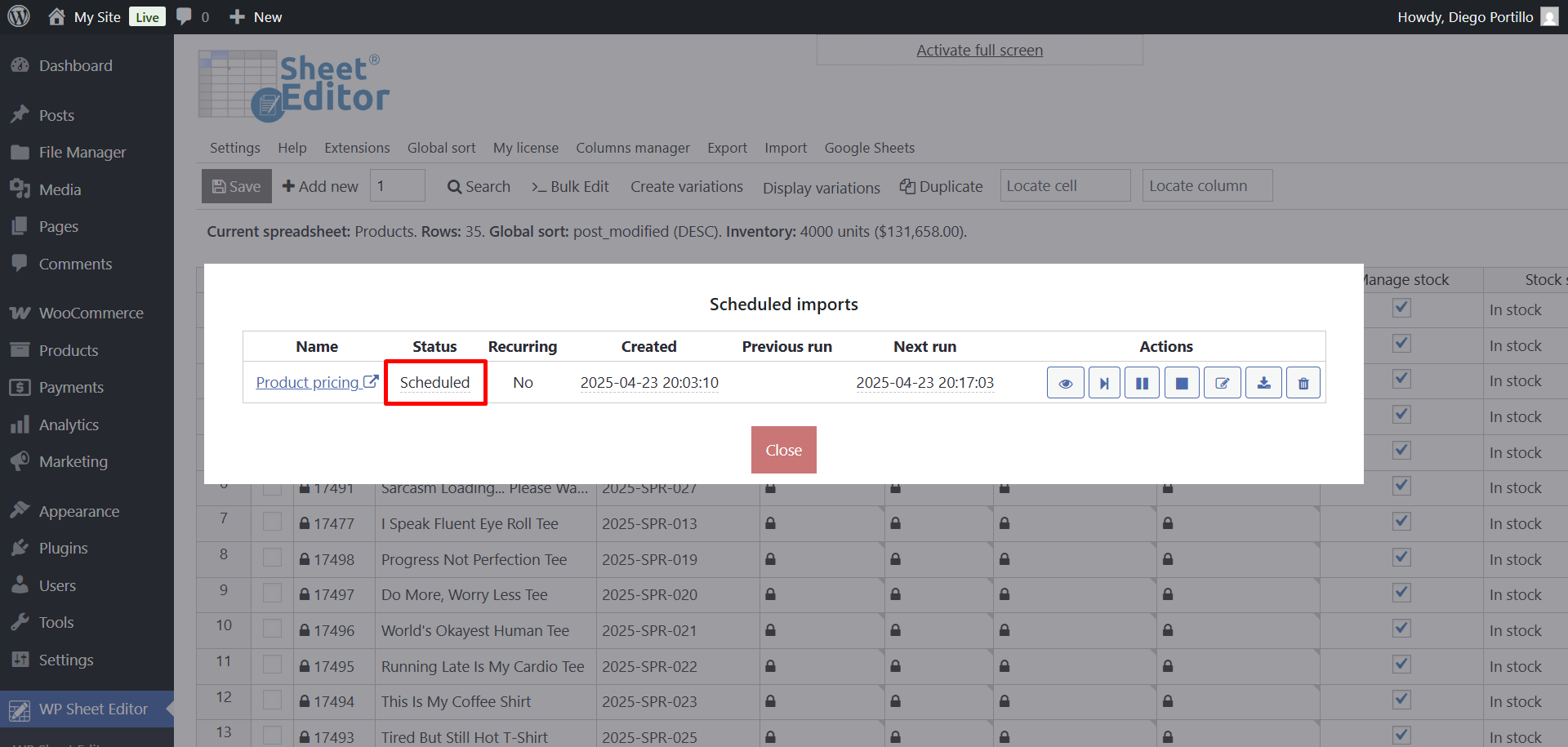
After scheduling the import, click View scheduled imports.

The import will show as Scheduled until it begins monitoring.

Once monitoring begins, the status will switch to Waiting for Google Sheet changes to sync.

For example, here we updated variation prices and stock levels in Google Sheets.

The service detects the changes and schedules the next import automatically.
Once those changes sync into WooCommerce, the system will continue monitoring new edits from your sheet in real time.

This is one of the most efficient ways to manage WooCommerce variation prices and stock. Your team can update everything directly in Google Sheets while the system automatically syncs those updates into your store. No manual editing or WordPress access required.