
Let’s see how to generate SEO meta keywords for WooCommerce products using AI.
Are you struggling to figure out which search terms your WooCommerce products should actually rank for? Assigning the right target keywords to your products is the foundation of any successful ecommerce SEO strategy. Whether you are filling out the “Focus Keyword” field in Yoast SEO and Rank Math SEO, or populating traditional meta keyword tags for internal site search, doing this manually for a massive catalog is a nightmare.
Typically, you would have to perform manual keyword research for every single item, analyze the search intent, and type the terms into your WordPress dashboard one by one. And if you have hundreds or thousands of products, this could take weeks of full-time work.
But what if you could put your keyword research on autopilot?
With WP Sheet Editor – AI, you can use generative artificial intelligence to instantly analyze your product titles and descriptions, and automatically extract the most relevant, high-converting SEO keywords. Let models like GPT, Claude, Grok, Gemini, or DeepSeek do the heavy lifting, saving you countless hours of tedious SEO admin work.
In this tutorial, we will show you how to generate SEO keywords for your WooCommerce products both individually and in bulk using a spreadsheet interface.
Table of Contents
Tools required to automate WooCommerce SEO keyword generation
To follow along and bulk-generate your SEO metadata, you will need the following tools active on your site:
1- WP Sheet Editor – WooCommerce Products
This plugin takes your classic WooCommerce editor and transforms it into a powerful spreadsheet. It allows you to view all your SEO plugin’s custom fields (like focus keyphrases or meta keywords) in a single column.
You can download the plugin here:
Get the WooCommerce Spreadsheet Editor - or - Check the features
2- WP Sheet Editor – AI
This powerful extension integrates your WP Sheet Editor spreadsheet with the best Large Language Models available, allowing you to run AI prompts directly inside your product rows.
Ready to automate?
3- An AI API Key
You must have an active API key from a supported provider (OpenAI, OpenRouter, any OpenAI-compatible provider) to process the text generation. If you need assistance setting this up, check out our API configuration guide.
4- An SEO plugin
You need an active SEO plugin (like Yoast SEO, Rank Math, SEOPress or AIOSEO) so the custom metadata fields exist. In this example, we will use Yoast SEO, but you can apply the same steps if you use any other WordPress SEO plugin.
Create a global prompt for SEO keyword extraction
Instead of manually asking the AI to find keywords for every product, we will create a global prompt. This acts as a set of permanent instructions that the AI will follow whenever we trigger the shortcut.
Navigate to WP Sheet Editor > AI > Settings > Prompts and click on Add new.
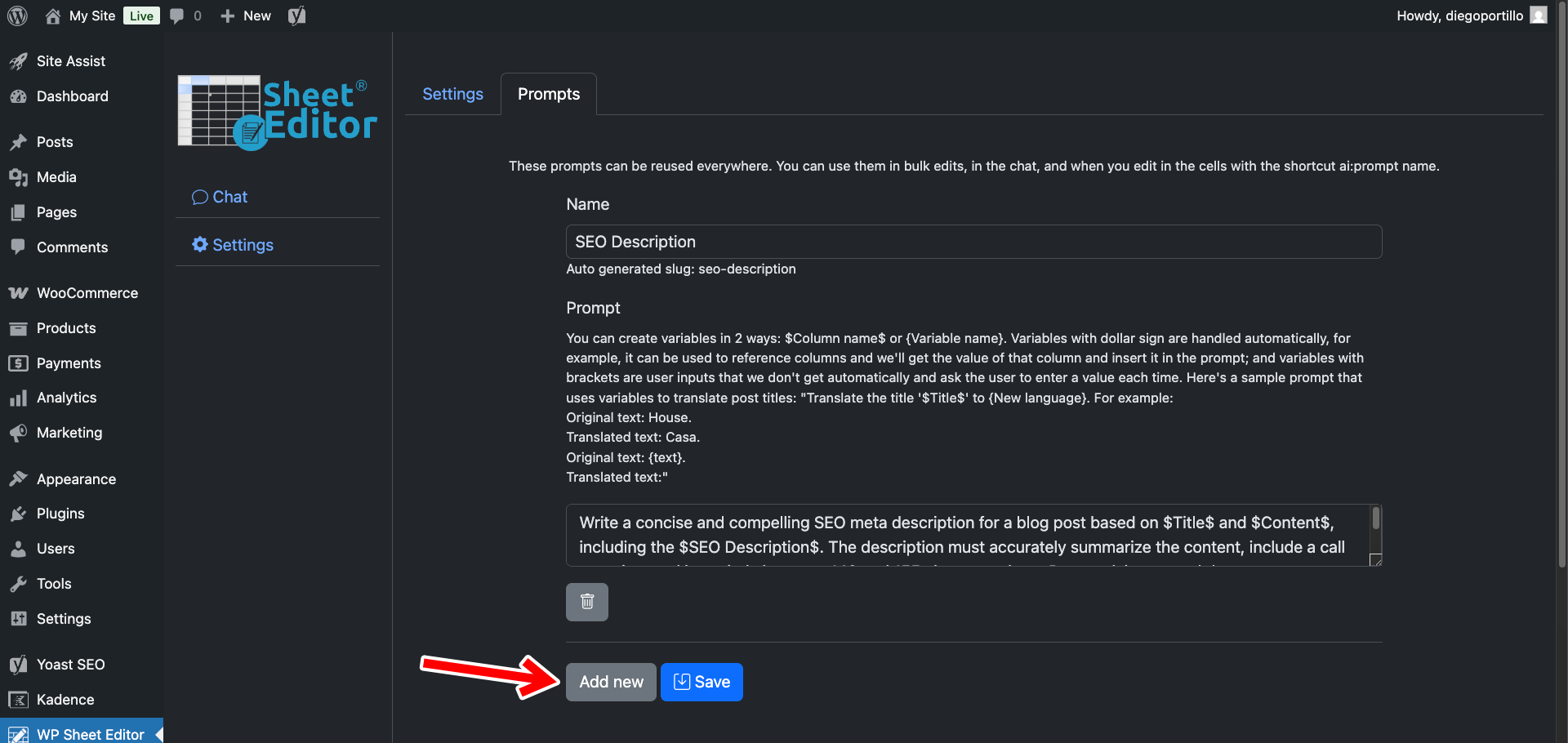
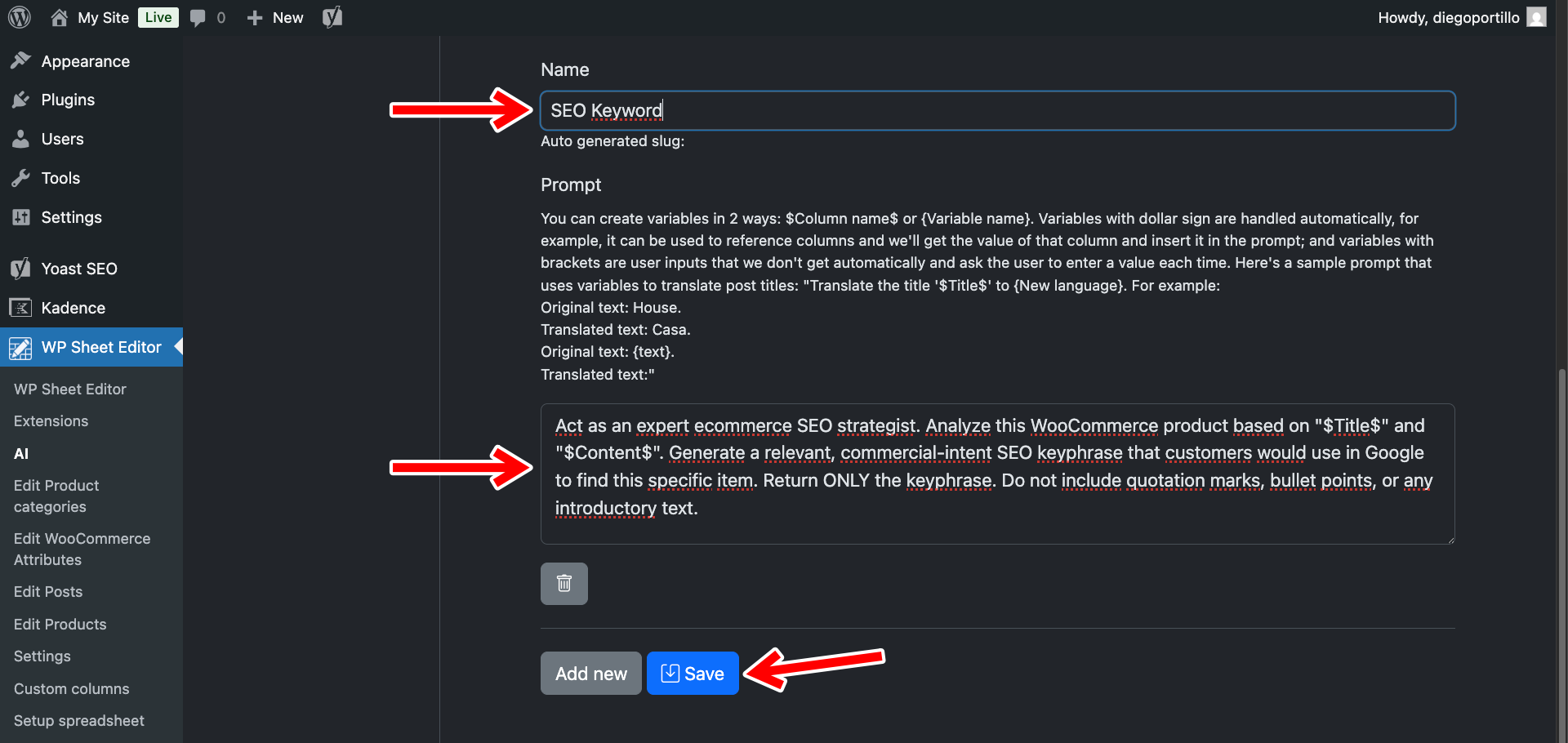
Set up your prompt using these parameters:
- Name your prompt: Let’s call it
SEO Keyword - Enter this exact prompt template:
Act as an expert ecommerce SEO strategist. Analyze this WooCommerce product based on "$Title$" and "$Content$". Generate a relevant, commercial-intent SEO keyphrase that customers would use in Google to find this specific item. Return ONLY the keyphrase. Do not include quotation marks, bullet points, or any introductory text.
- Note: The plugin will seamlessly replace the
$Title$and$Content$placeholders with the actual data from your store before sending the request to the AI. - Click Save.
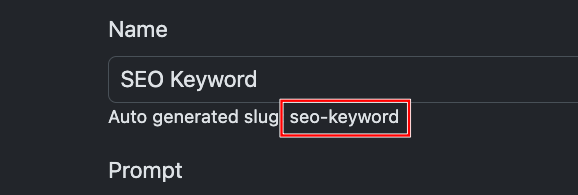
The system will automatically generate a shortcut slug for this prompt; in this case, seo-keyword.
You will later be able to use that shortcut in WP Sheet Editor cells by typing something like ai:seo-keyword.
Method 1: Generate keywords directly in the spreadsheet cells
If you prefer to review your catalog and generate keywords for specific products one at a time, you can use the inline AI shortcut in the spreadsheet.
Go to WP Sheet Editor > Edit Products to open your WooCommerce products in the spreadsheet.
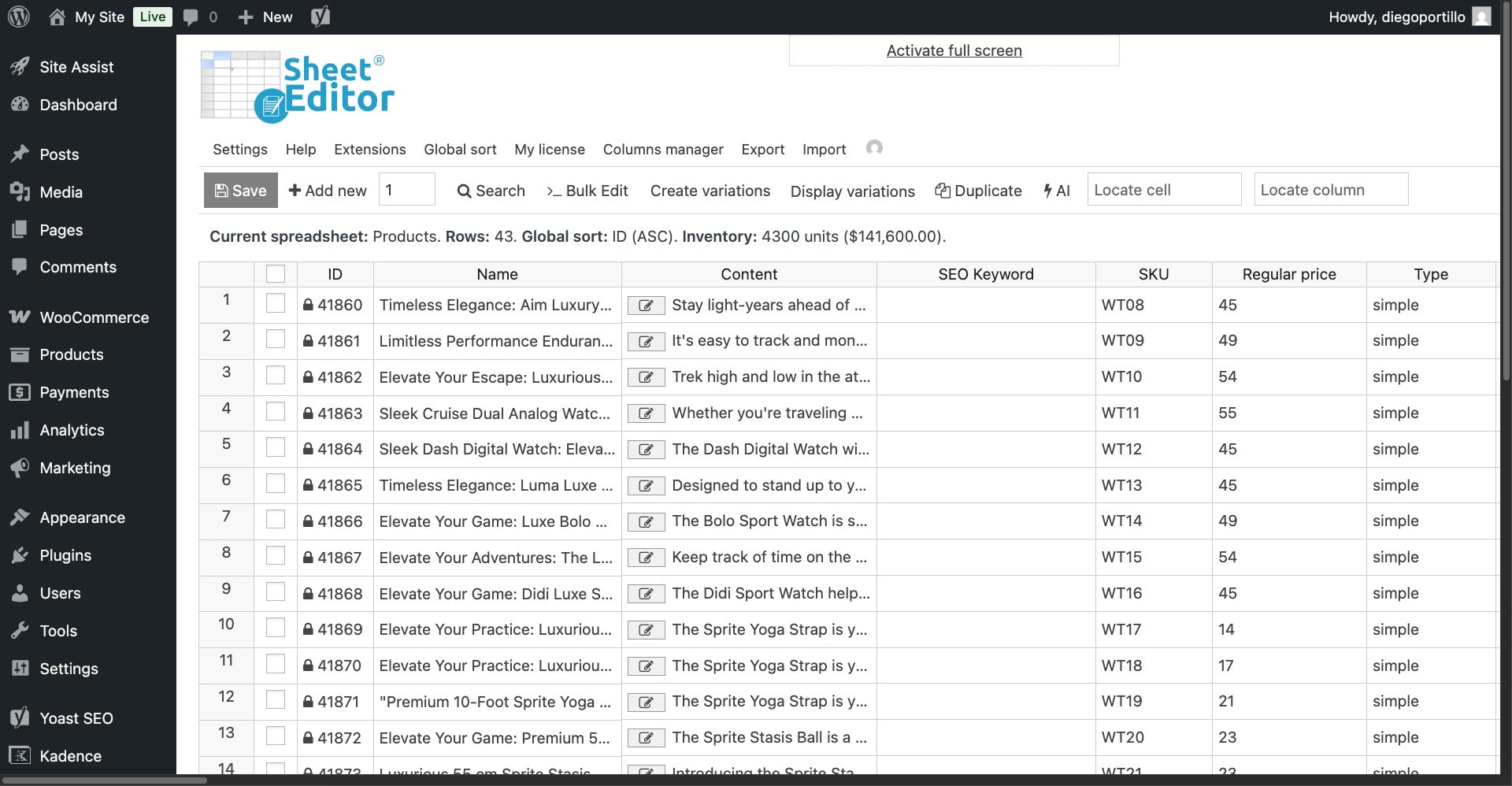
Once there, locate the column for your SEO keywords. This might be called SEO Keyword (Yoast), Focus Keyword (Rank Math), or Meta Keywords depending on your exact setup or SEO plugin.
Find a product that is missing its targeted keywords, click on the empty cell, and type your shortcut:
ai:seo-keyword
Once you enter the shortcut, click on Enter.
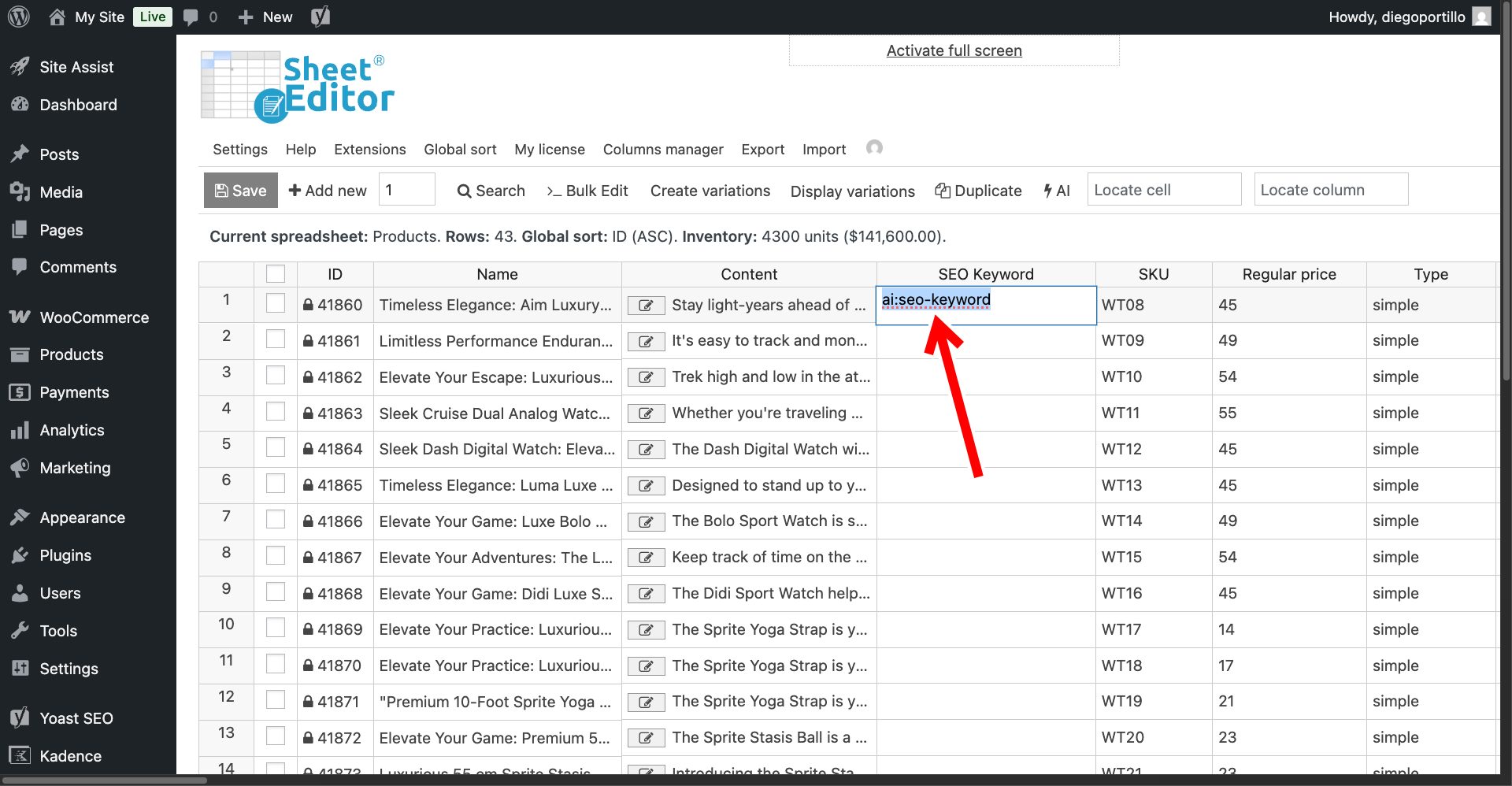
Note. You can type a full prompt in the spreadsheet cells but typing ai: followed by the full prompt text.
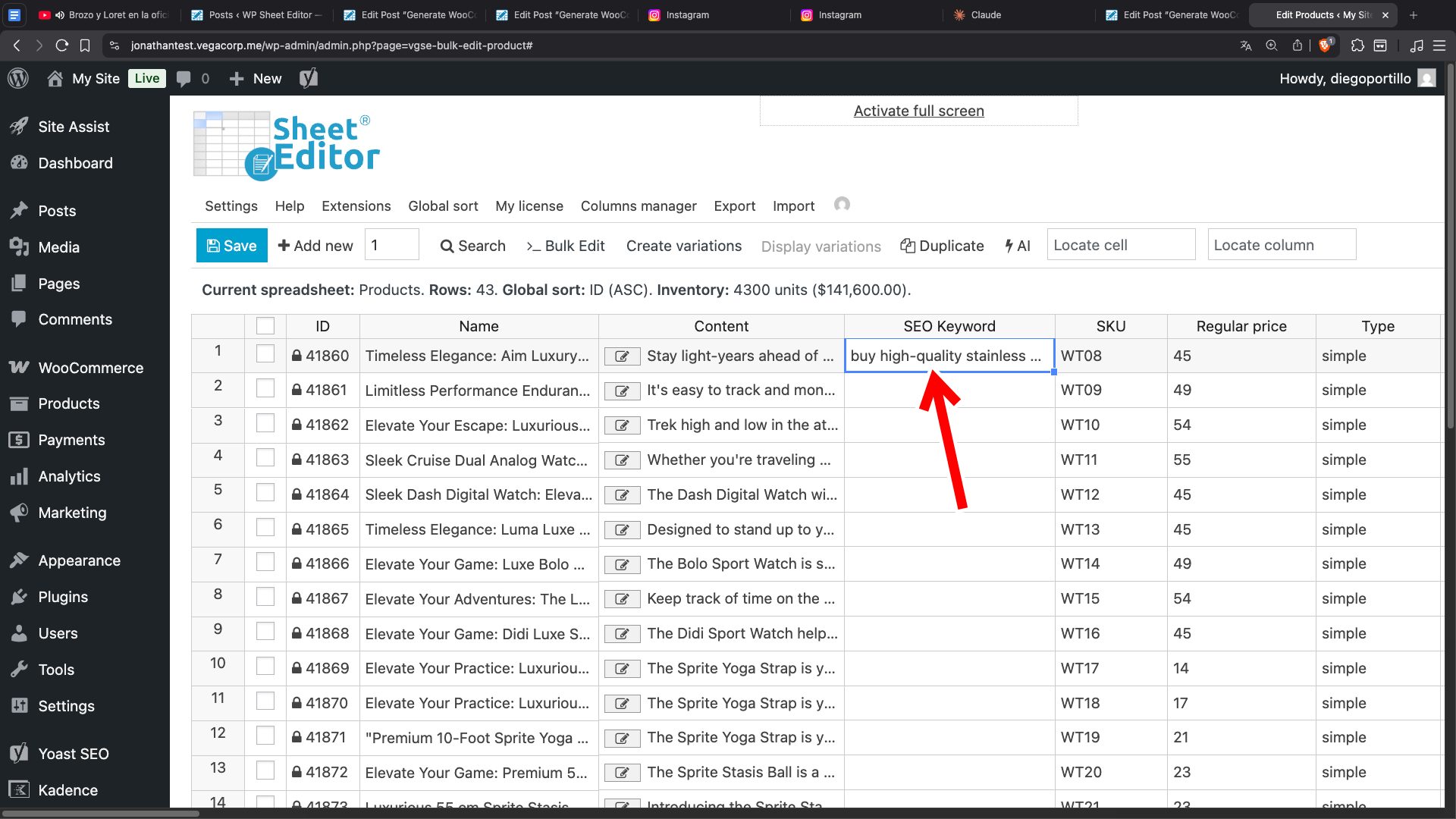
The AI will read your product’s details, determine the most logical search terms, and populate the cell with the high-intent keyword or keyphrase.
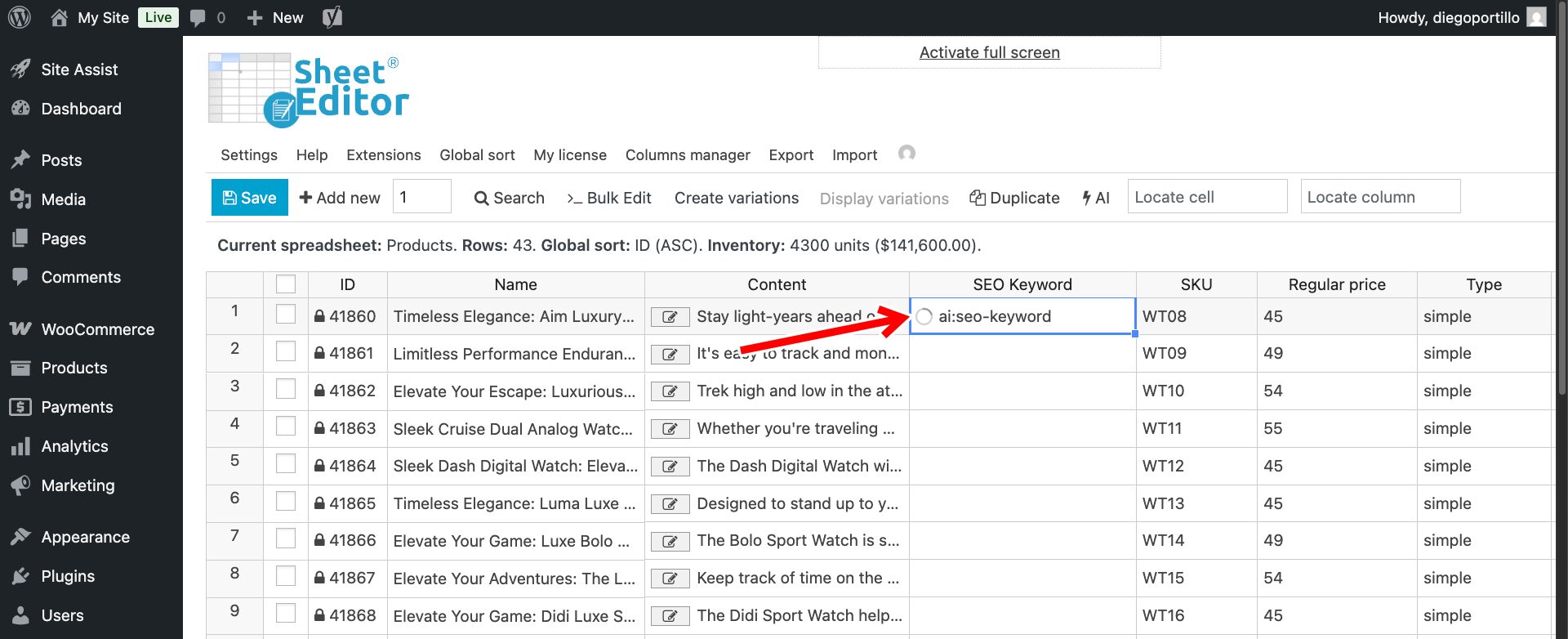
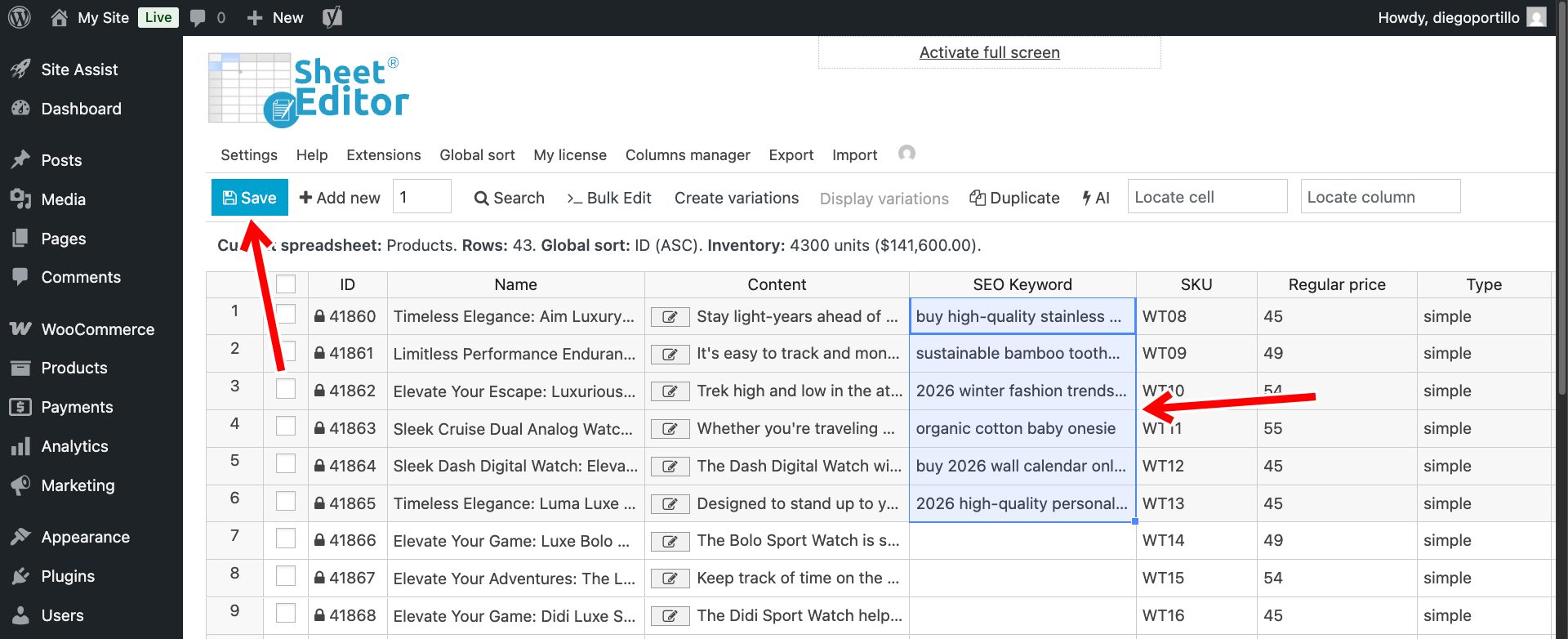
As you can see, we have already generated our first SEO keyword based on the product title and content (description).
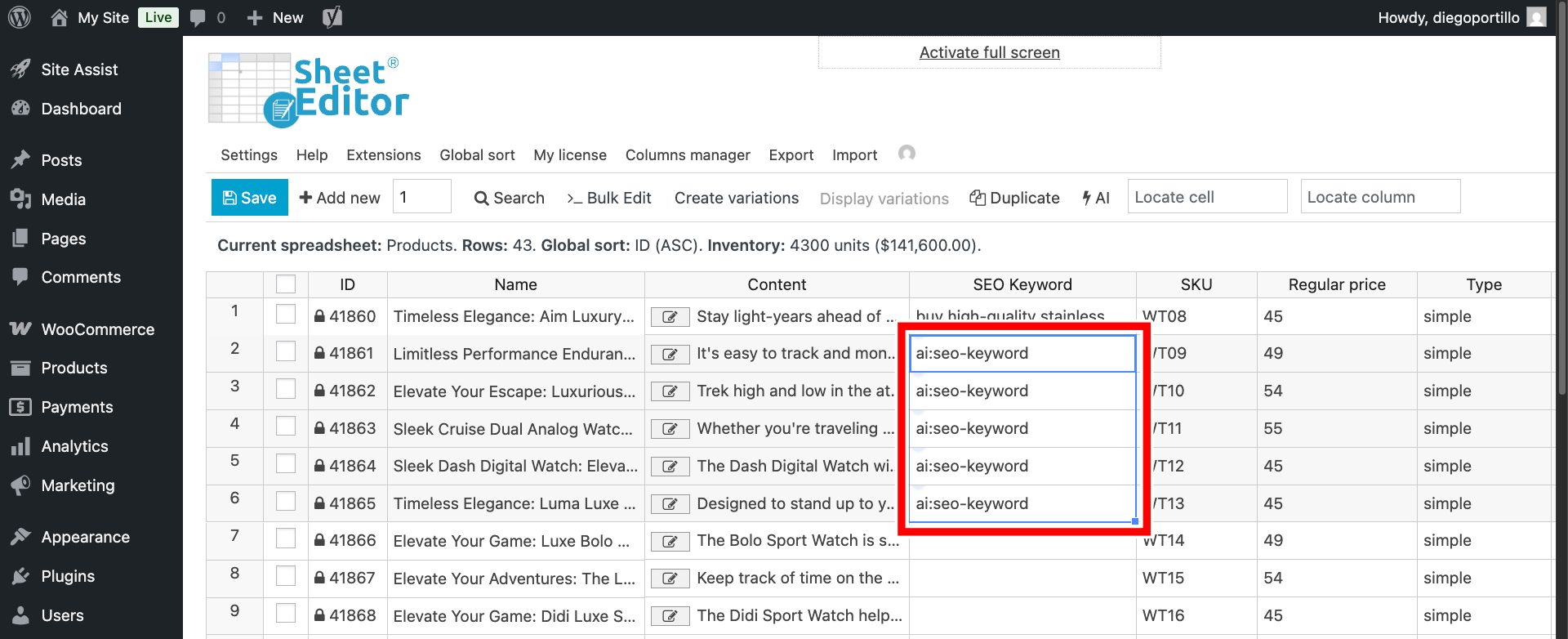
Optional – You can paste the same prompt or prompt shortcut in multiple cells to process multiple products at once.
Once you have generated SEO keywords or SEO keyphrases for all the products you want, you can click on Save to store the changes.
Method 2: Bulk generate SEO keywords for your entire catalog
If you have hundreds of dropshipping products or a massive back-catalog of items missing their focus keywords, the Bulk Edit tool is your best friend.
Filter products missing SEO keywords
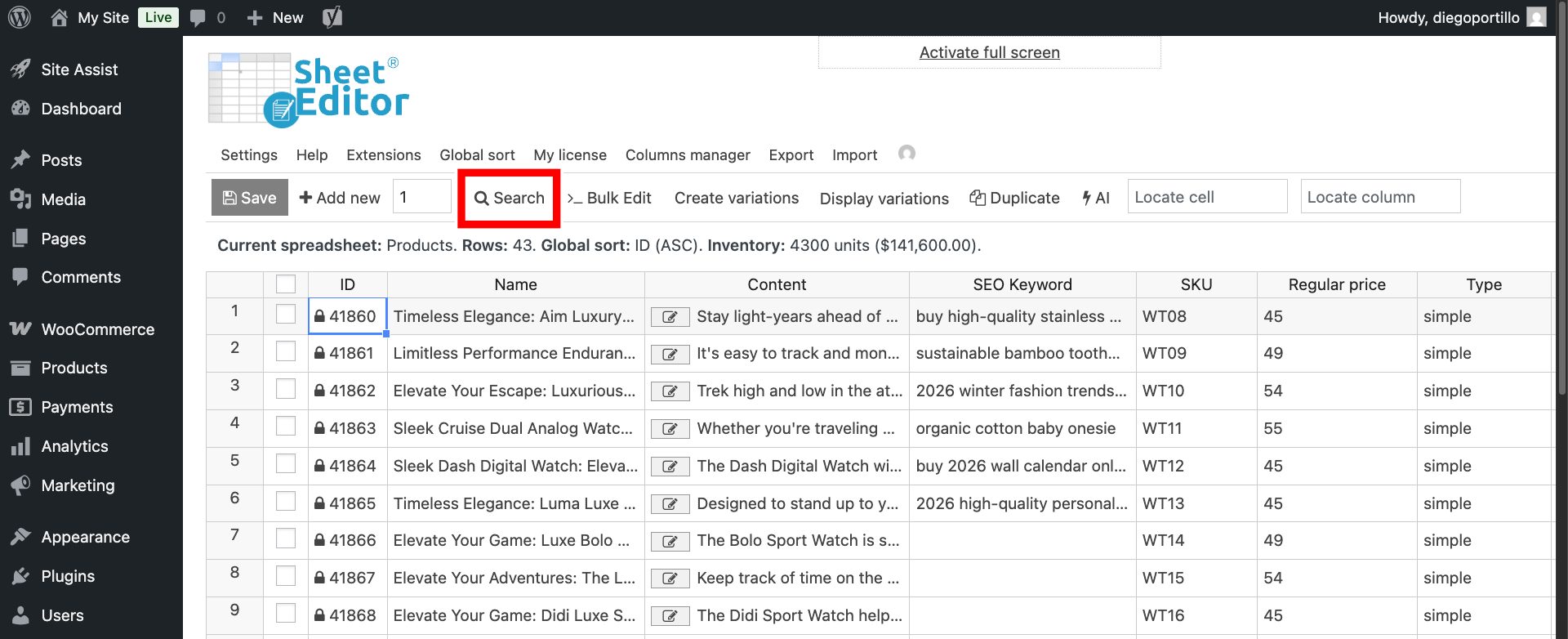
To avoid overwriting keywords you’ve already researched manually, use the Search tool on the toolbar.
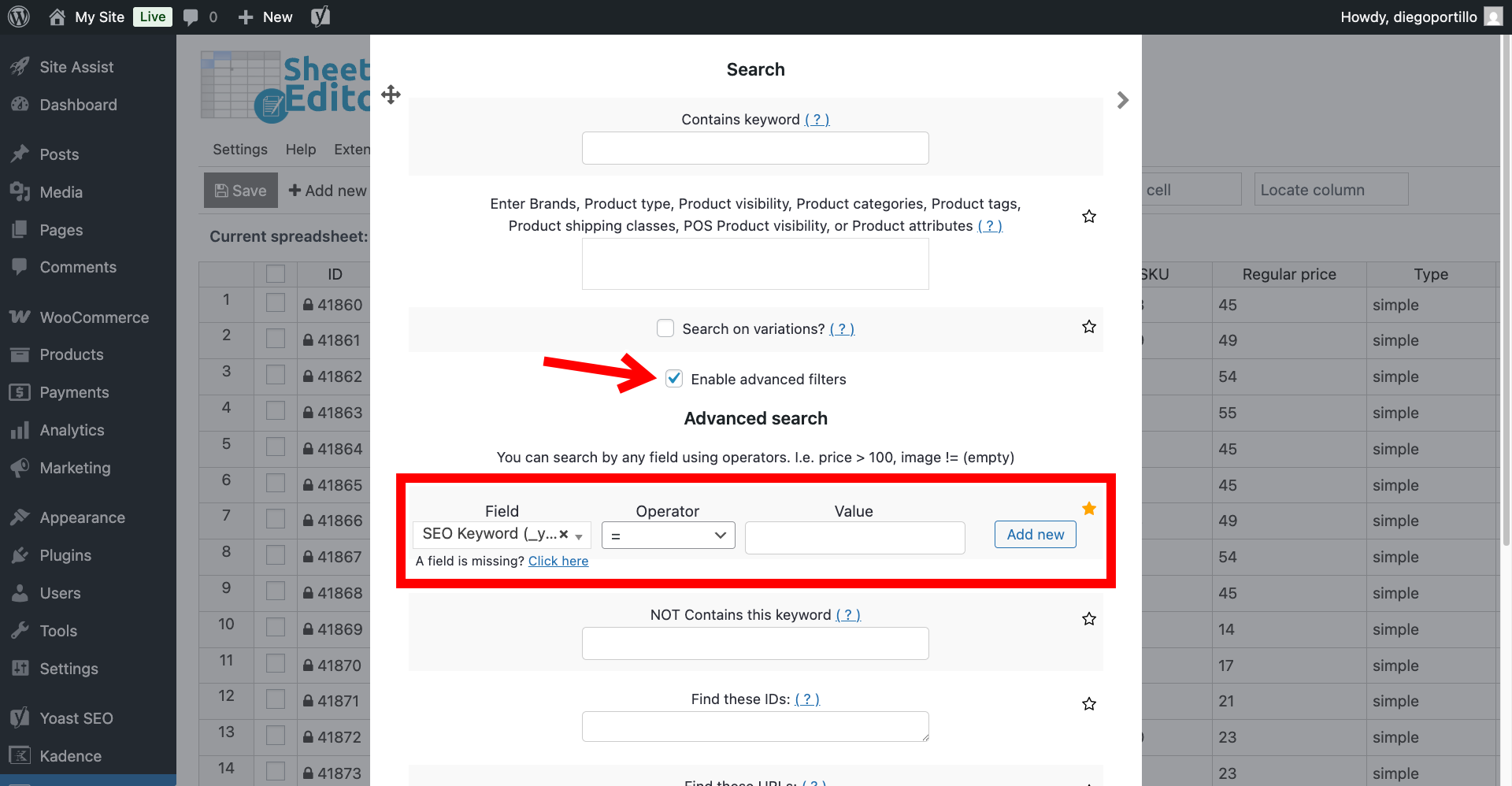
Once you’re there, select these values:
- Check the Enable advanced filters box.
- Field: Select your specific keyword column (e.g.,
SEO keyword). - Operator: Choose = (equals)
- Value: Leave the value field completely blank.
- Click Run Search.
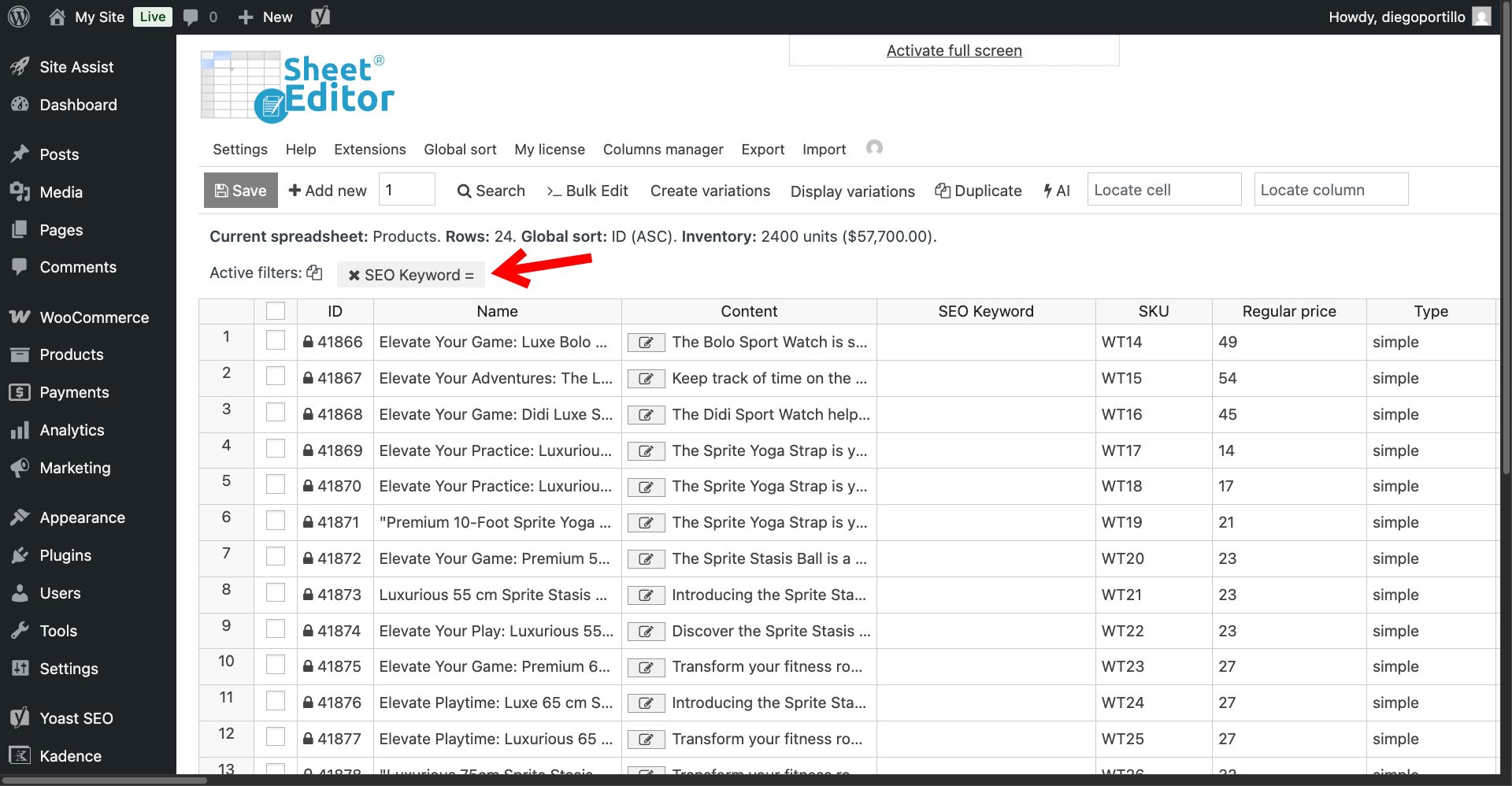
The spreadsheet will refresh, displaying only the products that currently have no SEO keywords assigned.
Generate SEO keywords in bulk
Now, click the Bulk Edit button in the toolbar.
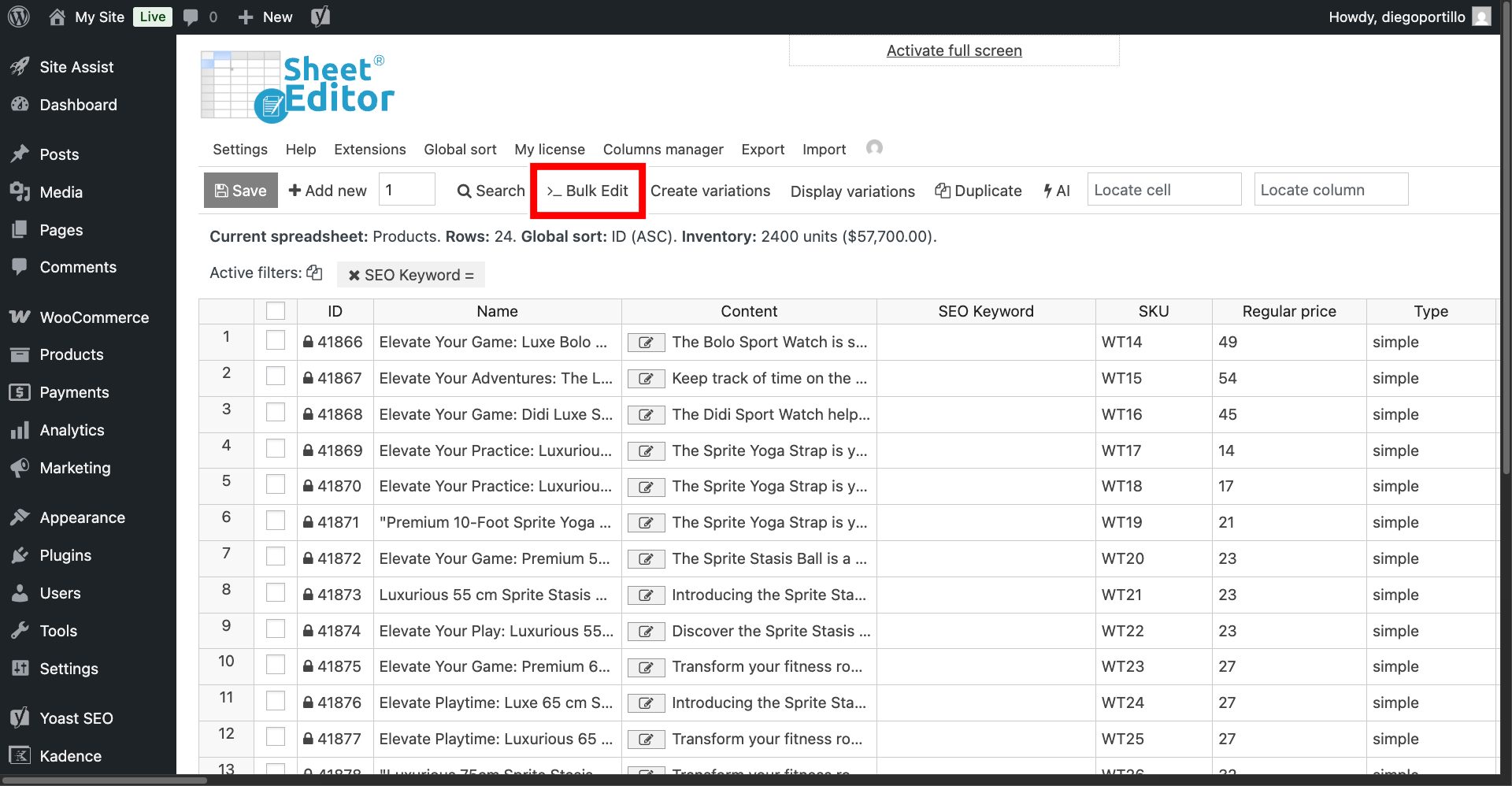
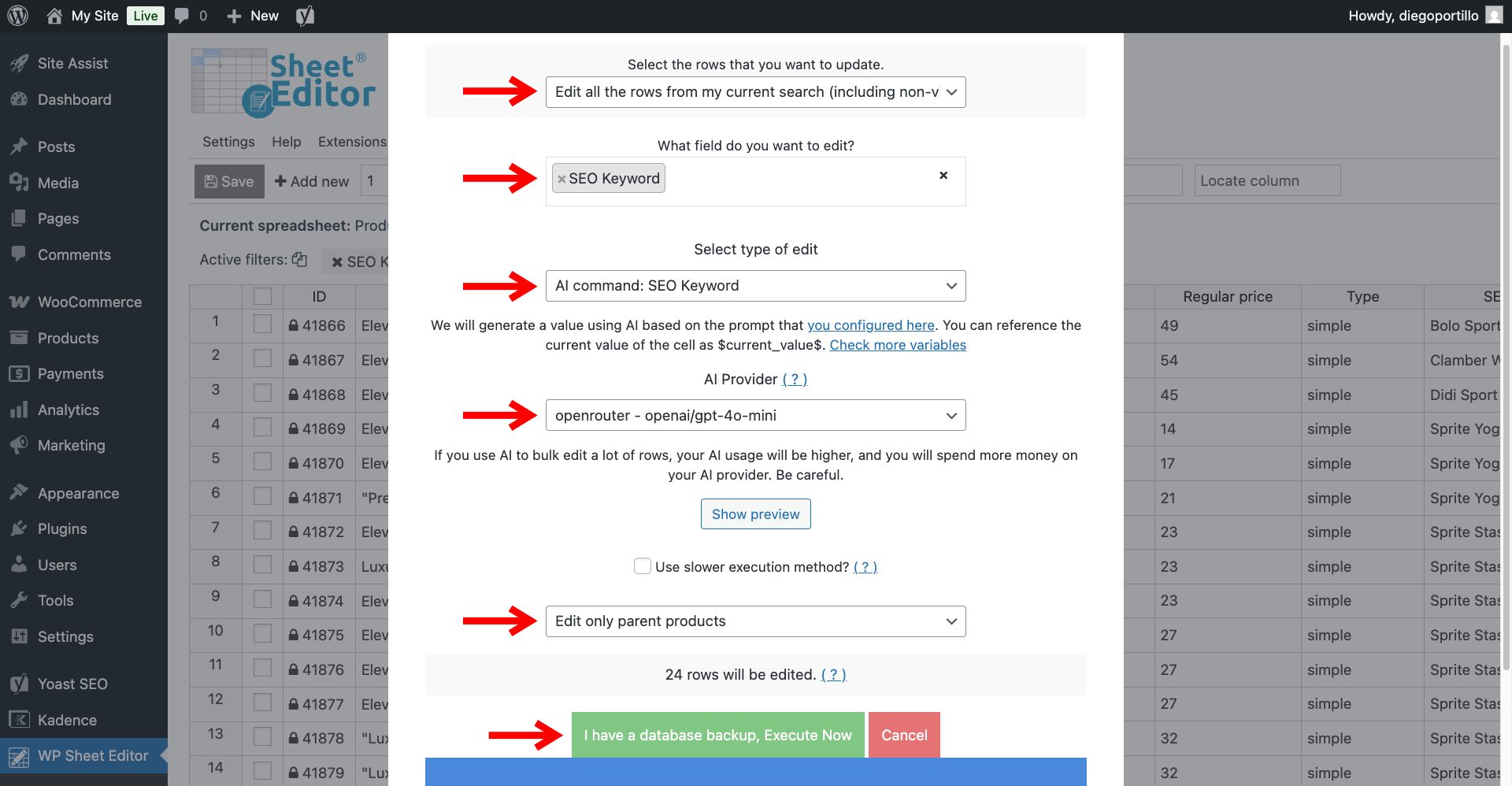
Configure the bulk generation with these values to generate SEO keywords:
- Select the rows that you want to update: Choose “Edit all the rows from my current search”.
- What field do you want to edit: Select your target keyword field. In this case, we will select SEO Keyword.
- Select the type of edit: Choose AI command: SEO Keyword.
- AI Provider: Choose your preferred AI model. In this case, we will use GPT-4o mini through OpenRouter.
- Select Edit only parent products.
- Click Execute Now.
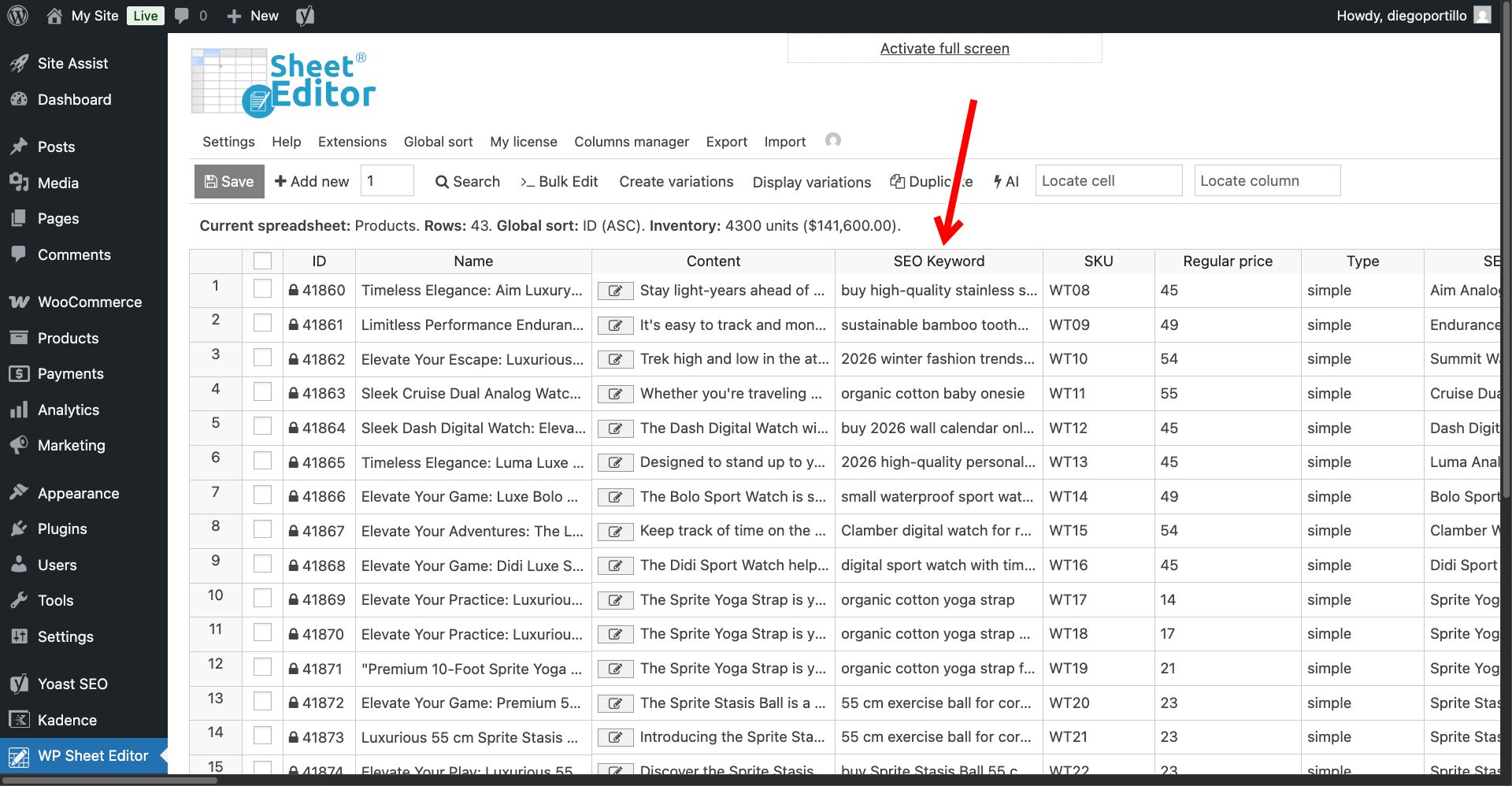
The AI will begin processing your filtered products. Because it handles the requests in smart batches, we avoid website crashes, even if you are generating keywords for thousands of items.
Stop guessing and start ranking
Without targeted keywords, your SEO plugins cannot give you accurate optimization scores, and you are left guessing what terms your products might rank for.
By using WP Sheet Editor – AI, you eliminate the massive bottleneck of manual keyword research. You can instantly assign data-driven, highly relevant search terms to your entire WooCommerce catalog, giving your store the SEO foundation it needs to drive organic traffic and sales.