
Are you struggling to get your products to rank on Google? In this guide, we will demonstrate how to perform a complete WooCommerce SEO audit using the power of Generative AI. Whether you prefer GPT-4, Claude, Gemini, or Deepseek, you can leverage these Large Language Models (LLMs) to act as your personal e-commerce SEO consultant.
We are going to build an automated auditing workflow directly within your WordPress dashboard. Instead of manually clicking through hundreds of product pages or paying monthly fees for external crawling software, you can utilize WP Sheet Editor and its AI integration to generate actionable SEO insights for your entire catalog in moments.
Table of Contents
Requirements for AI-powered WooCommerce audits
To replicate the system shown in this guide, ensure you have the following tools installed:
1. WP Sheet Editor – WooCommerce Products
This plugin transforms your WooCommerce product library into an intuitive spreadsheet. It allows you to view and edit all product data (SKUs, prices, descriptions, and custom fields) in one place. We will use this to create a dedicated column for our audit reports.
You can download the plugin here:
Get the WooCommerce Spreadsheet Editor - or - Check the features
2. WP Sheet Editor – AI
This is the bridge that connects your store’s data to the artificial intelligence engine through WP Sheet Editor.
Get the extension here:
Sign up to the WP Sheet Editor - AI Service - or - Check the features
3. An AI API key
You need a connection to an LLM provider. You can use:
- OpenAI – Direct access to GPT models (official site).
- OpenRouter – A unified interface to access models like Google Gemini, Anthropic Claude, GPT and Grok (official site).
- Any other OpenAI-compatible provider.
If you need help connecting your key, please refer to our configuration guide.
4. A WordPress SEO plugin
While the AI provides the strategy, you need a plugin to hold the metadata. This works perfectly with Yoast SEO, Rank Math, All In One SEO, SEOPress, etc.
Step 1. Configure a “SEO Audit” prompt
To get consistent results, we need to tell the AI exactly how to think. We will create a “Global Prompt” that instructs the AI to act as an E-commerce specialist rather than a generic writer.
Navigate to WP Sheet Editor > AI > Settings > Prompts and click Add new.
Fill in the fields as follows:
- Name: SEO Audit
- Prompt: Copy the text below. Note that we have adjusted the variables to include product-specific data like the product Name and Description:
You are an expert ecommerce SEO strategist and conversion-focused content editor; evaluate the SEO quality, conversion readiness, and ranking potential of this ecommerce page using Google best practices, on-page SEO, and transactional/commercial search intent alignment based on $Product_Name$, $Category$, $Title$, $Product_Description$, $SEO_Title$, $SEO_Description$, $Primary_Keyword$, and optional $Secondary_Keywords$, assessing search intent match, main title quality, SEO title optimization (natural keyphrase use, modifiers, optimal length, CTR appeal), meta description quality (persuasive USPs, trust signals, offers, shipping/returns cues, optimal length), keyword usage and placement (first 100 words, headings, natural distribution), product content depth and helpfulness (benefits, specs, use cases, FAQs), conversion elements (CTAs, reviews, trust badges), structure and readability, internal linking and topical SEO opportunities, rich results readiness (Product/Review/Offer/FAQ schema, image alt text), and SERP CTR appeal; start the output with High, Medium, and Low priority issues (bulleted), then provide numeric scores (1–10) for each area, a brief list of key weaknesses, up to 5 top-priority actionable improvements, optimized suggestions for SEO Title and SEO Description, 3 improved H1 suggestions, 3 concrete content improvements, and a short final verdict on ranking competitiveness and what’s missing to outperform competitors.
- Click Save.
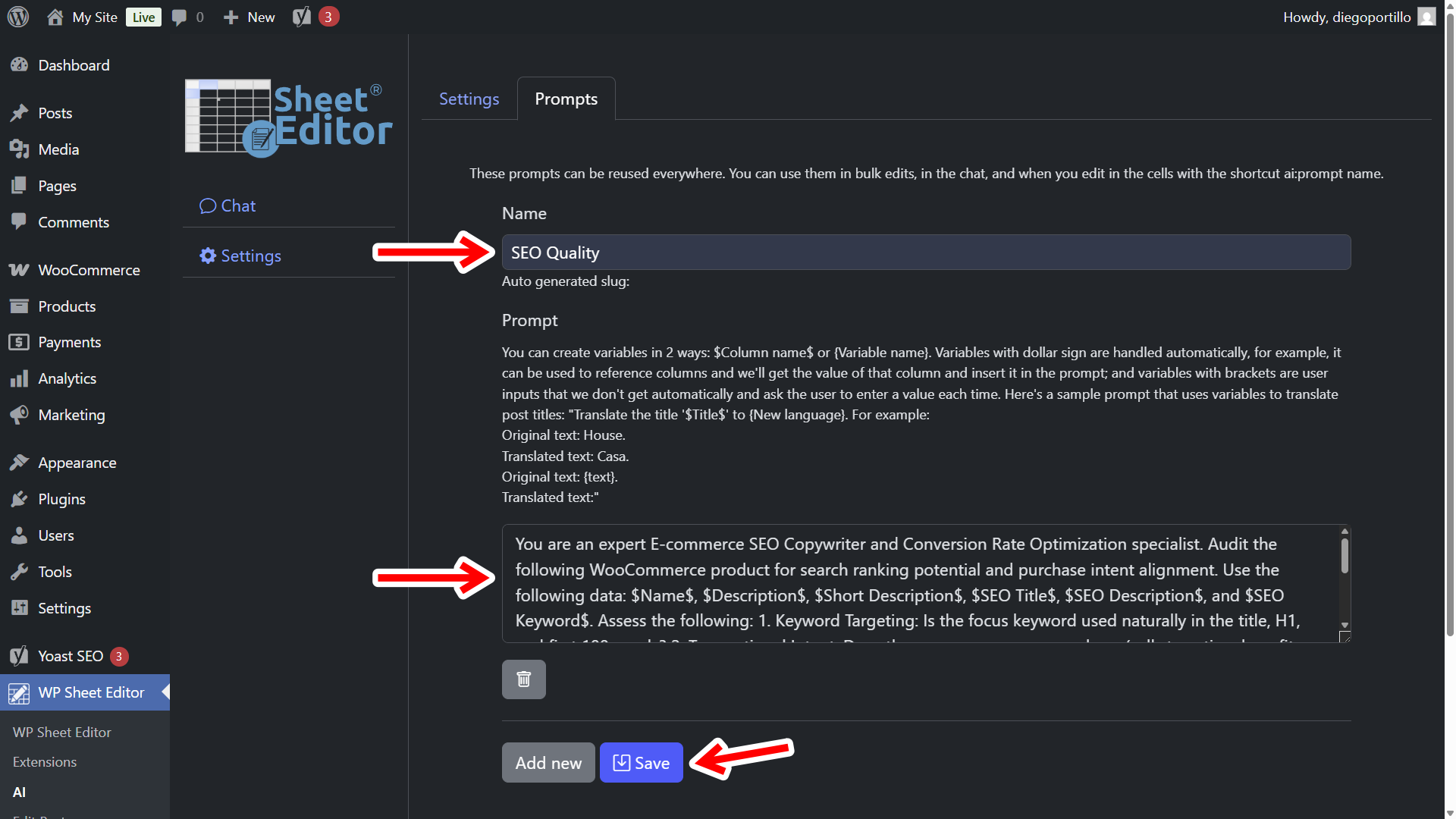
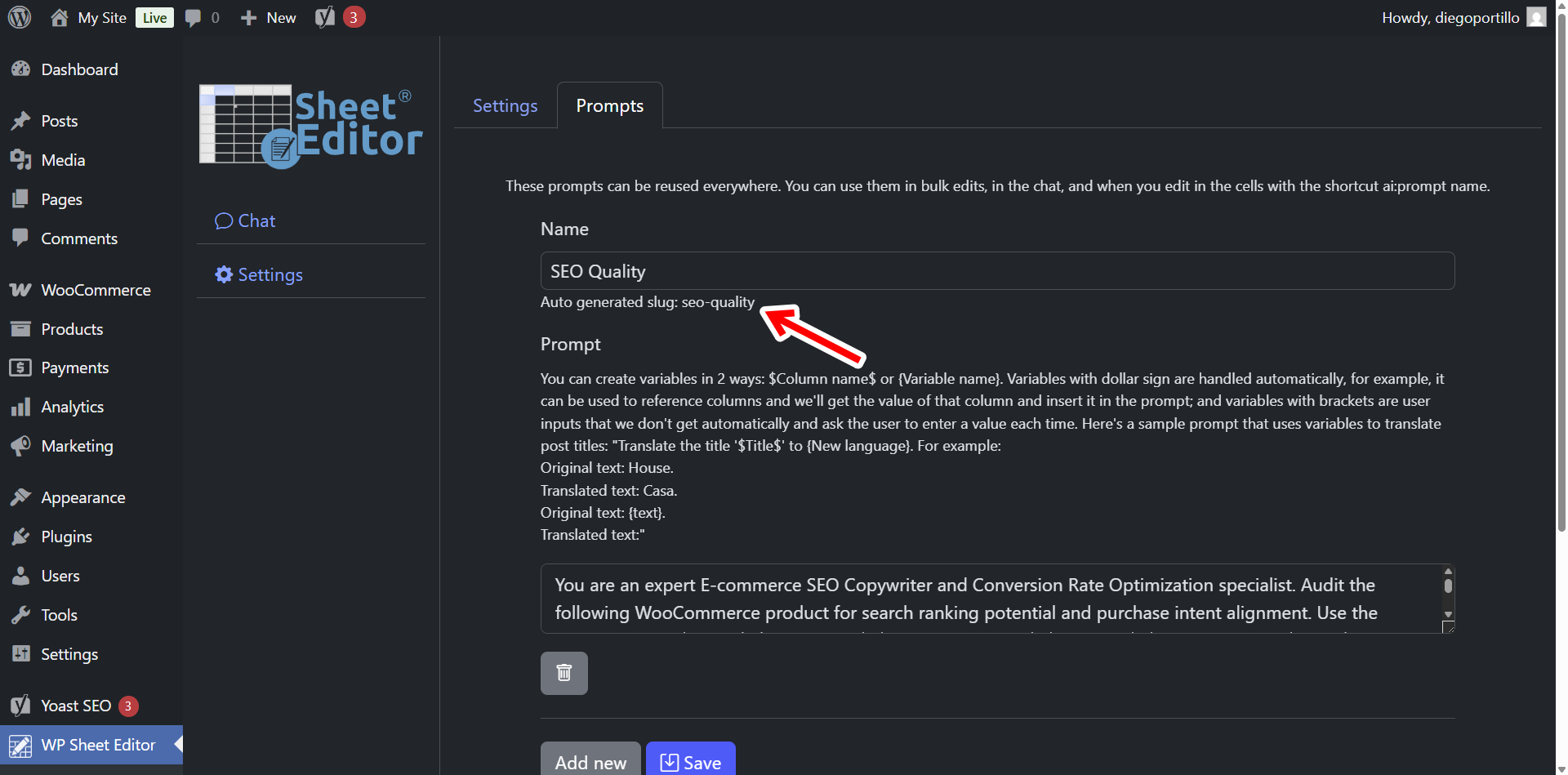
Take note of the Auto generated slug of your prompt (e.g., seo-audit), as we will need this shortly.
Step 2. Create a dedicated audit column
We need a space in your product spreadsheet to display the AI’s analysis without overwriting your actual product descriptions. We will create a custom metadata column for this purpose.
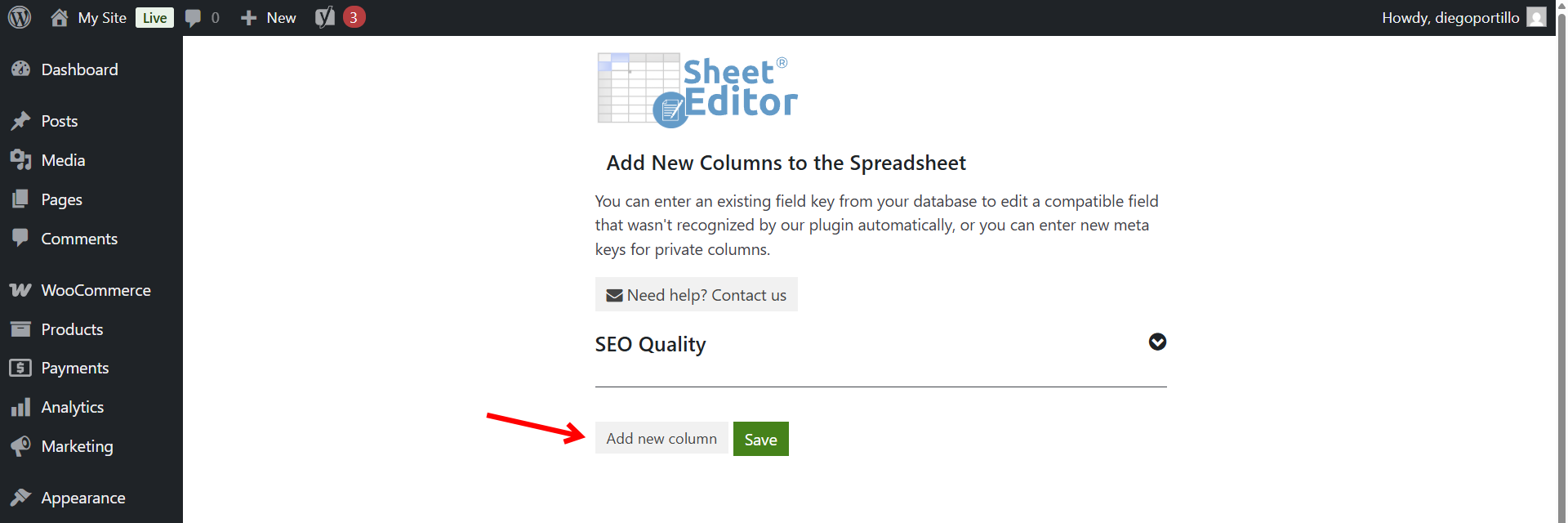
- Go to WP Sheet Editor > Custom columns.
- Click Add new column.
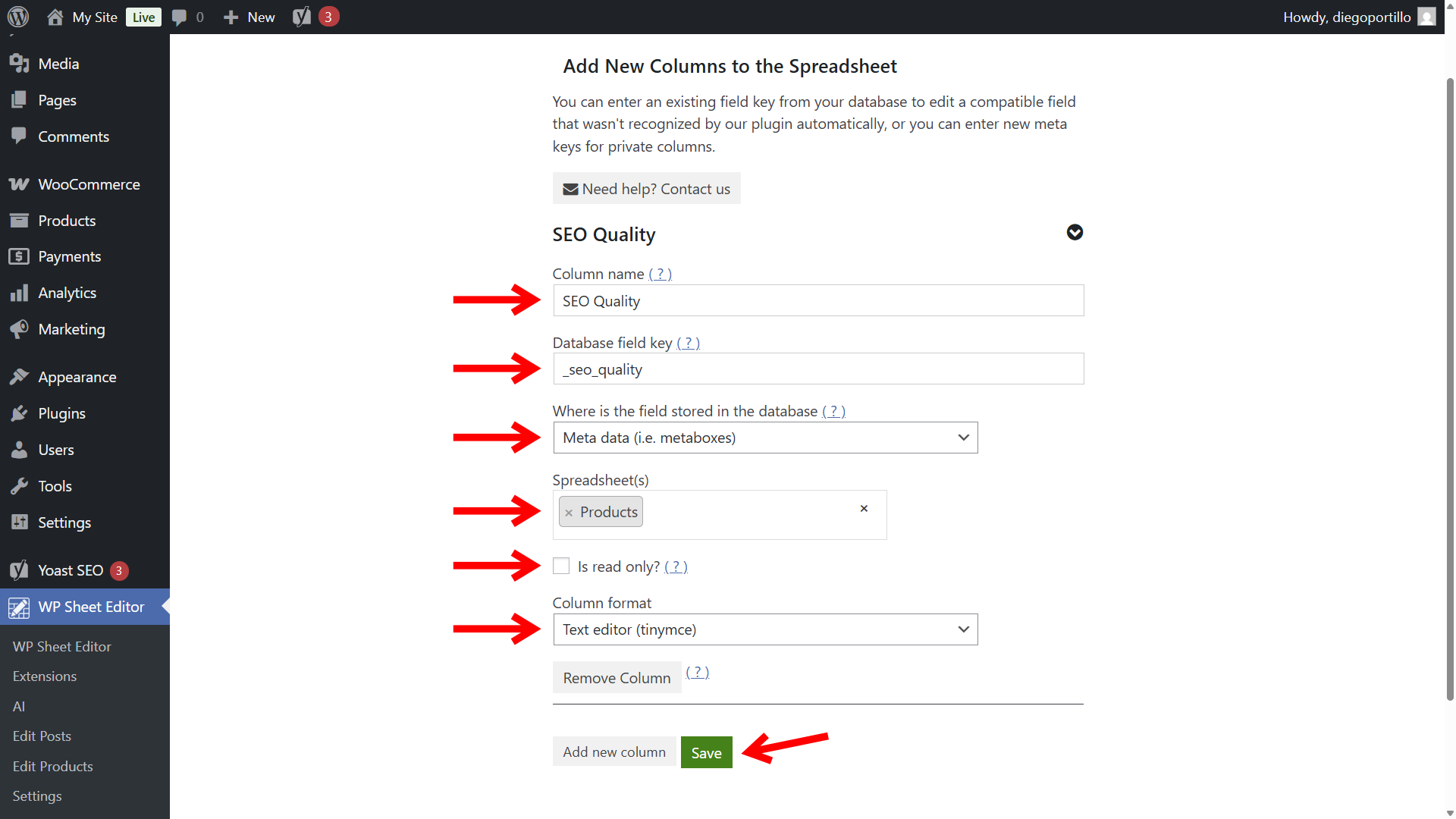
Configure the column settings:
- Column name: SEO Quality
- Database field key:
_seo_quality - Where is the field stored: Meta data
- Spreadsheet(s): Select Products.
- Is read only: No
- Column format: Text editor (tinymce)
- Click Save.
Next, open your products spreadsheet by going to WP Sheet Editor > Edit Products.
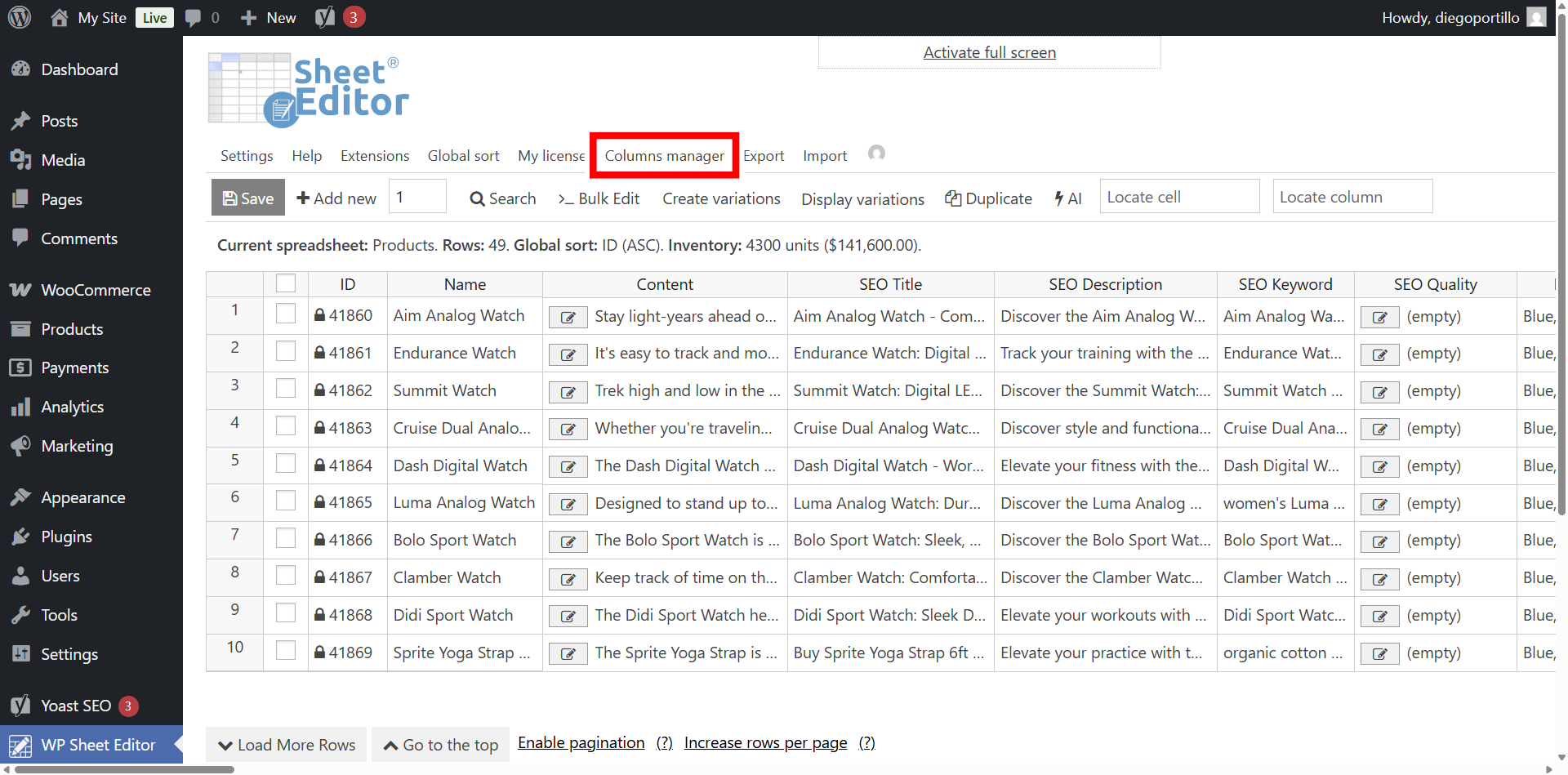
Once there, open the Columns Manager to ensure your new field is visible in the spreadsheet.
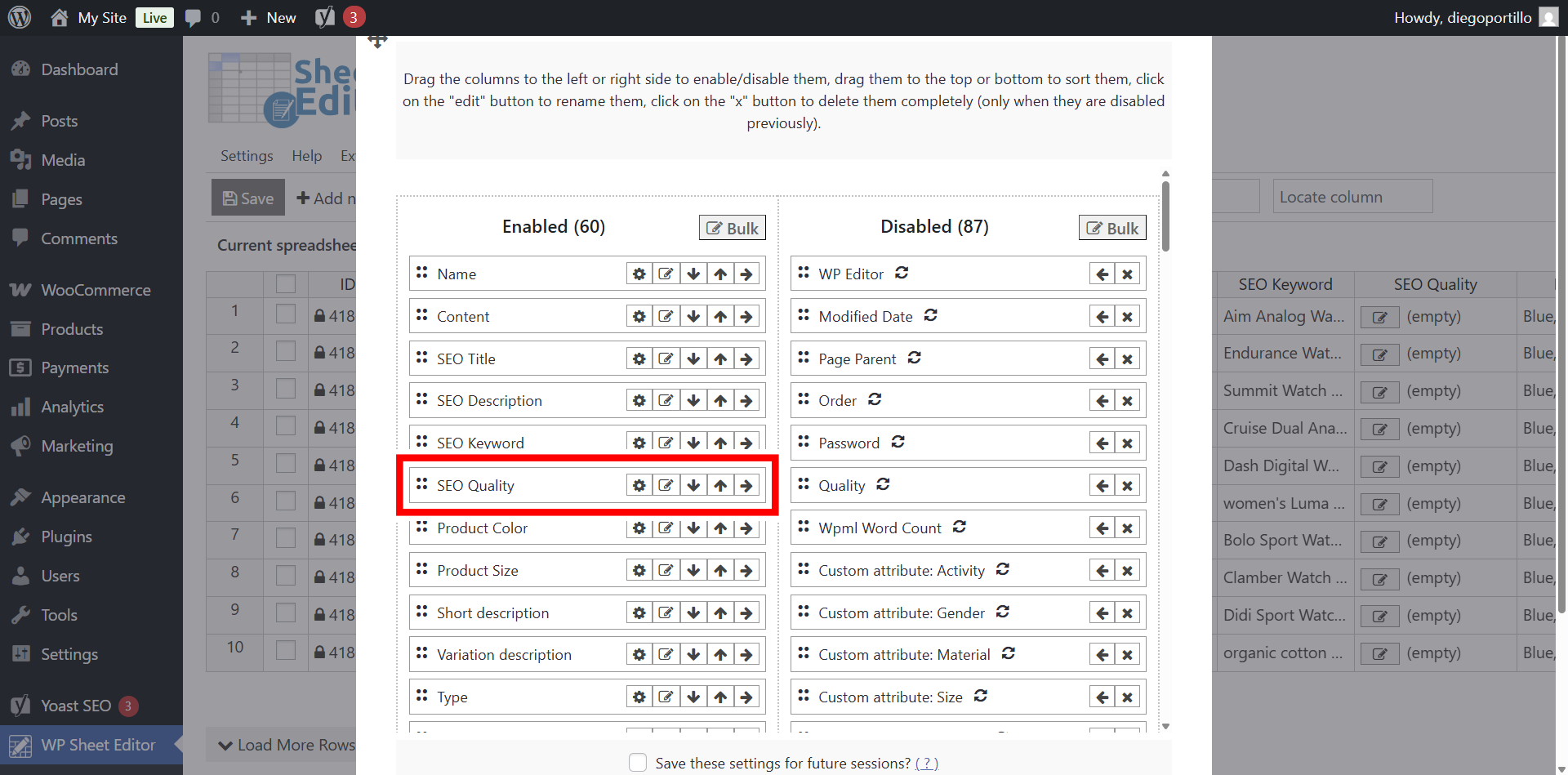
Locate the “SEO Quality” column in the Disabled list and move it to the Enabled list.
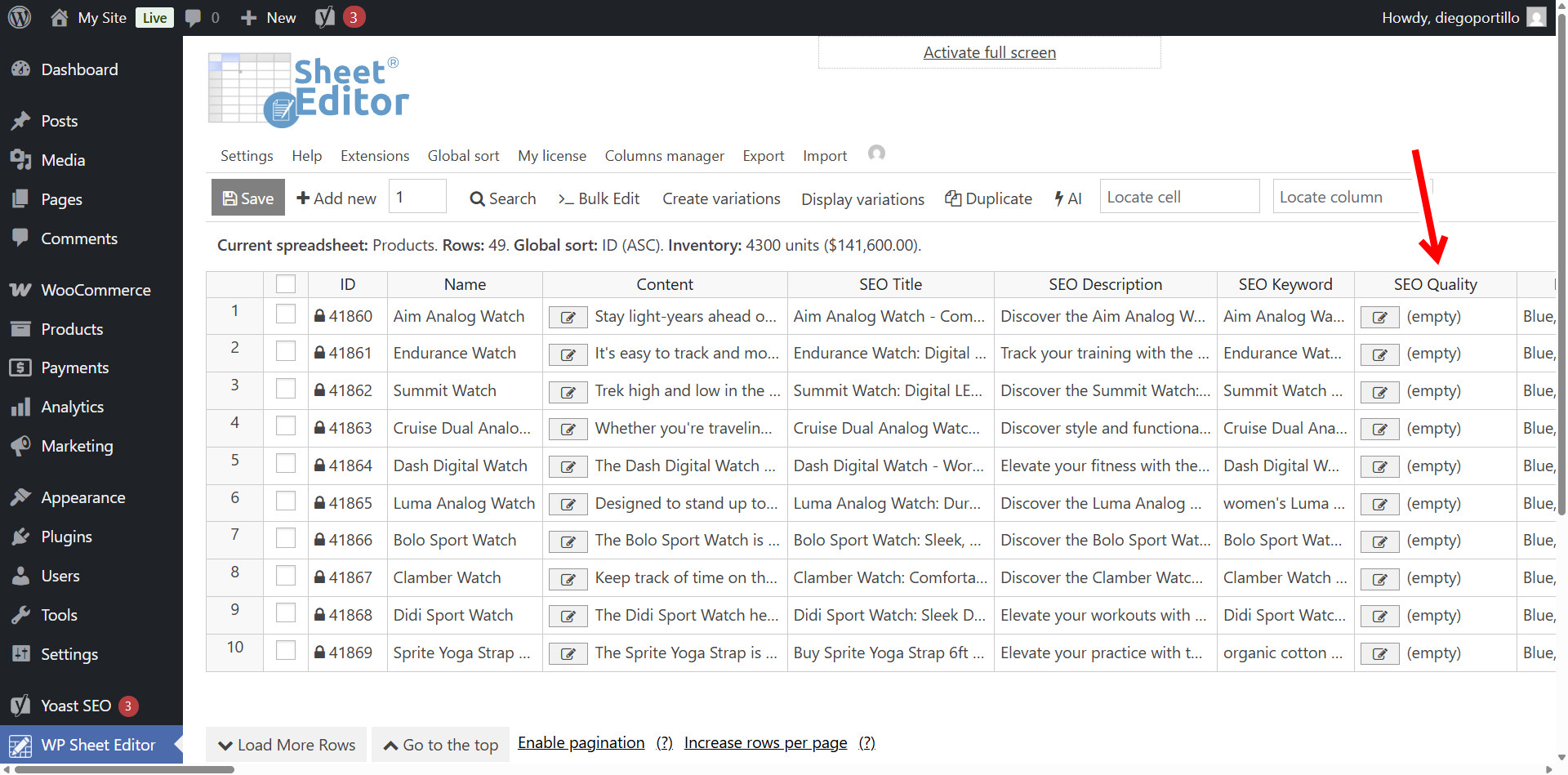
Make sure to save these settings and you’ll view the SEO Quality column displayed in the spreadsheet.
Step 3. Execute the AI SEO Audit
You now have a powerful infrastructure ready. There are two ways to run your audit: individually for specific products, or in bulk for the whole store.
Option A: Single product audit (spreadsheet view)
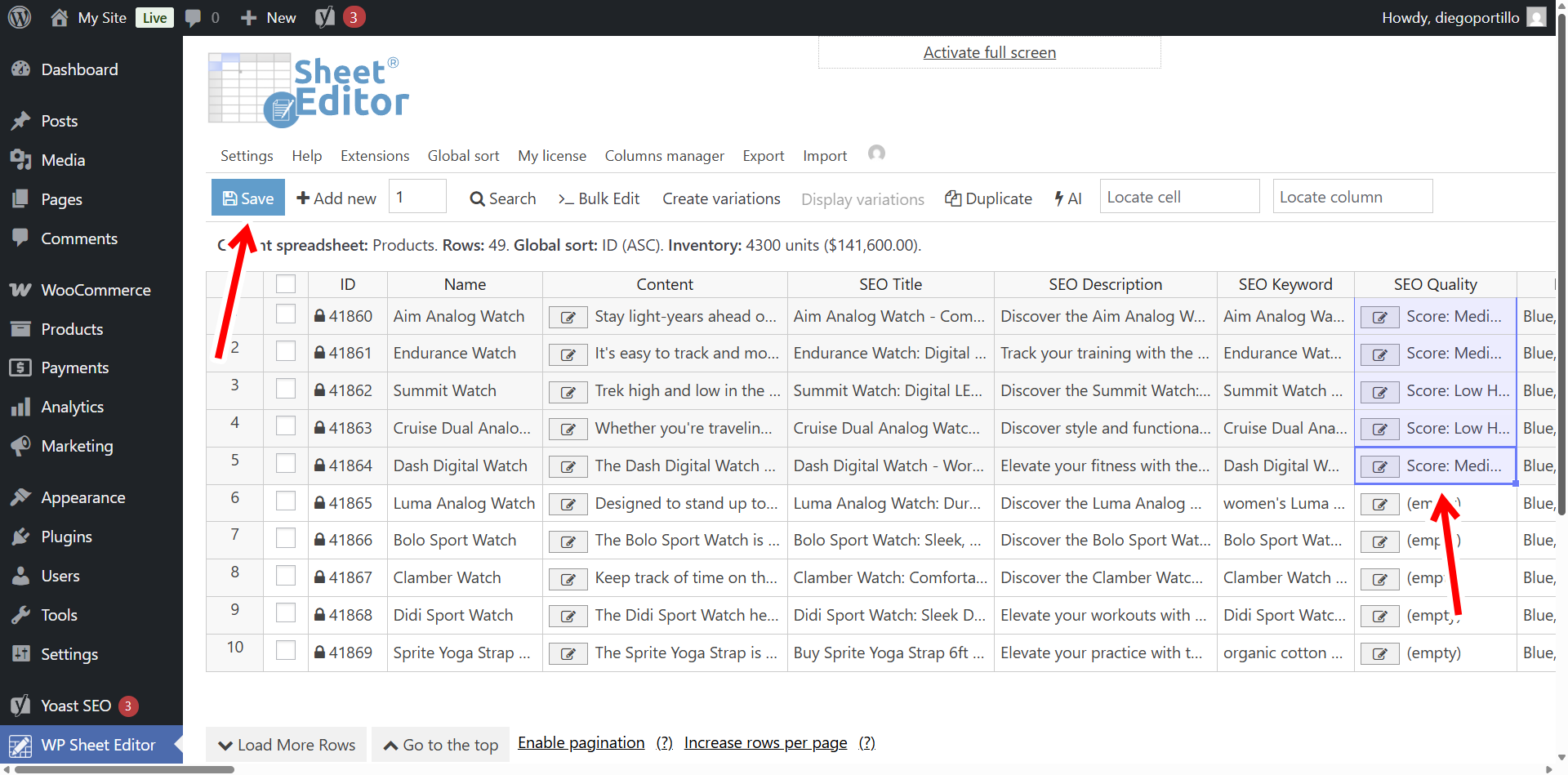
To check a specific product, navigate to your new SEO Quality column for that row.
Type the shortcut for the global prompt we created earlier:
ai:woo-seo-audit
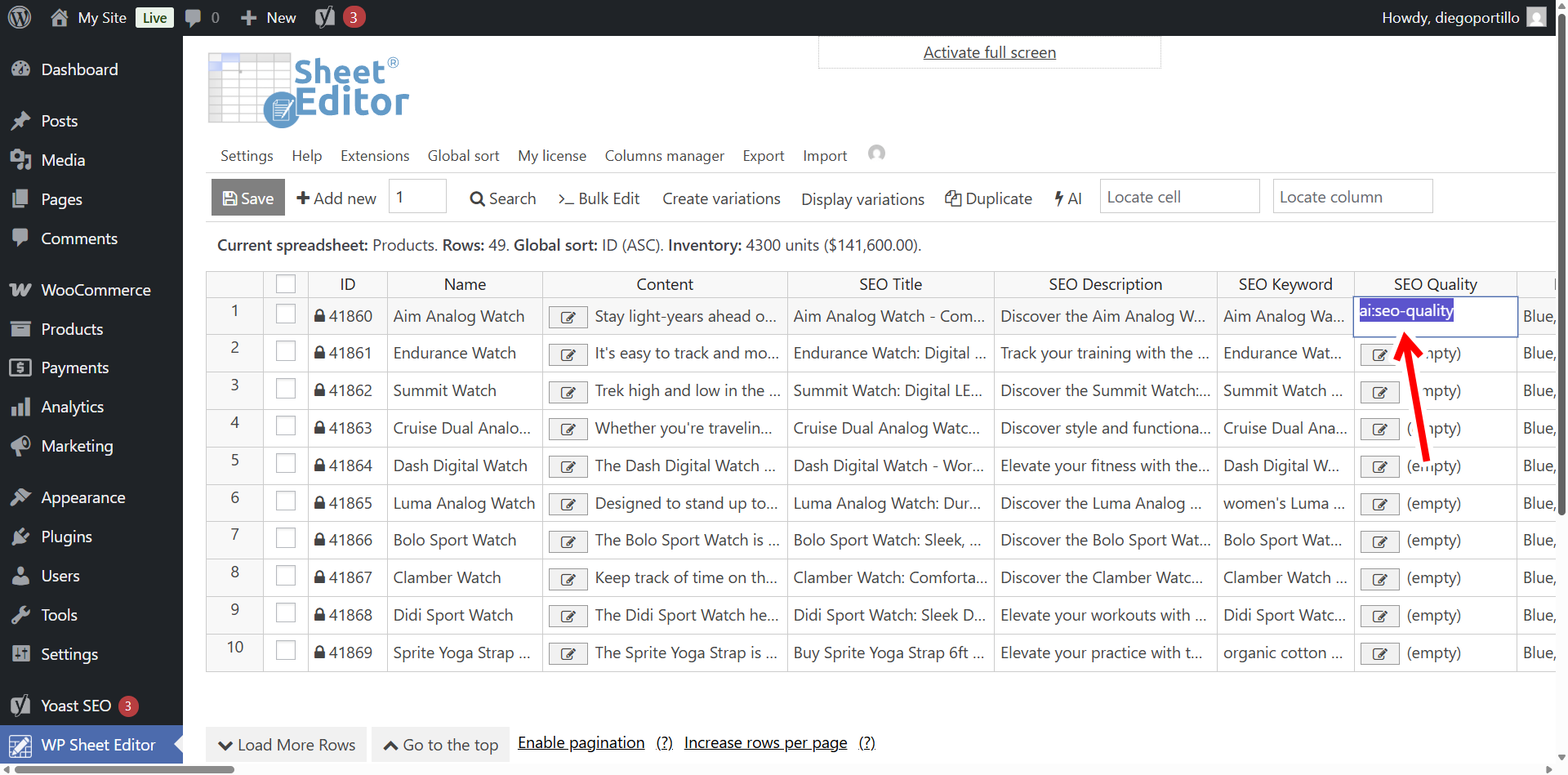
Note. You can enter full prompts in the spreadsheet cells, just type:
ai:type full prompt here
The system will query the AI provider immediately, and while the analysis is running, you will see a processing icon.
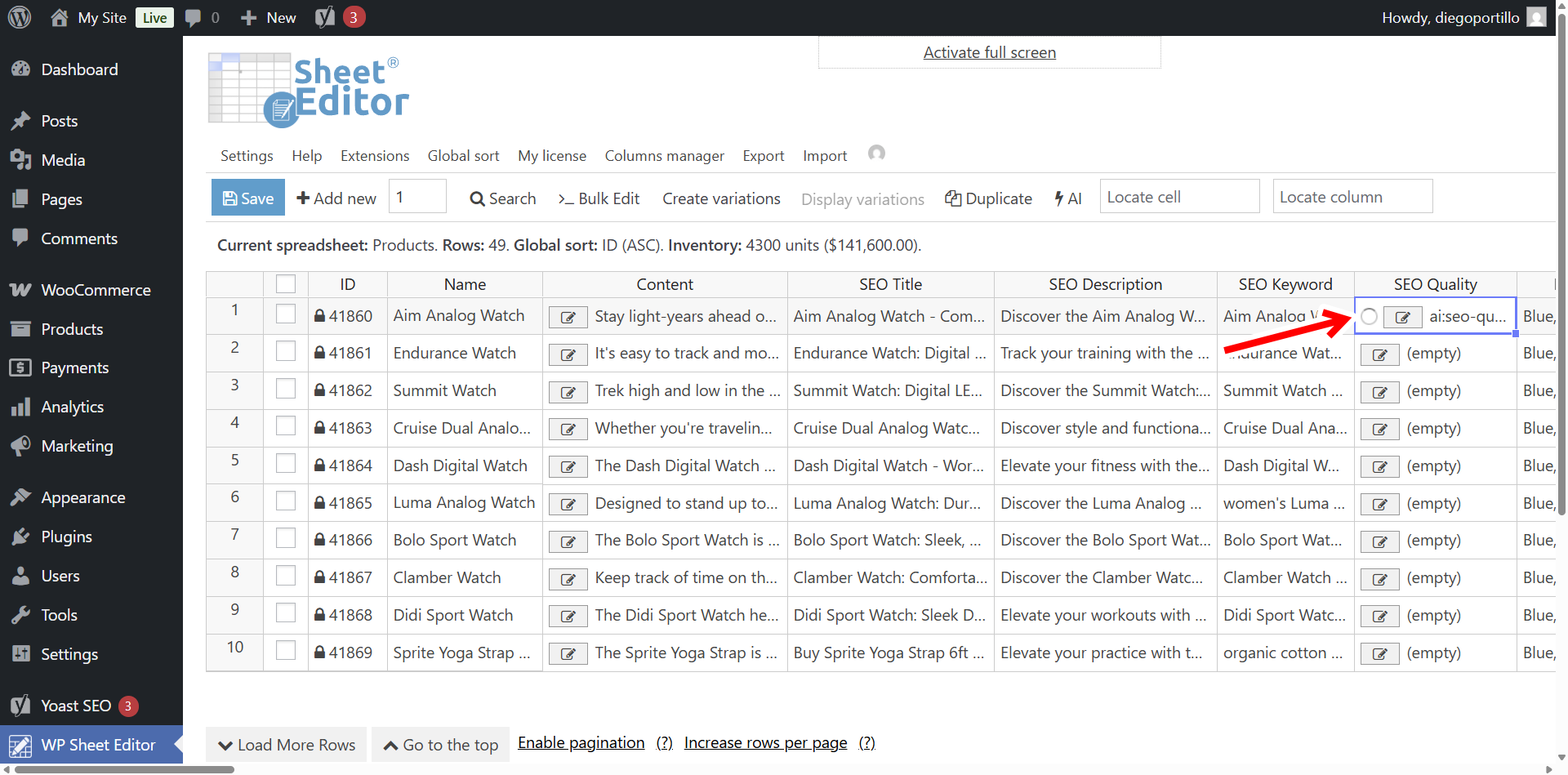
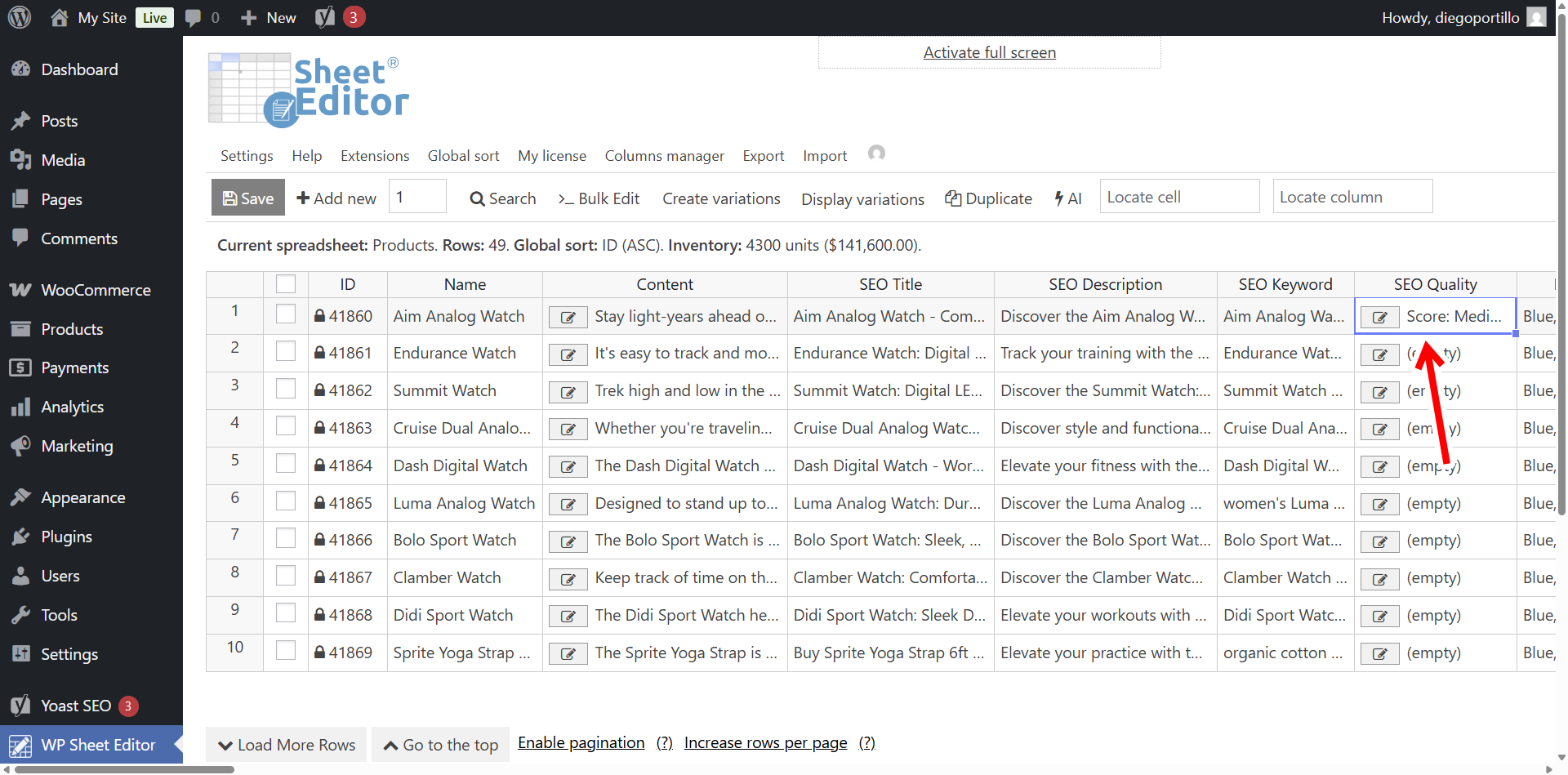
Once finished, the cell will update with your comprehensive audit.
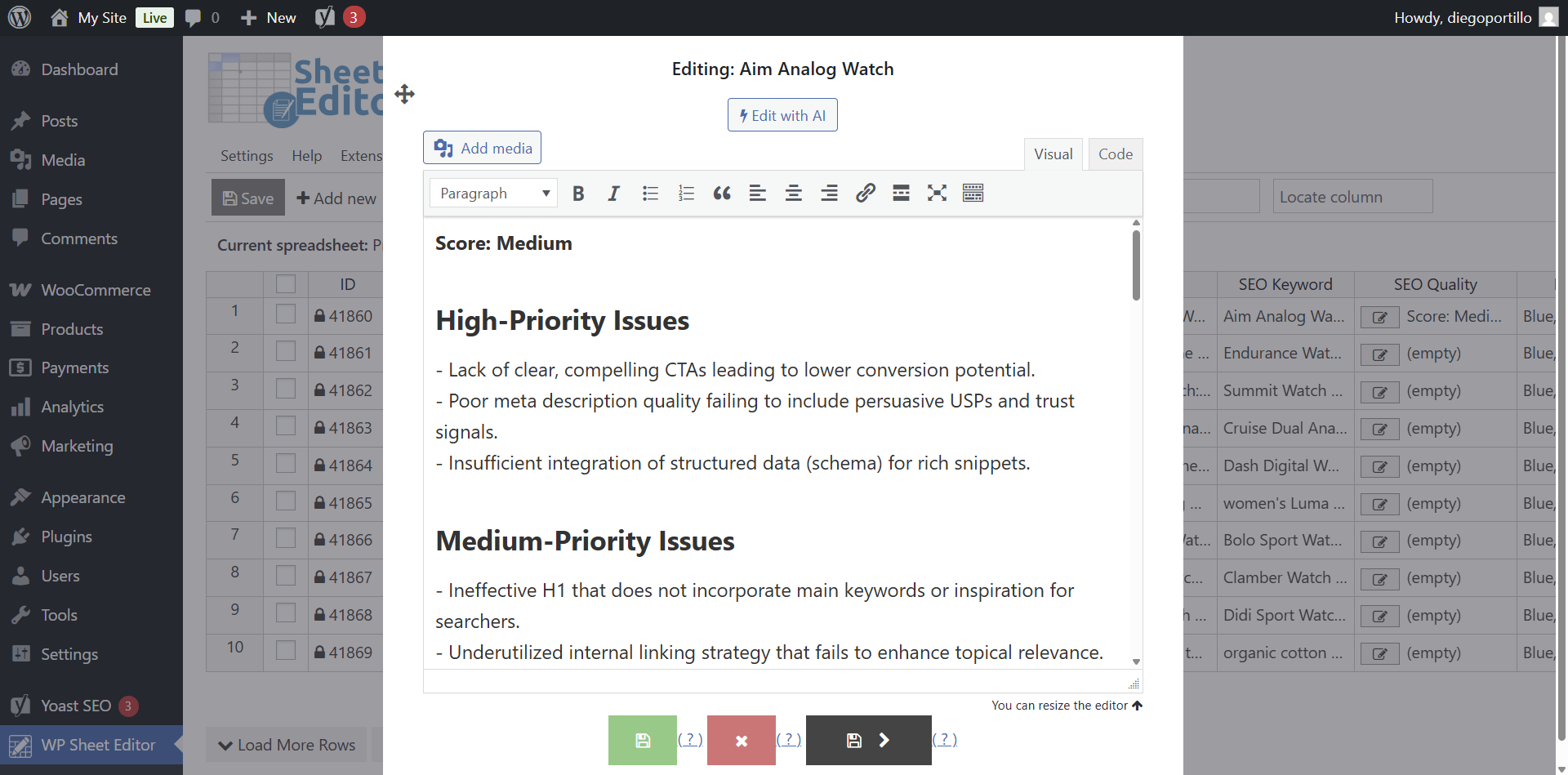
You can double-click the cell or open the text editor as a popup to read the full formatted report.
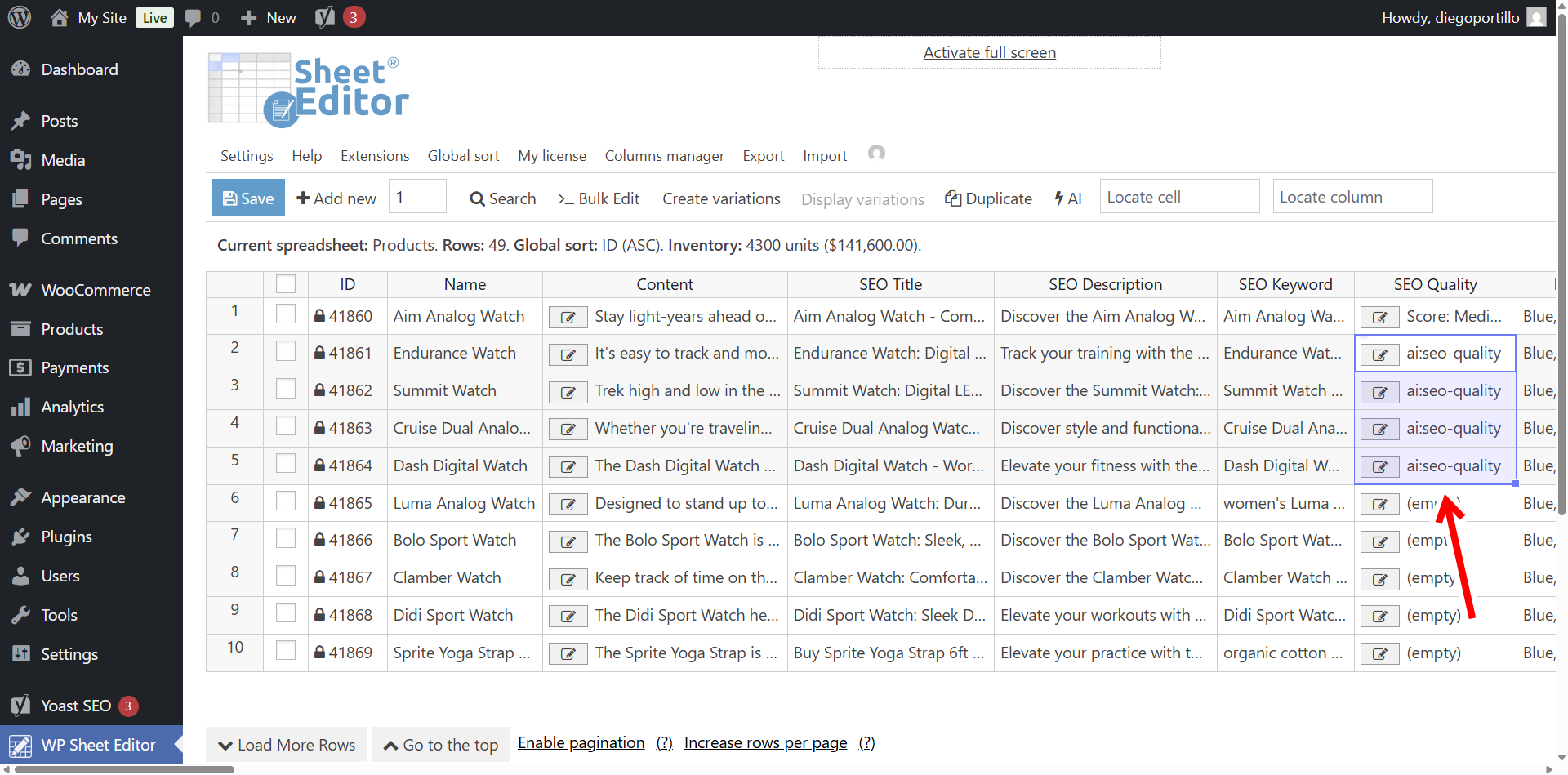
You can paste the same prompt shortcut or full prompt into multiple cells to audit the SEO of multiple products at once using AI.
Once you’re done auditing your products’ SEO, don’t forget to click the Save button on the toolbar to save the audit results to your database.
Option B: Bulk SEO audit
If you have hundreds of products, auditing them one by one is inefficient. Fortunately, you can use the Bulk Edit tool to analyze them all simultaneously.
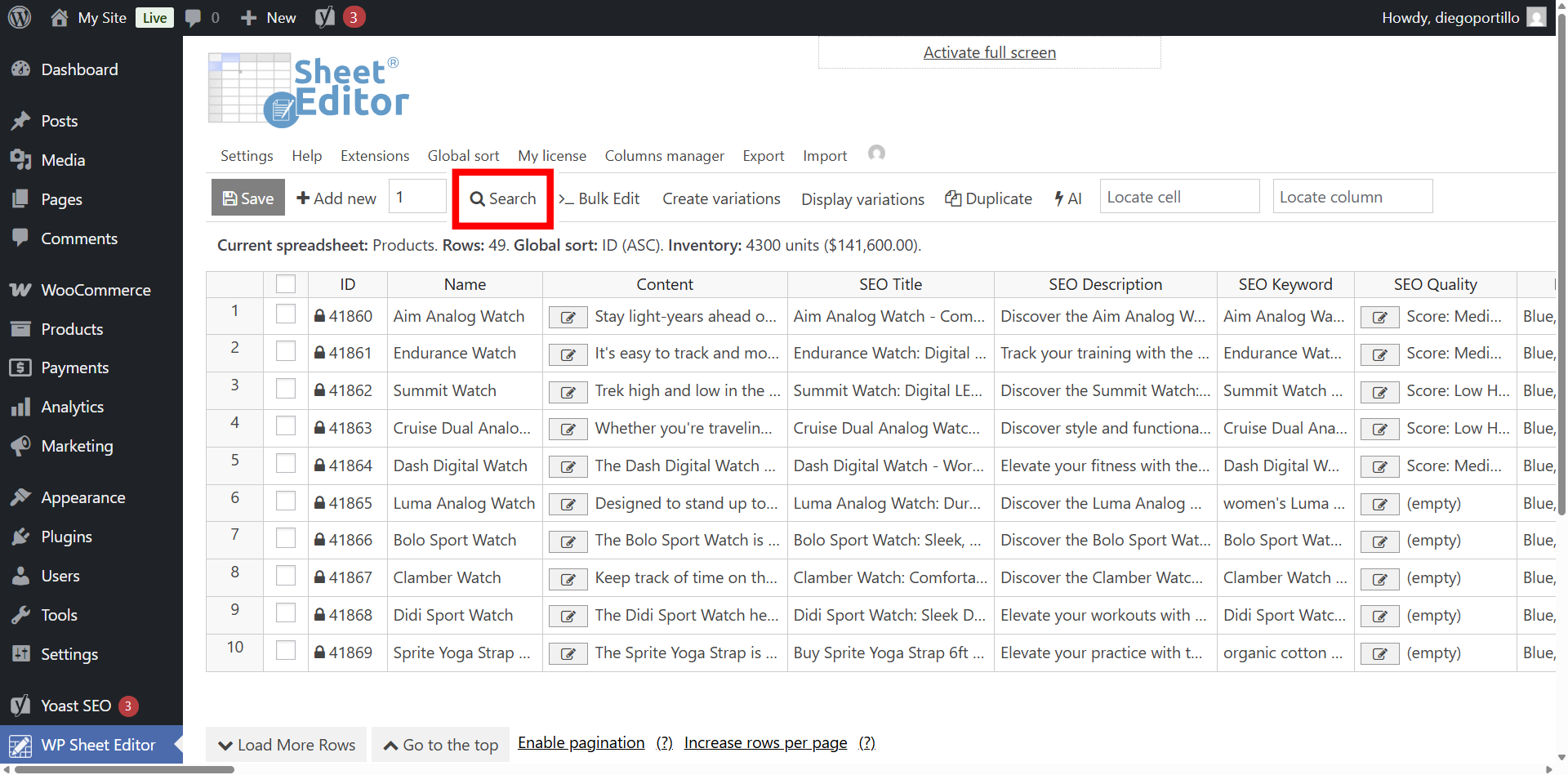
First, utilize the Search bar to define which products you want to check (e.g., a specific category, or products that haven’t been audited yet).
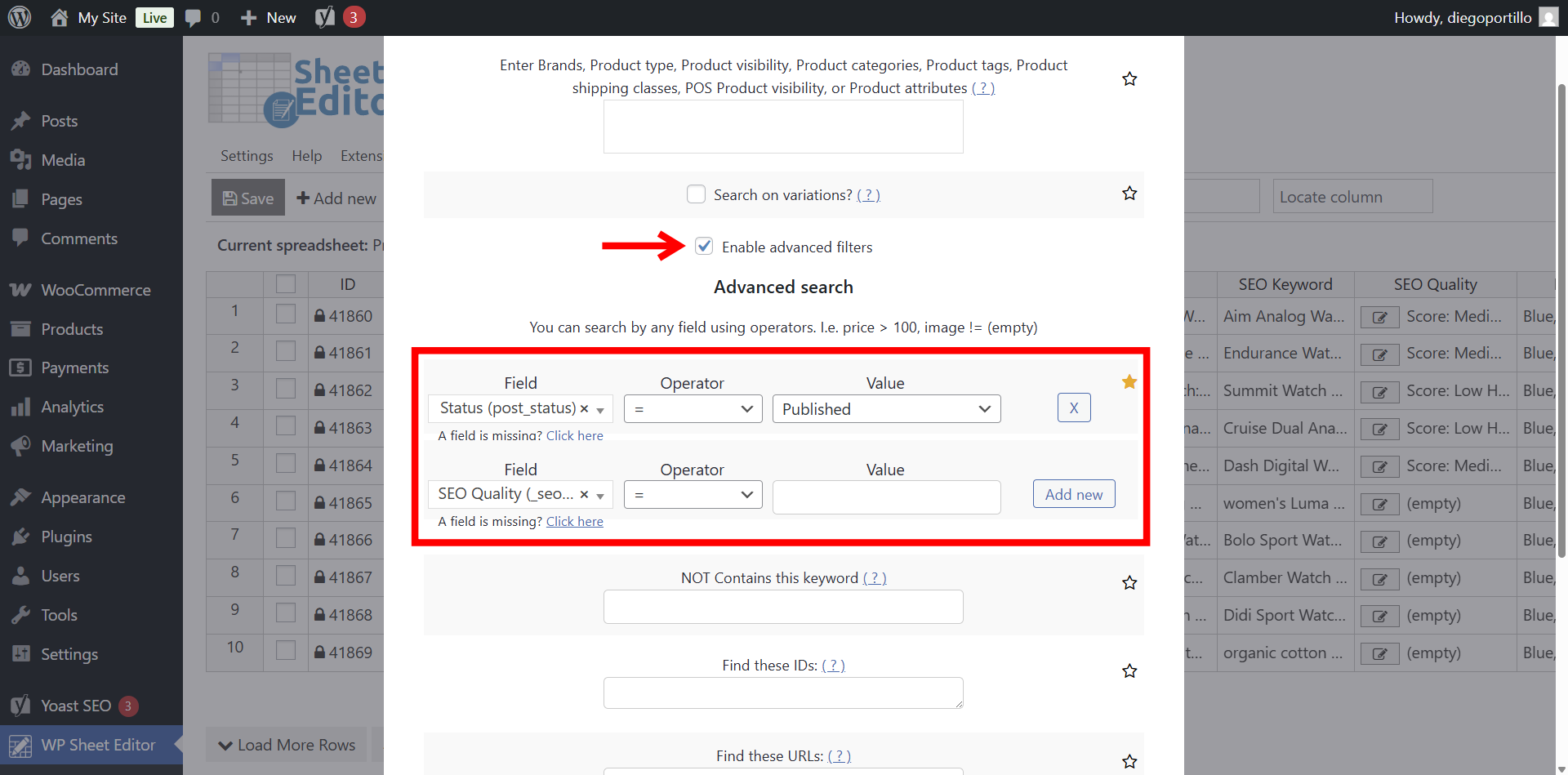
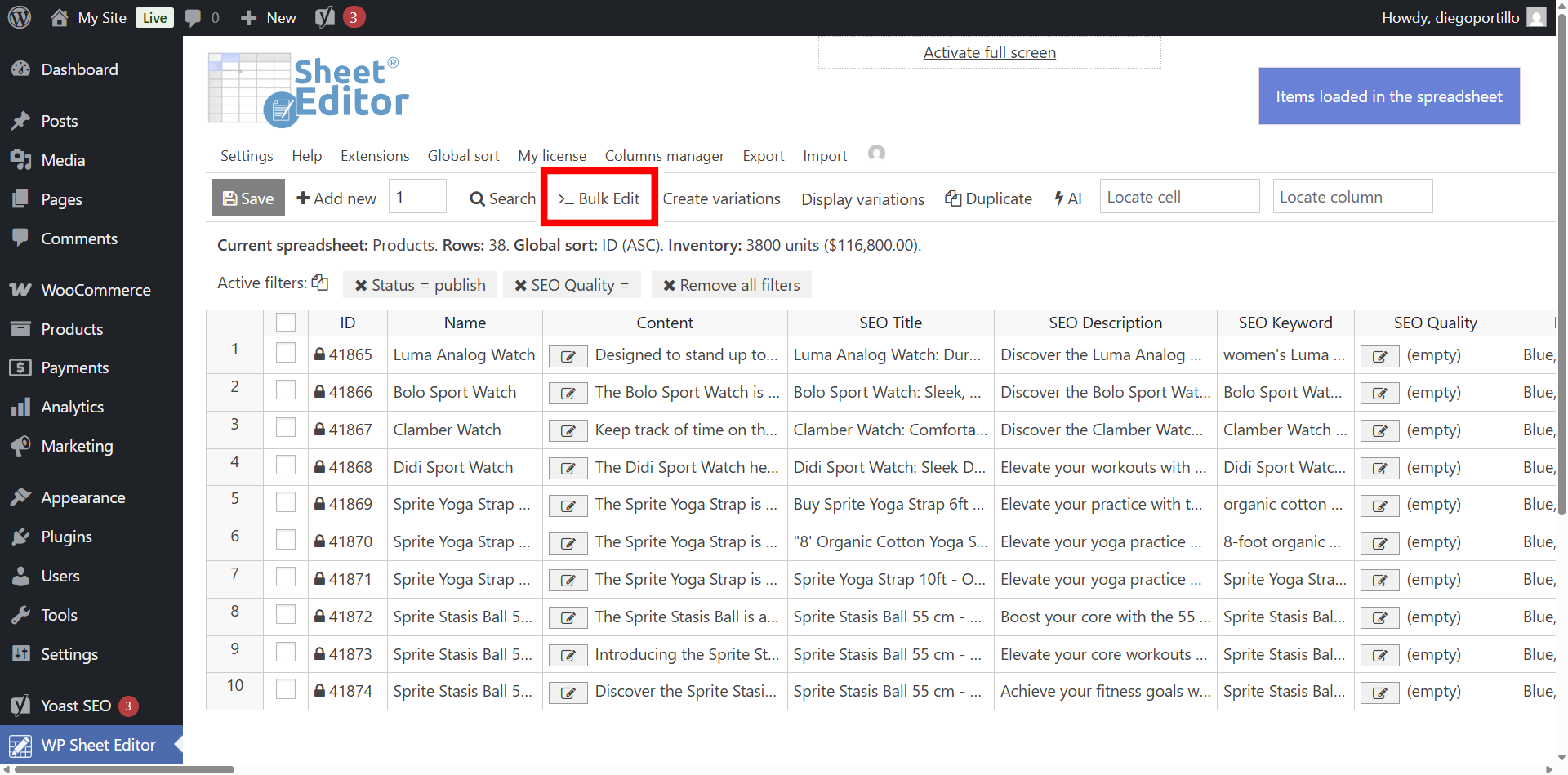
In this example, we will search for all products where status = published and SEO quality is empty (not audited yet).
Select these values:
- Tick the Enabled advanced filters.
- Filter 1: Status = Published
- Click on Add new to insert a new filter.
- Filter 2: SEO Quality = [empty]
- Click on Run search.
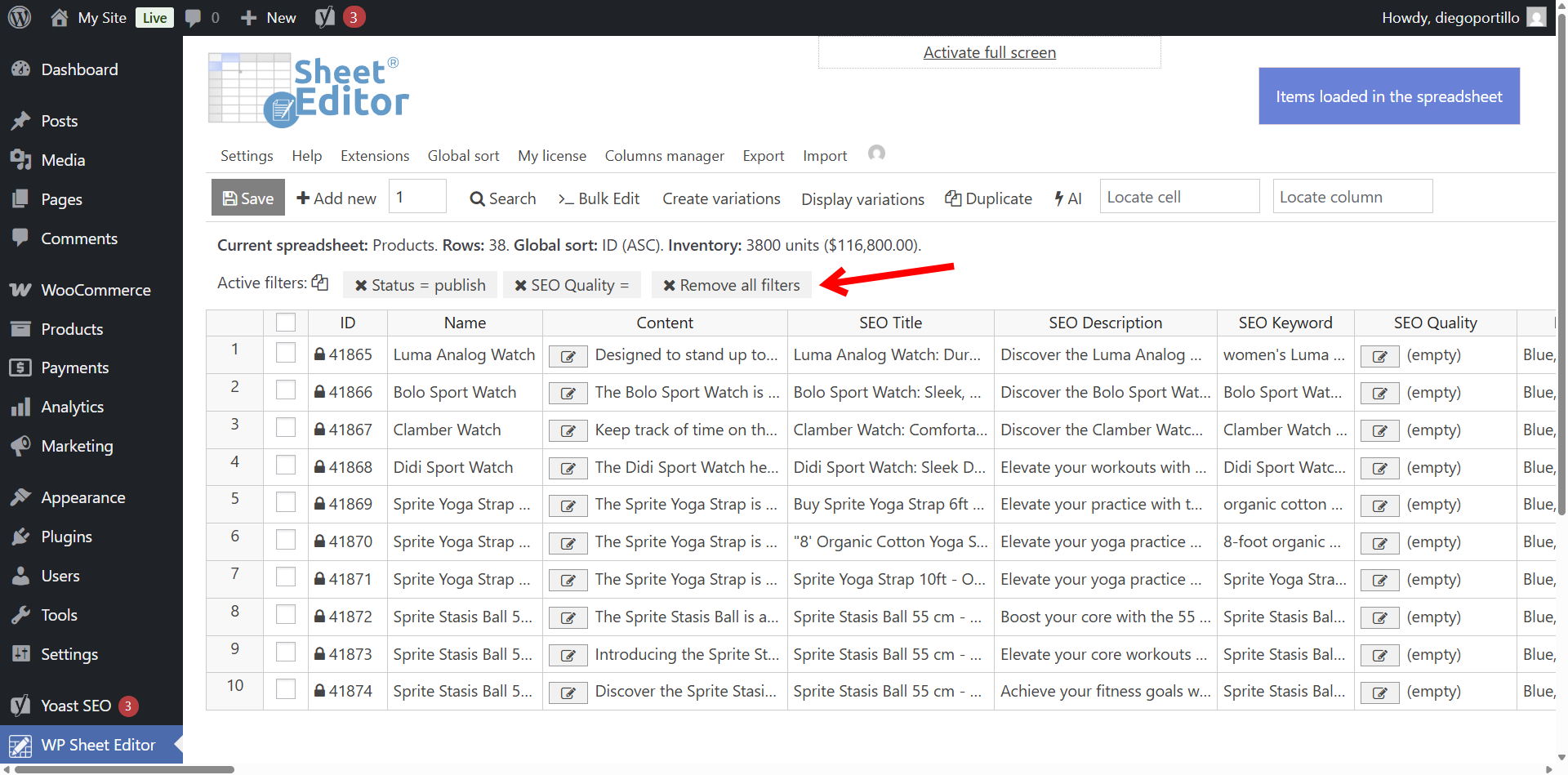
After filtering your products, you will see the search results displayed on the spreadsheet, you will also see the active search filters displayed above the spreadsheet.
Netxt, open the Bulk Edit tool, which uses our Bulk AI API to run AI prompts into multiple WP Sheet Editor rows.
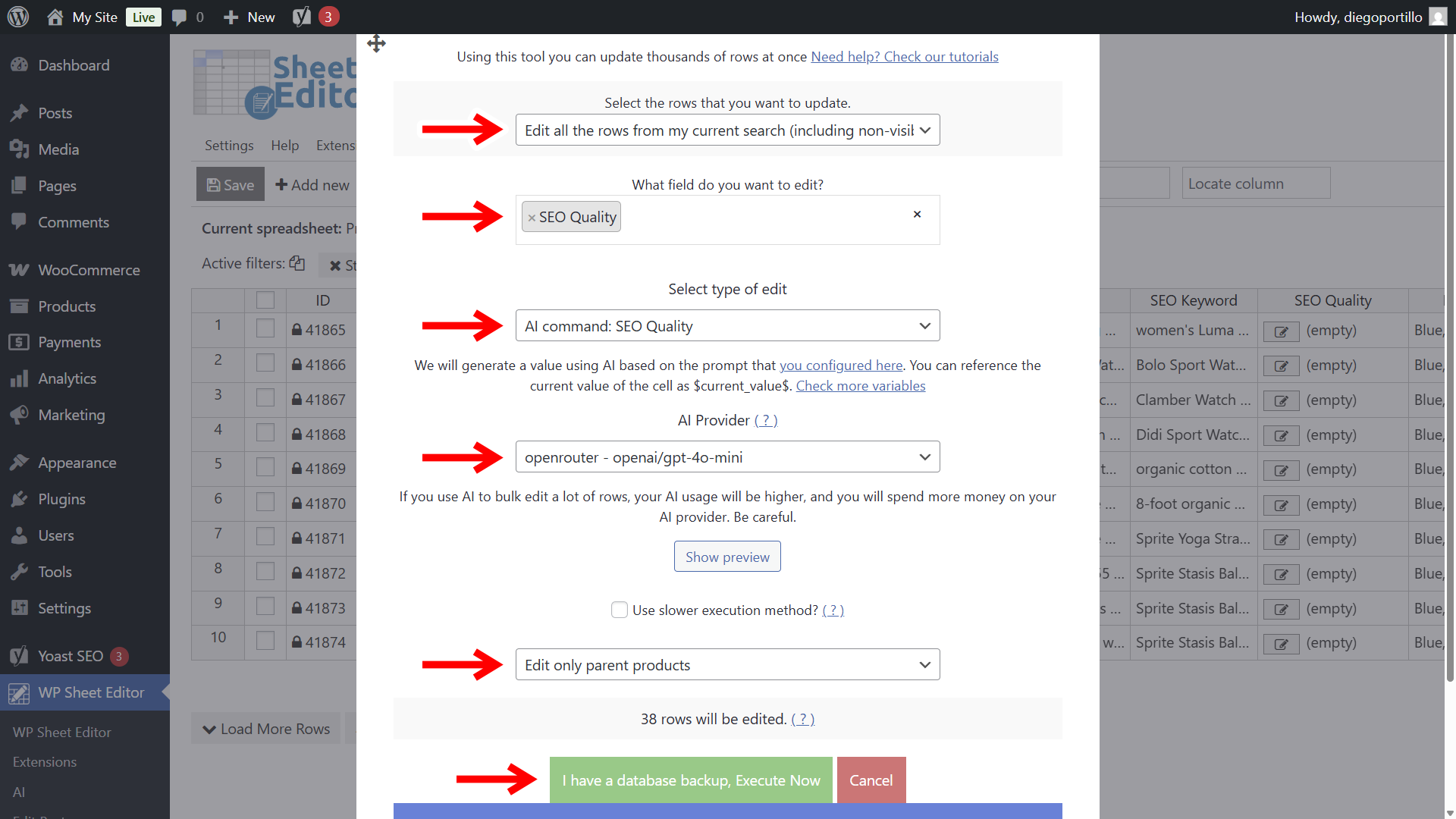
Configure the bulk operation as follows:
- Select the rows that you want to update: Edit all the rows from my current search
- What field do you want to edit: SEO Quality
- Select type of edit: AI command: SEO Audit
- AI Provider: We will use GPT-4o-mini through Openrouter.
- Select Edit only parent products.
- Click on Execute Now.
The plugin will process the request in the background. When it finishes, every selected product will contain a unique, AI-generated strategy report in your custom column.
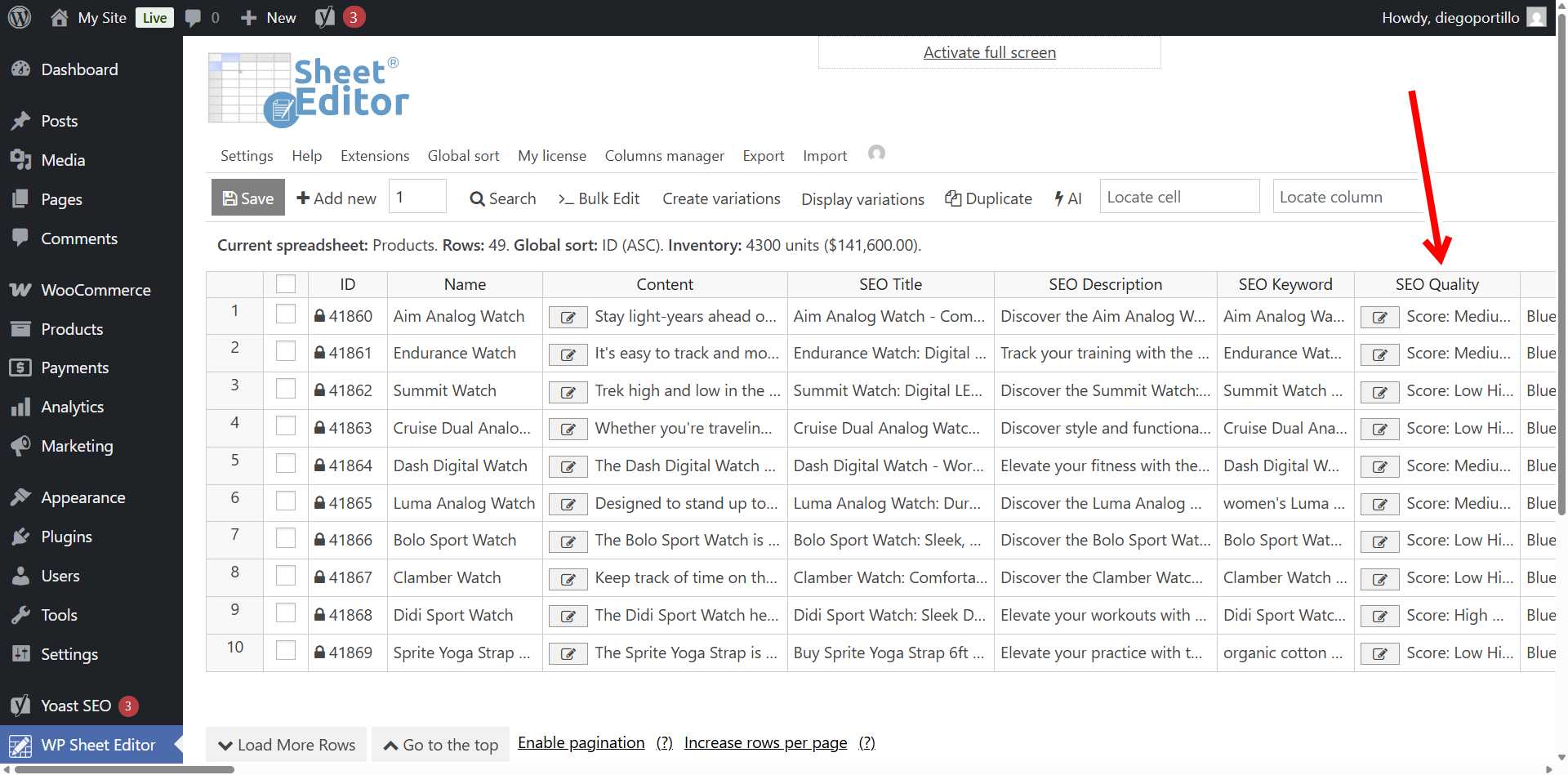
This method transforms WP Sheet Editor into an automated SEO agency, providing you with data-driven insights to improve traffic and sales without the high cost of manual labor.