
In this tutorial, we will show you how to audit your WordPress SEO using Generative AI. You can use any LLM like GPT models, Gemini, Deepseek, Grok, etc. Forget about hiring SEO consultation services and start evaluating your SEO with artificial intelligence.
We will create a comprehensive SEO audit system directly inside your WordPress dashboard. Instead of manually checking every post or paying for expensive external tools, you can use WP Sheet Editor and its AI add-on to generate detailed SEO reports for hundreds of posts in minutes.
Table of Contents
What you need to audit WordPress SEO with AI
Here’s what you need to follow this tutorial:
1- WP Sheet Editor – Post Types
This plugin allows you to manage your WordPress posts, pages, products, and custom post types in a spreadsheet. Since it allows custom columns, we will create a custom column for our SEO reports and run the AI audit in bulk.
You can download the plugin here:
Download Posts, Pages, and Custom Post Types Spreadsheet Plugin - or - Check the features
2- WP Sheet Editor – AI
This extension connects your WP Sheet Editor spreadsheet to AI providers to analyze your content.
You can sign up here:
Sign up to the WP Sheet Editor - AI Service - or - Check the features
3- External AI provider
You need an account and an account and an API key.
- OpenAI – Official provider for GPT models (learn more).
- OpenRouter – Access to multiple models including GPT models, Grok, Gemini, Claude, etc. (learn more).
- Any other AI provider with an OpenAI-compatible API.
If you haven’t set up your provider yet, follow this setup guide.
4- A third party SEO plugin
In this example, we will use the Yoast SEO plugin, but this tutorial is compatible with any other WordPress SEO plugin (Rank Math SEO, SEOPress, All In One SEO, etc.)
Step 1. Create a “Global Prompt” for SEO Auditing
First, we need to save the specific instructions that the AI will follow. We call this a “Global Prompt”, and we will save it as a global prompt in order to not have to type the instructions every time we want to run the prompt.
Go to WP Sheet Editor > AI > Settings > Prompts and click Add new.
Configure the prompt with these values:
- Name: SEO Audit
- Prompt: Paste the following text exactly:
You are an expert SEO strategist and content editor. Evaluate the SEO quality and ranking potential of the page using best practices for Google, on-page SEO, and search intent alignment, based on $Title$, $Content$, $SEO Title$, $SEO Description$, and $SEO Keyword$; assess search intent match, main title quality, SEO title optimization (natural keyphrase use and optimal length), meta description quality (persuasive, aligned, optimal length), keyword usage and placement (first 100 words, headings, natural distribution, no stuffing), content depth and helpfulness, structure and readability (headings, scannability), internal and topical SEO opportunities, and SERP CTR appeal; then return: numeric scores from 1–10 for each area, a brief list of key weaknesses, up to 5 top-priority actionable improvements, optimized suggestions for SEO Title and SEO Description, 3 improved headline suggestions, 3 concrete content improvement suggestions, and a short final verdict on ranking competitiveness and what’s missing to perform better.
- Click Save.
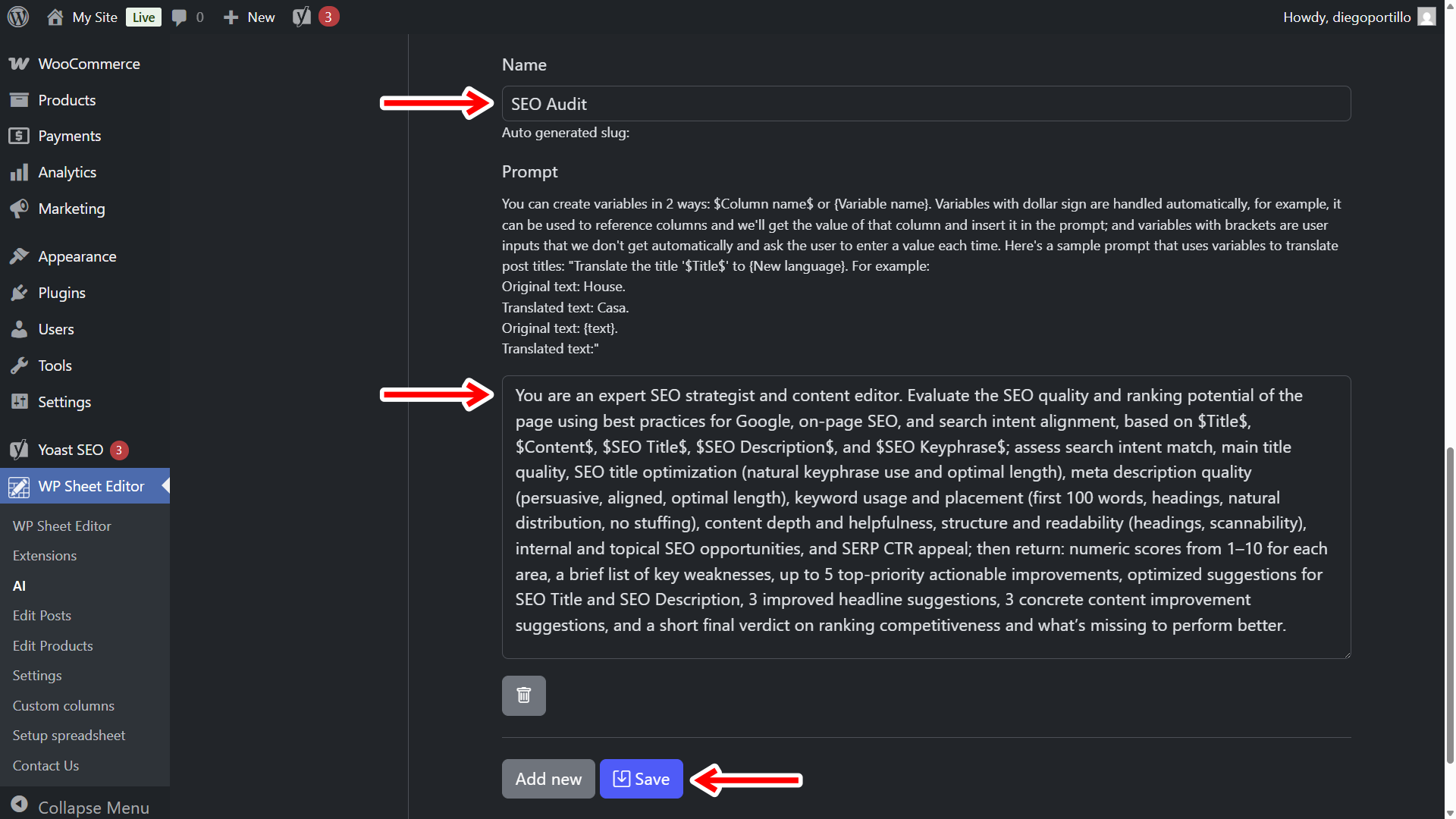
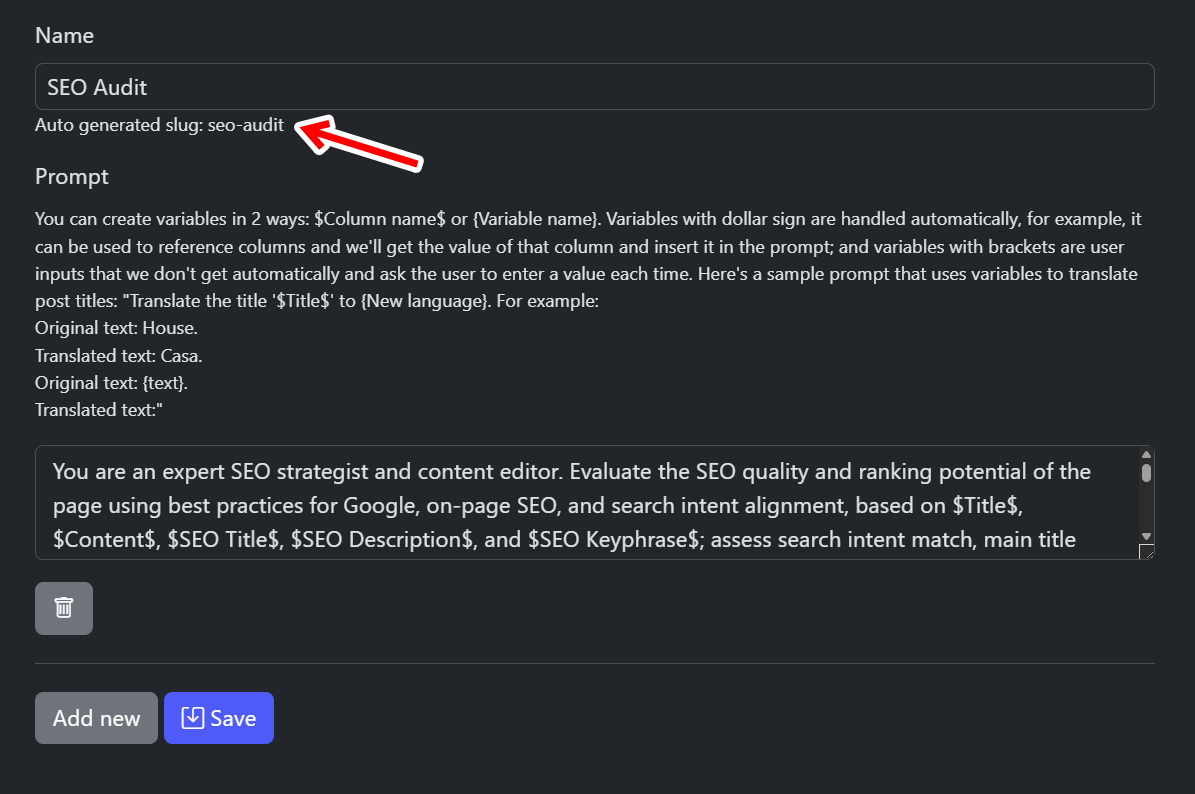
The plugin will generate a prompt slug automatically (e.g., seo-audit). You will use this as a shortcut later.
Step 2. Create a custom column to store the audit results
Since the AI will return a detailed report (scores, suggestions, and verdicts), we cannot overwrite the existing content. We need a dedicated place to store this information.
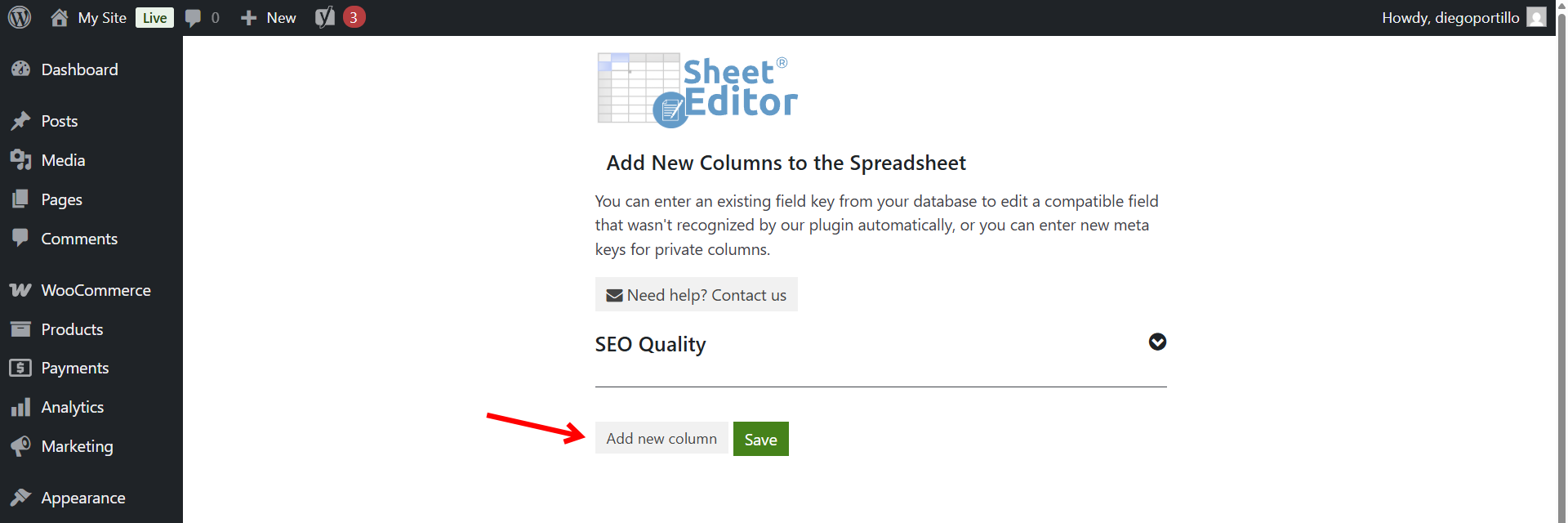
We will create a custom column called “SEO Quality”.
- Go to WP Sheet Editor > Custom columns and click on Add new column.
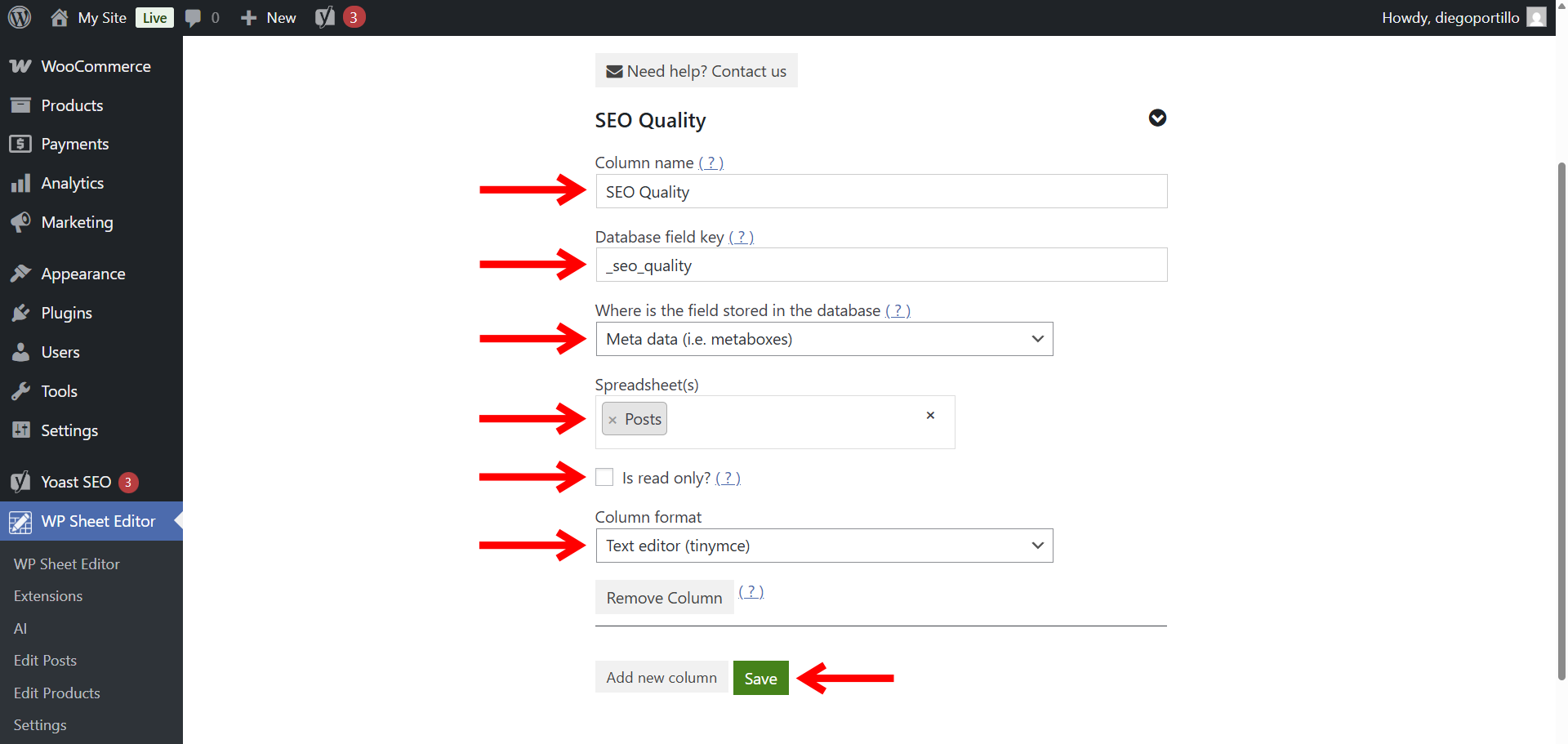
Enter these values:
- Column name: SEO Quality
- Database field key:
_seo_quality - Where is the field stored in the database: Meta data
- Spreadsheet(s): We will display it in the Posts spreadsheet.
- Is read only: No
- Column format: We’ll select Text editor (tinymce)
- Click Save.
Now go to WP Sheet Editor > Edit posts and we’ll start by making sure the custom column appears in the spreadsheet.
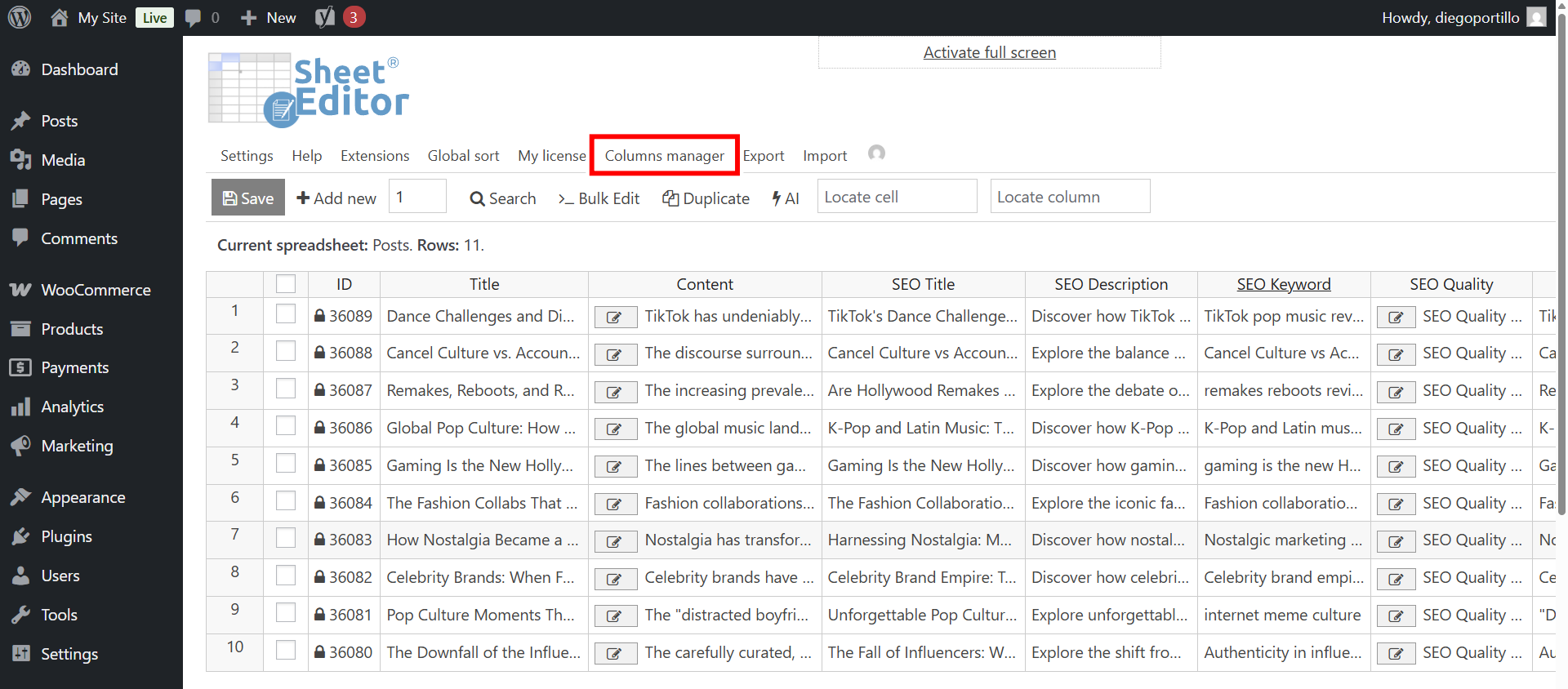
To do that, click on Columns manager.
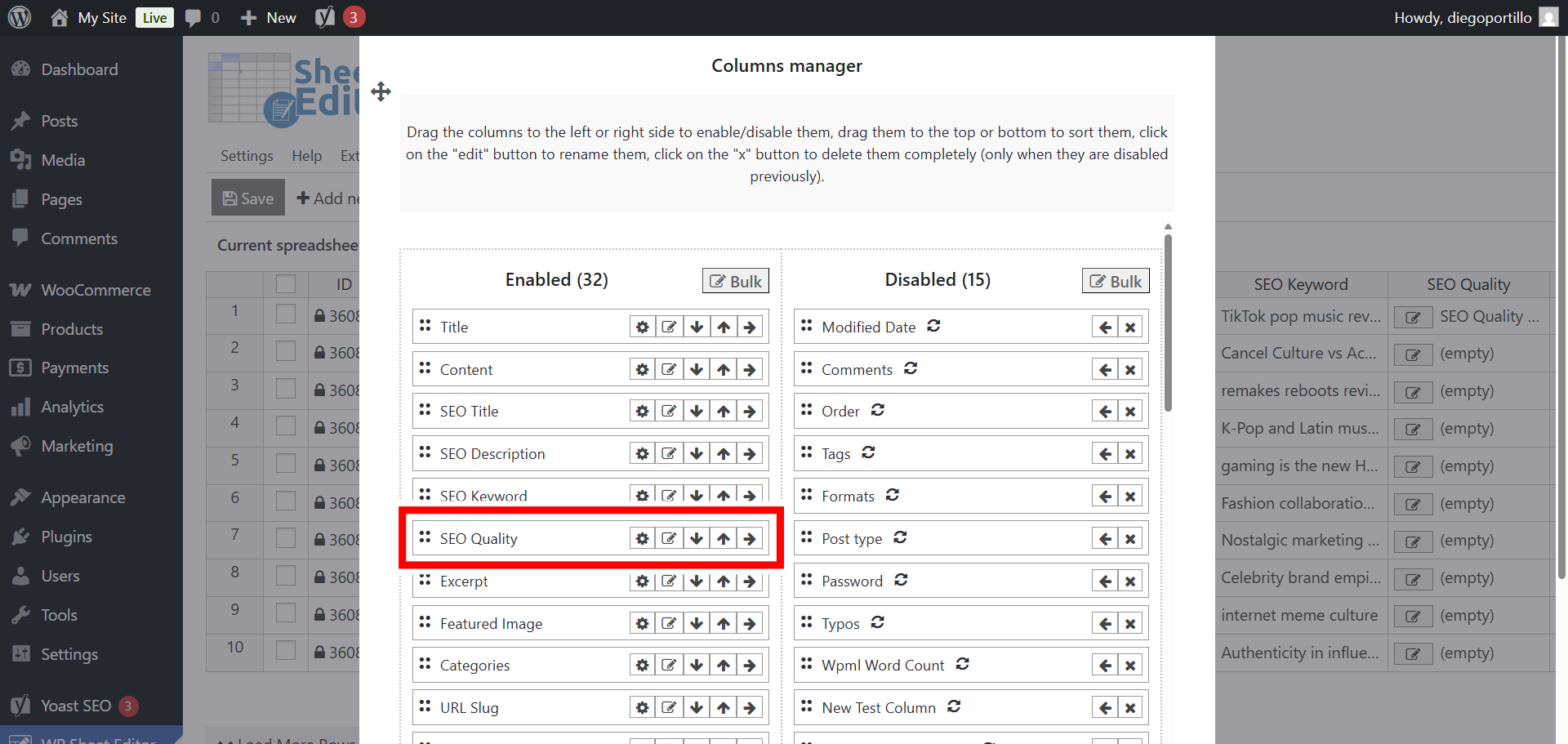
Now make sure you move the SEO Quality column from the Disabled to the Enabled side and save the changes.
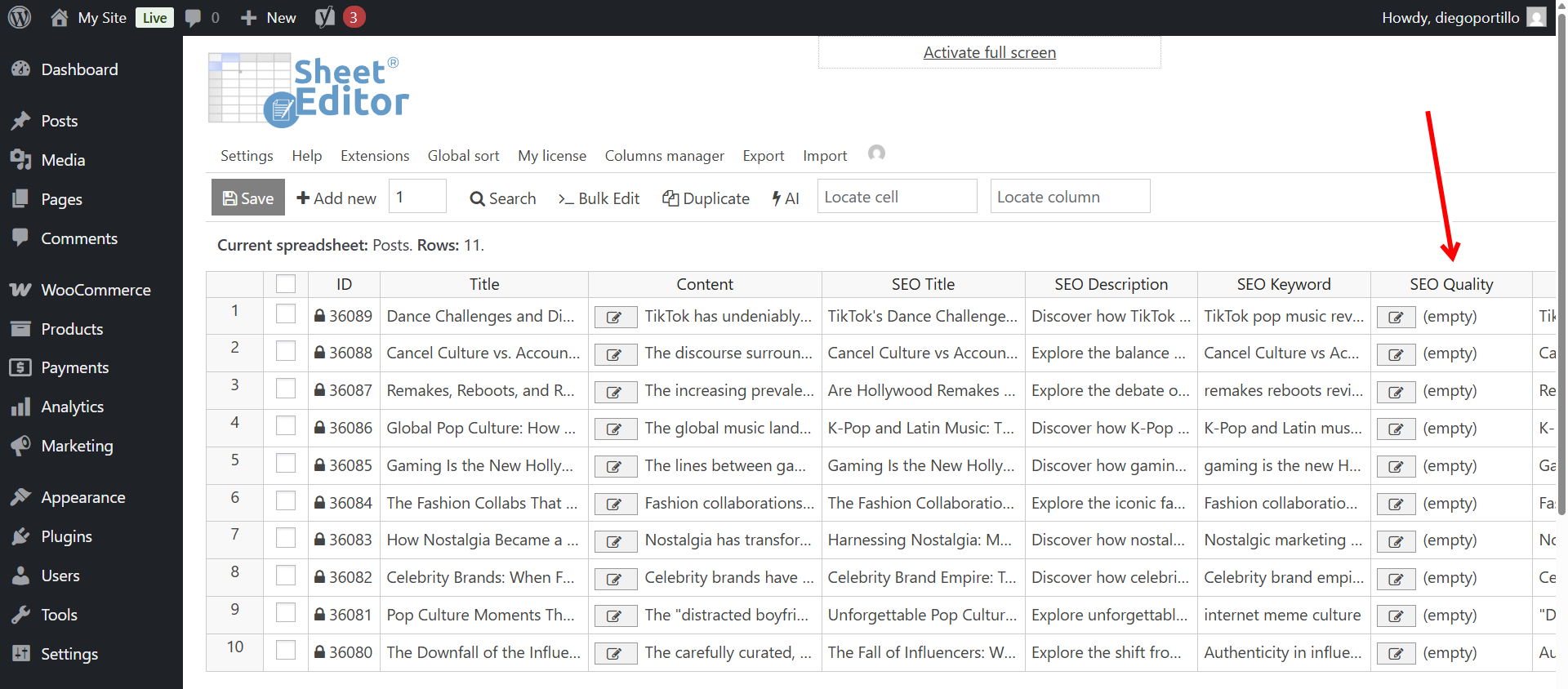
Now you can see the SEO Quality column displayed in the spreadsheet.
Step 3. Audit WordPress SEO with AI
Now let’s see how to evaluate SEO on your WordPress posts using generative AI. You have at least two options to do this.
a) Audit SEO in the spreadsheet
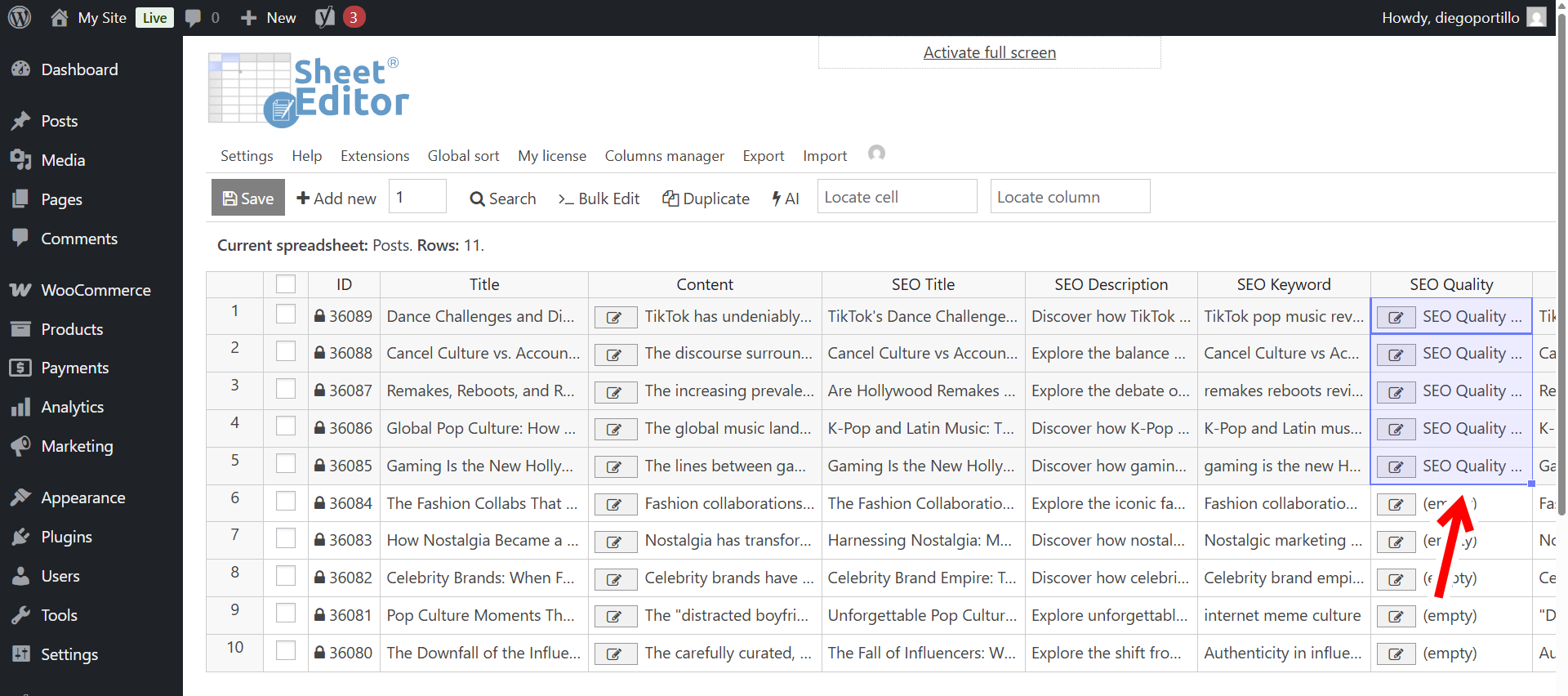
To audit the SEO of your WordPress posts in the spreadsheet, you need to type the AI shortcut like this in the cells of the SEO Quality column:
ai:seo-audit
You can also use the full prompt by typing:
ai:write the full prompt here
In this case, we’re using our previously saved global prompt.
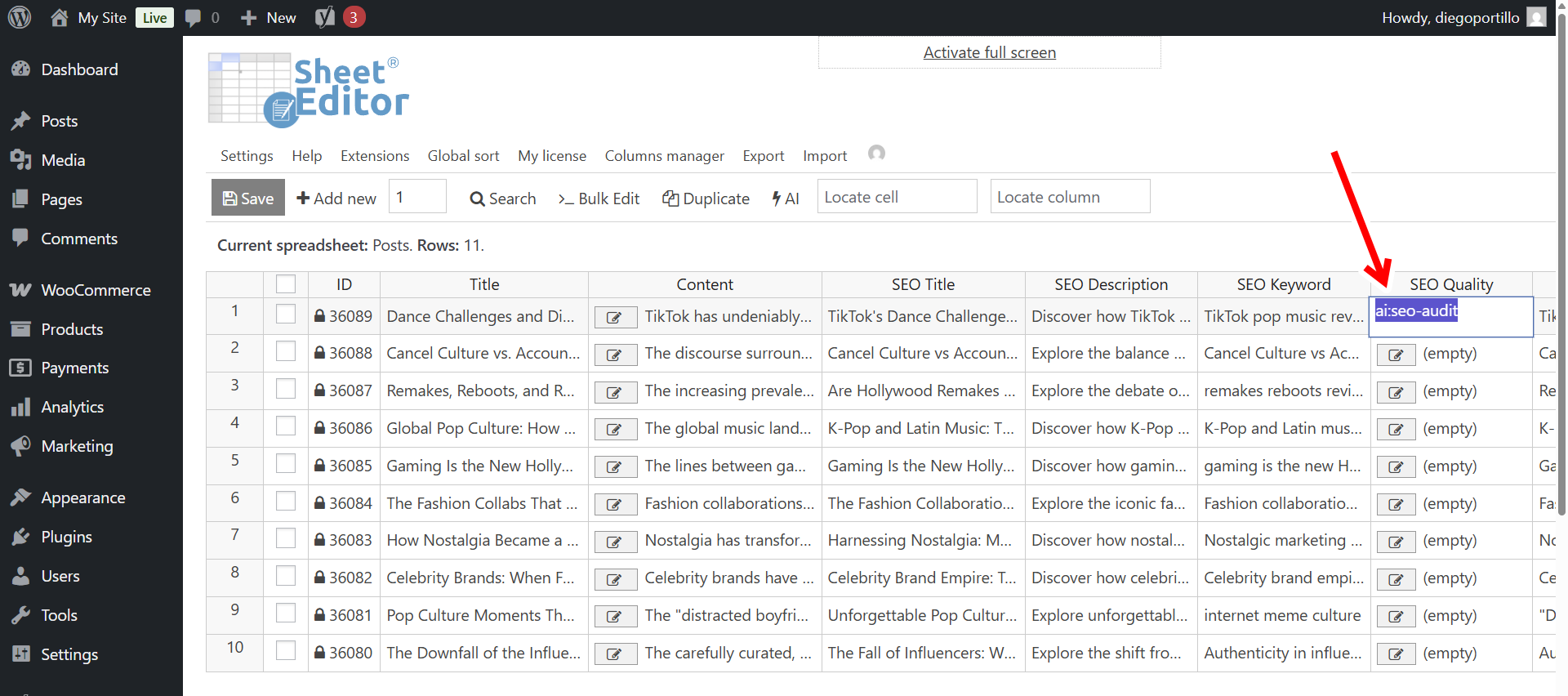
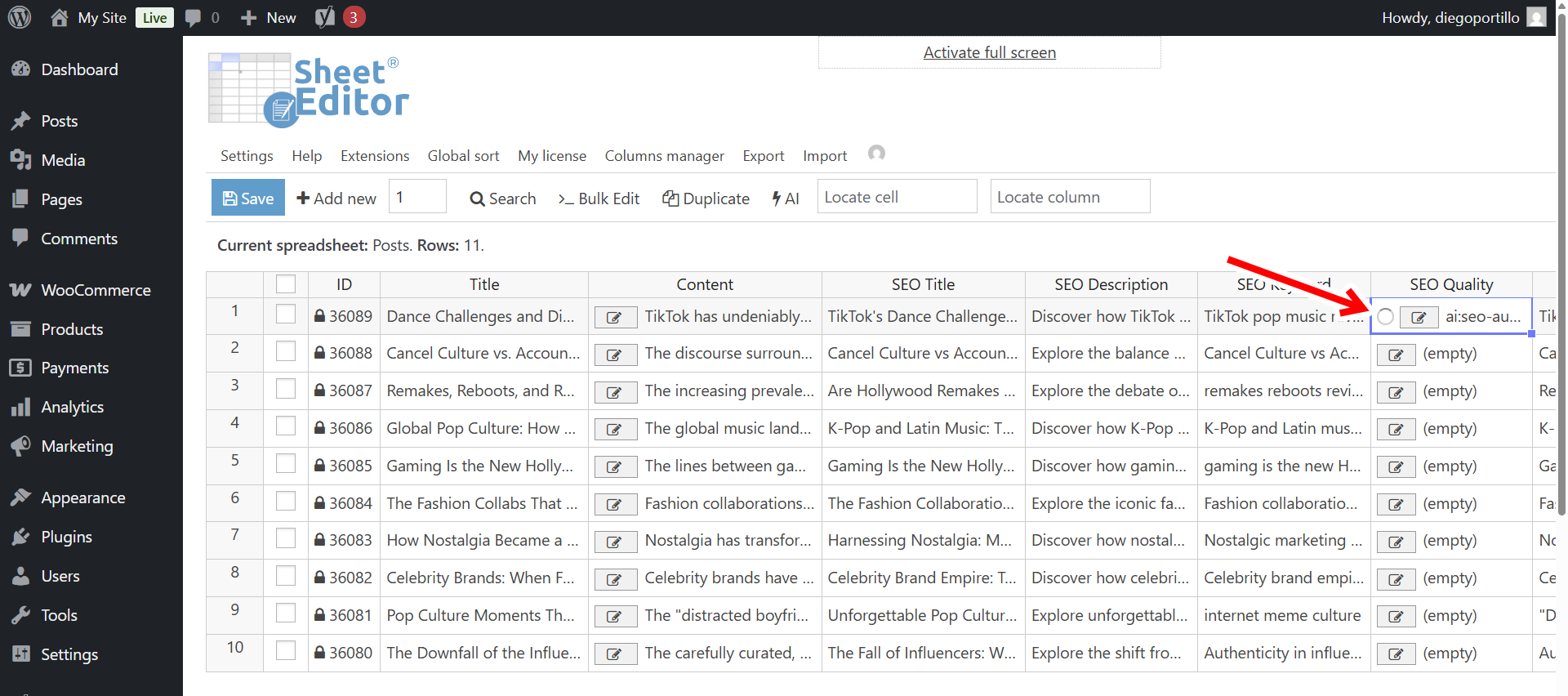
Now you’ll see a loading icon in the spreadsheet cell while the AI is working to evaluate your post’s SEO.
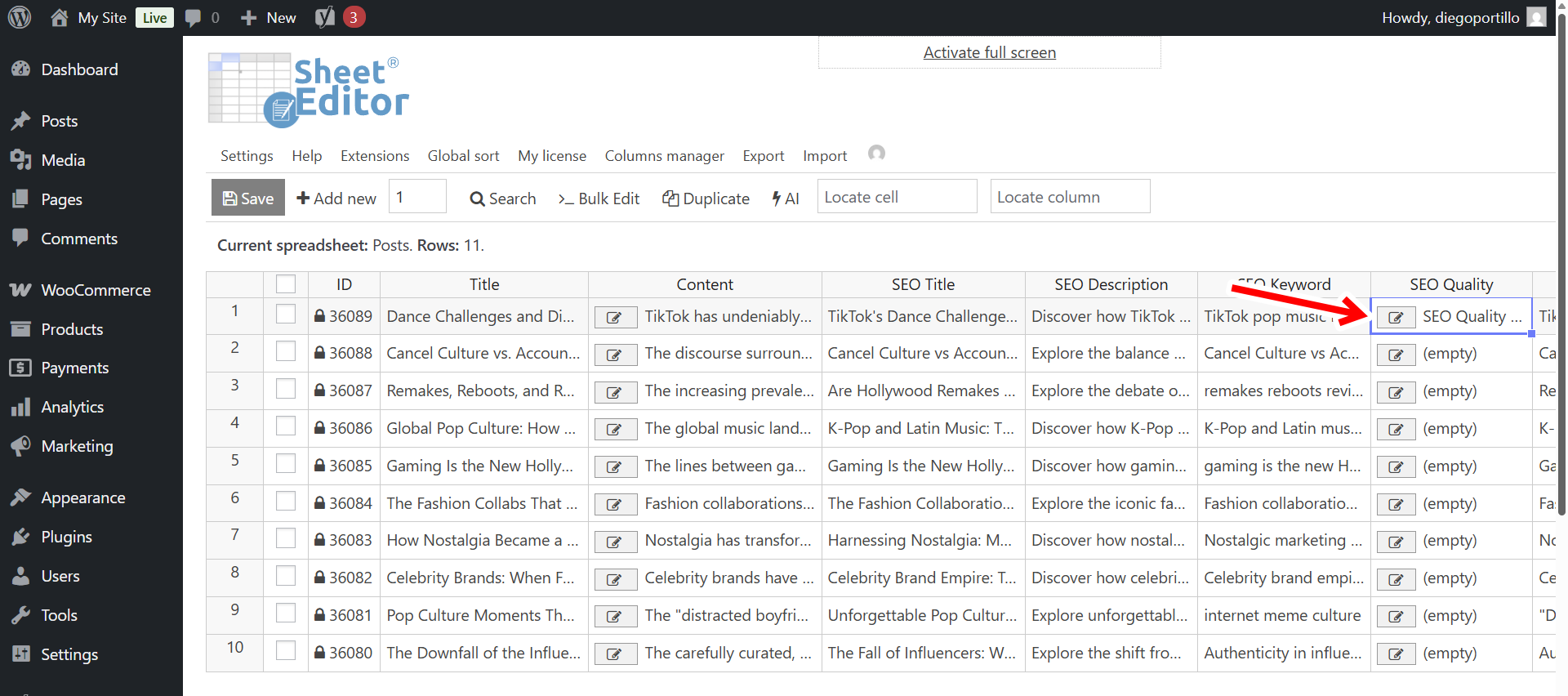
Once the process is complete, the cell will be populated with the audit report. You can double click the cell or open the text editor to view it better.
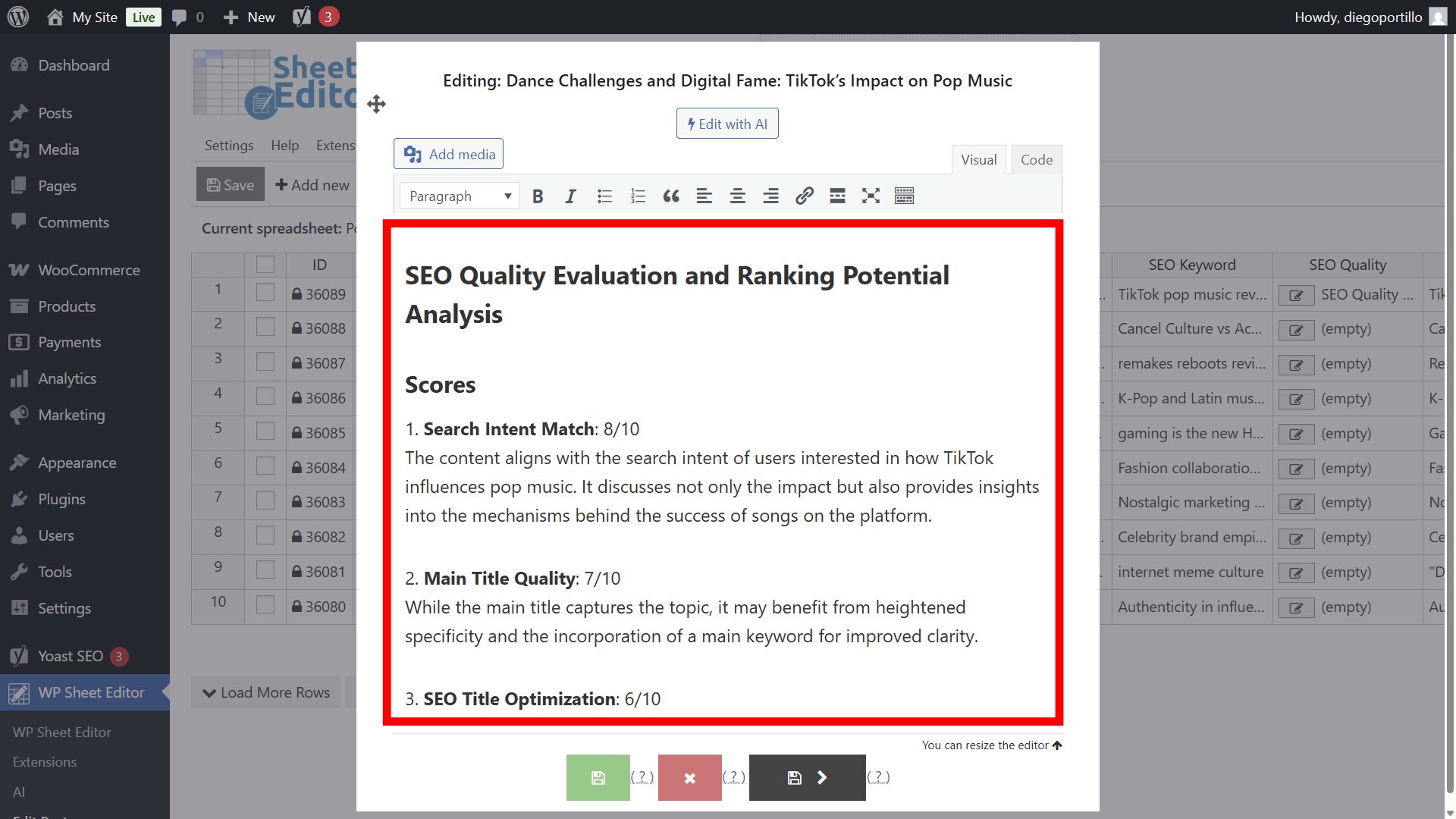
Here you can see a detailed report of the SEO audit made with AI.
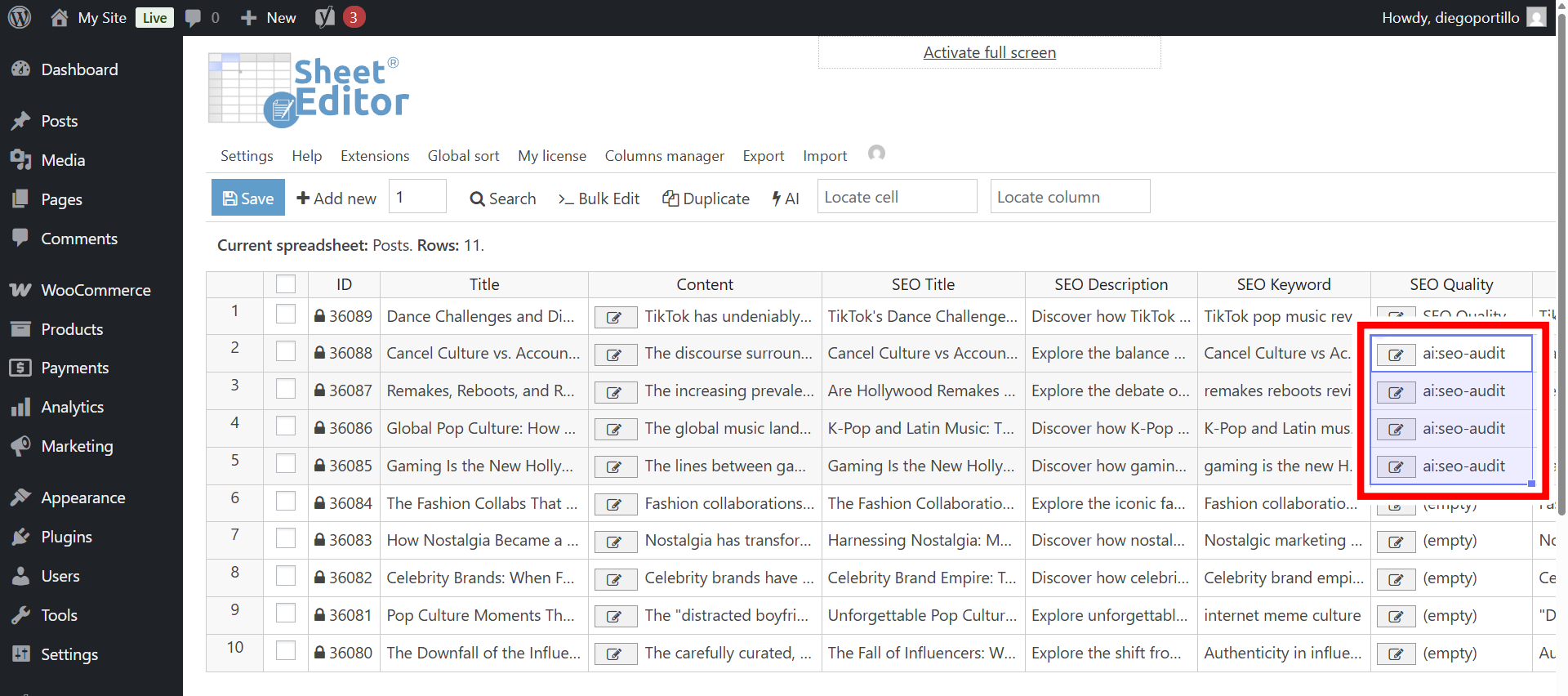
You can paste the same prompt shortcut into multiple cells to evaluate the SEO of multiple posts at once.
Once you’ve audited the SEO of your WordPress posts, you can click on Save to store the results in the database.
b) Audit SEO in bulk
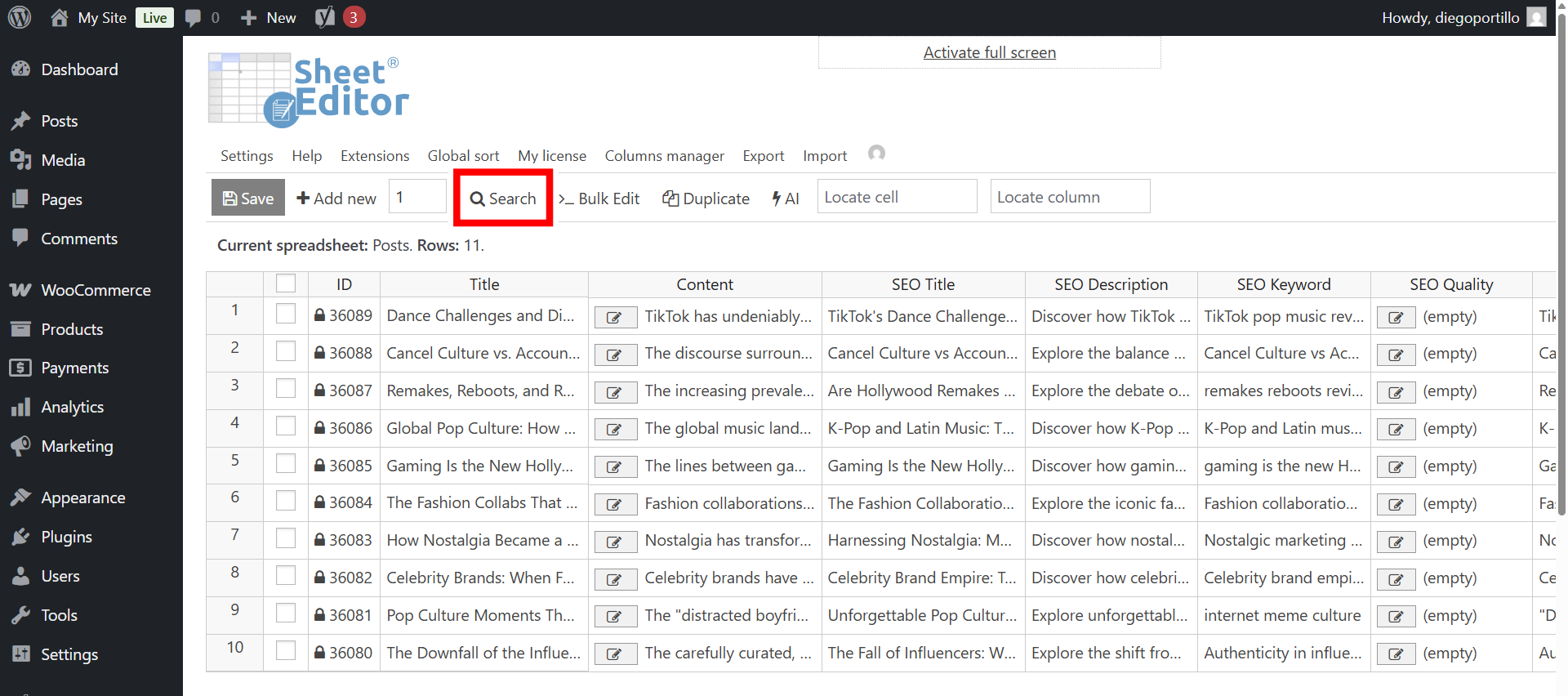
The Bulk Edit tool allows you to edit hundreds of posts at once, and in this case, it will allow you to bulk evaluate SEO for WordPress posts. Let’s start by searching for posts where SEO hasn’t been audited yet.
To do this, open the Search tool.
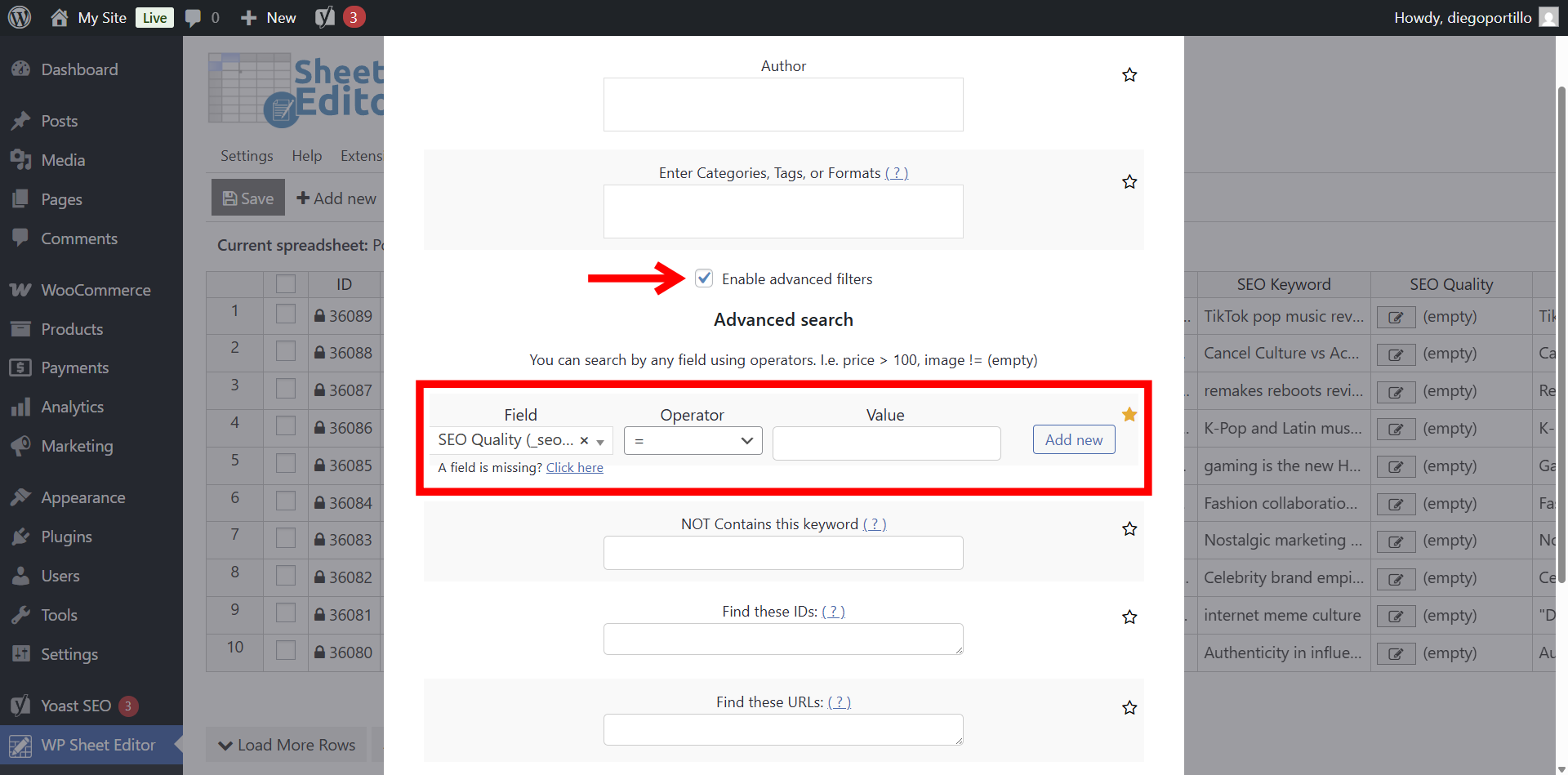
Once you’re in the Search tool, tick the Enable advanced filters checkbox and select these values:
- Field: SEO Quality
- Operator: =
- Value: Leave this field empty.
- Click on Run search.
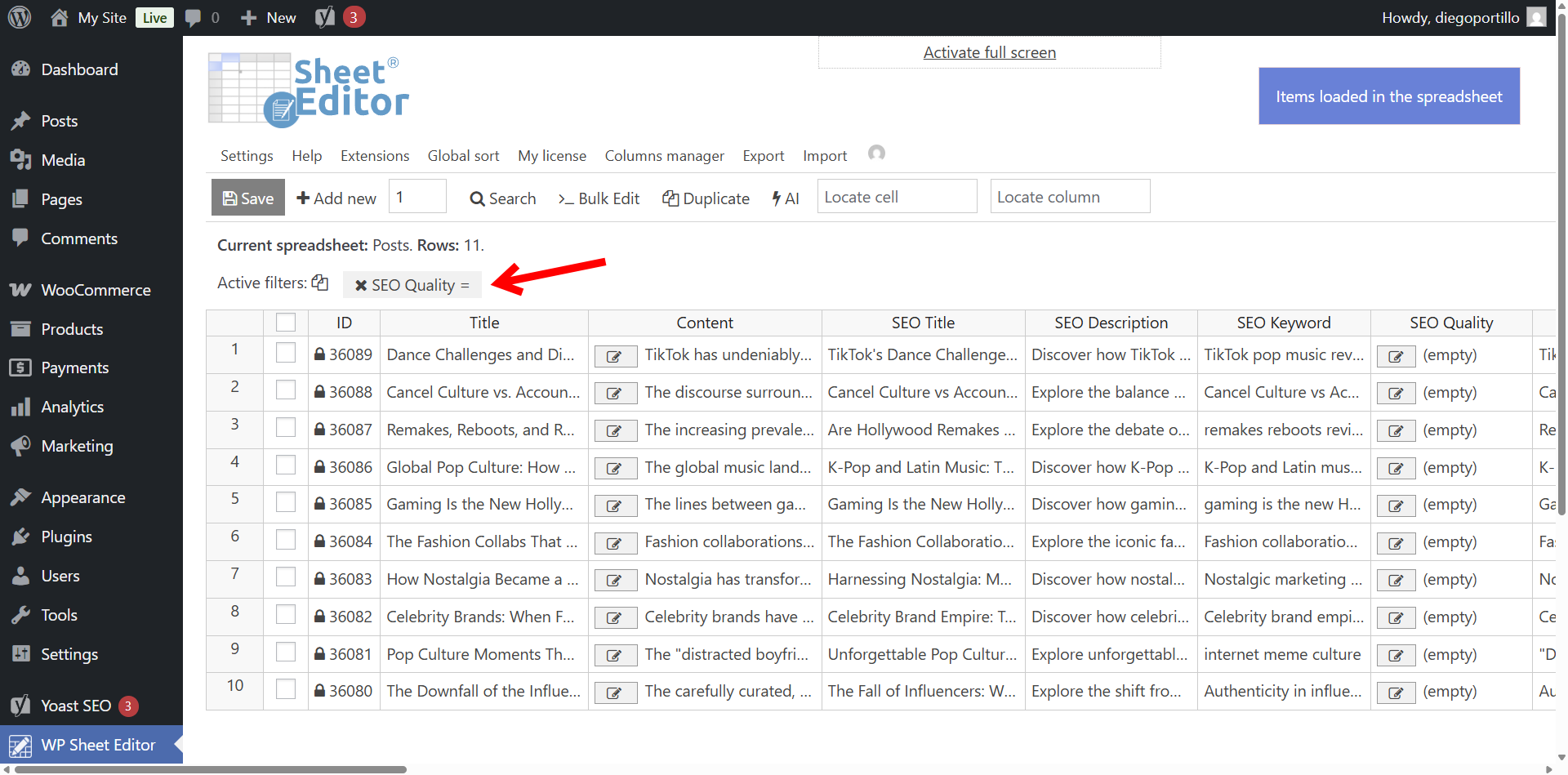
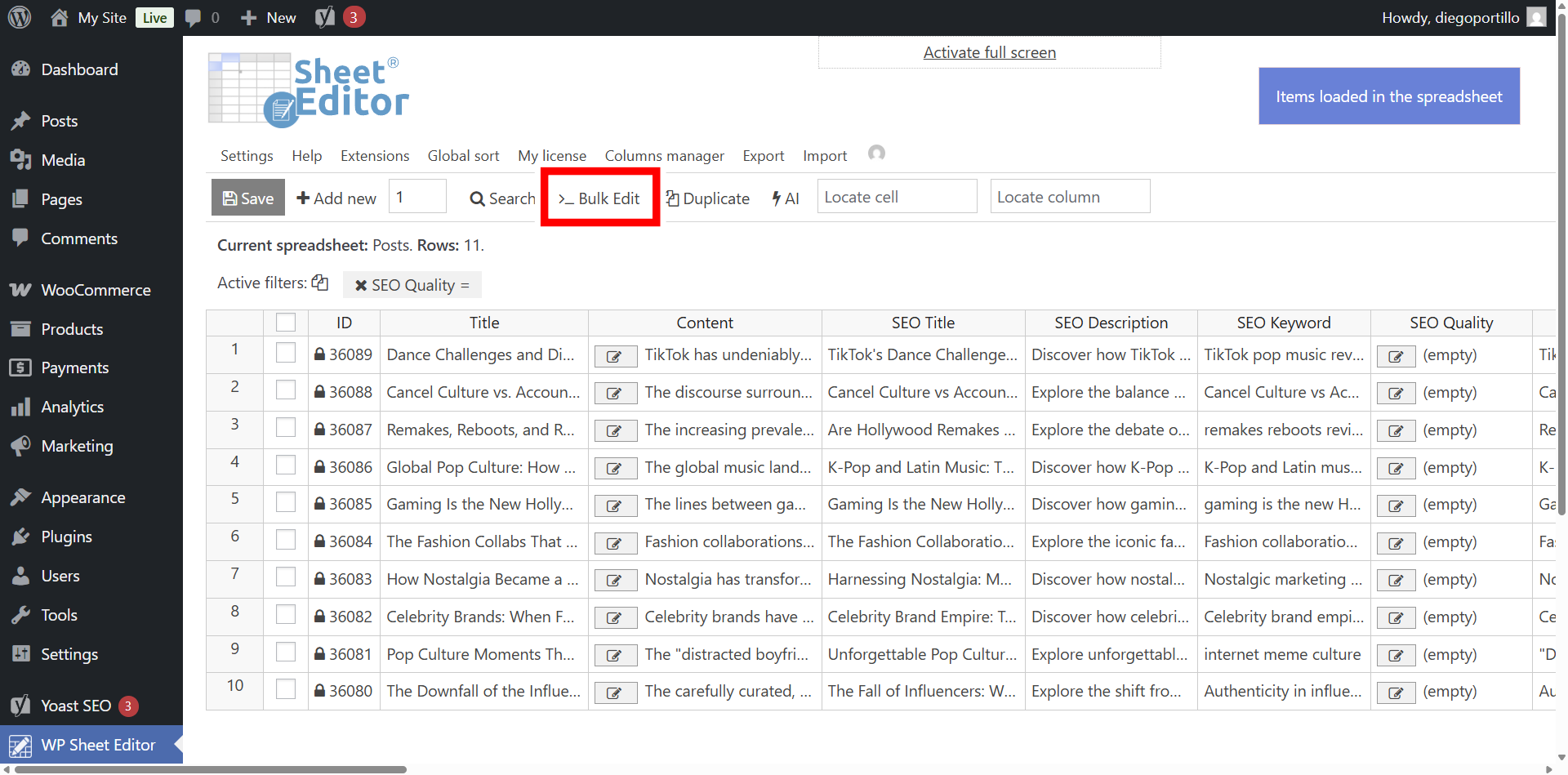
After filtering your posts, the search results will be displayed in the spreadsheet and you’ll see the active search filters.
Now, open the Bulk Edit tool, which will allow you to bulk audit SEO with its powerful Bulk AI API.
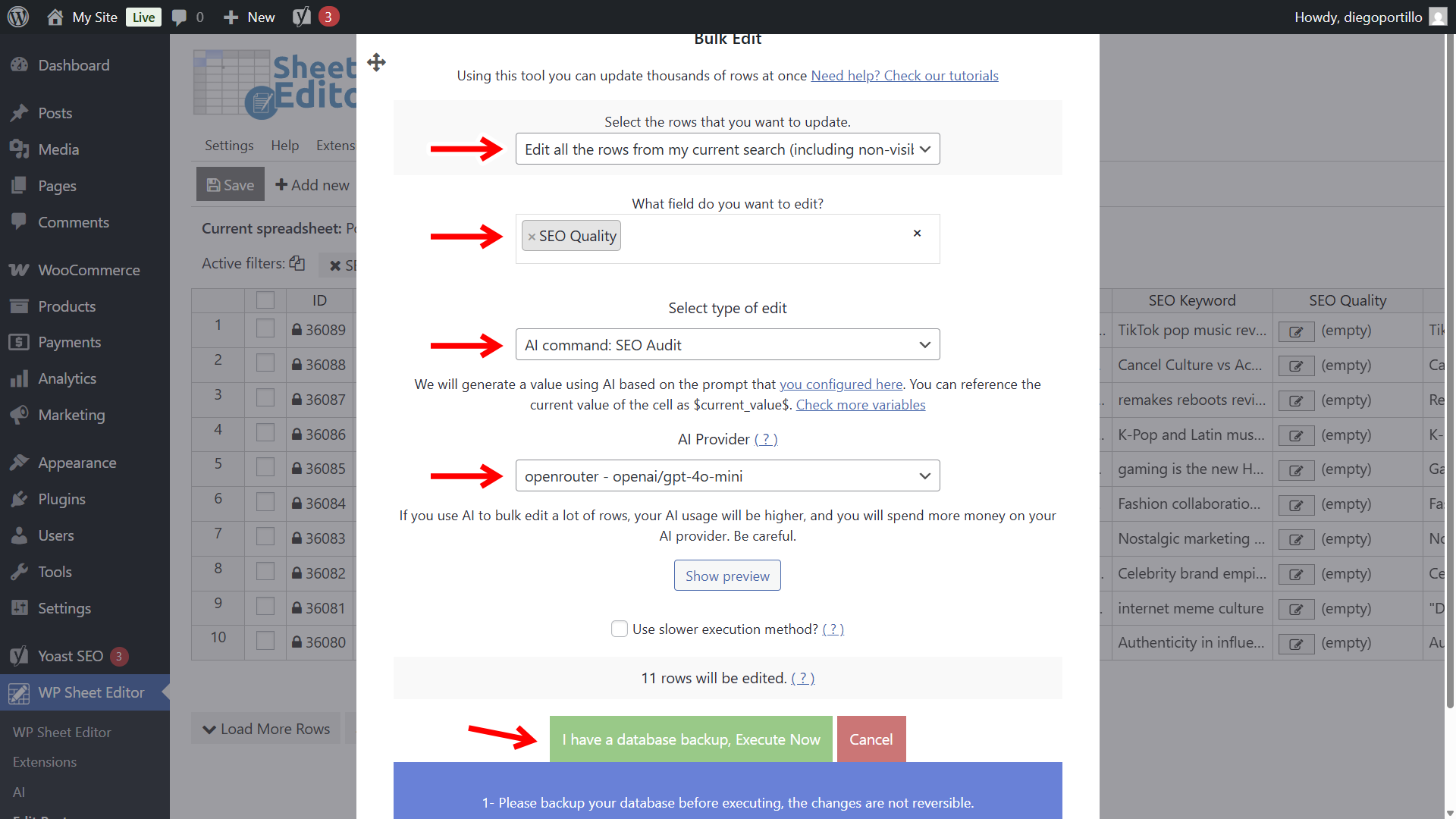
Now select these values:
- Select the rows that you want to update: Edit all the rows from my current search
- What field do you want to edit: SEO Quality
- Select type of edit: AI command: SEO Audit
- AI Provider: We will use GPT-4o-mini through Openrouter.
- Click on Execute Now.
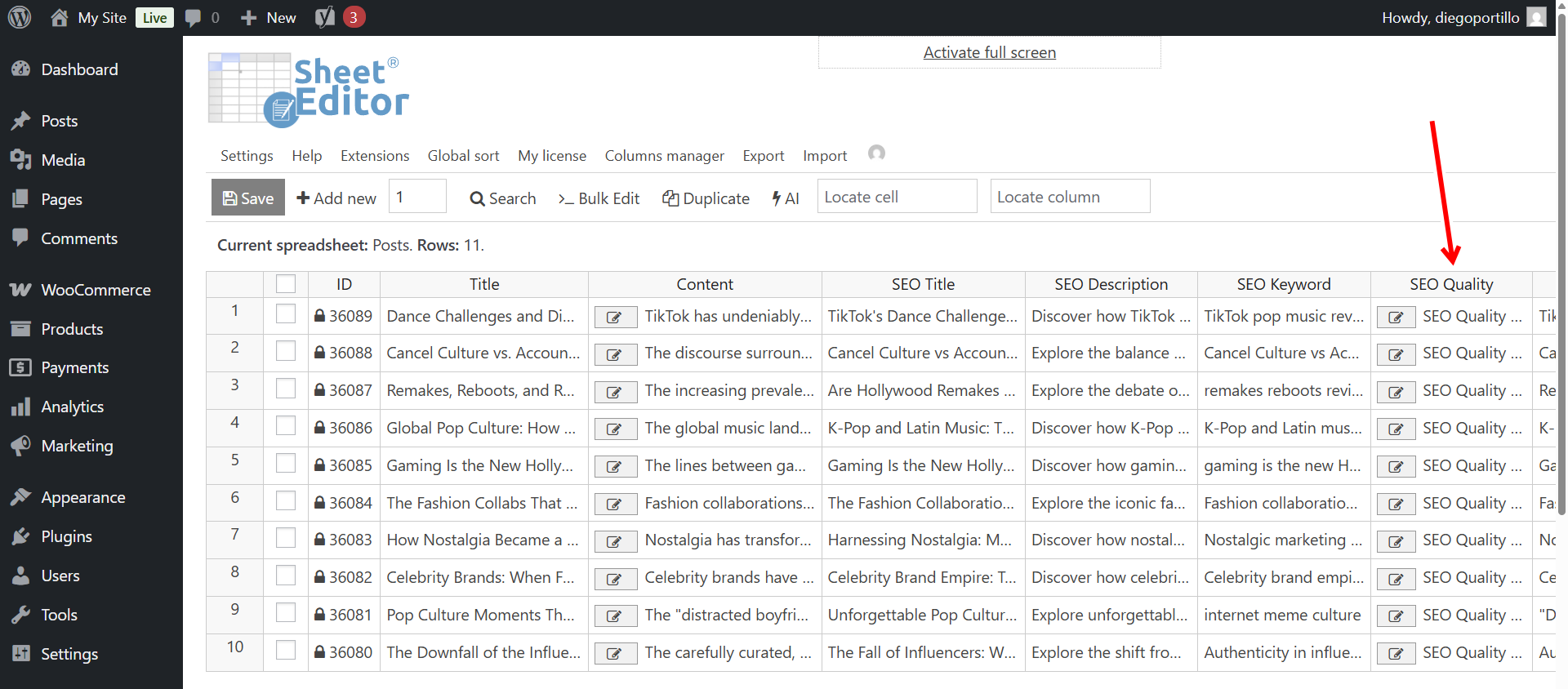
Once the process is finished, you can view the results directly in the spreadsheet.
Double-click on any cell or open the text editor in the SEO Audit Report column to read the full analysis. You will see:
- Numeric scores (1-10) for different SEO factors.
- A list of weaknesses.
- Actionable improvements.
- Better SEO Title and Description suggestions.
You can now use this data to improve your content. Since the data is in a spreadsheet, you can even export it to Excel or Google Sheets to share with your content team.
Auditing your WordPress SEO doesn’t have to be expensive or time-consuming. With WP Sheet Editor and WP Sheet Editor – AI, you can get expert-level analysis for your entire site in minutes.