
Managing a large WooCommerce shop often requires moving data out of WordPress and into a spreadsheet for analysis, bulk edits, or inventory audits. While the default WooCommerce export tool exists, it frequently frustrates store owners by creating messy files, missing specific product variations, or ignoring data from custom fields (like ACF, PODS, or SEO plugins).
This limitation often leads to hours of manual copy-pasting or formatting data to make it readable in Excel.
This guide provides a solution to that by showing you how to generate a clean, Excel-optimized export of your entire catalog using the WP Sheet Editor – WooCommerce Products plugin.
You can download the plugin here:
Download WooCommerce Products Spreadsheet Plugin - or - Check the features
Unlike standard exports, this spreadsheet tool allows you to:
- Target specific data: Export detailed reports based on categories, attributes, or stock status.
- Handle variations correctly: Ensure every variation has its own row with accurate metadata.
- Excel compatibility: Generate files formatted specifically for Microsoft Excel to avoid encoding or column alignment errors.
Follow this tutorial to extract your product data into a professional Excel-ready format effortlessly.
The quick export (basic setup)
If you need an immediate backup or a full list of your inventory in Excel, this method is the fastest route. It captures all fields and prepares the file for immediate opening in Microsoft Excel.
Step 1: Open the products spreadsheet
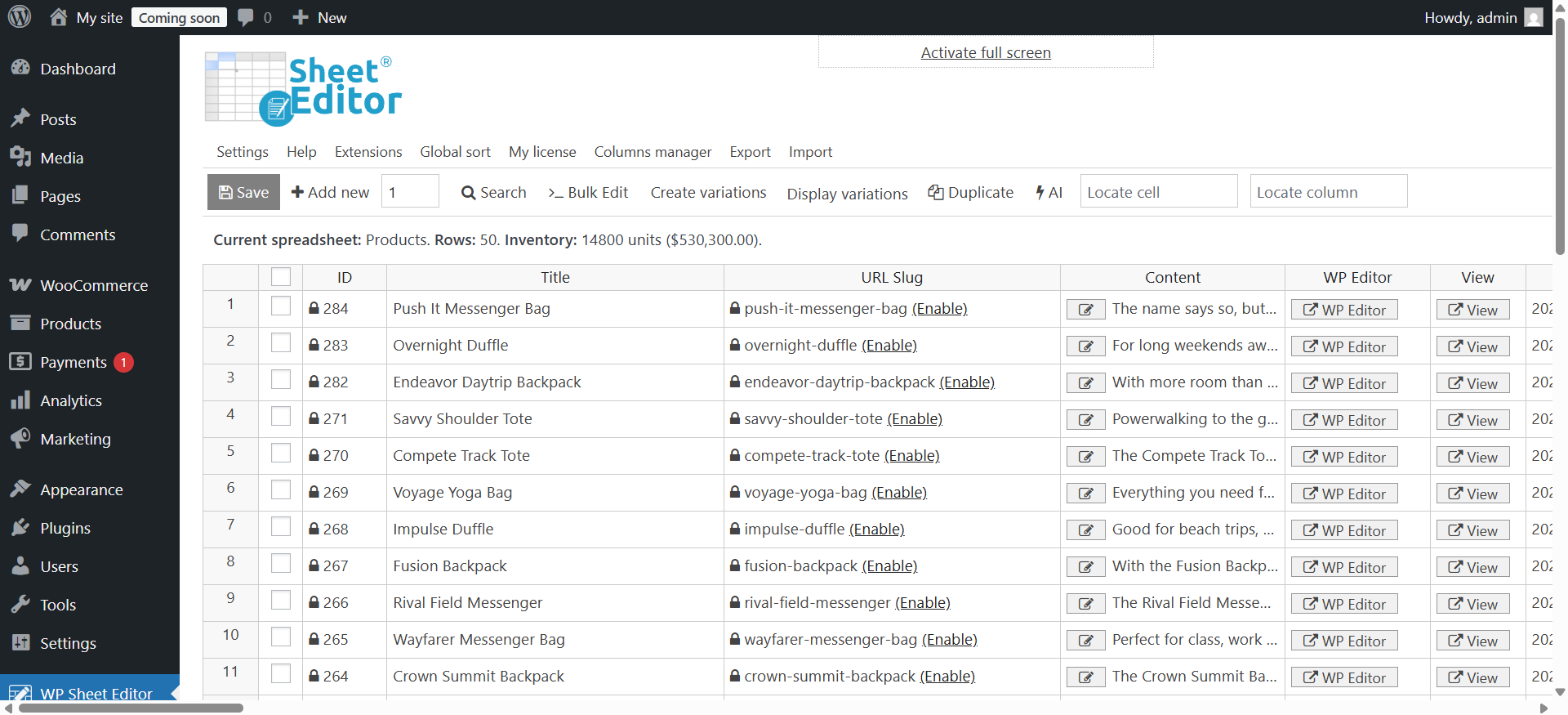
Begin by navigating to the spreadsheet interface where your products are listed.
From your WordPress dashboard, locate WP Sheet Editor in the menu and select Edit Products.
You will see your products loaded into a spreadsheet view, allowing you to preview the data as it will appear in your export.
Step 2: Open the Export tool
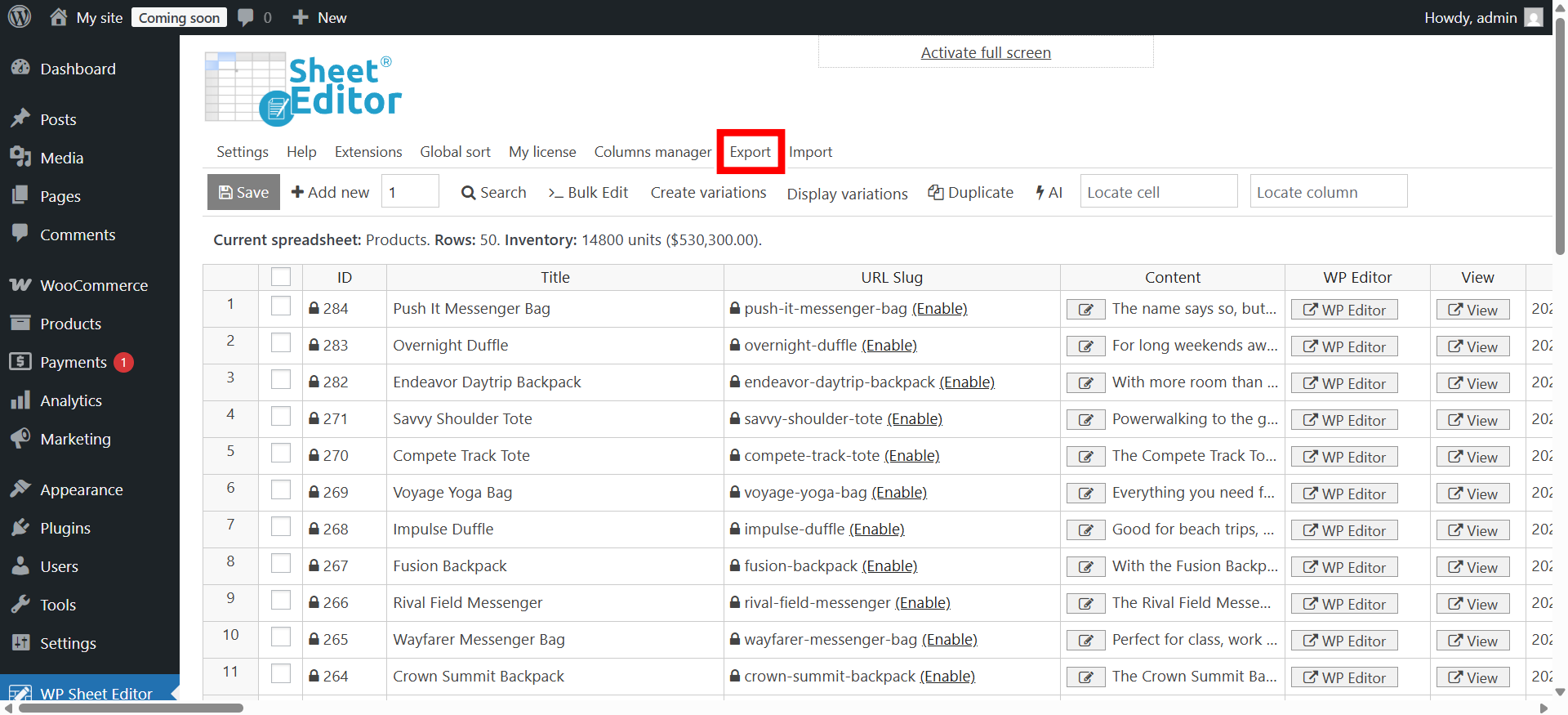
Click the Export button located above the spreadsheet.
Step 3: Configure Settings for Excel
This step is crucial for ensuring your file opens correctly in Excel without formatting glitches.
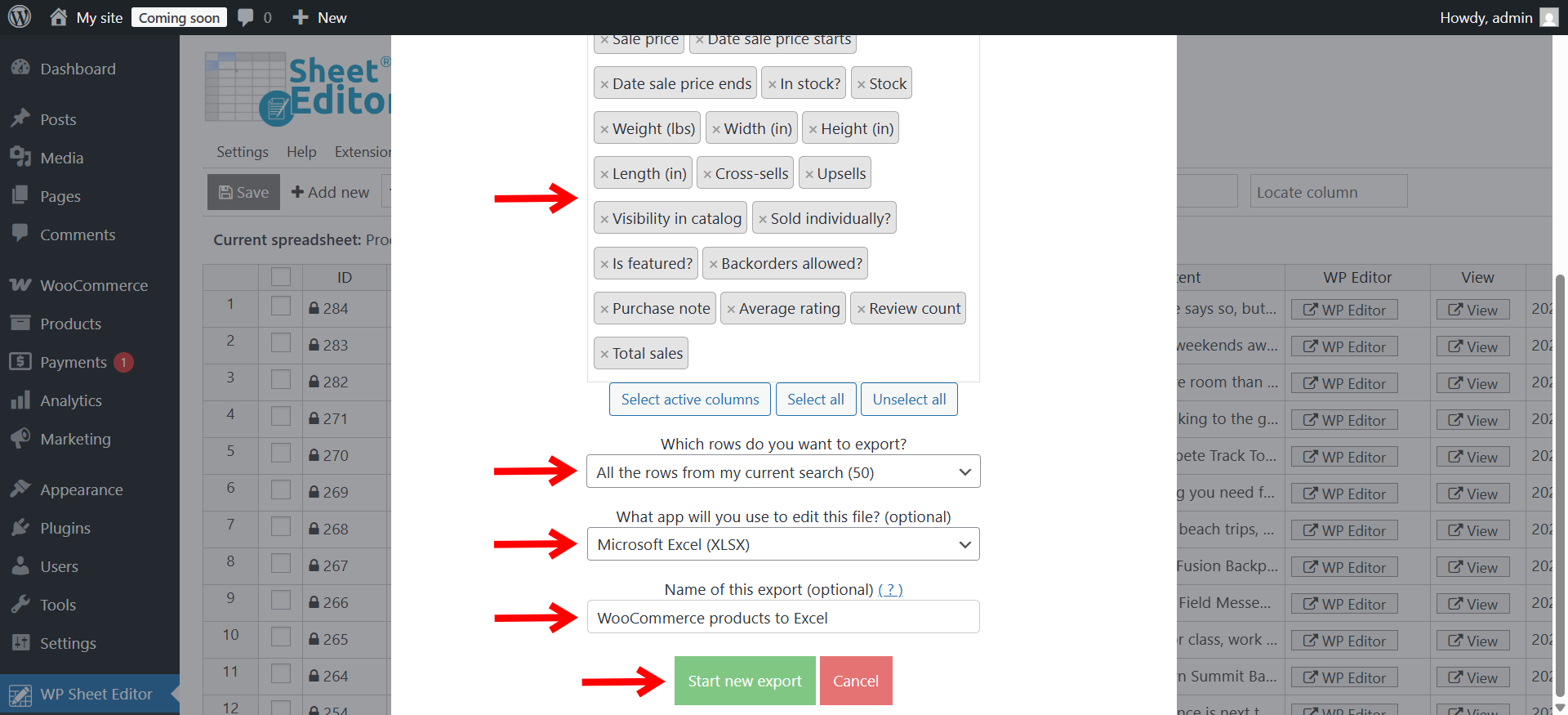
Configure the export parameters as follows:
- What columns do you want to export: Here you have some options:
- Specific columns: Ideal for concise reports (e.g., just SKU, Title, and Stock).
- All active columns: Use it to export all the columns that are visible in the spreadsheet, including active custom fields.
- All columns: The most comprehensive option, including both visible and hidden columns.
- Which rows do you want to export: To export all your products, choose All the rows from my current search.
- What application will you use to open this file: CRITICAL STEP: Select Microsoft Excel (XLSX).
- Name of this export: (Optional) Give your file a recognizable name, such as “WooCommerce products to Excel”.
- Click Start new export.
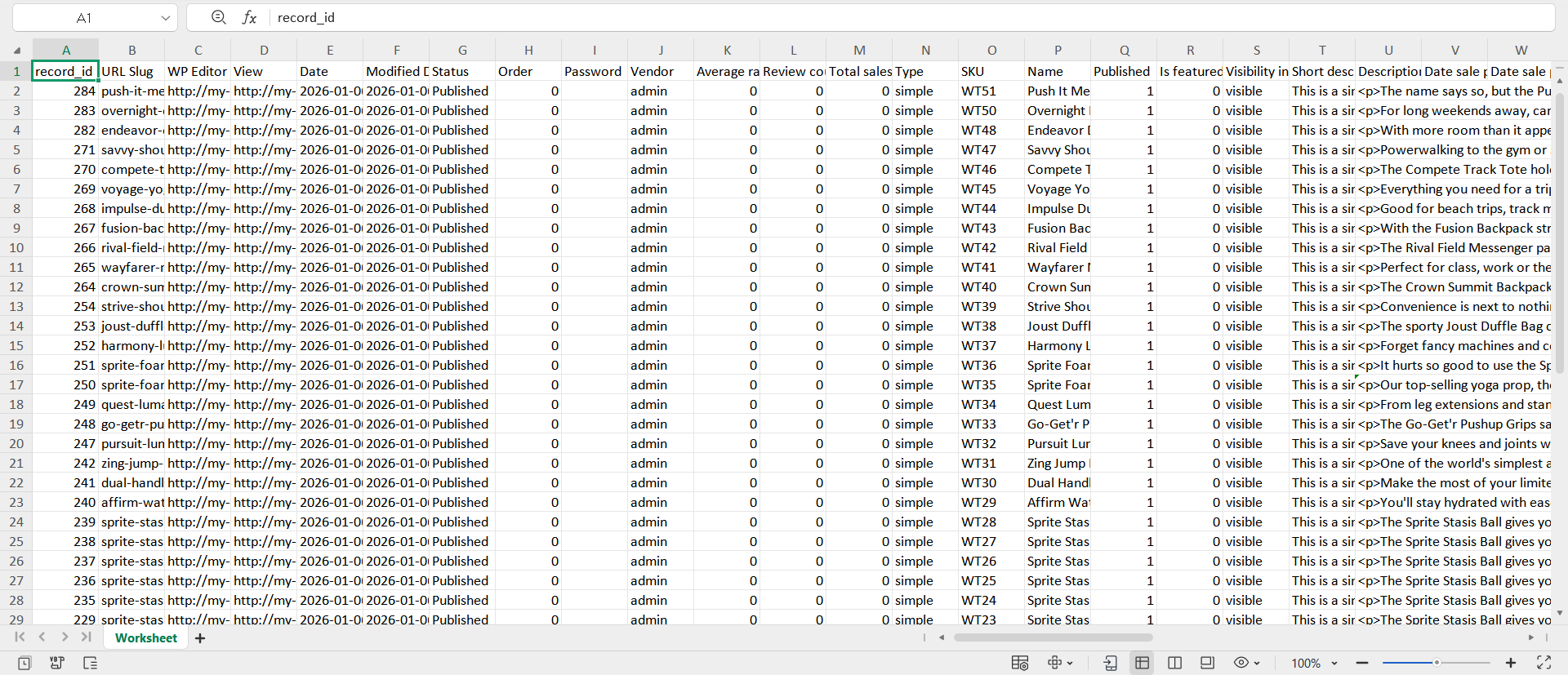
The plugin will generate the file. Once finished, the file will download automatically. You can now open it directly in Excel with full data integrity.
Export search results
Exporting your entire database is not always necessary. Sometimes, you only need a spreadsheet for a specific supplier, a seasonal sale, or an inventory check. WP Sheet Editor allows you to Search and filter the data before exporting, ensuring your Excel file contains only relevant information.
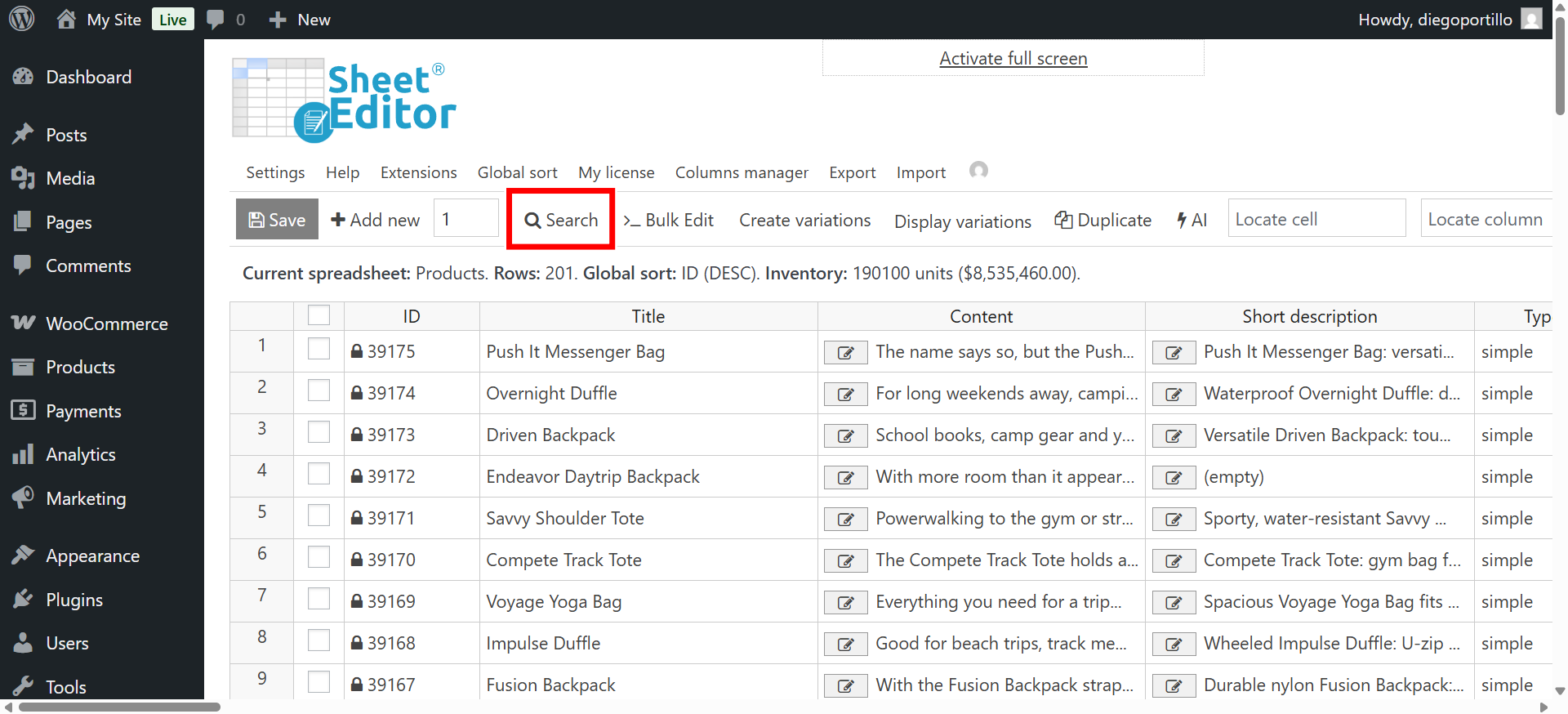
Example 1: Export by category or tag
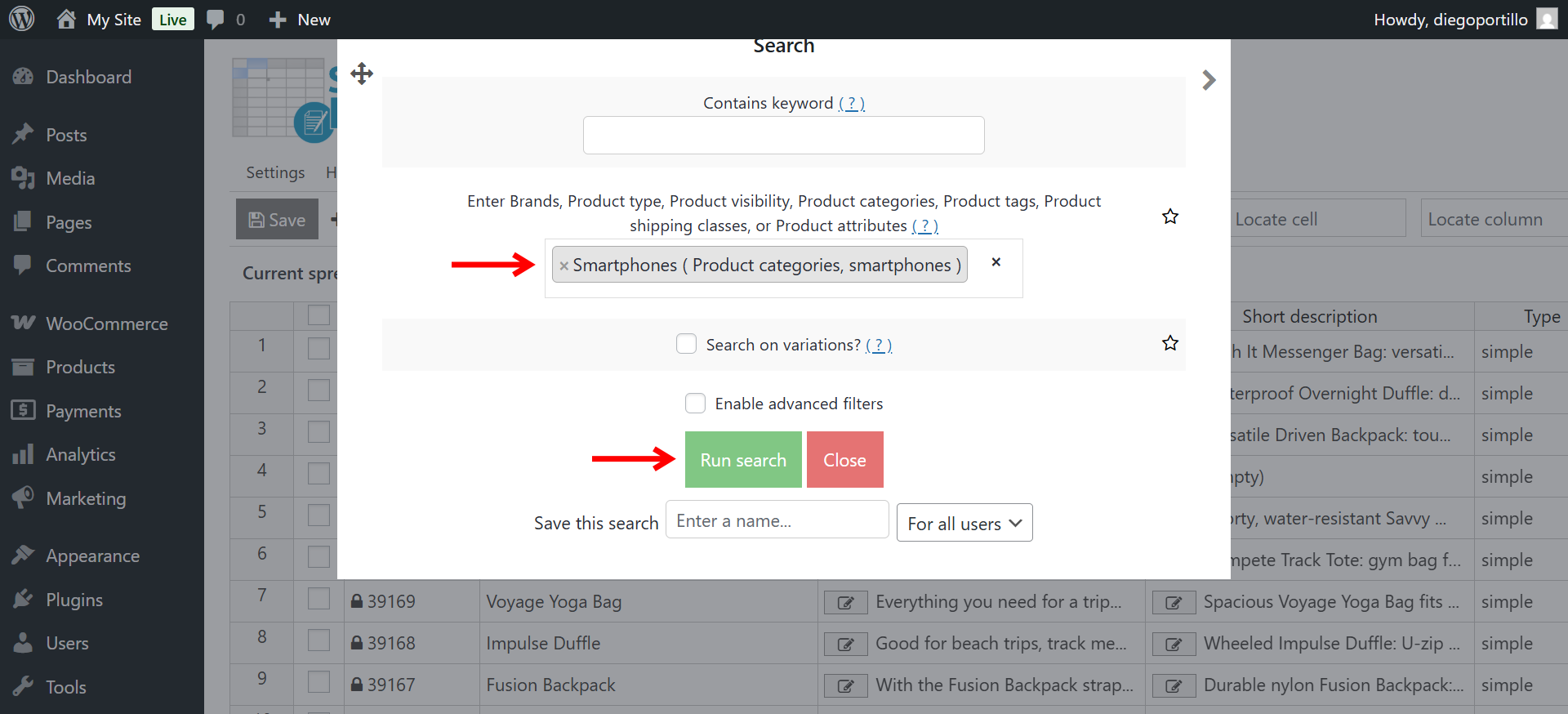
To generate a report for a specific product line (e.g., “Smartphones”):
- Open the Search tool.
- Type your category/tag name in the Enter product categories field.
- Click Run Search.
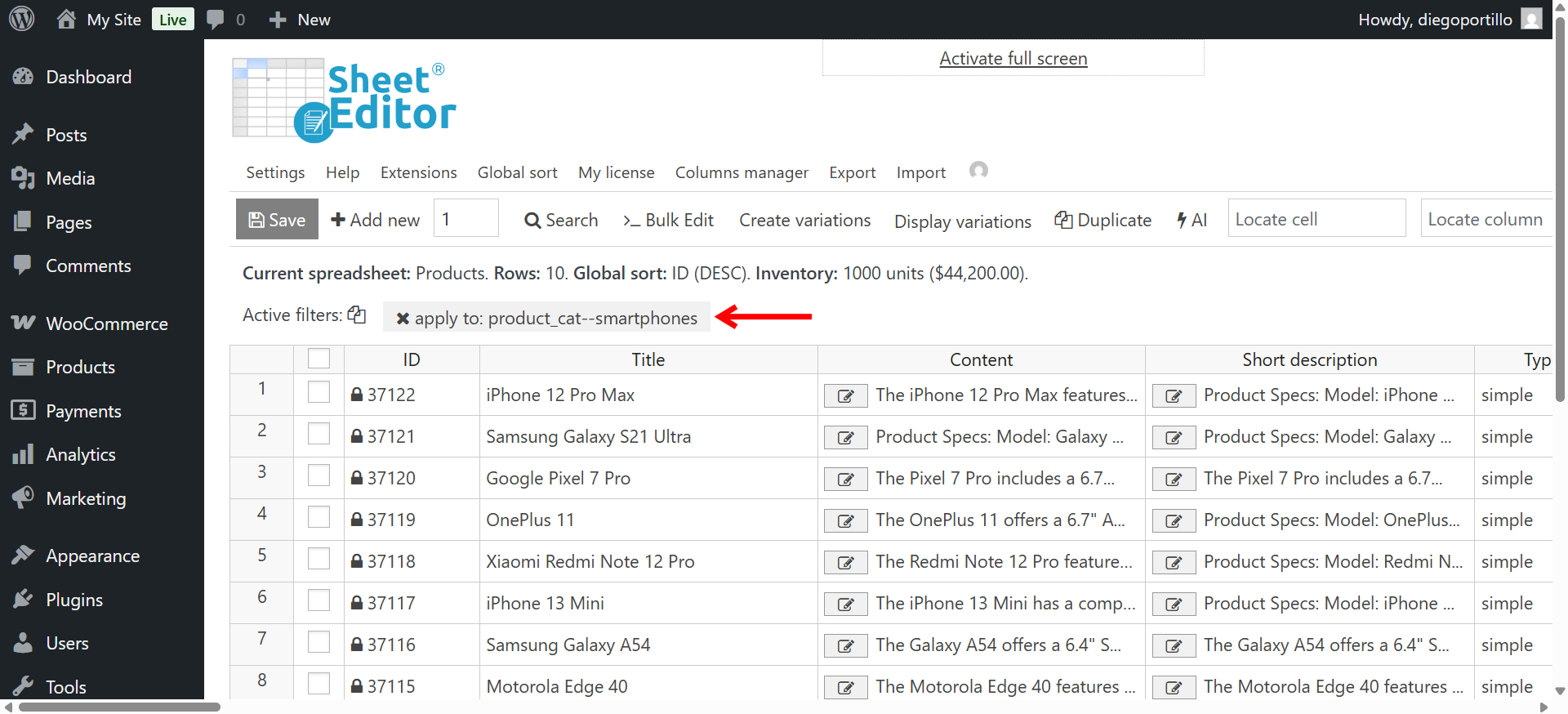
The spreadsheet will reload to show only items in that category. Proceed to Export (as shown in Section 1) to download this specific segment.
Example 2: Export low stock or out-of-stock items
For warehouse management, you often need a list of items to reorder:
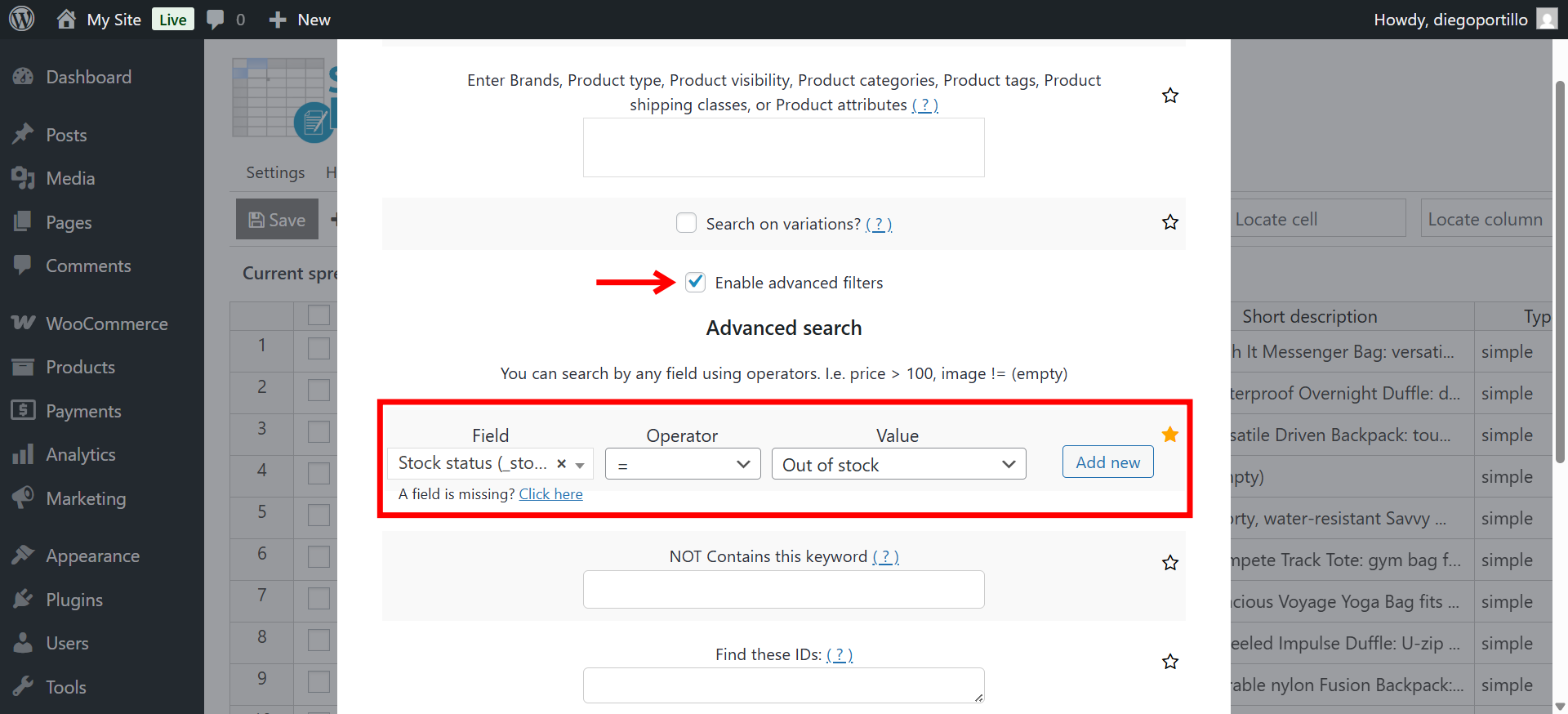
- Open the Search tool and check the Enable advanced filters checkbox.
- Set the logic: Stock status = Out of stock.
- Click Run Search.
Your spreadsheet now displays only the products requiring attention. Export this view to Excel to send directly to your suppliers.
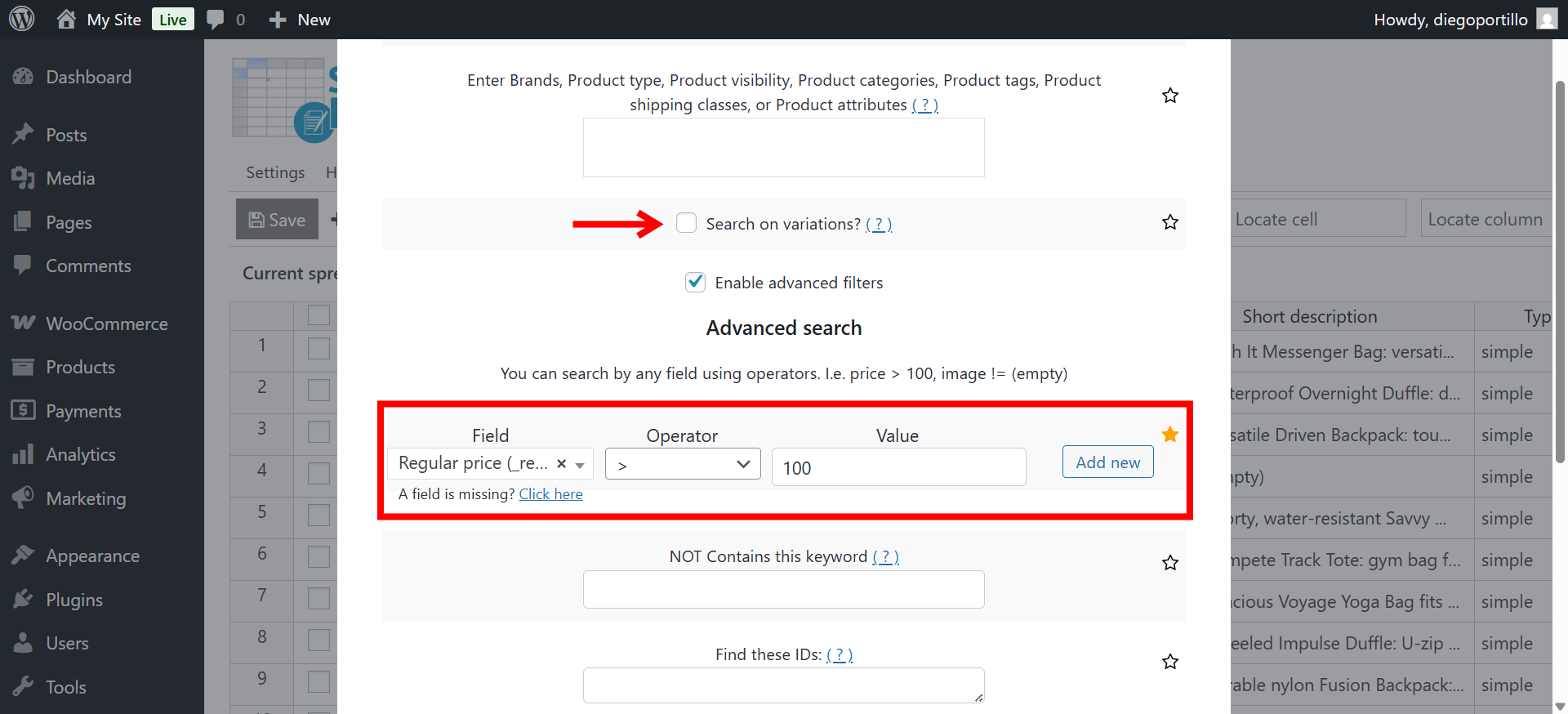
Example 3: Export by price range
If you are planning a discount strategy for high-ticket items, you can filter by price.
- Enable advanced filters.
- Set the logic: Regular Price > 150 (or your desired value).
- Click Run Search.
Example 4: Detailed variable product exports
Standard exports often mishandle variable products, collapsing them into single rows or ignoring variation-specific metadata.
To get a detailed Excel sheet showing every variation (color, size) as its own row:
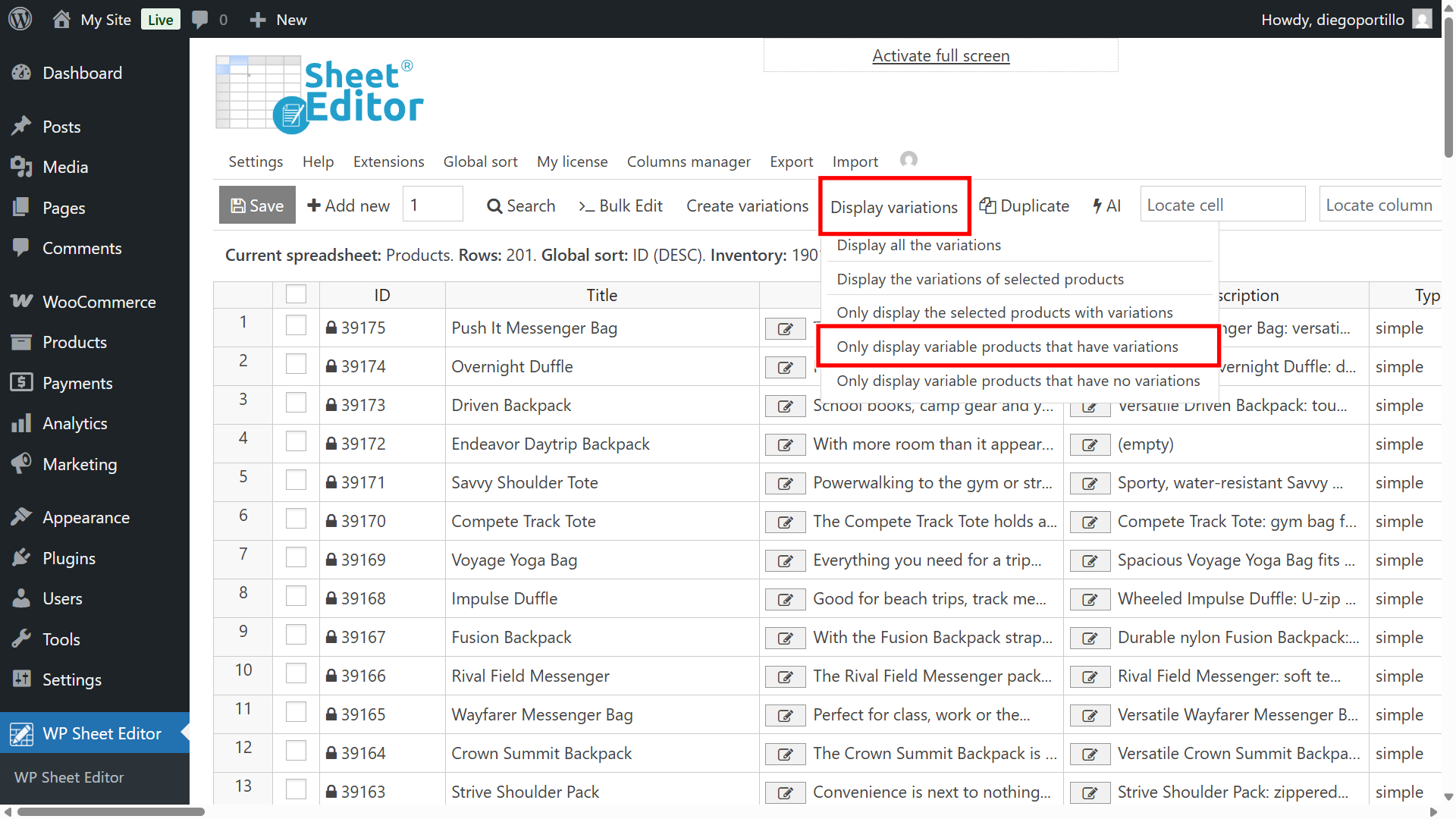
- Go to the Display variations toolbar setting.
- Select Only display variable products that have variations.
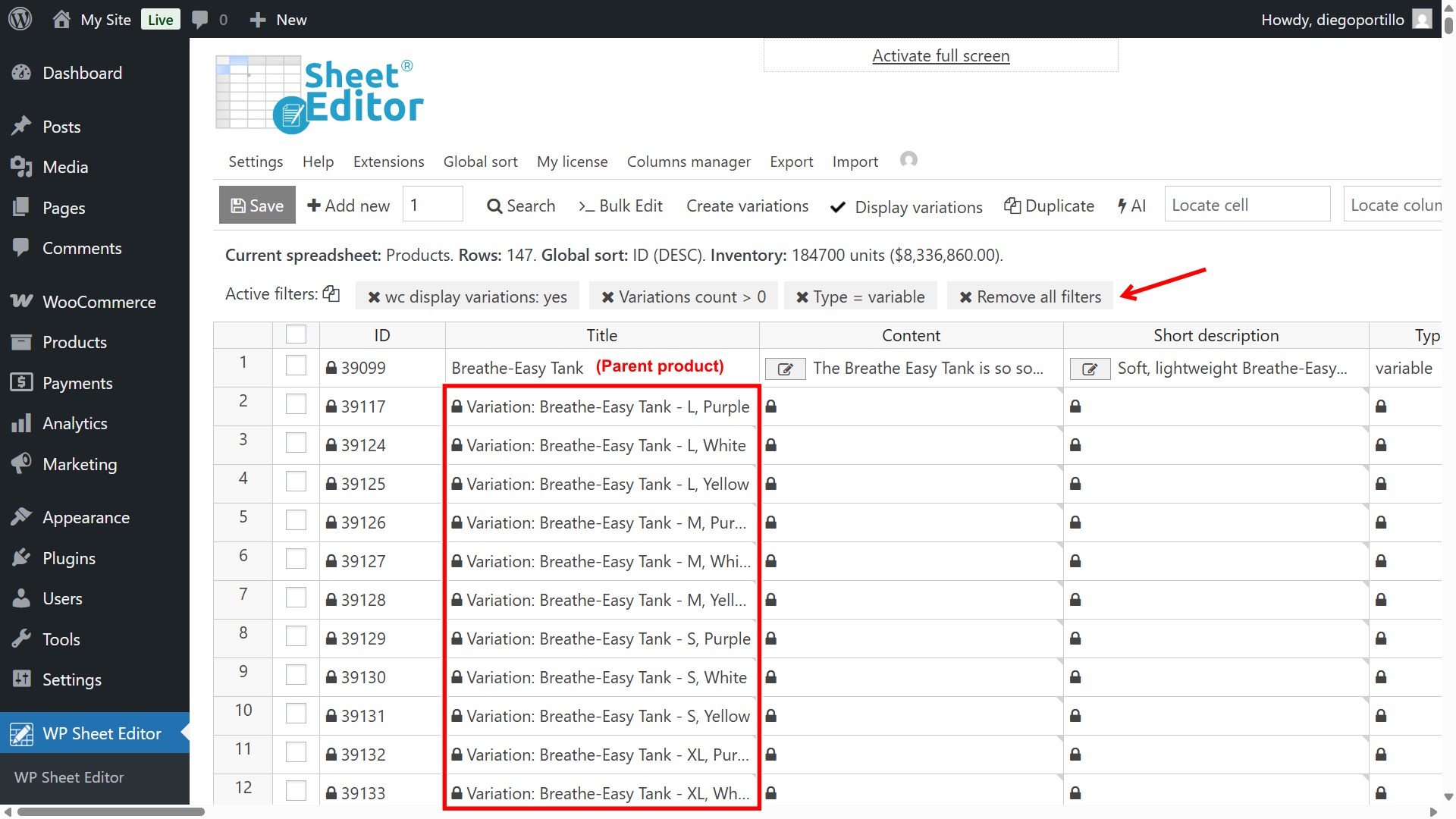
The spreadsheet will expand to show parent products and their children (variations) on separate lines.
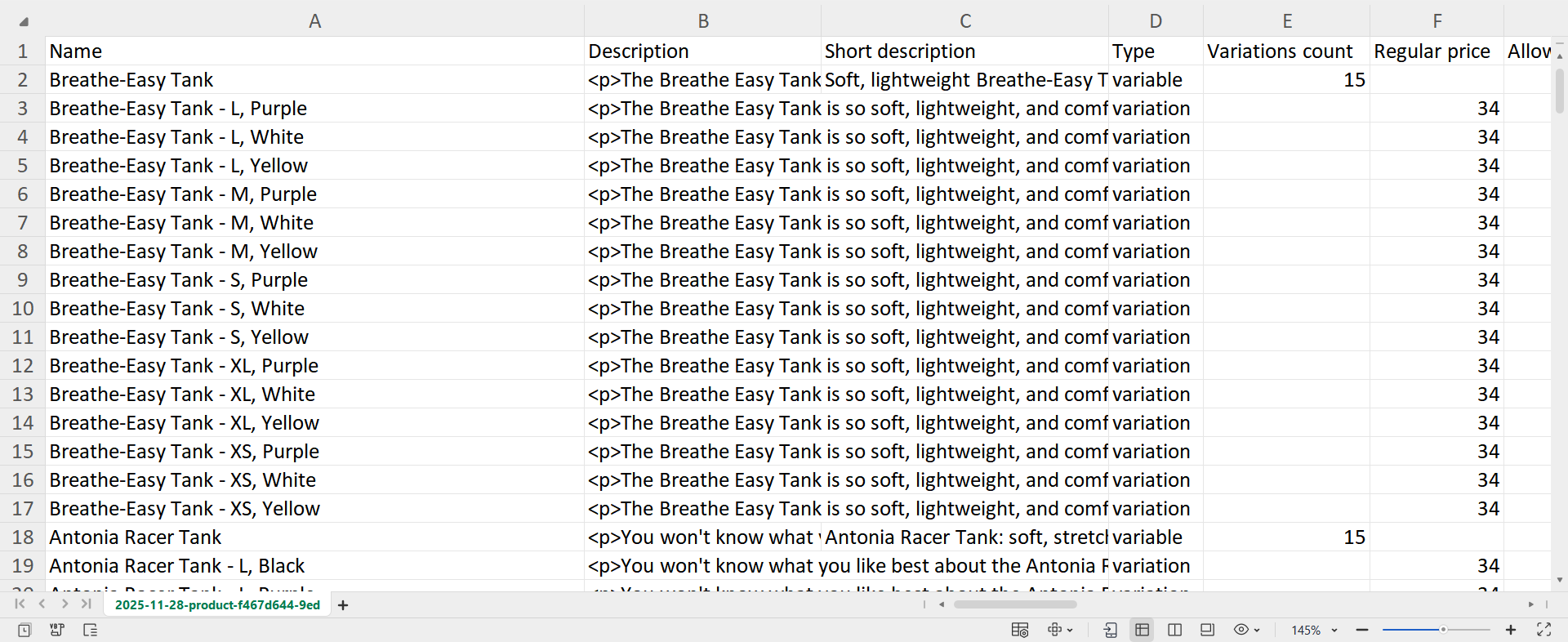
When you export your products with variations, your Excel file will clearly list every SKU, stock level, and price for every single variation, making bulk updates significantly easier.
Optimizing your workflow
You have now mastered the process of exporting WooCommerce products to an Excel-friendly format using the WP Sheet Editor plugin.
By utilizing the “Microsoft Excel” application setting during export, you eliminate the common headaches of CSV formatting, character encoding issues, and misaligned columns. Whether you are performing a complex migration, auditing stock for a specific category, or managing variable products, this workflow ensures your data is accurate and accessible.
You can download the plugin here:
Download WooCommerce Products Spreadsheet Plugin - or - Check the features