
Building a great LearnDash course isn’t just about the lessons; it’s about the assessment. But managing the hierarchy of Quizzes, the hundreds of individual Questions linked to them, and your Exams can feel like a full-time job.
Have you ever found a typo in a question and realized you have to click through five different screens just to fix it? Or perhaps you need to audit the point values for 500 questions to ensure your grading scale is consistent?
In this tutorial, we will show you how to export your LearnDash Quizzes, Questions, and Challenge Exams to Google Sheets. This workflow allows you to view your entire assessment structure in a single spreadsheet, making it easy to audit content, fix errors, and share data with your team.
Why export LearnDash assessment data?
LearnDash stores Quizzes and Questions as separate “Post Types”. This means they are stored separately in the database. Exporting them to Google Sheets bridges this gap and offers several benefits:
- Question bank audits: Export all your Questions to check the “Question Text,” “Points,” and “Answer Hints” in one column.
- Quiz settings review: Bulk review “Passing Percentages” and “Certificate Associations” across all quizzes.
- Exam management: If you use the challenge exams add-on, you can manage exam settings and associated courses in bulk.
- Team collaboration: Let your subject matter experts review questions and answers in a Google Sheet without giving them admin access to your WordPress site.
What you need to export assessment data
We assume you already have LearnDash LMS with some courses, lessons, etc.
To follow this guide, we will use these WP Sheet Editor tools:
WP Sheet Editor – Post Types: This plugin generates separate spreadsheets for Quizzes, Questions, and Exams.
You can purchase the plugin here:
Google Sheets Sync: This service connects your WordPress site to your Google Sheets account for direct exports and imports.
You can sign up to the service here:
Sign up to the Google Sheets Sync Service - or - Check the features
You will receive a helper plugin upon signing up for the service to handle the API connection.
Step 1. Connect WordPress to Google Sheets
When you subscribe to the Google Sheets Sync service, you’ll receive a helper plugin that links your WordPress site with your Google Sheets account, the Google API, and the WP Sheet Editor API.
Follow this installation guide to complete the setup.
Step 2. Open the specific spreadsheet (quizzes, questions, or exams)
WP Sheet Editor creates a unique spreadsheet for each data type. Depending on what you want to export, go to:
- For quizzes: Go to WP Sheet Editor > Edit Quizzes.
- For questions: Go to WP Sheet Editor > Edit Question.
- For exams: Go to WP Sheet Editor > Edit Exams.
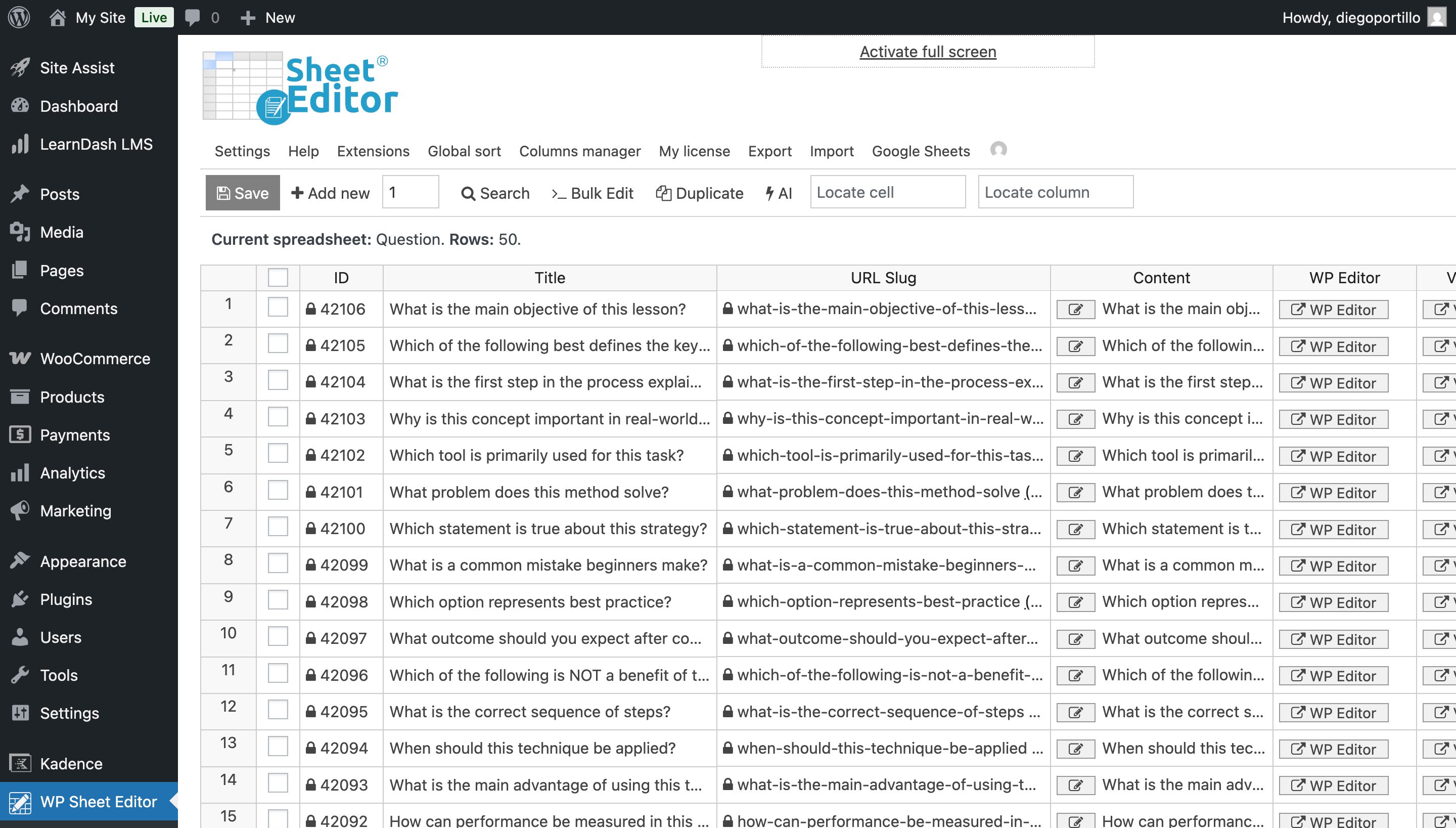
In this example, we will focus on the Questions spreadsheet, as it contains the most granular data. You will see columns for “Question Type” (Single Choice, Essay, etc.), “Points,” “Correct Answer Message,” and the “Associated Quiz.”
Step 3. Select the data you want to export (optional)
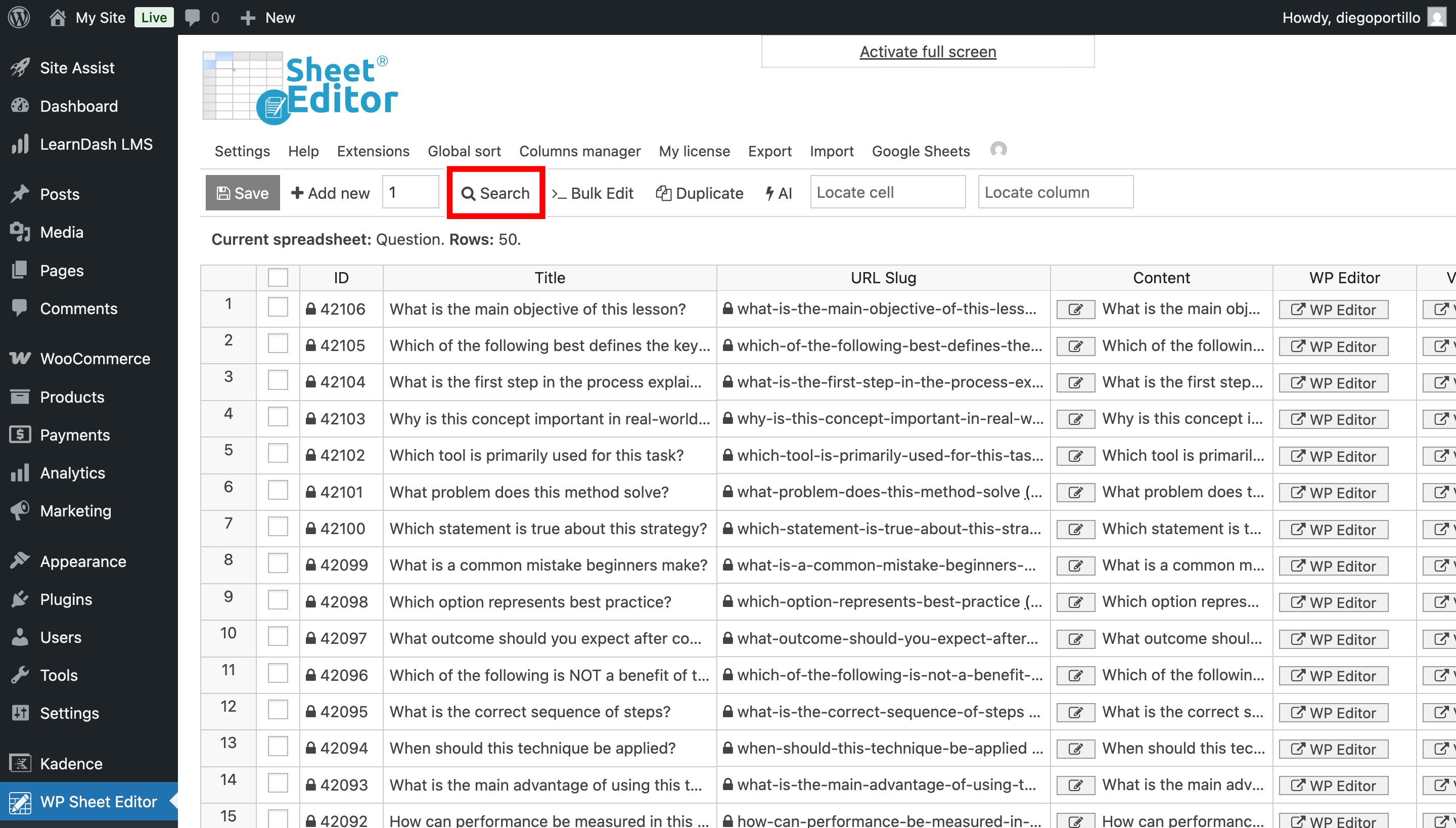
You can export your entire question bank or filter for specific items. Use the Search tool on the toolbar to filter your data.
Once you have set your search filters and run the search, the spreadsheet will update to show only the items matching your criteria.
Step 4. Export to Google Sheets
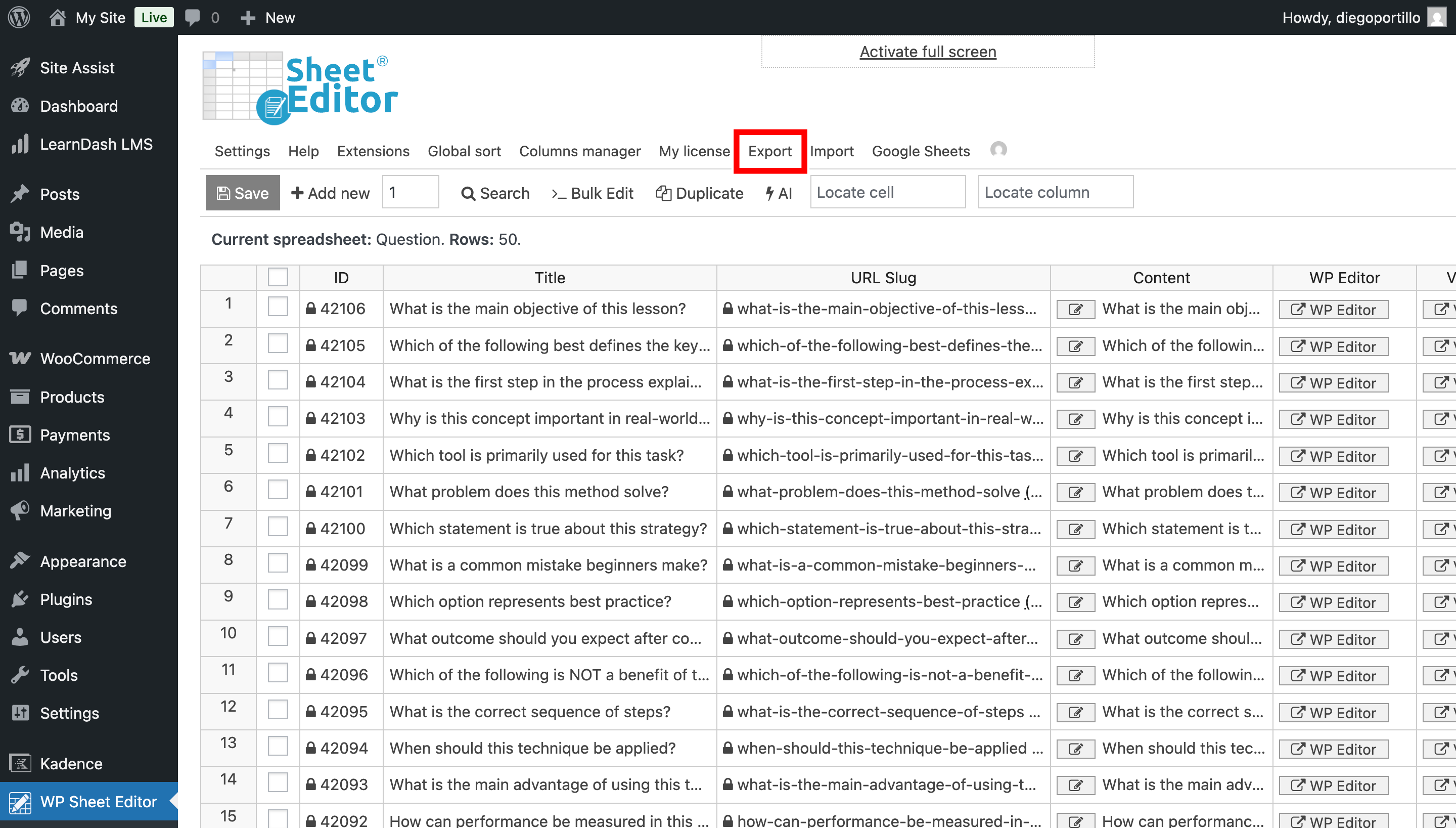
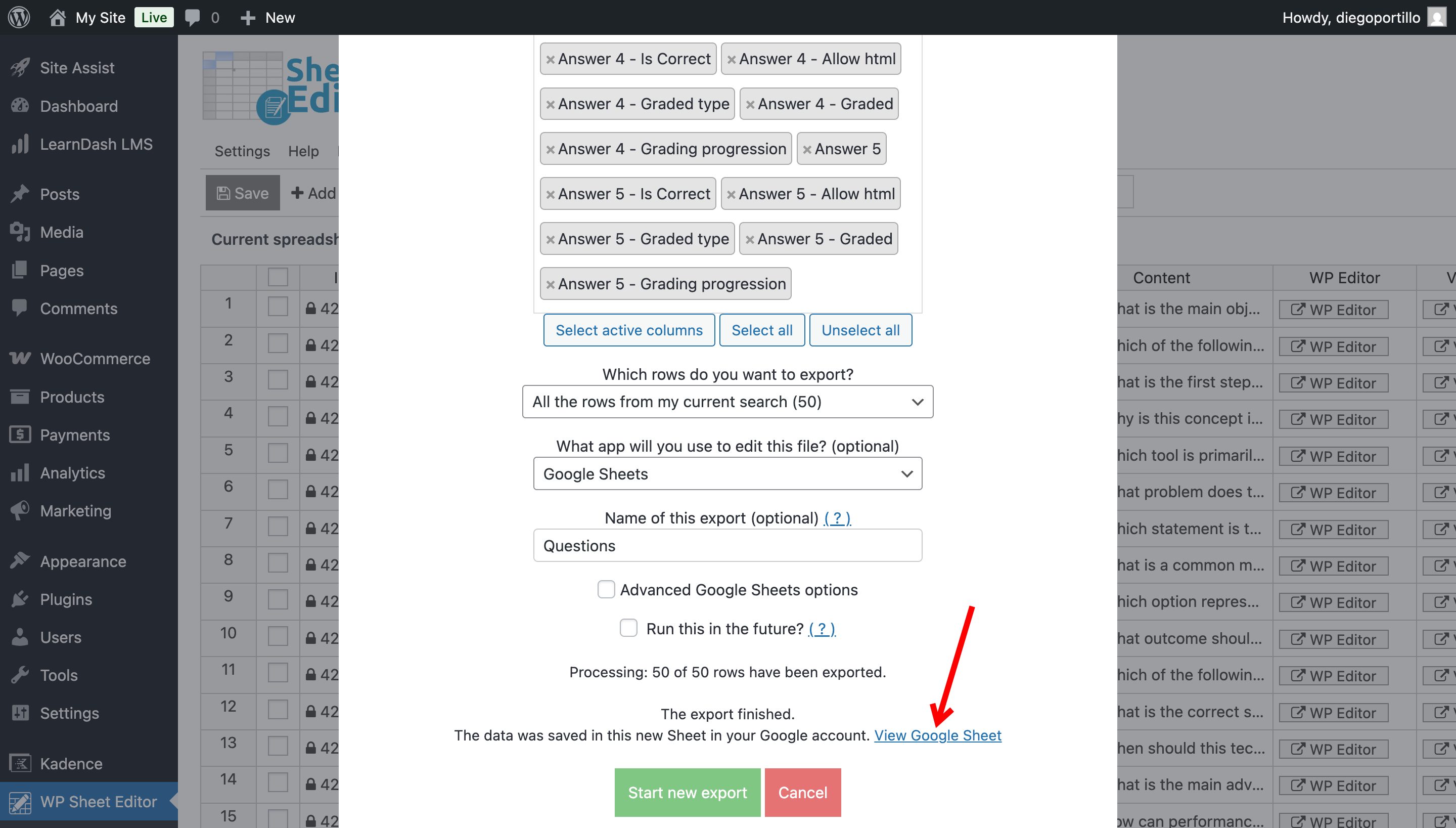
Once your data is filtered, send it to Google Sheets; you need to start by clicking Export on the top toolbar.
Select these values in order to export your LearnDash LMS questions to Google Sheets:
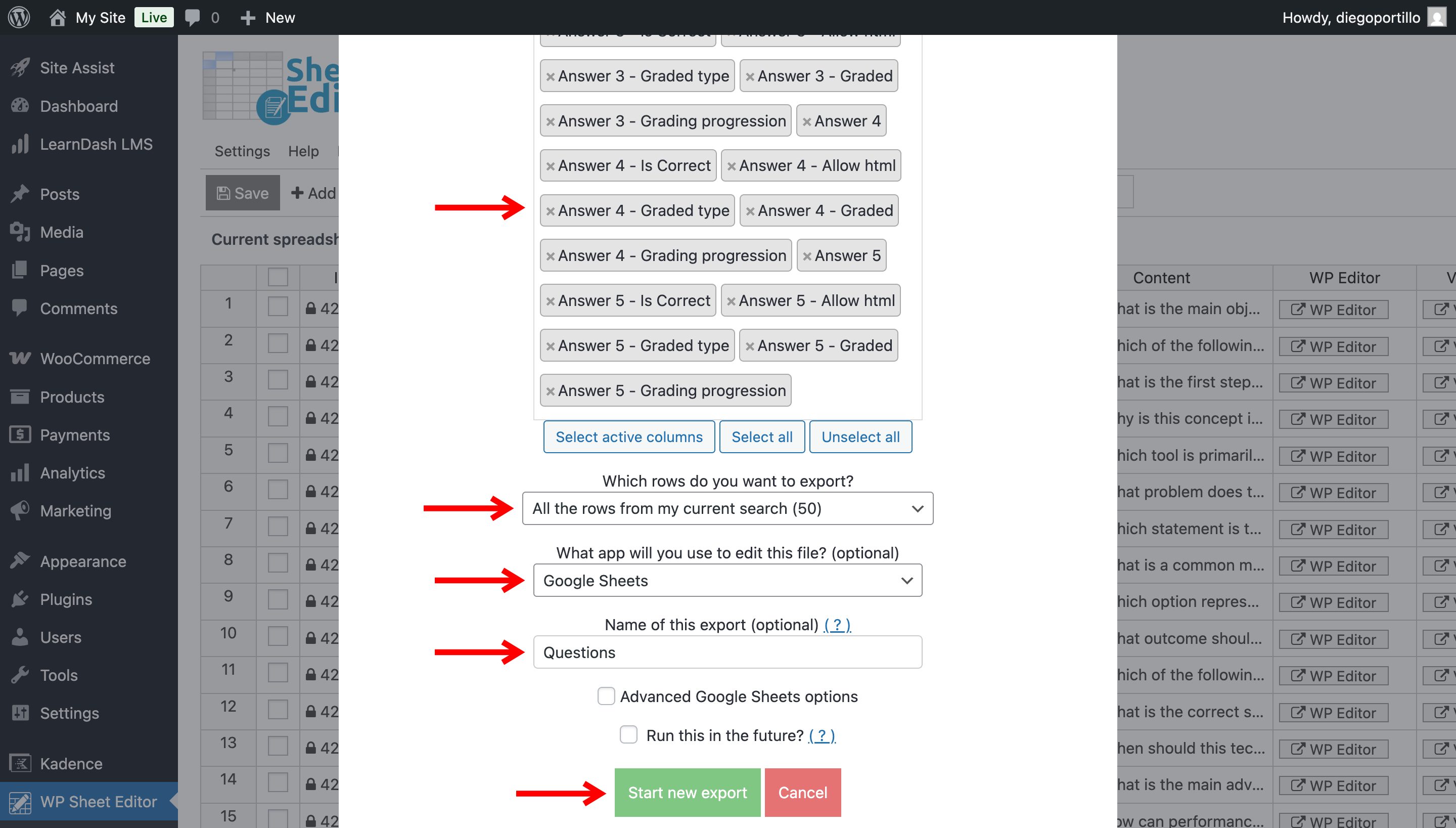
- : Choose “Select all” for a full backup, or manually select specific columns for a focused report.
- : You can export all the lessons from your current search, all lessons, all manually selected lessons.
- What app will you use to edit this file: Select Google Sheets.
- Name of this export: Enter a descriptive name, such as “LearnDash Lessons – [Date]”.
- Click Start new export.
A “View Google Sheet” link will appear, so you need to click it to open your Google Sheet file immediately.
Step 5. Manage your Assessment Data in Google Sheets
Now you have full control over your assessment data in the cloud. You can:
- Proofread content: Use Google Sheets’ spell check to fix typos in hundreds of questions at once.
- Standardize points: Quickly set all “Multiple Choice” questions to “5 Points” using a drag-and-fill action.
- Audit logic: Review the “Incorrect Answer Message” column to ensuring you are providing helpful feedback to students.
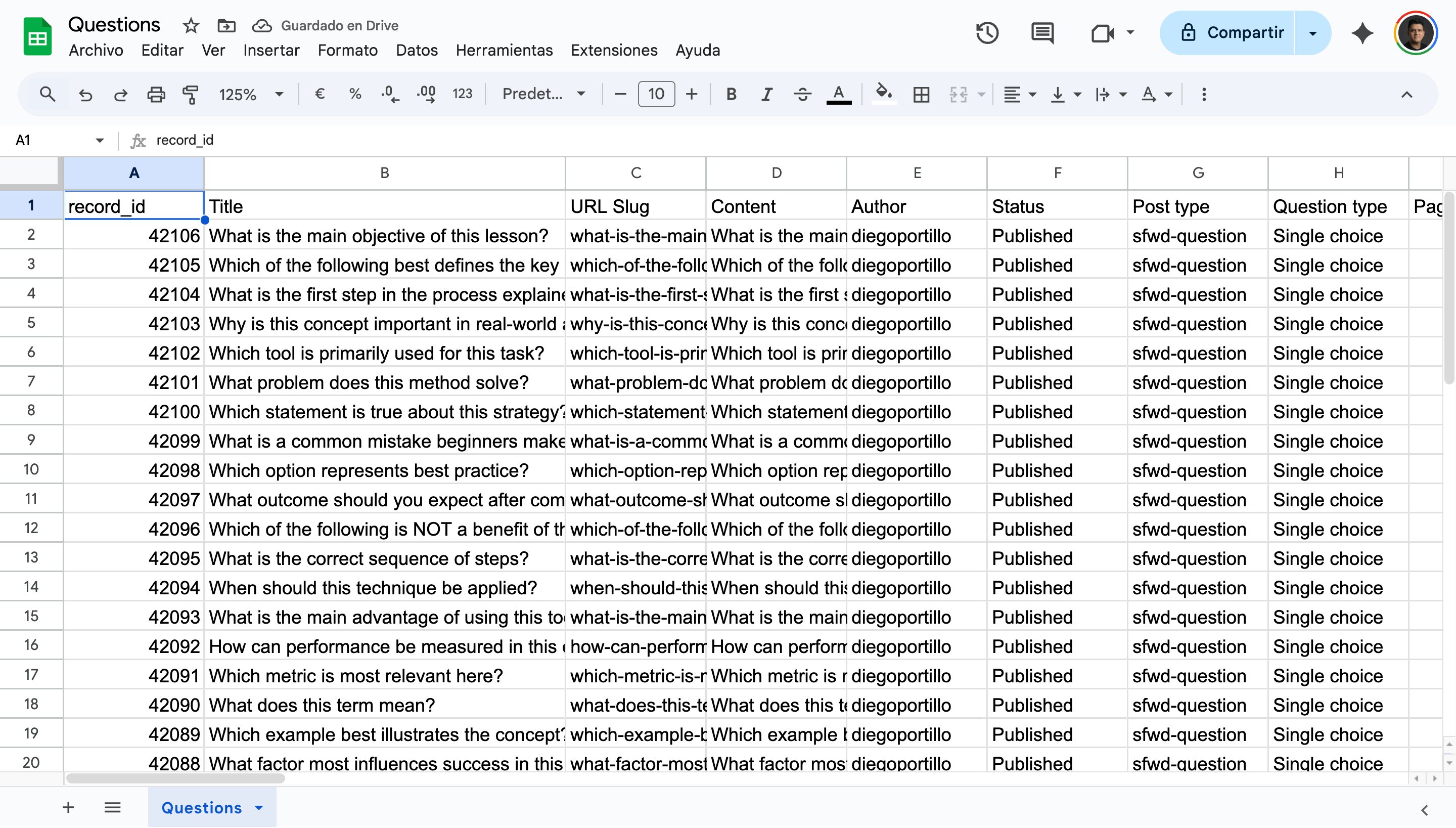
Since WP Sheet Editor supports two-way synchronization, you can import these changes back to WordPress later to update your live quizzes instantly.
Conclusion
Exporting LearnDash Quizzes, Questions, and Exams to Google Sheets gives you a professional view of your assessment data. Instead of getting lost in WordPress menus, you can manage your entire testing curriculum in a clean, organized spreadsheet.