
Sometimes, you may need to find WordPress posts that are too short and need improvement, or very long posts that might need trimming. Manually checking the word count of each post is time-consuming, but now you can easily search by word count in the Content directly from your posts spreadsheet.
Why search posts by word count?
Searching by word count is especially useful when:
- You want to find thin content that needs improvement for SEO.
- You want to identify long-form posts for repurposing or summarizing.
- You need to enforce content length guidelines for authors or editors.
- You want to analyze content distribution across your website.
With the WP Sheet Editor – Post Types plugin, you can use advanced search filters to find posts based on their content length. We’ve recently added new operators called “Word Count >” and “Word Count <” to make this process even easier.
You can download the plugin here:
Download Posts, Pages, and Custom Post Types Spreadsheet Plugin - or - Check the features
Follow the steps below to search your posts by word count and take control of your content quality.
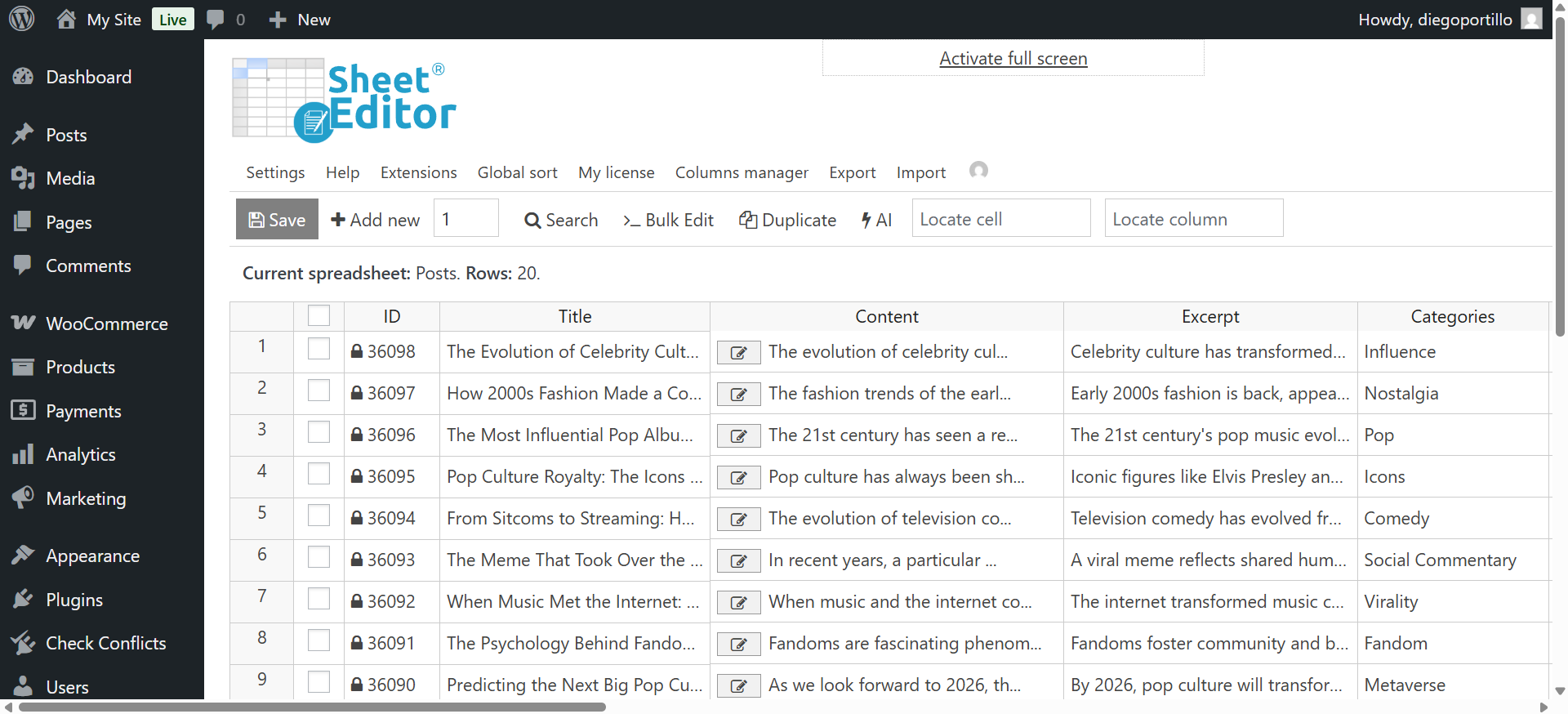
Open the posts spreadsheet
To get started, go to WP Sheet Editor > Edit Posts.
You’ll see all your WordPress posts displayed in a familiar spreadsheet view, where each column represents a field like post title, content, author, date, and more.
Open the Search tool
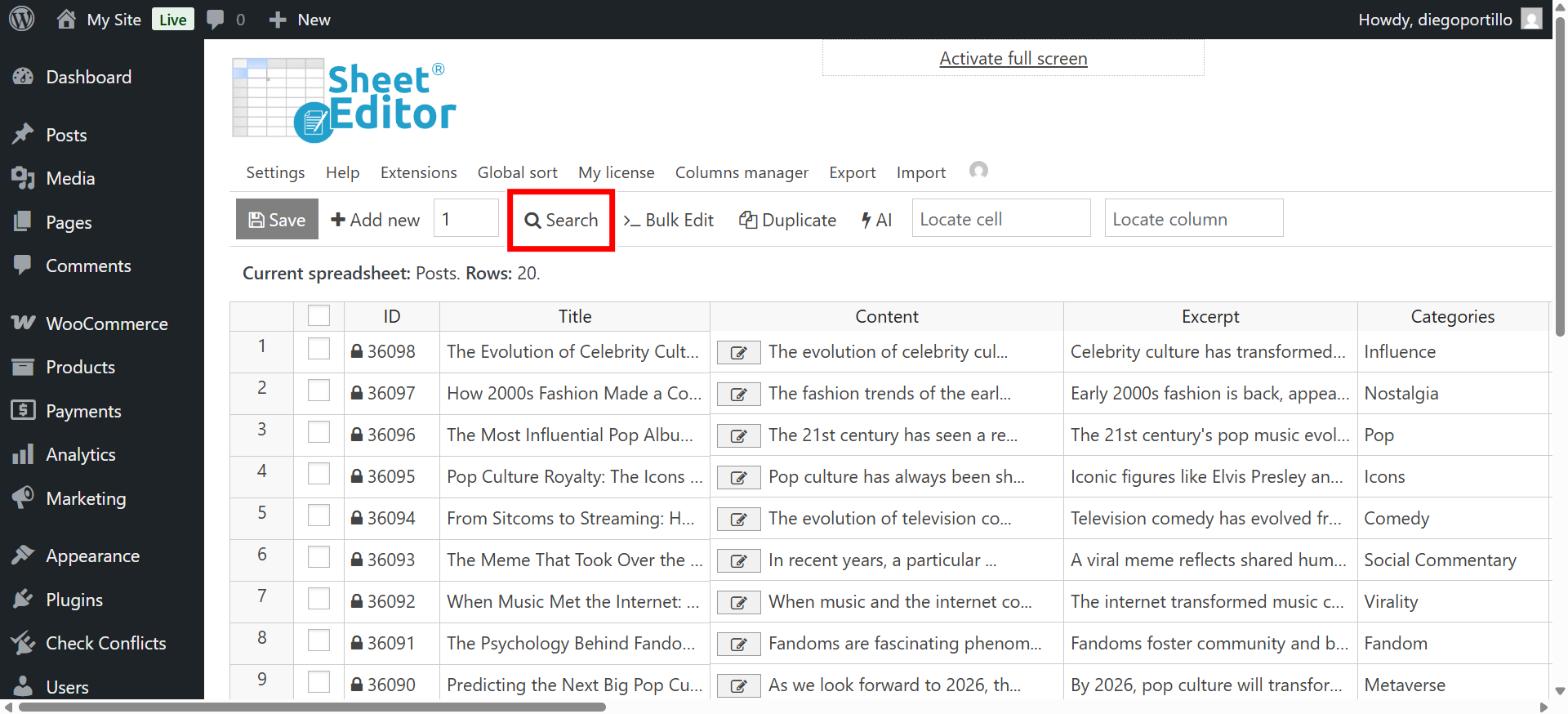
Click the Search button on the top toolbar. This opens the advanced search panel where you can filter posts using any field: title, category, author, date, content, and more.
Search for WordPress posts by word count in the content
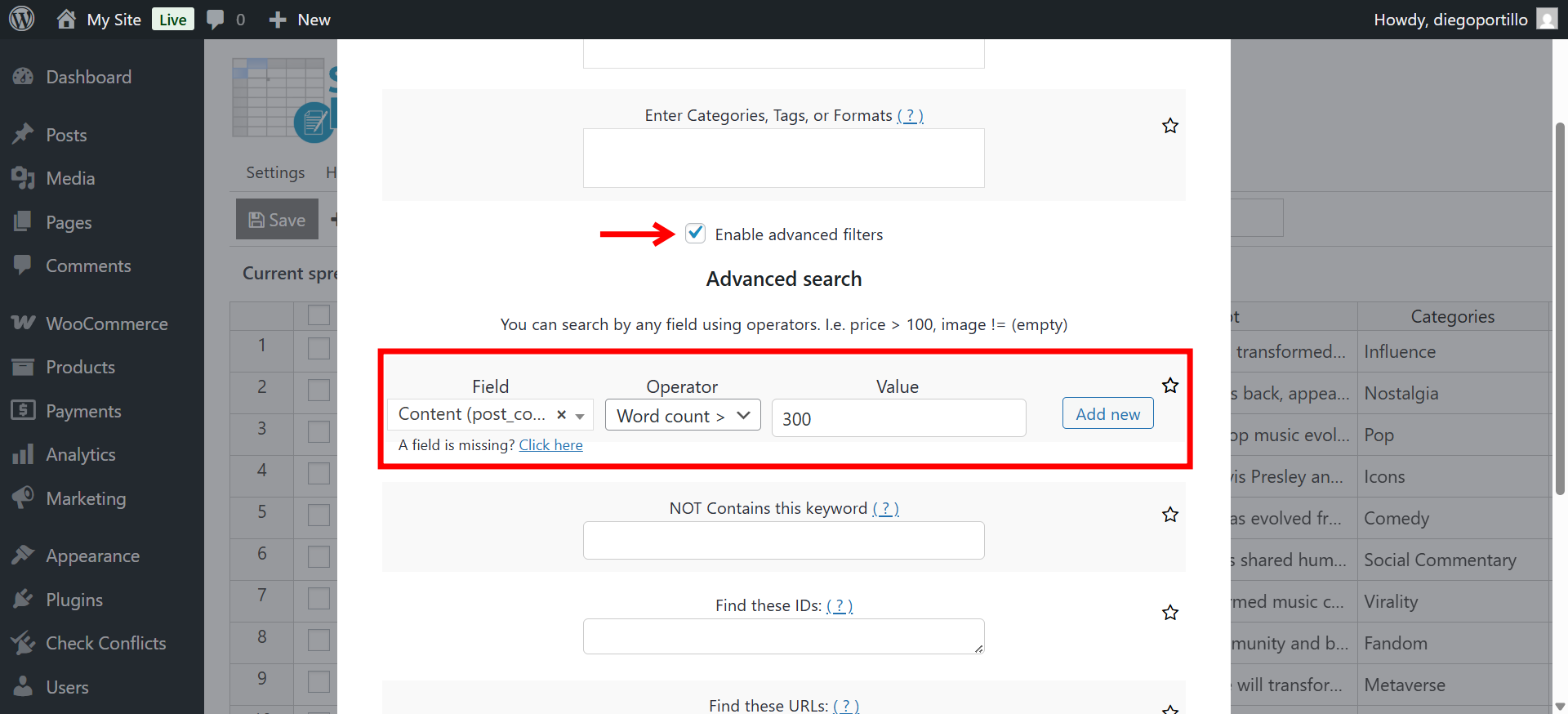
We’ve added two new operators (“Word Count >” and “Word Count) <” that allow you to filter posts by their word count.
- To find long posts, use Word Count > and set a number (e.g., 1500) to display posts with more than 1500 words.
- To find short posts, use Word Count < and set a number (e.g., 300) to display posts with fewer than 300 words.
Here’s how to set it up:
- Tick the Enable advanced filters checkbox.
- Field: Content
- Operator: Select the operator you want to use: Word Count > or Word Count <.
- Value: Enter the number of words.
- Click Run search.
Review and edit results
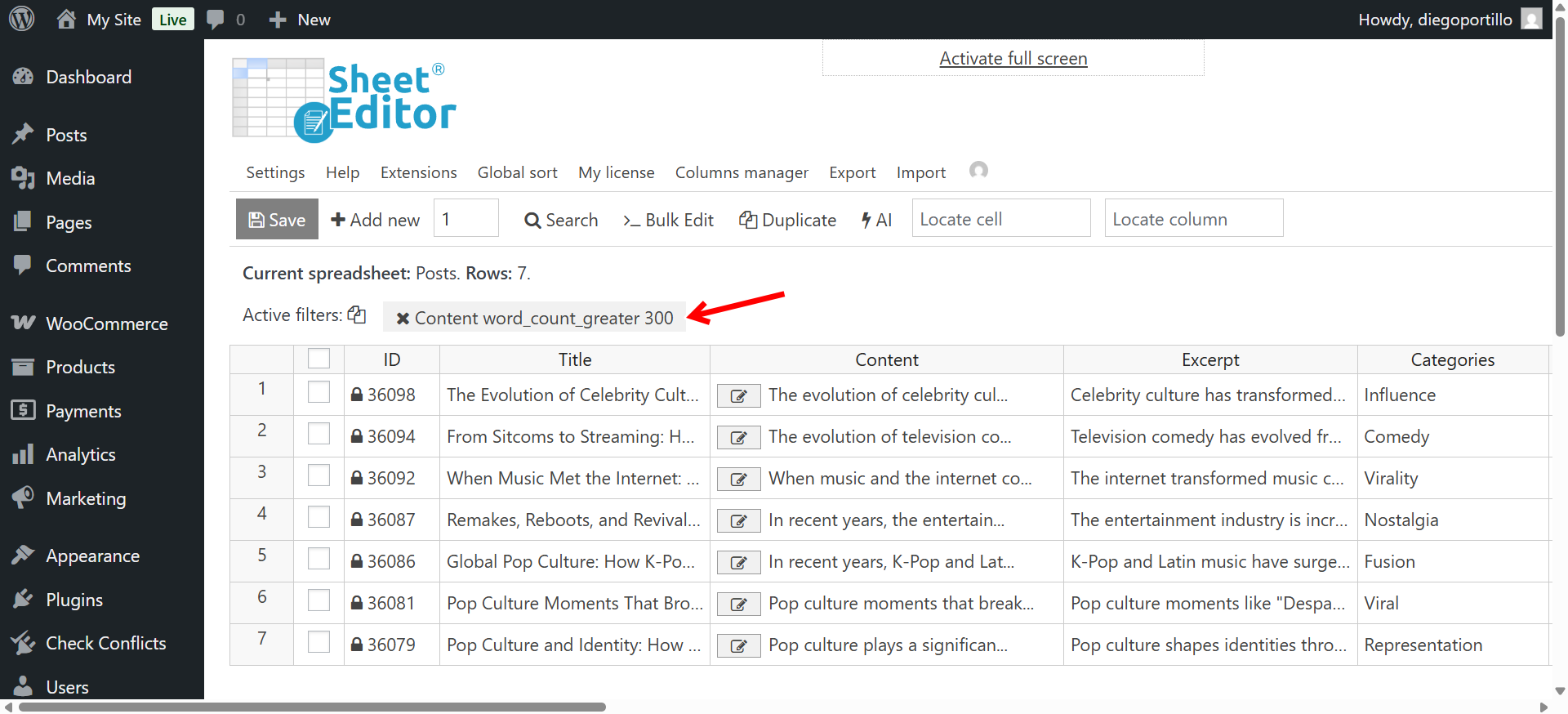
After running the search, the spreadsheet will instantly show only the posts that match your word count criteria. You can review them directly in the spreadsheet, sort them by title or word count, and even edit their content inline if needed.
Manage your content efficiently with WP Sheet Editor
With the new Word Count operators, you can easily audit and improve your WordPress content strategy. No more guessing which posts are too short or too long; you can find them instantly and edit them right from the spreadsheet.
Take control of your content today. Whether you manage a blog, magazine, or WooCommerce site, WP Sheet Editor – Post Types gives you the power to search, edit, and optimize your content in bulk, all from one place.
You can download the plugin here:
Download Posts, Pages, and Custom Post Types Spreadsheet Plugin - or - Check the features