
Imagine a potential customer lands on your WooCommerce store and types “waterproof running shoes” into your site’s search bar. Despite having dozens of pairs that fit this exact description, your search results come up completely empty.
Why? Because your products lack the proper WooCommerce tags.
While categories define the broad structure of your WooCommerce catalog (e.g., “Men’s Shoes”), product tags handle the granular, hyper-specific details that drive advanced filtering, related product widgets, and internal site search. An organized taxonomy is the backbone of a high-converting store. However, manually analyzing hundreds of product descriptions to type out comma-separated tags like breathable, lightweight, running, waterproof is a difficult and time-consuming task.
Instead of manually auditing your entire inventory, you can leverage artificial intelligence to handle the heavy lifting. With WP Sheet Editor – AI, you can instantly read your product titles and descriptions, extract the most relevant characteristics, and bulk-generate WooCommerce product tags for your entire store.
Table of Contents
Why automated product tagging is a game-changer
Using AI for product tagging isn’t just about saving time. It’s about creating a smarter, more interconnected shopping experience. Here are a few ways automated tagging transforms different types of stores:
- Apparel & fashion: Automatically scan clothing descriptions to generate material and style tags like 100% cotton, v-neck, summer wear, casual, slim-fit.
- Electronics & tech: Extract exact specifications from dense technical sheets to tag items with terms like bluetooth, noise-canceling, 16GB RAM, USB-C.
- Food & grocery: Read ingredient lists to instantly apply crucial dietary tags such as gluten-free, vegan, organic, nut-free.
When you use an LLM (such as GPT-5, Google Gemini, Claude, Grok, Deepseek) to auto-tag your WooCommerce products, you eliminate human error and ensure a consistent taxonomy across your whole catalog.
Tools for auto-tagging products
To implement this workflow, you will need a specific set of plugins designed to handle massive database updates efficiently:
1- WP Sheet Editor – WooCommerce Products
This is the foundation of our automated system. This plugin replaces the default, paginated WooCommerce product manager with a fluid spreadsheet. It displays the “Tags” column, allowing you to manipulate your taxonomy data in the spreadsheet, without having to open products individually.
You can download the plugin here:
Get the WooCommerce Spreadsheet Editor - or - Check the features
2- WP Sheet Editor – AI
This add-on is the brain of the operation. It connects your WordPress database to the world’s most advanced generative AI models, allowing you to run bulk content generation without ever leaving your dashboard.
Ready to organize your catalog?
3- An active AI provider API
You will need an active API connection to a provider like OpenAI, OpenRouter, or any other OpenAI-compatible provider. If you are unsure how to link your API key, check out our configuration guide.
Design the perfect tag extraction prompt
To get the best results from artificial intelligence, we must provide clear instructions. We don’t want the AI writing full sentences; we just want a clean, comma-separated list of product tags.
Navigate to WP Sheet Editor > AI > Settings > Prompts and click on the Add new button to establish your global instructions.
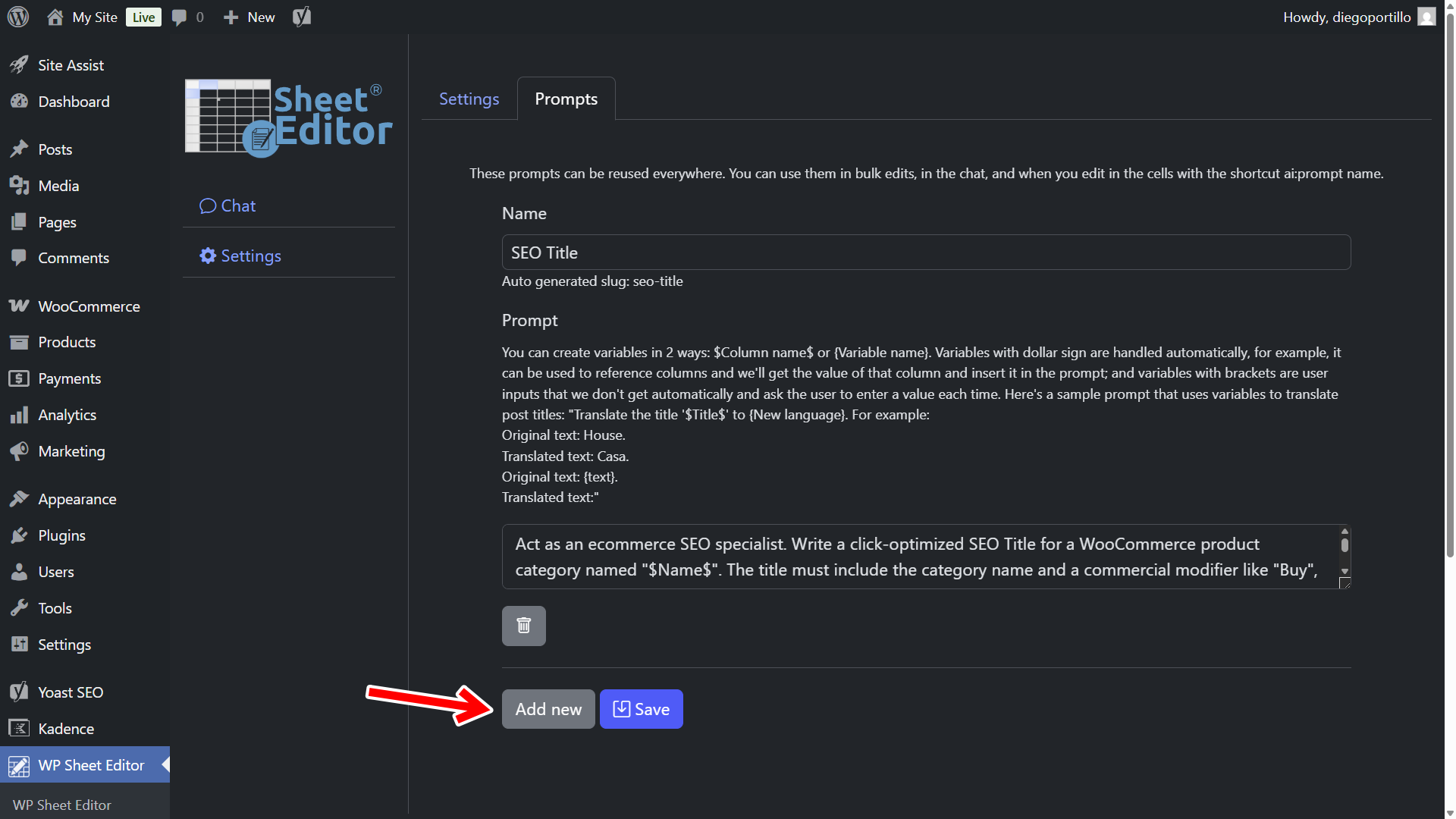
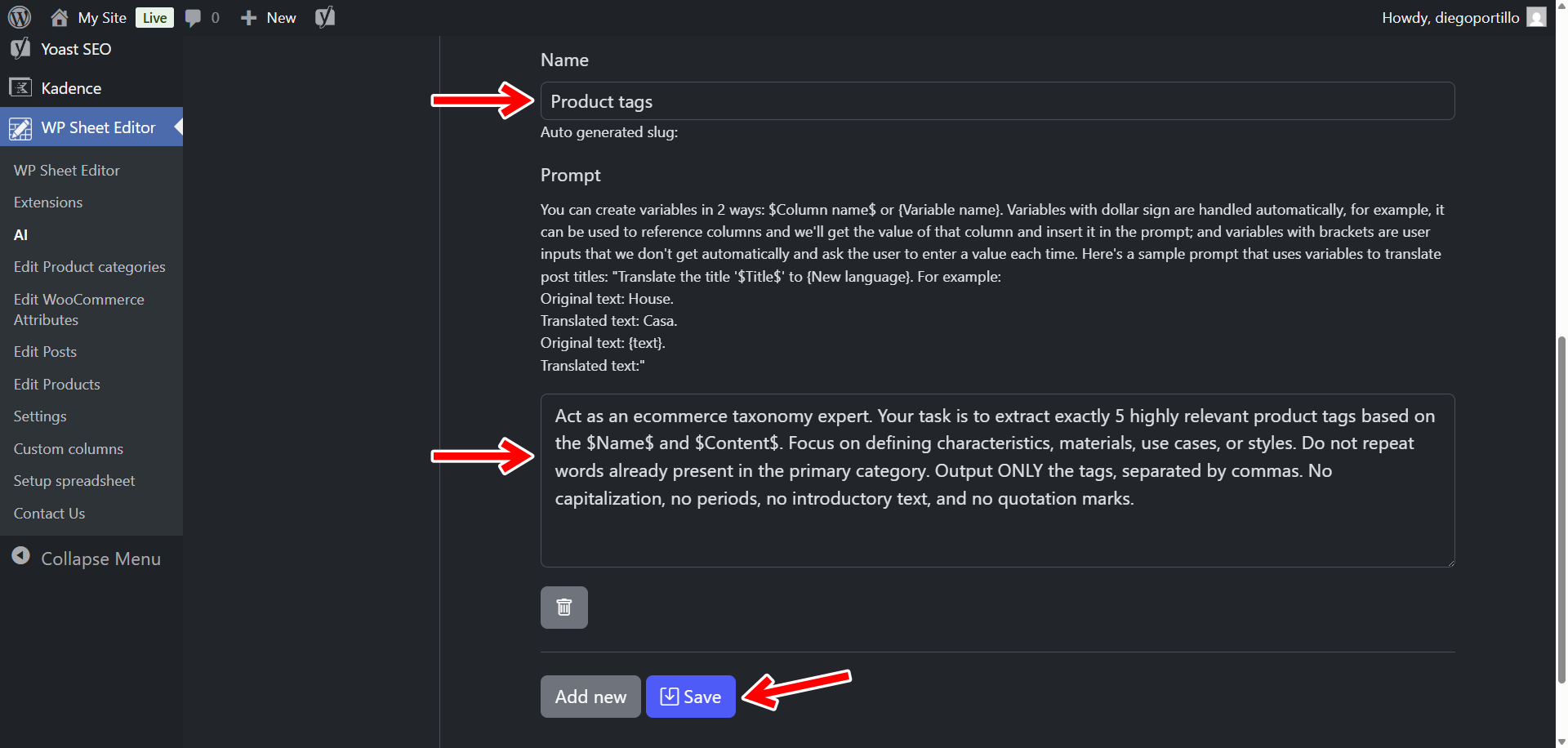
Fill out the configuration as follows:
- Prompt Name:
Product Tags - Prompt Template:
Act as an ecommerce taxonomy expert. Your task is to extract exactly 4 highly relevant product tags based on the following WooCommerce product details: Title: "$Title$" Description: "$Description$" Rules: Focus on defining characteristics, materials, use cases, or styles. Do not repeat words already present in the primary category. Output ONLY the tags, separated by commas. No capitalization, no periods, no introductory text, and no quotation marks.
- Click Save.
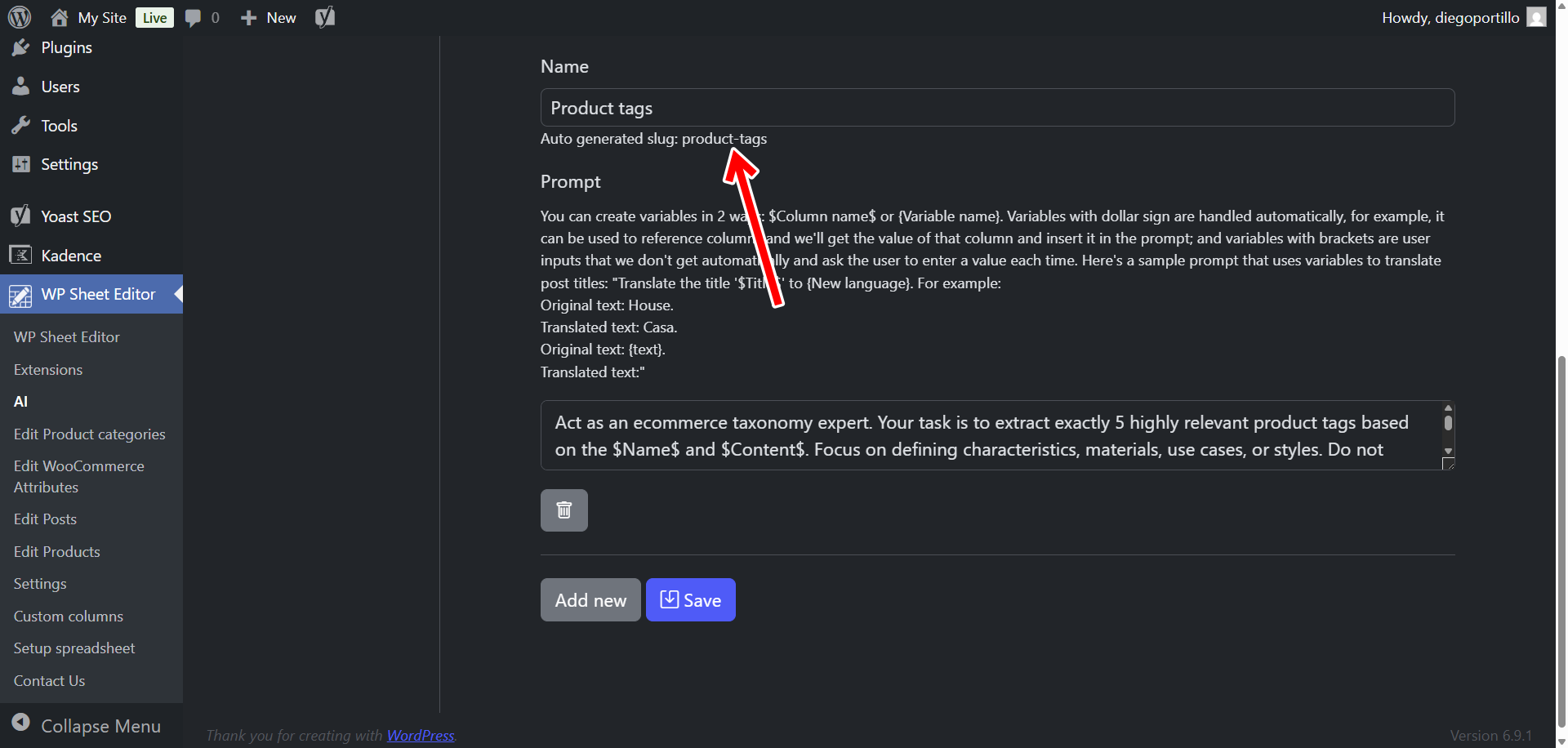
The plugin will register your new AI command with its unique slug; in this case: generate-tags.
You’ll be able to trigger this prompt using a simple shortcut in WP Sheet Editor cells, like this: ai:generate-tags.
Method 1: Auto-tag products at the spreadsheet cell level
Sometimes you only need to optimize a handful of new arrivals rather than your entire catalog. For surgical precision, WP Sheet Editor allows you to trigger your AI prompt directly inside the spreadsheet cells.
Navigate to WP Sheet Editor > Edit Products to load your products in the spreadsheet.
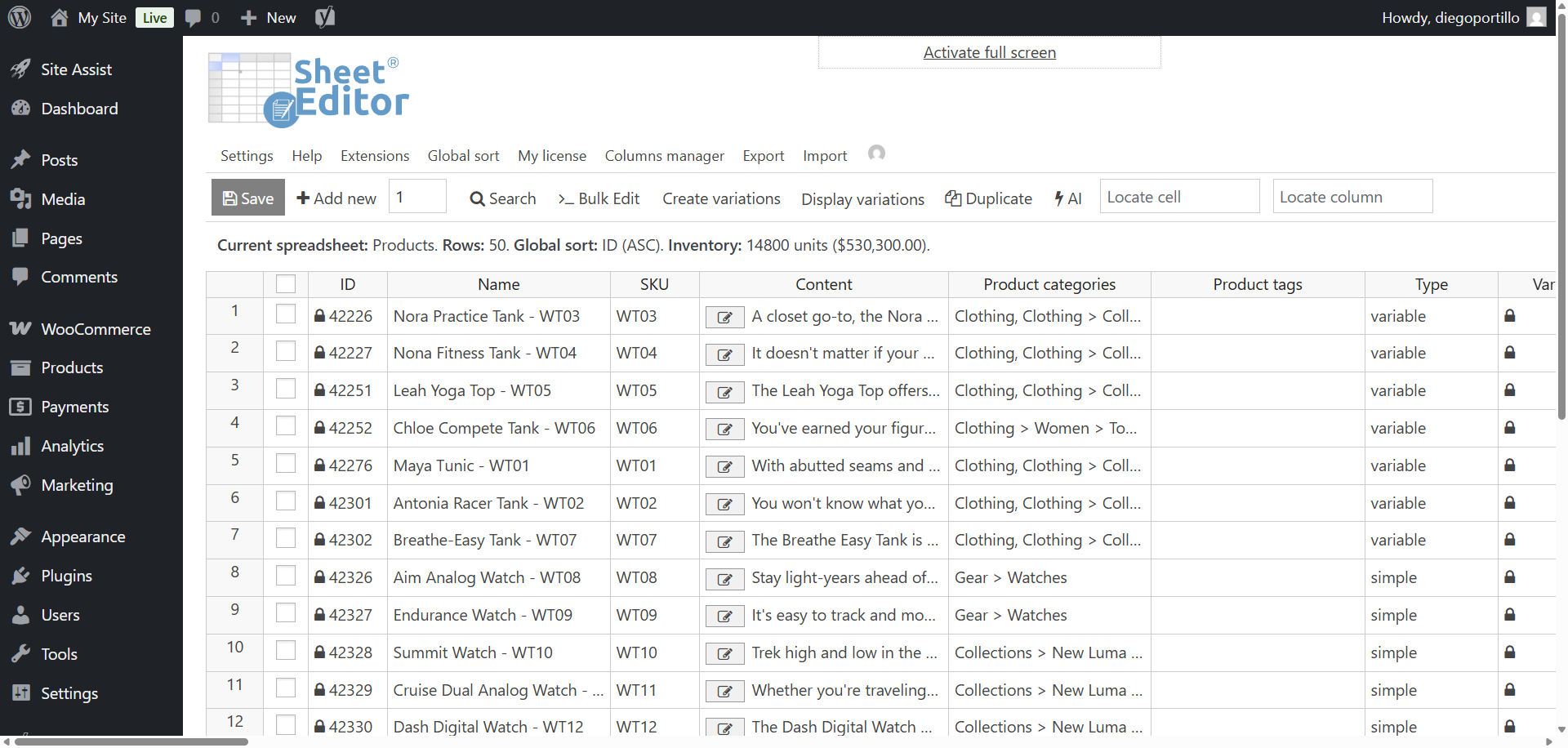
To ensure that you can run the prompt in the cells of the Product tags column, you need to make sure that the settings allow it.
To do this, go to Settings.
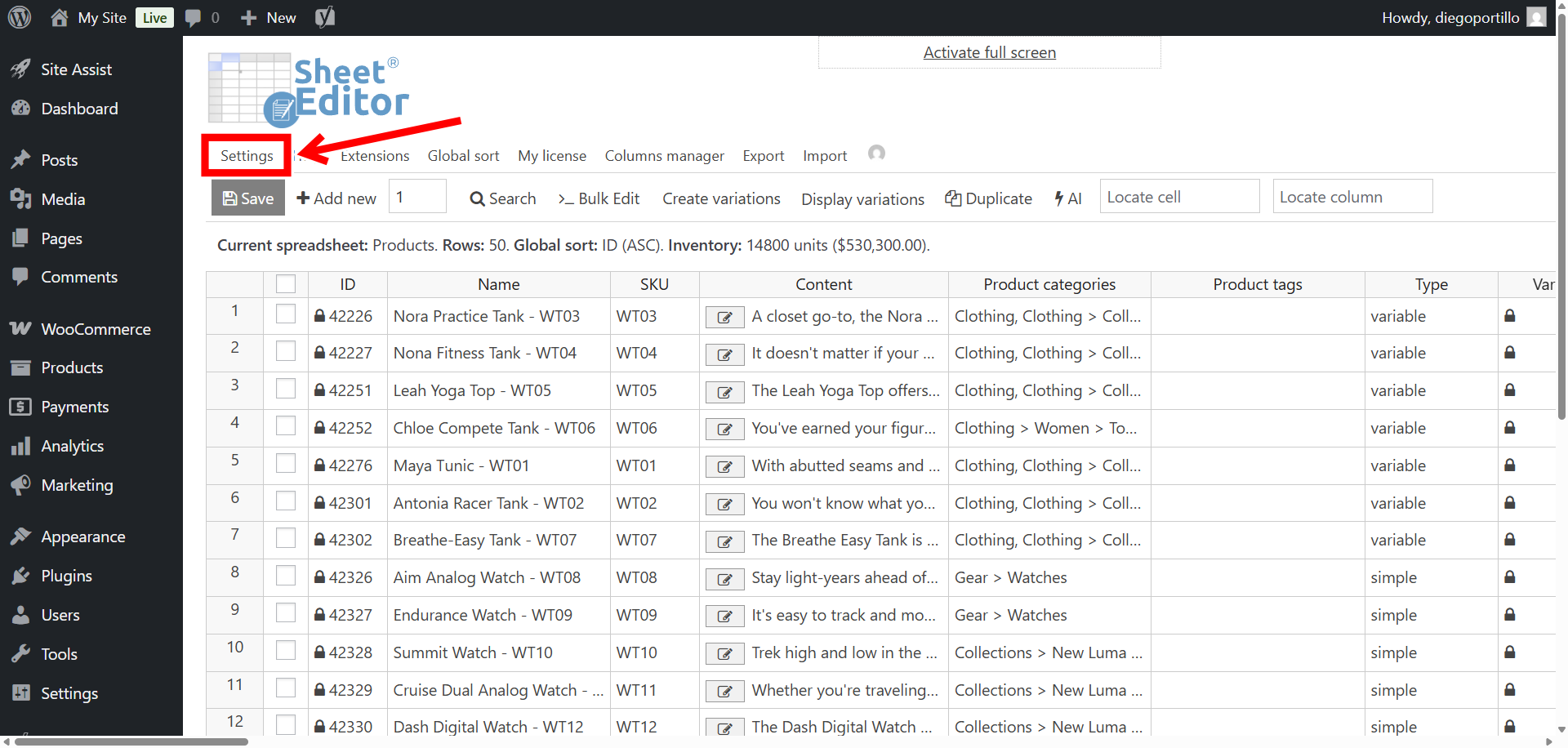
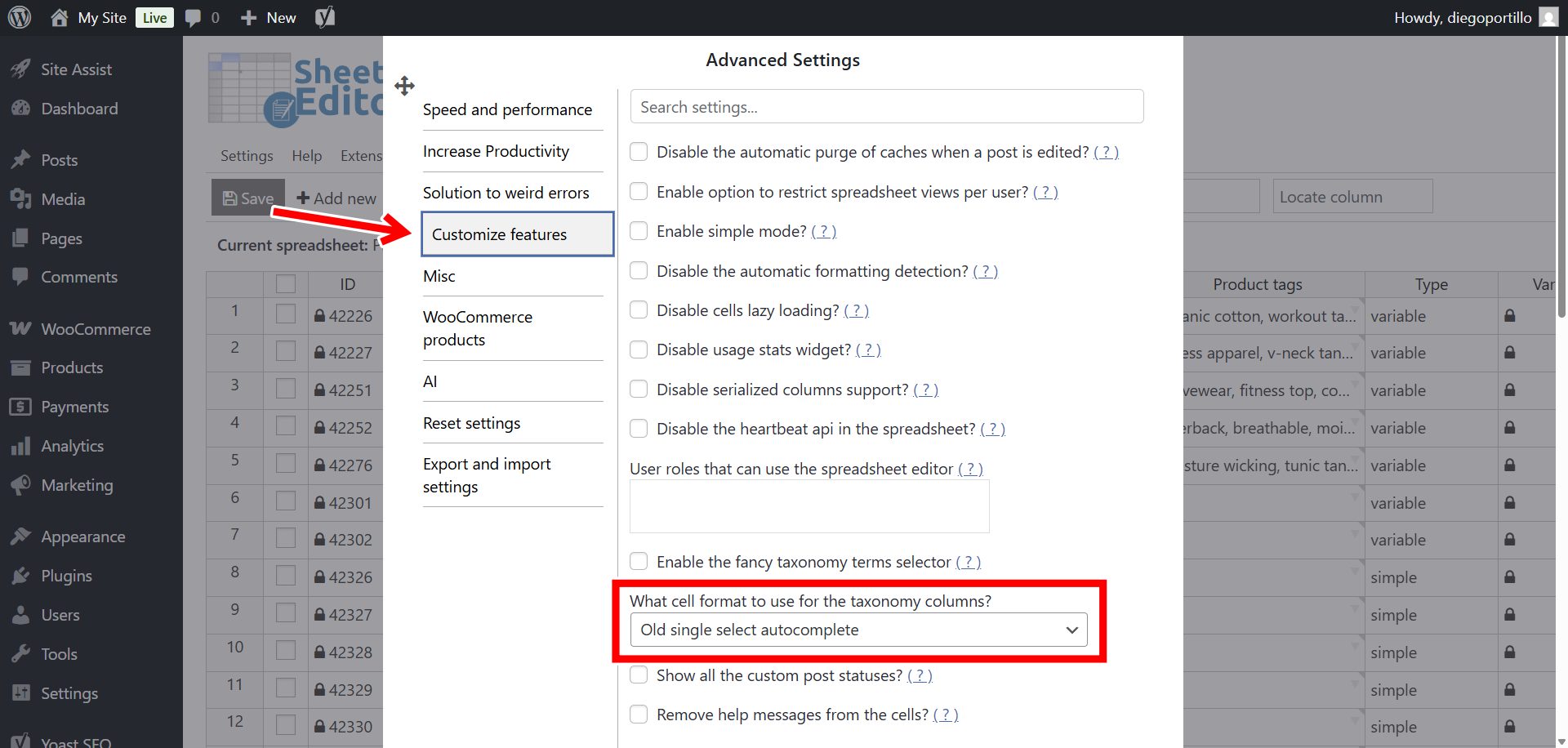
Now navigateto Customize features and locate the What cell format to use for the taxonomy columns field.
Once you’re there, select Old single select autocomplete and make sure you Save settings.
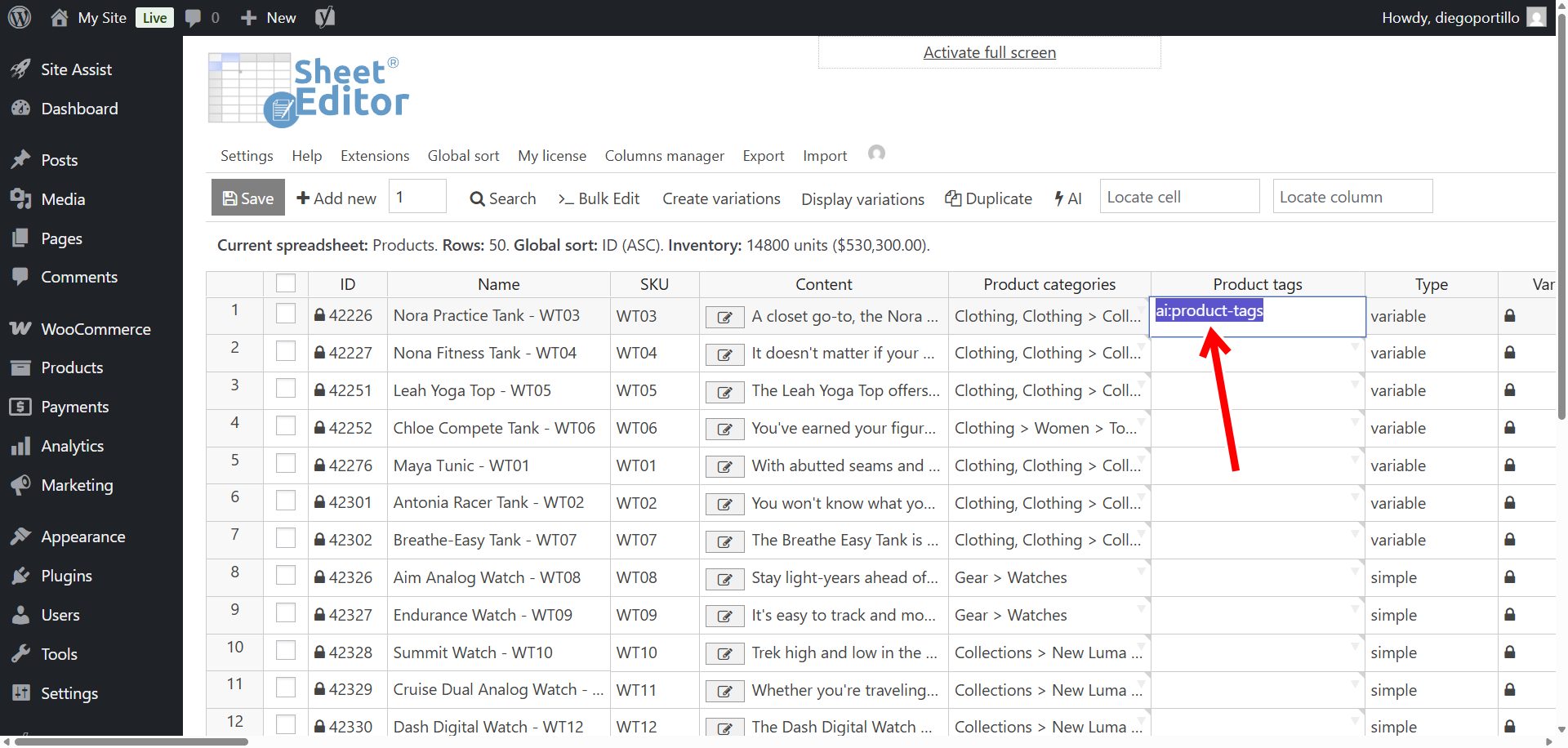
Next, locate the Tags column. When you find a product that is missing tags, click on the empty cell and type the shortcut we just created:
ai:generate-tags
Hit Enter.
The AI will evaluate the product’s title and description, extrapolate the most logical search terms, and populate the cell with a perfectly formatted string of tags (e.g., ceramic, microwave-safe, handmade, coffee).
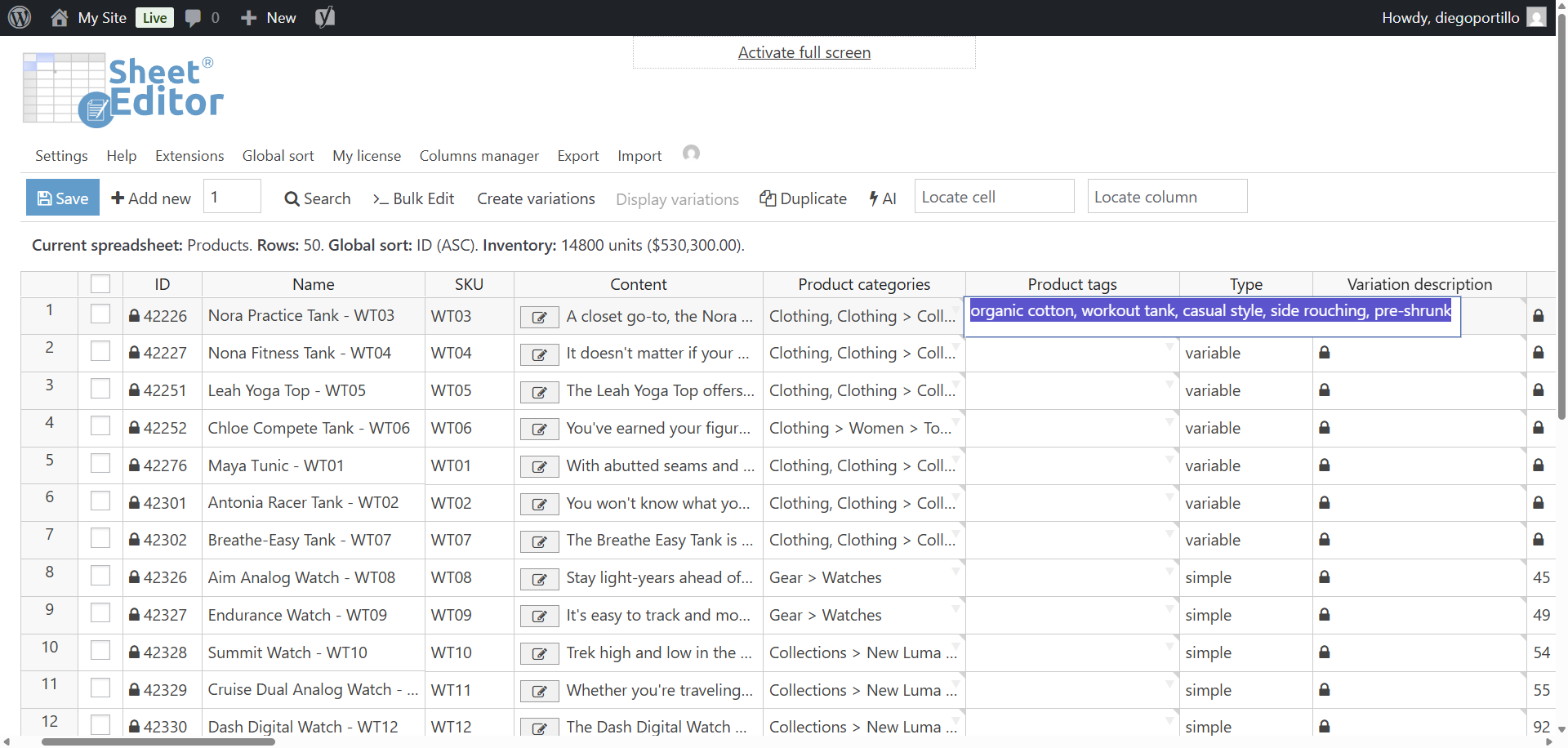
You’ll see a loading icon in the spreadsheet cell while the AI is generatting your product tags.
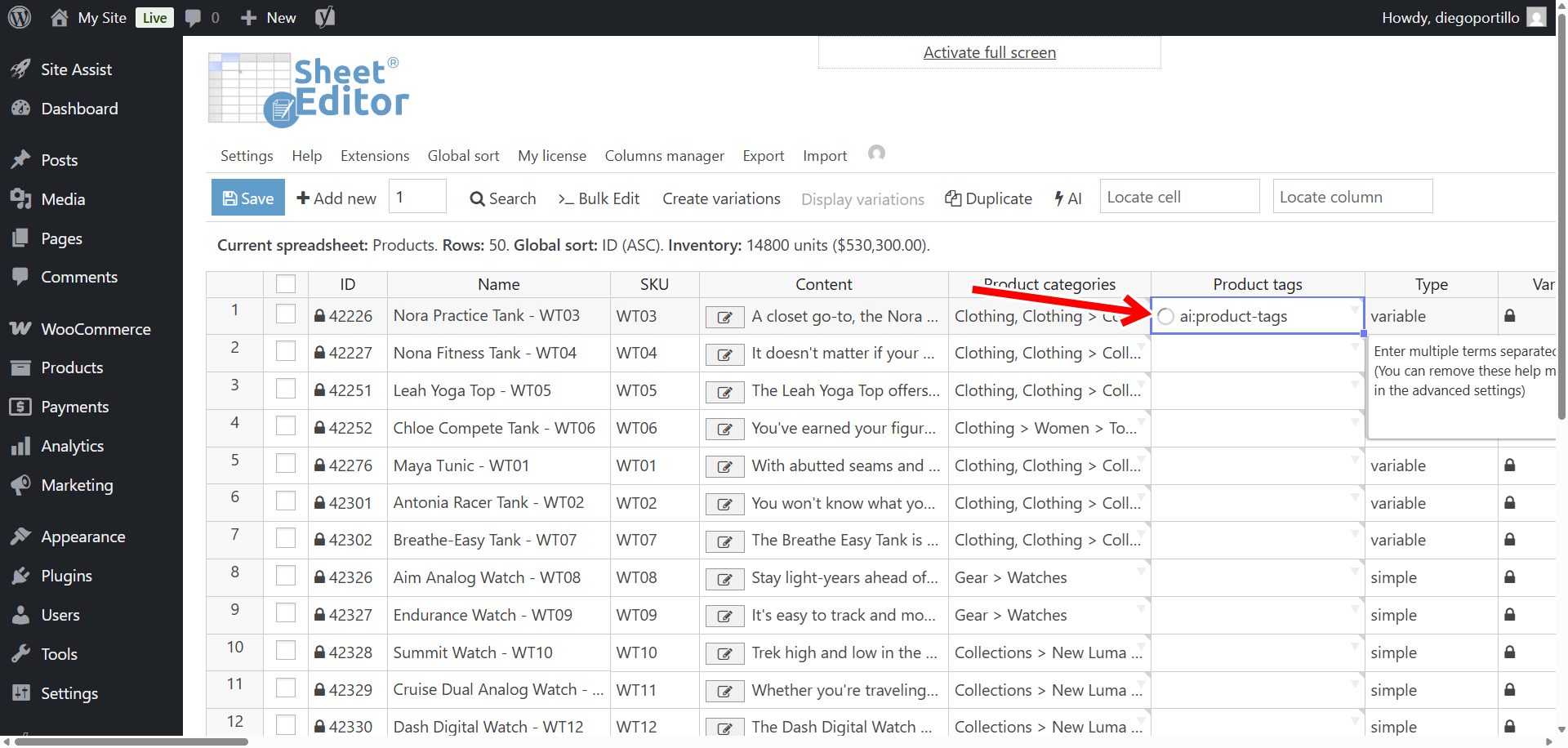
Once the process is complete, you will see all the generated tags in the cell.
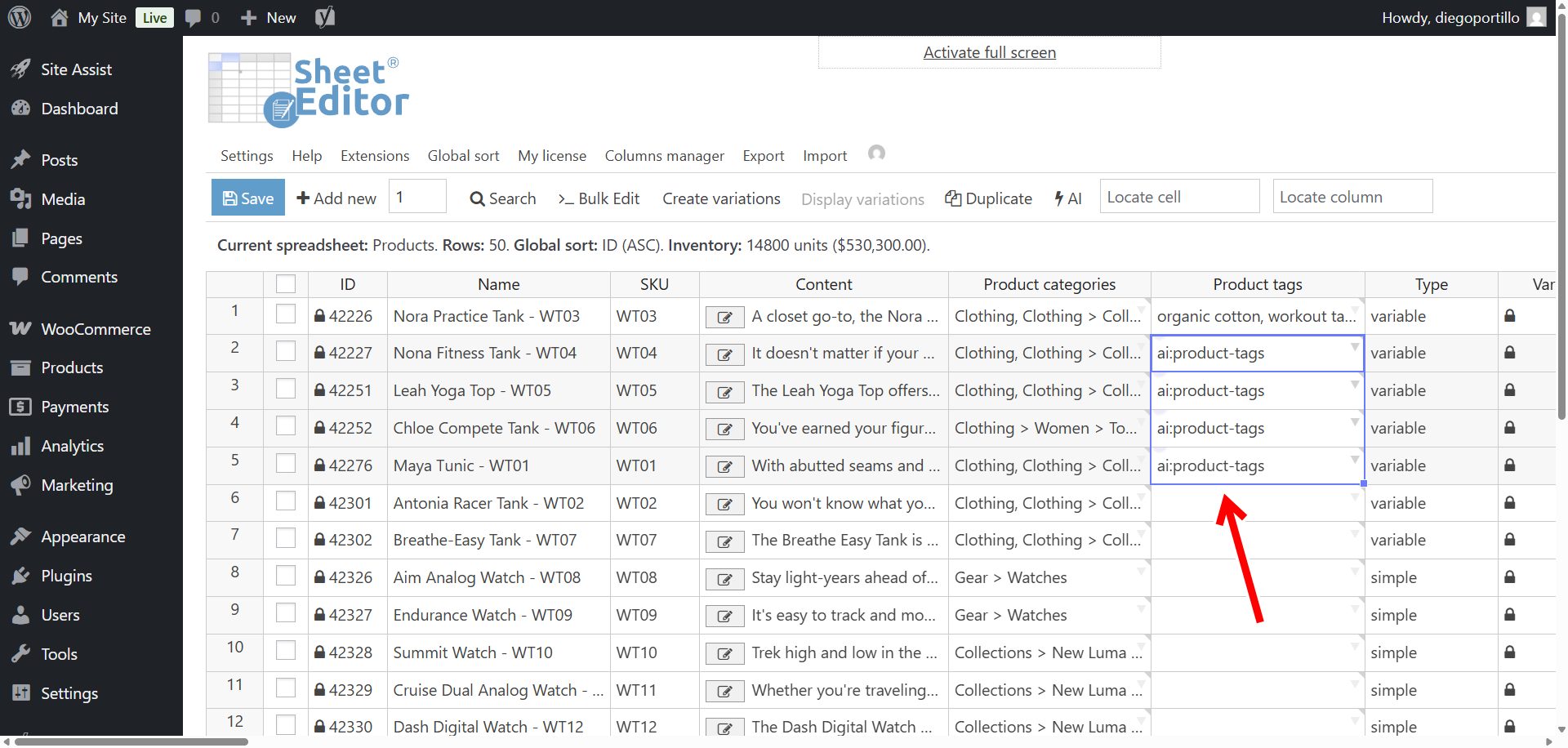
If you want, you can paste the same prompt shortcut into multiple cells to generate tags for multiple products at once.
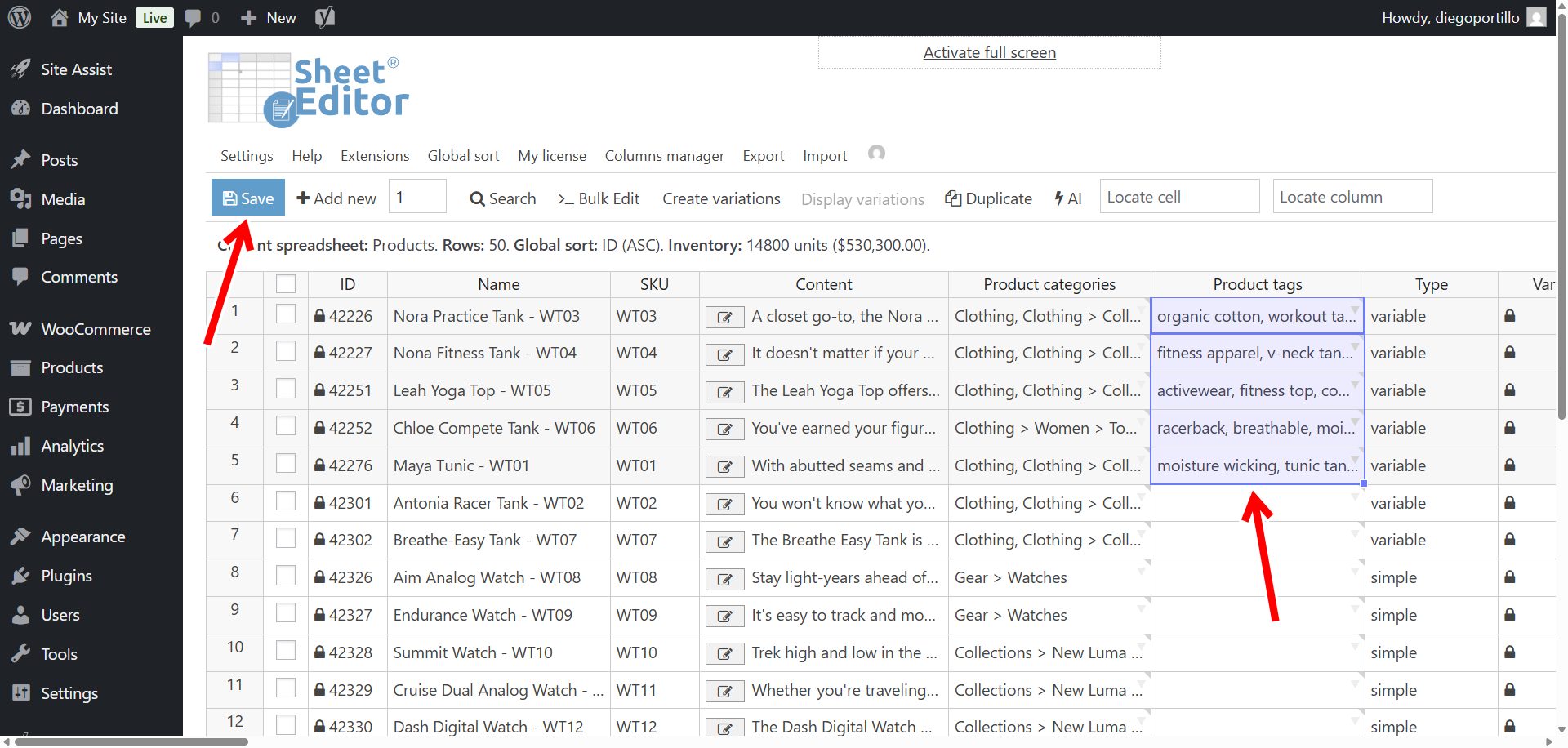
Once you’re done generating tags in the spradsheet, click on Save to apply the changes.
Method 2: Bulk AI tag generation for WooCommerce
If you are dealing with thousands of untagged products, maybe products you imported from a supplier, the cell-by-cell method won’t cut it. We need to use the Bulk Edit tool to process your entire database simultaneously.
Search for products missing tags
First, let’s filter the spreadsheet so the AI only works on products that actually need help.
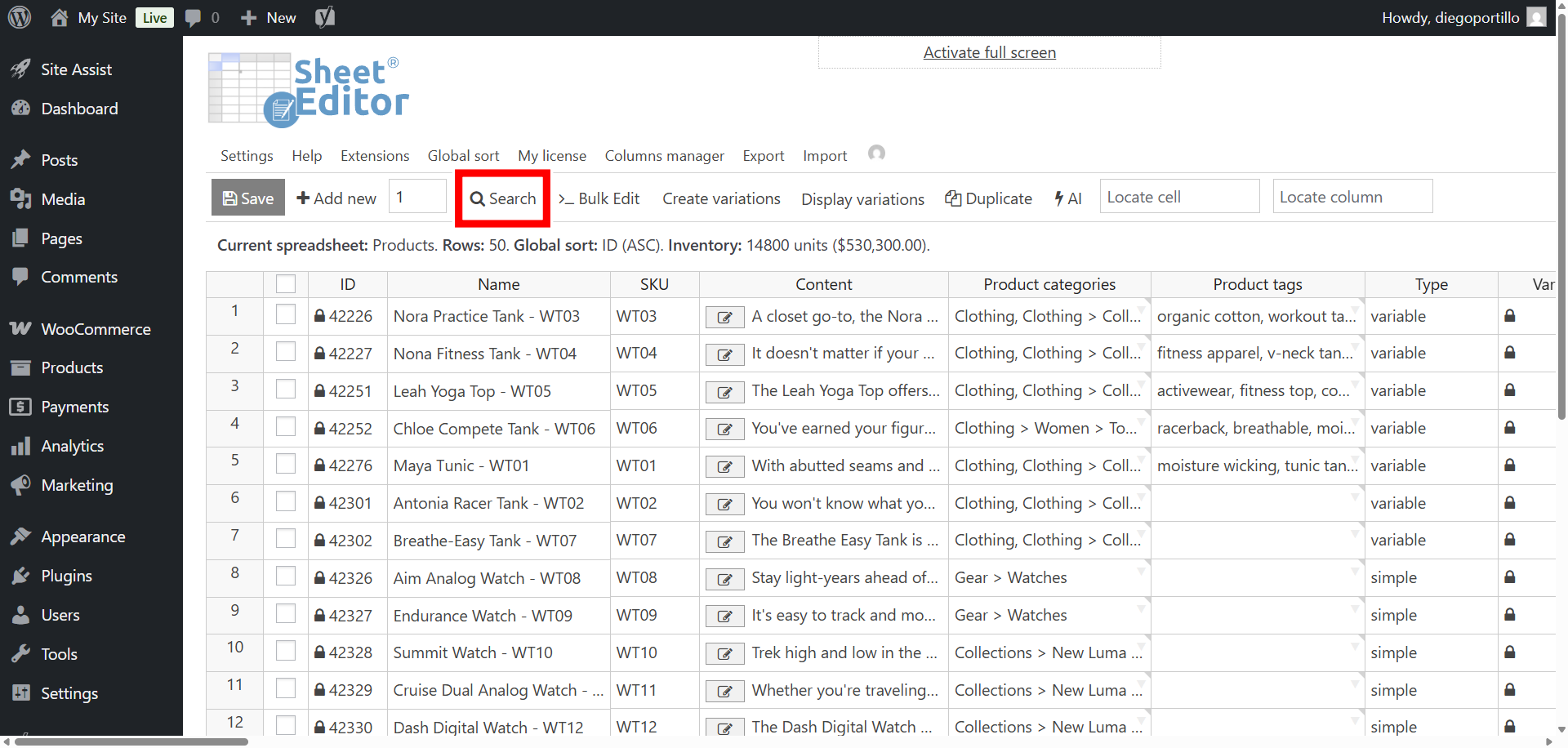
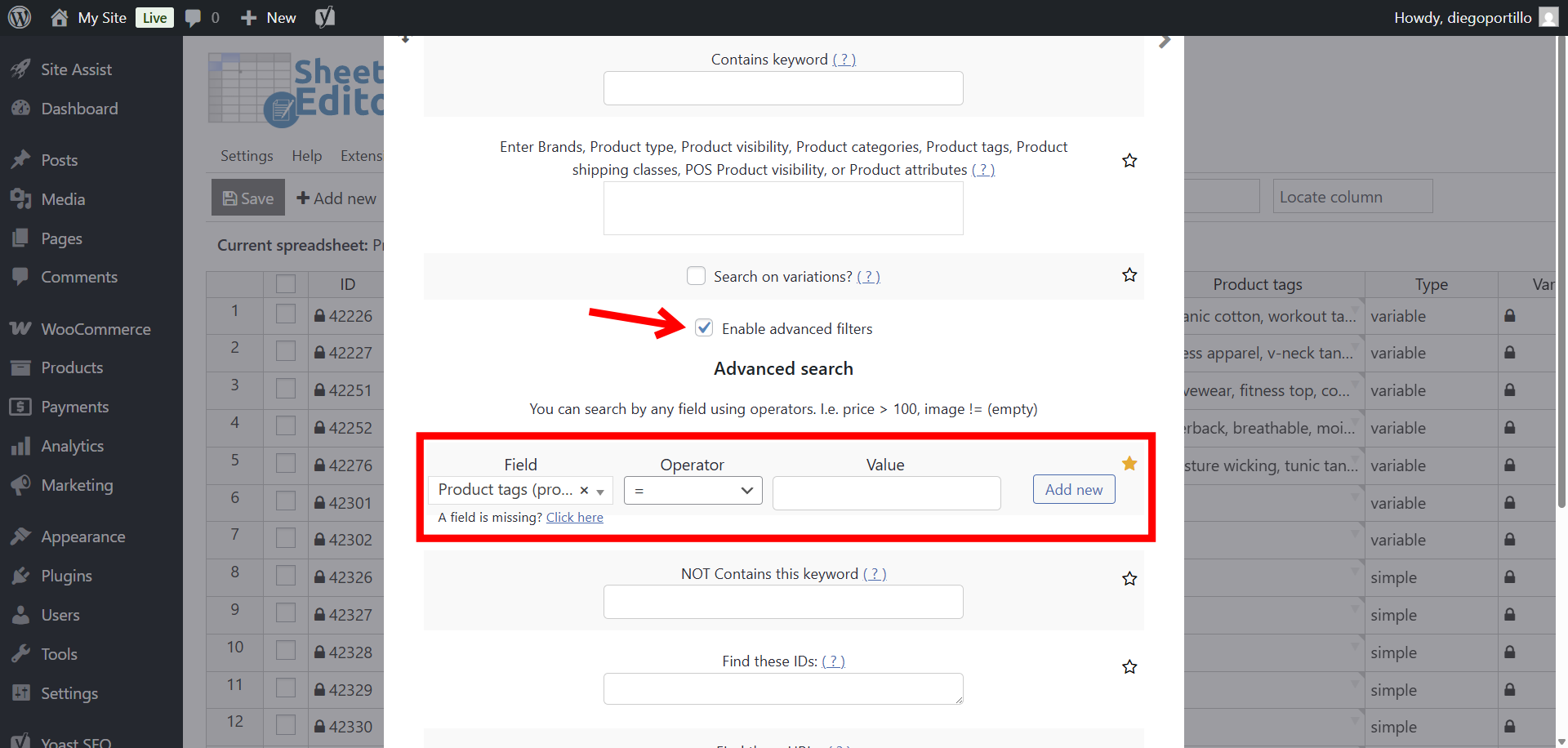
Open the Search tool located on the toolbar.
Once there, select these values:
- Activate the Enable advanced filters option.
- Field: Select the Product tags column.
- Operator: =
- Value: Leave this field completely blank.
- Click on Run Search.
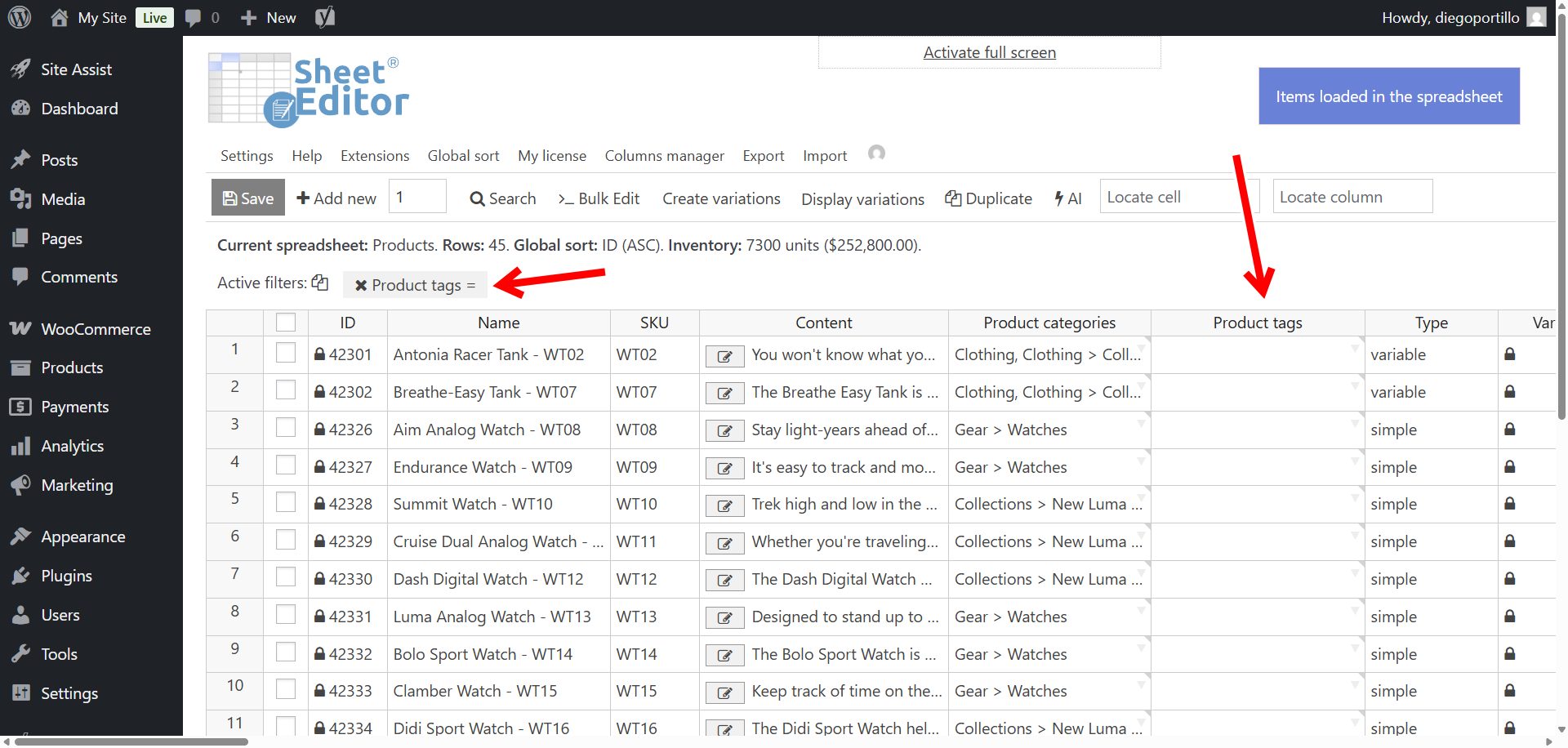
The spreadsheet will refresh, presenting a clean list of every product in your store that currently lacks taxonomy tags.
Bulk generate tags with AI
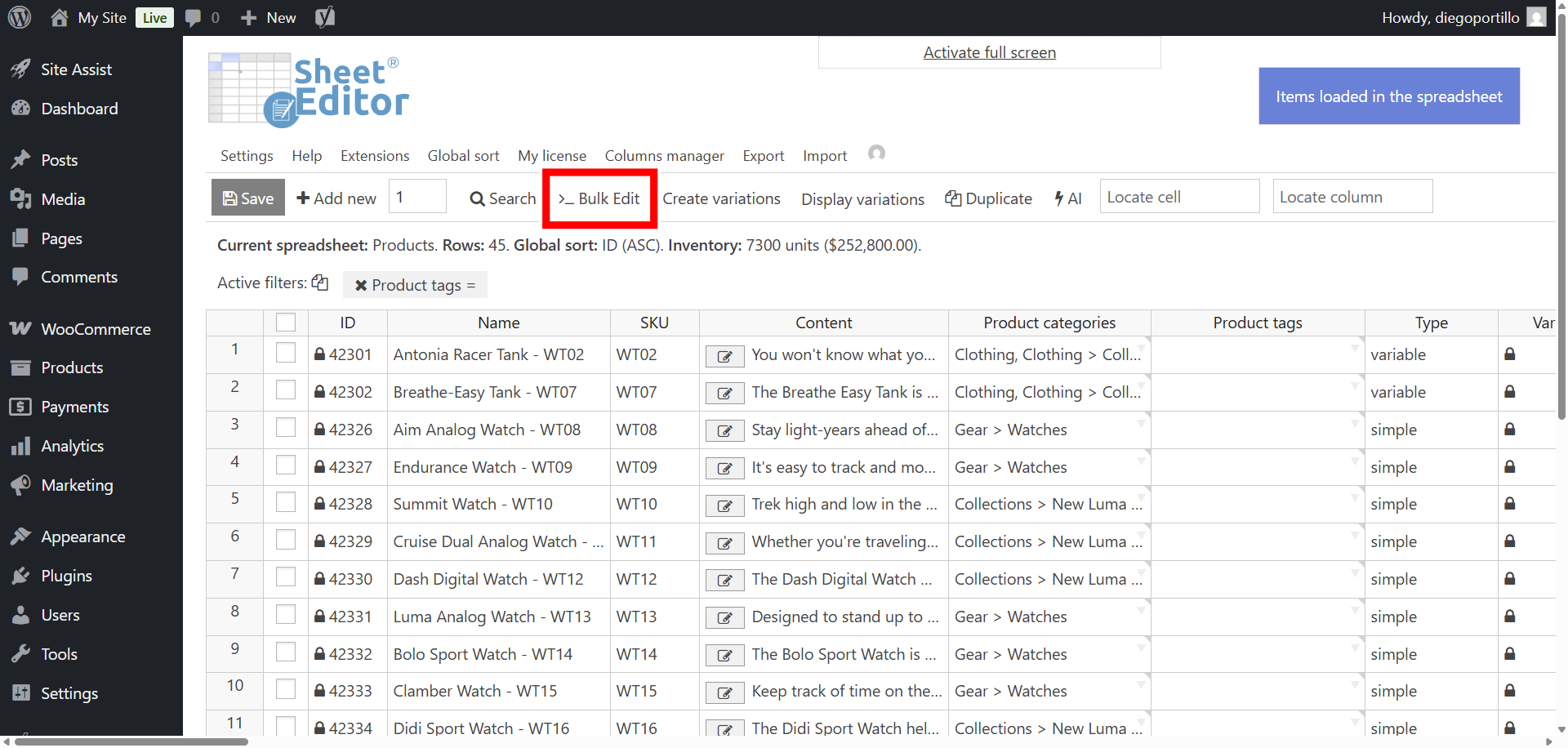
Now, click the Bulk Edit button on the toolbar.
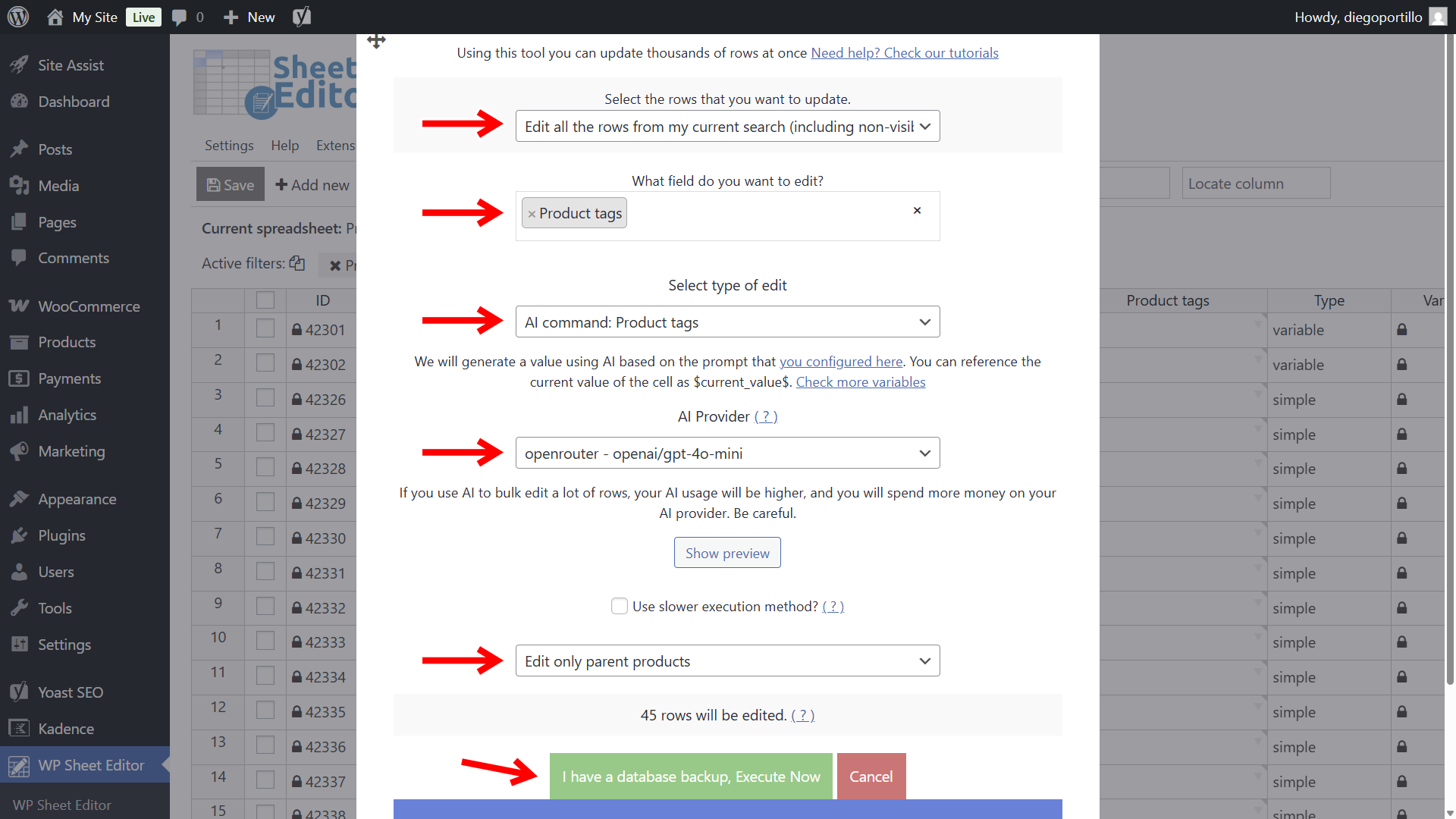
Select these values in the Bulk Edit tool to generate product tags in bulk with generative AI:
- Select the rows that you want to update: Edit all the rows from my current search
- What field do you want to edit: Product tags
- Select the type of edit: AI command: Product Tags.
- AI Provider: Select your LLM of choice. We will use OpenAI’s GPT-4o-mini through OpenRouter.
- Select Edit only parent products.
- Finally, click Execute Now.
The plugin will process the requests in manageable batches.
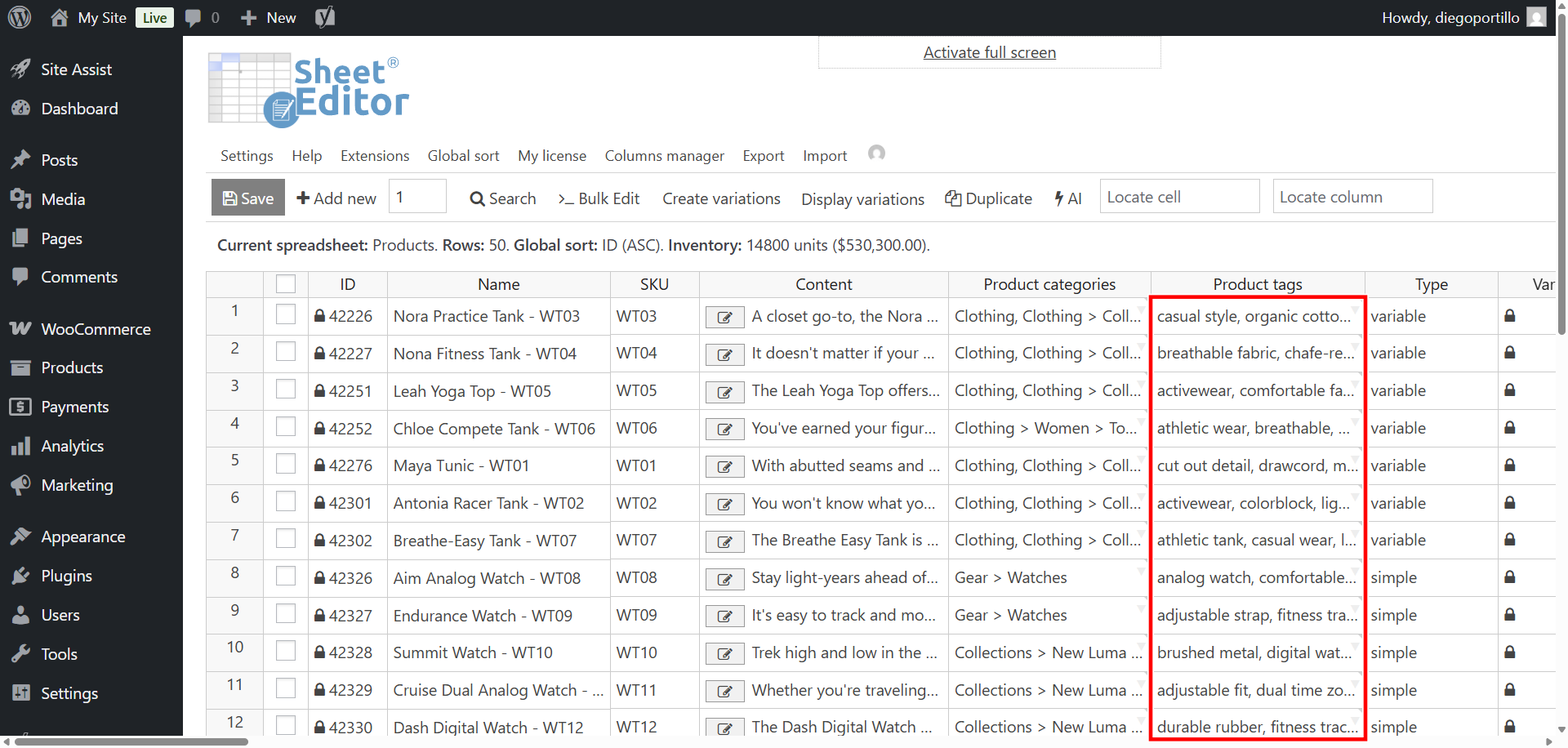
Once the process is complete, all the products that previously were missing tags will have tags.
Manage your WooCommerce products with AI
A well-tagged WooCommerce store leads to a better user experience. It powers accurate product filtering, helps your related product carousels display better recommendations, and ensures that internal site searches actually yield profitable results.
Stop neglecting your tags because of the manual workload. By combining the power of WP Sheet Editor with modern artificial intelligence, you can bulk-generate thousands of WooCommerce tags in a few clicks and finally get your catalog organized!